
d12frosted/vulpea-ui
d12frosted/vulpea-ui has 38 GitHub stars and 5 forks. GitHot measured 0 stars in 24 hours. Last checked 2026-11-15 18:24 UTC. Last push 2026-11-01.
Measured star growth
- in 24h
- 0
- in 7 days
- Update delayed
- in 15 days
- Update delayed
- in 1 month
- Update delayed
Net star changes over overlapping periods, not daily totals. Missing measurements are left blank. Stars measure attention, not software quality.
About
A widget-based sidebar for Emacs that displays contextual information (stats, outline, backlinks, links) for vulpea notes
ProductivityREADME.md
Original#+title: vulpea-ui #+author: Boris Buliga
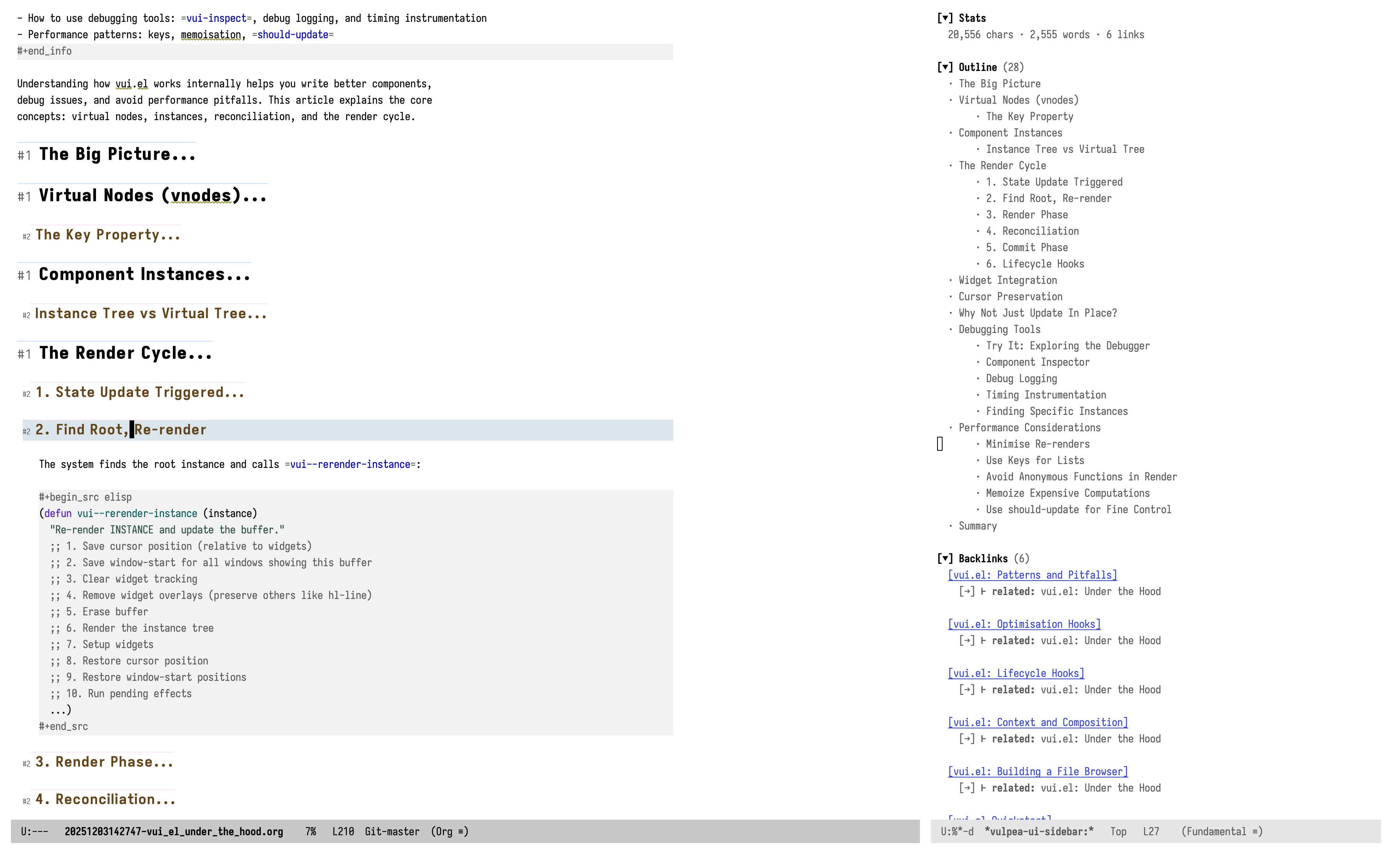
Visual tools for [[https://github.com/d12frosted/vulpea][vulpea]] notes: a per-note sidebar of widgets, plus standalone views like the schema dashboard.
#+begin_html


- Features
- Two ways to see your notes: a per-note sidebar of widgets, and standalone views
- Configurable per-frame sidebar (position, size, auto-hide)
- Built-in widgets: outline, tasks, backlinks, unlinked mentions, ignored notes, forward links, outgoing mentions, stats, schema health
- Schema dashboard: a collection-wide view of how every note measures up to its schema
- Collection view: a sortable table over a filtered set of notes, with dired-style marks and bulk actions (tags, metadata, delete, your own function)
- Backlink counts in the note buffer itself: an opt-in minor mode annotating every note with how many links point at it
- Built on [[https://github.com/d12frosted/vui.el][vui]] components, with an easy API for your own widgets
- Installation
** Dependencies
- Emacs 29.1+
- [[https://github.com/d12frosted/vulpea][vulpea]] 2.5.0+
- [[https://github.com/d12frosted/vui.el][vui]] 1.3.0+
- [[https://github.com/BurntSushi/ripgrep][ripgrep]] - optional, used by the [[*Unlinked mentions widget][unlinked mentions widget]]
** Using package.el (MELPA)
#+begin_src emacs-lisp (package-install 'vulpea-ui) #+end_src
** Using straight.el
#+begin_src emacs-lisp (straight-use-package 'vulpea-ui) #+end_src
** Using elpaca
#+begin_src emacs-lisp (elpaca vulpea-ui) #+end_src
- Usage
#+begin_src emacs-lisp (require 'vulpea-ui)
;; Open sidebar (vulpea-ui-sidebar-open)
;; Or toggle with a keybinding (global-set-key (kbd "C-c v s") #'vulpea-ui-sidebar-toggle) #+end_src
** Automatic sidebar
To automatically open the sidebar when entering org-mode buffers:
#+begin_src emacs-lisp (add-hook 'org-mode-hook #'vulpea-ui-sidebar-open) #+end_src
This is safe even though =org-mode-hook= fires for buffers you never asked to see (previews such as [[https://github.com/protesilaos/dired-preview][dired-preview]], export copies, packages enabling org-mode in the background): the sidebar only opens once the buffer is actually displayed in a regular window. Buffers that never show up, or only appear in side windows, open nothing.
- Configuration
** Sidebar position and size
#+begin_src emacs-lisp ;; Position: 'right (default), 'left, 'top, 'bottom (setq vulpea-ui-sidebar-position 'right)
;; Size of the sidebar. A float is a fraction of the frame (0.0-1.0), ;; an integer is a column/line count. See the docstring for the full ;; set of options. (setq vulpea-ui-sidebar-size 0.33) #+end_src
** Outline widget
#+begin_src emacs-lisp ;; Maximum heading depth (nil = unlimited) (setq vulpea-ui-outline-max-depth 3) #+end_src
** Schema health widget
Flags how the notes in the current file measure up to the vulpea schema(s) that apply to them - and that means every note in the file, the file-level note and each heading-level note, not just whichever one the sidebar is anchored on. A file can hold several notes (a heading with its own =:ID:=, tags and metadata is a note in its own right), so an =:execution:= heading's missing field is no longer hidden behind a schema-less =:journal:= file.
With a single schema-bearing note it reads as one status: nothing unless a schema applies, a green =healthy= line when it conforms, or its violations otherwise. With several it breaks the file down per note - the file-level note first, then headings in document order - each violated note under its title (click it to jump there), with a trailing count for any notes that are clean. Each violation has a =fix= button that prompts for a corrected value and writes it back into that note (a heading's field lands in the heading, not the top of the file), and the field name jumps to it. Files whose IDs live only on headings work too. Needs a vulpea with the schema validation engine (the =fix= button needs =vulpea-schema-fix-violation=).
#+begin_src emacs-lisp ;; Glyphs - portable text by default; swap in nerd-font / all-the-icons ;; glyphs if you prefer (setq vulpea-ui-schema-health-ok-glyph "✓") (setq vulpea-ui-schema-health-issue-glyph "✗") (setq vulpea-ui-schema-health-bullet "●") #+end_src
The faces =vulpea-ui-schema-health-ok-face= / =-error-face= / =-warning-face= / =-field-face= / =-message-face= / =-action-face= / =-note-face= inherit =success= / =error= / =warning= / =bold= / =shadow= / =link= / =bold=, so they follow your theme.
** Backlinks widget
#+begin_src emacs-lisp ;; Show/hide content previews (setq vulpea-ui-backlinks-show-preview t)
;; Characters before/after link in prose previews (setq vulpea-ui-backlinks-prose-chars-before 30) (setq vulpea-ui-backlinks-prose-chars-after 50)
;; Characters of body text shown for links that sit inside a heading ;; line (the heading title is already the group label, so the preview ;; shows what is written under it; nil to show the title instead) (setq vulpea-ui-backlinks-header-body-chars 80)
;; Filter which notes appear in backlinks ;; (function receiving vulpea-note, return non-nil to include) (setq vulpea-ui-backlinks-note-filter (lambda (note) (not (member "archive" (vulpea-note-tags note)))))
;; Filter by context type ;; t = all types, or a list of: meta, header, table, list, quote, code, footnote, prose (setq vulpea-ui-backlinks-context-types t)
;; Sorting: nil (no sorting), 'title-asc, 'title-desc, or custom function (setq vulpea-ui-backlinks-sort 'title-asc) #+end_src
** Link types
By default only =id:= links count as note-to-note links in the backlinks and links widgets, link statistics, and the collection backlink-count column. If other link types carry your note graph - for example =denote:= links whose identifiers double as note IDs - add them:
#+begin_src emacs-lisp (setq vulpea-ui-link-types '("id" "denote")) #+end_src
The destination of a link of a listed type must be a note ID. Counting collection backlinks over more than one type requires a vulpea version where =vulpea-db-query-backlink-counts= accepts a list of types.
** Behaviour options
#+begin_src emacs-lisp ;; Auto-hide sidebar when switching to non-vulpea buffers ;; When nil, sidebar remains visible with stale content (setq vulpea-ui-sidebar-auto-hide t)
;; Start widgets collapsed (a widget's own :collapsed wins, see ;; "Collapsed or expanded" below) (setq vulpea-ui-default-widget-collapsed nil)
;; Auto-refresh sidebar on database changes and idle (enabled by ;; default). With a vulpea providing vulpea-db-updated-functions the ;; sidebar refreshes when database content actually changes (sync ;; updates, background extraction, removals); on older versions it ;; falls back to refreshing on save. (setq vulpea-ui-auto-refresh t)
;; Idle delay before auto-refresh (in seconds) (setq vulpea-ui-auto-refresh-delay 1.5)
;; Follow narrowing in the note's buffer (enabled by default). When ;; the buffer is narrowed (e.g. org-narrow-to-subtree), the backlinks ;; widget shows only links targeting IDs inside the restriction, the ;; links widget shows only links positioned inside it, and ;; outline/stats cover only the accessible portion. Set to nil to ;; always see the whole file. (setq vulpea-ui-respect-narrowing t) #+end_src
Emacs has no narrowing hook, so the sidebar notices a narrow or widen on the next idle refresh. If you want it instantly, refresh right after toggling:
#+begin_src emacs-lisp (defun my/org-toggle-narrow-and-sidebar () "Toggle subtree narrowing and refresh the sidebar immediately." (interactive) (org-toggle-narrow-to-subtree) (vulpea-ui-sidebar-refresh))
(define-key org-mode-map (kbd "M-") #'my/org-toggle-narrow-and-sidebar) #+end_src
- Commands
| Command | Description | |----------------------------------------+--------------------------------------| | =vulpea-ui-sidebar-open= | Open the sidebar | | =vulpea-ui-sidebar-close= | Close the sidebar | | =vulpea-ui-sidebar-toggle= | Toggle sidebar visibility | | =vulpea-ui-sidebar-refresh= | Force refresh content | | =vulpea-ui-schema-dashboard= | Open the schema dashboard | | =vulpea-ui-collection= | Open a collection view | | =vulpea-ui-backlink-count-mode= | Show backlink counts in this buffer | | =vulpea-ui-backlink-count-global-mode= | Show backlink counts in every note | | =vulpea-ui-backlink-count-refresh= | Re-read the counts from the database |
- Sidebar keybindings
| Key | Action | |---------+---------------------------------| | =q= | Close sidebar | | =g= | Refresh content | | =TAB= | Navigate to next widget | | =S-TAB= | Navigate to previous widget | | =RET= | Activate widget at point |
=TAB=, =S-TAB=, and =RET= are inherited from =vui-mode=. =q= and =g= are sidebar-specific.
For quick navigation to any widget, consider [[https://github.com/d12frosted/ace-link-vui][ace-link-vui]].
- Schema dashboard
#+begin_html
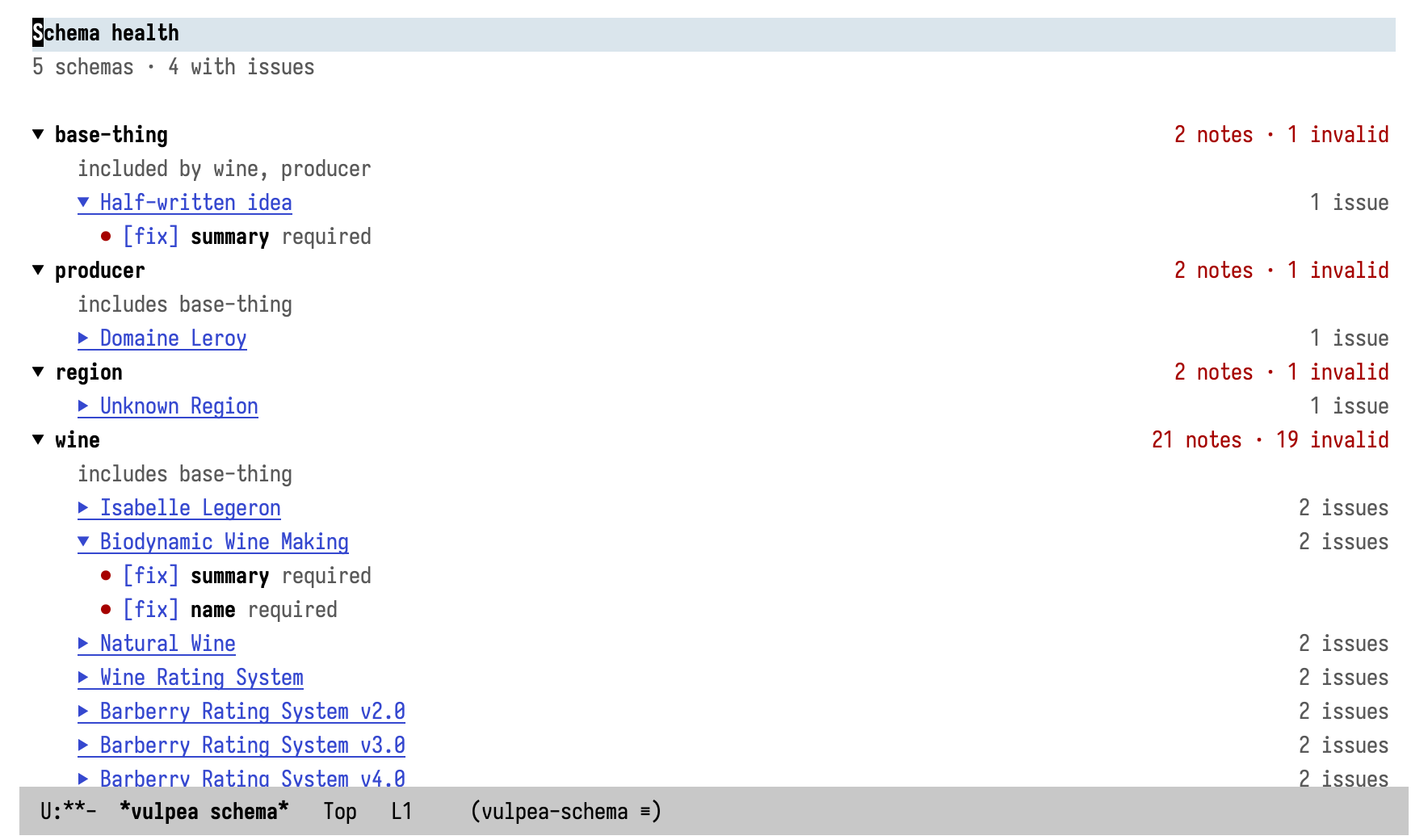
The schema dashboard is vulpea-ui's first standalone view: a dedicated buffer rather than a sidebar widget. Where the schema health widget answers "is /this/ note healthy?", the dashboard answers it for the whole collection. =M-x vulpea-ui-schema-dashboard= opens a =vulpea schema= buffer listing every registered schema with how many notes it covers and how many are invalid, sorted so the schemas needing attention come first and unused ones sink to the bottom. =:include= relationships are annotated both ways (=includes= / =included by=).
Schemas with violations start expanded; their invalid notes start collapsed. Expand a note to its individual violations, each showing the field, a terse reason, and a =fix= button. Fixing pops the note open at that field, prompts for a corrected value, then re-indexes and refreshes so the note drops off once it is healthy, so you always see what you are fixing and can fix or skip each one on its own. The field name jumps to the note without fixing. =g= rescans, =q= buries the buffer. The scan is one query plus an in-memory pass, so it stays fast on a large collection. Needs a vulpea with =vulpea-schema-collection-health= (the =fix= button additionally needs =vulpea-schema-fix-violation=).
- Collection view
The collection view is a table over a filtered set of notes - think a lightweight Airtable for your collection. It is built on =tabulated-list-mode=, so you get a sticky header, click-to-sort columns and familiar navigation for free.
=M-x vulpea-ui-collection= completes over your saved views; free input is parsed as a query, so =wine -beer #red? level:0 country:France= works straight from the prompt (bare words require a tag, =-tag= excludes one, =#tag?= means any-of, =level:=, =dir:=, =title:=, =body:= (file content), =todo:=, =KEY:VALUE= / =KEY:= condition on metadata and =prop:KEY=VALUE= / =prop:KEY== on the property drawer). The syntax is exactly what the mode line prints as the filter summary, so the description you see is a query you can type. Empty input opens the whole collection. Press =?= inside the view for a menu of everything it can do; the mode line shows how many notes matched out of the whole collection, how many are marked, the active filter, and averages for numeric meta columns (=:142/4231 {rating avg 8.4}=).
Filters are refined without leaving the buffer (=/= prefix) and columns are added and removed on the fly (=c= prefix), so a typical session is: open everything, narrow by a tag or two, add the meta columns you care about, mark, act, and save the result as a named view with =w=.
Views are plists. Save them in =vulpea-ui-collection-views= (or press =w= in a collection buffer to save the current one):
#+begin_src emacs-lisp (setq vulpea-ui-collection-views '(("wines" . (:filter (:tags-all ("wine") :level 0) :columns (title (meta "country") (meta "producer") tags modified) :sort ("Modified" . t))))) #+end_src
The =:filter= plist supports =:tags-all=, =:tags-any=, =:tags-none=, =:level= (0 for file-level notes), =:directory= (absolute prefix or a relative path component), =:title= (regexp), =:meta= (alist of =(KEY . VALUE)= conditions, =(KEY . t)= for mere presence), =:properties= (the same shape, over the =:PROPERTIES:= drawer; keys are case-insensitive like in org) and =:predicate= (any function on the note). The cheapest condition is pushed down to the database, the rest is applied in memory.
Columns: =title=, =context= (file title and outline path of a heading note - tells apart a dozen rows all called "Tasks"), =tags=, =(meta KEY)=, =(property KEY)= (a property drawer entry), =todo=, =priority=, =scheduled=, =deadline=, =created=, =modified=, =links= (outgoing link count), =backlinks= (incoming link count, one grouped query for the whole table), =aliases= and =file=. Any column takes =:name= and =:width= overrides, e.g. =(title :width 60)=.
A computed column is =(fn NAME FUNCTION)=: FUNCTION gets each note and returns the cell (a string, or any value, which is formatted; nil leaves the cell empty). It sorts, groups and exports like any other column:
#+begin_src emacs-lisp (setq vulpea-ui-collection-views '(("commits" . (:filter (:properties (("COMMIT_ID" . t))) :columns (title (property "COMMIT_ID" :width 10) (property "CREATED_TS") (fn "Links out" (lambda (note) (length (vulpea-note-links note)))) tags))))) #+end_src Widths fit the content by default (the defaults act as caps); a column you resize by hand keeps its width and is pinned into the view when you save it.
A view without =:columns= gets adaptive defaults: columns are derived from the notes being shown, so empty ones never appear - title always, context when heading-level notes are present, a =(meta KEY)= or =(property KEY)= column for every key the filter conditions on (filter by =rating:*= and you see the ratings), tags and todo when some note carries them, plus the backlink count (sort by it to surface your hub notes). Ad-hoc views come sorted by title. Set =vulpea-ui-collection-default-columns= to an explicit list to opt out.
Keybindings:
| Key | Action | |-------+---------------------------------------------------| | =RET= | Visit the note | | =o= | Visit the note in another window | | =C-o= | Preview the note without leaving the table | | =SPC= | Show the row's full values | | =m= | Mark the note at point (or the region's rows) | | =u= | Unmark the note at point (or the region's rows) | | =U= | Unmark all | | =t= | Invert marks | | =% m= | Mark notes whose title matches a regexp | | =% t= | Mark notes carrying a tag | | =+= | Add a tag to the selection | | =-= | Remove a tag from the selection | | =e= | Edit the field of the column at point | | =E= | Remove a metadata field from the selection | | =T= | Set a todo state on the selection | | =Z= | Undo the last batch edit (one level) | | =G= | Group rows by a column (Emacs 30+) | | === | Narrow to the value of the cell at point | | =D= | Delete the selected notes (with confirmation) | | =x= | Apply a function to the selection | | =y= | Copy the selection as an org list of links | | =Y= | Export the selection to an org buffer | | =d= | Open the selection's files in dired, pre-marked | | =/ t= | Require a tag | | =/ T= | Exclude a tag | | =/ s= | Narrow titles live (updates when typing pauses) | | =/ g= | Narrow by file content (ripgrep when available) | | =/ d= | Scope to a directory | | =/ m= | Condition on a metadata field | | =/ p= | Condition on a property | | =/ l= | Filter by level | | =/ k= | Remove a single filter condition | | =/ /= | Clear the filter | | =c a= | Add a column | | =c k= | Remove a column | | =w= | Save the current view | | =g= | Re-query and refresh | | =S= | Sort by column at point (=tabulated-list-mode=) | | =?= | Menu with all of the above |
=/ s= updates the table once typing pauses for =vulpea-ui-collection-live-filter-delay= seconds (0.3 by default). Every update re-queries and re-renders the view, so raise it if a large collection still feels slow, or set it to nil to apply the title filter only on RET.
=e= is context-aware: on the tags column it rewrites the tags of the note at point (completion, prefilled); on a meta column it reads a value for that key - prefilled from the note at point - and sets it on the selection; a property column works the same way (empty input removes the property); anywhere else it prompts for a meta key. =T= sets a todo state on the selection's heading-level notes (empty input clears it). =Z= undoes the last batch edit precisely: adding a tag only strips it from notes that gained it, meta and property edits restore each note's previous values, and todo edits restore the old states.
=== is the drill-down gesture: it adds a filter condition from the cell at point - a tag from the tags column, the value of a meta or property cell, a todo state, or the note's directory from the context and file columns. See "France", press ===, see the wines. Hovering a truncated cell shows its full value, and =SPC= prints the whole row as =column: value= lines.
Actions apply to the marked notes, or to the note at point when nothing is marked (=y= and =Y= fall back to the whole view instead). Marks are keyed by note id, so they survive sorting and re-querying. Edits touching more than one note ask first and list the notes they are about to change. Bulk tag and metadata edits go through vulpea's batch operations (=vulpea-tags-batch-add= and friends), so they need a vulpea recent enough to provide them. Deleting removes the files of file-level notes; heading-level notes are skipped.
=d= hands the selection off to dired with every file pre-marked, so batch rename, moving between directories, wdired and shell commands come from dired instead of being reimplemented here.
A view's =:filter= can also carry =:source=, a function returning the candidate notes, with the rest of the filter applied on top. vulpea already ships the interesting queries, so janitor dashboards are one saved view away:
#+begin_src emacs-lisp (add-to-list 'vulpea-ui-collection-views '("orphans" . (:filter (:source vulpea-db-query-orphan-notes)))) #+end_src
Collection buffers are bookmarkable: =C-x r m= records the view and jumping to the bookmark re-opens it. =org-store-link= works too, and the =vulpea-collection:= link type turns any note into a dashboard - =[[vulpea-collection:wine level:0][my cellar]]= opens the live view when followed (the path is a saved view name or a query). Saved views are managed with =vulpea-ui-collection-rename-view= and =vulpea-ui-collection-delete-view= (also in the =?= menu).
Like the sidebar, the view refreshes itself when database content changes (vulpea's =vulpea-db-updated-functions=; on older vulpea versions, when background extraction lands), coalescing bulk syncs into a single refresh. Only visible buffers re-query immediately; hidden ones wait until they are shown again.
Saved views also show up as a =Collections= widget in the sidebar (one click from any note to a view), and any view can be embedded in a note as an org dynamic block:
#+begin_src org ,#+BEGIN: vulpea-collection :query "wine rating:*" :columns (title (meta "rating")) ,#+END: #+end_src
=C-c C-x x= (=org-dynamic-block-insert=) offers the block; titles render as =id:= links, and =:view "name"= reuses a saved view.
Rows are sorted the way the collection buffer sorts them: by the view's =:sort=, or by title for a query (grouping is not applied). =:sort= on the block overrides it, either as =("Context" . t)= (reversed) or a bare column name. Without =:columns= the block derives its columns like the buffer does. A column with an explicit =:width= has longer cells cut to that width with an ellipsis (a title only in its link description, so the link keeps working); columns without one show their full text:
#+begin_src org ,#+BEGIN: vulpea-collection :view "diaries" :sort ("Context" . t) :columns ((context :width 36) title) ,#+END: #+end_src
To use a view from code, =vulpea-ui-collection-notes= returns its notes without opening anything. It takes the same input as the prompt - a saved view name or a query - or a filter plist:
#+begin_src emacs-lisp (dolist (note (vulpea-ui-collection-notes "wines")) (message "%s" (vulpea-note-title note)))
(vulpea-ui-collection-notes "wine -beer country:France") (vulpea-ui-collection-notes '(:tags-all ("wine") :level 0)) #+end_src
The notes are the ones the view shows, but in database order: the view's =:sort= names a column of the table, so sort the result yourself (=seq-sort-by=) when order matters.
- Backlink counts
=M-x vulpea-ui-backlink-count-mode= annotates the notes of the current buffer, and its links, with the number of links pointing at them: the file-level note after its =#+title:= value, each ID-carrying heading after the heading text, and every link after its description.
#+begin_src org ,#+title: Sparkling wine³
,* Champagne⁷ poured at [[id:tasting-2026][the March tasting]]¹ last week #+end_src
A count on a note says how connected that note is; a count on a link says the same about the thing you just mentioned. =vulpea-ui-backlink-count-targets= (=(notes links)= by default) drops either half.
The counts are overlays, so the file on disk is untouched, and only notes something links to are annotated. Narrowing hides no counts.
The mode is opt-in and off by default. Turn it on everywhere:
#+begin_src emacs-lisp (vulpea-ui-backlink-count-global-mode 1) #+end_src
The global mode covers every file-visiting org buffer. To limit it to your notes, turn the buffer-local mode on from your own hook instead.
Counts follow the database rather than saves of the buffer, since what links to a note is decided by other files. The whole count table comes from a single query, so a buffer full of nodes costs one query, not one per node. =M-x vulpea-ui-backlink-count-refresh= redraws by hand if you ever need it.
Which links count is =vulpea-ui-link-types=, same as everywhere else. How a count reads is =vulpea-ui-backlink-count-format=, a function of the count returning the string to show (or nil to show nothing). The default renders Unicode superscript digits; for something more explicit:
#+begin_src emacs-lisp (setq vulpea-ui-backlink-count-format (lambda (count) (format " [%d]" count))) #+end_src
The idea comes from =org-roam-count-overlay-mode= by [[https://github.com/agzam/.doom.d/blob/0553149b3a290dfd2382d8da4a5ce4c09824e5e6/modules/custom/org/autoload/org-roam-helpers.el#L151][agzam]].
- Default widgets
** Stats widget
#+begin_html

Shows character count, word count, and link count for the current note.
** Schema health widget
Validates every note in the current file against its vulpea schema(s), covering both the file-level note and each heading-level note (a heading with its own =:ID:=, tags and metadata is a note in its own right).
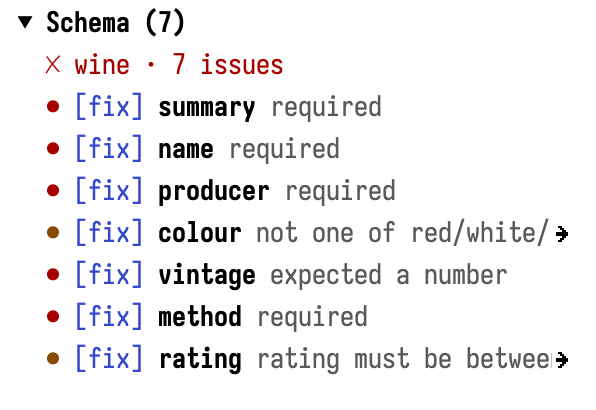
A single schema-bearing note reads as one status - a green =healthy= line when it conforms, or its violations otherwise, each a severity-coloured bullet (red for structural problems, amber for value problems), the field and a terse reason:
#+begin_html
When the file holds several notes it breaks them down per note - the file-level note first, then headings in document order - so a violation on a heading is never hidden behind a schema-less =:journal:= file:
#+begin_html
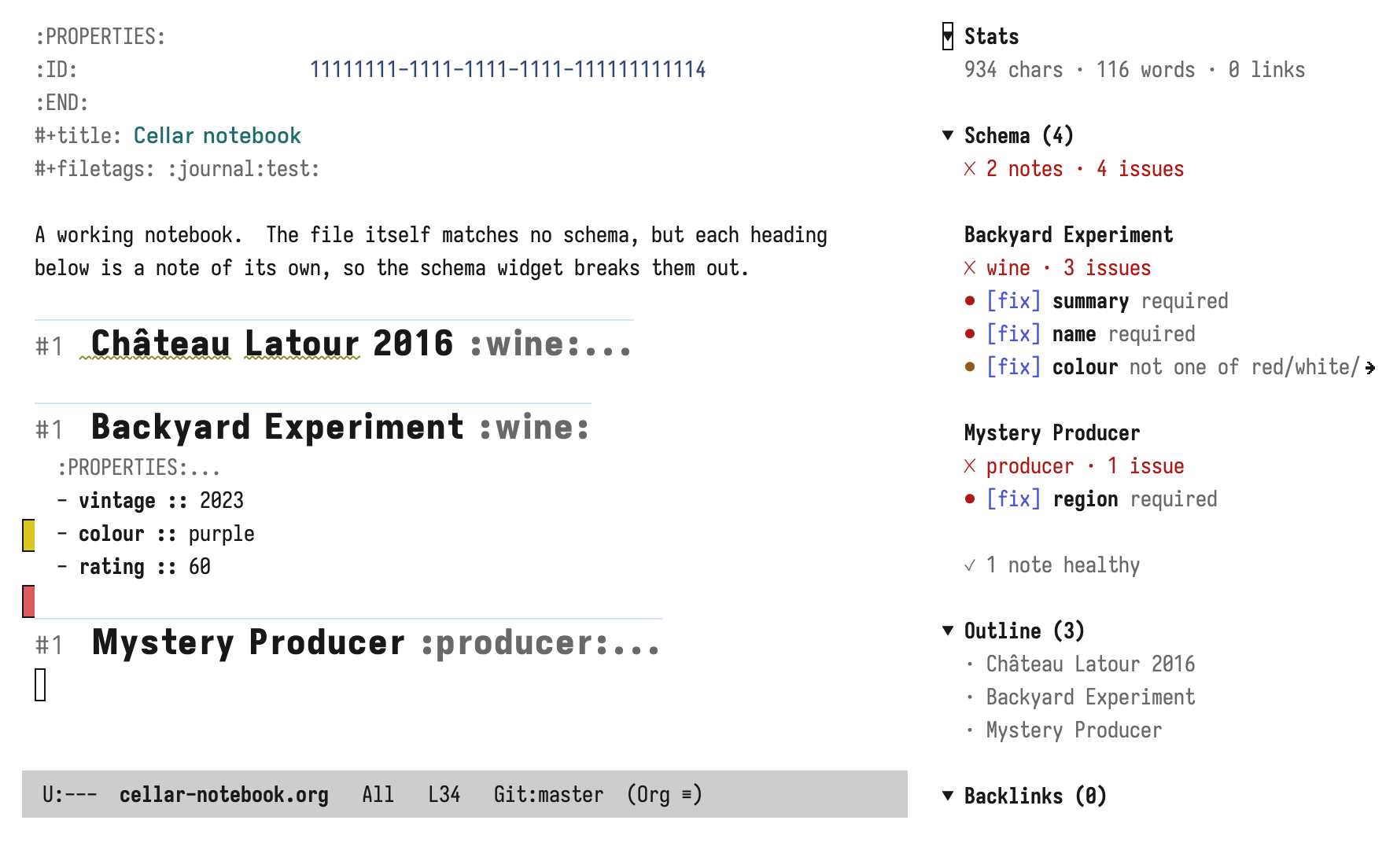
Every violation has a =fix= button that prompts for a value and writes it back into that note (a heading's field lands in the heading, not the top of the file), and the field name jumps to it. Files whose IDs live only on headings work too. Shown only when some note in the file bears a schema.
** Outline widget
#+begin_html
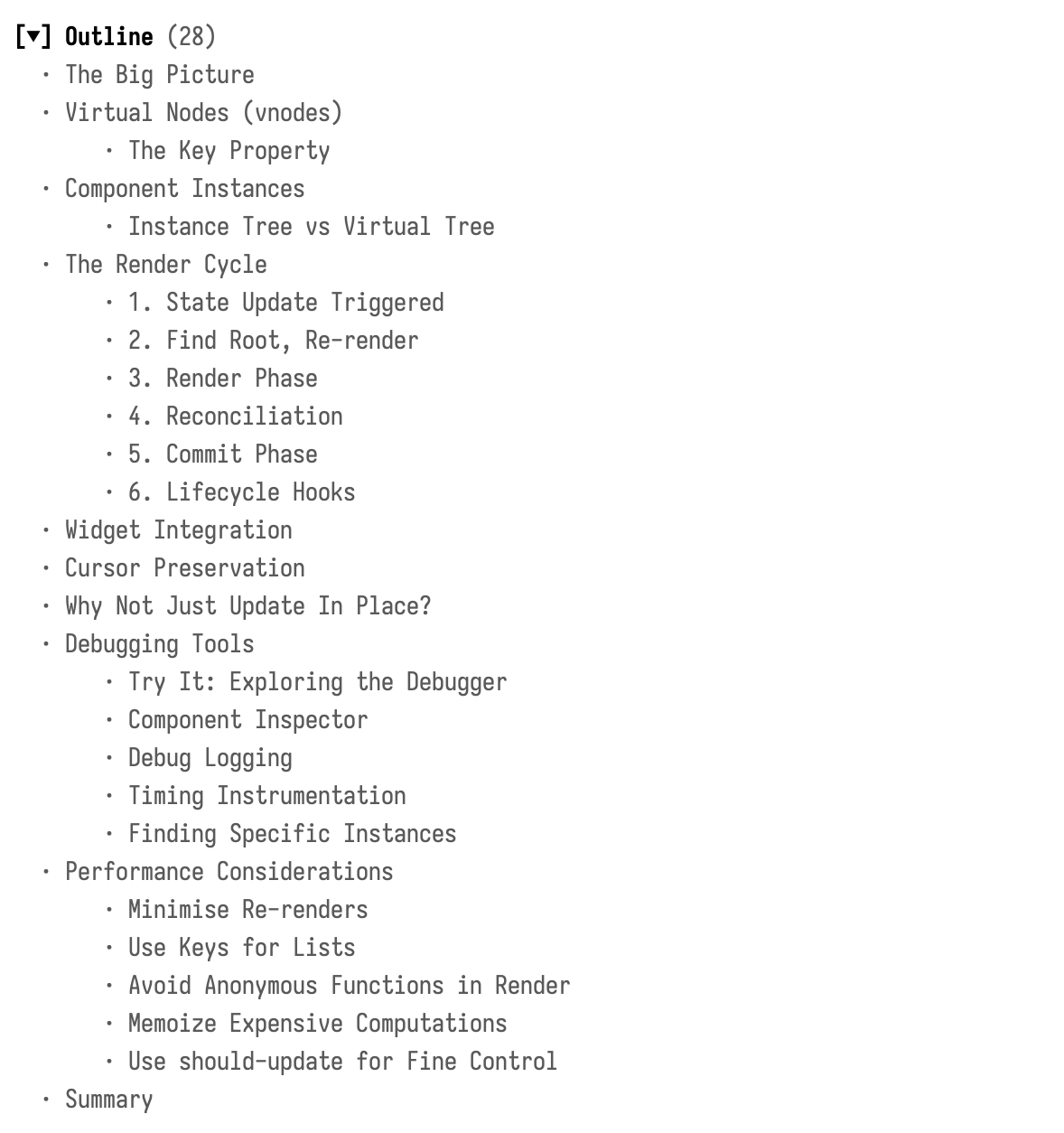
Displays the heading structure of the note. Click headings to navigate. When the buffer is narrowed, only the accessible headings are shown (see =vulpea-ui-respect-narrowing=).
** Tasks widget
Lists the open tasks of the note: headings with a todo keyword that is not a done one, counting keywords from =#+TODO:= lines and =org-todo-keywords=. A task under another task is nested below it, so the tasks of a project heading show up under the project. Archived and commented subtrees are skipped, and when the buffer is narrowed only the tasks inside the restriction are shown (see =vulpea-ui-respect-narrowing=).
Click a title to jump to the task. Click its keyword to change the state: it is the same as =C-c C-t= (=org-todo=) on the heading, so your keyword sequences, fast selection keys, repeaters and logging all apply. A task you close this way leaves the list right away.
Titles use =vulpea-ui-task-title-face= (a =link= by default). Keywords get the faces Org gives them, so =org-todo-keyword-faces= styles them here too, and priorities use =org-priority=.
The widget only shows up on notes with open tasks. To turn it off:
#+begin_src emacs-lisp (vulpea-ui-unregister-widget 'tasks) #+end_src
** Backlinks widget
#+begin_html
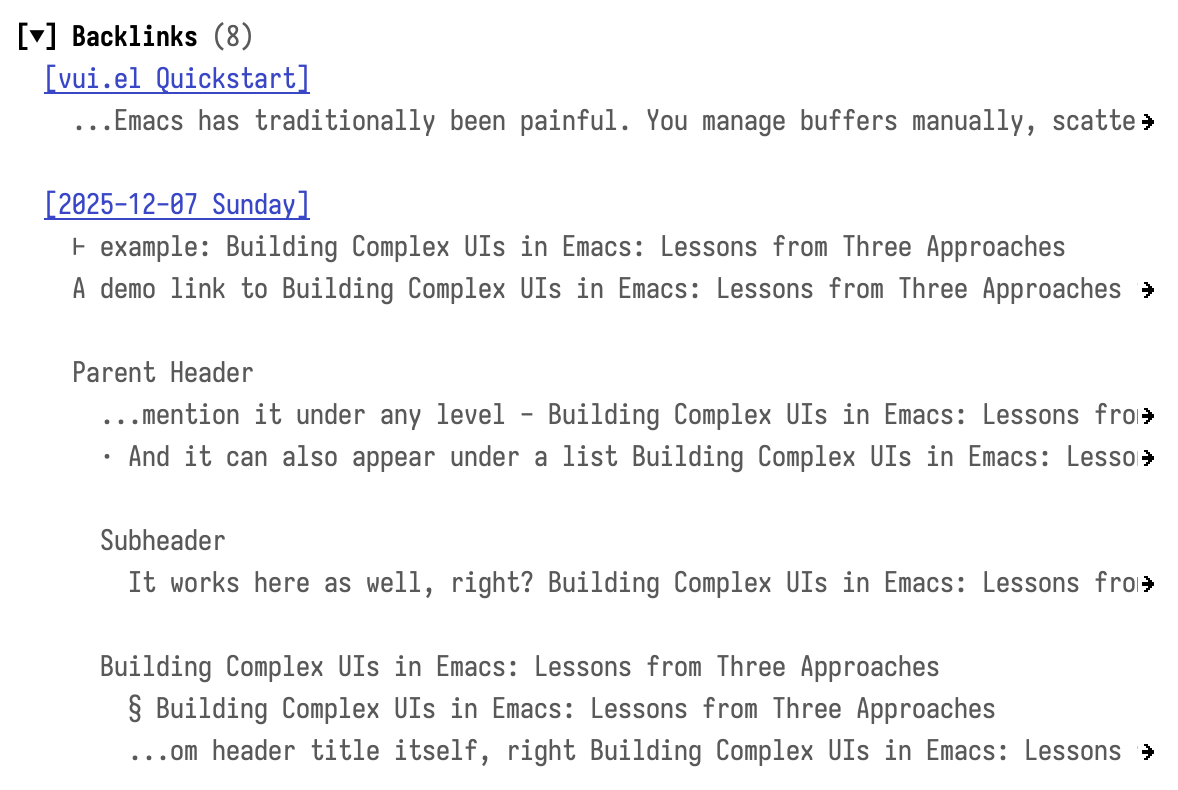
Shows notes that link to the current note, grouped by file with:
- Heading path context (where in the document the link appears)
- Links targeting a heading-level ID of the current file are included too, annotated with a muted =→ Heading= suffix naming the targeted heading; links to the file-level ID look as before
- Content preview with context type indicators:
- =⊢= meta property
- =§= header
- =▤= table
- =·= list item
- =>= quote
- =λ= code
- =†= footnote
- (no indicator) prose
When the buffer is narrowed to a subtree, the widget shows only backlinks targeting IDs inside the restriction and marks the header count as narrowed (see =vulpea-ui-respect-narrowing=). Links to the file-level ID or to headings outside the restriction reappear on widen.
** Unlinked mentions widget
Shows notes that mention the current note's title or one of its aliases as plain text, without an =id:= link pointing back - the notes you may want to link. Mentions are grouped by the mentioning note, sorted by title; click a context line to jump to it, or use the =link= button before it to turn that mention into an =id:= link to the current note (every occurrence of the title or an alias on that line). Each group also has a =link all= button that does it for every line listed for that note.
Linking edits the mentioning note's file, which is usually not the one you are looking at, so the edit is saved and synced right away and the sidebar refresh that follows drops what you linked (with =vulpea-ui-auto-refresh= off, press =g=). With =vulpea-mentions-exclude-linked= on (the default) that is the whole group: once a note links to the current one, its other mentions no longer count. Point stays in the list next to where the row was, so you can go through several notes in a row. A few things to know:
- The file is saved the usual way, so your save hooks run on it. If the note was not open, its buffer stays open afterwards, which lets you undo the edit.
- If the mentioning note is open with unsaved changes, the link is inserted but the buffer is left unsaved, and the list catches up when you save it.
- A line is edited only if it still reads the way the scan saw it. When the text changed in the meantime, nothing is linked.
- Only plain text is linked. A title that shows up as a tag, a todo keyword, a timestamp, inside another link or a URL, or in code, verbatim text, a block or a comment is left alone, since a link there would break it. The scan does not tell these apart, so such a line can be listed while =link= reports that there is nothing to link.
- Words are matched the way Emacs sees word boundaries, which is not always how the scan sees them. A title like =C++=, a possessive like =Emacs's=, or a title in a script without spaces can be listed but not linked.
Each group has an =ignore= button as well: it writes the mentioning note's file-level id to the =vulpea-mentions-per-note-ignore-property-key= property of the current note (via =vulpea-mentions-ignore-from=), and the sidebar refresh that follows the edit drops the group. Mentions from that note stay hidden until you unignore it in the [[*Ignored notes widget][ignored notes widget]].
Unlike the other widgets, this one loads asynchronously: scanning the whole collection for a note's title is expensive, so the search is delegated to [[https://github.com/BurntSushi/ripgrep][ripgrep]] via =vulpea-note-unlinked-mentions-async= and the widget shows a =Searching…= state until results arrive. Results are cached until you switch notes or refresh the sidebar (=g= / =vulpea-ui-sidebar-refresh=); an idle soft-refresh reuses the cache.
If ripgrep is not on =exec-path= the widget reports it instead of failing. To disable the widget entirely:
#+begin_src emacs-lisp (vulpea-ui-unregister-widget 'unlinked-mentions) #+end_src
To hide specific notes from the results without changing the search, set =vulpea-ui-unlinked-mentions-note-filter= to a predicate on the mentioning note, e.g. to drop notes carrying an =index= tag:
#+begin_src emacs-lisp (setq vulpea-ui-unlinked-mentions-note-filter (lambda (note) (not (member "index" (vulpea-note-tags note))))) #+end_src
To instead exclude notes from the search itself (collection-wide, affecting both mention widgets), customise =vulpea-mentions-note-filter=.
** Links widget
#+begin_html
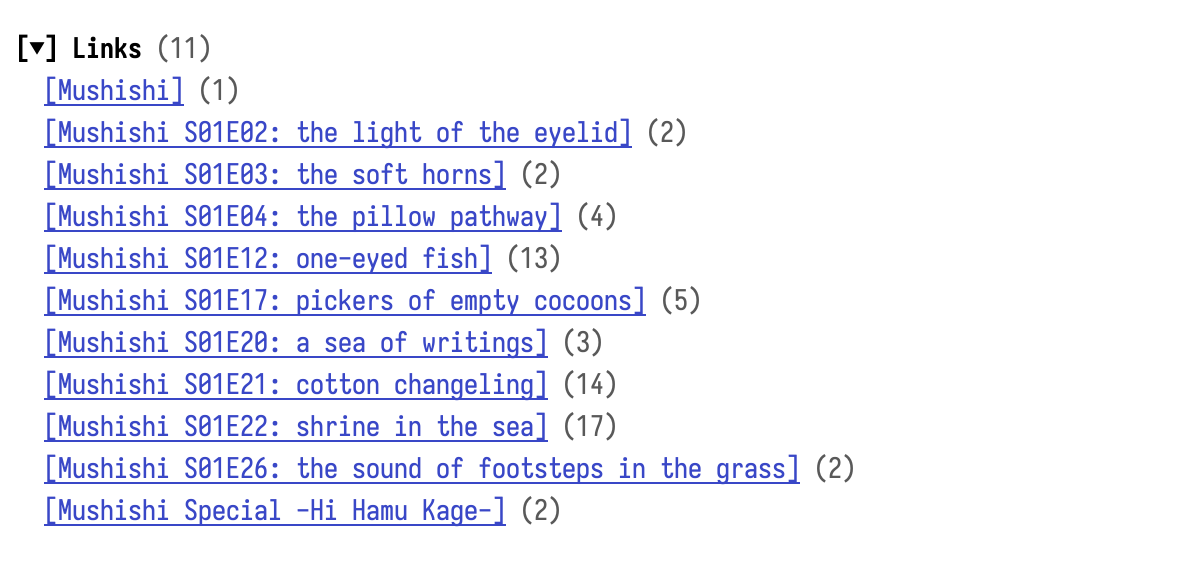
Shows notes that the current note links to.
When the buffer is narrowed, only links positioned inside the restriction are counted, and the header count is marked as narrowed (see =vulpea-ui-respect-narrowing=). Link positions come from the database, so unsaved edits can shift them until the next sync.
** Outgoing mentions widget
The mirror of the [[*Unlinked mentions widget][unlinked mentions widget]]: instead of notes that mention this one without linking back, it shows existing notes that this note mentions as plain text without an =id:= link to them - the notes you may want to link out to. Suggestions are grouped by the note you could link to; click a context line to jump to the mention in the current note, or use the =link= button before it to convert that occurrence into an =id:= link in place. Each group also has a =link all= button that links every occurrence for that note at once. Linking re-checks the live buffer before editing, so a suggestion that has gone stale (the surrounding text changed, or you already linked it) is simply skipped. It keeps your place in the sidebar and does not re-scan, so the suggestion stays listed (and point stays put) until the sidebar refreshes (=g=, or the database picking up your edits) - which makes it easy to link several in a row. As in the unlinked mentions widget, only plain text is linked, and the same word boundary limits apply. Which notes count as candidates is controlled by =vulpea-mentions-note-filter= (file-level notes by default).
Like the unlinked mentions widget it loads asynchronously via ripgrep (=vulpea-buffer-unlinked-mentions-async=), scanning the note's live buffer so unsaved edits are included. It shows a =Searching…= state until results arrive and caches them until you switch notes or refresh the sidebar (=g= / =vulpea-ui-sidebar-refresh=).
If ripgrep is not on =exec-path= the widget reports it instead of failing. To disable the widget entirely:
#+begin_src emacs-lisp (vulpea-ui-unregister-widget 'outgoing-mentions) #+end_src
To hide specific candidate notes from the results without changing the search, set =vulpea-ui-outgoing-mentions-note-filter= to a predicate on the candidate note, e.g. to drop notes carrying an =index= tag:
#+begin_src emacs-lisp (setq vulpea-ui-outgoing-mentions-note-filter (lambda (note) (not (member "index" (vulpea-note-tags note))))) #+end_src
** Ignored notes widget
The other side of the =ignore= button in the [[*Unlinked mentions widget][unlinked mentions widget]]: it lists the notes whose mentions of the current note are ignored, sorted by title. Each one has an =unignore= button that removes it from =vulpea-mentions-per-note-ignore-property-key= (via =vulpea-mentions-unignore-from=), and after the refresh that follows its mentions are back in the unlinked mentions widget.
An id in that property silences the whole file it lives in, so the widget lists the note a mention from that file is attributed to: the file-level note, or the first note in the file when there is none. Unignoring removes every id of that file. Ids that no longer belong to any note are not listed, so remove those from the property by hand.
The widget only shows up on notes that ignore something. To turn it off:
#+begin_src emacs-lisp (vulpea-ui-unregister-widget 'ignored-notes) #+end_src
- Widget Registration
Widgets are registered with =vulpea-ui-register-widget=, which allows filtering by predicate and ordering.
** Built-in widgets
vulpea-ui registers these widgets by default:
| Widget | Order | Component | |---------------------+-------+--------------------------------------| | =stats= | 100 | =vulpea-ui-widget-stats= | | =outline= | 200 | =vulpea-ui-widget-outline= | | =tasks= | 250 | =vulpea-ui-widget-tasks= | | =backlinks= | 300 | =vulpea-ui-widget-backlinks= | | =unlinked-mentions= | 350 | =vulpea-ui-widget-unlinked-mentions= | | =links= | 400 | =vulpea-ui-widget-links= | | =outgoing-mentions= | 450 | =vulpea-ui-widget-outgoing-mentions= | | =ignored-notes= | 475 | =vulpea-ui-widget-ignored-notes= |
** Registering widgets
#+begin_src emacs-lisp (vulpea-ui-register-widget 'my-widget :component 'my-custom-widget-component :predicate #'my-note-predicate ; optional: only show when this returns non-nil :order 150 ; optional: default 100 :collapsed nil) ; optional: nil starts expanded, t collapsed #+end_src
** Narrowing-aware widgets
There is no narrowing hook in Emacs, so widgets never receive a "narrowing changed" event. Instead the sidebar root computes the narrowing scope once per render pass and provides it as context: nil when the buffer is widened (or =vulpea-ui-respect-narrowing= is off), otherwise a plist with =:beg= and =:end= (the restriction bounds) and =:ids= (IDs of the entries inside the restriction, in document order).
A custom widget that wants to follow narrowing reads the scope with =use-vulpea-ui-scope=, puts it in its =vui-use-memo= dependencies, and scopes its data by it:
#+begin_src emacs-lisp (vui-defcomponent my-custom-widget-component () "Some widget that follows narrowing." :render (let ((note (use-vulpea-ui-note)) (scope (use-vulpea-ui-scope))) (when note (let ((data (vui-use-memo (note scope) (my-compute-data note scope)))) (vui-component 'vulpea-ui-widget :title "My Widget" :children (lambda () (my-render data))))))) #+end_src
Because the scope is a memo dependency, the expensive computation reruns only when the restriction actually changes; the change is picked up on the next idle refresh (see =vulpea-ui-auto-refresh-delay=) or a manual =vulpea-ui-sidebar-refresh=. A widget that ignores the scope simply stays file-scoped - nothing else changes for it.
** Modifying widget properties
=vulpea-ui-widget-set= updates a single property on an already-registered widget. This works for any widget, including the built-in ones, so you can customise them without redefining anything.
#+begin_src emacs-lisp ;; Change a widget's order (vulpea-ui-widget-set 'stats :order 50)
;; Attach a predicate to a built-in widget (vulpea-ui-widget-set 'outline :predicate #'my/show-outline-p)
;; Remove a widget (vulpea-ui-unregister-widget 'links) #+end_src
** Collapsed or expanded
By default every widget follows =vulpea-ui-default-widget-collapsed=. Give a widget =:collapsed= to decide for it alone: =t= starts it collapsed, =nil= starts it expanded, whatever the global value says. It works at registration and with =vulpea-ui-widget-set=, so built-in widgets and widgets from other packages can have their own default too.
#+begin_src emacs-lisp ;; Fold everything except your own widget (setq vulpea-ui-default-widget-collapsed t) (vulpea-ui-register-widget 'my-widget :component 'my-custom-widget-component :collapsed nil)
;; Or keep widgets expanded and fold only the long ones (vulpea-ui-widget-set 'backlinks :collapsed t) (vulpea-ui-widget-set 'unlinked-mentions :collapsed t) #+end_src
This only decides how a widget starts. You can still toggle it, and the sidebar keeps the toggled state through refreshes and note switches. Changing =:collapsed= while the sidebar is open takes effect after you close and reopen it.
Widgets get this through the =vulpea-ui-widget= wrapper, so a custom widget built on it needs no code for it.
** Toggling a widget per note
Built-in widgets have no predicate by default, so they are shown for every note. You can install one with =vulpea-ui-widget-set= to decide per note whether the widget shows up. A common recipe is a global default variable combined with an org property that overrides it on individual notes.
The example below hides the =outline= widget by default and shows it only on notes that set =:OUTLINE: t=. Flip =my/vulpea-ui-always-show-outline= to =t= to invert the default, in which case =:OUTLINE: nil= hides the widget on specific notes.
#+begin_src emacs-lisp (defvar my/vulpea-ui-always-show-outline nil "When non-nil, show the outline widget unless a note opts out.")
(defun my/vulpea-ui-show-outline-p (note) "Return non-nil if the outline widget should be shown for NOTE. An `OUTLINE' property on the note overrides the default variable." (if-let* ((props (vulpea-note-properties note)) (entry (assoc "OUTLINE" props))) (not (equal (cdr entry) "nil")) my/vulpea-ui-always-show-outline))
(vulpea-ui-widget-set 'outline :predicate #'my/vulpea-ui-show-outline-p) #+end_src
The same pattern works for any widget (=stats=, =backlinks=, =links=, or your own).
** How it works
- Widgets are filtered by their =:predicate= (if any) against the current note
- Remaining widgets are sorted by =:order= (ascending)
- Each widget's =:component= is rendered
This allows packages like =vulpea-journal= to register context-specific widgets that only appear when viewing certain notes.
- Custom widgets
Create custom widgets using vui's =vui-defcomponent= macro:
#+begin_src emacs-lisp (vui-defcomponent my-custom-widget () "My custom widget." :render (let ((note (use-vulpea-ui-note))) (vui-component 'vulpea-ui-widget :title "My Widget" :count 42 :children (lambda () (vui-text "Custom content here"))))) #+end_src
Register the widget:
#+begin_src emacs-lisp (vulpea-ui-register-widget 'my-widget :component 'my-custom-widget :order 250) ; after outline, before backlinks #+end_src
For context-specific widgets (e.g., only for notes with a certain tag):
#+begin_src emacs-lisp (defun my-project-note-p (note) "Return non-nil if NOTE is a project note." (member "project" (vulpea-note-tags note)))
(vulpea-ui-register-widget 'project-tasks :component 'my-project-tasks-widget :predicate #'my-project-note-p :order 150) #+end_src
- Utility Functions
** vulpea-ui-clean-org-markup
Cleans org-mode markup from text for display purposes:
#+begin_src emacs-lisp (vulpea-ui-clean-org-markup text) #+end_src
Transformations:
- Links: =[[url][title]]= → =title=, =[[url]]= → =url= (bare =[[id:...]]= links are removed)
- Drawers: =:PROPERTIES:...:END:= blocks are removed
- Metadata: =#+TITLE:=, =#+FILETAGS:=, etc. lines are removed
- Whitespace: multiple spaces/tabs collapsed to single space
Useful for rendering previews in custom widgets.
- Faces
| Face | Description | |--------------------------------------+--------------------------| | =vulpea-ui-widget-header-face= | Widget header text | | =vulpea-ui-widget-count-face= | Widget count numbers | | =vulpea-ui-outline-heading-face= | Outline headings | | =vulpea-ui-task-title-face= | Task titles | | =vulpea-ui-stats-face= | Statistics text | | =vulpea-ui-backlink-preview-face= | Backlink preview text | | =vulpea-ui-backlink-heading-face= | Backlink heading path | | =vulpea-ui-backlink-meta-key-face= | Meta block keys | | =vulpea-ui-backlink-meta-value-face= | Meta block values | | =vulpea-ui-backlink-context-face= | Context type indicators | | =vulpea-ui-mention-context-face= | Mention context line | | =vulpea-ui-mention-action-face= | Link action buttons | | =vulpea-ui-backlink-count-face= | Backlink counts in notes |
- Related Projects
- [[https://github.com/d12frosted/vulpea-journal][vulpea-journal]] - Daily journaling with calendar, navigation, and "on this day" widgets
- [[https://github.com/d12frosted/ace-link-vui][ace-link-vui]] - Ace-link style navigation for VUI buffers
- License
Copyright (C) 2024-2026 Boris Buliga
This program is free software: you can redistribute it and/or modify it under the terms of the GNU General Public License as published by the Free Software Foundation, either version 3 of the License, or (at your option) any later version.
- Support
If you enjoy this project, you can support its development via [[https://github.com/sponsors/d12frosted][GitHub Sponsors]] or [[https://www.patreon.com/d12frosted][Patreon]].