
chussum/mobius
chussum/mobius has 79 GitHub stars and 13 forks. GitHot measured 0 stars in 24 hours and 0 in 7 days. Last checked 2026-11-15 07:24 UTC. Last push 2026-10-06.
Measured star growth
- in 24h
- 0
- in 7 days
- 0
- in 15 days
- Collecting history
- in 1 month
- Collecting history
Net star changes over overlapping periods, not daily totals. Missing measurements are left blank. Stars measure attention, not software quality.
About
∞ macOS menu bar app for switching Claude Code / OpenAI Codex / Claude Desktop accounts in one click — auto-fallback when you hit usage limits, auto-return on reset
ProductivityREADME.en.md
OriginalMobius
한국어 | English
Stop juggling Claude and Codex accounts. Let them flow.
Using Claude or Codex with multiple subscription accounts? Hit the limit, log out, log into another account, come back when it resets… Mobius removes that loop.
- Switch accounts with one click — no re-login, takes effect instantly.
- Auto-switch when you hit a limit — your workflow never stops.
- Auto-return when the limit resets — nothing to keep track of.
Primary → fallback → back to primary. An endless Möbius strip — hence the name.
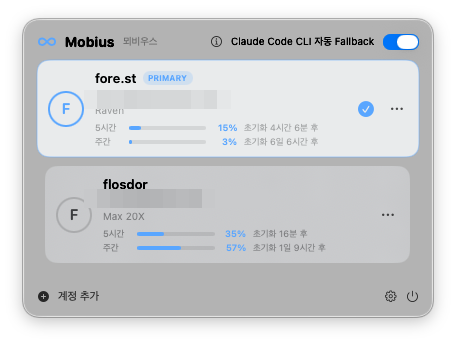
Click the ∞ icon in the menu bar to open this panel. The All / Claude / Codex tabs at the top filter by provider; each account shows its 5-hour/weekly usage gauges and time until reset, and clicking a card switches to that account.
Is this for you?
- You alternate between a personal Claude Max account and a work account
- You only notice an exhausted limit after the warning interrupts you
- You use both the terminal (Claude Code CLI) and the Claude Desktop app
Supported: Claude Code CLI switching for claude.ai subscription accounts (personal Max, work Team/Enterprise), and OpenAI Codex CLI switching (ChatGPT subscription login) — the two providers run as independent pools, each with its own auto-switch and auto-return. Claude Desktop co-switching is included as experimental. Not supported: Console/OpenAI API keys / Bedrock / Vertex. Requirements: macOS 14+ and the CLI of each provider you switch (
claude/codex).
[!IMPORTANT] We recommend one personal account. Mobius is designed for switching between accounts of a different nature — like work ↔ personal. Running two or more personal accounts to stretch usage limits may violate each service's terms, and Mobius takes no responsibility if an account gets restricted or banned as a result.
Install
1. Download
Grab the latest Mobius-x.y.z.dmg from the
Releases page.
2. Install
Open the DMG and drag Mobius into the Applications folder. Done.
3. First launch
Just double-click Mobius in Applications and it opens right away. Release builds are signed with an Apple Developer ID and notarized, so there's no "unidentified developer" warning.
If you built from source and see a warning
Unsigned/self-signed builds (not notarized) may show "'Mobius' can't be opened because it is from an unidentified developer" on first launch. Just do this once: right-click the app → Open, or go to System Settings → Privacy & Security and click "Open Anyway".
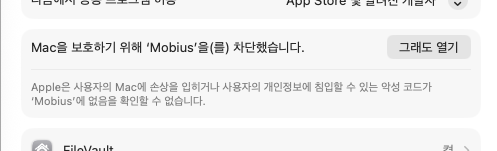
Once running, Mobius lives in the menu bar as an ∞ icon — no Dock icon. Closing the window doesn't quit it; it keeps watching. Enable "Launch at login" in Settings for extra convenience.
Developers: build from source with
Scripts/make-app.sh && open dist/Mobius.app(runScripts/setup-signing.shonce for a stable signing certificate). Install themobiusCLI via app Settings → Installed Tools → Mobius CLI → Install orScripts/install-cli.sh. For release signing, notarization & distribution, see docs/RELEASING.md.
Getting started
- Menu bar ∞ icon → Add Account at the bottom
- Sign in with the Claude account you want to add — that's it!
(For Codex, just run
codex loginin a terminal — Mobius registers it within seconds.)
The login window always opens in a clean session, so it never auto-approves against your browser's existing claude.ai session and never touches your browser. When login completes, Mobius detects it, registers the account, and restores whichever account you were using. Signing in with an already-registered account refreshes its tokens instead of creating a duplicate.
Everyday use
- Switch: click an account card. No re-login; on failure it rolls back automatically.
- Set priorities: the top card is primary; the rest are fallbacks. Drag fallback cards to reorder — that order is the auto-switch order. To promote a fallback, right-click the card (or ⋯ menu) → "Set as primary account".
- Menu bar icon color: default (primary active) · amber (fallback active) · red (all exhausted). Every switch fires a macOS notification.
Settings toggles
Auto-switch (per CLI) can be flipped right in the popover (header of the Claude/Codex tab, or next to each section label in the All tab), and also lives in Settings (⚙) → Installed Tools under each provider tab. The two Claude Desktop toggles are under Installed Tools → Claude tab, below the Claude Desktop row.
| Toggle | Location | Default | What it does |
|---|---|---|---|
| Auto-switch (per CLI) | Popover · each Installed Tools tab | On | Auto-switch when a limit is hit. Off = notification only; manual switching always works |
| Also switch Claude Desktop on auto-switch | Installed Tools · Claude tab | Off | Also switch Claude Desktop on auto-switch (Desktop restarts at that moment) |
| Also switch Claude Desktop on account switch | Installed Tools · Claude tab | Off | Co-switch Desktop on card-click switches. Works only for accounts connected to Desktop |
Using Claude Desktop too
Press ⋯ → "Connect Claude Desktop" on an account card, then follow the guide: ① Desktop opens ② sign in with that account ③ it's saved automatically. Once connected, switching accounts also switches Desktop (2–5s restart).
Continue on any Mac (Labs)
Turn on Settings → Labs → Sync with other Macs to share conversation history, plans, skills, global memory (CLAUDE.md), and your plugin list across Macs via iCloud Drive, Google Drive, or any folder you pick. Continue conversations anywhere — and what Claude learns on one Mac, it knows on all of them.
- Your logins never move — credentials, the account list, and secret tokens are never synced (blocked at the code level, guaranteed by tests).
- Only items you turn on on a given Mac take part; a Mac with sync off is untouched.
- Deletion is your choice: "keep on other Macs" (default) or "delete on other Macs too" (moved to a trash folder and kept 30 days — never wiped instantly).
- Projects inside your home folder continue across Macs even when usernames differ (home paths are remapped automatically during sync). Paths outside home must match.
Terminal usage (optional)
The app covers everything, but if you prefer the terminal, the mobius command is
available (app Settings → Installed Tools → Mobius CLI → Install):
mobius list                        # account list per provider (active ●, priority, limit status)
mobius switch <name>               # switch by nickname (--provider claude|codex if ambiguous)
mobius status                      # active account per provider, time until reset
mobius capture <name>              # register the currently logged-in claude account
mobius capture <name> --provider codex   # register the currently logged-in codex account
mobius auto on|off                 # toggle auto-switch (--provider claude|codex, Claude only if omitted)
CLI switches reflect instantly in the running app.
Note: Desktop co-switching only applies to switches made in the app — mobius switch
changes CLI credentials only.
How auto-switching works
Limit detection never touches the network — it reads local session logs only, so there's no account risk from unusual traffic. Mobius's only server calls are the usage gauges (fetched when you open the popover, 4-minute cache), sign-in, and a once-a-day update check (GitHub, can be turned off in Settings); disable the gauges and update check and background network use drops to zero.
- Detect: every 15 seconds it scans only the new lines of session logs
(the first scan records offsets only — no false positives from old events).
For Claude it parses reset times from rate-limit events in
~/.claude/projects/**/*.jsonl, excluding events containingnot your usage limit— measurements show 69% of rate-limit events are server-side limits, not account limits. For Codex it reads the structured usage (rate_limits) carried in every turn of~/.codex/sessions/**/*.jsonl— usage gauges come from the same source, so Codex involves no server requests at all. - Switch: when the active account is exhausted, switch to the next available account by priority. If none is available, you just get an "all accounts exhausted" notification.
- Return: primary's reset time + a 60s margin passes → automatically return. No server polling.
- Anti-flapping: a 120s cooldown after each switch prevents chain switches (B→C→D) caused by stale logs from the previous session.
- Events without a reset time (e.g. monthly spend limits) are treated conservatively as resetting after 24 hours.
Usage gauges are fetched only when the popover opens (4-minute cache) — never polled.
Good to know
- One email in several organizations (for example a personal Max plan plus a company Team/Enterprise workspace): each organization is registered as its own account. Pick the workspace in the "Add account" login window and each one gets its own card; from the second one on, the nickname carries the organization name (or the plan tier for personal subscriptions) so they are easy to tell apart. Accounts registered by an older version get their organization filled in from the saved snapshot on first launch. Note that organizations already overwritten by an older version do not come back — back then one email shared a single profile, so only the organization you signed into last is still there. The backfill only makes the surviving profiles consistent, so add the missing organizations again through "Add account". If on v0.5.4 two cards showed the same usage, or every switch asked you to sign in again, one organization's token had been saved into the other organization's card. Mobius now refuses to save a login whose token and account info point at different organizations, and a card that is already mixed up is marked "Sign in again" when its token is next refreshed. Use "Sign in again" on that card to sign in to its organization.
- Adding a Codex account: in a terminal, run
codex logoutthencodex loginwith the account you want to add — Mobius registers it automatically within seconds (your current account is already saved as a card, so you can switch back anytime). Codex has no automatic "sign in again" detection yet. - If a Codex switch reverts on its own: a still-running codex session from the previous account can write its refreshed tokens back, flipping the login (Mobius notifies you when this happens). To make a switch stick, close the previous account's running codex sessions.
- Running
claudesessions: switching does not interrupt running sessions (measured through many switch round-trips). You don't need to restart them either — an already-open session picks up the new account with your next prompt. Only the reply that was already in flight when you switched keeps using the previous account (verified on claude 2.1.232/2.1.233). If you do keep seeing the old account's limit errors after a switch, restarting the session always resolves it. (Corrected 2026-08-15: earlier docs said "start a new session", which was a guess appended to the "no interruption" measurement, not a measurement itself.) - Re-login detection: accounts with revoked tokens are flagged automatically (via the existing usage check — no extra requests) and show a "Sign in again" button on the card. Auto-switch skips flagged accounts.
- Brief mis-display after switching: stale logs from the previous session may briefly show a wrong reset countdown on the new account's card (self-resolves).
- Claude Desktop:
- No hot-swap — switching requires a Desktop restart (automated, 2–5s flicker).
- If web session cookies expire (weeks), reconnect that account after signing into Desktop again.
- It relies on undocumented storage, so a Desktop update may break it. CLI switching keeps working regardless; Desktop switch failures are reported via notification.
- If keychain permission dialogs appear: the keychain item's partition list may
have been tainted (e.g. by older versions). Run once in a terminal (keychain
password required):
After that, Mobius keeps the item compatible automatically.security set-generic-password-partition-list -S "apple-tool:,apple:" -s "Claude Code-credentials" -a $USER
Security
- Secrets never leave your machine. Per-account OAuth token snapshots are stored
in
~/Library/Application Support/Mobius/secrets/with owner-only permissions (0600) — the same protection level Claude Code itself uses for its tokens. - Switching only writes to the locations Claude Code already uses (Keychain
Claude Code-credentials,~/.claude/.credentials.json, andoauthAccountin~/.claude.json). Keychain reads/writes go through the standard macOSsecuritytool to stay compatible with the claude ecosystem. - Desktop snapshots live in
~/Library/Application Support/Mobius/desktop-profiles/with 0700 permissions. Cookies are already encrypted with a Keychain-held key at the source, so no plaintext tokens are stored. - Deleting an account also deletes its secret snapshot and Desktop snapshot.
Contributors
Thanks to everyone shaping Mobius with issues, reviews, and pull requests 🙏
License
Released under the MIT License — see LICENSE for the full text.
The only external dependency, swift-argument-parser (Apple, Apache License 2.0), is credited in THIRD-PARTY-NOTICES.md.
This is an open-source personal project and is not affiliated with Anthropic or OpenAI. "Claude" and "Anthropic" are trademarks of Anthropic PBC; "Codex" and "ChatGPT" are trademarks of OpenAI. All are used here only descriptively, to refer to the products Mobius interoperates with.