
changemewtf/no_plugins
changemewtf/no_plugins has 1,095 GitHub stars and 132 forks. GitHot measured 0 stars in 24 hours. Last checked 2026-11-09 10:23 UTC. Last push 2023-02-15.
"Slides" and supplemental info from my August 3rd 2016 NYC Vim talk
Measured star growth
- in 24h
- 0
- in 7 days
- Update delayed
- in 15 days
- Update delayed
- in 1 month
- Update delayed
Net star changes over overlapping periods, not daily totals. Missing measurements are left blank. Stars measure attention, not software quality.
README.md
OriginalHow to Do 90% of What Plugins Do (With Just Vim)
This is a supplementary repository for my August 3, 2016 talk How to Do 90% of What Plugins Do (With Just Vim).
You may also be interested in my Vim cheat sheets:
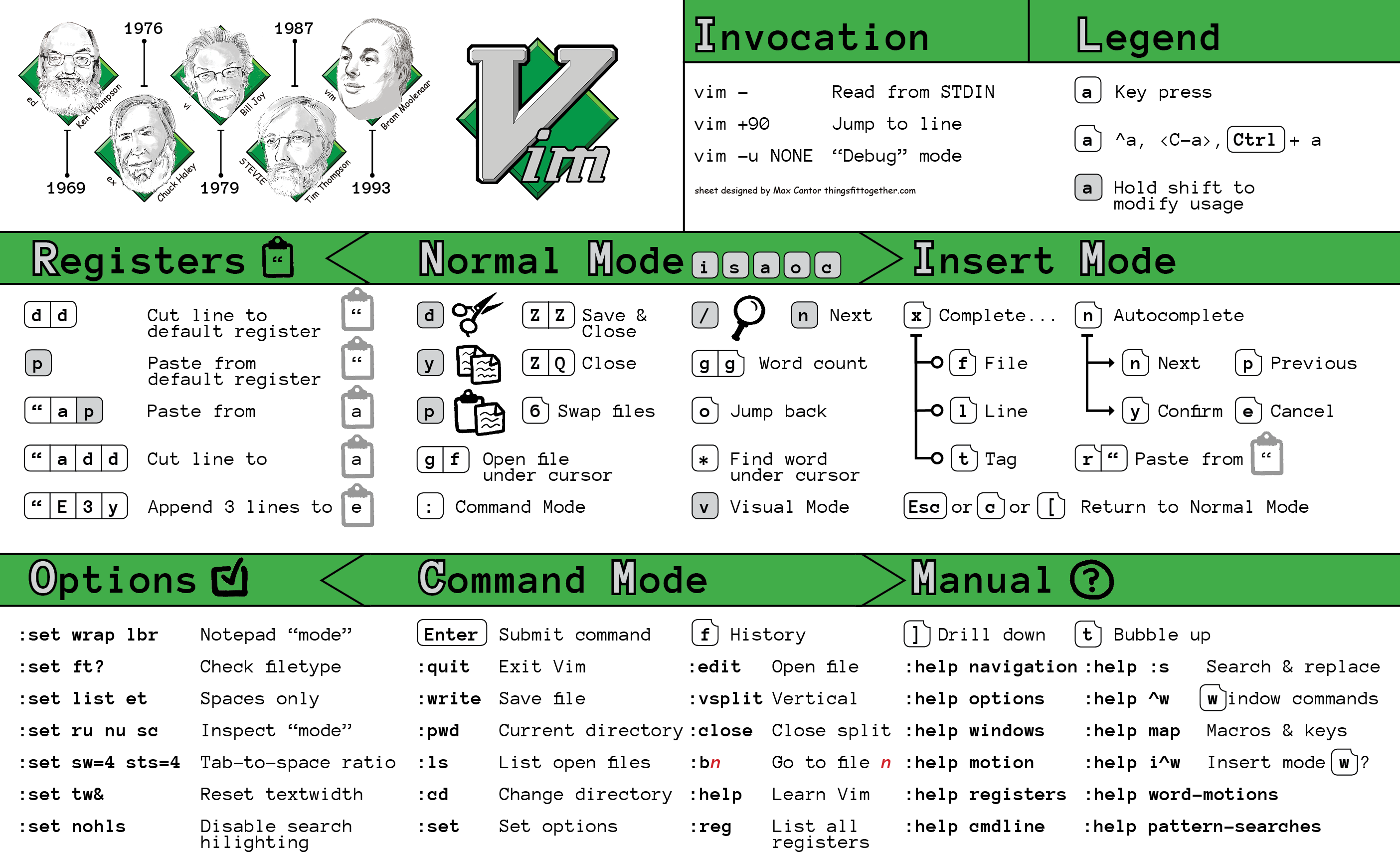
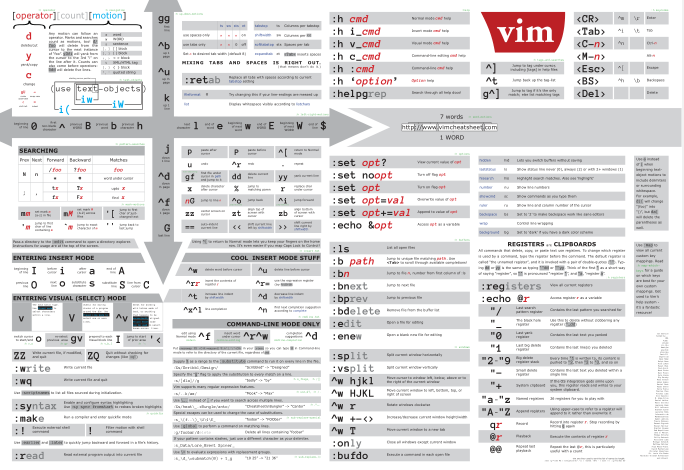
Summary
Fuzzy File Search
When moving to another buffer with :b, hit tab to autocomplete, or
simply hit Enter to go to the first buffer with a unique match to what you
have already typed.
By adding set path+=** and set wildmenu to the vimrc, we are now
able to hit Tab when running a :find command to expand partial matches.
Another asterisk (*) can be placed in the query to return fuzzy/partial matches.
Tag jumping
First, download and run ctags in your project directory like this: ctags -R .
Make sure your Vim working directory is in the same directory as the tags file
that gets generated.
Now, you are able to use ^] to jump to a tag under the cursor, g^] to get a
listing of all matching tags, and ^t to jump back up the tag stack.
Autocomplete
Vim has plenty of ways to do autocomplete. The best is ^n which works out of the box
according to the complete option. Use ^p to go back in the suggestion list,
^y to accept the current completion choice, and ^e to cancel out of the autocompletion
dialog to return to your text without making a selection.
There are also a number of other autocomplete features prefixed by ^x:
^x^nto search within the file^x^fto complete filenames (works withpath+=**!)^x^]to complete only tags
And more! :help ins-completion for a full listing.
File Browsing
Vim ships with a builtin file browser called NetRW. To use it, just run :E.
Snippets
Here's an example of a minimal snippet command you can put in your vimrc:
nnoremap ,html :-1read $HOME/.vim/.skeleton.html<CR>
Assuming that your home vim directory contains a text file called .skeleton.html,
which contains (for example) an empty HTML document, this mapping will insert
a copy of the text file in the current file when you type ,html in normal mode.
Build Integration
See the bottom of no_plugins.vim for an explanation of how to integrate Vim
with a simple Ruby RSpec build process (warning: this has not been updated
since 2016, so it probably does not work anymore).
Explore related projects
codecrafters-io/build-your-own-x
Master programming by recreating your favorite technologies from scratch.
561,355 starspublic-apis/public-apis
A collective list of free APIs
497,604 starsmorluto/rea
Reverse engineer anything with agents, from app behavior down to native binaries.
446,895 starsopenclaw/openclaw
The AI that really does things. Any OS. Any Platform. The lobster way. 🦞
394,253 stars