
camguillory/Audio-Priority-Bar
camguillory/Audio-Priority-Bar has 49 GitHub stars and 4 forks. GitHot measured +1 stars in 24 hours. Last checked 2026-11-09 19:16 UTC. Last push 2026-11-03.
A native macOS menu bar app that switches to your highest-priority headphones, speakers, and microphone
What you can do
- Switches for you. Headphones first, then speakers, and your top microphone.
- Tells you. A brief notice under the menu bar icon names the device it just picked.
- Mute from anywhere. ⌥ ⇧ M in any app, or from Shortcuts, Raycast, or a Stream Deck. The menu bar icon turns red while muted.
- Shortcuts actions. Set the output or microphone, mute, or turn automatic switching on or off from a shortcut.
Measured star growth
- in 24h
- +1
- in 7 days
- Update delayed
- in 15 days
- Update delayed
- in 1 month
- Update delayed
Net star changes over overlapping periods, not daily totals. Missing measurements are left blank. Stars measure attention, not software quality.
README.md
Original
Audio Priority Bar
Rank your headphones, speakers, and microphones once.
Your Mac uses the best one that's connected.




Why
| When | macOS on its own | Audio Priority Bar |
|---|---|---|
| A display connects | Sound can move to its speakers | Sound stays on your top device |
| AirPods take over on their own | They keep the sound | It switches back to your choice |
| You mute your microphone | In each app | Once, for every app |
Highlights
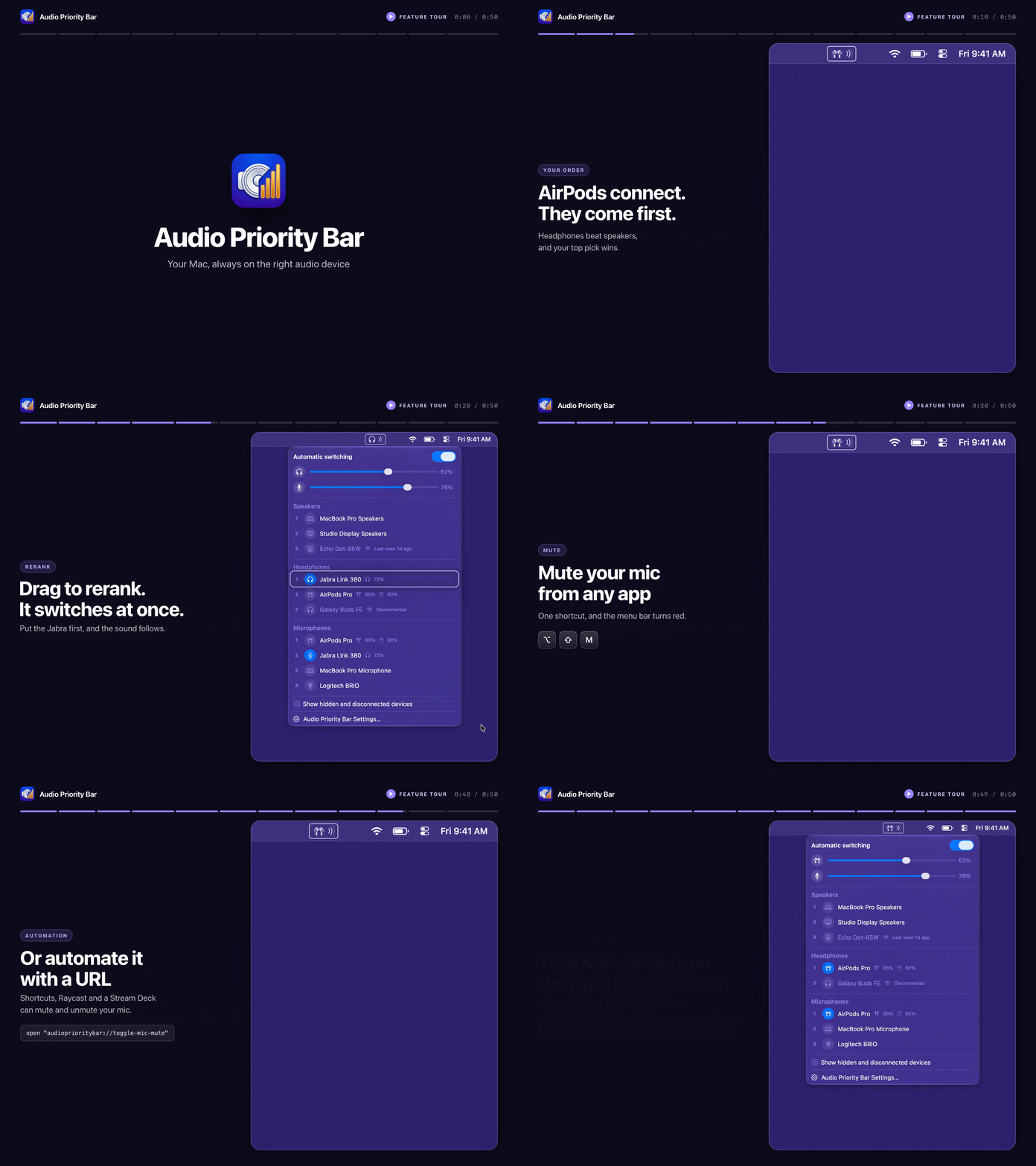
- Switches for you. Headphones first, then speakers, and your top microphone.
- Tells you. A brief notice under the menu bar icon names the device it just picked.
- Mute from anywhere. ⌥ ⇧ M in any app, or from Shortcuts, Raycast, or a Stream Deck. The menu bar icon turns red while muted.
- Shortcuts actions. Set the output or microphone, mute, or turn automatic switching on or off from a shortcut.
- Profiles. Keep a set of device orders for each setup and switch from the panel, a shortcut, or a Focus.
- Bluetooth in one click. Connect and disconnect paired speakers and headphones from the panel.
- Battery at a glance. AirPods buds and case, and Jabra headsets on a Link dongle.
- Jabra headset settings. Switch noise cancellation, HearThrough, sidetone and the busylight on a Jabra headset on a Link dongle, from its row, or light the busylight while an app uses its microphone. Tested on an Evolve2 85.
- Native. Laid out like the macOS Sound menu, with Liquid Glass on macOS 26, VoiceOver support, and automatic updates.
Install
brew install --cask camguillory/tap/audio-priority-bar
Or download the app,
unzip it, and move AudioPriorityBar.app to /Applications. Requires macOS 14
Sonoma or later, on Apple silicon or Intel.
[!NOTE] Audio Priority Bar is signed with its own certificate, not an Apple Developer ID, and it isn't notarized. If macOS blocks the first launch, open System Settings > Privacy & Security and click Open Anyway.
Verify the download
Download AudioPriorityBar.zip.sha256 from the
latest release
into the same folder as the archive, and check it before unzipping:
cd ~/Downloads
shasum -a 256 -c AudioPriorityBar.zip.sha256
Remove the quarantine attribute instead
Advanced users may instead remove only this app's quarantine attribute:
xattr -d com.apple.quarantine /Applications/AudioPriorityBar.app
Upgrading from V1
V2 imports V1 settings once on first launch (existing V2 values win). The new bundle identifier may require re-approving Input Monitoring or Open at Login.
Use
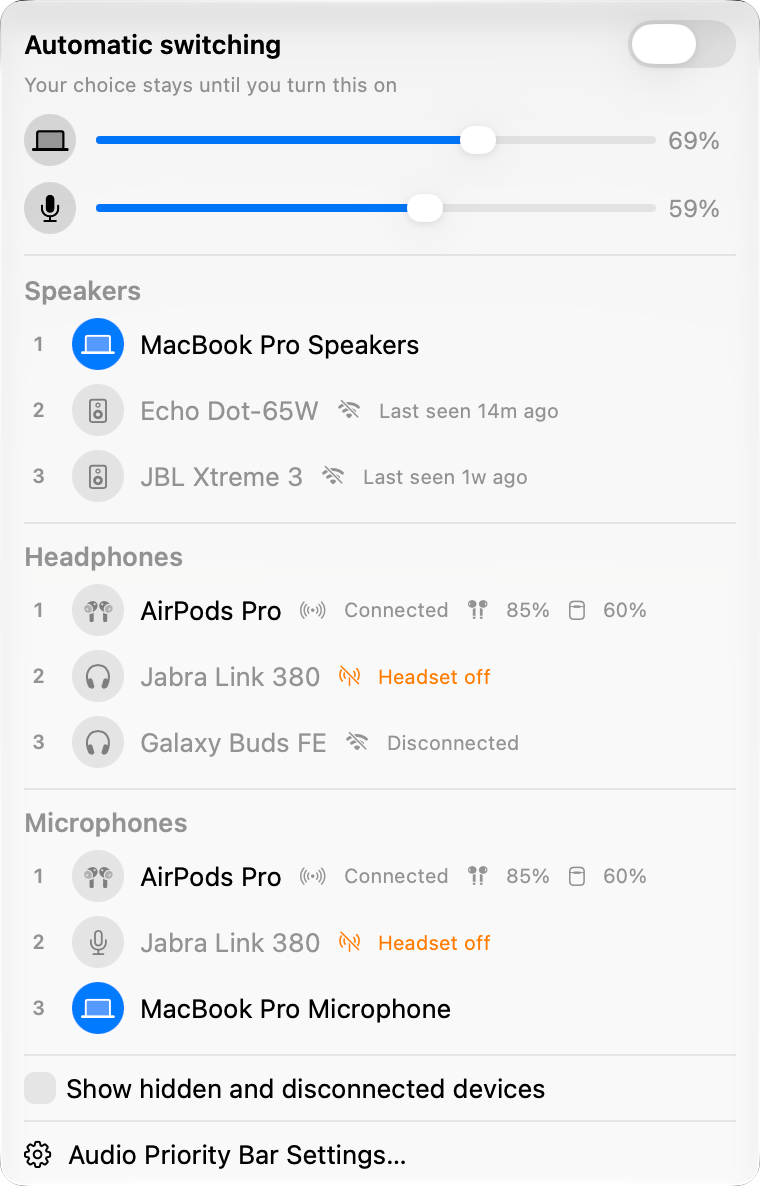
Click the icon in the menu bar to open the panel. Drag devices to rank them; the active one is highlighted. A device you pick by hand stays until it disconnects or a device your list would pick connects. Turn automatic switching off to keep it.
How switching works
- Automatic switching uses the first available headphone, then the first speaker.
- A device you pick in the panel, Control Center or Sound Settings stays until it disconnects or a device your list would pick connects, and automatic switching stays on. Other devices coming and going leave it alone. With automatic switching off, it stays until you turn it back on.
- When macOS or another app changes the device on its own, as AirPods do when you put them in, Audio Priority Bar switches back to the device you picked, or to your list. A device you connect still takes over if your list would pick it.
- If macOS takes the device again right after a switch back, as AirPods in your ears can, Audio Priority Bar leaves it and names it in the panel. Fix in Settings opens the AirPods settings, where choosing When Last Connected to This Mac under Connect to This Mac stops them switching on their own.
- With Select headset input and output together enabled, choosing either half of a physical USB headset selects the other too.
- With Microphones follow the output enabled, speakers and headphones each keep their own microphone order, so moving from headphones to speakers can also move to the desk microphone. A microphone you pick in Control Center or Sound Settings still stays until it disconnects or a microphone your list would pick connects.
- With Mute speakers when headphones disconnect enabled, the speakers start muted when the headphones playing disconnect, are turned off or run out of battery.
- The microphone mute follows automatic switching to the next microphone, and quitting the app restores it.
Speakers, Headphones, and Microphones remain visible in both modes.
Device controls
- Drag outputs within or between Speakers and Headphones.
- Reorder microphones within Microphones. With Microphones follow the output on, its heading shows With speakers or With headphones; pick the other to edit that order without switching anything.
- Move through the panel with Up and Down, as in a menu. Return or Space uses the highlighted device, mutes or unmutes a volume row, flips a switch, or opens Settings. Left and Right change the highlighted volume, profile, or microphone order, Right opens a device's actions menu, and Escape closes the panel.
- Use each row's actions menu for keyboard-accessible Move Up, Move Down, and Move to commands. Right-click a row to open the same menu.
- Hide a device to remove it from Speakers, Headphones, or Microphones, or keep it visible while blocking automatic selection with Never Auto-Select.
- Use Show hidden and disconnected devices to manage hidden and disconnected remembered devices.
- Forget a disconnected device to remove its saved settings.
- Paired Bluetooth speakers and headphones stay listed at their rank while they are off, dimmed. Click one to connect and use it. Hide one you never use to take it off the list.
- A Bluetooth device that is connected but not in use shows Connected. Hover it and click Disconnect to release it.
- A device with a paired counterpart, like a USB headset's input and output halves, shows an override for the current default: Mic only or Output only while Select headset input and output together is on, or Use both while it's off. It appears only when picking it would change something, and the actions menu offers it too.
- Set the output volume and microphone level by slider or scroll wheel. Click the round icon beside a slider to mute; it turns red while muted.
- Speakers and headphones are sorted by what each device reports, in any system language.
New HDMI and DisplayPort outputs start hidden; showing one is permanent, and Hide new HDMI and DisplayPort outputs turns this off for future devices. The active device always stays listed, even when hidden.
Menu bar icon
- The icon shows the current output, like AirPods or headphones, and optionally the microphone, labeled in and out if you like. Unlabeled, a mic that belongs to the output, like the AirPods mic, shares its icon.
- It can be outlined in Settings to tell it apart from the Sound icon, and can show the volume level beside any device icon. Settings previews the icon as you change it.
- A muted microphone shows in red and pulses, unless you turn the pulse off in Settings.
- The icon can turn red while automatic switching is off, as a reminder to turn it back on.
- Hovering the icon shows the current output and microphone.
- Option-click the icon to mute the microphone. Right-click it to mute the microphone, or for Settings, Check for Updates, and Quit.
- A Microphone muted reminder appears when an app starts recording while you are muted. Click it to hide it until you next record while muted. It and the switch notices can each be turned off in Settings.
Jabra Link headsets
The app asks a Jabra Link dongle directly whether its wireless headset is powered off, since CoreAudio can't tell, and falls back automatically in under a second. Right after replugging, it briefly shows the headset as off while the wireless link re-establishes, which is expected, not a bug.
Link 380 is hardware-verified. Link 390 uses the same detection but is unverified on hardware (details). An unrecognised dongle fails open rather than being treated as off.
Once the headset answers, its row also offers the settings it keeps itself: noise control (Off, Noise Cancellation or HearThrough), sidetone to hear your own voice in calls, and the busylight. While a call or an app uses the microphone, HearThrough isn't available, and sidetone replaces noise control when it's on. A call keeps the busylight on until it ends. A call started with the headset's call button ends from the red button on the row. Light a Jabra headset's busylight while an app uses its microphone in Settings, off by default, covers calls in apps that don't signal one, such as Meet or Teams in a browser. Tested on an Evolve2 85 behind a Link 380.
Profiles
A profile keeps its own Speakers, Headphones, and Microphones orders and whether automatic switching is on, for setups like Desk, Meeting, or Travel. Hiding, Never Auto-Select, and the other settings are shared by all of them.
- Your current setup is the first profile, Default. Add more in Settings > Profiles; each starts as a copy of the one in use. Click a name to rename it, or choose Edit Profiles… in the panel's profile menu.
- Rearranging the panel changes the profile in use, with nothing to save.
- With two or more, the panel heading shows the profile in use; pick another there, in Settings, or with the Apply Profile shortcut.
- Applying a profile selects its top devices at once. One with automatic switching off picks them and then holds them.
- Under System Settings > Focus, add Audio Priority Bar as a Focus filter to apply a profile while that Focus is on. The profile from before returns when it ends.
- Forgetting a device removes it from every profile. Profiles never drop a device on their own.
Automation
The Shortcuts app lists five actions: Set Output, Set Microphone, Set Microphone Mute, Set Automatic Switching, and Apply Profile. Picking a device works like a click in the panel, and a device that isn't connected stops the shortcut with its name.
URLs control the microphone mute and automatic switching from Shortcuts, Raycast, a Stream Deck, or Terminal:
open "audioprioritybar://toggle-mic-mute"
open "audioprioritybar://mute-mic"
open "audioprioritybar://unmute-mic"
open "audioprioritybar://toggle-automatic"
open "audioprioritybar://enable-automatic"
open "audioprioritybar://disable-automatic"
In Shortcuts, add an Open URLs action with one of them. The app opens if it isn't running. Any other form of the URL is ignored. The Shortcuts tab in Settings lists them with a Copy button.
Permissions
| Permission | When it's asked |
|---|---|
| Bluetooth | The first time you connect or disconnect a device from the panel |
| Input Monitoring | May be asked, to tell when a Jabra Link headset is off |
| Accessibility | Optional, only from Settings, to keep the hover preview off while macOS hides the icon |
| Login Items | Open at Login may need approval in System Settings > General > Login Items, which Settings opens for you |
The mute shortcut needs no permission.
Contributing
Issues and pull requests are welcome. Open an issue first for anything
substantial, then branch from develop and open the pull request against
develop. See CONTRIBUTING.md.
Build from source
git clone https://github.com/camguillory/Audio-Priority-Bar.git
cd Audio-Priority-Bar
./build.sh
The universal app is written to dist/AudioPriorityBar.app, signed with the
release certificate when it is in your keychain and ad-hoc otherwise.
You can also open AudioPriorityBar.xcodeproj in Xcode and build with Command-R.
For local development, ./build.sh --dev builds only your machine's
architecture in the Debug configuration, which is much faster, and writes
dist/AudioPriorityBar-dev.app, signed the same way.
License
Acknowledgments
Originally created by tobi.
The Jabra GNP framing and pairing-record query are based on jabridge by Watchdog0x (Apache-2.0).
Built with SwiftUI, AppKit, CoreAudio, and IOKit.
Explore related projects
ytdl-org/youtube-dl
Command-line program to download videos from YouTube.com and other video sites
141,500 starsexcalidraw/excalidraw
Virtual whiteboard for sketching hand-drawn like diagrams
135,396 starsgodotengine/godot
Godot Engine – Multi-platform 2D and 3D game engine
119,840 starsmrdoob/three.js
JavaScript 3D Library.
117,983 stars