
asciimoth/zpg has 6 GitHub stars and 0 forks. GitHot measured 0 stars in 24 hours. Last checked 2026-11-15 17:10 UTC. Last push 2026-11-11.
Measured star growth
- in 24h
- 0
- in 7 days
- Collecting history
- in 15 days
- Collecting history
- in 1 month
- Collecting history
Net star changes over overlapping periods, not daily totals. Missing measurements are left blank. Stars measure attention, not software quality.
About
Standalone cli supervisor for zig progress protocol
Developer ToolsREADME.md
Originalzpg
zpg runs commands with a progress overlay.
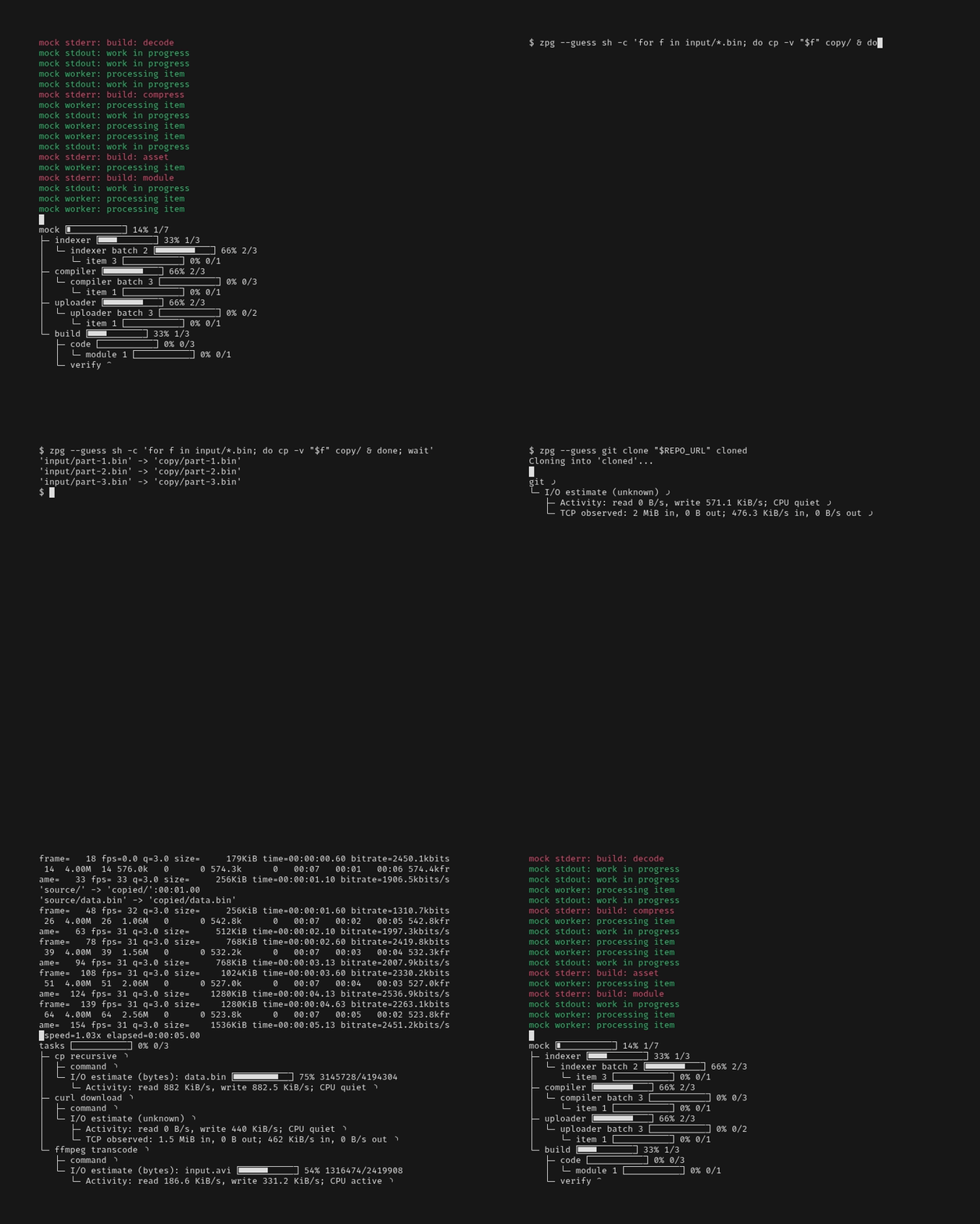
Programs outside Zig can report progress with zppy for Python, zpgo for Go, zprs for Rust, and zpjs for JavaScript and TypeScript (Node.js). See the Developer guide for usage.
Installation
zpg supports Linux and macOS. Choose one of these installation methods.
APT or DNF repository
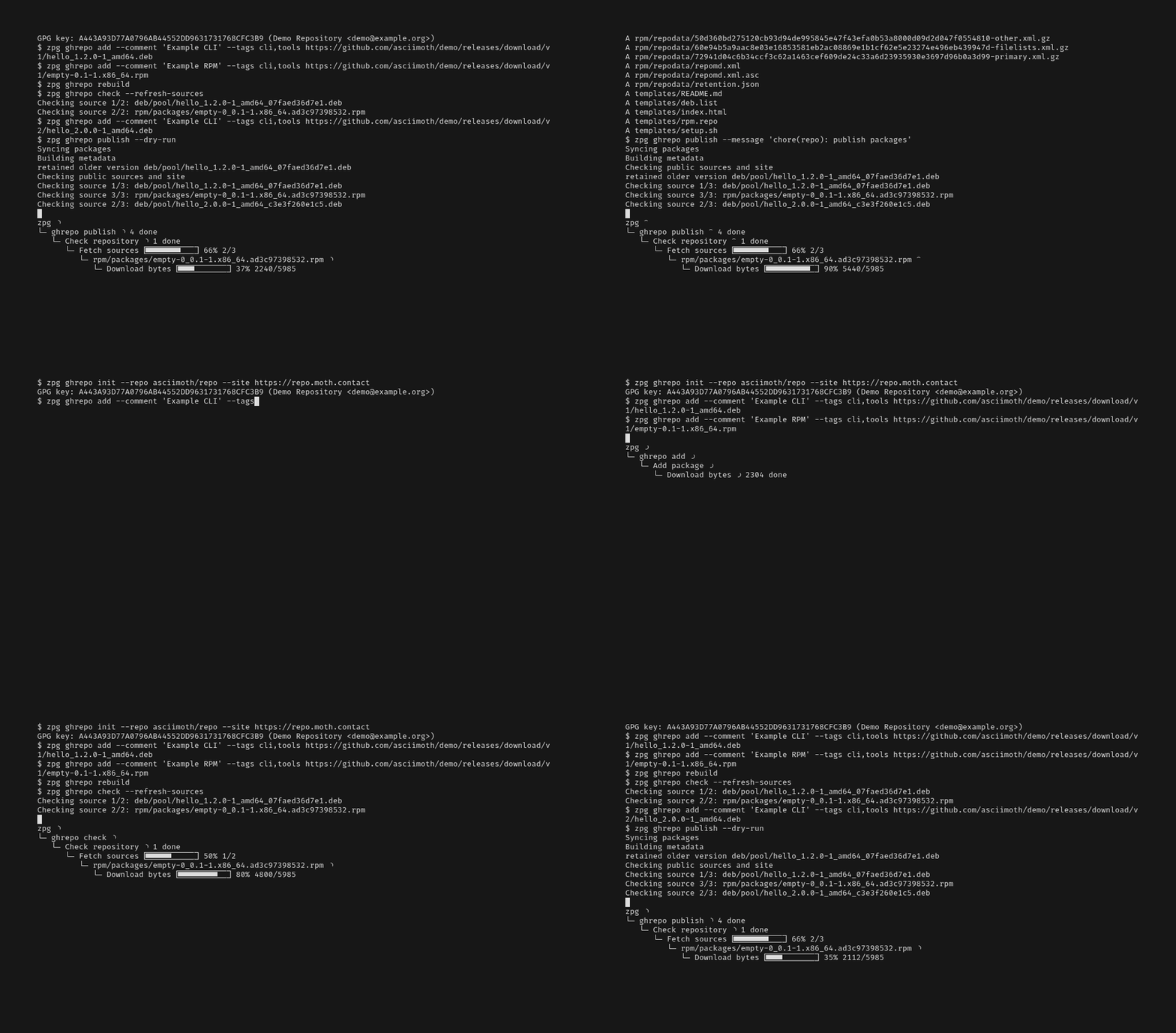
On Debian or Ubuntu, add the package repository
and install zpg with APT:
curl -fsSLo KEY.gpg https://repo.moth.contact/KEY.gpg
sudo install -m 0644 KEY.gpg /usr/share/keyrings/ghrepo-archive-keyring.gpg
curl -fsSLo deb.list https://repo.moth.contact/deb.list
sudo install -m 0644 deb.list /etc/apt/sources.list.d/ghrepo.list
sudo apt update
sudo apt install zpg
On Fedora or another DNF system, add the same repository and install zpg:
curl -fsSLo rpm.repo https://repo.moth.contact/rpm.repo
sudo install -m 0644 rpm.repo /etc/yum.repos.d/ghrepo.repo
sudo dnf makecache
sudo dnf install zpg
GitHub Releases
Download a package for your system from the GitHub Releases page. Releases include DEB, RPM, and Arch Linux packages, plus Linux binaries. After you download one package, install it with the matching command:
sudo apt install ./zpg_*.deb
sudo dnf install ./zpg_*.rpm
sudo pacman -U ./zpg_*.pkg.tar.zst
Run only the command for your package manager.
For a raw binary, save the downloaded file as zpg, then run
sudo install -m 0755 ./zpg /usr/local/bin/zpg.
Nix flake
On x86_64 or aarch64 Linux, install the flake package in your Nix profile:
nix profile add github:asciimoth/zpg#zpg
To run it without installing it, use
nix run github:asciimoth/zpg#zpg -- --mock.
Build from source
Install Zig 0.17.0, then build and install zpg:
git clone https://github.com/asciimoth/zpg.git
cd zpg
zig build -Doptimize=ReleaseSafe
sudo mkdir -p /usr/local/bin
sudo install -m 0755 zig-out/bin/zpg /usr/local/bin/zpg
Usage
Run zpg before the command whose progress you want to see:
zpg --name build ./worker --flag value
zpg --guess cp large.iso /backup/
zpg zpg --mock
--mock runs a fixed progress workload when stdin is empty. It sends progress
data to a parent zpg process and does not draw a progress display itself.
With input from a pipe or file, it echoes each line with a short delay. Long
lines stream in chunks to keep memory use bounded. The demo preserves a final
line without a newline:
printf 'one\ntwo\n' | zpg zpg --mock
zpg zpg --mock < input.txt
In the fixed demo, stdout logs are green when stdout is a terminal. Stderr logs
are red when stderr is a terminal. At the end, terminal stdout shows a bar
updated with \r. Terminal stderr shows a two-row footer updated with cursor
movement. Run zpg zpg --mock to check nested output.
Use zpg [options] <command> [args...]. Put zpg options before the command.
zpg passes arguments after the command to the command unchanged. It uses
PATH to find commands. To use shell syntax, run zpg sh -c '...'. If a
command name starts with a hyphen, put -- before the name. Run zpg --help
for all options.
Compatible programs
These programs support the Zig progress protocol. Run them with zpg to show
their progress.
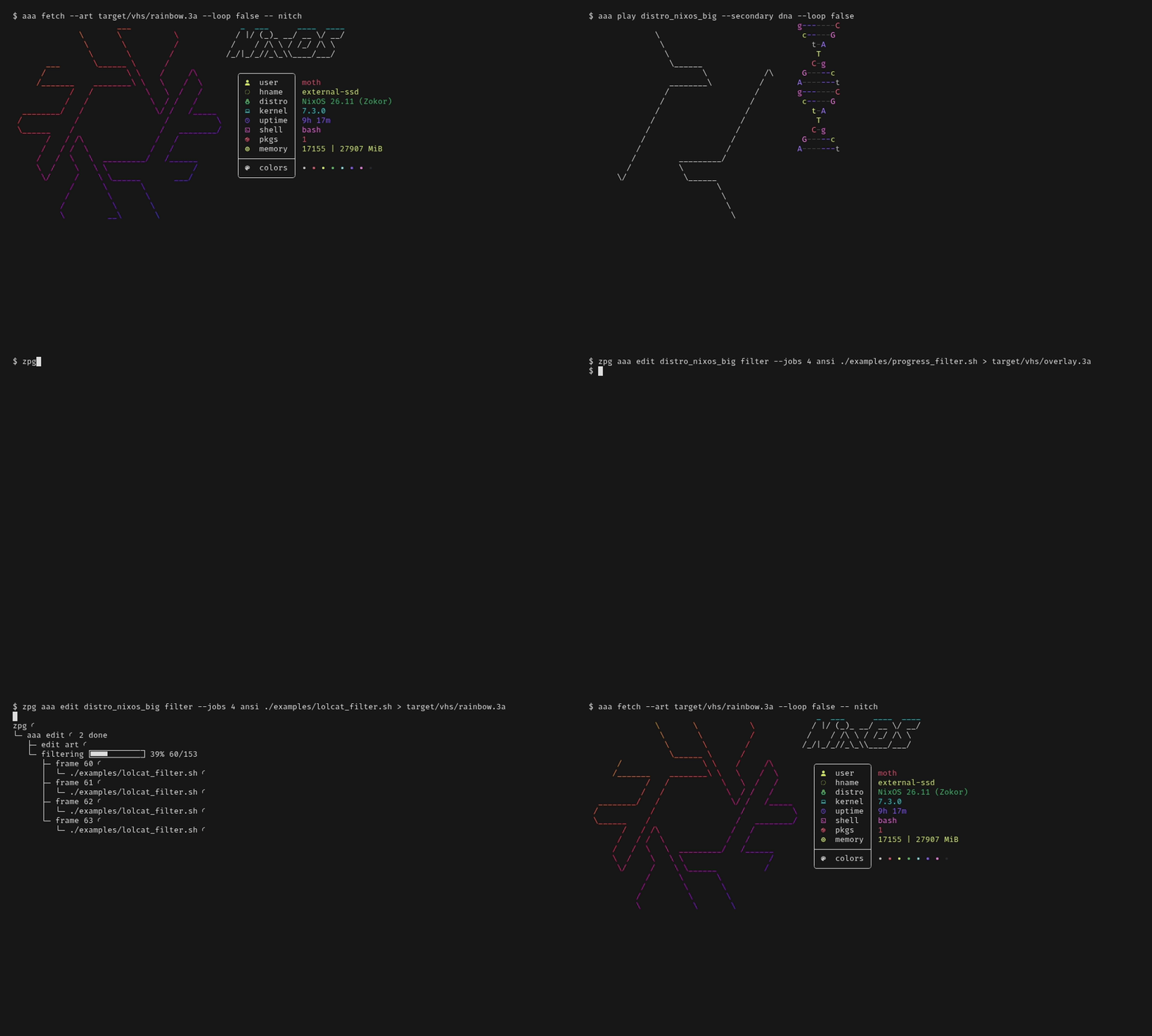
aaa:
Parallel tasks
Use zpg [options] --tasks FILE.json [values...] to run tasks in parallel.
Put all zpg options before --tasks. Arguments after the file name are
substitution values, including arguments that start with -.
{
  "$schema": "./tasks.schema.json",
  "tasks": [
    {"name": "copy", "command": ["cp", "-rv", "{{.1}}", "{{.2}}"], "guess": true},
    {"name": "build", "command": ["make", "-j4"]}
  ],
  "stop_on_first_finish": false
}
Run this file with zpg --tasks tasks.json source-dir backup-dir.
The JSON schema defines the format.
Each command is an array with the executable and its arguments. zpg uses
PATH to find the executable. Tasks inherit the current directory and
environment. A name is optional and defaults to the command's basename.
Set guess: true on a task to enable Linux progress estimates alongside its
native progress reports. The shared progress tree has a tasks root.
Do not combine --tasks with --name, --guess, --mock, --report, or
--test. Display options such as --renderer tree and --no-progress work.
In command arguments, {{.1}} inserts the first value after the file name,
{{.2}} inserts the second, and so on. Values can be inserted inside an
argument, such as {{.1}}/output.bin. Spaces and shell characters remain
literal text in that argument. Inserted text is not expanded again. Indices
start at 1 and must not have leading zeroes. A missing value or malformed
{{. template fails before any task starts. Names are not templates.
There is no implicit shell. For shell syntax, use an explicit command such
as ["sh", "-c", "cp -- \"$1\" \"$2\"", "copy", "{{.1}}", "{{.2}}"].
Pass substituted values as separate arguments to keep them out of shell code.
Only run tasks files whose commands you trust. A tasks file can run any command
with your permissions; argument validation does not restrict those commands.
All task stdout goes to zpg stdout. All task stderr goes to zpg stderr. Bytes and order within each task's stream stay unchanged; output from different tasks can interleave. Tasks share inherited stdin when it is a file or pipe; input is not copied to each task. Terminal stdin is empty, as in command mode. Task errors quote file names, task names, and command names. Control characters, Unicode direction controls, and invalid UTF-8 bytes are escaped.
By default, zpg waits for every task. It returns zero if all tasks succeed,
or the first nonzero status in file order. Set stop_on_first_finish: true
to stop the other task process groups when the first task exits, on success
or failure, and return that task's status. If several tasks finish together,
the first observed exit wins. Signals return 128 + signal. On Ctrl-C,
SIGTERM, or an output failure, zpg stops all task groups. Shutdown uses SIGTERM
and forces remaining processes to stop after two seconds. A launch failure
stops tasks that already started and returns 1. Invalid tasks files return 2.
If a signal or output failure occurs during launch, zpg stops launching tasks
and shuts down the tasks that have started.
Progress display
The default display shows bars, percentages, and counts. Tasks with unknown totals show a spinner:
build [#########---] 75% 3/4
├─ assets [############] 100% 2/2
└─ code [######------] 50% 1/2
   └─ compile /
Use --name TEXT to set the task label. By default, the label is the command's
basename. Use --renderer tree to show a plain tree with Zig progress counters.
Use --no-progress to hide progress.
By default, zpg shows progress on stderr if stderr is a terminal. If only
stdout is a terminal, it shows progress on stdout. If neither stream is a
terminal, it hides progress. Use --progress-stream stdout or
--progress-stream stderr to select a stream. The selected stream must be a
terminal that supports ANSI escapes. Use --progress-stream auto to restore
the default selection.
Set bar and spinner styles:
zpg --bar-style block --spinner-style dots ./worker
zpg --bar-style fira --spinner-style fira ./worker
zpg --bar-style '(=.)' --spinner-style '.oO@' ./worker
Both styles use ascii by default. The fira styles require Fira Code or a
font with the same progress characters. Set UNICODE_PROGRESS_BAR=true to use
fira by default for both styles. Command-line options override each style
separately.
For a custom bar, supply two characters (filled, empty) or four characters
(left border, filled, empty, right border). For a custom spinner, supply 1 to
64 characters, one per frame. Quote values that contain spaces or shell symbols.
Styles apply only to the bars renderer. For nested zpg commands, set the
renderer and styles on the outermost zpg command.
Progress estimates
Use --guess for commands that do not report progress. On Linux, zpg samples
file and process metadata across the command's process group. It estimates
progress for open input files, including files that child processes read.
For example, add progress to common Unix commands that read a file:
zpg --guess cp large.iso /backup/
zpg --guess tar -xf archive.tar -C /backup/
zpg --guess gzip -c large.iso > large.iso.gz
For cp, the percentage tracks how much of large.iso the command has read.
For tar, it tracks the input archive. The gzip example writes the compressed
output to large.iso.gz and leaves the input file in place.
Command output and exit status
zpg sends the command's stdout to zpg's stdout and the command's stderr to
zpg's stderr. It keeps the bytes and their order within each stream unchanged.
It adds progress controls only to the selected terminal stream. The command
inherits stdin when stdin is a pipe or a file:
zpg worker > output.txt
cat input.txt | zpg worker > output.txt
zpg worker < input.txt > output.txt
zpg worker 2> errors.log
zpg --progress-stream stderr worker > output.txt
When stdout goes to a file or a pipe, zpg shows progress on terminal stderr.
When only stdout is a terminal, it shows progress on stdout. To save both
streams without progress, use zpg worker > combined.log 2>&1. To combine
them in a pipeline, use zpg worker 2>&1 | consumer.
zpg gives each command output stream a separate pseudo-terminal when the
matching zpg stream is a terminal. Otherwise, it gives the command output
stream a pipe. Programs can use their normal TTY checks to enable colored logs.
This behavior works with --no-progress and nested zpg commands.
--no-progress also hides progress in nested zpg commands.
Programs can update a line with \r or draw a small footer with relative
cursor movement. zpg tracks carriage returns, line feeds, backspace, tabs,
relative cursor movement (CSI A/B/C/D/E/F), column selection (CSI G),
line erasure (CSI K), erasure to the end of the screen (CSI J), and cursor
save and restore (ESC 7/8, CSI s/u).
zpg keeps its progress display below the command's output rows. It waits
until a control sequence, UTF-8 character, or saved cursor operation is complete.
If there is not enough space below the output, it hides progress. After a
cursor save, zpg also avoids scrolling that could move the saved screen
position, even after a restore. Progress can stay hidden until zpg knows
that it has enough space to draw without scrolling. Both renderers use this
behavior. Child stdout and stderr bytes stay unchanged.
Unchanged progress frames do not redraw. For complete log writes, zpg
clears the tree, writes the log, and restores the tree in one synchronized
terminal update. Terminals that support synchronized updates do not show
a blank tree between these steps.
The pseudo-terminals use the initial size of their matching terminals. Output
conversion is disabled. zpg does not support absolute screen positioning,
scroll regions, alternate screens, or other complex terminal operations.
When stdin is a terminal, zpg gives the command an empty stdin. zpg does
not support interactive commands or full-screen applications.
zpg returns the command's exit code. If a signal kills the command, zpg
returns 128 + signal. Invalid arguments return 2. Launch or I/O errors
return 1.
On Ctrl-C or SIGTERM, zpg asks the command's process group to stop. If
necessary, it forces the process group to stop after two seconds. If a
descendant keeps an output stream open after the command exits, zpg stops
reading after two seconds and warns that it discarded output.
Developer guide
Zig progress protocol
Workers use the Zig progress protocol
to send progress updates to a supervisor through a pipe. Updates describe tasks
and subtasks. Each update includes completed and total item counts. zpg
supplies the pipe and displays the updates.
Zig programs can use std.Progress to report updates. Scripts can use
zpg --report. Any program that implements the protocol can report progress
to zpg.
Reporting progress from workers
Zig
Use std.Progress from the Zig standard library to report progress. It
connects to the progress pipe that zpg supplies. You do not need a zpg
library or code to handle the protocol. Save this Zig 0.17.0 example as
worker.zig:
const std = @import("std");

pub fn main(init: std.process.Init) !void {
    const root = std.Progress.start(init.io, .{
        .root_name = "work",
        .estimated_total_items = 4,
    });
    defer root.end();

    for (0..4) |_| {
        // Replace this delay with one item of work.
        try init.io.sleep(.fromMilliseconds(500), .awake);
        root.completeOne();
    }
}
Build the program with zig build-exe worker.zig. Then run zpg ./worker.
Call completeOne() after each item completes. To set an absolute count, use
setCompletedItems(count). If the total is unknown, set the estimated total
to 0. When you know the total, call setEstimatedTotalItems(total). For a
subtask, call root.start("task name", total) and update the returned node.
Call end() on each node when its task ends.
The program also works without zpg. In this case, std.Progress controls
its own display.
Python
Install zppy with
python -m pip install zppy. Save this example as worker.py:
import time

from zppy import Progress

with Progress("work", estimated_total_items=4) as progress:
    for _ in range(4):
        # Replace this delay with one item of work.
        time.sleep(0.5)
        progress.root.complete_one()
Run zpg python worker.py. The context manager closes the reporter when
the block ends.
Go
In your Go module, install zpgo with
go get github.com/asciimoth/zpgo. Save this example as main.go:
package main

import (
    "log"
    "time"

    "github.com/asciimoth/zpgo"
)

func main() {
    progress, err := zpgo.New(zpgo.Options{
        RootName:            "work",
        EstimatedTotalItems: 4,
    })
    if err != nil {
        log.Fatal(err)
    }
    defer progress.Close()

    for i := 0; i < 4; i++ {
        // Replace this delay with one item of work.
        time.Sleep(500 * time.Millisecond)
        progress.Root().CompleteOne()
    }
}
Build with go build -o worker ., then run zpg ./worker.
Rust
Add zprs to your Cargo project's
Cargo.toml:
[dependencies]
zprs = "0.1"
Save this example as src/main.rs:
use std::{thread, time::Duration};
use zprs::Progress;

fn main() -> std::io::Result<()> {
    let progress = Progress::new("work", 4)?;
    for _ in 0..4 {
        // Replace this delay with one item of work.
        thread::sleep(Duration::from_millis(500));
        progress.root().complete_one();
    }
    progress.close()
}
Build with cargo build, then run zpg target/debug/your-program.
Replace your-program with your Cargo binary name.
JavaScript and TypeScript
Install zpjs with
npm install @asciimoth/zpjs. The package includes TypeScript declarations.
Save this JavaScript example as worker.mjs:
import { setTimeout as delay } from "node:timers/promises";
import { Progress } from "@asciimoth/zpjs";

const progress = new Progress({ name: "work", estimatedTotalItems: 4 });
try {
    for (let i = 0; i < 4; i++) {
        // Replace this delay with one item of work.
        await delay(500);
        progress.root.completeOne();
    }
} finally {
    progress.close();
}
Run zpg node worker.mjs. For long synchronous work, call progress.flush()
to send updates while the event loop is busy.
Scripts
Use zpg --report COMPLETED TOTAL. Keep zpg on PATH. Save this script as
build.sh, then run zpg --name build sh build.sh:
#!/bin/sh
set -e
zpg --report 0 2
compile_assets
zpg --report 1 2
compile_code
zpg --report 2 2
Replace compile_assets and compile_code with your commands. Each report
sets absolute counts. If the total is unknown, use 0. Counts must be decimal
integers from 0 to 4294967294. To set the task label, add --name, as in
zpg --report 3 10 --name 'compile files'.
Each call exits after it sends the update. The supervisor keeps the last update until the next report or until the script exits. If progress is disabled or no supervisor is present, reports succeed without output. The script also works on its own.
Concurrent reports for one command replace each other. Use nested zpg
commands for separate tasks. Do not mix shell reports with other progress
reports that use the protocol in the same command.
See the shell demo or run just demo-report.
Test a progress implementation
Use --test to inspect a program's Zig progress packets without a terminal
overlay. zpg writes the log to stderr, including when stderr is a file or
pipe:
zpg --test ./worker --flag value
zpg --test --test-output progress.log ./worker --flag value
--test-output FILE creates or replaces the log file. Child stdout and stderr
keep their original bytes. Use a log file to keep progress separate from child
stderr.
The log includes pipe open and close events, each snapshot's node count,
whether the snapshot changed, and the process result. Changed snapshots list
each node's packet index, parent index, completed count, total count, and name.
A total of 0 means unknown. Parent 255 marks the root. zpg escapes name
bytes so names cannot insert terminal controls or extra log lines.
The protocol sends whole snapshots, not individual task events. Compare
snapshots to see tasks appear, change, or disappear. Node indices can change
between snapshots. An empty snapshot has zero nodes. If a program sends no
packets, the log says no progress received.
Test mode reports truncated packets, reserved node counts and total counts,
and invalid parent trees. If the command succeeds, these errors make zpg
return status 1. If the command exits with a nonzero status, zpg keeps that
status. These checks do not prove that reported counts match the program's
work. If descendants keep pipes open, the normal drain timeout applies. The
log then marks the capture incomplete.
Test mode requires a command. Do not combine it with --mock, --report,
--guess, or --no-progress. Display styles do not affect the test log.