
anywherelan/awl has 773 GitHub stars and 54 forks. GitHot measured +13 stars in 24 hours and +50 in 7 days. Last checked 2026-11-10 00:29 UTC. Last push 2026-10-31.
Securely connect your devices into a private network. Mesh VPN, socks5 proxy server/client
What you can do
- fully peer-to-peer, no coordination server (see Why Anywherelan above)
- route all your traffic through a device: full-tunnel VPN gateway / exit node
- route traffic through a device as a SOCKS5 proxy
- automatic NAT traversal via libp2p; falls back to community relays when a direct path isn't possible
Measured star growth
- in 24h
- +13
- in 7 days
- +50
- in 15 days
- Collecting history
- in 1 month
- Collecting history
Net star changes over overlapping periods, not daily totals. Missing measurements are left blank. Stars measure attention, not software quality.
README.md
Original




Table of contents
- About
- Installation
- Connecting devices
- Using devices as SOCKS5 proxy
- VPN gateway (full-tunnel exit node)
- Configuration
- Monitoring
- Terminal-based client
- Upgrading
- Platform notes & known limitations
- Contributing
- License
About
Anywherelan (awl for brevity) is a peer-to-peer mesh VPN for connecting your own devices to each other, at the IP level, from wherever they are. A laptop behind a NAT, a home server, an old phone: give each one a stable .awl address, and they can reach each other as if they were on the same LAN.
awl is fully decentralized: no coordination server, no account, no control plane. There is nothing to pay for, nothing to sign up for, nothing that can be shut down from the outside. Everything awl needs is in this repository, under an open-source license.
awl is aimed at personal use: selfhosters, groups of friends, small device fleets (roughly ~10s). It is not a replacement for commercial mesh VPNs in a team setting: there are no ACLs, tags, SSO, or admin dashboards.
Some things people use it for:
- SSH / RDP / VNC into your home or work laptop from anywhere, without port forwarding or exposing anything to the internet
- reach selfhosted services (Nextcloud, Home Assistant, Bitwarden, ...) privately
- route traffic through a remote device as a SOCKS5 proxy, for example to bypass regional blocks
- route all your traffic through a remote device at the IP layer, as a full-tunnel VPN gateway / exit node
- LAN-style multiplayer gaming across the internet
- keep an old Android phone accessible for apps that only run there (e.g. with scrcpy)
Why Anywherelan
Tailscale, Netbird and ZeroTier are excellent products, especially for teams. awl is a different shape:
- Fully peer-to-peer. There is no coordination server to trust, fund, or depend on. Peers find each other via libp2p's DHT and connect directly; encrypted traffic only flows through third parties (community relays) when both sides are behind restrictive NATs and no direct path is possible.
- Fully open source. Every part of the stack is open: clients, bootstrap nodes, relays. There is no closed-source control plane quietly running the show.
- Harder to block. There is no single endpoint an ISP or government can blackhole. DHT discovery plus libp2p's transport negotiation makes awl more survivable on restrictive networks than VPNs that depend on a central coordination server.
Tradeoffs worth knowing about:
- No centralized policy management (no ACLs, no device tags, no SSO).
- Smaller feature set than commercial alternatives. Bigger features are in flight; for now, awl is best at what it already does well: getting your devices talking to each other.
Features
- fully peer-to-peer, no coordination server (see Why Anywherelan above)
- route all your traffic through a device: full-tunnel VPN gateway / exit node
- route traffic through a device as a SOCKS5 proxy
- automatic NAT traversal via libp2p; falls back to community relays when a direct path isn't possible
- TLS 1.3 encryption (QUIC or TCP+TLS)
- built-in DNS: reach devices at
work-laptop.awlinstead of typing IPs - invite links: add a device by a link or a QR code, with auto accept
- Windows, Linux, macOS, Android
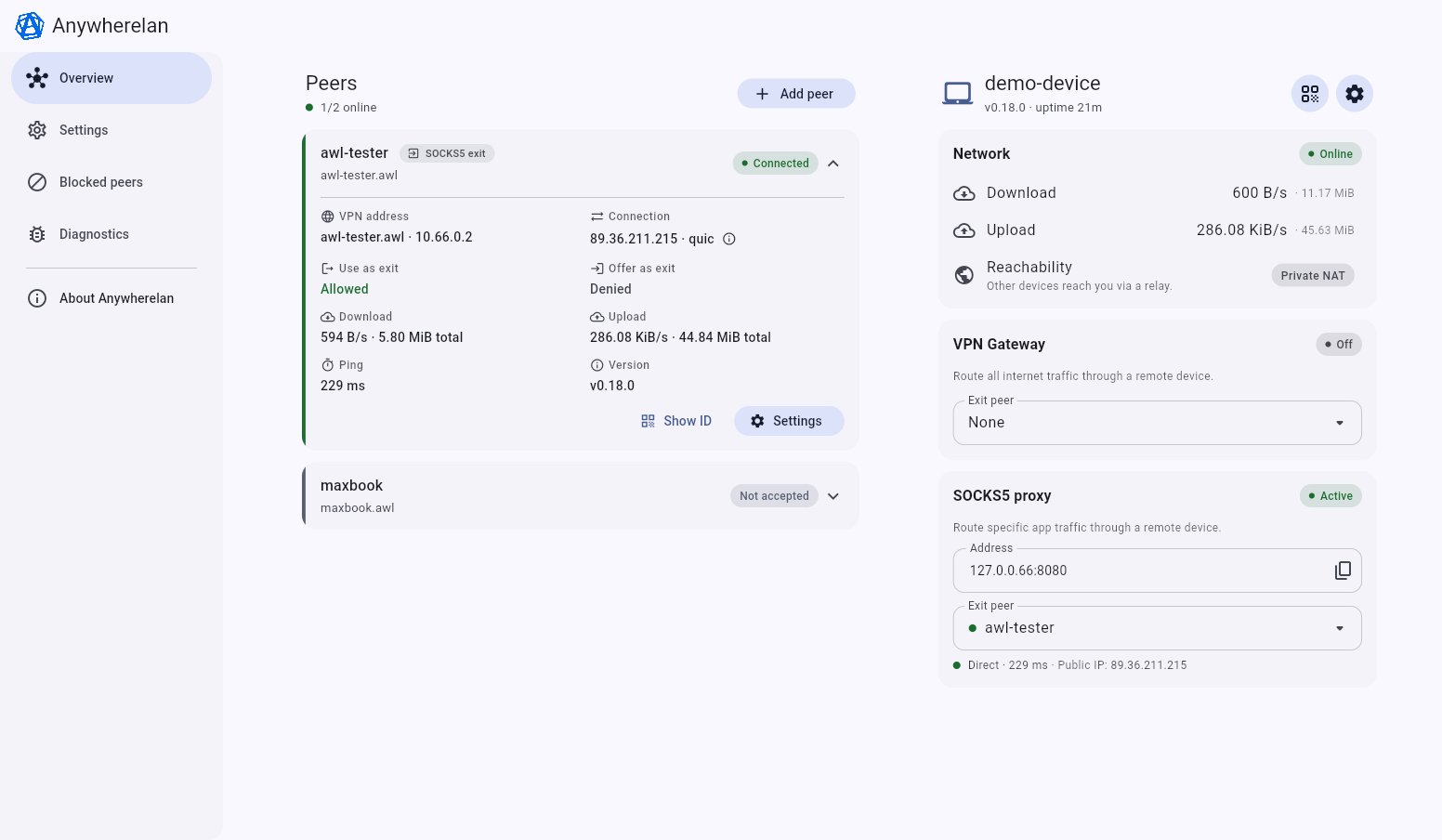
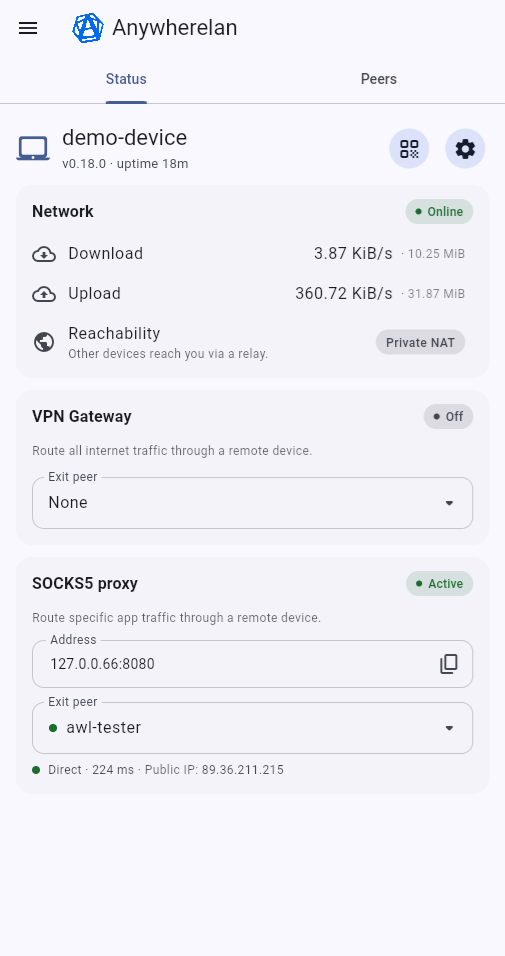
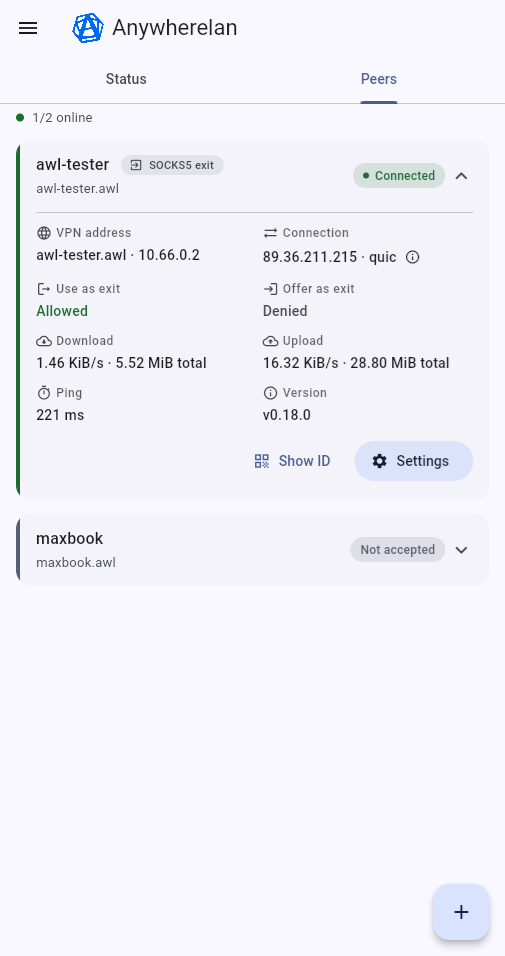
:camera: Screenshots
|
|
|
|
How it works
awl combines two things: a virtual network interface (TUN on Linux/macOS/Android, wintun on Windows) and a peer-to-peer networking stack built on libp2p. IP packets sent into the awl interface are wrapped into libp2p streams and delivered directly to the addressed peer.
- Transport: QUIC (with native TLS 1.3) or TCP+TLS, negotiated per-connection.
- Discovery: on startup, awl announces itself in the libp2p DHT via community bootstrap nodes. To reach a peer, awl looks it up in the DHT and opens a connection directly.
- NAT traversal and relays: libp2p handles hole-punching for most NATs; when both peers are behind restrictive NAT, traffic is forwarded through a libp2p circuit relay. Relays only see encrypted bytes. For details on the mechanics, see libp2p's NAT docs.
Security
awl's transport security comes from libp2p.
- Encryption: all peer traffic is TLS 1.3, via either QUIC (which uses TLS natively) or TCP+TLS. Bootstrap nodes and relays see only ciphertext.
- Identity: each peer has an
ed25519keypair; thepeer_idis the public key, so identity and authentication aren't separate layers. There is no CA, no certificate to revoke. - Trust model: peers must add each other explicitly. You exchange links out-of-band (copy/paste, QR, messenger, whatever works), one side sends a friend request, the other accepts. No trust-on-first-use; unknown peers can't connect to you. The one exception is an invite link: whoever opens it is added without a manual accept. Treat an invite link like a password.
- Friend requests from strangers: anyone who knows your
peer_idcan send you a friend request. awl keeps at most 20 unanswered requests; when more arrive, older ones may be dropped, and their senders retry later. - Key compromise: there is no revocation mechanism. If an identity key leaks, generate a new one and re-add peers.
- Metadata: nodes participating in the DHT can observe which peer IDs are online and being looked up. Packet contents are end-to-end encrypted and not visible to them.
To report a vulnerability, see SECURITY.md.
Reproducible builds
awl's release binaries are built reproducibly on every platform. Builds run in public GitHub Actions from tagged source (see the build workflow and build.sh), using -trimpath and -buildid= with pinned dependencies, so the same source produces byte-identical output.
- Android: the app is independently reproducible-verified: F-Droid rebuilds the application from source and verifies that the resulting APK matches the APK published in the GitHub Releases. See its reproducibility status.
- Desktop: every GitHub release includes SHA-256 checksums for its archives. You can independently reproduce a release yourself by building the same tag according to
BUILDING.mdand verifying that the checksums match.
Installation
awl comes in two desktop flavors:
awl-tray: desktop build with a system-tray indicator: status at a glance, start/stop/restart, peer list, and quick exit-node selection (SOCKS5 proxy / VPN gateway). Use this for regular desktop usage.awl: headless server build, no GUI. Use this for servers and embedded devices.
Both share the same web UI and the same CLI.
Grab the archive for your platform/arch from the releases page and extract it wherever you like. On macOS it's a .dmg with the app, see macOS.
The web UI
Once awl is running, open http://admin.awl in a browser. admin.awl is a magic local domain that awl's built-in DNS resolves to the local web UI (default http://127.0.0.1:8639). On awl-tray you can also right-click the tray icon → Open Web UI.
Android

Get it from F-Droid, or download the APK directly from the GitHub releases page, both are the same app.
Windows (awl-tray)
Requires Windows 7 or newer.
Unpack the zip and run the binary as administrator (right-click → Run as administrator). Admin rights are required to create the virtual network interface.
Some antivirus engines flag awl as a false positive; if that happens you'll need to allowlist it manually.
macOS
Requires macOS 13 Ventura or newer.
Download the .dmg file for your Mac from the releases page: arm64 for Apple Silicon (M1 and newer), amd64 for Intel. Open it, and a window will appear with the Anywherelan icon and an Applications folder. Drag the icon onto the folder, close the window, and start Anywherelan from Launchpad or the Applications folder (not from that window).
The app isn't notarized by Apple (that costs money), so macOS blocks its first launch. Open System Settings → Privacy & Security, scroll down and click Open Anyway (on macOS 14 and older you can also right-click the app → Open).
On every start awl asks for your administrator password: root is needed to create the virtual network interface. Then the awl icon appears in the menu bar.
The CLI is inside the app: /Applications/Anywherelan.app/Contents/MacOS/awl-tray cli.
Linux desktop (awl-tray)
For working notifications and modal dialogs, make sure zenity is installed:
sudo apt install -y zenity
Then run the binary like any other app. It will prompt for root (needed for /dev/tun and the virtual network interface) and automatically create a desktop entry, so next time you can launch awl from the applications menu.
Linux server (awl)
To install as a systemd service, with the binary and config in /etc/anywherelan/ and autostart on boot, run:
curl -sL https://raw.githubusercontent.com/anywherelan/awl/master/install.sh | sudo bash
Then:
awl cli me status                          # server status
awl cli me rename --name your-name-here    # set a name
awl cli me id                              # print your QR code, peer id and its link
awl cli -h                                 # full help
systemctl status awl.service               # systemd status
See Terminal-based client for more.
Connecting devices
Devices connect by links. Every device has its own link, also shown as a QR code. Open another device's link, and it gets a friend request with your name. The other side accepts or declines it; declining also blocks the sender. Or send an invite link: the device that opens it is added right away, without a manual accept. After that, both devices reach each other by VPN IP or by .awl name.
By default an invite link works once and expires within a day. Treat it like a password. If it has expired or was used up, opening it just sends a normal friend request. Invite links need awl v0.20.0 or newer on both devices.
To try awl without a second device, add the public test peer, which accepts every request:
awl://invite?p=12D3KooWJMUjt9b5T1umzgzjLv5yG2ViuuF4qjmN65tsRXZGS1p8&n=awl-tester
After a few seconds it appears in your peer list. Open http://awl-tester.awl/ to see a network speed-test page.
Desktop / Android
Open the web UI at http://admin.awl or the Android app. On the Overview page, click the QR icon next to your device name: it shows your link and its QR code. Switch it to One-time link to get an invite link instead.
To add a device, click Add peer (on Android, the + button on the Peers tab) and paste its link. On Android you can also scan the QR code, or just open the link.
A friend request shows up at the top of the peer list with a Respond button, and on Android also as a notification. A declined peer goes to the Blocked peers screen in the menu, where you can unblock it.
To make invite links for several devices, with a longer expiry or with the exit node permission, open Invite links in the menu. You can revoke a link there too; devices that already joined with it will stay.
Server
# print your link with a QR code
awl cli me id
# create an invite link: single-use, expires in 24 hours
awl cli peers invite create
# add a device by its link
awl cli peers add --link 'awl://invite?p=...'
# list incoming friend requests
awl cli peers requests
# accept a request by its name
awl cli peers add --name myphone
# list known peers
awl cli peers status

# reach the new peer by VPN IP or by name
ping 10.66.0.2
ping awl-tester.awl
More options for invite links, declining requests and unblocking peers are in the CLI cheat sheet.
Using devices as SOCKS5 proxy
Once you have at least one connected device, you can route your outbound traffic through it. Any device can act as a SOCKS5 exit node (Android included) as long as they allow it.
To let a peer use your device as an exit node (desktop web UI): open http://admin.awl, select the peer, press Settings, turn on Allow them to use this device as an exit node, save. You can also allow it right when you add the peer, accept its request or create an invite link.
Via the CLI:
# list connected peers and their EXIT NODE status (whether they allow you, or you allow them)
awl cli peers status

# let `peer-name` use this device as a SOCKS5 exit node
awl cli peers allow_exit_node --name="peer-name" --allow=true

# list exit nodes available to you
awl cli me list_proxies

# route local SOCKS5 traffic through a peer (default listener: 127.0.0.1:1066, no auth)
awl cli me set_proxy --name="peer-name"
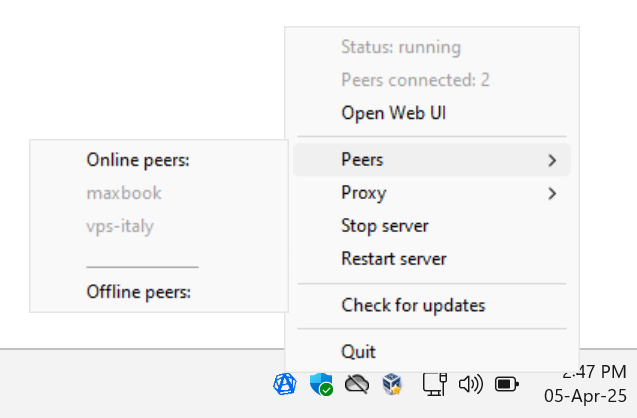
On desktop you can also pick the active exit node from the web UI or the system tray menu.
The local proxy listens on 127.0.0.1:1066. Configs created before v0.20.0 keep 127.0.0.66:8080. If another app already uses the port, awl starts without the local proxy: the web UI shows it as stopped, and the log says which address is taken. To fix it, change socks5.listenAddress in the config and restart awl.
An exit node gives you its internet connection only. Through it you can't reach its localhost, its LAN, link-local addresses (such as the cloud metadata service of a VPS) or its awl peers. LAN access may come back as an option, see #268. LAN devices with public IPv6 addresses are an exception and stay reachable.
Some traffic bypasses the exit node: .awl names, addresses in your awl network and your own localhost.
VPN gateway (full-tunnel exit node)
awl can route all of your IPv4 traffic through a remote device at the IP layer, the same way classic full-tunnel WireGuard or OpenVPN does. The remote device becomes your exit node: your traffic reaches the internet from its IP, not yours.
VPN gateway vs SOCKS5 proxy
awl has two independent ways to send your traffic through another device, and a device can offer either one without the other. The SOCKS5 proxy works per-application: you point a specific app (a browser, say) at awl's local proxy, and only that app's traffic goes through the peer. Nothing on your system changes. The VPN gateway is system-wide: it routes all of your IPv4 traffic through the exit node at the IP layer, so every app is covered without configuring anything.
In short: reach for SOCKS5 to send a single app through a peer, and for the VPN gateway when you want the whole device to look like it's at the exit node.
Status
| Platform | As client | As exit node | Notes |
|---|---|---|---|
| Linux | ✅ | ✅ | fully supported |
| Android | ✅ | ❌ | exit-node role needs root, not planned |
| Windows | ✅ | ✅ | fully supported |
| macOS | ❌ | ❌ | needs volunteers for testing |
On macOS awl currently refuses to start with VPN gateway enabled.
⚠️ IPv6 is not tunnelled. The gateway only carries IPv4. While it's on, all IPv6 traffic is dropped so that your real IPv6 address is never exposed past the exit node:
- Dual-stack (IPv4 + IPv6): everything automatically uses IPv4 through the tunnel.
- IPv6-only network: you'll have no internet connectivity until you turn the gateway off.
Serve as an exit node
This lets your other devices route their internet traffic out through this one. It is off by default, see Why serving as an exit node is opt-in below. Two things need to be set: turn the gateway service on, then allow each specific device to use it.
Desktop (web UI): open http://admin.awl, go to Settings (the gear icon, top-right) and turn on Serve as VPN Gateway. Then, for each device you want to permit, open its card on the Overview page, click Settings, and turn on Allow them to use this device as an exit node. On awl-tray you can also toggle the service from the tray menu under VPN Gateway → Serve as VPN Gateway.
Turning the service on takes effect immediately, without a restart. awl enables IP forwarding and sets up firewall rules that let that traffic out while keeping your own LAN private (see Security and privacy notes below); everything is reversed when you turn it off or shut awl down.
Once enabled, your permitted devices can pick this one as their exit node. It may take a few minutes to show up on their side: awl exchanges status with each device periodically (≤ 5 minutes) and on every reconnect.
The exit node permission is shared with SOCKS5. If you need separate permissions for SOCKS5 vs the VPN gateway, open an issue and we'll split it.
Via the CLI
# turn the gateway service on (server disable turns it off)
awl cli gateway server enable
# allow a specific device to use this one as an exit node
awl cli peers allow_exit_node --name="peer-name" --allow=true
Use a remote device as your exit node (client side)
First make sure you've added the remote device and it has the gateway service enabled on its side (see above).
Desktop (web UI): open http://admin.awl; on the Overview page, find the VPN Gateway card on the right and pick the peer in the Exit peer dropdown. That's it: all your traffic now goes out through that device. Set it back to None to turn the gateway off. On awl-tray the same picker is in the tray menu, and on Android you use the gateway control in the app.
This takes effect immediately, without a restart. Switching to a different peer in the dropdown atomically moves the gateway to the new device.
To confirm it's working, open a "what's my IP" site such as https://ifconfig.co. It should show the exit node's public IP, not yours.
Via the CLI
# list peers available as exit nodes
awl cli gateway list
# route all traffic through a peer (or --pid=<peer-id>)
awl cli gateway client use --name="peer-name"
# show status: gateway peer, whether it's connected, its public IP and ping
awl cli gateway status
# stop using the gateway
awl cli gateway client stop
Why serving as an exit node is opt-in
Unlike the SOCKS5 proxy, serving as a VPN gateway changes global system state on the host: on Linux awl turns on net.ipv4.ip_forward and installs iptables rules; on Windows it creates a WinNAT instance, enables per-interface IP forwarding and installs a WFP firewall filter. That can interfere with the host's existing networking or firewall setup, and awl can't sandbox it, so we don't enable it on a routine install.
Troubleshooting
- A device isn't available as an exit node. It hasn't turned on Serve as VPN Gateway, or hasn't allowed you to use it as an exit node, or the status exchange hasn't propagated yet. Wait up to ~5 minutes or until the next reconnect.
- A "what's my IP" site still shows your own IP after enabling. Check the gateway status (the VPN Gateway card, or
awl cli gateway status): if it's not connected, awl can't reach the exit node, so nothing is being tunnelled. - A site works over IPv6 but not through the gateway. This is expected: IPv6 isn't tunnelled (see the note above). Dual-stack hosts fall back to IPv4 automatically; anything IPv6-only won't work while the gateway is on.
- Turning on Serve as VPN Gateway fails on Windows. Windows effectively allows one NAT instance per host, and it may already be taken by Docker (Windows containers), WSL2 or Internet Connection Sharing. The error message lists the current holders. Free it up, or share this device over SOCKS5 instead: the SOCKS5 exit node doesn't need NAT.
- Turning on Serve as VPN Gateway on Windows fails with "WinNAT is not available" (HRESULT 0x80041010). awl's exit-node NAT is built on Windows' own WinNAT, and on this installation the
MSFT_NetNatWMI class doesn't exist. Windows Home editions don't have WinNAT at all, so there is no way to enable it there. On Pro/Enterprise/Server it can also be missing when neither Hyper-V nor RAS components are enabled (turning on the Hyper-V feature registers it) or when the WMI repository is corrupted. If you can't get WinNAT on your machine, share this device over SOCKS5 instead: the SOCKS5 exit node doesn't need it. - No internet right after awl started with the gateway on. The exit node may have stopped allowing you to use it. awl keeps the gateway on so your traffic doesn't leak through your own network, and writes a warning to the log. Ask the owner to allow you again, or pick another exit node.
- No IPv6 connectivity after awl crashed (Linux). If awl is killed (not shut down) with the gateway client on, its IPv6 block stays behind. It is removed automatically on the next awl start (and stop).
- Devices are reachable only via relay from a Windows machine with multiple network interfaces. awl on Windows pins its peer-to-peer traffic to the interface that holds the default route, so peers reachable only through a secondary network card may fall back to relayed connections.
Security and privacy notes
- Your IP is exposed. Once you serve as an exit node, the public IPs that those devices reach see your IP, not theirs.
- Your LAN is not. awl drops forwarded traffic to RFC 1918 / RFC 6598 / RFC 3927 ranges (
10/8,172.16/12,192.168/16,100.64/10,169.254/16) so a gateway client cannot reach the exit node's home network. On Linux this is an iptables chain; on Windows, a WFP forward-layer BLOCK filter with the same subnet list. - DNS: in client gateway mode awl forces upstream DNS to a public resolver (
1.1.1.1by default) so the LAN resolver can't leak queries past the tunnel. If you'd rather use a different resolver, you can change it by hand in the config file (dns.upstreamDNSAddress) while awl is stopped. - Connections open before you enable the gateway are cut, not leaked. When you turn client gateway mode on, existing outbound connections (a browser's keep-alive pools are the common case) are forced to break so applications re-establish them through the tunnel. Otherwise, on Windows, they would keep flowing directly through your physical network card and expose your real IP. On Linux this happens naturally (the tunnel routing kills them); on Windows awl installs a WFP firewall to force it. One deliberate exception on Windows: if this device is hosting a service (e.g. an RDP or SMB server) and someone is already connected to it, that inbound connection keeps answering directly, so that enabling the gateway over a remote session does not disconnect you. Fresh inbound connections while the gateway is on are still limited to the tunnel path.
Configuration
Awl stores all its state in a single JSON file called config_awl.json. The file is created automatically on the first launch and is rewritten by the application every time you change something through the web UI or CLI. You can also edit it by hand while awl is stopped.
Config file location
Awl looks for config_awl.json in these paths, in order:
- In the directory provided by the
AWL_DATA_DIRenvironment variable (if set). If the path does not exist or there is no config file, awl will initialize a new config in this path. - In the same directory as the executable (only if a config file already exists there).
- In the OS-specific user config directory. If there is no config there, awl will initialize a new config in this path:
- Linux:
$HOME/.config/anywherelan/ - Windows:
%AppData%\anywherelan\(typicallyC:\Users\<YourUser>\AppData\Roaming\anywherelan\) - macOS:
$HOME/Library/Application Support/anywherelan/
- Linux:
Tip: you can force awl to use the executable's directory by creating a file named config_awl.json with the content {} next to the binary before the first launch.
To find out which directory is actually used at runtime, look at the very first lines of awl logs. The data directory is printed on startup:
2026-04-10 16:41:12.03 INFO awl Initializing app in /home/max/Projects/awl/testconfig directory
It is not recommended to edit config_awl.json while the application is running: your changes will be silently overwritten the next time awl saves the config.
If config_awl.json can't be parsed (for example after a bad manual edit), awl copies it to config_awl.json.corrupt-<time> in the same directory and starts with a new config and a new identity. Your private key and peers are still in that copy: fix it and put it back as config_awl.json while awl is stopped.
Example config
A minimal, populated config_awl.json (peer IDs and identity truncated):
{
  "p2pNode": {
    "peerId": "12D3KooW...",
    "name": "my-laptop",
    "identity": "<base58-encoded private key>"
  },
  "vpn": {
    "interfaceName": "awl0",
    "ipNet": "10.66.0.1/24"
  },
  "knownPeers": {
    "12D3KooW...": {
      "peerId": "12D3KooW...",
      "name": "work-laptop",
      "ipAddr": "10.66.0.2",
      "domainName": "work-laptop",
      "confirmed": true
    }
  }
}
Every field (with comments and types) lives in config/config.go, which is the authoritative reference.
Monitoring
AWL includes built-in Prometheus metrics and pprof profiling support:
- Metrics:
http://localhost:8639/metrics(Prometheus format) - Profiling:
http://localhost:8639/api/v0/debug/pprof/
A pre-packaged monitoring stack is available in the monitoring/ directory with:
- Prometheus: scrapes AWL metrics
- Grafana: dashboards for libp2p subsystems and AWL-specific metrics, plus profile exploration via Pyroscope datasource
- Pyroscope: continuous profiling storage
- Grafana Alloy: scrapes pprof endpoints and pushes CPU, heap, goroutine, mutex, and block profiles to Pyroscope
See monitoring/README.md for setup instructions.
Terminal-based client
Both awl and awl-tray have a built-in CLI that talks to a running awl server over the local HTTP API. Run the server in the background (or keep the tray app running) and use the CLI from another terminal. On macOS the binary is inside the app: /Applications/Anywherelan.app/Contents/MacOS/awl-tray cli.
By default, the CLI connects to 127.0.0.1:8639, so when awl is running locally no flags are needed. To target a different server, pass --api_addr, plus --api_user / --api_password if you have basic auth enabled.
Run awl cli --help (or awl cli <command> --help) for the full command list and per-command flags. A cheat sheet of the most common ones follows.
Common examples
# --- me: your own peer ---

# print server status and network stats
awl cli me status
# print your link with a QR code, to share with people who want to add you
awl cli me id
# rename your peer
awl cli me rename --name my-laptop

# --- peers: friends and friend requests ---

# list known peers and their online status, last seen, version, connections, exit-node flag, etc
awl cli peers status
# same but with a custom column layout (see `awl cli peers status --help` for all keys)
awl cli peers status -f npsie

# list incoming friend requests
awl cli peers requests
# accept a request by the name shown in `peers requests`
awl cli peers add --name myphone
# add a device by its link (--allow-exit-node also lets it use this device as an exit node)
awl cli peers add --link 'awl://invite?p=...'
# decline a request and block the peer
awl cli peers decline --name myphone
# remove a peer and block it until you add it again
awl cli peers remove --name awl-tester
# list blocked peers: the ones you declined or removed
awl cli peers blocked
# unblock a peer: it can send you friend requests again, but is not added back
awl cli peers unblock --name awl-tester
# rename/redomain/re-ip a known peer
awl cli peers rename        --name awl-tester --new_name tester
awl cli peers update_domain --name tester     --domain test-box
awl cli peers update_ip     --name tester     --ip 10.66.0.5

# --- invite links ---

# create a single-use link that expires in 24h, for a device named myphone, and print it with a QR code
awl cli peers invite create --alias myphone
# a link for up to 5 devices that lives a week and lets them use this device as an exit node
awl cli peers invite create --uses 5 --expires 7d --allow-exit-node --label family
# list your links, spent ones included (--show-links prints the links themselves)
awl cli peers invite list
# revoke a link: devices that already joined with it will stay
awl cli peers invite revoke --id <invite id from the list>

# --- SOCKS5 exit nodes ---

# allow a peer to use this device as a SOCKS5 exit node
awl cli peers allow_exit_node --name tester --allow=true
# list exit nodes / SOCKS5 proxies that are available to you
awl cli me list_proxies
# route local SOCKS5 traffic through a specific peer (127.0.0.1:1066 by default)
awl cli me set_proxy --name tester
# stop routing through a peer
awl cli me set_proxy --name ""

# --- VPN gateway ---

# list peers available as VPN gateways
awl cli gateway list
# route all traffic through a peer
awl cli gateway client use --name tester
# show status: gateway peer, whether it's connected, its public IP and ping
awl cli gateway status
# stop using the gateway
awl cli gateway client stop
# serve as a VPN gateway for permitted peers (`gateway server disable` turns it off)
awl cli gateway server enable

# --- logs, diagnostics, updates ---

# tail the last 10 log lines from the running server
awl cli logs
# print the first 50 log lines
awl cli logs --head -n 50
# print libp2p/p2p debug info as JSON
awl cli p2p_info
# update awl to the latest release (headless, no prompt)
awl cli update -q
Upgrading
Desktop
On Windows and Linux (awl-tray) you can upgrade the application by clicking system tray icon ➞ Check for updates. It will ask for confirmation and replace the binary with the new version and restart the app.
On macOS the app can't update itself yet: Check for updates only tells you about a new version and opens its release page. Quit awl from the tray menu, download the new .dmg, drag Anywherelan onto Applications and choose Replace. If macOS blocks the first launch again, allow it with Open Anyway as on the first install. Your settings and devices are kept.
Android
Update via F-Droid, or download the latest .apk from the releases page and install it manually.
Server
If you're connecting to a remote host through awl (e.g. SSH over the awl VPN), you can upgrade and restart the daemon without dropping your session:
# run under root
cd /etc/anywherelan
# no need to stop awl beforehand
./awl cli update
# restart (if installed as a systemd service)
systemctl restart awl
# check status
./awl cli me status
As an alternative on desktop or server: download the new build from the releases page and replace the files manually.
Platform notes & known limitations
.awl name resolution
A peer's .awl name comes from its alias or name, in lowercase, with spaces replaced by _. If the name is taken, awl adds a suffix (laptop_0.awl). Non-Latin names like ноутбук.awl work in browsers.
.awl names resolve on every platform, but the mechanism differs:
- Desktop (Linux / Windows / macOS): awl runs a local resolver and registers it with the OS. Where the OS supports split-DNS only the
.awlzone is captured; the rest of your DNS is left untouched, so LAN names keep working. - Android: the app resolves
.awlinside the tunnel:.awlis answered locally, everything else is forwarded to the configured upstream resolver (1.1.1.1by default,dns.upstreamDNSAddressin the config). This has a few consequences:- Private DNS in strict mode (a hostname set under Android's Private DNS setting) bypasses the VPN's DNS entirely, so
.awlnames won't resolve. The default Automatic mode works fine. - While DNS is enabled, all queries go to the configured upstream instead of your network's own resolver, so LAN-only names handed out by your router (e.g.
printer.lan) won't resolve. admin.awlis not reachable on Android. Use the app's own UI instead.dns.disableDNS: truein the config turns awl's DNS handling off entirely:.awlstops resolving and queries go straight to the system resolver again.
- Private DNS in strict mode (a hostname set under Android's Private DNS setting) bypasses the VPN's DNS entirely, so
Other limitations
- IPv6 inside the tunnel is not supported. IPv6 packets are dropped, only IPv4 is carried.
- A peer that comes back online may take up to 10 minutes to reconnect. To save traffic, awl retries offline peers less often, up to every 10 minutes. Usually the returning peer connects to you itself within seconds.
- Serving as a VPN gateway / exit node is not available on every platform, see the support table.
Contributing
Contributions to this repository are very welcome.
You can help by creating:
- Bug reports - unexpected behavior, crashes
- Feature proposals - proposal to change/add/delete some features
- Documentation - improvements to this README.md are appreciated
- Pull Requests - implementing a new feature yourself or fixing bugs. If the change is big, then it's a good idea to open a new issue first to discuss changes.
Please report security issues privately, as described in SECURITY.md, not in a public issue.
License
The project is licensed under the MPLv2.
Explore related projects
awesome-selfhosted/awesome-selfhosted
A list of Free Software network services and web applications which can be hosted on your own servers
335,533 starsimmich-app/immich
High performance self-hosted photo and video management solution.
118,645 starsStirling-Tools/Stirling-PDF
#1 PDF Application on GitHub that lets you edit PDFs on any device anywhere
96,149 starslouislam/uptime-kuma
A fancy self-hosted monitoring tool
93,425 stars