
alpinezx/easy-aiostreams
alpinezx/easy-aiostreams has 59 GitHub stars and 7 forks. GitHot measured 0 stars in 24 hours and +1 in 7 days. Last checked 2026-11-16 22:02 UTC. Last push 2026-11-06.
Measured star growth
- in 24h
- 0
- in 7 days
- +1
- in 15 days
- Collecting history
- in 1 month
- Collecting history
Net star changes over overlapping periods, not daily totals. Missing measurements are left blank. Stars measure attention, not software quality.
About
One-command installer for a self-hosted AIOStreams instance, on a VPS or a computer at home
Self-hostedREADME.md
OriginalEasy AIOStreams

A one-command installer for a self-hosted AIOStreams instance. It sets up Docker, Caddy (automatic HTTPS via Let's Encrypt), and secure login access to the config page and dashboard, all in one script. Restricted to your own credentials.
[!TIP] Hosting on a computer at home instead of a VPS? Follow the Hosting from home guide: no ports to forward, through a free Cloudflare Tunnel. It uses this same installer.
[!NOTE] Opinionated by design. The script owns the whole stack on a fresh VPS: Docker, Caddy, the compose file and the services. It's made for people who want one thing that works end to end, and it won't slot into an existing reverse proxy or compose setup. If you already have one you like, you probably don't need this. It's one bash script, so you can read exactly what it sets up before you run it.
[!IMPORTANT] Installed this before October 2026? The install folder has moved from
/root/aiostreamsto/opt/aiostreams, and these scripts only work with the new location. Follow these steps to move your install (about a minute of downtime, with a backup first).Installing for the first time? You can skip this.
Contents
- What this gives you
- Prerequisites
- Quick start
- Re-running the script later
- Backup & Restore
- Troubleshooting
- Other Scripts
What this gives you
- Your own AIOStreams instance, not a shared public one
- Runs on a rented VPS, or on a computer at home through a free Cloudflare Tunnel, with no ports to forward. → Hosting from home
- HTTPS out of the box, auto-renewing, no manual cert wrangling
- App-level login (AIOStreams' own auth). The configure page, dashboard, and the config API all require your username/password, so nobody else can create or edit configs on your instance.
- A management menu for status, restart, updates, backups, and clean uninstall
- Single-tarball backup and restore for migrating to a new server, plus optional scheduled backups
- An optional web control panel (beta) to manage everything from your browser or phone instead of over SSH. → Control panel guide
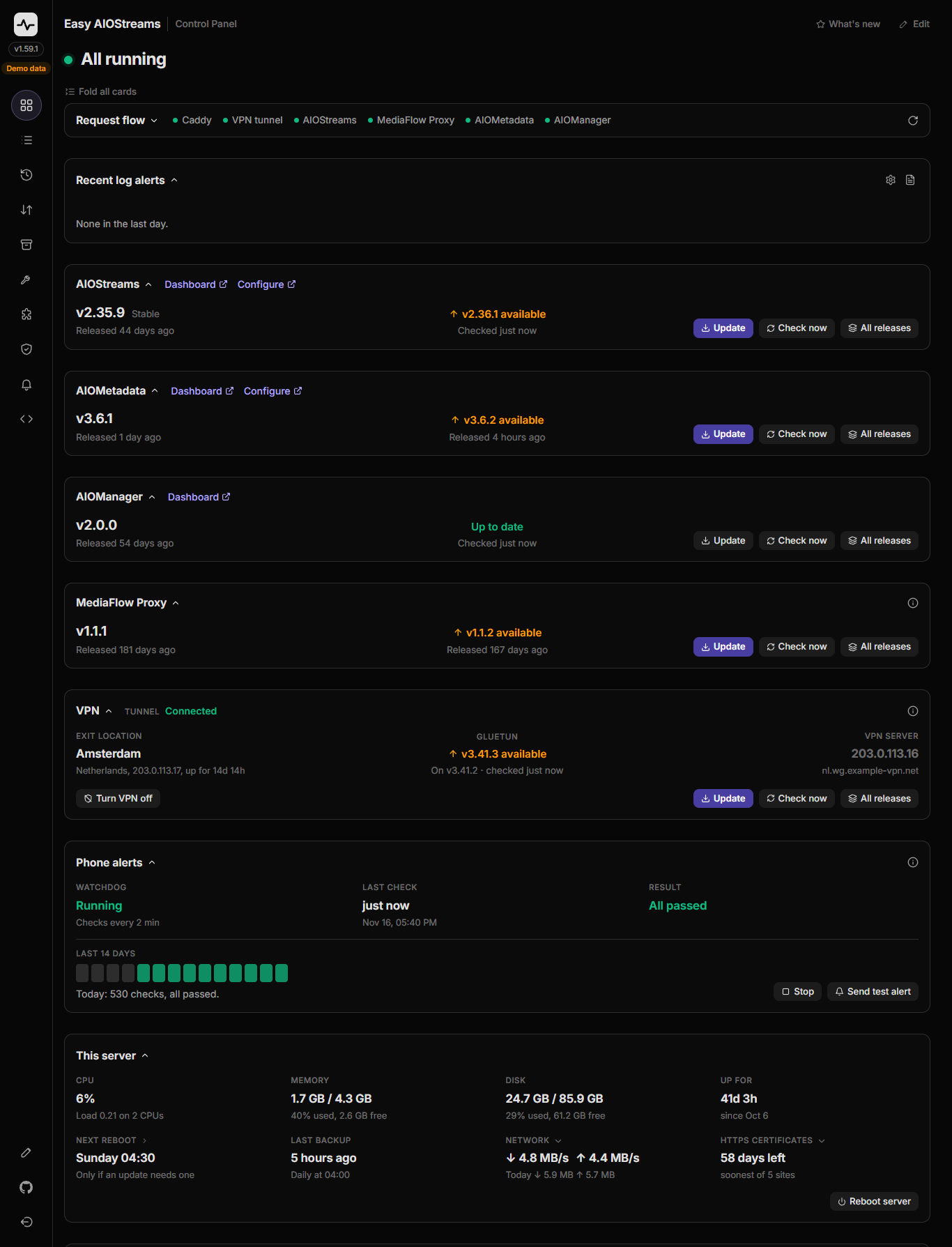
The control panel's demo mode, with every add-on running. Your own panel shows only what you've installed.
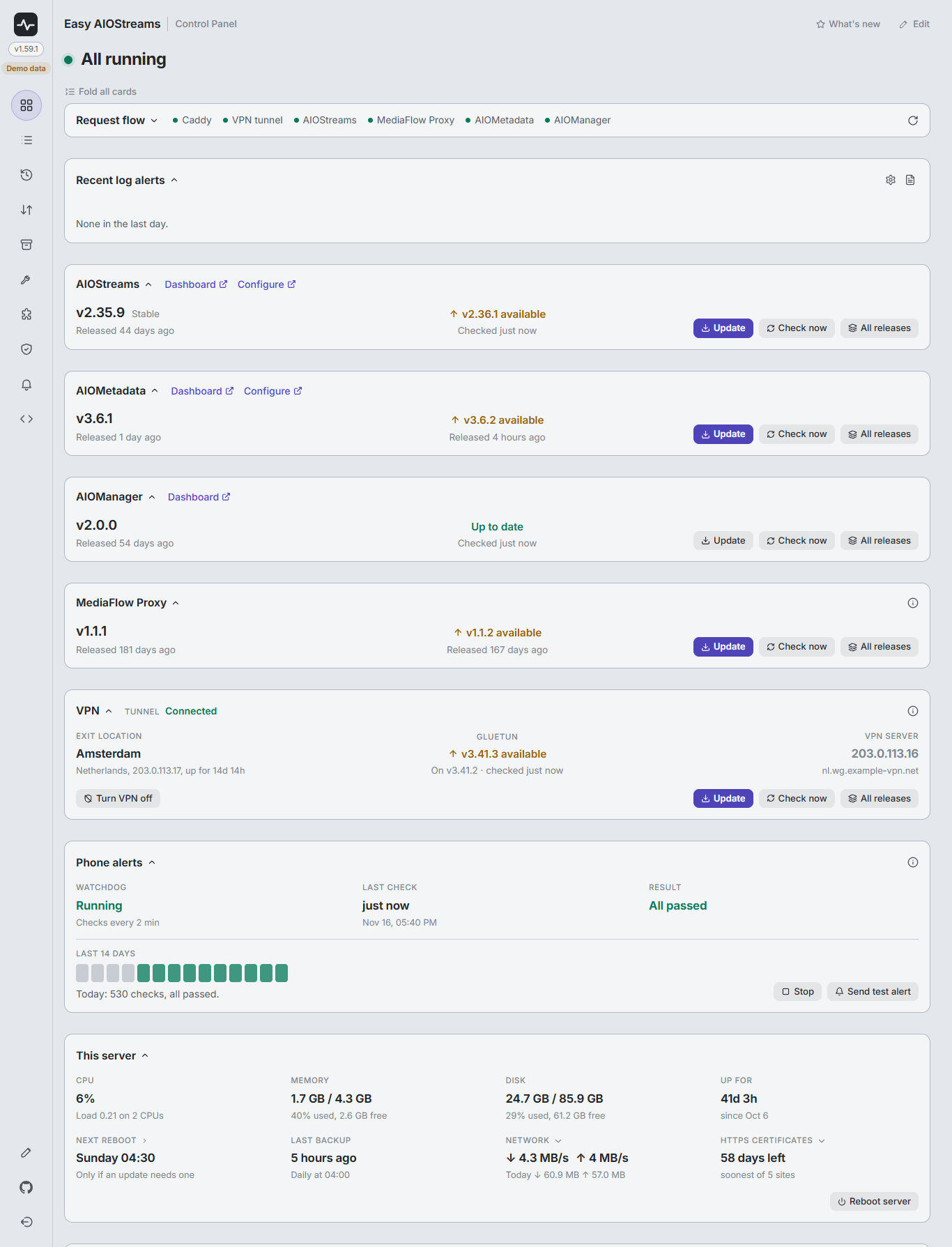
The same page in Light and Slate

Prerequisites
- A fresh VPS with root access, running Ubuntu 24.04+ or Debian 13 (should also work on Debian 12, untested)
- At least 2 GB of RAM. 1 GB is too tight once Docker, AIOStreams and the control panel are running. If you plan to run the full set of add-ons, 3 to 4 GB is more comfortable, or add a swap file for some headroom.
- Ports 80 and 443 opened in your provider's firewall if it's enabled. Oracle cloud users, do this first > Firewall Ports.
- A subdomain you control, with an A record already pointed at your server's IP before running the script
Don't have a VPS yet?
Any provider with root SSH access works: DigitalOcean, Hetzner, Oracle's free tier, Vultr, and others all run this fine. Compare specs and pricing at vpsbenchmarks.com's under-$8/month list.
This script won't run on Vercel, Netlify, Railway, or similar app-hosting platforms.
Don't have a domain yet?
Any registrar works. If you're buying one just for this, prefer .xyz or .top over a country-code TLD (.co.uk, .de). They're usually DNS-ready in minutes, versus hours to days for country-code domains.
- Porkbun: cheap
.xyz/.top, free WHOIS privacy + SSL, near-instant activation - Spaceship: Namecheap's leaner sister site, competitive pricing (especially
.com), free WHOIS privacy - Namecheap: the established option, huge TLD selection, slightly pricier renewals
- DuckDNS: totally free
yourname.duckdns.orgsubdomain, no card needed. Fine for personal use, though you don't get to pick your own TLD.
Quick start
Confirm your DNS is actually pointing at your server first
Swap yourdomain.xyz for your own real domain, it's just a placeholder. Use the bare name only, no https://, no trailing /. For a subdomain, use dig +short aio.yourdomain.xyz. It should print a single IP; compare it to your server's:
dig +short yourdomain.xyz
curl -4 ifconfig.me
Don't run the installer until these two lines match. On Debian, dig isn't installed by default: add it first with sudo apt install -y bind9-dnsutils.
What a match and a mismatch look like
✅ Example: Matches, good to go:
dig +short yourdomain.xyz
192.0.2.15
curl -4 ifconfig.me
192.0.2.15
❌ Example: Doesn't match yet, wait and retry:
dig +short yourdomain.xyz
198.51.100.23
curl -4 ifconfig.me
192.0.2.15
Different IPs mean the domain isn't pointing at this server yet.
Run the installer
Create the install folder and move into it:
sudo mkdir -p /opt/aiostreams && cd /opt/aiostreams
Download the script:
sudo curl -fsSL https://raw.githubusercontent.com/alpinezx/easy-aiostreams/refs/heads/main/scripts/core/setup-aiostreams.sh -o setup-aiostreams.sh
(Optional: take a look before running it with less setup-aiostreams.sh)
Run it:
sudo bash setup-aiostreams.sh
It first asks where the server is: choose 1) A VPS, then 1) Fresh install. It asks for your domain, a login, and which build to run. Once it finishes, visit your domain and log in. From there, AIOStreams' own setup takes over.
Re-running the script later
Run it again any time with sudo bash /opt/aiostreams/setup-aiostreams.sh and it'll detect your existing install and offer a menu that loops back after each action:
 1) View status
 2) Stop AIOStreams
 3) Start AIOStreams
 4) Restart the stack
 5) Update (or switch stable/nightly)
 6) Reconfigure (domain, login)
 7) Backup
 8) Restore from backup
 9) Uninstall
10) Maintenance
11) Exit
Restore from backup also works on a fresh server: sudo bash setup-aiostreams.sh restore <file>. Maintenance frees up space, installs system updates, sets log limits and schedules server reboots.
Backup & Restore (Migrating to a new server, optional)
Back up your whole stack to a single tarball and restore it to your existing or a new VPS, preserving the same domain, login, SECRET_KEY, and all, so every existing user config and installed Stremio manifest keeps working. Covers the DNS update you'll need afterward if you're migrating to a new server. → Basic · Advanced
Troubleshooting
HTTPS certificate stuck at "not confirmed"? Firewall & Ports Guide
Addon/scraper blocked, streams failing to load, 403/429/502 errors in the logs? Add-on Proxy Setup
The most common issues you may come across: Common Issues
Links to every guide (basic and advanced): All Guides
If you suspect it's not your setup at all, check Stremio Status or IbbyLabs Uptime Tracker to see if the addon/provider itself is down.
Other Scripts
Want a web control panel (beta) to manage everything from your browser or phone, your own private AIOMetadata for catalogs and metadata, your own AIOManager to manage several Stremio accounts' addons, a system-wide VPN layer, phone alerts when your server needs you, or a lighter alternative proxy if scrubbing/seeking spikes your VPS's CPU? Those live in their own standalone scripts, see Other Scripts
For bugs in the script itself: open an issue.
License
MIT, see LICENSE. Provided as-is, no warranty; you're responsible for your own server, keys, and data.