
alexandergknoll/nirimap
alexandergknoll/nirimap has 30 GitHub stars and 4 forks. GitHot measured 0 stars in 24 hours. Last checked 2026-11-15 20:19 UTC. Last push 2026-11-11.
What you can do
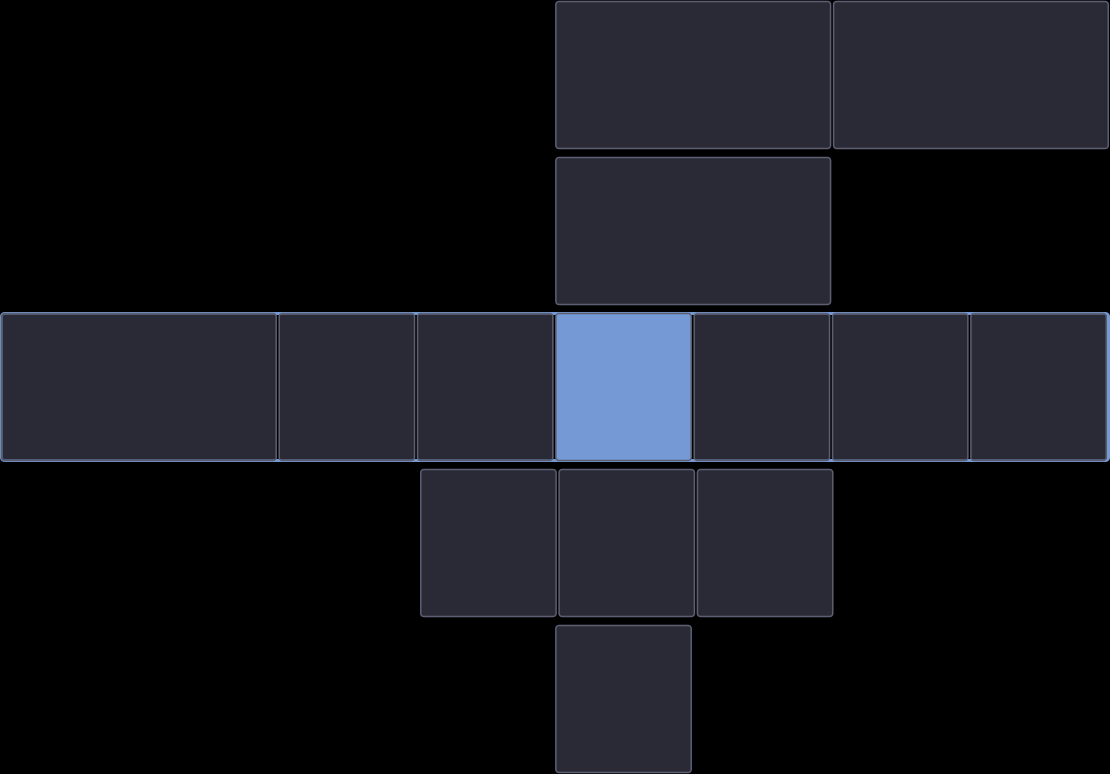
- Displays a minimap of your workspaces showing window layout
- Two display modes: show every workspace stacked vertically (Overview-style) or only the active one
- Renders as an overlay layer surface (visible over fullscreen windows)
- Click-through design (doesn't intercept mouse events)
Measured star growth
- in 24h
- 0
- in 7 days
- Update delayed
- in 15 days
- Update delayed
- in 1 month
- Update delayed
Net star changes over overlapping periods, not daily totals. Missing measurements are left blank. Stars measure attention, not software quality.
About
A minimal workspace minimap overlay for the Niri Wayland compositor.
ProductivityREADME.md
Originalnirimap

A minimal workspace minimap overlay for the Niri Wayland compositor.
Features
- Displays a minimap of your workspaces showing window layout
- Two display modes: show every workspace stacked vertically (Overview-style) or only the active one
- Renders as an overlay layer surface (visible over fullscreen windows)
- Click-through design (doesn't intercept mouse events)
- Configurable appearance (colors, borders, gaps, opacity)
- Application icons and text labels on window rectangles (configurable fonts, colors, positions)
- Configurable visibility behavior (always visible or show on events)
- Hot-reloads configuration changes
- Dynamic sizing based on workspace content
Installation
Arch Linux (AUR)
A community-maintained AUR package is available: nirimap-git. It builds from the latest commit and is tracked by pacman.
# Using an AUR helper (e.g. paru, yay)
paru -S nirimap-git
Note: The AUR package is maintained by a community member, not by the developer of this project. Please direct packaging issues to the AUR package's maintainer.
NixOS (flake)
This repository is a Nix flake. To try it without installing anything:
nix run github:alexandergknoll/nirimap
Add it to a flake-based system or Home Manager configuration:
{
  inputs.nirimap.url = "github:alexandergknoll/nirimap";
  # Optional: build against your own nixpkgs instead of the pinned one.
  # inputs.nirimap.inputs.nixpkgs.follows = "nixpkgs";
}
Then add inputs.nirimap.packages.${pkgs.stdenv.hostPlatform.system}.default to
environment.systemPackages or home.packages. Configure it through
~/.config/nirimap/config.toml as described in Configuration.
Pre-built binaries
Each release ships an x86_64-linux tarball built by GitHub Actions, with a SHA-256 checksum and a signed build-provenance attestation. Verify a download before installing:
sha256sum -c nirimap-<tag>-x86_64-linux.tar.gz.sha256
gh attestation verify nirimap-<tag>-x86_64-linux.tar.gz --owner alexandergknoll
The binary dynamically links GTK4 and gtk4-layer-shell, which must be installed on the target system (see the distro package lists below).
From source
Requires Rust 1.75+ and GTK4 development libraries.
# Install dependencies (Arch Linux)
sudo pacman -S gtk4 gtk4-layer-shell

# Install dependencies (Fedora)
sudo dnf install gtk4-devel gtk4-layer-shell-devel

# Install dependencies (Ubuntu/Debian)
sudo apt install libgtk-4-dev libgtk4-layer-shell-dev

# Build and install
cargo install --path .

# Build for release
cargo build --release
Usage
Run nirimap after starting Niri. For automatic startup, add to your Niri config:
spawn-at-startup "nirimap"
Niri Layer Rules
You can add layer rules to customize the minimap's appearance:
layer-rule {
    match namespace="nirimap"
    // Add any layer-specific rules here, such as opacity
}
Configuration
Configuration file is located at ~/.config/nirimap/config.toml. A default configuration is created on first run.
[display]
height = 100                # Per-workspace row height in pixels
                            # "current" mode: whole widget height
                            # "all" mode: height of a single workspace row
max_width_percent = 0.5     # Maximum width as fraction of screen (0.0 - 1.0)
max_height_percent = 0.8    # Maximum height as fraction of screen ("all" mode)
anchor = "top-right"        # Position: top-left, top-center, top-right,
                            #           bottom-left, bottom-center, bottom-right, center
margin_x = 10               # Horizontal margin from edge
margin_y = 10               # Vertical margin from edge
workspace_mode = "all"      # "all"     - stack every workspace vertically (default)
                            # "current" - show only the active workspace

[appearance]
background = "#1e1e2e"    # Background color (hex)
window_color = "#45475a"  # Default window rectangle color
focused_color = "#89b4fa" # Focused window highlight
border_color = "#6c7086"  # Window border color
border_width = 1            # Window border thickness
border_radius = 2           # Corner radius for window rectangles
gap = 2                     # Gap between windows (in minimap pixels)
background_opacity = 0.0    # Background opacity (0.0 = transparent, 1.0 = opaque)
                            # Applies in both "current" and "all" modes
window_opacity = 0.7        # Fill opacity for unfocused windows (0 = outlines only)
focused_opacity = 1.0       # Fill opacity for the focused window
workspace_gap = 4                           # Vertical gap between stacked workspaces ("all" mode)
active_workspace_border_color = "#89b4fa"   # Highlight border for the active workspace ("all" mode)
active_workspace_border_width = 2           # Highlight border thickness ("all" mode)

[labels]
enabled = false           # Draw text labels on window rectangles
content = "title"         # What to show: "title", "app-id", "app-id-title", "none"
font_family = "Sans"      # Font family name
font_size = 10            # Font size in pixels
font_weight = "normal"    # "normal" or "bold"
font_style = "normal"     # "normal" or "italic"
color = "#cdd6f4"         # Text color
focused_color = "#1e1e2e" # Text color on the focused window
position = "center"       # Anchor within the window rectangle: center, top-left,
                          # top-center, top-right, bottom-left, bottom-center, bottom-right
padding = 2               # Inner padding between label and window edge
min_window_size = 30      # Skip labels on rectangles smaller than this (minimap pixels)
shadow = false            # Dark drop shadow behind text for legibility

[icons]
enabled = true            # Draw application icons on window rectangles
size = "auto"             # "auto" (scales with the rectangle) or explicit pixels, e.g. 16
position = "center"       # Anchor within the window rectangle (same options as labels)
opacity = 1.0             # Icon opacity (0.0 - 1.0)
# theme_override = "Papirus" # GTK icon theme name (defaults to system theme)
min_window_size = 16      # Skip icons on rectangles smaller than this (minimap pixels)

[behavior]
show_on_overview = true        # Keep visible in Niri overview mode (not yet implemented)
always_visible = true          # Always show minimap (false = only on events)
hide_timeout_ms = 2000         # Milliseconds before hiding after an event
show_for_floating_windows = false # Surface the minimap for floating-window events
                                  # (focus to/from a floating window, floating window
                                  # spawn). Off by default — floating windows aren't
                                  # drawn on the minimap, so popup activity would
                                  # otherwise flash it on/off.
Workspace Display Modes
Two display modes control what the minimap shows:
all(default) — every workspace is rendered as a row, stacked vertically in Niri's workspace order (like Niri's Overview feature). The active workspace is highlighted with a border so you can see where focus is at a glance.current— only the active workspace is rendered. The widget height equalsdisplay.heightand the minimap content changes as you switch workspaces. This is the classic nirimap behavior.
In all mode the total widget height grows with the number of workspaces, capped at max_height_percent of the monitor's height. When the cap is hit, per-workspace rows shrink proportionally to fit.
Window Labels and Icons
Window rectangles can show the application's icon and/or a text label to make windows easier to tell apart at a glance. Icons are enabled by default; labels are opt-in via labels.enabled = true.
Icons are resolved from the GTK icon theme by the window's app_id. If no themed icon matches, nirimap scans desktop files for a matching StartupWMClass or desktop-file name (this is how apps like Electron-based ones usually resolve). As a last resort, the first letter of the app_id is drawn in a circle. Set icons.theme_override to use a specific icon theme instead of the system default.
Labels are drawn with Pango, so font fallback and non-Latin text work as expected, and text that doesn't fit the rectangle is ellipsized. Both decorations skip rectangles smaller than their min_window_size so tiny tiles stay clean.
Hot Reload
The configuration file is watched for changes. Most settings will apply immediately without restarting:
- Appearance settings (colors, borders, gaps, opacity)
- Label and icon settings (including
theme_override) - Behavior settings (visibility, timeout)
- Display settings (height, max width)
Note: Changing anchor or margins requires restarting nirimap.
Visibility Behavior
When always_visible = false, the minimap will show temporarily when:
- A new window is opened
- Window focus changes (to a different window)
- Workspace is switched
- Window layouts change (resize, move between columns)
The minimap hides automatically after hide_timeout_ms milliseconds.
By default, the minimap stays hidden for floating-window activity:
- Focus moving to a floating window (popup, dialog, file picker)
- Focus returning from a floating window to the previously-focused tile
- A new floating window being spawned
Floating windows aren't drawn on the minimap, so this activity would
otherwise cause a distracting on/off flash. Set
show_for_floating_windows = true to restore the prior behavior.
Known Limitations
Multi-Monitor Support
nirimap currently only tracks and displays windows on a single monitor. Multi-monitor setups may result in windows not appearing on the minimap or incorrect workspace tracking. Full multi-monitor support is planned.
See Issue #21 for more details.
Floating Windows
Floating windows are currently not displayed on the minimap. This is due to a limitation in Niri's IPC API, which doesn't expose viewport scroll position information needed to accurately calculate floating window positions on the minimap.
Technical Details: Both tiled and floating windows report viewport-relative coordinates, but the viewport offset cannot be reliably determined from the available IPC data. While we can estimate the viewport offset based on the focused column, this breaks when floating windows have focus or when the viewport scrolls without focus changes (e.g., "center column" operations).
See Issue #6 for more details and potential future solutions.
Dependencies
- niri-ipc - Niri IPC protocol
- gtk4 - GTK4 bindings
- gtk4-layer-shell - Wayland layer shell protocol
License
MIT License - see LICENSE for details.
Contributing
Issues and pull requests are welcome! This project was developed with the help of AI-assisted tooling (Claude Code) — please review changes carefully and feel free to flag anything that looks off.