
aleksanderwozniak/table_calendar
aleksanderwozniak/table_calendar has 1,958 GitHub stars and 1,046 forks. GitHot measured 0 stars in 24 hours and +1 in 7 days. Last checked 2026-11-11 13:47 UTC. Last push 2026-10-01.
Highly customizable, feature-packed calendar widget for Flutter
What you can do
- Extensive, yet easy to use API
- Preconfigured UI with customizable styling
- Custom selective builders for unlimited UI design
- Range selection support
Measured star growth
- in 24h
- 0
- in 7 days
- +1
- in 15 days
- Update delayed
- in 1 month
- Update delayed
Net star changes over overlapping periods, not daily totals. Missing measurements are left blank. Stars measure attention, not software quality.
README.md
OriginalTableCalendar


Highly customizable, feature-packed calendar widget for Flutter.
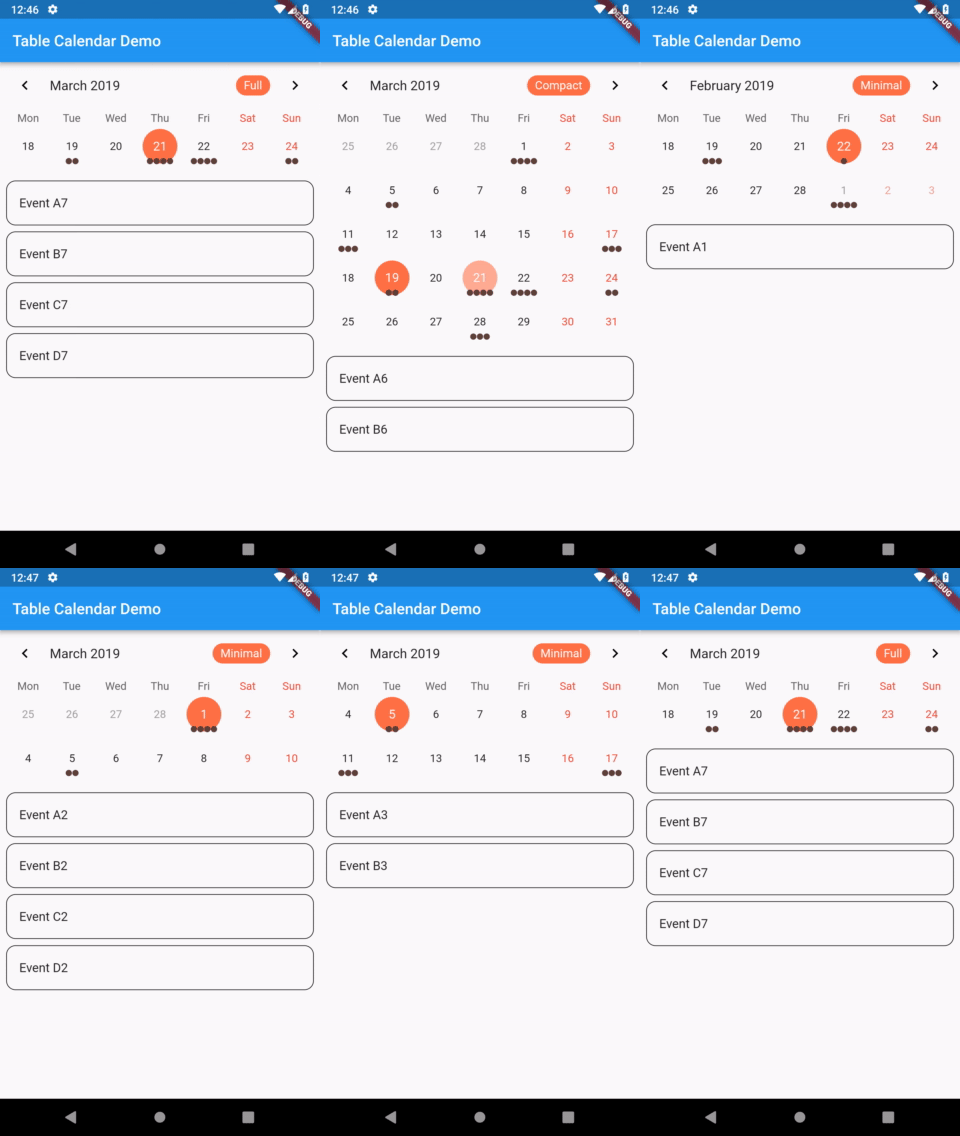 |
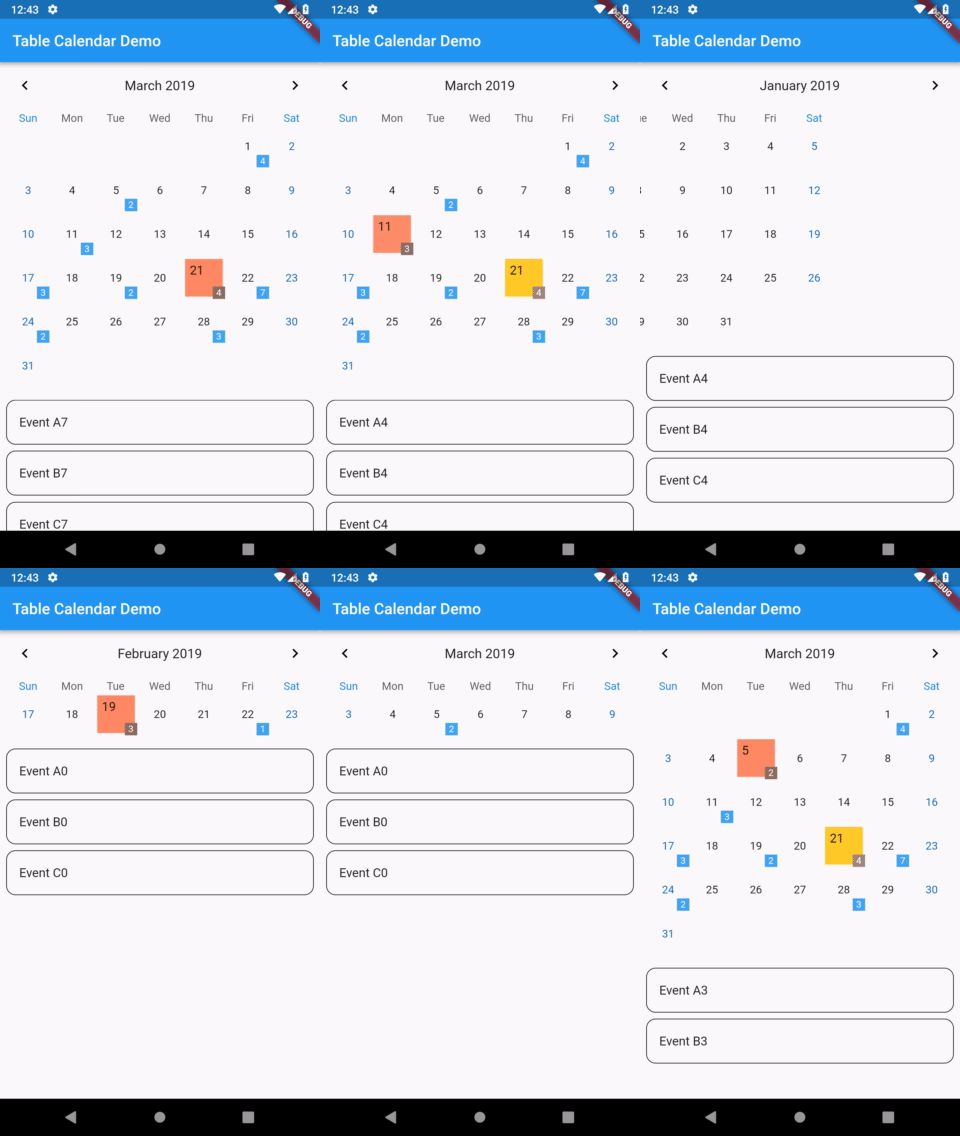 |
|---|---|
| TableCalendar with custom styles | TableCalendar with custom builders |
Features
- Extensive, yet easy to use API
- Preconfigured UI with customizable styling
- Custom selective builders for unlimited UI design
- Locale support
- Range selection support
- Multiple selection support
- Dynamic events and holidays
- Vertical autosizing - fit the content, or fill the viewport
- Multiple calendar formats (month, two weeks, week)
- Horizontal swipe boundaries (first day, last day)
Usage
Make sure to check out examples and API docs for more details.
Installation
Add the following line to pubspec.yaml:
dependencies:
  table_calendar: ^3.3.0
Basic setup
The complete example is available here.
TableCalendar requires you to provide firstDay, lastDay and focusedDay:
firstDayis the first available day for the calendar. Users will not be able to access days before it.lastDayis the last available day for the calendar. Users will not be able to access days after it.focusedDayis the currently targeted day. Use this property to determine which month should be currently visible.
TableCalendar(
  firstDay: DateTime.utc(2010, 10, 16),
  lastDay: DateTime.utc(2030, 3, 14),
  focusedDay: DateTime.now(),
);
Adding interactivity
You will surely notice that previously set up calendar widget isn't quite interactive - you can only swipe it horizontally, to change the currently visible month. While it may be sufficient in certain situations, you can easily bring it to life by specifying a couple of callbacks.
Adding the following code to the calendar widget will allow it to respond to user's taps, marking the tapped day as selected:
selectedDayPredicate: (day) {
  return isSameDay(_selectedDay, day);
},
onDaySelected: (selectedDay, focusedDay) {
  setState(() {
    _selectedDay = selectedDay;
    _focusedDay = focusedDay; // update `_focusedDay` here as well
  });
},
In order to dynamically update visible calendar format, add those lines to the widget:
calendarFormat: _calendarFormat,
onFormatChanged: (format) {
  setState(() {
    _calendarFormat = format;
  });
},
Those two changes will make the calendar interactive and responsive to user's input.
Updating focusedDay
Setting focusedDay to a static value means that whenever TableCalendar widget rebuilds, it will use that specific focusedDay. You can quickly test it by using hot reload: set focusedDay to DateTime.now(), swipe to next month and trigger a hot reload - the calendar will "reset" to its initial state. To prevent this from happening, you should store and update focusedDay whenever any callback exposes it.
Add this one callback to complete the basic setup:
onPageChanged: (focusedDay) {
  _focusedDay = focusedDay;
},
It is worth noting that you don't need to call setState() inside onPageChanged() callback. You should just update the stored value, so that if the widget gets rebuilt later on, it will use the proper focusedDay.
The complete example is available here. You can find other examples here.
Events
The complete example is available here.
You can supply custom events to TableCalendar widget. To do so, use eventLoader property - you will be given a DateTime object, to which you need to assign a list of events.
eventLoader: (day) {
  return _getEventsForDay(day);
},
_getEventsForDay() can be of any implementation. For example, a Map<DateTime, List<T>> can be used:
List<Event> _getEventsForDay(DateTime day) {
  return events[day] ?? [];
}
One thing worth remembering is that DateTime objects consist of both date and time parts. In many cases this time part is redundant for calendar related aspects.
If you decide to use a Map, I suggest making it a LinkedHashMap - this will allow you to override equality comparison for two DateTime objects, comparing them just by their date parts:
final events = LinkedHashMap(
  equals: isSameDay,
  hashCode: getHashCode,
)..addAll(eventSource);
Cyclic events
eventLoader allows you to easily add events that repeat in a pattern. For example, this will add an event to every Monday:
eventLoader: (day) {
  if (day.weekday == DateTime.monday) {
    return [Event('Cyclic event')];
  }

  return [];
},
Events selected on tap
Often times having a sublist of events that are selected by tapping on a day is desired. You can achieve that by using the same method you provided to eventLoader inside of onDaySelected callback:
void _onDaySelected(DateTime selectedDay, DateTime focusedDay) {
  if (!isSameDay(_selectedDay, selectedDay)) {
    setState(() {
      _focusedDay = focusedDay;
      _selectedDay = selectedDay;
      _selectedEvents = _getEventsForDay(selectedDay);
    });
  }
}
The complete example is available here.
Custom UI with CalendarBuilders
To customize the UI with your own widgets, use CalendarBuilders. Each builder can be used to selectively override the UI, allowing you to implement highly specific designs with minimal hassle.
You can return null from any builder to use the default style. For example, the following snippet will override only the Sunday's day of the week label (Sun), leaving other dow labels unchanged:
calendarBuilders: CalendarBuilders(
  dowBuilder: (context, day) {
    if (day.weekday == DateTime.sunday) {
      final text = DateFormat.E().format(day);

      return Center(
        child: Text(
          text,
          style: TextStyle(color: Colors.red),
        ),
      );
    }
  },
),
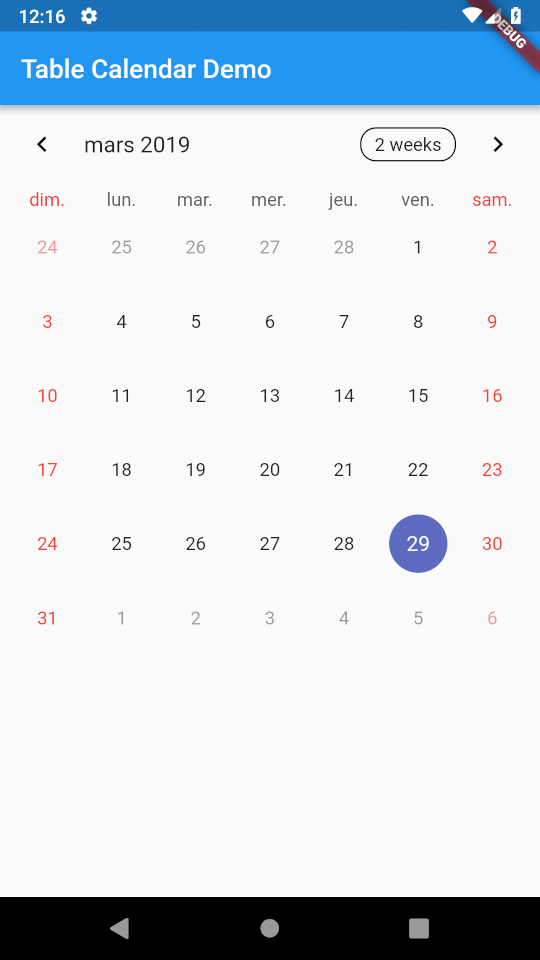
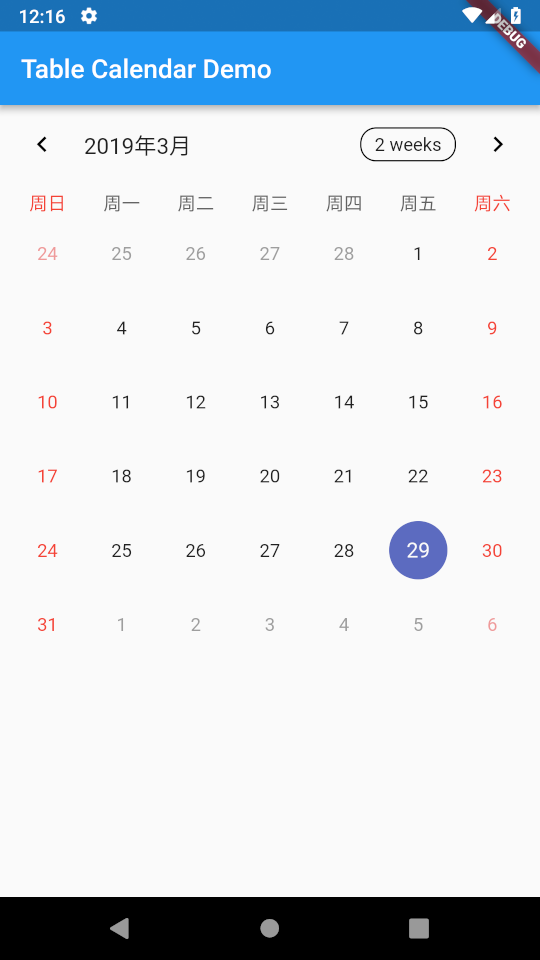
Locale
To display the calendar in desired language, use locale property.
If you don't specify it, a default locale will be used.
Initialization
Before you can use a locale, you might need to initialize date formatting.
A simple way of doing it is as follows:
- First of all, add intl package to your pubspec.yaml file
- Then make modifications to your
main():
import 'package:intl/date_symbol_data_local.dart';

void main() {
  initializeDateFormatting().then((_) => runApp(MyApp()));
}
After those two steps your app should be ready to use TableCalendar with different languages.
Specifying a language
To specify a language, simply pass it as a String code to locale property.
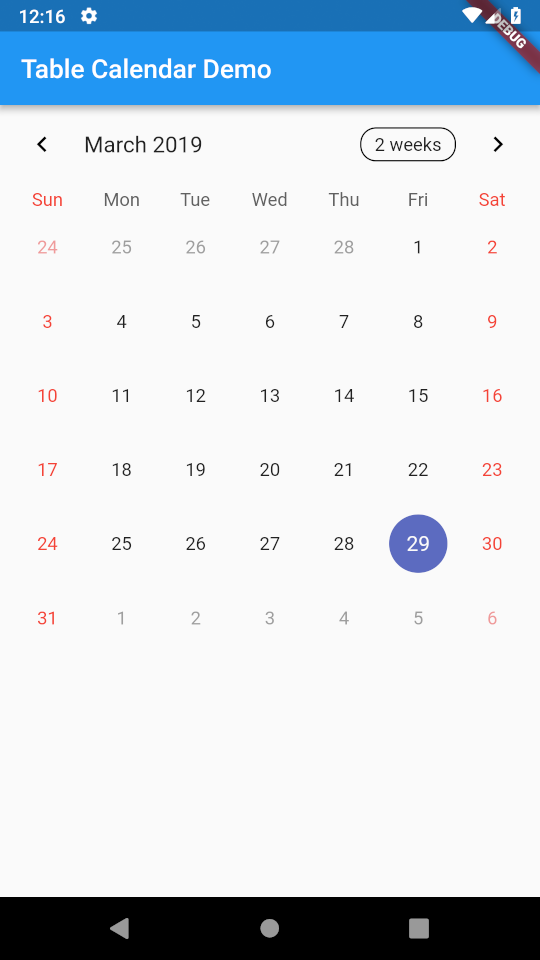
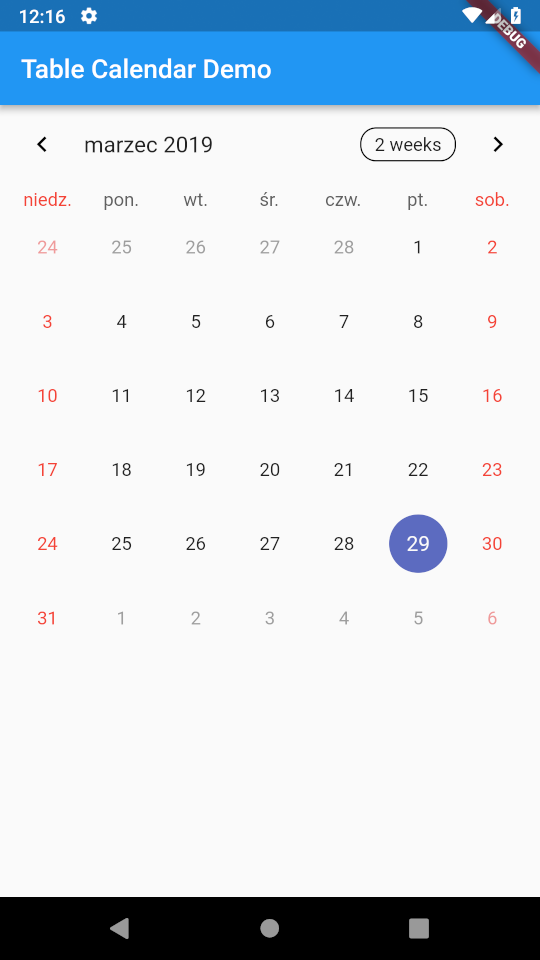
For example, this will make TableCalendar use Polish language:
TableCalendar(
  locale: 'pl_PL',
),
 |
 |
 |
 |
|---|---|---|---|
'en_US' |
'pl_PL' |
'fr_FR' |
'zh_CN' |
Note, that if you want to change the language of FormatButton's text, you have to do this yourself. Use availableCalendarFormats property and pass the translated Strings there. Use i18n method of your choice.
You can also hide the button altogether by setting formatButtonVisible to false.
Explore related projects
codecrafters-io/build-your-own-x
Master programming by recreating your favorite technologies from scratch.
562,083 starspublic-apis/public-apis
A collective list of free APIs
498,474 starsmorluto/rea
Reverse engineer anything with agents, from app behavior down to native binaries.
454,717 starsopenclaw/openclaw
The AI that really does things. Any OS. Any Platform. The lobster way. 🦞
394,407 stars