
aka-kika/reshelf
aka-kika/reshelf has 27 GitHub stars and 1 forks. GitHot measured 0 stars in 24 hours. Last checked 2026-11-14 10:49 UTC. Last push 2026-11-06.
Measured star growth
- in 24h
- 0
- in 7 days
- Collecting history
- in 15 days
- Collecting history
- in 1 month
- Collecting history
Net star changes over overlapping periods, not daily totals. Missing measurements are left blank. Stars measure attention, not software quality.
About
A local-first macOS app to catalog, organize, and clone the open-source repos you actually use. No account, no cloud.
Developer ToolsREADME.md
Original

reshelf
A local-first macOS app for the open-source repos you actually use.
Capture from GitHub, sort onto shelves, clone by category, and get told when a clone
has updates to pull.
No account. No cloud. Your catalog and clones live on your Mac.







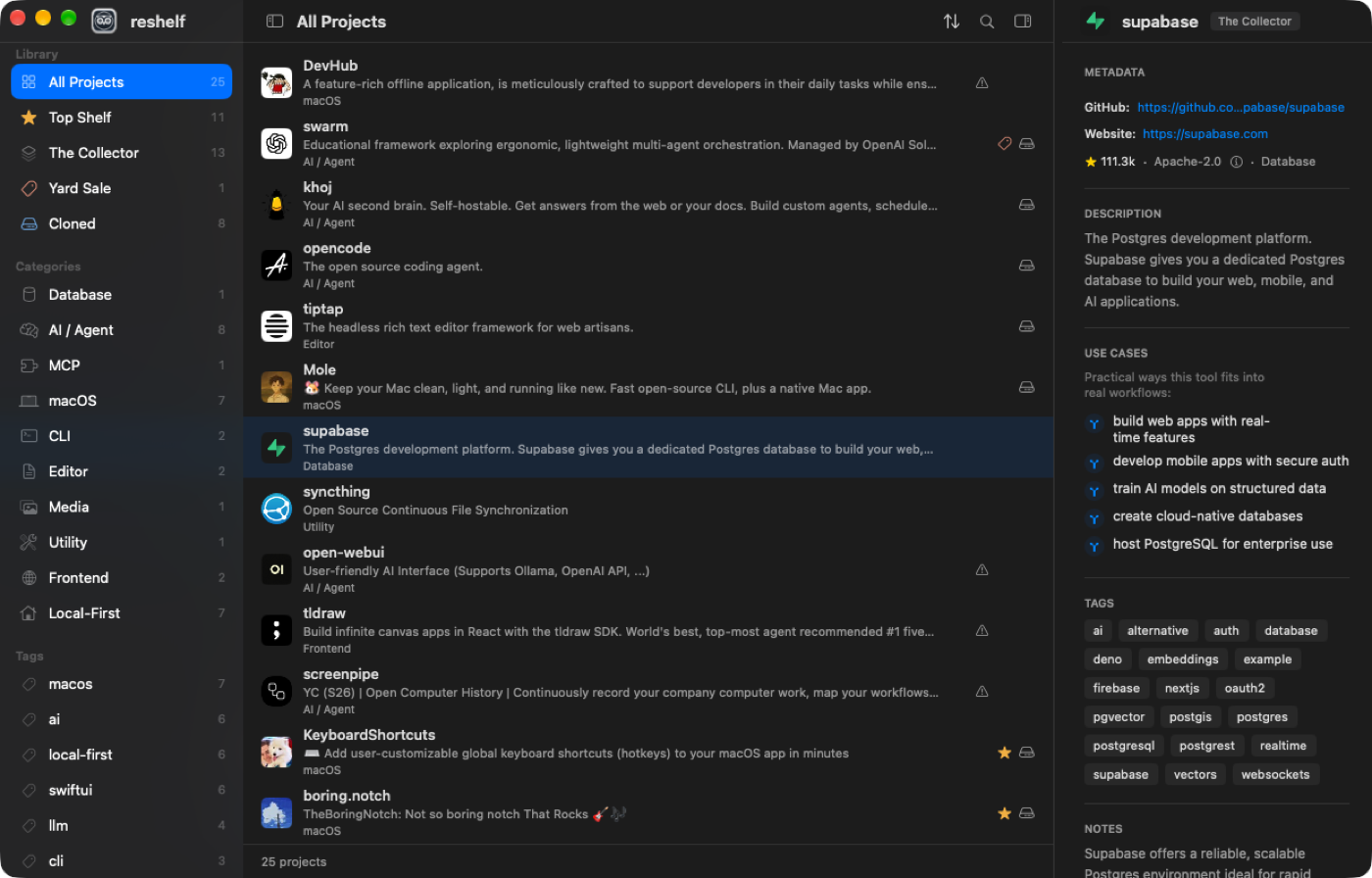
Download: grab the latest signed & notarized
reshelf.dmgfrom Releases — universal (Apple Silicon + Intel), macOS 14+. Drag to Applications and run; no Gatekeeper warnings. Or build from source (below).The menu bar and Dock show the name reshelf; the Xcode project/module keeps the legacy name
OpenSourceShelf.
What it does
- Capture fast — copy a GitHub link and press ⌘V anywhere in the window (or paste into ⌘K / ⌘N); reshelf fetches the metadata and auto-categorizes it (Database, AI / Agent, macOS, …) — no AI required. Already have it? You get an "Already on your shelf" card, and Return jumps to it.
- Capture Assist (optional, fully on-device) — on Macs with Apple Intelligence, each capture can auto-fill use cases, a note, and tags right after you save, and a one-click backfill fills entries that have none. No setup, no API keys, nothing leaves your Mac — and it never overwrites anything you typed. (Settings → Capture → Capture Assist.)
- Organize onto shelves — Top Shelf (keepers), The Collector (default), Yard Sale (not sure / let go). Move with one keystroke (⌘T / ⌘Y).
- Browse by anything — sidebar filters by shelf, live category list, folders, tags (most used or recently added — your pick in Settings), or Cloned. Every sidebar section folds away with a click on its heading. Sort by Recently Added / Name / Most Stars / Last Updated.
- Folders for what you got them for — clone thirty repos for one project and group them: right-click → Add to Folder. Folders are yours to name, sit in their own sidebar section, and are separate from categories (what a repo is) and shelves (how much you value it). Deleting a folder only ungroups — nothing else changes.
- Batch actions — ⌘-click rows (or ⇧-click a range), then move them all to a shelf, add them all to a folder, or remove their clones in one go. The whole point of folders: retire a project's worth of repos together instead of one at a time.
- Clone locally, organized — full clones grouped by category at
~/reshelf/repos/<Category>/<repo>, so you can point an AI agent at one category. Works withoutgit-lfs. Cloning uses git from Apple's Command Line Tools; if they're missing, runxcode-select --installin Terminal once. - Update checks — a read-only
git ls-remotetells you which clones are behind; one-click Pull, Check Clones for Updates (⌘⇧U) to sweep them all, or right-click a folder → Pull Repos to update just that project's clones. - Understand licenses — an ⓘ next to any license explains in plain language what you can and must do, with an optional caution for copyleft / source-available ones.
- No duplicates — capture detects a repo that's already in your catalog; Remove Duplicate Repos cleans up any you already have.
- Hard to lose data — an isolated store plus automatic JSON backups (last 30), auto-restore-on-empty, manual restore, and JSON import/export.
- Updates itself — Check for Updates (or a quiet automatic check) fetches signed releases through Sparkle, so you never hunt for a DMG again. Every update is EdDSA-signed and notarized; you can turn automatic checks off in Settings.
AI, when it happens, happens on your Mac. Capture Assist fills in use cases, a note and tags with on-device Apple Intelligence — no key, no setup, nothing sent anywhere. There is no provider to choose and no cloud option to turn on.
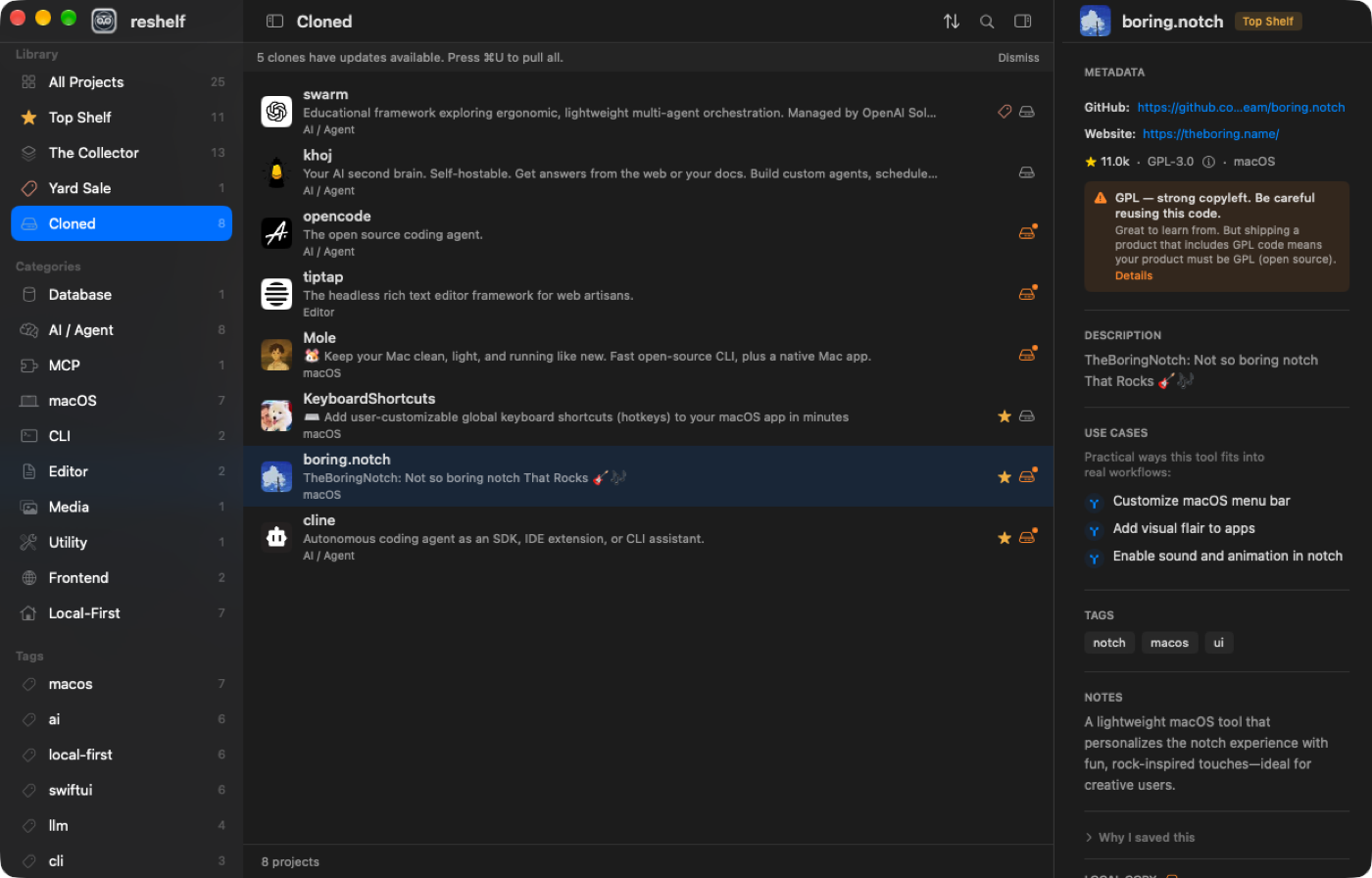
The Cloned filter: see which local clones are behind upstream and pull with one click.
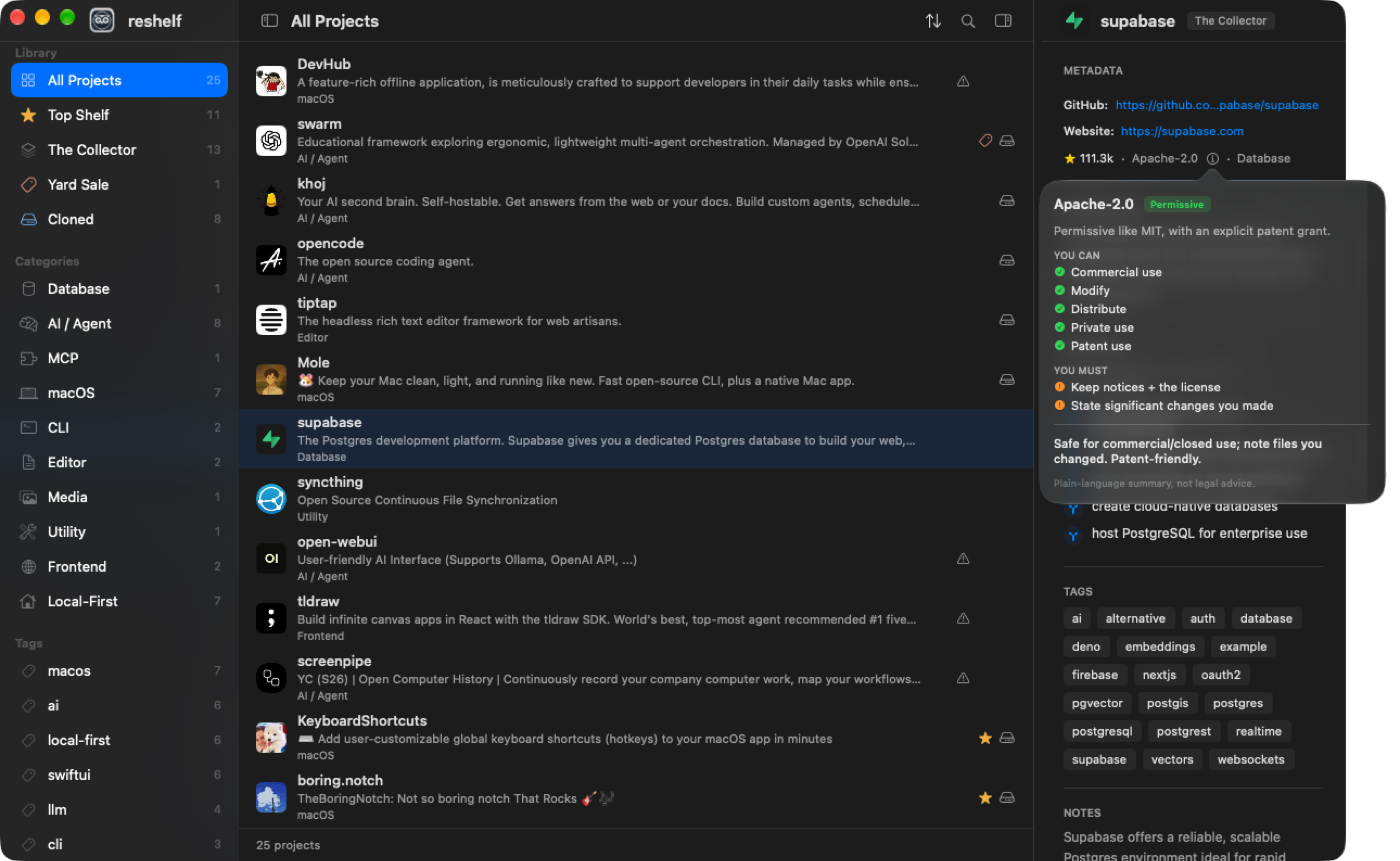
Every license explains itself in plain language — what you can do, what you must do,
and whether it's safe to reuse in something closed-source.
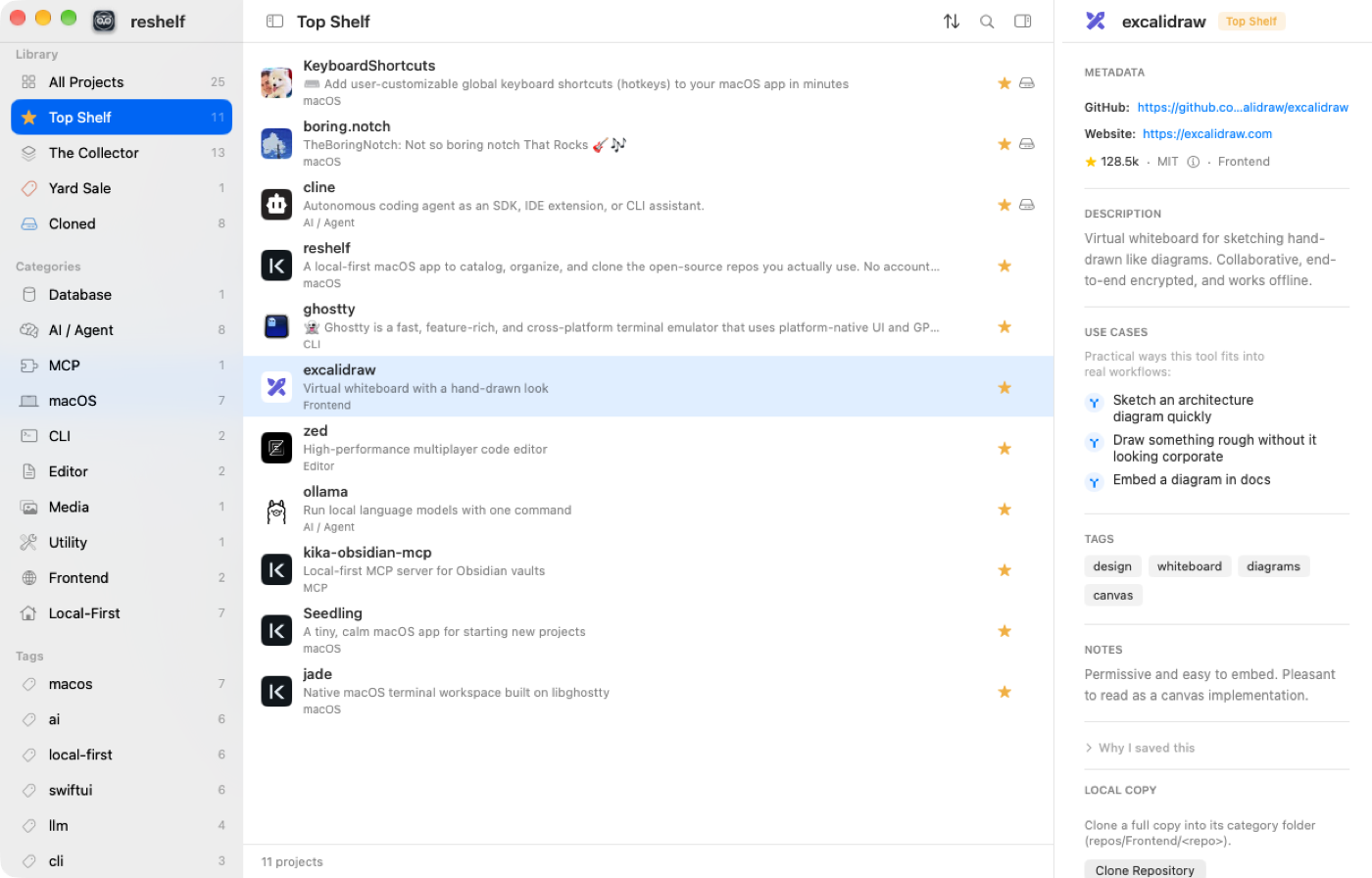
Light or dark, following macOS or pinned in Settings.
In one minute
- Build and run (see below) — you get a sidebar, project list, and inspector.
- Press ⌘K, paste a GitHub URL → Quick Capture opens with everything fetched → Enter to fetch, Enter again to save (no mouse needed).
- Sort it onto a shelf (⌘T Top Shelf, ⌘Y Yard Sale), or filter the sidebar by category, folder, or Cloned.
- Right-click a repo → Clone Repository. The inspector shows up to date vs updates available with a one-click Pull.
Tip: drag the sidebar/inspector dividers to resize, and in Settings show/hide and drag-reorder the inspector sections.
How you run it
Download (no Xcode) — grab reshelf.dmg from
Releases, open it, and drag
reshelf to Applications. It's signed & notarized, so it just opens.
To build it yourself:
Xcode
- Open
OpenSourceShelf.xcodeproj. - Select scheme OpenSource Shelf (the scheme/target keep the legacy name; the
built app is
reshelf.appviaPRODUCT_NAME). - Run (⌘R).
Terminal
# From the repo root (where OpenSourceShelf.xcodeproj lives):
bash build.sh          # Debug build → .build/reshelf.app
# or:
xcodebuild -project OpenSourceShelf.xcodeproj -scheme "OpenSource Shelf" \
  -destination 'platform=macOS' build
Requirements: macOS 14+ with Xcode 16+ (Swift 6, SwiftUI, SwiftData). Resolves GRDB via Swift Package Manager on first build.
Where data lives
| What | Where |
|---|---|
| Catalog (projects, folders, settings) | ~/reshelf/catalog.store (SwiftData — isolated, not the shared default store) |
| Automatic JSON backups | ~/reshelf/backups/ (last 30 add/remove/background snapshots) |
| Local clones | ~/reshelf/repos/<Category>/<repo> (grouped by category; full clones) |
| Clone + metadata records | ~/reshelf/database/opensource-shelf.sqlite (GRDB) |
Extending reshelf with skills 🧩
reshelf keeps your clones in a predictable, scriptable layout —
~/reshelf/repos/<Category>/<repo> — and your catalog as plain JSON in
~/reshelf/backups/. That makes it easy to point AI agents and tools at the library
you've curated. In effect, your cloned shelf doubles as a source-as-context
reference: when a coding agent is unsure of a library's API, it can search the real
cloned source instead of guessing from stale docs.
We ship a Claude Code skill in extras/reshelf-skill. It
installs itself: Settings → Library → Agent Skill → Install reshelf Skill copies it
to ~/.claude/skills/reshelf, no cloning needed. Click it again after updating
reshelf to get the newest version of the skill.
When you ask your agent about something you saved, the skill looks at your Top Shelf
first, then The Collector only if nothing fits (never the Yard Sale). It reads the
source of cloned repos, or the README of ones you haven't cloned, recommends the best
fit with a license warning when a repo has no license or an unclear or copyleft
one, and helps you learn the approach or use the code. If the pick isn't cloned
yet it offers to clone it into ~/reshelf/repos/<Category>/<repo>, and only does so
after you say yes. (README)
Built something that talks to reshelf? A skill, script, or integration — feeding a
category's clones to a coding agent, generating a "what to learn next" digest, syncing
your shelf to a notes app, anything. If it's good, we'd love to try it. Open an
issue or PR with a link (or drop it under extras/). Community integrations are
explicitly welcome.
Shortcuts
| Shortcut | Action |
|---|---|
| ⌘K | Command palette — search or paste a GitHub URL |
| ⌘N | Quick Capture (GitHub URL) |
| ⌘T / ⌘Y / ⌘⇧G | Move selected repo to Top Shelf / Yard Sale / The Collector |
| ⌘⇧U | Check clones for updates |
| ⌘⇧E | Export catalog as JSON |
| ⌘S / ⌘I | Toggle sidebar / inspector |
Privacy and network
- GitHub — when you capture or import a repo (repo info and its owner's avatar as the icon), when you pull a clone or use Shelf → Refresh Info (fresh stars, license, last activity), and for update checks on clones (
git ls-remote). Missing icons are fetched again at launch. - AI — never leaves the Mac. Capture Assist runs on-device Apple Intelligence; there is no cloud provider to configure.
- Update checks — Sparkle fetches a static appcast from GitHub Pages. Nothing about you is sent; it's a plain file request.
- No sign-in, no required cloud sync. Credentials (when used) live in the macOS Keychain.
FAQ
Is reshelf free?
Yes — free and open source under the MIT license. Download the signed, notarized
reshelf.dmg from Releases,
or build it from source.
How is this different from GitHub stars or browser bookmarks?
Stars are a flat, ever-growing pile on GitHub's servers; bookmarks disappear into the browser. reshelf is a GitHub repository organizer that lives on your Mac: every repo you capture is auto-categorized, sorted onto a shelf by how much you value it, and groupable into folders by project — so "what did I save for X, and which one should I actually use?" takes seconds, not a scroll through hundreds of stars. And when you're ready to use a repo, reshelf clones it into an organized local library and tells you when it's behind upstream.
Does it run on Apple Silicon and Intel Macs?
Yes. Every release is a universal binary (arm64 + x86_64) for macOS 14 or later, signed and notarized with a Developer ID — it opens with no Gatekeeper warnings.
Does reshelf need an account or send my data anywhere?
No account, no cloud, no telemetry. Your catalog and clones stay on your Mac. GitHub is only asked about the repos you saved (capture, refresh, pull, icons), and the optional Capture Assist runs entirely on-device with Apple Intelligence — there is no cloud AI provider to configure at all.
Can AI coding agents use my shelf?
Yes — clones land in a predictable ~/reshelf/repos/<Category>/<repo> layout, the
catalog exports as plain JSON, and reshelf ships
a Claude Code skill that lets an agent search the
real source you curated instead of guessing from stale docs.
Where does my data live, and can I lose it?
Everything sits under ~/reshelf/ in open formats (SwiftData store, SQLite, plain
git clones, JSON backups) — see Where data lives. reshelf keeps
the last 30 routine JSON backups, plus the last 40 labelled backups taken before a
big change, and restores from them if the catalog ever comes up empty. Not when you
emptied the shelf yourself: that stays empty.
Stack
- SwiftUI — interface · SwiftData — the catalog you see
- GRDB (SQLite) — a second store for clone and metadata records
- GitHub REST — repo metadata on capture · Apple Intelligence — on-device fills
- Sparkle — signed in-app updates from an EdDSA-signed appcast
Roadmap
v1 is the Catalog. An optional GitHub token already lives in Settings → Capture (Keychain only; it raises the rate limit and can see private repos). Next up is GitHub login inside the app (read-only) to power better recommendations — full spec in v2.0-roadmap.md. Broader ideas live in future-features.md.
Why I built this
I kept finding great open-source repos — in browser tabs, GitHub stars, links I'd never open again — and losing them. Stars are a pile; tabs are a mess. I wanted a calm, local place to keep the ones that matter to me: decide quickly whether something is a keeper, a maybe, or a let-go, and when I'm ready to actually use a repo, pull its code close to learn from it.
reshelf is that shelf. It lives on my Mac, needs no account, and stays out of the way. I use it every day — I hope it's useful to you too.
— Kika (@akakika)
Contributing
Bug reports, fixes, features, docs, design feedback, and integrations are all welcome.
Start with CONTRIBUTING.md for build steps and the one gotcha (new
Swift files must be registered in project.pbxproj). Use the issue templates.
Project docs
| File | Purpose |
|---|---|
| features.md | What works today |
| goals.md | Why the app exists and product principles |
| v2.0-roadmap.md | What's next (GitHub login) |
| future-features.md | Ideas not built yet |
| todo.md | Working checklist + recent history |
| CHANGELOG.md | Release notes |
| site/ | Source of the landing page at aka-kika.github.io/reshelf; deployed by copying to the gh-pages branch, which also hosts the Sparkle appcast |
| CONTRIBUTING.md · SECURITY.md · AGENTS.md | Contributing, security, agent/architecture notes |
License
MIT © reshelf contributors.
Explore related projects
codecrafters-io/build-your-own-x
Master programming by recreating your favorite technologies from scratch.
562,438 starspublic-apis/public-apis
A collective list of free APIs
498,893 starsmorluto/rea
Reverse engineer anything with agents, from app behavior down to native binaries.
458,589 starsopenclaw/openclaw
The AI that really does things. Any OS. Any Platform. The lobster way. 🦞
394,422 stars