
aculix/bitplay
aculix/bitplay has 1,718 GitHub stars and 128 forks. GitHot measured 0 stars in 24 hours. Last checked 2026-11-07 03:08 UTC. Last push 2026-08-14.
Stream video torrents in your web browser with ease.
What you can do
- Direct Torrent Streaming: Stream video files from magnet links or torrent files directly without needing to download them completely first.
- MKV & Audio Track Support: MKV files are remuxed on the fly with ffmpeg (no re-encoding), and files with multiple audio tracks get a track picker. If a codec genuinely can't play in your browser, BitPlay tells you which one and gives you the stream URL to open in VLC or mpv instead.
- Web-Based UI: Access and control BitPlay through a user-friendly web interface.
- Proxy Support: Configure a SOCKS5 proxy for all torrent-related traffic (fetching metadata, peer connections). (Note: HTTP proxies are not currently supported).
Measured star growth
- in 24h
- 0
- in 7 days
- Update delayed
- in 15 days
- Update delayed
- in 1 month
- Update delayed
Net star changes over overlapping periods, not daily totals. Missing measurements are left blank. Stars measure attention, not software quality.
README.md
OriginalBitPlay: Torrent Streaming Web App
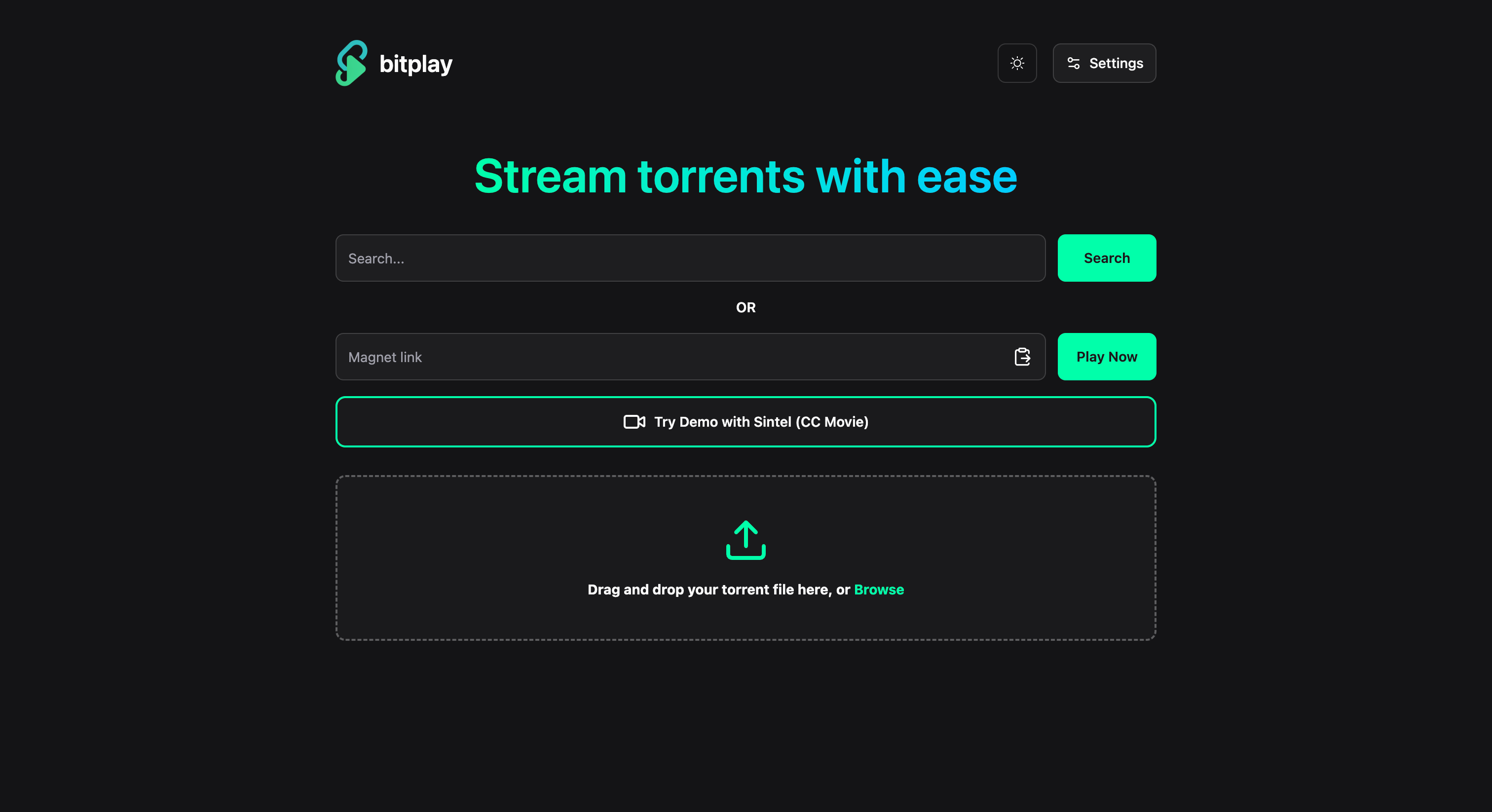
BitPlay is a web application built with Go that allows you to stream video content directly from torrents in your browser. It features a clean web UI, support for SOCKS5 proxies, and integration with Prowlarr and Jackett for seamless torrent searching.
Features
- Direct Torrent Streaming: Stream video files from magnet links or torrent files directly without needing to download them completely first.
- MKV & Audio Track Support: MKV files are remuxed on the fly with ffmpeg (no re-encoding), and files with multiple audio tracks get a track picker. If a codec genuinely can't play in your browser, BitPlay tells you which one and gives you the stream URL to open in VLC or mpv instead.
- Web-Based UI: Access and control BitPlay through a user-friendly web interface.
- Proxy Support: Configure a SOCKS5 proxy for all torrent-related traffic (fetching metadata, peer connections). (Note: HTTP proxies are not currently supported).
- Prowlarr Integration: Connect to your Prowlarr instance to search across your configured indexers directly within BitPlay.
- Jackett Integration: Connect to your Jackett instance as an alternative search provider.
- Subtitles: Embedded SRT subtitles are converted to VTT on the fly, and you can upload your own
.srt/.vttfile during playback. - Optional Basic Auth: Protect a publicly reachable instance with a username and password via environment variables.
- Maintenance Tools: A settings tab with live session stats, recent server logs, and a cache purge button.
- Session Management: Handles multiple torrent sessions and cleans up inactive ones.
Getting Started
You can run BitPlay either directly using Go or via Docker Compose.
Prerequisites
- Go: Requires Go 1.25 or later (if running locally).
- ffmpeg: Optional for local runs; it enables MKV remuxing and audio track selection. The Docker image already includes it.
- Docker & Docker Compose: Required if running with Docker.
Running Locally with Go
- Clone the repository:
git clone https://github.com/aculix/bitplay.git cd bitplay - Download dependencies:
go mod download - Run the application:
By default, the server will start ongo run main.gohttp://localhost:3347.
Running with Docker Compose
This is the recommended method for deployment.
Create a
docker-compose.ymlfile:services: bitplay: image: ghcr.io/aculix/bitplay:latest container_name: bitplay ports: - 3347:3347 # Expose the web UI port volumes: # Mount the config directory for persistent settings (Optional) - ./config:/app/config # Mount the download location of the file (Optional) - ./torrent-data:/app/torrent-data restart: unless-stopped- Optional Persistence: By default, settings (Proxy, Prowlarr/Jackett) are stored inside the container and will be lost if the container is restarted. To make settings persistent across restarts, you can mount a local directory from your host to
/app/configinside the container using thevolumesoption above. - If you choose to mount the directory for persistence, you must create the directory on your host machine before starting the container for the first time:
mkdir -p ./config. - If you don't mount this volume, the application will still function correctly, but you will need to re-configure your settings after each container restart. Torrent data itself is always ephemeral.
- Optional Persistence: By default, settings (Proxy, Prowlarr/Jackett) are stored inside the container and will be lost if the container is restarted. To make settings persistent across restarts, you can mount a local directory from your host to
Start the container:
docker-compose up -dAccess the application: Open your browser to
http://<your-server-ip>:3347.
Running with Docker Run
Alternatively, you can run the container directly using docker run:
(Optional) Create the config directory for persistence: If you want your settings (Proxy, Prowlarr/Jackett) to persist across container restarts, create the configuration directory on your host first:
mkdir -p ./configIf you skip this step and the volume mount below, the application will still work, but settings will be lost on restart.
Run the container:
docker run -d \ --name bitplay \ -p 3347:3347 \ # Add the volume mount below ONLY if you want persistent settings (and created ./config above) -v $(pwd)/config:/app/config \ # The location where the downloaded file is saved -v $(pwd)/torrent-data:/app/torrent-data \ --restart unless-stopped \ ghcr.io/aculix/bitplay:latest-d: Run in detached mode (background).--name bitplay: Assign a name to the container.-p 3347:3347: Map port 3347 on the host to port 3347 in the container.-v $(pwd)/config:/app/config: (Optional) Mount the local./configdirectory for persistent settings.--restart unless-stopped: Configure the container to restart automatically unless manually stopped.ghcr.io/aculix/bitplay:latest: The Docker image to use.
Access the application: Open your browser to
http://<your-server-ip>:3347.
Configuration
BitPlay is configured primarily through its web interface after starting the application.
- Access the Web UI: Go to
http://localhost:3347(or your server's address). - Navigate to Settings: Find the settings or configuration section within the UI.
- Configure:
- Proxy: Enable/disable proxy support and provide the full SOCKS5 proxy URL (e.g.,
socks5://user:pass@host:port). Test the connection using the provided button. - Prowlarr: Enable/disable Prowlarr, provide the Prowlarr Host URL (e.g.,
http://prowlarr:9696), and your Prowlarr API Key. Test the connection. - Jackett: Enable/disable Jackett, provide the Jackett Host URL (e.g.,
http://jackett:9117), and your Jackett API Key. Test the connection. - Search Timeout / TLS: Both indexer tabs let you raise the search timeout (default 30s, useful for Jackett setups with many indexers) and skip TLS certificate verification for self-signed Prowlarr/Jackett instances.
- Maintenance: The fourth settings tab shows active torrent sessions, recent server logs, and a Purge Cache button that stops all sessions and deletes everything downloaded to disk.
- Proxy: Enable/disable proxy support and provide the full SOCKS5 proxy URL (e.g.,
Settings are saved automatically to /app/config/settings.json inside the Docker container, which maps to ./config/settings.json on the host via the mounted volume in the example Docker Compose setup above. API keys are never sent back to the browser once saved.
Environment Variables
| Variable | Description |
|---|---|
BITPLAY_AUTH_USERNAME / BITPLAY_AUTH_PASSWORD |
Set both to protect the entire app (UI, API, and video streams) with HTTP basic auth. Recommended for instances exposed to the internet. |
BITPLAY_MAX_REMUX |
Maximum concurrent ffmpeg remux streams (default 3). |
Example with Docker Compose:
services:
  bitplay:
    image: ghcr.io/aculix/bitplay:latest
    ports:
      - 3347:3347
    environment:
      - BITPLAY_AUTH_USERNAME=admin
      - BITPLAY_AUTH_PASSWORD=change-me
    restart: unless-stopped
Routing Through a VPN with Gluetun
If you want all of BitPlay's traffic (not just torrent traffic) forced through a VPN, run it behind gluetun and attach BitPlay to gluetun's network:
services:
  gluetun:
    image: qmcgaw/gluetun
    container_name: gluetun
    cap_add:
      - NET_ADMIN
    devices:
      - /dev/net/tun:/dev/net/tun
    ports:
      - 3347:3347 # BitPlay's UI is published via gluetun
    environment:
      - VPN_SERVICE_PROVIDER=your-provider
      # See gluetun's docs for your provider's credentials/variables
    restart: unless-stopped

  bitplay:
    image: ghcr.io/aculix/bitplay:latest
    container_name: bitplay
    network_mode: service:gluetun
    volumes:
      - ./config:/app/config
    restart: unless-stopped
With network_mode: service:gluetun, everything BitPlay does (tracker announces, peer connections, DHT) goes through the VPN, and you reach the UI through gluetun's published port. The built-in SOCKS5 proxy setting is the lighter option if you only want torrent traffic proxied.
Usage
Configure Settings: Set up your proxy and search providers (Prowlarr/Jackett) as described above.
Search: Use the search bar to query Prowlarr or Jackett for torrents.
Add Torrent: Paste a magnet link directly or click a search result to add the torrent to BitPlay.
BitPlay also supports opening from another app/program by providing torrent or magnet link as query parameter
torrent. The link needs to be URL-encoded!Ex:
http://localhost:3347?torrent=magnet%3A%3Fxt%3Durn%3Abtih%3A08ada5a7a6183aae1e09d831df6748d566095a10%26dn%3DSintel%26tr%3Dudp%253A%252F%252Fexplodie.org%253A6969%26tr%3Dudp%253A%252F%252Ftracker.coppersurfer.tk%253A6969%26tr%3Dudp%253A%252F%252Ftracker.empire-js.us%253A1337%26tr%3Dudp%253A%252F%252Ftracker.leechers-paradise.org%253A6969%26tr%3Dudp%253A%252F%252Ftracker.opentrackr.org%253A1337%26tr%3Dwss%253A%252F%252Ftracker.btorrent.xyz%26tr%3Dwss%253A%252F%252Ftracker.fastcast.nz%26tr%3Dwss%253A%252F%252Ftracker.openwebtorrent.com%26ws%3Dhttps%253A%252F%252Fwebtorrent.io%252Ftorrents%252F%26xs%3Dhttps%253A%252F%252Fwebtorrent.io%252Ftorrents%252Fsintel.torrentStream: Once the torrent info is loaded, select the video file you want to watch. BitPlay will start downloading and streaming it directly in the built-in player.
Contributing
Contributions are welcome! Please feel free to submit pull requests or open issues. (You can add more details here if you have specific contribution guidelines).
License
This project is licensed under the MIT License. See the LICENSE file for details.
Explore related projects
ytdl-org/youtube-dl
Command-line program to download videos from YouTube.com and other video sites
141,473 starsexcalidraw/excalidraw
Virtual whiteboard for sketching hand-drawn like diagrams
135,294 starsgodotengine/godot
Godot Engine – Multi-platform 2D and 3D game engine
119,710 starsmrdoob/three.js
JavaScript 3D Library.
117,745 stars