
UnityTechnologies/InputSystem_Warriors
UnityTechnologies/InputSystem_Warriors has 635 GitHub stars and 138 forks. GitHot measured 0 stars in 24 hours. Last checked 2026-11-15 15:16 UTC. Last push 2026-09-01.
Measured star growth
- in 24h
- 0
- in 7 days
- Update delayed
- in 15 days
- Update delayed
- in 1 month
- Update delayed
Net star changes over overlapping periods, not daily totals. Missing measurements are left blank. Stars measure attention, not software quality.
About
Example Project for the new Unity Input System
Developer ToolsREADME.md
OriginalUnity Input System - 'Warriors' Example Project
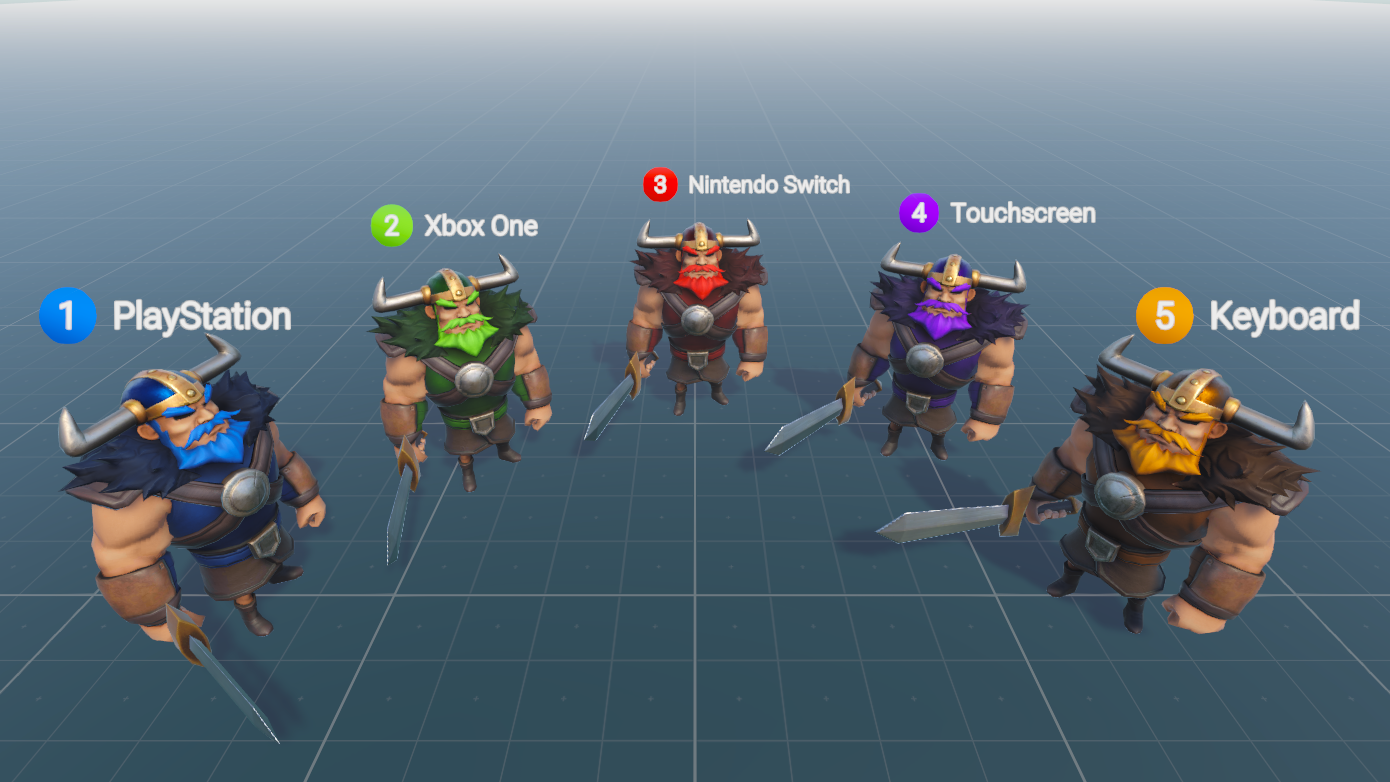
Overview
Description
This Unity example project has been created to demonstrate a variety of tools and functionality with Unity's Input System.
You can learn more about the Input System here: https://unity.com/features/input-system
Input System Demonstrated Scenarios
- Input Action Control Scheme for basic Player Controls (Directional Axis for Movement, Button press for Attack)
- Setting up Keyboard and Generic Gamepad bindings to the Control Scheme
- Tested with the following controllers: PlayStation Dualshock 4, Xbox One and Nintendo Switch Pro
- Instancing multiple Player Controllers for a local multiplayer setup
- UI Input (Virtual Joystick and Virtual Button) for Touchscreen Controls
- Runtime switching between Player Control and Menu Control Action Maps
- UI for rebinding action controls to new buttons and joysticks
- Displaying connected device data in both Screen Space and World Space UI
- Callbacks for an Input Device runtime disconnecting and reconnecting
Other Demonstrated Scenarios
- Universal Render Pipeline's Camera Stacking for Overlay UI
- Universal Render Pipeline's Scriptable Render Pass for Scene Blur UI Overlay
- Universal Render Pipeline's Integrated Post-Processing for Tonemapping
- Nested UI Prefab for Displaying Input Device Information
- Shader Graph for filtering a Mask Map for Team Colors
- TextMesh Pro for rendering Screen Space and World Space UI Text
- Scriptable Object for storing Device Display Colors and Display Names
Project Versions and Branches
Important: The project is in continuous development and improvement! Branches are used as 'time-stamps' for project states for Webinars.
- Branch: V1 - Unite Now: Input System - Meet The Devs (April 2020)
- Branch: V2 - Unite Now: Input System: Workflow Tips & Feature Integrations (November 2020)
- Master - Most Recent Unite Now Webinar
Tech Info
Unity Version
- Current: 6000.3.0f1
Packages
- com.unity.inputsystem: 1.16.0
- com.unity.render-pipelines.universal: 17.3.0
Hardware
This example project has been developed and tested with the following input devices:
- Keyboard
- PlayStation 4 Dualshock Controller
- Xbox One Controller
- Nintendo Switch Pro Controller
- Android Samsung Galaxy S9 (Touchscreen for Virtual Joystick and Virtual Button)
- Mouse (For simulating touchscreen input in the Unity Editor)
Software
This example project was developed and tested on Windows 10.
Usage
This example project is publicly available for you to:
- Use as a learning resource for the Input System or any other implemented feature & tool
- Use as a foundation for building your own projects
- Extract code, assets and information for your own projects
If you do use this example project in some form, please feel free to contact Andy Touch (andyt[at]unity3d.com); he'd love to hear from you about your your experience with it!
Credits & Feedback
This example project is developed by Unity Technologies and has involvement from R&D, Product Management, Product Marketing and Evangelism.
If you have any feedback or questions about Unity's Input System, you are invited to join us on the forums: https://forum.unity.com/forums/new-input-system.103/
If you have any issues, errors or feedback about the example project; you can open an issue on this repository or send an email to andyt[at]unity3d.com
Technical Disclaimers & Known Issues
The GameManager script has a toggle for spawning a group of Warriors at Runtime.
- The number of warriors that is spawned is based on a fixed integer variable (manually set in the Inspector), and is not based on the number of input devices connected and detected.
When opening the project for the first time, the Pause Menu Screen Blur Effect might not be rendering.
- To fix this, locate the UniversalRenderPipeline_Renderer_MenuBlur asset and add the Kawase Blur Render Pass to the Renderer Features