
StructuPath/herdr-browser
About
Drivable agent-browser pane for Herdr with live streaming, real interaction, adaptive rendering, console/page errors, recording, and localhost routing
Developer ToolsWhat you can do
- Repeatable QA scenarios — run saved desktop/mobile checks in fresh browser sessions and collect commit-bound screenshots, assertions, and error evidence. See the QA guide (Browser 0.8.0).
- Shared agent sessions — one isolated browser session per Herdr workspace.
- Attach to any CDP browser — observe a Playwright, Puppeteer, or Browser Use run (or any Chrome started with --remote-debugging-port) without owning it.
- Zero-setup launch — press l and the pane launches a local Chromium of its own and attaches to it; no agent-browser install required.
Measured star growth
- in 24h
- -1
- in 7 days
- Collecting history
- in 15 days
- Collecting history
- in 1 month
- Collecting history
Net star changes over overlapping periods, not daily totals. Missing measurements are left blank. Stars measure attention, not software quality.
README.md
Originalherdr-browser

A drivable browser pane for Herdr, built around agent-browser.
When a coding agent drives Chrome in one pane, herdr-browser gives you a live, human-visible view of that same session in another. You can inspect the page, watch console output and page errors, click real browser coordinates, type, scroll, navigate, and record the flow without leaving Herdr.
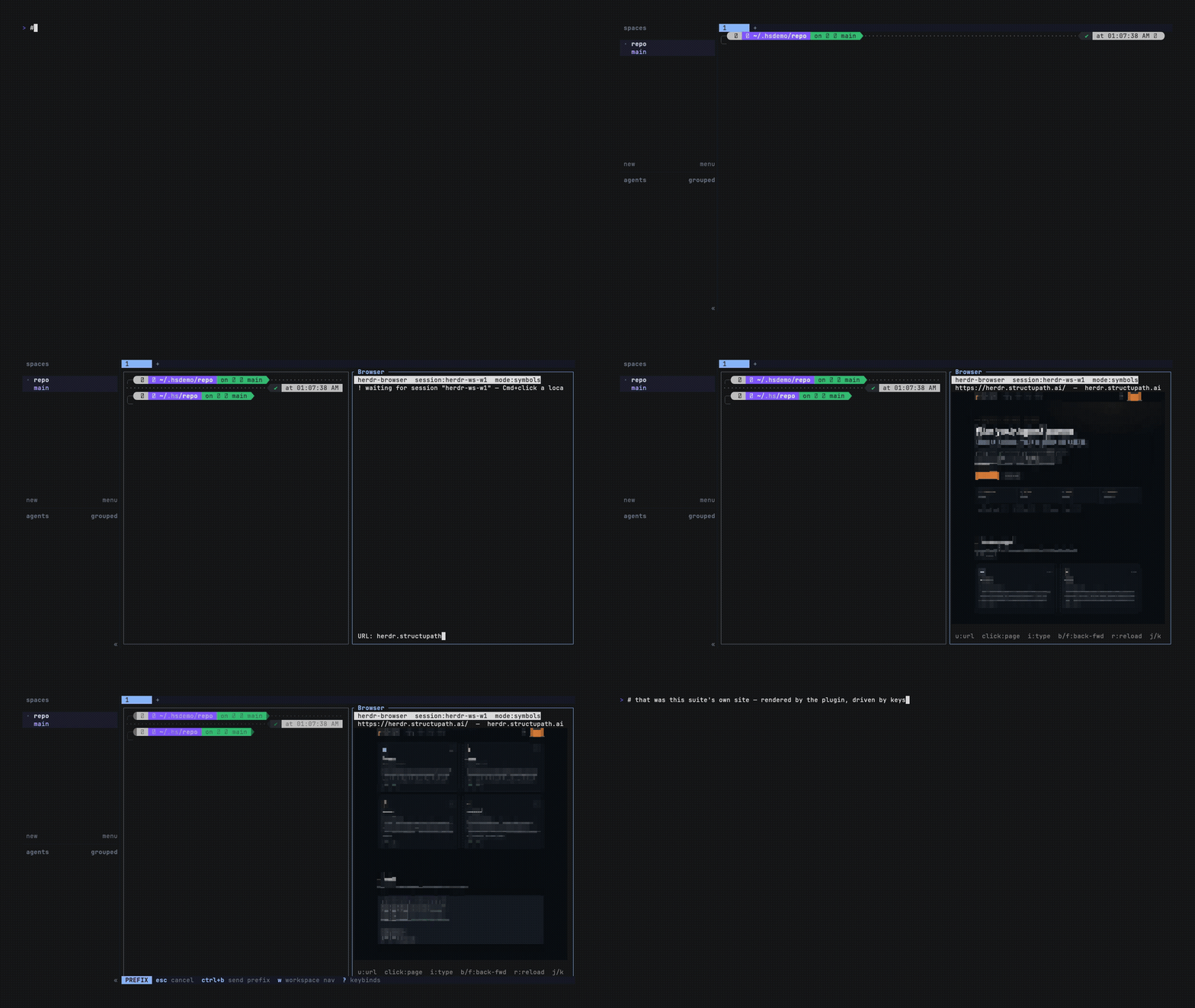
Docs: the Browser guide and Herdr Suite overview are the canonical guides to this plugin and its three siblings (Guard, Swarm, Conductor).
Highlights
- Repeatable QA scenarios — run saved desktop/mobile checks in fresh browser sessions and collect commit-bound screenshots, assertions, and error evidence. See the QA guide (Browser 0.8.0).
- Shared agent sessions — one isolated browser session per Herdr workspace.
- Attach to any CDP browser — observe a Playwright, Puppeteer, or Browser Use
run (or any Chrome started with
--remote-debugging-port) without owning it. - Zero-setup launch — press
land the pane launches a local Chromium of its own and attaches to it; no agent-browser install required. - Observe-only mode — press
oand pane input stops being forwarded, so watching a live automation run can never perturb it. - Live push streaming — frames, URL/title changes, console messages, and page errors arrive over WebSocket, with transparent polling fallback.
- Failed network requests — 4xx/5xx and no-response xhr/fetch/document
requests appear in the console region as
✖ 404 GET <url>lines, in both streaming and polling modes. - Pane-aware layout — the browser viewport fits the pane without stretching or changing its responsive width; the console opens only when output exists.
- Real interaction — clicks use Chrome mouse events rather than DOM selector guesses; keyboard input, history, reload, and wheel scrolling are supported.
- Adaptive rendering — Kitty graphics when available, ANSI symbols through chafa otherwise, and a text-only last resort.
- Read the page as text — press
sfor the accessibility-tree snapshot (interactive elements get@eNrefs),nfor the full recent request table, anddto diff the page against your last snapshot; the screenshot returns on any page-driving action. - Built-in recording — capture the workspace session as WebM.
- Localhost integration — Cmd/Ctrl+click a local development URL in Herdr to open it in the workspace browser pane.
Requirements
| Component | Requirement | Notes |
|---|---|---|
| Herdr | >= 0.7.0 |
Tested with Herdr 0.7.4 |
| Node.js | >= 20 |
Node 22+ enables live WebSocket streaming, CDP attach mode, and launch mode |
| agent-browser | Optional | Required for shared agent sessions, recording, and saved QA scenarios; QA requires 0.33.0+; tested with 0.33.x |
| Chromium/Chrome | Optional | Any Chromium-based browser enables launch mode (l) and attach mode |
| chafa | Optional | ANSI rendering and streamed JPEGs in Kitty mode |
| carbonyl | Optional | Only required for the separate interactive Browse action |
Install the browser engine:
npm install -g agent-browser
agent-browser install
For ANSI image rendering, install chafa (npm run doctor prints the command
for your platform):
brew install chafa        # macOS
sudo apt install chafa    # Debian/Ubuntu (or: dnf install chafa, pacman -S chafa)
Install
herdr plugin install StructuPath/herdr-browser
For development from a local checkout:
git clone https://github.com/StructuPath/herdr-browser
cd herdr-browser
herdr plugin link .
Quick start
Open the viewer from the CLI:
herdr plugin action invoke structupath.browser.open
With no URL, Open creates the pane without creating or navigating a browser session. Start agent-browser with the session name shown in the pane header:
# Replace this example with the exact session shown in the pane header.
agent-browser --session herdr-ws-w123456 open http://localhost:3000
You can also press u inside the pane and enter a URL, or Cmd/Ctrl+click a
localhost URL printed in another Herdr pane.
Optional keybinding
Herdr plugins do not install default keybindings. Add one to
~/.config/herdr/config.toml:
[[keys.command]]
key = "prefix+b"
type = "plugin_action"
command = "structupath.browser.open"
description = "browser pane"
Actions
The plugin registers five actions:
| Action | ID | Behavior |
|---|---|---|
| Open browser pane | structupath.browser.open |
Attach view-only with no URL, or navigate when invoked by a link handler |
| Close browser session and pane | structupath.browser.close |
Close every browser pane in the workspace and end its session |
| Browse interactively | structupath.browser.browse |
Open a separate Carbonyl browser in a zoomed pane |
| Start session recording | structupath.browser.record-start |
Begin WebM recording for the workspace session |
| Stop session recording | structupath.browser.record-stop |
Finish the active recording |
The localhost link handler accepts only http:// or https:// URLs for
localhost, 127.0.0.1, or [::1]. A modified click opens the URL in the
browser pane; an ordinary click keeps Herdr's default behavior.
Interactive Browse action
The Browse action uses Carbonyl, a separate terminal-rendered Chromium with native mouse and keyboard support:
npm install -g carbonyl@next
Carbonyl does not share the coding agent's browser session. Use the standard Open action whenever you need to observe or drive the same session as your coding agent.
Viewer controls
Use these controls to drive the shared session directly:
| Input | Action |
|---|---|
u |
Open the address prompt; https:// is assumed when omitted |
a |
Attach to a CDP endpoint (http://host:port or ws://…) |
l |
Launch a local Chromium the pane owns and attach to it |
t |
Attach/launch mode: open the tab picker; arrows or j/k highlight, Enter selects, t refreshes, Esc cancels |
o |
Toggle observe-only: pane input is dropped instead of forwarded |
| Click the screenshot | Send real Chrome mouse move/down/up events at that page coordinate |
i |
Enter or paste text for the focused page element; Enter inserts it, Esc cancels |
b / f |
Navigate backward / forward |
r |
Reload |
j / k |
Scroll down / up |
| Space | Scroll down |
| Mouse wheel | Scroll the page |
s |
Toggle the accessibility-tree snapshot (interactive elements carry @eN refs) |
n |
Toggle the recent request table |
d |
Toggle a diff of the current page against the last snapshot (press s first) |
Esc |
Cancel the active prompt, or close the open text view |
q |
Close the viewer pane |
Clicks are mapped through the rendered-frame geometry to page pixels, so they work with overlays, canvas content, and shadow DOM. Live sessions usually repaint immediately; polling fallback can take up to the configured interval.
The text prompt preserves leading/trailing spaces and Unicode; Backspace
removes a complete Unicode character, including joined emoji. In a terminal
that supports bracketed paste, pasted tabs and newlines remain text in the
prompt until you press Enter to insert it. Newlines appear as \n in the
preview. Inserting text does not send an Enter key to the page or submit a
form. Paste into the i prompt; pasted text outside a prompt is ignored.
Each paste is limited to 1 MiB. URL and endpoint prompts still trim whitespace.
Rendering and streaming
Automatic mode selection
The renderer probes the terminal at startup and selects the strongest usable mode:
| Mode | Behavior |
|---|---|
kitty |
Real-pixel graphics; polling PNGs are transmitted directly |
symbols |
Screenshot rendered as ANSI symbols through chafa |
text |
URL, title, status, and console output without an image |
Live-stream frames are JPEG. Kitty terminals therefore use chafa for live frames; when chafa is unavailable, the renderer keeps the direct-PNG polling path instead of sending an unsupported image format.
To enable Herdr's experimental Kitty graphics support in Ghostty, Kitty, or WezTerm:
# ~/.config/herdr/config.toml
[experimental]
kitty_graphics = true
Then reload Herdr:
herdr server reload-config
Live stream with polling fallback
On Node 22+ with a compatible agent-browser, the pane connects to the local session stream. Frames arrive only when the page changes, while the polling loop becomes a low-frequency liveness check.
The pane falls back automatically when WebSocket support is unavailable, the stream disconnects, or the selected renderer cannot display streamed JPEGs. No feature flag is required.
If a stream connects but sends no usable image within five seconds, the pane returns to screenshot polling and retries streaming after its cooldown. A connected WebSocket alone does not establish that image delivery is working.
Pane fitting
On attach and pane resize, herdr-browser preserves the session's current viewport width—and therefore its responsive breakpoint—while fitting only the height to the pane's image area. The frame fills that area without stretching.
On a quiet page, the image uses all rows between the header and controls. The console region appears only after a console message, page error, or failed network request arrives; the viewport then refits to the remaining image area.
Failed network requests paint as ✖ 404 GET <url> (HTTP 400–599) or
✖ no response GET <url> (connection-level failures, detected after ~15
seconds without a status). Only xhr, fetch, and document requests are watched —
images, stylesheets, and held-open streams (SSE, WebSocket) stay out. Failures
from before the pane attached are intentionally not replayed, a repeating
identical failure paints once and stays collapsed until it has been quiet for
60 seconds, and on very long sessions the feed turns itself off with a one-time note once the daemon's
request log outgrows the pane's read buffer.
Read the page as text
The screenshot is the default view, but s, n, and d swap the screenshot
region for a text readout of the same page. All three are read-only queries:
they work in observe-only mode and never drive the page, so they are safe to use
while an agent is mid-flow. They are also the only page view in a text-mode
(no-image) terminal.
| Key | View |
|---|---|
s |
Snapshot — the accessibility tree as an indented role/name outline; interactive elements carry refs. |
n |
Requests — recent network traffic as METHOD STATUS TYPE URL, with query strings, fragments, and credentials redacted and the list bounded. |
d |
Diff — the current page against the last s snapshot, showing added (+) and removed (-) elements. Refs are ignored, so the diff reflects real page changes, not re-snapshot churn. |
While a text view is open, the paging keys move the text, not the page:
| Key | Action |
|---|---|
j / k |
One line down / up |
Space / b, PgDn / PgUp |
One page down / up |
g / G |
Top / bottom |
Esc, or the view's own key (s, n, d) |
Close the view and return to the screenshot |
Paging never calls the browser, so it also works in observe-only mode. The
last row shows the position (1–8 of 50 … 42 more). Mouse clicks and wheel
events are ignored while a view is open: the view covers the screenshot, so a
click could otherwise land on a page element you cannot see.
Any other page-driving action (navigate, reload, forward, type) returns to the
screenshot. A captured snapshot or diff is dropped, rather than shown stale,
when the page navigates to a new URL underneath it — in polling, live-stream,
and attach modes alike. In attach and launch mode it is also dropped on a
reload or a tab switch that keeps the same URL; in agent-browser mode a
same-URL reload is not detected, so press s twice (once to close the old
snapshot, once to take a new one). The request table is a
session log and stays until dismissed.
Switching to a different browser (a or l) also forgets the last snapshot,
so d asks for a fresh s instead of diffing two unrelated browsers.
Attach to any CDP browser
The pane can observe a browser it does not own. Point it at a Chrome DevTools Protocol endpoint and it renders that browser's page, streams its console and network failures, and forwards your clicks and keystrokes — while your automation client keeps driving.
# the browser your automation already runs, with a debugging port
chrome --remote-debugging-port=9222

# tell the pane where to look (either source works)
export HERDR_BROWSER_CDP_URL=http://127.0.0.1:9222
printf 'http://127.0.0.1:9222\n' > "$(herdr plugin config-dir structupath.browser)/cdp-url"
Press a in the pane to attach at runtime. u still means "navigate" — the
keys are separate because localhost:9222 is a valid destination as well as a
valid endpoint. While attached, the pane header shows the endpoint's
host:port instead of a session name, t opens a tab picker with titles and
URLs, and o toggles
observe-only: every pane click, wheel event, keystroke, and navigation —
including Cmd/Ctrl+click link handoffs in attach mode — is dropped at the
pane instead of forwarded, so watching a live run cannot blur the field your
automation is typing into or dismiss the element it is waiting on.
Observe-only is a pane-side latch; nothing about the observed browser
changes when you toggle it, and pane input is guarded in agent-browser mode
too. One caveat for the runtime toggle: in agent-browser mode a Cmd+click
navigates the session daemon directly, outside the pane. Set
HERDR_BROWSER_OBSERVE=1 (or the observe config file) for
watch-the-agent workspaces — the pane starts observe-only and the open
action itself refuses link navigation, closing that gap in both modes.
On first connection, a single tab is selected automatically. With multiple tabs, input waits for an explicit choice in the picker. Selection uses the tab's stable identity, so duplicate titles and changing tab order do not redirect it. The picker changes only what this pane observes; it does not activate the tab in another client's UI and remains available in observe-only mode. Shared agent-browser mode continues following that session's active tab.
If the selected tab closes or detaches, the pane clears its cached image and
pending text, drops queued input, and keeps the browser connection open.
Press t to select another tab, even if only one remains. It never switches
automatically to a surviving tab. Reconnection restores the same tab only
when the browser identity and tab identity both still match.
Launcher recipes: Playwright chromium.launch({args:['--remote-debugging-port=9222']}),
Puppeteer the same args, Browser Use its chrome_remote_debugging_port option.
A default launch often uses a pipe transport with no TCP port — the port has to
be requested explicitly.
What attach mode guarantees
- It never owns anything. No target is created or closed, no viewport or device emulation is set (your automation client owns those — a pane that overrode them would fight the client it is meant to observe), and quitting the pane closes only its own screencast and socket.
- It opens no port. The pane dials out to the endpoint you name. There is no gateway, proxy, or listening socket to secure.
- Endpoint tokens stay secret. A DevTools URL's path is a capability token;
the pane displays and logs
host:portonly. - One honest footprint: the console feed calls
Runtime.enable, which is observable by the page and is avoided by stealth automation stacks. SetconsoleTiertolog-onlyto skip it — network failures and violations still surface through the Log domain.
What it shows
Failed requests appear with Chrome's own error text — net::ERR_CONNECTION_REFUSED
rather than a bare status — alongside console output, uncaught exceptions, and
failures from embedded iframes and workers. One blind spot by design: a request
that hangs without ever failing produces no CDP event, so attach mode cannot
report it the way the agent-browser polling feed's timeout heuristic does.
Attach mode needs Node 22 or newer (for the built-in WebSocket client); the pane says so plainly on older Node and keeps working in agent-browser mode.
Launch a browser from the pane
Press l and the pane launches a local Chromium with a loopback DevTools
port and attaches to it — no agent-browser, no configuration. This is the
zero-setup path: open the pane, press l, press u, browse. Like attach
mode, launching needs Node 22 or newer (the built-in WebSocket client); the
pane says so instead of starting a browser it could never attach to.
The launcher looks for HERDR_BROWSER_CHROMIUM (or the chromium config
file), then probes google-chrome, google-chrome-stable, chromium,
chromium-browser, chrome, and the macOS Chrome/Chromium app bundles —
google-chrome first because Ubuntu's chromium is often a snap wrapper
whose confinement cannot use a profile outside $HOME.
The browser starts headless with a fresh ephemeral DevTools port
(--remote-debugging-port=0, read back from DevToolsActivePort) and a
per-workspace profile under the plugin state directory, so cookies and
localStorage survive relaunches. Set HERDR_BROWSER_LAUNCH_HEADED=1 to get
a visible browser window instead.
On CI runners and inside containers, the pane adds --no-sandbox and
--disable-dev-shm-usage automatically: Chrome's sandbox needs a setuid
helper or unprivileged user namespaces that those environments typically
lack, and without them Chrome dies before exposing a DevTools port. A normal
desktop launch keeps the sandbox. The same fallback is passed to agent-browser
(through AGENT_BROWSER_ARGS) so shared sessions and saved QA work there too.
Unlike plain attach mode, the pane owns what it launches: quitting the pane — or attaching to a different endpoint — kills the launched browser rather than leaking a headless Chrome. Every attach-mode guarantee about the endpoint still holds: the DevTools port binds to loopback, and the capability token is never displayed.
For a workspace that should always work this way, set
HERDR_BROWSER_LAUNCH=1 (or write 1 to the launch config file): the
pane launches its Chromium on open, no keypress needed. A configured
cdp-url endpoint still wins, and the launch is attempted once — if it
fails, the banner says why and the keys take over.
Session model
By default, each Herdr workspace uses:
herdr-ws-<workspace-id>
This prevents browser state from leaking between workspaces. The exact session name appears in the viewer header.
- Opening the pane without a URL does not create a browser session.
- A session that already existed remains owned by the agent or caller.
- A session created from the viewer's
uprompt is owned by that viewer and is closed with it so the browser daemon is not leaked. - The Close action always ends the workspace session and closes its browser panes.
- Daemon idle timeouts follow agent-browser's configuration. The viewer does not inject a different timeout, which can restart an existing daemon.
To watch a differently named agent-browser session, write its name to the plugin configuration directory:
echo "my-agent-session" \
  > "$(herdr plugin config-dir structupath.browser)/session"
For agents: reading the pane
The pane publishes what it observes to a private state file, and
bin/hb.mjs reads it back. A coding agent in the same Herdr workspace can
learn the page URL and title, the backend, the observe-only latch, the last
console lines and failed requests, and which session or endpoint to drive.
Run it from the agent's shell; HERDR_WORKSPACE_ID (set by Herdr in every
pane) selects the workspace. Without HERDR_WORKSPACE_ID, every directory
shares one pane-default.json, so hb accepts a pane only when its session
equals the session hb derives for the caller (same rules as
Session model); otherwise it reports no pane.
HB="/path/to/herdr-browser/bin/hb.mjs"   # the linked or installed plugin checkout

node "$HB" status --json    # full pane state as one JSON object
node "$HB" status           # the same, as aligned text
node "$HB" session --json   # {"session","source","backend","endpoint"}
node "$HB" session          # session name, plus host:port in attach mode
node "$HB" help
hb session prints the agent-browser session name. When the pane is attached
to a CDP endpoint (attach mode or a Chromium it launched), it also prints the
endpoint as host:port and a ready command:
agent-browser --session herdr-ws-w1 connect http://127.0.0.1:9222
With a live pane, hb session reports the pane's own session ("source": "pane"). Without one, it derives the name exactly as the pane would
("source": "derived", same precedence as Session model).
The agent's shell does not get HERDR_PLUGIN_CONFIG_DIR, so a derived name
ignores a configured session file unless you export it first:
export HERDR_PLUGIN_CONFIG_DIR="$(herdr plugin config-dir structupath.browser)"
Pane state file
The renderer writes pane-<workspace-id>.json in the plugin state directory
(HERDR_PLUGIN_STATE_DIR, mode 0700). It writes atomically (a temporary
file with an unpredictable name, created exclusively at mode 0600 and never
through a symlink, then renamed), only when the observable state changes —
never per frame. On exit the pane deletes the file only if it still holds the
pane's own pid, so a newer pane for the same workspace keeps its file. When
HERDR_PLUGIN_STATE_DIR is unset, hb looks in
$XDG_STATE_HOME/herdr/plugins/structupath.browser (if set), then
~/.local/state/herdr/plugins/structupath.browser, then
~/.local/state/herdr-browser. When more than one holds a live pane, hb
takes the one whose session matches the caller's derived session; with no
match it takes the first and names all of them on stderr.
Schema version 1 (hb status --json prints exactly this object):
| Field | Type | Meaning |
|---|---|---|
schemaVersion |
number | 1. Bumped on any incompatible change. |
backend |
string | "agent-browser" or "attach". A Chromium launched with l is "attach". |
session |
string | The agent-browser session name the pane uses. |
endpoint |
string | null | CDP host:port in attach mode; null for agent-browser. Never a path or token. |
endpointDiscoverable |
boolean | null | true when host:port alone answers CDP discovery: an http:// endpoint or a browser the pane launched. false for any ws:// or wss:// endpoint: its shape cannot show whether host:port reaches the browser (a proxy may use Chrome's /devtools/browser/<id> path too), and the pane never publishes the path or token; hb session then gives no connect hint. null for agent-browser. Files from an earlier writer may lack it. |
attached |
boolean | The pane is connected to its session or endpoint now. |
url |
string | Current page URL (sanitized, redacted, at most 2,000 characters). |
title |
string | Current page title (sanitized, at most 2,000 characters). |
observeOnly |
boolean | The o latch: pane input is not forwarded. |
consoleTail |
string[] | Up to the last 20 console lines as the pane shows them (sanitized, URLs redacted, each at most 500 characters). |
failures |
string[] | Up to the last 20 failed-request lines (sanitized, URLs redacted, each at most 500 characters). |
updatedAt |
string | ISO 8601 time of the last write. |
pid |
number | The renderer's process id. |
{
  "schemaVersion": 1,
  "backend": "attach",
  "session": "herdr-ws-w1",
  "endpoint": "127.0.0.1:9222",
  "endpointDiscoverable": true,
  "attached": true,
  "url": "http://localhost:3000/",
  "title": "My app",
  "observeOnly": false,
  "consoleTail": ["✖ Uncaught TypeError: x is undefined"],
  "failures": ["500 GET http://localhost:3000/api/items"],
  "updatedAt": "2026-11-21T17:04:05.123Z",
  "pid": 41234
}
Page-controlled strings (URL, title, console, failures) pass through the same
control-character sanitizer as the pane header, so printing them cannot inject
terminal escapes. The url field is parsed as one URL and loses its username,
password, query string, and fragment, the way QA reports URLs; a data: URL
becomes data:[redacted], and a page URL that does not parse is
[unavailable URL]. Console and failure lines are free text, where the end
of a URL cannot be found reliably (a URL may even contain a space), so the
rule there works per line. The text before the first http(s)://, ws(s)://,
file://, blob:, or data: URL is kept. From that URL to the end of the
line: an @ (possible userinfo) or any data: URL makes it all
[redacted URL]; otherwise a ? or # keeps the URL's origin and path and
drops the rest, so ✖ 500 GET https://api/items?id=3 becomes
✖ 500 GET https://api/items; a line with neither is unchanged. Text after
such a URL on the same line is lost; a URL secret never survives. The whole file is at most
64 KiB: when it would be larger, the oldest console and failure lines are
dropped first. A file whose pid is no longer running counts as no pane.
Exit codes
| Code | Meaning |
|---|---|
0 |
Success. |
1 |
A pane file exists but cannot be read, is not JSON, or is not a schema version 1 object with the fields above ({"status":"error",...} with --json). |
2 |
Usage error: unknown command or flag. |
3 |
hb status only: no live pane for this workspace ({"status":"no-pane"} with --json). |
hb session never exits 3: an agent can drive agent-browser before the
pane opens.
Recording
Recording captures the workspace's agent-browser session. Attach and
launch workspaces have no such session, so Start recording refuses with an
explanation instead of silently recording a fresh, unrelated headless
browser — record from the automation client that owns the browser instead.
This holds whether attach or launch is configured or chosen at runtime with
a or l. Stop recording still finishes a recording that is already
running.
Start and stop recording through the existing recording actions. Each new capture is a run-scoped observation bundle:
<Herdr plugin state>/runs/run-<run-id>/browser/
  evidence.json
  recording.webm
Set HERDR_BROWSER_RUN_ID, or put a run ID on the first line of
<plugin config>/run-id. IDs must be 1–128 ASCII letters, digits, dots,
underscores, or hyphens and must start with a letter or digit. When neither is
set, Browser generates an ID. One active recording is allowed per workspace;
Stop always uses the run and browser session pinned by Start, even if the
current environment changed.
On successful Stop, evidence.json records the WebM byte count and SHA-256.
The bundle is an unreviewed, operator-reviewable observation, not a test
result, acceptance decision, provenance claim, or cryptographic attestation.
Its digest detects later content changes but does not identify who recorded or
reviewed it. A missing, empty, non-regular, symlinked, or oversized WebM is not
marked complete. A confirmed failed Stop retains a retryable active pointer.
Before invoking Stop, Browser durably marks the attempt pending; if the process
is interrupted while its outcome is unknown, later Stop actions fail closed
without calling the non-idempotent engine again or marking evidence complete.
That pending pointer remains occupied for manual inspection and reconciliation.
Starting a recording creates a fresh browser context: the page reloads, while
cookies and localStorage are preserved. Start recording before the flow you
want to capture. Bundles persist until you delete them. Files created by 0.5
under recordings/*.webm remain untouched as legacy, unscoped recordings and
are not relabeled or migrated.
Configuration
Plugin config files contain one value on their first line:
| File | Values | Default | Purpose |
|---|---|---|---|
session |
Session name | herdr-ws-<workspace-id> |
Watch a different agent-browser session |
run-id |
Valid run ID | Generated | Correlate a recording bundle with an external run |
render |
kitty, symbols, text |
Automatic probe | Force a rendering mode |
cdp-url |
http://host:port or ws://… |
None | Attach to this CDP endpoint at startup |
chromium |
Path to a browser binary | Probed | Browser used by launch mode (l) |
launch |
1/true/yes/on |
Off | Launch a Chromium on open instead of waiting for a session |
observe |
1/true/yes/on |
Off | Start observe-only; o still toggles |
Equivalent environment controls:
| Variable | Default | Purpose |
|---|---|---|
HERDR_BROWSER_SESSION |
Workspace session | Override the watched session |
HERDR_BROWSER_RUN_ID |
Config or generated ID | Select the recording run ID |
HERDR_BROWSER_RENDER |
Automatic probe | Override the rendering mode |
HERDR_BROWSER_CDP_URL |
None | Attach to this CDP endpoint at startup |
HERDR_BROWSER_CHROMIUM |
Probed | Browser binary used by launch mode |
HERDR_BROWSER_LAUNCH_HEADED |
Unset | 1 launches a visible window instead of headless |
HERDR_BROWSER_LAUNCH |
Unset | 1 launches a Chromium on open instead of waiting for a session |
HERDR_BROWSER_OBSERVE |
Unset | 1 starts the pane observe-only |
HERDR_BROWSER_INTERVAL_MS |
1000 |
Polling interval; clamped to safe bounds |
AGENT_BROWSER_IDLE_TIMEOUT_MS |
Engine default | Inherited unchanged; use the same value for the agent and pane to avoid daemon configuration changes |
Environment variables take precedence over config files.
Security and privacy
- Navigation accepts only
http://andhttps://URLs and rejects embedded credentials and flag-like values. - Workspace identifiers are sanitized before they are used in state paths.
- Polling frames are cached as PNG; streamed frames are cached as JPEG. Frame
files are mode
0600and removed when the pane exits. - The pane state file (
pane-<workspace-id>.json) is mode0600, holds no endpoint path or token (onlyhost:port), redacts credentials, query strings, and fragments from page URLs, is capped at 64 KiB, and is removed when the pane exits. - Recording bundles use private directories (
0700) and files (0600), and session names are metadata only—never path components. - WebM recordings are intentionally retained under the plugin state directory.
- Browser sessions are a trusted local boundary: any local process that knows a session name can drive it, including authenticated pages.
- The
chromium/cdp-urlconfiguration files and their environment equivalents are trusted local configuration: whoever can write them chooses which binary launch mode executes and which endpoint the pane dials.
If an agent browses sensitive or authenticated content, that content is visible in the pane and briefly present in its cached frame. Treat screen sharing and recordings accordingly, and use the Close action when the session is no longer needed.
Troubleshooting
agent-browser is not installed— runnpm install -g agent-browser && agent-browser install.session … is not running— open a URL withu, click a localhost link, or start agent-browser with the session shown in the pane header.- Text-only mode — install chafa or enable Kitty graphics in a compatible outer terminal.
- No image or garbled symbols — force symbols mode:
echo symbols > "$(herdr plugin config-dir structupath.browser)/render". - Space below the image — console output has opened the console region. Pages that have emitted no console output automatically give those rows to the browser.
- Changes are not visible after updating a linked plugin — close and reopen the Browser pane so its renderer process loads the new code.
- Plugin action failures — inspect:
herdr plugin log list --plugin structupath.browser.
Development
Use Node 22+ for the pane's full streaming, CDP attach, and launch support. Node 20 supports pane polling and the standalone saved QA runner. Use Python 3.11+ for manifest validation and ShellCheck for launcher validation. The plugin runs its source directly; there is no bundled browser or compilation step.
git clone https://github.com/StructuPath/herdr-browser
cd herdr-browser
npm run doctor
npm run build
npm run validate
npm run test:integration
npm run test:qa
herdr plugin link .
npm run doctor checks local prerequisites without starting a browser,
contacting an endpoint, or changing configuration. Optional tools are warnings;
missing prerequisites for the selected backend cause a nonzero exit. It does
not verify Herdr's version, engine downloads, or endpoint reachability.
npm run build checks every JavaScript and shell source file plus the plugin
manifest. npm run validate adds ShellCheck and the complete test suite.
npm test includes launcher, security, rendering, input, recording, and live
browser coverage; optional browser tests skip when their prerequisites are
unavailable. npm run test:integration requires both an installed Chrome or
Chromium and agent-browser with its engine installed, on Node 22+. It fails
instead of silently skipping either real-browser path. Tests use a local HTTP
fixture and isolated browser sessions. npm run test:qa requires agent-browser
with its engine installed and runs saved desktop/mobile scenarios, including
assertion failures and browser error evidence. CI installs pinned agent-browser
0.33.2 using Node 24, then tests the plugin on Node 22/24 on Linux and macOS.
Before release, require local validation, both strict browser commands, and the hosted CI matrix to pass for the reviewed commit. A passing suite with browser coverage skipped is insufficient. Manually verify Kitty graphics and symbol rendering in Herdr on macOS and Linux.
For backend choices and the remaining readiness work, see the readiness assessment.
License
MIT © StructuPath
Explore related projects
Loading…