
Soulshecleanse/MonitorDim-DDCBrightnessControl
About
Control external desktop monitor hardware brightness and contrast directly from the Windows 10/11 system tray via DDC/CI without touching monitor buttons.
ProductivityWhat you can do
- Controls true hardware backlight Brightness (VCP 0x10) and Contrast (VCP 0x12) via VESA DDC/CI.
- Detects all connected external monitors individually plus a Sync All Monitors master slider.
- Global hotkeys (Ctrl+Alt+Up / Ctrl+Alt+Down) and 1-click Day (85%) / Night (15%) presets.
- Zero washed-out software overlays—preserves true OLED/IPS black levels and color accuracy.
Measured star growth
- in 24h
- 0
- in 7 days
- Collecting history
- in 15 days
- Collecting history
- in 1 month
- Collecting history
Net star changes over overlapping periods, not daily totals. Missing measurements are left blank. Stars measure attention, not software quality.
README.md
Original
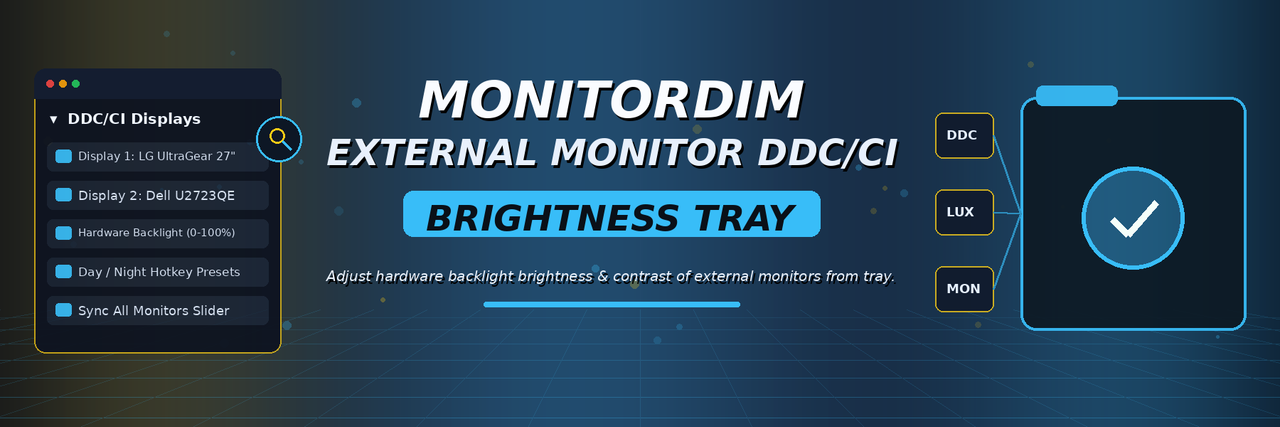




MonitorDim Brightness Control — Hardware DDC/CI Slider for External Monitors on Windows
Windows 11 hiding the brightness slider whenever you use a desktop PC or external DisplayPort/HDMI monitor? Stop fumbling with awkward physical buttons behind your monitor—control true hardware backlight brightness and contrast from your system tray.
MonitorDim Brightness Control communicates directly with external monitors over VESA DDC/CI (dxva2.dll): adjusting real panel backlight power (not a washed-out grey software overlay), syncing multiple monitors at once, and switching Day/Night brightness presets via hotkey.
This project is aimed at Windows 10 and Windows 11 (64-bit) desktop and multi-monitor users with DDC/CI-capable DisplayPort, HDMI, or USB-C monitors.
Quick Use-Case & Troubleshooting Reference
| Scenario / Issue | Cause | Solution |
|---|---|---|
| Windows 11 Action Center has no brightness slider on desktop PCs | Windows built-in brightness slider only works on internal laptop panels | Send VESA DDC/CI commands directly to external DisplayPort/HDMI monitors |
| Software 'screen dimmer' apps ruin black levels and HDR contrast | Software overlays paint a dark grey filter over pixels instead of lowering backlight | Adjust true hardware panel backlight brightness (VCP 0x10) |
| Dual or triple monitors have mismatched brightness at night | Adjusting 3 separate monitor OSD menus manually is tedious | Use Sync All Displays or global Day/Night hotkeys (80% ↔ 15%) |
| Monitor does not respond to DDC/CI commands | DDC/CI disabled in the physical monitor's on-screen menu |
Enable DDC/CI = On in your monitor's OSD System settings |
Download for Windows
Download MonitorDim.zip — Latest GitHub Release (Windows x64)
View All Releases & Changelog · Report an Issue
Why use MonitorDim.exe? (Key features)
- Controls true hardware backlight Brightness (
VCP 0x10) and Contrast (VCP 0x12) via VESA DDC/CI. - Detects all connected external monitors individually plus a Sync All Monitors master slider.
- Global hotkeys (
Ctrl+Alt+Up/Ctrl+Alt+Down) and 1-click Day (85%) / Night (15%) presets. - Zero washed-out software overlays—preserves true OLED/IPS black levels and color accuracy.
Sample Output
[MonitorDim] Enumerating VESA DDC/CI Display Interfaces...
[OK]   Monitor [1]      : LG 27GP850 (DisplayPort) | Brightness: 75% | Contrast: 70%
[OK]   Monitor [2]      : DELL U2723QE (HDMI)      | Brightness: 75% | Contrast: 75%
[INFO] Hotkey Presets   : Day (85%) | Night (15%) | Sync All = ON
The release ZIP is named MonitorDim.zip; the Windows executable inside is named MonitorDim.exe.
- Close MonitorDim before updating or replacing executable files.
- Click Download MonitorDim.zip above.
- Right-click the downloaded archive and choose Extract All.
- Open the extracted folder and run
MonitorDim.exe. - Review the options and output paths before processing files.
Requirements: Windows 10 or 11 (64-bit) with external monitors supporting VESA DDC/CI (enabled in monitor OSD).
Verification & Windows SmartScreen Note
- Offline & standard user permissions:
MonitorDim.exeruns locally without uploading your files and does not require disabling Windows Defender. - Windows SmartScreen: Because this is an independent open-source utility without a commercial EV code-signing certificate, Windows SmartScreen may show "Windows protected your PC" on first launch. Click More info → Run anyway after verifying the release checksum on the Releases page.
Problems this project solves
True hardware backlight dimming instead of grey software filters
Lowering hardware backlight saves power, reduces eye strain at night, and keeps blacks deep.
Effortless multi-monitor brightness balancing
Match brightness across two or three different monitor brands from a single popup.
Instant Day/Night switching via keyboard shortcut
Drop screen glare at night in one keystroke.
Ultra-lightweight native Win32 tray app
Uses under 12 MB RAM with zero background telemetry.
Default folders and configuration paths
MonitorDim runs in the system tray and stores monitor presets in %APPDATA%\MonitorDim:
%APPDATA%\MonitorDim\settings.json
Typical directory layout:
System Tray -> MonitorDim
├── Display 1 Slider (Hardware VCP 0x10 Brightness)
├── Display 2 Slider (Hardware VCP 0x10 Brightness)
├── Master Sync All Slider
└── Presets: Day (85%) / Evening (45%) / Night (15%)
If an external monitor shows 'DDC/CI Unsupported', open the monitor's physical OSD menu and set DDC/CI: Enabled (and turn off HDR mode if the monitor locks backlight in HDR).
Quick start guide
Follow these steps to get started:
- Extract
MonitorDim.zipto a local folder and launchMonitorDim.exe. Click the sun/brightness icon in your Windows system tray. - Drag the brightness slider for each detected external monitor. Verify the physical monitor backlight dims immediately.
- Toggle Sync All if you want all monitors to move together. Configure your Day and Night preset percentages.
- Optionally enable Start with Windows from the tray menu. Enjoy instant brightness control anytime.
Data safety note
MonitorDim sends standard VESA MCCS commands without modifying display drivers or ICC color profiles.
What the status summary shows
MonitorDim displays detected monitor model names, connection type (DP/HDMI/USB-C), DDC/CI support status, and current VCP brightness/contrast values.
FAQ
Why doesn't Windows 11 show a brightness slider for my desktop monitor?
Windows only supports built-in brightness controls for laptop screens; external monitors require VESA DDC/CI commands like MonitorDim sends.
Does this work on DisplayPort and HDMI?
Yes—both DisplayPort and HDMI support DDC/CI on nearly all modern monitors.
Why is my monitor greyed out in MonitorDim?
Check your monitor's built-in button menu (OSD) and make sure 'DDC/CI' is turned On.
Useful reading
More Windows Desktop Utilities
- WakeLock-KeepAwakeTray — Keep Windows awake during long downloads & renders with a timer
- PinTop-WindowAlwaysOnTop — Pin any window Always-on-Top & adjust transparency on Windows
- AudioSwitch-HotkeyToggle — One-key headphones, speakers & microphone switcher
- Win11-GamingDebloatGuard — Windows 11 gaming optimizer & background process cleaner
Independent open-source desktop utility for Windows.
Explore related projects
Loading…