
SeiShonagon520/Dayflow
SeiShonagon520/Dayflow has 62 GitHub stars and 15 forks. GitHot measured 0 stars in 24 hours, 0 in 7 days, and +1 in 15 days. Last checked 2026-11-15 05:50 UTC. Last push 2026-10-24.
Measured star growth
- in 24h
- 0
- in 7 days
- 0
- in 15 days
- +1
- in 1 month
- Collecting history
Net star changes over overlapping periods, not daily totals. Missing measurements are left blank. Stars measure attention, not software quality.
About
⏱️ AI 驱动的智能时间追踪工具 (Windows) - 后台静默录屏,自动分析你的时间都花在哪了
ProductivityREADME_EN.md
Original⏱️ Dayflow for Windows
AI-powered time tracking and productivity analysis for Windows





Silent background recording → AI analysis → visual timeline

中文 | English
🎯 What is Dayflow?
Dayflow is an AI-powered time tracking tool for Windows. It quietly captures low-frequency screen activity and window context in the background, uses a vision model to infer what you are doing, and turns the result into a timeline, statistics dashboard, and reports so you can understand where your time actually goes.
💡 Who is it for?
- People who want to know where their day went
- People who want to review focus time, distractions, and work patterns
- People who need automatic activity logs, daily reports, or weekly summaries
- People who prefer passive tracking over manual timers
🏆 Key advantages
| Advantage | Description |
|---|---|
| Zero effort | Start it and let AI handle activity recognition automatically |
| Low overhead | 1 FPS recording + smart compression to keep background usage low |
| Local first | Raw recordings stay on your machine and temporary chunks are cleaned up after analysis |
| Smart categories | Automatically detects work / study / entertainment / social / rest |
| Visual review | Timeline, statistics page, and HTML dashboard for different review styles |
🔐 Privacy, upfront
Dayflow is designed around local recording + cloud analysis + local storage.
5 things you should know
Full videos are not uploaded
Raw recording chunks stay on your local machine.Only a limited number of keyframes are sent for analysis
The current README describes up to 8 extracted frames per chunk being sent to the configured vision model.Analysis results are stored locally
Activities, settings, and statistics are saved in a local SQLite database.Temporary chunks are cleaned up automatically
After analysis, temporary recording files are deleted to reduce disk usage.You can pause recording for sensitive moments
Passwords, banking, private chats, or anything else sensitive can be handled by pausing recording first.
Local data location
%LOCALAPPDATA%\Dayflow\
├── dayflow.db      # activities, settings, stats
├── dayflow.log     # runtime logs
├── chunks\         # temporary recording chunks
└── updates\        # downloaded updates
💡 If privacy is your first concern, read this section before enabling continuous recording.
✨ Main features
| Feature | Description |
|---|---|
| 🎥 Low-power recording | 1 FPS low-resource background capture |
| 🪟 Window tracking | Uses Windows API to capture real app names and window titles |
| 🤖 AI analysis | Vision LLM classifies screen activity automatically |
| 📊 Timeline view | Clear daily activity review at a glance |
| 📈 Statistics dashboard | Time distribution, productivity trends, week comparison |
| 📊 Web dashboard export | Beautiful self-contained HTML report with charts |
| 📧 Email reports | Automatic daily summaries and deeper analysis |
| 🔄 Auto update | Check, download, and install new versions |
| 🚀 Auto start | Launch on boot and minimize to tray |
| 📥 CSV export | Export activity data for further analysis |
| ⏸️ Pause recording | Pause when handling sensitive content |
| 🎨 Theme switching | Dark / light themes with saved preferences |
🆕 Recent highlights
v1.6.0 (2026-10)
Major Architectural Overhaul: Completely migrated from desktop Qt to Tauri 2.0 (Rust) + React 18 + Vite, delivering instant startup, fluid animations, and significantly lighter resource footprint.
Modern Responsive UI: Three-pane responsive layout, rich activity timeline cards, smooth interactive charts, and system dark theme support.
Kernel-level Process Management (Windows Job Object): Embedded Python bridge process tree is bound to Windows Job Object, eliminating console windows and orphan processes.
Offline Resilient Report Generation: When external AI APIs time out or fail (e.g. invalid/expired key), automatic local aggregation synthesizes a structured Markdown daily report in milliseconds.
Interactive Statistics Dashboard: 7-day and 30-day metrics, productivity trend chart, category donut breakdown, daily activity heatmap, and hourly distribution graph.
Multi-Monitor & Idle Pause: Panoramic multi-screen capture and automatic pause/resume based on keyboard and mouse idle detection.
Privacy Filtering: Window title & process blacklist filtering, plus storage quota limits with automatic cleanup.
Statistics page redesign with metric cards, donut chart, trend chart, heatmap, and week comparison
Activity cards can now be edited or deleted
Better visual polish across the UI
v1.5.0 (2025-12)
- Windows API window tracking for more accurate recognition
- UI refresh: efficiency indicator bar, deep work badge, live recording duration, and more
- Improved prompting and data processing logic
🖥️ Screenshots
Timeline page
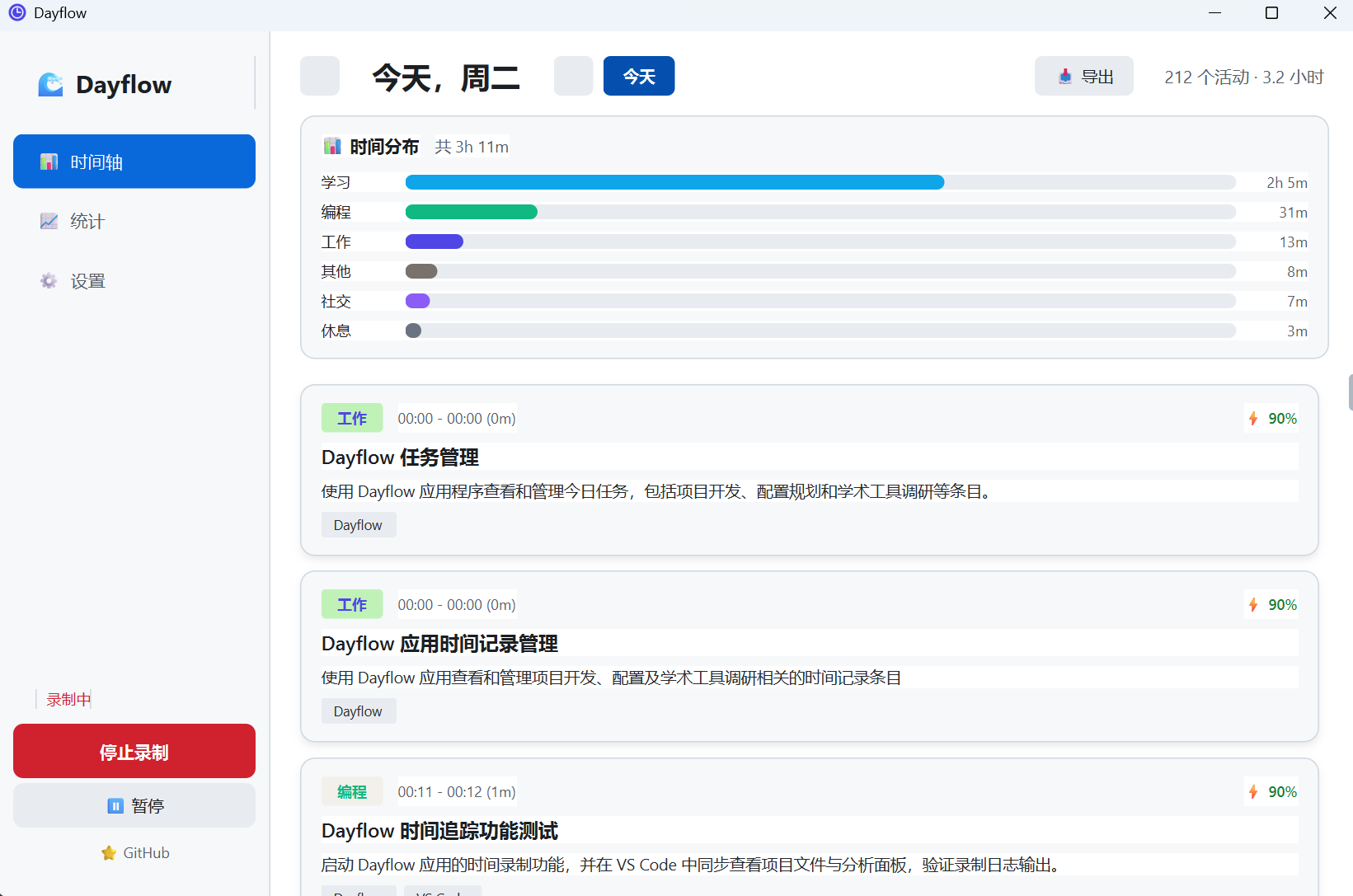
Daily activity cards with time range, app, summary, and productivity score.
Statistics page
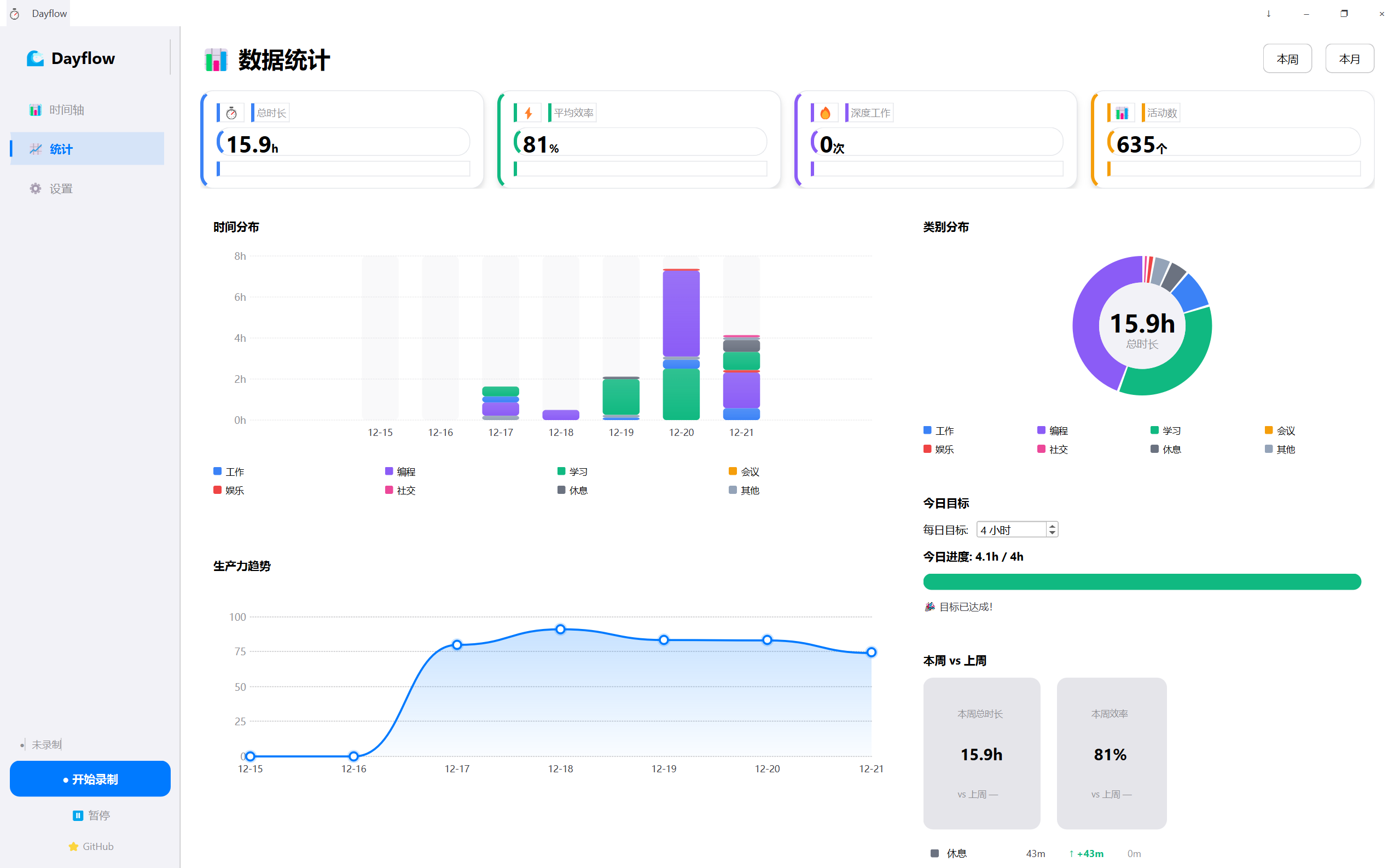
Dashboard-style overview with key metrics, distribution charts, heatmap, and comparisons.
Web dashboard
Date selection
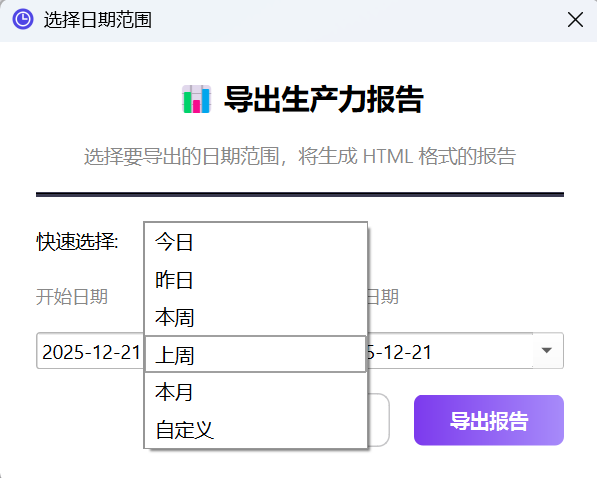
HTML report
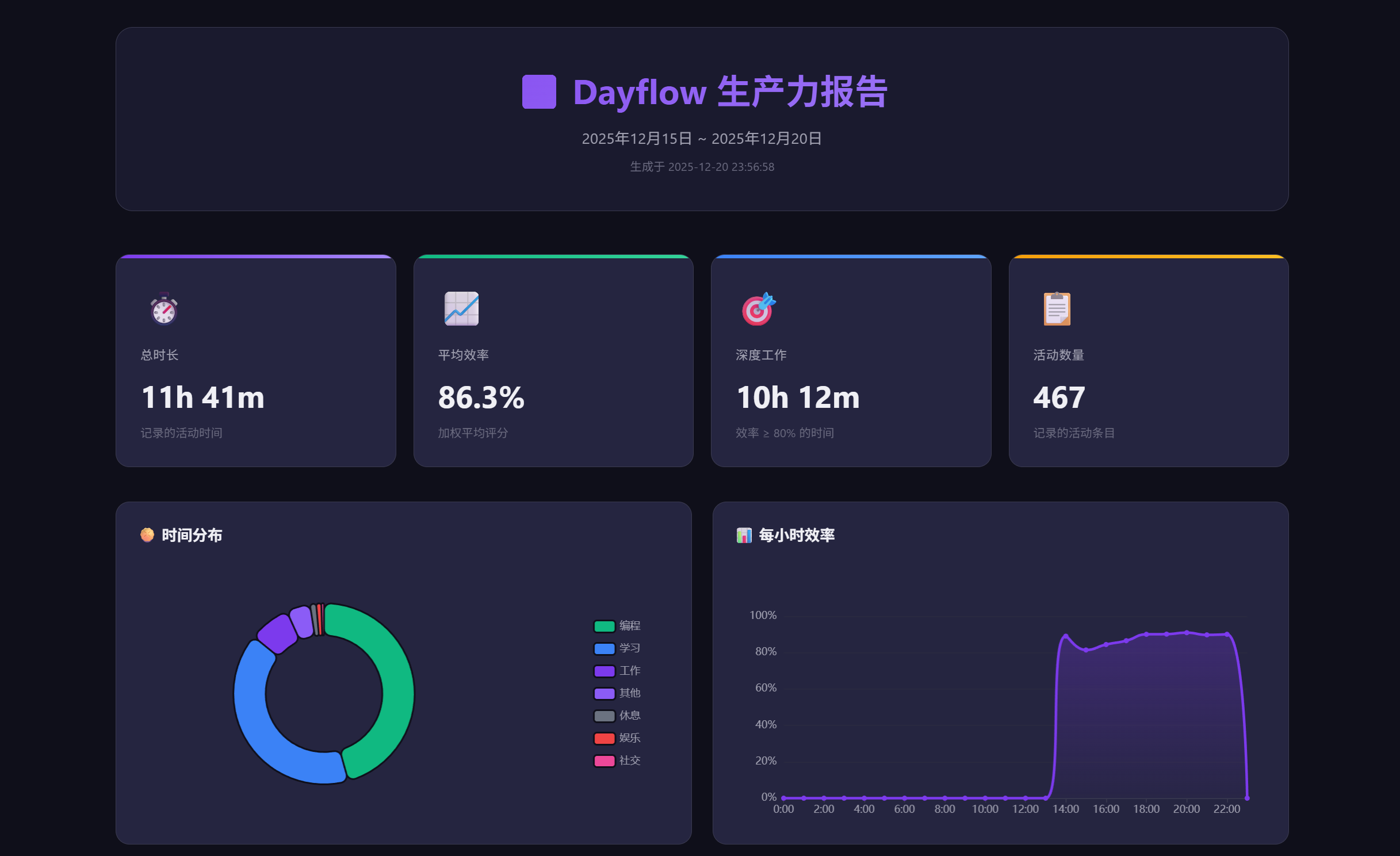
Exported HTML dashboard that can be opened in a browser and shared directly.
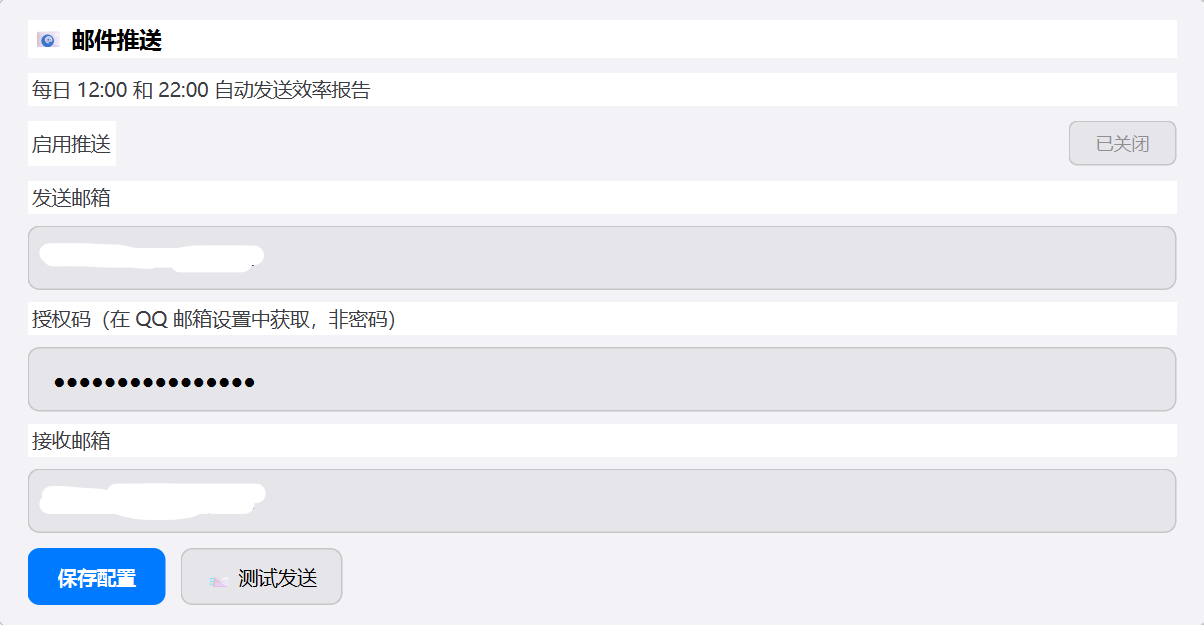
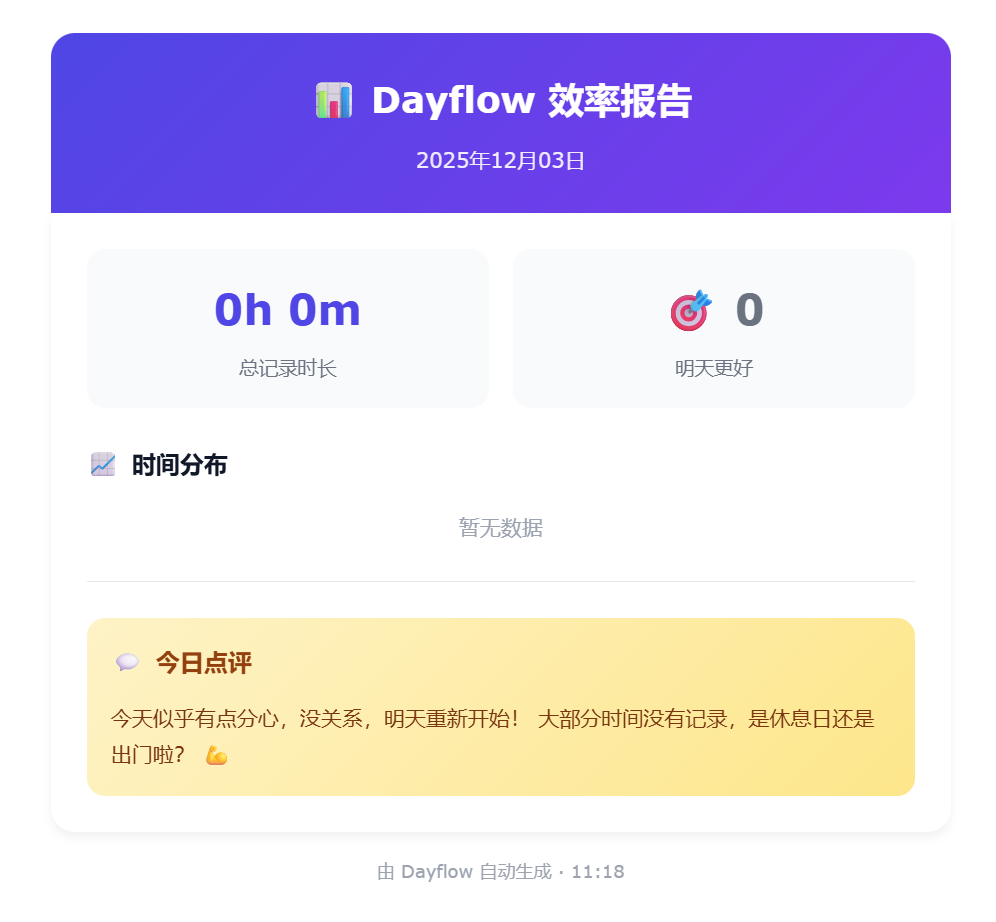
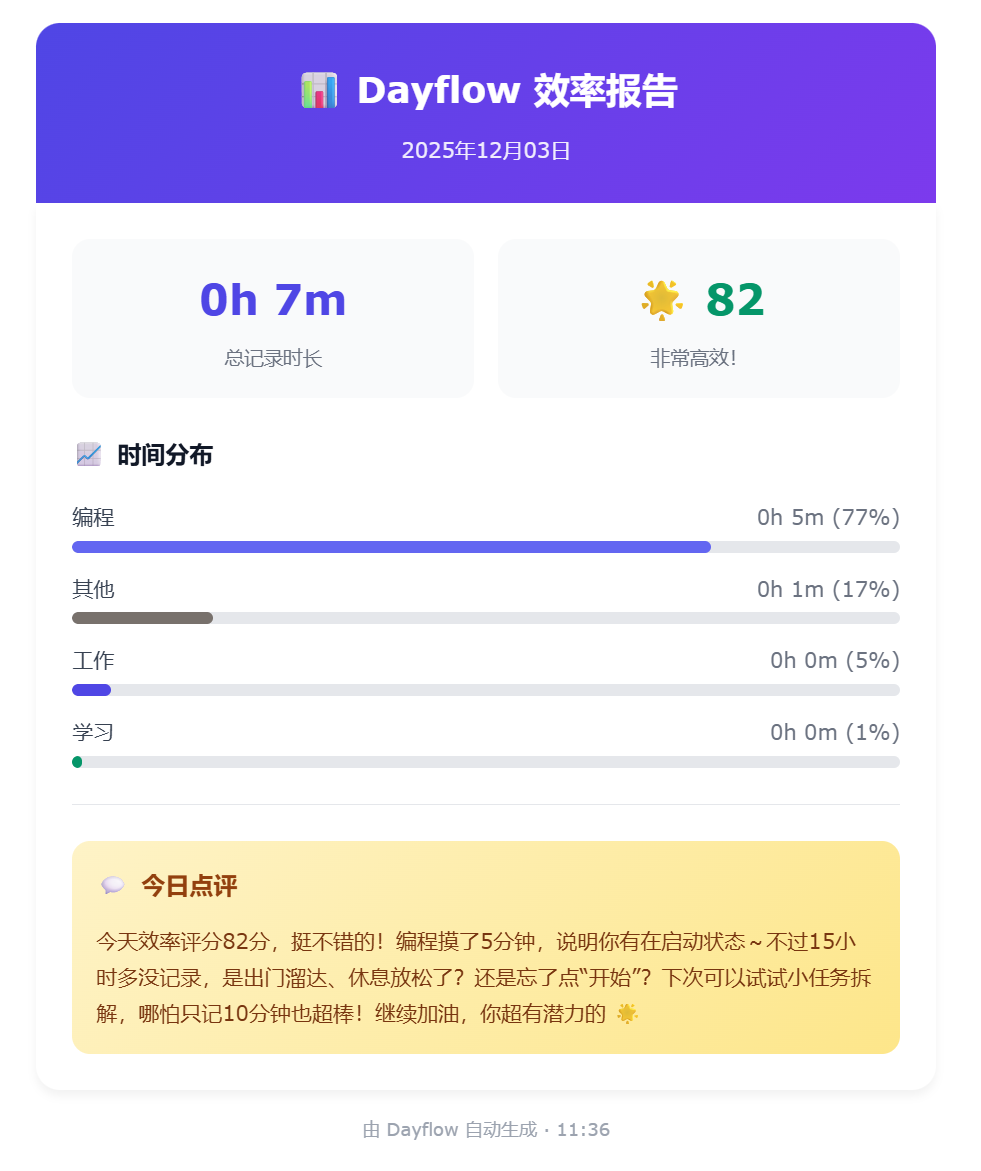
Email reports
Settings
Examples
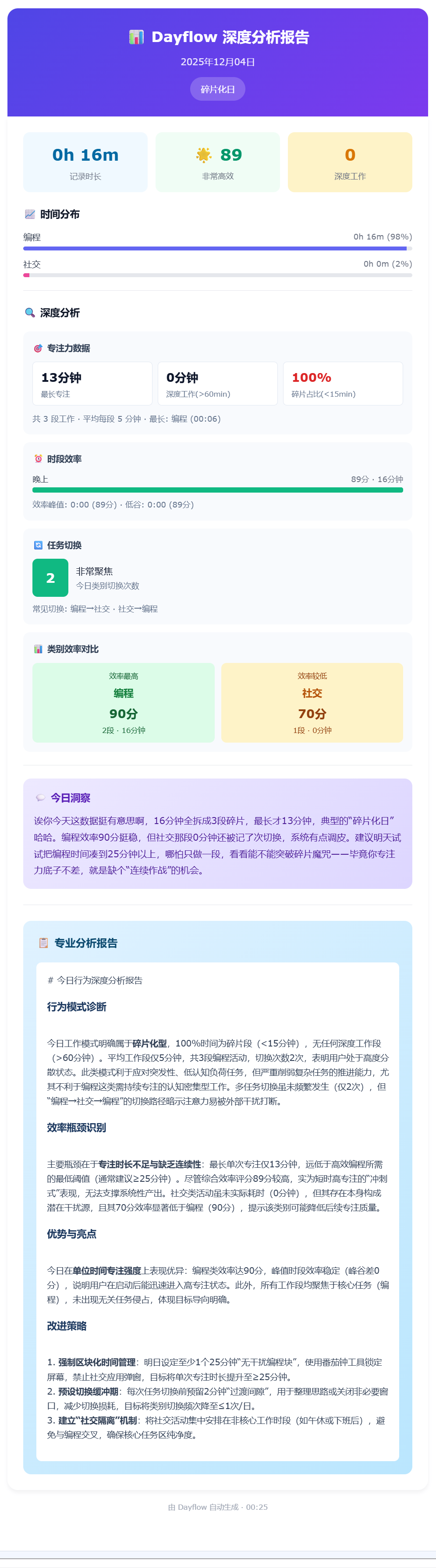
Deep analysis
Auto update / auto start


✅ README checklist covered in this revision
- Removed garbled text, typos, and broken directory names
- Reframed the opening so the project value is clearer
- Moved privacy information near the top
- Reduced feature overload and tightened the structure
- Added a roadmap section
- Added known limitations
- Clarified the current license choice
- Aligned the English README with the Chinese version
- Added a minimal Windows CI workflow
🚀 Quick start
Requirements
- Windows 10 / 11 (64-bit)
- Python 3.10+
- FFmpeg added to PATH
Installation
git clone https://github.com/SeiShonagon520/Dayflow.git
cd Dayflow

conda create -n dayflow python=3.11 -y
conda activate dayflow

pip install -r requirements.txt
python main.py
Build as EXE (optional)
pip install pyinstaller
python build.py
Or simply double-click build.bat.
Download prebuilt releases
If you just want to use Dayflow without setting up Python locally:
- Open Releases
- Download the latest installer or archive
- Extract it and run
Dayflow.exe
💡 For the first run, configure the API first and then start recording.
📖 Basic usage
1. Configure your API
Go to Settings and fill in:
- API URL: any OpenAI-compatible endpoint
- API Key
- Model name: a vision-capable model
Then click Test Connection and Save Config.
2. Start recording
- Click Start Recording
- The app records at 1 FPS in the background
- A video chunk is generated every 60 seconds
- Keyframes are sent to your configured model service for analysis
3. Review your timeline
Each card shows a time range, category, app, summary, and productivity score.
4. Optional features
- Email reports: scheduled summaries and deeper analysis
- Auto start: launch with Windows and minimize to tray
- Auto update: check and install new versions
- System tray: control recording without keeping the main window open
📁 Project structure
Dayflow/
├── main.py
├── config.py
├── requirements.txt
├── build.py
├── build.bat
├── updater.py
│
├── core/
│   ├── types.py
│   ├── recorder.py
│   ├── window_tracker.py
│   ├── llm_provider.py
│   ├── analysis.py
│   ├── email_service.py
│   ├── updater.py
│   ├── autostart.py
│   ├── config_manager.py
│   ├── log_manager.py
│   ├── stats_collector.py
│   └── dashboard_exporter.py
│
├── database/
│   ├── schema.sql
│   ├── storage.py
│   └── connection_pool.py
│
├── ui/
│   ├── main_window.py
│   ├── timeline_view.py
│   ├── stats_view.py
│   ├── date_range_dialog.py
│   └── themes.py
│
├── templates/
│   └── dashboard.html
│
└── assets/
    └── icon.ico
⚙️ Configuration
| Variable | Description | Default |
|---|---|---|
DAYFLOW_API_URL |
API endpoint | https://apis.iflow.cn/v1 |
DAYFLOW_API_KEY |
API key | (empty) |
DAYFLOW_API_MODEL |
AI model | qwen3-vl-plus |
🛠️ Tech stack
| Component | Technology |
|---|---|
| GUI | PySide6 (Qt6) |
| Screen capture | dxcam (DirectX) |
| Video processing | OpenCV |
| HTTP client | httpx (HTTP/2) |
| Database | SQLite |
| AI analysis | OpenAI-compatible APIs |
🗺️ Roadmap
Near term
- More explicit privacy controls and recording safeguards
- Smarter activity merging and cleaner timeline segmentation
- Richer statistics and trend analysis
- More reliable update and installation flow
- Better automated testing and CI coverage
Mid term
- Multi-monitor support
- Better website / app recognition
- Local-model or hybrid analysis mode
- Smarter daily / weekly behavioral insights
- More complete export and reporting options
Known limitations
- Windows 10 / 11 only
- Recognition quality depends on the vision model you configure
- Some apps may not expose stable window titles
- Full-screen games, special rendering windows, and remote desktop scenarios may behave differently
- Multi-monitor support still has room for improvement
- Analysis latency depends on your network and model provider stability
🧰 Troubleshooting
1. No analysis results appear
Check the following first:
- API URL, key, and model name are correct
- The configured model supports vision input
- Your network can reach the model provider
- The log contains no timeout or request errors
2. Screen capture or window tracking looks wrong
Check the following first:
- You are running on Windows 10 / 11
- FFmpeg is installed and available in PATH
- Security software is not blocking capture or window inspection
- You are not in a special case such as full-screen games, remote desktop, or unusual rendering modes
3. Email reports fail to send
Check the following first:
- QQ Mail SMTP / authorization code is correct
- The built-in test send works
- Your local network is not blocking the mail service
4. Updates or auto-start do not work
Check the following first:
- You are running the packaged EXE build
- The EXE path has not changed unexpectedly
- System permissions or security policy are not blocking startup/update behavior
💡 Inspiration
This project is inspired by Dayflow (macOS). The original project is macOS-only, so this repository brings a similar idea to Windows users.
Thanks to the original author for the creativity and open-source spirit.
📄 License
CC BY-NC-SA 4.0 © 2024-2025
This project currently uses Creative Commons Attribution-NonCommercial-ShareAlike 4.0.
- ✅ You can learn from it, modify it, and share it
- ✅ Please credit the original author
- ❌ Commercial use is not allowed
ℹ️ This is not a typical software license such as MIT or Apache-2.0. If you plan to redistribute or use the project commercially, read
LICENSEcarefully first.
⭐ Star History
If you find Dayflow useful, consider giving it a ⭐ Star!