
PhantomYdn/hark has 26 GitHub stars and 2 forks. GitHot measured 0 stars in 24 hours. Last checked 2026-11-15 04:36 UTC. Last push 2026-11-13.
Measured star growth
- in 24h
- 0
- in 7 days
- Collecting history
- in 15 days
- Collecting history
- in 1 month
- Collecting history
Net star changes over overlapping periods, not daily totals. Missing measurements are left blank. Stars measure attention, not software quality.
About
Capture and transcribe macOS microphone, system, and per-app audio from a single native Swift CLI.
Developer ToolsREADME.md
Original





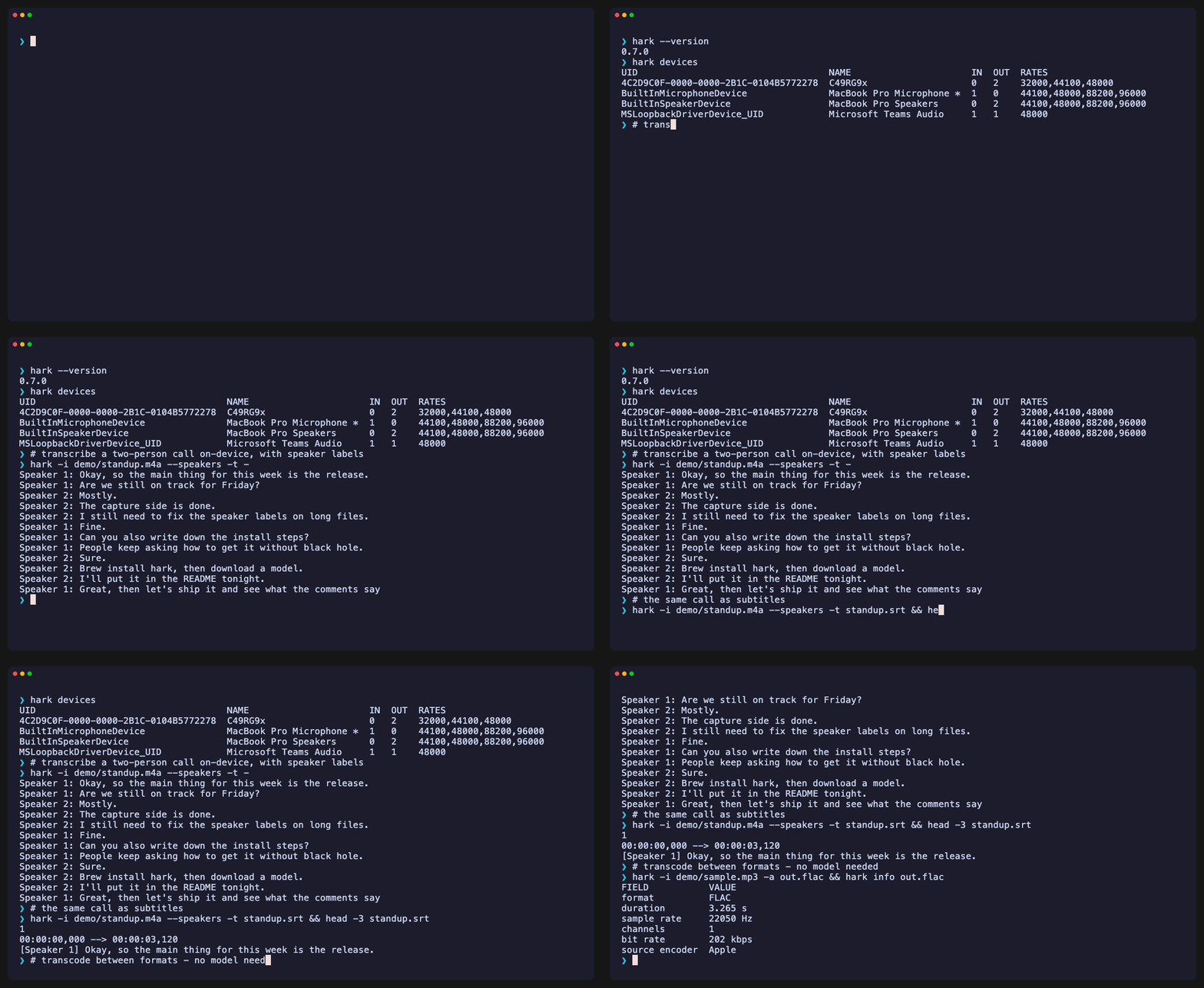
hark is the verb — "listen and transcribe." It captures your microphone,
all system audio, or specific apps on macOS and turns it into a transcript —
from a single native Swift binary, no drivers, no Electron, no network calls by
default. It's built the Unix way: do one thing well, one input → the outputs
you name, and clean stdin/stdout streaming that composes with ffmpeg, sox,
and your shell. Transcribe on-device with your pick of engines — whisper.cpp,
Apple Speech, WhisperKit, or Parakeet.
hark                                        # live mic → transcript on stdout
hark --system --mix -a meeting.m4a -t meeting.srt   # record a call, keep audio + subtitles
hark -i recording.m4a                       # transcribe a file
⭐ If hark saves you time, please star it — stars help it qualify for a tap-free
brew install.
Use cases
Several of these pipe hark straight into
fabric-ai — hark turns sound into
text, fabric turns text into summaries, action items, and insights
(brew install fabric-ai).
Watch live captions while you record — see the transcript stream in your terminal and save it to a file at the same time (pause, mute, or yank as you go).
hark --interactive --system --mix -t meeting.txt
Summarize a meeting with AI — capture the call + your mic, then let fabric write the notes, decisions, and action items.
hark --system --mix -t - | fabric-ai -p summarize_meeting
Hands-free notes for your Google Meet calls — a browser userscript drives hark's remote-control agent: it starts a recording when you join a call and stops when you leave, naming the file from the meeting title. Zero clicks (record with everyone's consent — see Legal & responsible use).
hark --remote-control 8473 -C ~/Recordings # then add the Tampermonkey script (docs/remote-control.md)
Dictate straight to your clipboard — speak, get text, paste anywhere.
hark --engine apple -t - | pbcopy
Mine a talk or podcast for insights — pull the key ideas, quotes, and references out of any recording.
hark -i podcast.mp3 -t - | fabric-ai -p extract_wisdom
Capture a quick voice memo — timestamped audio + transcript in one shot.
hark -a memo.m4a -t memo.txt
Transcribe a file to subtitles or JSON — any format in, .srt/.json out.
hark -i lecture.m4a -t lecture.srt
Label who said what — separate your mic from the call (You / Others), plus
per-voice Speaker N.
hark --system --mix --speakers -t meeting.srt
More copy-and-adapt wrappers live in examples/ — including
hark-meeting, which records a call and runs it through fabric-ai for you.
[!NOTE] Status: pre-1.0 beta. Core capture, transcoding, and transcription work; packaging polish is ongoing. See PLAN.md and CHANGELOG.md.
Why hark
- One native binary. Pure Swift + Core Audio. No BlackHole, no virtual
devices, no background apps —
brew installand go. - Capture anything. The microphone, all system audio (
--system), specific apps (--app), or everything except some apps (--exclude-app) — and optionally mix in your mic (--mix) for meetings. - Live transcription. Text streams as you speak, with a choice of engines:
local
whisper.cpp, on-device Apple Speech, WhisperKit, or Parakeet. - Know who spoke.
--speakerslabels turns by source (You/Others) and by voice (Speaker 1..N) using on-device CoreML — no cloud. - Private by default. Everything runs on-device; no telemetry, no network calls unless you download a model.
- Built for pipelines.
-a -streams WAV to stdout, transcripts go to stdout, diagnostics to stderr — composes withffmpeg,sox, and friends. - Unattended-ready. Auto-recovers from screen lock / sleep / device changes,
--keep-awake, durations, splitting, and a remote-control HTTP agent.
Contents
- Requirements
- Install
- Quick start
- Usage
- Transcription engines
- Speaker labels
- Interactive mode
- Remote control
- Models
- Configuration
- Permissions
- Pipelines
- Recipes
- Development
- Project documents
- FAQ
- Legal & responsible use
- License
Requirements
- macOS 14.4 (Sonoma) or later — required for the Core Audio process-tap API. Apple Silicon and Intel.
- The optional ScreenCaptureKit backend (
--capture-backend sckit) needs macOS 15 (Sequoia) or later; on 14.x hark uses the Core Audio backend automatically. - For the
whisperengine: a whisper.cpp binary onPATH(brew install whisper-cpp) and a ggml model. - For the
appleengine: the Speech Recognition permission (granted on first use). No model download.
Install
Homebrew (Apple Silicon)
brew tap PhantomYdn/hark https://github.com/PhantomYdn/hark
brew trust phantomydn/hark
brew install hark
This installs the prebuilt arm64 binary and the man page, and pulls in
whisper-cpp for the default engine. Homebrew downloads aren't quarantined, so
no Gatekeeper steps are needed.
The brew trust step is required on current Homebrew (7.x), which refuses to
load formulae from third-party taps until you trust them once; older versions
accept the extra command harmlessly. If brew install hark ever resolves to a
different formula, use the fully-qualified name phantomydn/hark/hark.
Build from source (Intel, or to hack on it)
With the Swift toolchain (Swift 6.2+ / Xcode 26+):
git clone https://github.com/PhantomYdn/hark.git hark && cd hark
make build                      # or: swift build -c release
cp .build/release/hark /usr/local/bin/hark
Direct binary download
The arm64 binary is also attached to each
GitHub Release. It is signed
(Developer ID) and notarized, so it passes Gatekeeper on download — no xattr
workaround needed. The stable signature also means privacy grants persist across
upgrades instead of resetting on each new binary.
Then set up an on-device transcription model:
hark models download parakeet:ultra --default # on-device CoreML; sets engine=parakeet
Parakeet runs fully on-device (Apple Silicon) and needs no extra tools. Prefer
whisper.cpp — or on Intel — instead? Use
brew install whisper-cpp && hark models download base.en --default.
Quick start
hark                                  # live mic -> transcript on stdout (Ctrl+C to stop)
hark -i recording.m4a                 # transcribe a file -> stdout
hark -a rec.m4a                       # record only (no transcript)
hark -a rec.m4a -t notes.txt          # record + transcribe to files
hark -i in.wav -a out.flac            # transcode between formats
Usage
hark takes one input and writes the outputs you name; naming no
output transcribes to stdout.
| Pick one input | Name the outputs | |
|---|---|---|
| default | system default microphone | transcript on stdout |
| flags | -d device · --system · --app · --exclude-app · --mix · -i file/stdin |
-a audio (--tracks stereo = mic left / call right) · -t transcript (- = stdout) |
hark --app com.apple.Music -a song.m4a       # capture one app
hark --system --exclude-app com.zoom.xos -t -  # everything but Zoom → stdout
hark -i talk.wav -a talk.mp3 -t talk.srt      # transcode + subtitle a file
hark --duration 30 --split silence=2 -a memo.wav  # split on 2s of silence
Existing output files
Recordings are never clobbered silently. If a file the run would write already exists, hark says so before capture starts and asks:
hark: 'rec.m4a' and 'rec.txt' already exist.
      [o]verwrite  [u]nique -> 'rec-1.m4a', 'rec-1.txt'  [c]ancel
hark: what now? [o/u/c]
One decision covers every output of the run, so an audio/transcript pair keeps
matching names. Off a terminal (cron, pipes, the remote agent) hark refuses
instead of asking and exits 73. Choose up front with
--if-exists ask|error|overwrite|unique (or $HARK_IF_EXISTS / hark config set if-exists …) — e.g. --if-exists unique in a script that must never stop or
lose data. To accumulate transcripts, let the shell append: hark -t - >> notes.txt.
Full flag, environment & config reference →
The complete input/output tables, capture/timing flags, interruption recovery,
working-directory handling, and the configuration matrix live in
docs/reference.md. Run hark --help for the canonical
list and hark help <subcommand> for a subcommand's options.
Transcription engines
Select with -e/--engine (default whisper). All engines accept any readable
input; it is normalized to 16 kHz mono internally.
| Engine | Runtime | Languages | Auto-detect | Translate→EN | Notes |
|---|---|---|---|---|---|
whisper (default) |
whisper.cpp binary | ~99 | yes (--language auto) |
yes | needs a non-.en model for non-English |
apple |
native Speech.framework (no deps) |
~50 locales | no (uses the locale) | no | on-device; plain-text only in batch |
whisperkit |
WhisperKit CoreML | ~99 | yes | yes | Apple-Silicon-first; models auto-download |
parakeet |
FluidAudio CoreML | 25 European / English / Japanese (per variant) | yes | no | Apple-Silicon-first; --model ultra (default), see below |
cloud |
post-MVP | — | — | — | — |
whisperis found onPATH(whisper-cli/whisper-cpp, andwhisper-serverfor resident live transcription) or via$HARK_WHISPER_BIN/$HARK_WHISPER_SERVER_BIN. Disable the server with$HARK_WHISPER_SERVER=0.appleneeds the Speech Recognition permission and runs entirely on-device. Batch transcription writes plain text; for.srt/.jsonfrom a file, use another engine. Live.srt/.jsonworks with any engine.whisperkitandparakeetare CoreML engines (Apple Silicon only). They download their models from Hugging Face on first use, then run fully on-device.parakeetauto-detects its language (--languageis ignored) and cannot translate. Its variants:ultra(default),v3,redux— 25 European languages;v2,phonon2,bark3,bark3-clean,tdt-ctc-110m— English;ja— Japanese.redux,phonon2and thebark3pair need macOS 15+.hark models list --availableshows them all.
Speaker labels
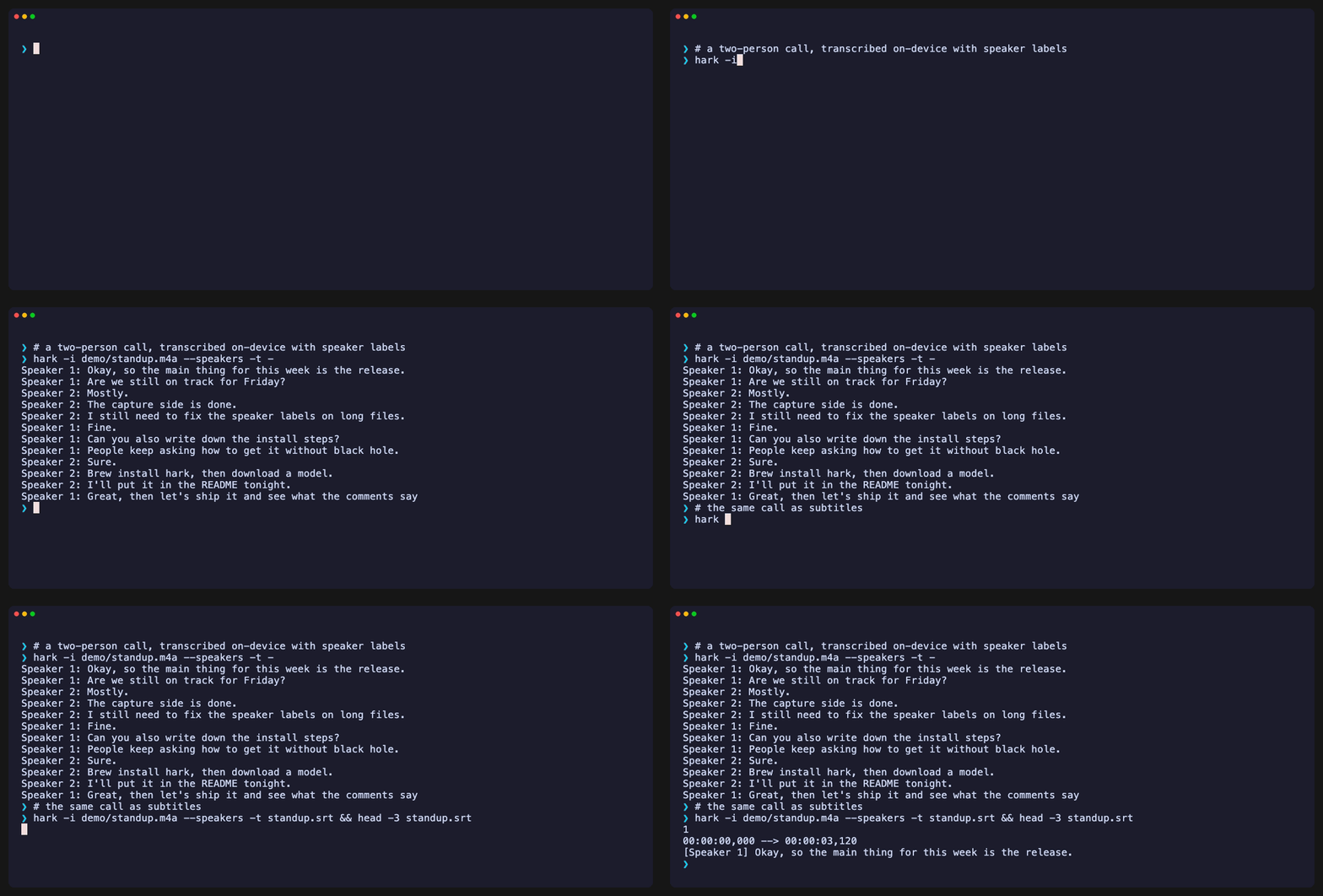
--speakers (alias --diarize) labels each transcript segment with who spoke,
two ways that combine:
- Source attribution — in a meeting capture (
--mixwith--system/--app), your microphone is labeledYouand the call audioOthers. Deterministic, no model, works on Intel and headless. A recording that kept the two sides on separate channels gets the same labels from-i FILE --speaker-mode source: each channel is transcribed whole and labeled by origin. - Acoustic diarization — distinct voices within a stream are separated into
Speaker 1,Speaker 2, … using on-device CoreML models (Apple Silicon). On a file, the engine first cuts the recording into utterances with its own timestamps; each utterance is then embedded and the utterances are clustered into speakers, so a diarizer span can never swallow several turns. The automatic count is tuned on recordings of 1–8 voices; when you know the cast, say so:--min-speakers 3 --max-speakers 3forces three speakers.
The labels are a transcript feature; --tracks stereo keeps the same two sides
apart in the recording — your mic on the left channel, the call on the
right, in one file — so the separation is still there afterwards
(reference).
By default a meeting is labeled You + Speaker 1..N. Use
--speaker-mode source for the cheap You/Others split with no diarization.
# Live meeting: You + Speaker 1/2/… in real time
hark --system --mix --speakers -t meeting.srt

# Accurate offline pass (transcript written when you stop)
hark --system --mix --speakers --diarize-engine offline -t meeting.srt

# Keep the two sides apart in the recording too: mic left, call right
hark --system --mix --tracks stereo -a call.wav

# Diarize a mixed recording (one track, so everyone becomes Speaker N)
hark -i meeting.wav --speakers -t out.json

# A film scene with three known voices: force the count
hark -i scene.wav --speakers --min-speakers 3 --max-speakers 3 -t scene.srt

# Just the diarizer's own timeline (who spoke when, no text)
hark -i scene.wav --diarize-only -t timeline.txt

# Two-channel recording: mic on the left, the call on the right -> You/Others
hark -i call.wav --speakers --speaker-mode source -t call.srt
The label appears per format: txt Speaker 1: …, srt [Speaker 1] …, json a
"speaker" field. Acoustic diarization is Apple-Silicon-only (on Intel, a
live capture falls back to You/Others, -i FILE --speaker-mode source
transcribes each channel whole, and other -i FILE --speakers runs are an
error); the first use downloads a CoreML model — pre-fetch with
hark models download fluidaudio:diarizer. See the
full flag table for --speaker-mode,
--diarize-engine, --min-speakers/--max-speakers, --speaker-threshold,
--diarize-only, and --speaker-labels.
Interactive mode
--interactive runs a live capture in a minimal terminal UI: the transcript
streams to the terminal, a startup status line shows the resolved
engine/source/format, and single keys control the session:
- space — pause / resume (the paused interval is not recorded)
- m — mute / unmute the microphone (shown only when a mic is in the capture; only the mic is silenced — system audio keeps recording and the timeline is preserved)
- y — yank: copy the transcript captured so far to the clipboard (local only)
- Enter — finish and finalise the file (Ctrl-C also stops)
- your own keys —
shortcut.<k>bindings run a shell command on the transcript so far (see below)
hark --interactive --system --mix -a meeting.m4a            # watch the transcript live
hark --interactive --system --mix -a meeting.m4a -t meeting.txt  # …and persist it
Interactive mode needs a real terminal (stdin + stdout are a TTY) and can't be
combined with -i or stdout output (-a -/-t -).
Shortcuts
Bind a letter or digit to a shell command with hark config set shortcut.<k>.
Pressing the key snapshots the transcript so far (speaker labels included) and
runs the command with the snapshot on its stdin and its path in
$HARK_TRANSCRIPT; the command's output is shown when it finishes, while the
capture keeps going. Press again any time, even while paused.
hark config set shortcut.s 'wc -lm'                        # lines and characters so far
hark config set shortcut.w 'fabric-ai -p summarize_micro'  # short AI recap
hark config set shortcut.q 'fabric-ai -p extract_questions'
hark config set shortcut.a 'fabric-ai -p summarize_meeting' # tasks, decisions, next steps
hark config set shortcut.t 'tmux split-window -h -d "fabric-ai -p summarize_micro < $HARK_TRANSCRIPT | less"'
hark config unset shortcut.t
m and y are built-in and cannot be rebound. A command that should stay
quiet ends in >/dev/null. Shortcuts are keyboard-only; the remote-control
API does not expose them.
Remote control
Let your browser drive recording. hark --remote-control [host:]port runs
Hark as a control agent (no capture on launch), exposing a small HTTP/JSON
API so a script — or a browser userscript — can start/pause/resume/stop/query a
recording. The headline use: a Tampermonkey userscript for hands-free notes on
your Google Meet calls — it POSTs /start when you join a call (filename
derived from the meeting title) and /stop when you leave, with no clicks
(record with everyone's consent — see
Legal & responsible use). The ready-to-use script and
full API reference are in docs/remote-control.md.
hark --remote-control 8473 -C ~/Recordings   # loopback agent, recordings under ~/Recordings
hark --remote-control                          # bind 127.0.0.1 on the configured port (default 8473)

curl -s -X POST http://127.0.0.1:8473/start \
  -d '{"system":true,"mix":true,"audio":"call.m4a","transcript":"call.srt"}'
curl -s http://127.0.0.1:8473/status
curl -s -X POST http://127.0.0.1:8473/mute     # silence only the mic (mix capture)
curl -s -X POST http://127.0.0.1:8473/unmute
curl -s -X POST http://127.0.0.1:8473/stop
Bound to loopback by default; a non-loopback bind requires $HARK_REMOTE_TOKEN.
The address is optional: omit it to bind loopback on the remote-control-port
config key (default 8473; also $HARK_REMOTE_CONTROL_PORT).
Run it as a background service. If you installed via Homebrew, brew services start hark runs the agent as a per-user LaunchAgent (auto-starts at login) so the
userscript can reach it without keeping a terminal open. It binds the
remote-control-port config key and writes recordings under the directory
config key — set both with hark config (directory must be absolute). On
macOS 26 the first start needs one
launchctl kickstart gui/$(id -u)/homebrew.mxcl.hark, and system-audio capture
needs a one-time permission grant to the hark binary — see
docs/remote-control.md
and docs/permissions.md.
Models
Whisper ggml models live in ~/.hark/models as ggml-<name>.bin; whisperkit
and parakeet CoreML models are cached by their SDKs (and shown by models list).
hark models list                    # installed models, all engines; default marked *
hark models list --available        # downloadable catalog, with an ENGINE column

# Download names are engine-tagged: bare = whisper ggml, prefix = CoreML engine
hark models download large-v3-turbo            # whisper ggml
hark models download whisperkit:large-v3-v20240930_626MB
hark models download parakeet:ultra            # or parakeet:v2, parakeet:ja, …
hark models download fluidaudio:diarizer       # speaker diarization (--speakers)
The first whisper model you download becomes the default. --default makes any
model the default; for whisperkit/parakeet it also sets the engine.
Configuration
Most defaults resolve flag › environment ($HARK_*) › config
(~/.hark/config.json) › built-in. Every setting has a flag, a $HARK_* env
var, and a config key.
hark config set engine apple
hark config set speaker-mode source
hark config set if-exists unique        # never ask, never clobber an old recording
hark config show                        # every setting, its value, and its SOURCE
hark config path                        # where the JSON file lives
The config file is plain JSON and hand-editable. The complete settings matrix (every key, flag, env var, and default) is in docs/reference.md.
Permissions
macOS gates microphone, system-audio, and speech recognition behind TCC. The
release binary is signed and notarized, so grants persist across upgrades; for a
shell-launched CLI, macOS may still attribute these prompts to the terminal
that launches hark.
System/app capture has two backends, selected by --capture-backend (default
auto, or $HARK_CAPTURE):
coreaudio— Core Audio process tap. Needs the narrower System Audio Recording permission and works headless (cron/launchd/SSH), macOS 14.4+.sckit— ScreenCaptureKit (SCStream, macOS 15+). Needs the broader Screen Recording permission and a graphical login session.
See docs/permissions.md for the exact System Settings paths, the system-audio "+" flow, and notes for tmux/screen.
Pipelines
hark -a - --duration 10 | ffmpeg -i - out.mp3   # stream live WAV into ffmpeg
hark -a - | hark -i -                            # record on one machine, transcribe on another
hark -t notes.txt --system & tail -f notes.txt   # follow a live transcript
hark follows POSIX conventions: audio/transcripts on stdout, diagnostics on
stderr (-v for detail), and a non-zero engine exit code propagates through the
pipeline. SIGINT/SIGTERM finalize the current file so it stays playable. See the
exit codes table for the sysexits(3) mapping.
Recipes
Copy-and-adapt zsh wrappers for common workflows live in
examples/ — hark-meeting (interactive system+mic capture →
audio + transcript, then a fabric-ai summary), hark-note (quick voice memo),
and hark-dictate (speak → clipboard). See examples/README.md.
Development
make build      # swift build
make test       # swift test (with a CLT Testing.framework path workaround)
make release    # swift build -c release
make demo       # render the README demo GIFs (needs: brew install vhs ffmpeg)
Modular SwiftPM targets: DeviceManager, TapEngine, Encoders, CLI. Many
integration tests are gated on optional tools (whisper.cpp, a model, say,
Speech authorization) and skip cleanly when absent. Contributions welcome — see
CONTRIBUTING.md.
Project documents
- PRD.md — product requirements
- PLAN.md — phased implementation plan and status
- docs/reference.md — full flag, environment & config reference
- docs/permissions.md — TCC permission setup
- docs/remote-control.md — remote-control HTTP API
- docs/legal.md — export classification & responsible use
- CHANGELOG.md — release notes
FAQ
Why not BlackHole / Loopback / Audio Hijack? Those route audio through a
virtual device or a GUI app. hark uses the Core Audio process-tap API (macOS
14.4+) directly: no driver to install, no device to select in every app, per-app
capture and --exclude-app, and it is scriptable and free.
How is this different from MacWhisper, superwhisper and the other offline
transcription apps? They are GUIs. hark is a Unix tool: audio and transcript
stream over stdin/stdout, it runs unattended and headless, and it can be driven
from scripts or over HTTP. Use it where you would use ffmpeg, not where you
would use a menu-bar app.
Does anything leave my machine? No. Capture, transcription and speaker
labelling run on-device. The only network access is downloading a model you
asked for (hark models download). No telemetry.
Which engine should I pick? parakeet for English and 25 European
languages on Apple Silicon (fast, no extra install); whisper for the widest
language list, translation, or Intel; apple for zero-download dictation;
whisperkit for CoreML Whisper. See Transcription engines.
Does it run on Intel Macs? Yes, built from source. The prebuilt Homebrew
binary is arm64 only, and the CoreML engines (parakeet, whisperkit) and
acoustic diarization need Apple Silicon; whisper, apple and You/Others
labels work on Intel.
Why macOS 14.4 or later? Process taps appeared in 14.4. Older systems have no supported way to capture another app's audio without a virtual device.
How do speaker labels work? Two layers: in a --mix capture your mic is
You and the call is Others (deterministic, no model); within a stream,
voices are separated into Speaker 1..N by CoreML embeddings clustered in
hark. Pass --min-speakers/--max-speakers when you know the cast.
See Speaker labels.
Can it summarize with Ollama, OpenAI, Claude? Not itself, by design. Pipe
the transcript into whatever you use: hark --system --mix -t - | fabric-ai -p summarize_meeting, or any script reading stdin.
Is recording a call legal? That depends on where you and the other parties are. See Legal & responsible use.
Legal & responsible use
hark records audio, so whether a given recording is lawful is up to you. Recording-consent rules vary by jurisdiction — some places require all-party consent, and recorded voice can be personal data under the GDPR. Make sure you have consent and a legal basis before recording calls, meetings, or other people.
hark is built to make that easy to do right: capture is consent-gated by macOS permissions (it can't record covertly), everything runs on-device, and there's no telemetry and no network access by default. On the export side, hark contains no proprietary cryptography — only ancillary OS-provided TLS for opt-in downloads — and is self-classified EAR99 as publicly-available open source. Details and the full classification note are in docs/legal.md (informational, not legal advice).
License
MIT © Ilya Naryzhnyy. Bundled third-party components are listed in NOTICES; MP3 output uses libmp3lame (LGPL-2.1).