
OALabs/hashdb-ida
OALabs/hashdb-ida has 370 GitHub stars and 46 forks. GitHot measured 0 stars in 24 hours. Last checked 2026-11-17 02:12 UTC. Last push 2026-10-26.
Measured star growth
- in 24h
- 0
- in 7 days
- Update delayed
- in 15 days
- Update delayed
- in 1 month
- Update delayed
Net star changes over overlapping periods, not daily totals. Missing measurements are left blank. Stars measure attention, not software quality.
About
HashDB API hash lookup plugin for IDA Pro
Developer ToolsREADME.md
Original


HashDB IDA Plugin
Malware string hash lookup plugin for IDA Pro. This plugin connects to the OALABS HashDB Lookup Service.
Adding New Hash Algorithms
The hash algorithm database is open source and new algorithms can be added on GitHub here. Pull requests are mostly automated and as long as our automated tests pass the new algorithm will be usable on HashDB within minutes.
Using HashDB
HashDB can be used to look up strings that have been hashed in malware by right-clicking on the hash constant in the IDA disassembly view and launching the HashDB Lookup client.
Settings
Before the plugin can be used to look up hashes the HashDB settings must be configured. The settings window can be launched from the plugins menu Edit->Plugins->HashDB.

Hash Algorithms
Click Refresh Algorithms to pull a list of supported hash algorithms from the HashDB API, then select the algorithm used in the malware you are analyzing.
Optional XOR
There is also an option to enable XOR with each hash value as this is a common technique used by malware authors to further obfuscate hashes.
API URL
The default API URL for the HashDB Lookup Service is https://hashdb.openanalysis.net/. If you are using your own internal server this URL can be changed to point to your server.
Enum Name
When a new hash is identified by HashDB the hash and its associated string are added to an enum in IDA. This enum can then be used to convert hash constants in IDA to their corresponding enum name. The enum name is configurable from the settings in the event that there is a conflict with an existing enum.
Hash Lookup
Once the plugin settings have been configured you can right-click on any constant in the IDA disassembly or pseudocode window and look up the constant as a hash. The right-click also provides a quick way to set the XOR value if needed.

Bulk Import
If a hash is part of a module a prompt will ask if you want to import all the hashes from that module. This is a quick way to pull hashes in bulk. For example, if one of the hashes identified is Sleep from the kernel32 module, HashDB can then pull all the hashed exports from kernel32.

Function-Wide Apply
After a hash is resolved (or a module is bulk-imported), HashDB scans the current function and converts every matching constant to its enum name — across operands 0–2, with a 32-bit-mask fallback for sign-extended values. The disassembly and pseudocode views are refreshed automatically. Modules you've already imported are cached for the session, so you won't be re-prompted to import kernel32 (etc.) on every new hash.
Algorithm Search
HashDB also includes a basic algorithm search that will attempt to identify the hash algorithm based on a hash value. The search will return all algorithms that contain the hash value, it is up to the analyst to decide which (if any) algorithm is correct. To use this functionality right-click on the hash constant and select HashDB Hunt Algorithm.

All algorithms that contain this hash will be displayed in a chooser box. The chooser box can be used to directly select the algorithm for HashDB to use. If Cancel is selected no algorithm will be selected.

Dynamic Import Address Table Hash Scanning
Instead of resolving API hashes individually (inline in code) some malware developers will create a block of import hashes in memory. These hashes are then all resolved within a single function creating a dynamic import address table which is later referenced in the code. In these scenarios the HashDB Scan IAT function can be used.

Simply select the import hash block, right-click and choose HashDB Scan IAT. HashDB will attempt to resolve each individual integer type (DWORD/QWORD) in the selected range.
Pseudocode Hints
In pseudocode, select a numeric hash and run HashDB Hunt Algorithm. Choose an algorithm, then click Resolve to scan that function. Apply inline hints adds a muted label after each matched constant, such as 0x7C0DFCAA ror13_add: kernel32!GetProcAddress. Use HashDB: Show/hide pseudocode hints to toggle the labels.
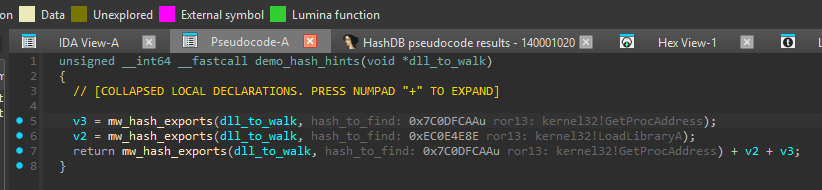
Algorithms come from the server through Hunt or Refresh Algorithms; none are bundled. The feature checks for the required IDA APIs and Python 3.9+ before loading. See the short guide.
Installing HashDB
HashDB requires the python requests module. Install it from a shell outside of IDA with pip install requests.
You can then install the plugin in either of two ways:
- IDA Plugin Manager (IDA 7.5+): install/update HashDB directly from the plugin manager.
- Manual: copy the latest
hashdb.pyinto your IDApluginsdirectory.
❗Compatibility Issues
The HashDB plugin targets IDA 7.5+ (including IDA 9.0) with Python 3 and is not backwards compatible.