
Lorenzo-Coslado/macos-faceid
Lorenzo-Coslado/macos-faceid has 82 GitHub stars and 8 forks. GitHot measured +1 stars in 24 hours. Last checked 2026-11-11 13:58 UTC. Last push 2026-11-09.
Mugshot — unlock sudo on macOS with your face. Local Face ID style recognition, no cloud.
Measured star growth
- in 24h
- +1
- in 7 days
- Update delayed
- in 15 days
- Update delayed
- in 1 month
- Update delayed
Net star changes over overlapping periods, not daily totals. Missing measurements are left blank. Stars measure attention, not software quality.
README.md
Original
Mugshot
Look at your Mac. Get back to work.
Face recognition for sudo and your locked session. A native macOS menu bar app,
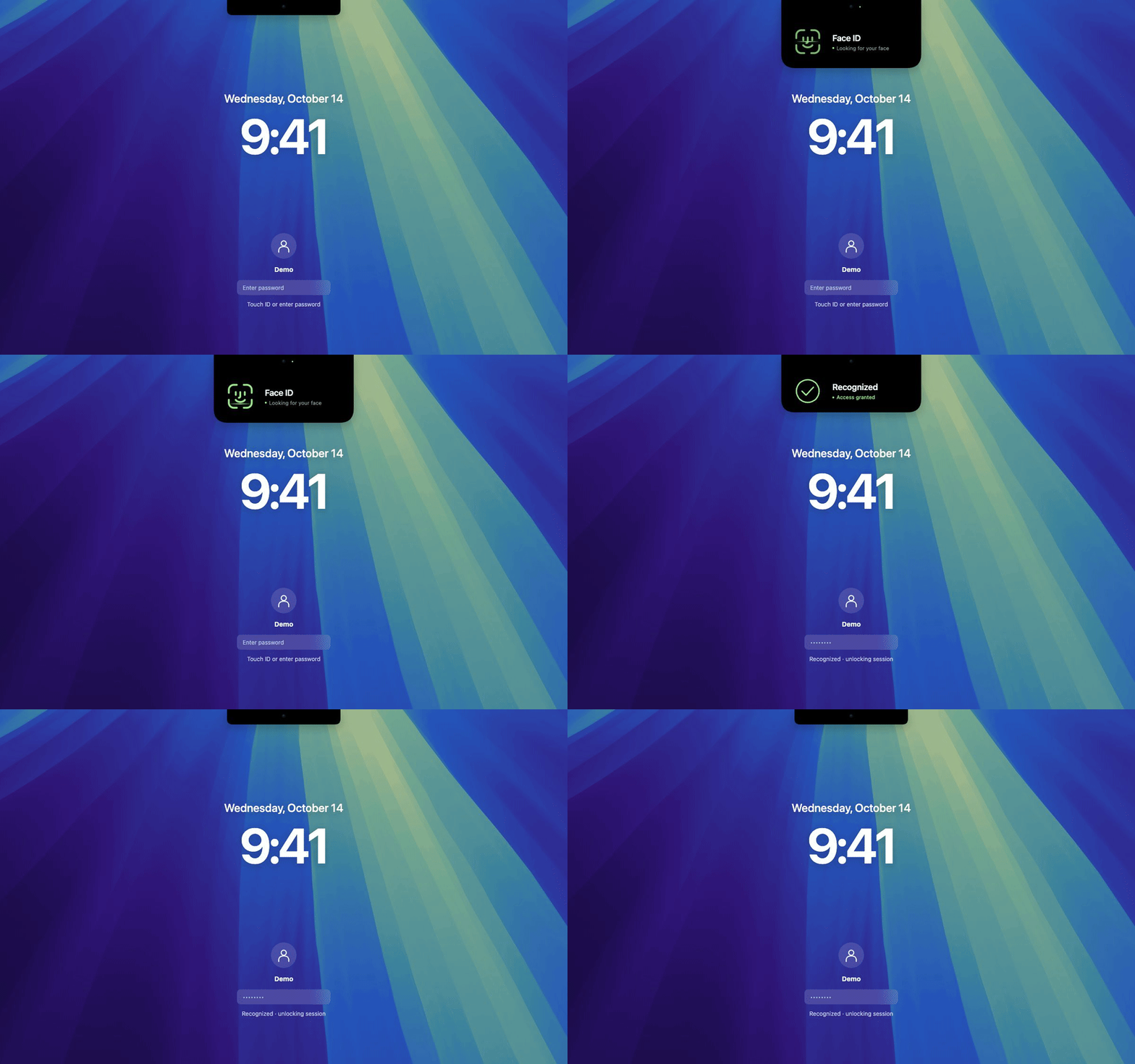
with an animated HUD that unfolds from the camera notch.



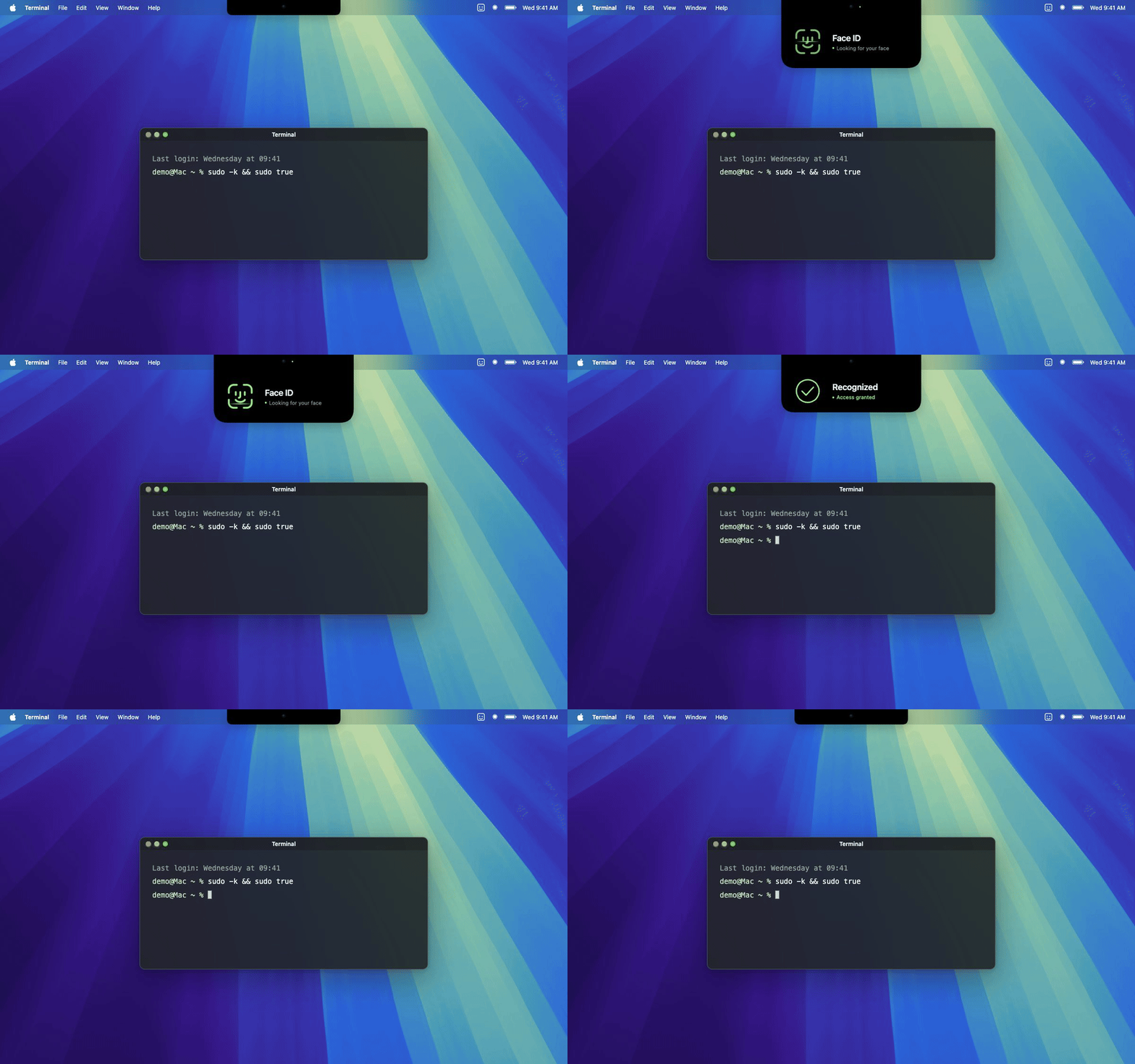
Interface illustrations based on the current app. Preview sources and wallpaper credit.
Your face, your Mac
Run a sudo command, look at the camera, and Mugshot checks your face locally.
The Fusion HUD extends the camera notch while scanning, draws a green check
when it recognizes you, then folds away. On displays without a notch, it appears
as a separate capsule beneath the menu bar.
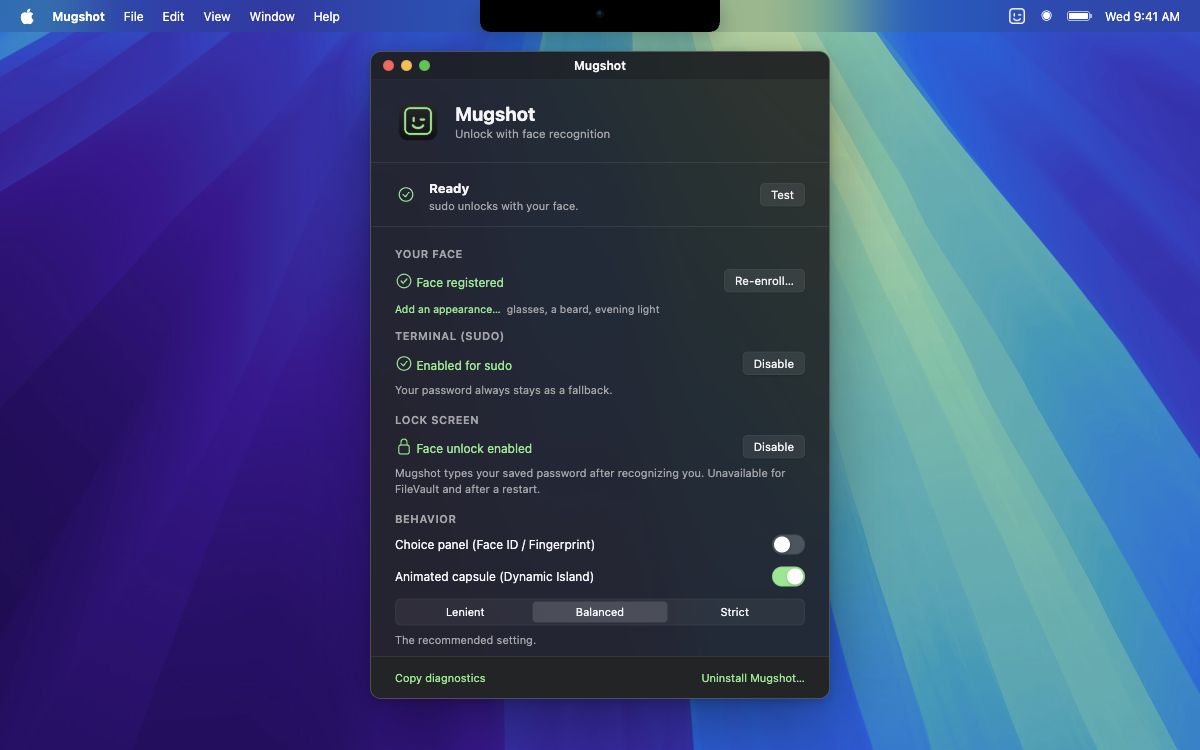
Mugshot also offers optional unlock for an already logged-in, locked session. Enrollment, status, permissions and recognition preferences live in one native window. You can add another appearance for glasses or different lighting, test recognition, and choose between a direct scan and an authentication choice panel.
[!IMPORTANT] Mugshot uses an ordinary 2D webcam, which can be fooled by a photo or video. It is a convenience project, not Apple's Face ID or a replacement for stronger authentication. Your normal password remains the fallback for
sudo.
Install and get started
You need an Apple Silicon Mac running macOS 14 or later and a built-in or external webcam. The packaged app includes its recognition engine and models; users do not need Python, Homebrew or the source checkout.
1. Install the package
Download Mugshot.pkg, open it and follow the macOS Installer. It places Mugshot in Applications and opens setup in your logged-in session. The installer’s optional sudo component is selected by default; deselect it if you only want to set up the app for now.
Enter the administrator password only in the macOS Installer. This approval installs system components; it does not save your login password for lock-screen unlock.
Prefer a disk image? Mugshot.dmg
is also available. Drag the app to Applications, then follow the app’s separate
helper and Full Disk Access setup if you want to enable sudo.
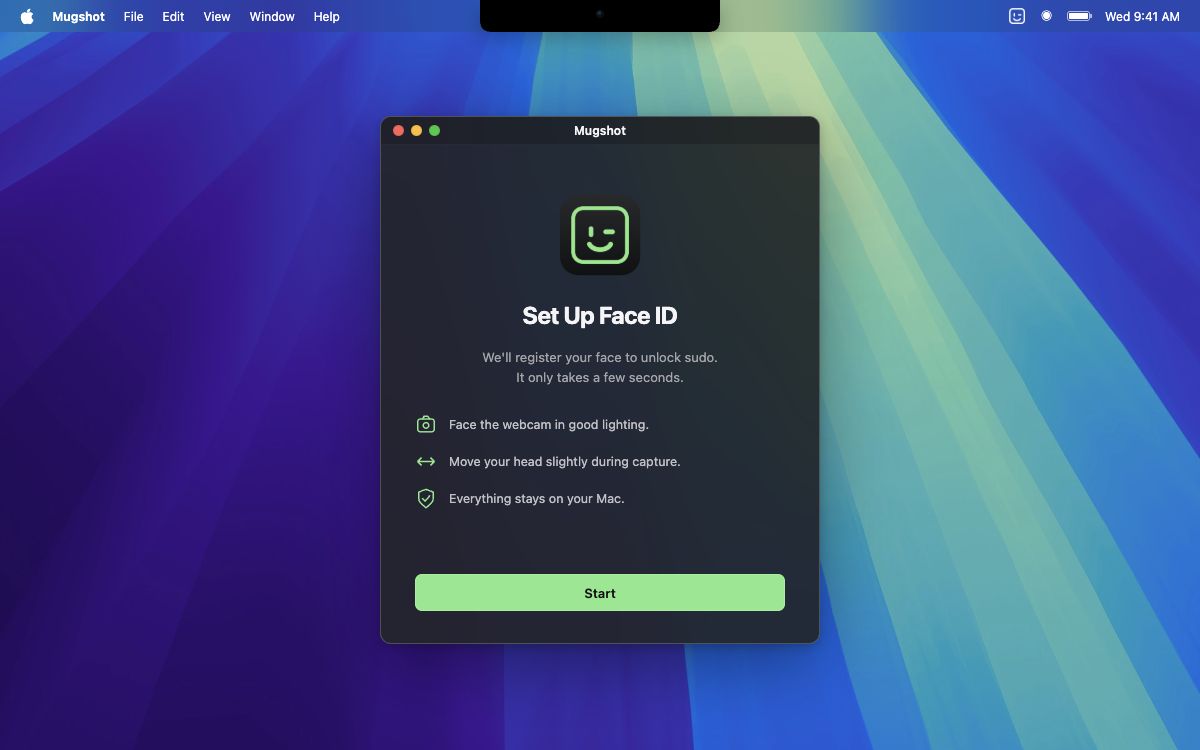
2. Register your face
Allow camera access when macOS asks. The enrollment window guides you through a short capture. Face the camera in good light and move your head slightly. Your enrolled face stays on this Mac.
3. Check the status and try sudo
If you installed the package with its sudo component, the main window should show Ready after enrollment. Run:
sudo -k && sudo true
Look at the camera while the HUD is open. Recognition allows the command to proceed.
If recognition fails, the engine is unavailable, or you click the HUD to skip the
scan, sudo continues to the normal authentication fallback.
Keep Mugshot running: its recognition engine runs as a child of the app. Quitting Mugshot stops face recognition; it does not remove the sudo configuration.
Enable sudo after installing from the disk image
Click Enable in Mugshot. The guided setup asks you to approve the privileged helper in System Settings → General → Login Items and grant the helper Full Disk Access so it can update the protected sudo PAM configuration. The window checks each approval and continues when it is available.
The package installs the selected sudo component using the system Installer’s privileges, so this separate helper setup is generally unnecessary at installation. The app may still need its helper for later configuration changes or uninstallation.
Unlock your locked session
After enrollment, setup offers optional lock-screen unlock. You can also open Lock Screen → Configure… in the main window.
- Allow camera access if it has not already been granted.
- Enable Mugshot in System Settings → Privacy & Security → Accessibility. The setup window detects the approval and advances automatically.
- Enter your Mac login password in Mugshot, then click Enable. Mugshot verifies it and stores it in this Mac’s Keychain.
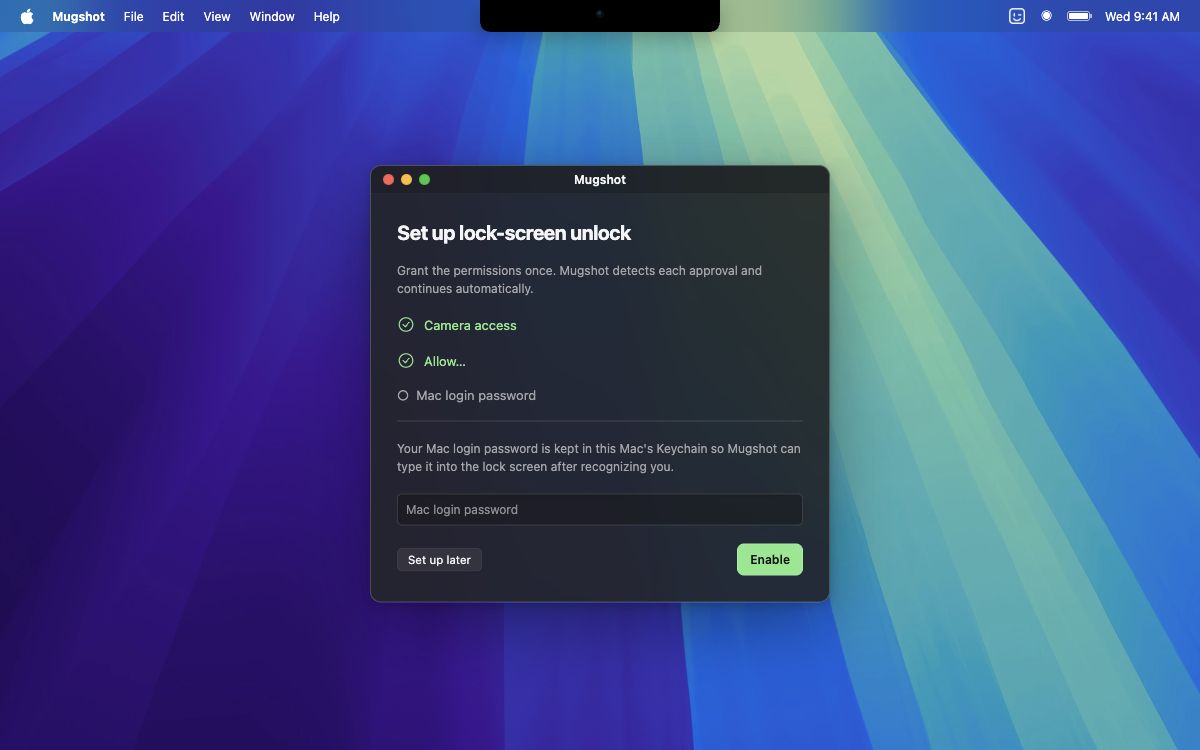
When you lock an existing session, Mugshot can recognize your face and type the saved password into the lock screen. It cannot unlock FileVault or perform the first login after a restart. This feature is off by default. Disabling it deletes the saved password.
macOS requires your explicit camera and Accessibility approvals. A download or installer cannot grant those permissions on your behalf.
Make it yours
In the main window, you can:
- Add an appearance without replacing your existing enrollment.
- Choose Lenient, Balanced or Strict recognition sensitivity.
- Enable or hide the animated capsule.
- Enable the choice panel to select face recognition, fingerprint or password before a sudo scan.
- Select a camera when more than one is available.
- Run a recognition test and copy diagnostics.
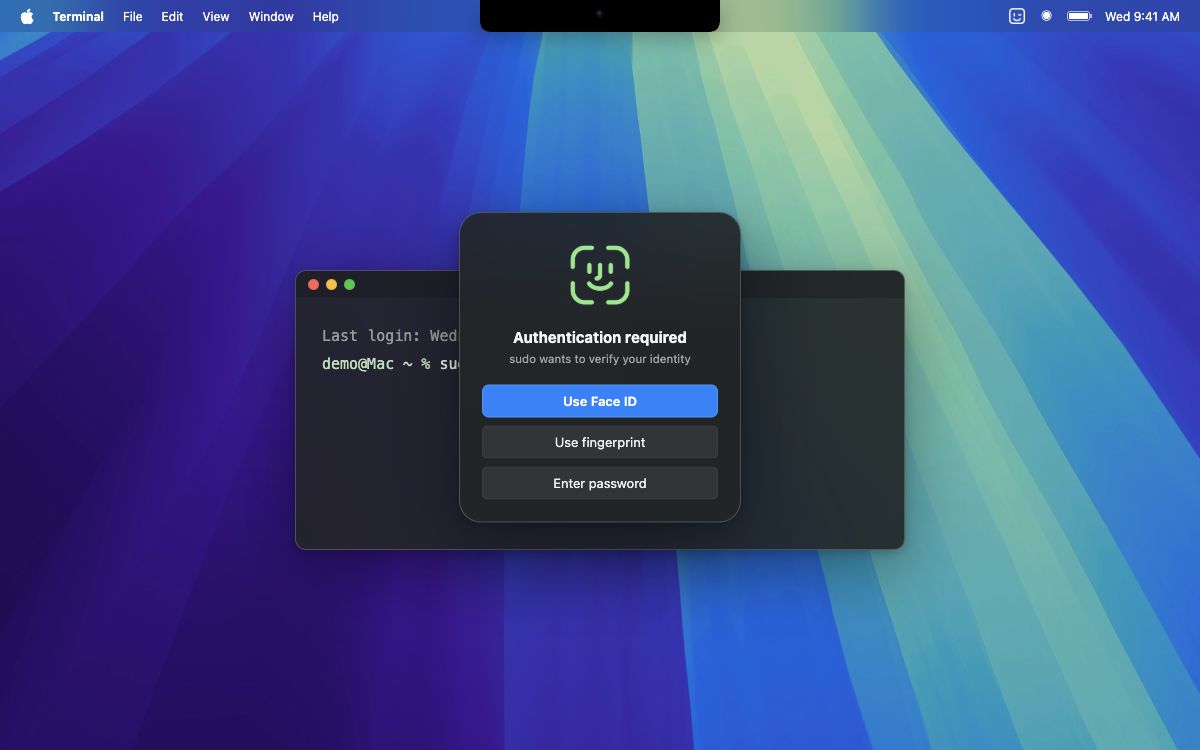
Privacy and security
Recognition runs on your Mac using OpenCV’s YuNet face detector and SFace
recognition model. Enrolled embeddings and local engine data live in
~/Library/Application Support/faceid. Mugshot does not upload camera frames or
face embeddings.
The sudo PAM rule is sufficient: a failed match falls through to the remaining
system authentication rules. Optional lock-screen unlock uses a saved login password
and Accessibility keyboard events; it is not an integration with the Secure Enclave.
Read SECURITY.md for the threat model and private vulnerability reporting.
Troubleshooting
Face recognition stops working after restarting the Mac
An older development installation may have left the Python LaunchAgent
com.lorenzo.faceid running alongside Mugshot. Both engines use the same socket,
so requests can reach the old Python process, which macOS may deny camera access.
Mugshot now disables and unloads this legacy job before starting its own engine. The change persists across restarts and also runs after DMG and automatic updates. The old configuration remains on disk; your enrolled face and permissions are kept.
Accessibility is enabled, but Mugshot still waits
Use the copy in Applications and open its Configure… setup. An older build may have left an authorization tied to a different code signature.
For a stale grant, remove the old Mugshot entry with −, completely quit System
Settings, then reopen Accessibility. Add /Applications/Mugshot.app with + and
enable it. Use Restart Mugshot and resume in setup if the process still waits.
Do not rebuild or re-sign the app during this sequence.
Local builds now use a persistent signing certificate. Installing a compatible rebuild preserves the permission identity. Migrating from an old ad-hoc build requires fresh consent once; the package clears the incompatible Mugshot camera and Accessibility entries before opening setup.
sudo still asks for a password
Open Mugshot and read the status at the top of its window. Check that your face is
registered and sudo is enabled, then click Test. Improve lighting or add an
appearance if recognition misses you. Use Copy diagnostics for a support report;
from a checkout, bash scripts/diagnose.sh checks the installed components.
The app cannot replace the existing copy in Applications
Use the package installer to update an app installed by a package. That copy can be owned by root, so dragging another app over it may fail. Reopen the updated copy from Applications after installation.
How do I uninstall Mugshot?
Click Uninstall Mugshot… at the bottom of the main window. The uninstaller removes the sudo rule and PAM module, restores the system Touch ID rule, unregisters the helper and login item, deletes the stored lock-screen password, and offers to remove your face data and move the app to the Trash.
Dragging the app to the Trash alone leaves its sudo integration behind. If the app’s helper setup prevents uninstallation, remove that integration from Terminal:
sudo bash /Applications/Mugshot.app/Contents/Resources/scripts/pam-uninstall-root.sh
How it works
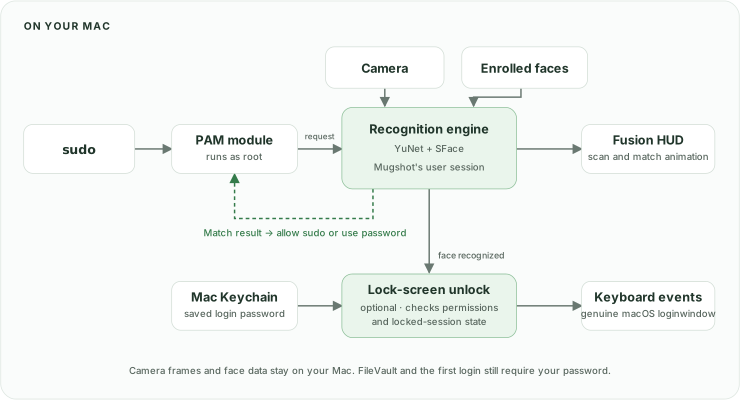
The app owns the camera request in your login session. A root process such as sudo asks the engine for recognition through the PAM module rather than trying to access the camera itself. The lock-screen coordinator separately checks enrollment, feature settings, password availability, session state and keyboard-event authorization.
Build from source
Development, signing and verification
Use macOS 14+ on Apple Silicon, Xcode Command Line Tools and Python 3.12. For portable release bundles, use the python.org framework build rather than a Homebrew Python compiled for your current macOS version.
git clone https://github.com/Lorenzo-Coslado/macos-faceid.git
cd macos-faceid
./install.sh
This prepares dependencies, downloads models and builds a development package at
build/Mugshot-dev.pkg. Open that package to install; the script stages the app
rather than overwriting the running copy in Applications.
For a self-contained local app and package:
./scripts/build-standalone.sh
ALLOW_UNSIGNED_PKG=1 ./scripts/build-pkg.sh dist/Mugshot.app dist/Mugshot-local.pkg
Local builds use a persistent certificate in a dedicated keychain under
~/Library/Application Support/Mugshot/Signing. Keep that directory outside the
checkout. Initialization may ask for native administrator approval to trust the
certificate for code signing. If its identity is missing, restore it; builds refuse
to silently generate a replacement or use LOCAL_SIGN_IDENTITY=-.
An explicit LOCAL_SIGN_IDENTITY can select an existing signing certificate. Keep
that identity stable between builds. The package compares the old and new designated
requirements, verifies the installed payload and opens that exact app for setup.
ALLOW_UNSIGNED_PKG=1 permits local test packaging; it does not notarize the app or
make the local certificate suitable for distribution to other Macs.
The public release pipeline requires Developer ID Application, Developer ID
Installer, and a notarytool profile (default: faceid-notary):
MARKETING_VERSION=1.2.0 BUILD_VERSION=9 ./scripts/build-release.sh
It signs the app, notarizes and staples the artifacts, and produces release packages
and disk images. Set MARKETING_VERSION and BUILD_VERSION for the candidate.
Use the same Developer ID team across releases. BUILD_PKG=0 skips
the package. See the script headers for signing and notarization options.
The release build installs requirements-build.txt for headless DMG layout.
See the release procedure for verification, draft preparation,
resuming notarization and the final public publication step.
Relevant checks:
.venv/bin/python -m faceid.selftest
.venv/bin/python tests/test_engine.py
bash scripts/check-lock-screen-setup.sh
python3 tests/test_signing_identity.py
bash scripts/check-i18n.sh
The signing tests reproduce the old ad-hoc identity mismatch, confirm that different builds with the persistent certificate remain compatible, and reject unsigned resource changes. Permission tests use fixtures; they do not replace verification on an installed app.
Visual previews
The README assets come from a reusable preview with six scenes, a real macOS Sequoia wallpaper, deterministic animation frames and controls for scan, recognition, fallback and displays without a notch.
See docs/VISUALS.md to run it locally and regenerate the stills and GIFs. These are interface illustrations, not recordings of real authentication.
Contributing and credits
Issues and pull requests are welcome. See CONTRIBUTING.md and the Code of Conduct.
Built with Swift, SwiftUI, OpenCV and the YuNet and SFace models. Wallpaper attribution and visual asset sources are documented in docs/VISUALS.md. Mugshot is independent of Apple.
Code is licensed under MIT. Third-party artwork retains its own rights.
Explore related projects
trimstray/the-book-of-secret-knowledge
A collection of inspiring lists, manuals, cheatsheets, blogs, hacks, one-liners, cli/web tools and more.
257,911 starsHack-with-Github/Awesome-Hacking
A collection of various awesome lists for hackers, pentesters and security researchers
125,254 starsswisskyrepo/PayloadsAllTheThings
A list of useful payloads and bypass for Web Application Security and Pentest/CTF
82,623 starscaddyserver/caddy
Fast and extensible multi-platform HTTP/1-2-3 web server with automatic HTTPS
79,020 stars