
Laxcorp-Research/project-raven
Laxcorp-Research/project-raven has 434 GitHub stars and 427 forks. GitHot measured +1 stars in 24 hours and +1 in 7 days. Last checked 2026-11-11 02:33 UTC. Last push 2026-09-23.
Open-source AI meeting copilot - real-time transcription, echo cancellation, and AI assistance. Captures system audio + mic, cancels echo via WebRTC AEC3, transcribes with Deepgram, and gives you Claude/OpenAI help during meetings. Runs locally on macOS and Windows.
What you can do
- Dual-stream capture — System audio + microphone. macOS uses ScreenCaptureKit + CoreAudio; Windows uses WASAPI loopback + capture (Rust/NAPI).
- Echo cancellation — GStreamer webrtcechoprobe / webrtcdsp (WebRTC AEC3), then a residual echo gate that drops mic chunks that still look like speaker bleed before they reach STT.
- Real-time transcription — Two streams: You (cleaned mic) and Them (system audio). Deepgram nova-3 and/or AssemblyAI u3-rt-pro. Auto-routing prefers AssemblyAI for English, Spanish, French, German, Portuguese, and Italian when that key is present; otherwise Deepgram. Settings can force either engine.
- AI assistance — Anthropic or OpenAI from the overlay (Assist, recap, follow-up, and custom prompts). Optional screenshot via desktopCapturer.
Measured star growth
- in 24h
- +1
- in 7 days
- +1
- in 15 days
- Update delayed
- in 1 month
- Update delayed
Net star changes over overlapping periods, not daily totals. Missing measurements are left blank. Stars measure attention, not software quality.
README.md
Original
Open-source meeting copilot: dual-stream capture, local echo cancellation, BYOK transcription and AI.



- During the call — dual-stream capture and an overlay that suggests what to say, invisible to screen share.
- After the call — auto notes, structured action items, a follow-up email draft, talk ratio, export, and Ask across your meetings.
- Yours — recordings and notes stay in local SQLite; transcription and AI use your API keys. Nothing goes to a Raven server.
Raven is an Electron desktop app. It captures microphone and system audio, cancels echo on your machine, transcribes You and Them on two parallel streams, and answers from the live transcript. You bring your own API keys. This build has no Raven account, no hosted backend, and no cloud session sync.
Capture, echo cancellation, SQLite history, and document RAG run locally. Microphone/system audio goes to Deepgram or AssemblyAI. Assist prompts (transcript excerpts, chat, optional screenshot, retrieved docs) go to Anthropic or OpenAI.
Download | Releases | Docs | Issues
If Raven helps you, star the repo — it's how open source travels.
Download
Prebuilt installers are on the latest GitHub Release. Enter your own API keys in Settings on first launch.
| Platform | Installer |
|---|---|
| Windows 10/11 (x64) | Raven-Windows-2.5.0-Setup.exe |
| macOS 12+ (Apple Silicon) | Raven-Mac-2.5.0-Installer.dmg |
Windows: run the setup executable. SmartScreen may warn on an unsigned OSS build — choose More info → Run anyway.
macOS: open the DMG, drag Raven to Applications, then open it. Intel Macs are not in this DMG — build from source below.
Installed copies check GitHub Releases for updates (latest.yml on Windows, latest-mac.yml on macOS). From 2.4.1, macOS self-updates in-app like Windows — Update now downloads and Restart & update installs (Macs on 2.4.0 update via the DMG one last time). The updater only offers a build when the published version is newer than the one you have. Maintainers: publishing a GitHub Release notarizes and attaches the Mac DMG — see Releasing.
Screenshots
Dashboard — Session History
|
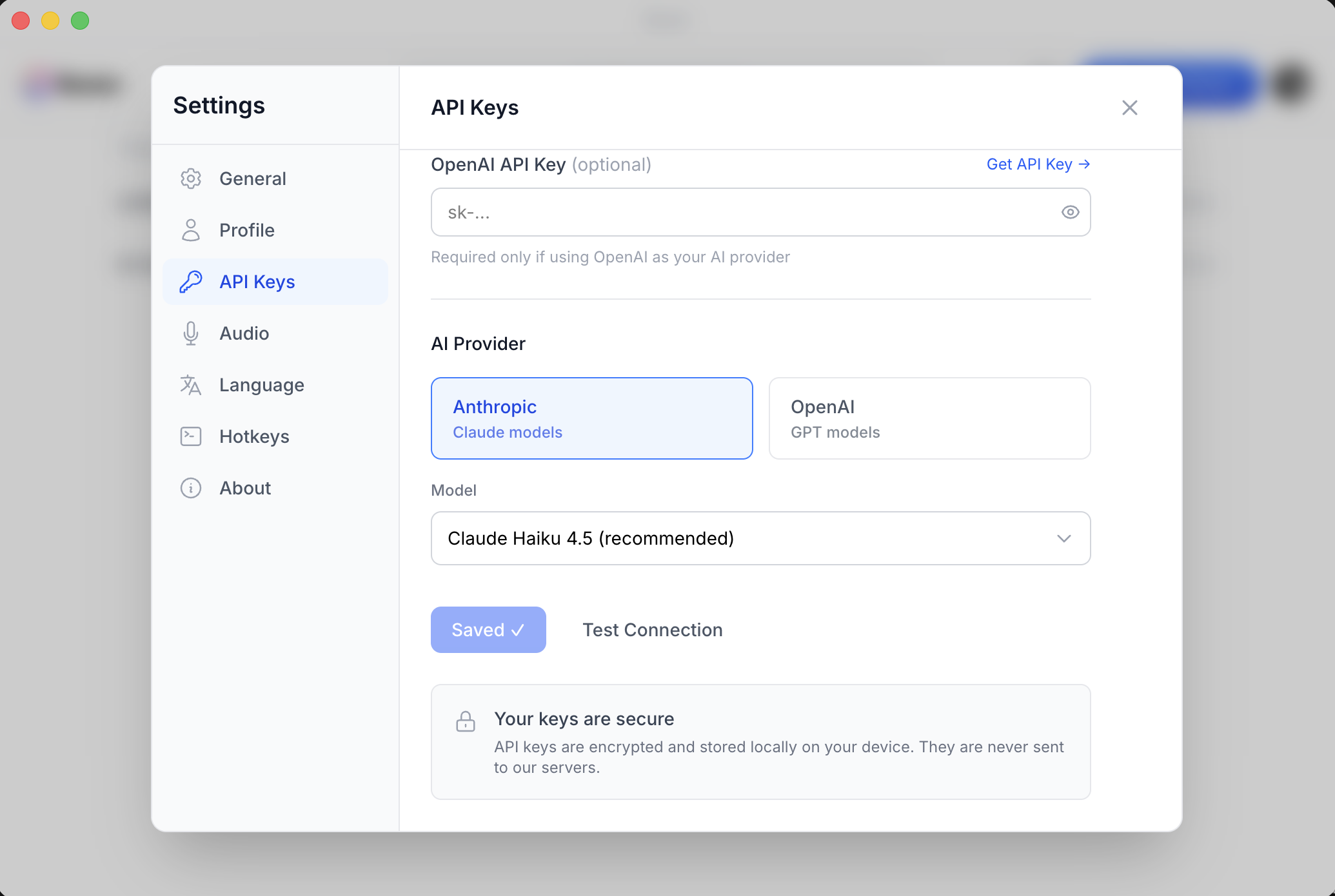
Settings — API Keys
|
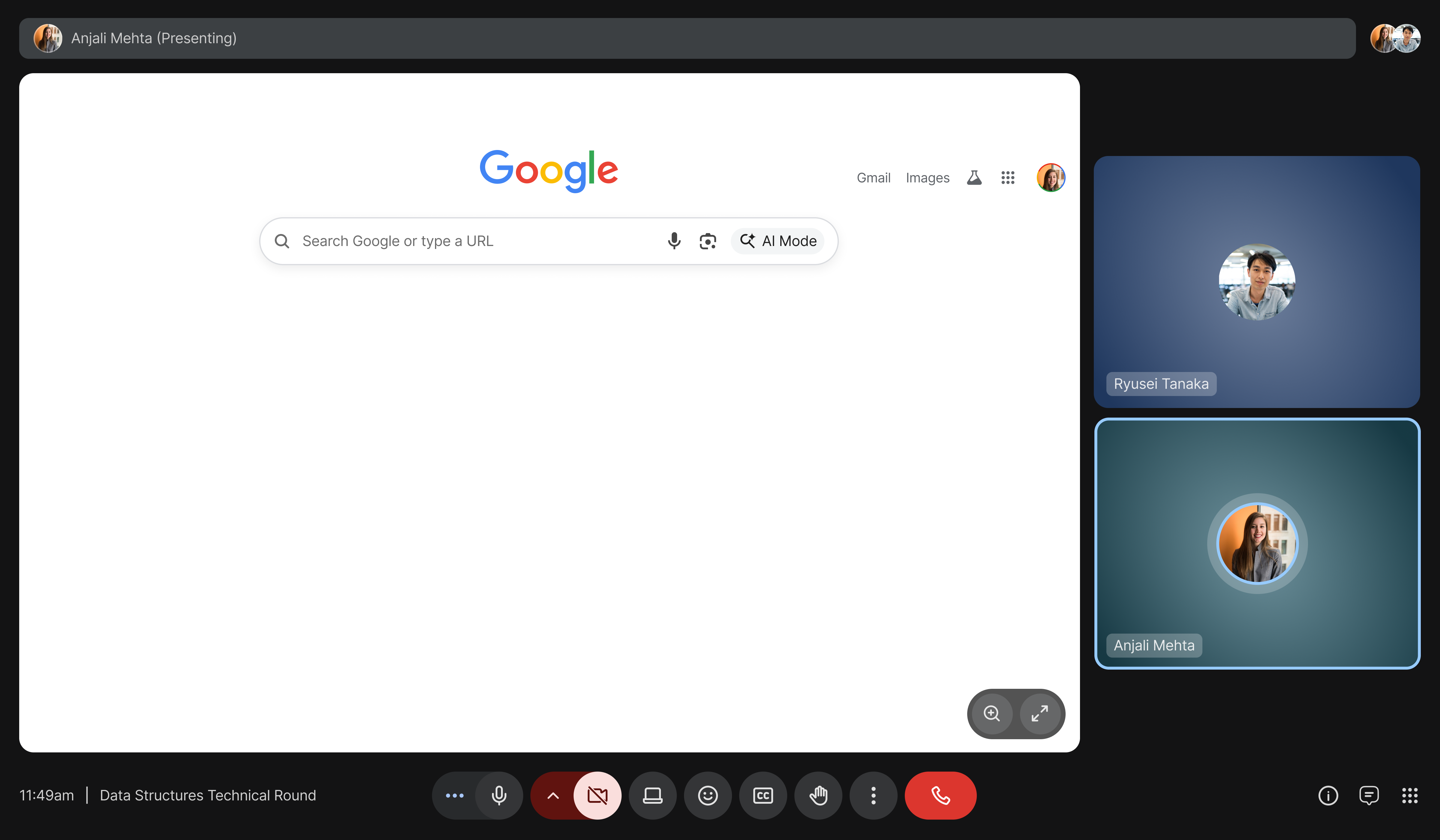
Stealth Mode OFF — Overlay visible to screen share
|
Stealth Mode ON — Overlay invisible to screen share
|
Settings — Model Selection
|
Onboarding — Overlay Tour
|
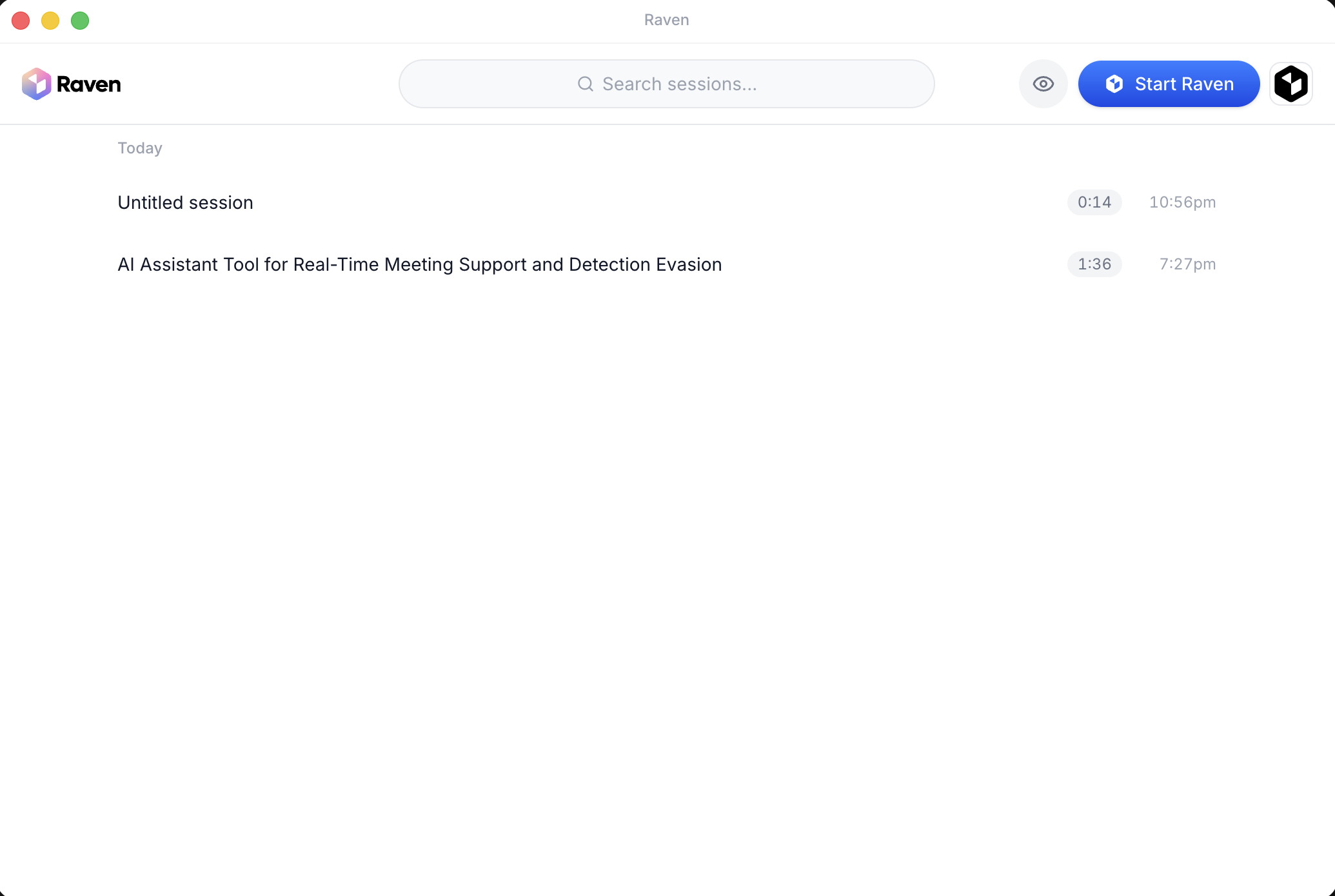
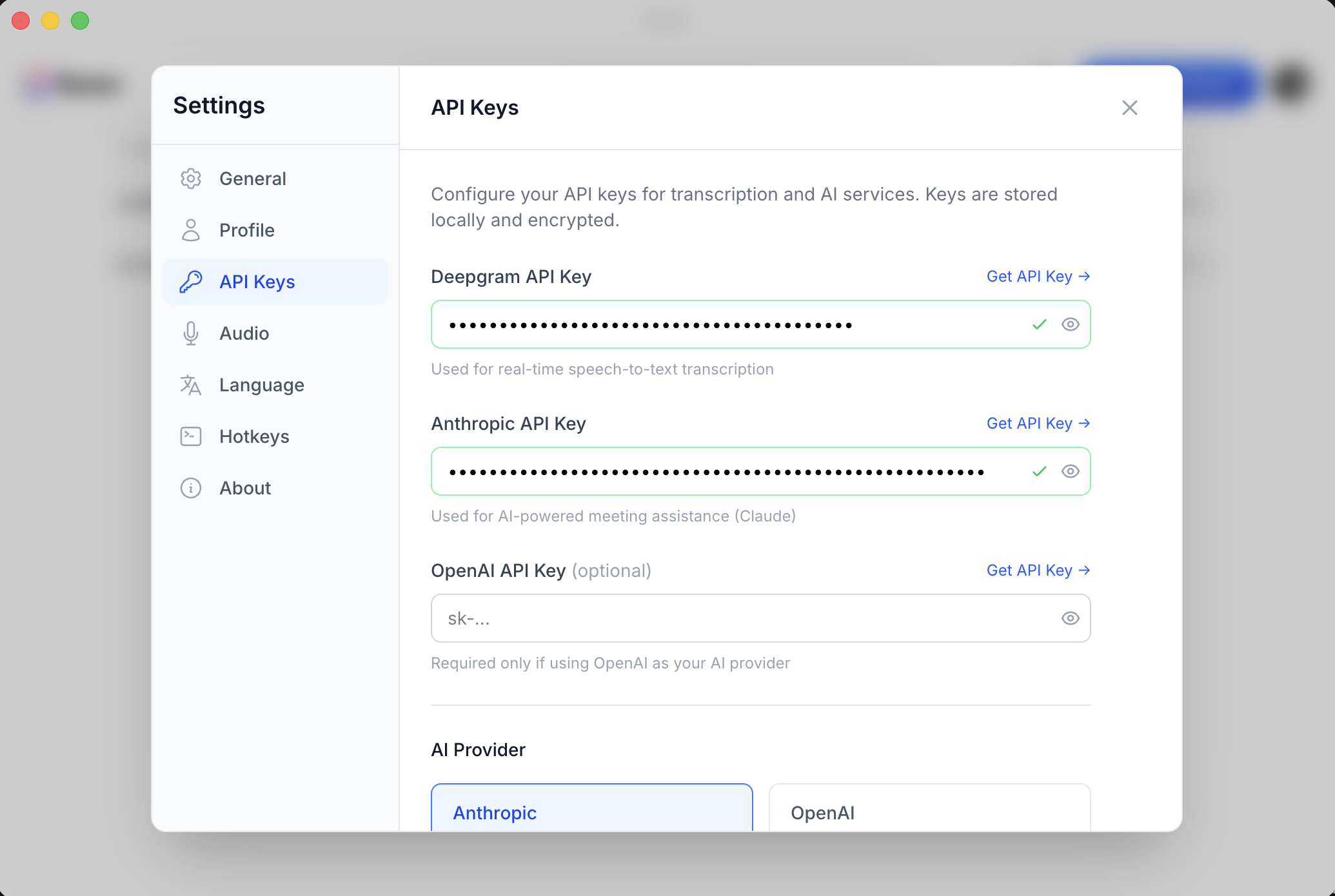
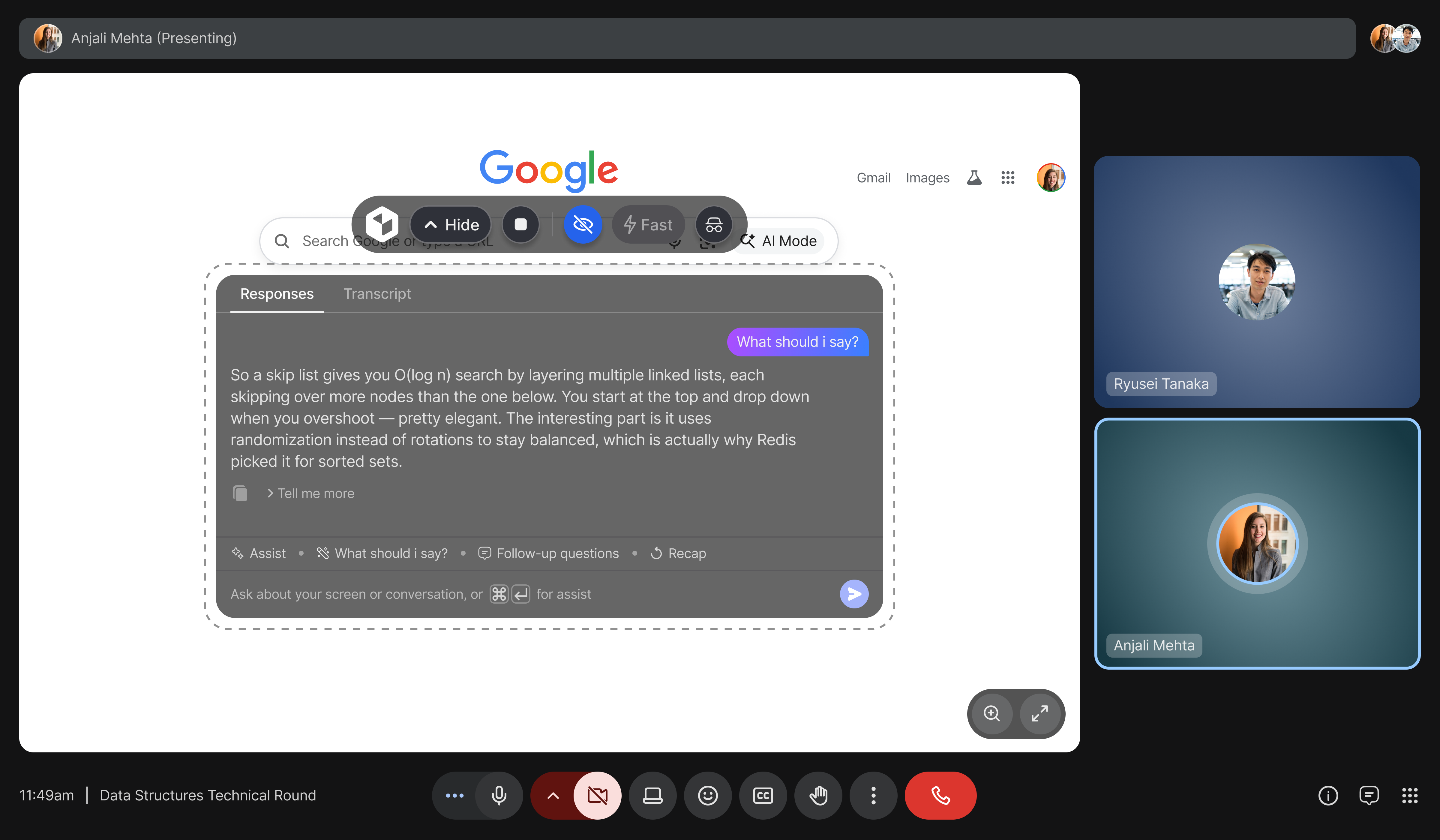
Full onboarding flow (6 steps)
| Step 1: Welcome | Step 2: API Keys | Step 3: Permissions |
|---|---|---|
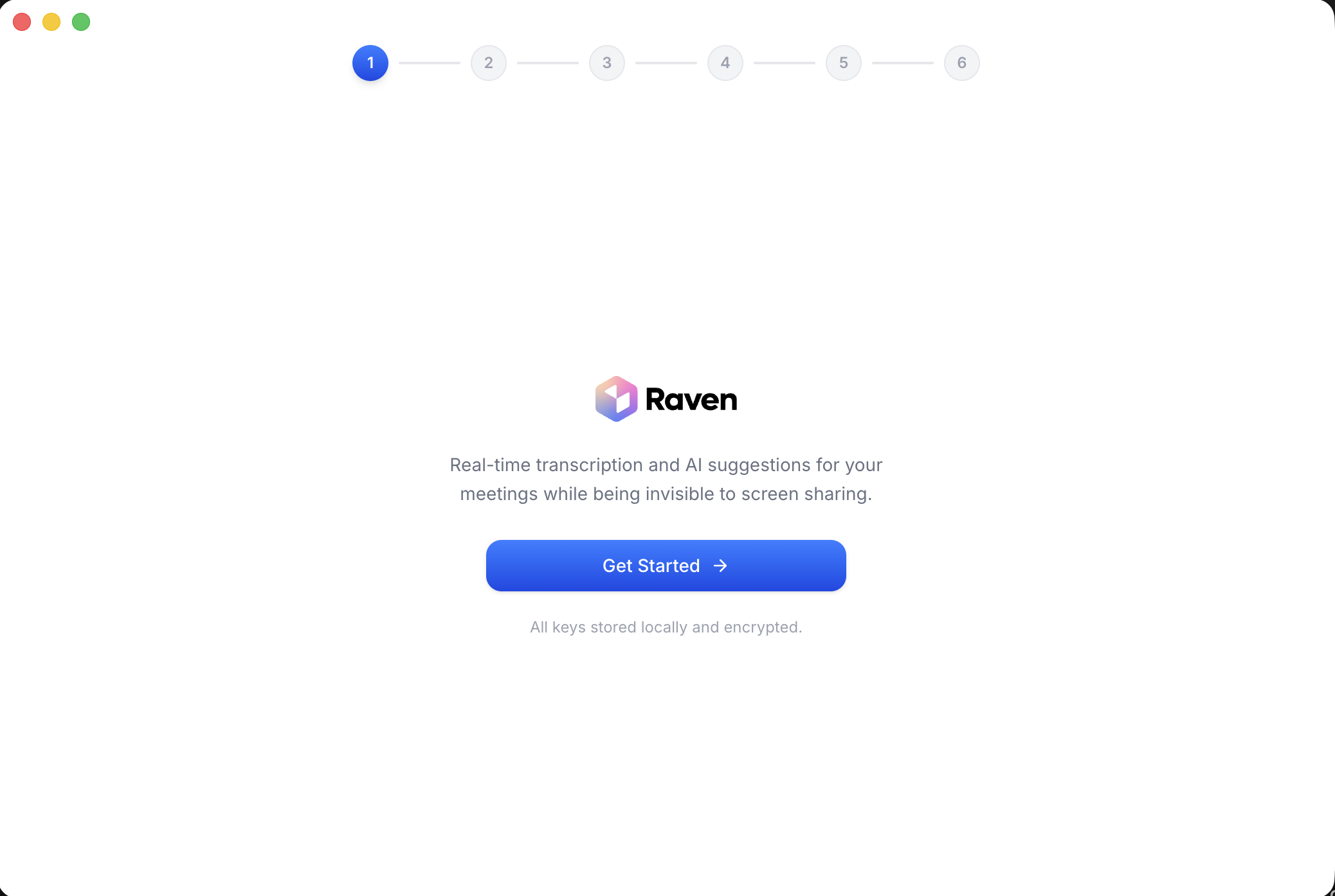 |
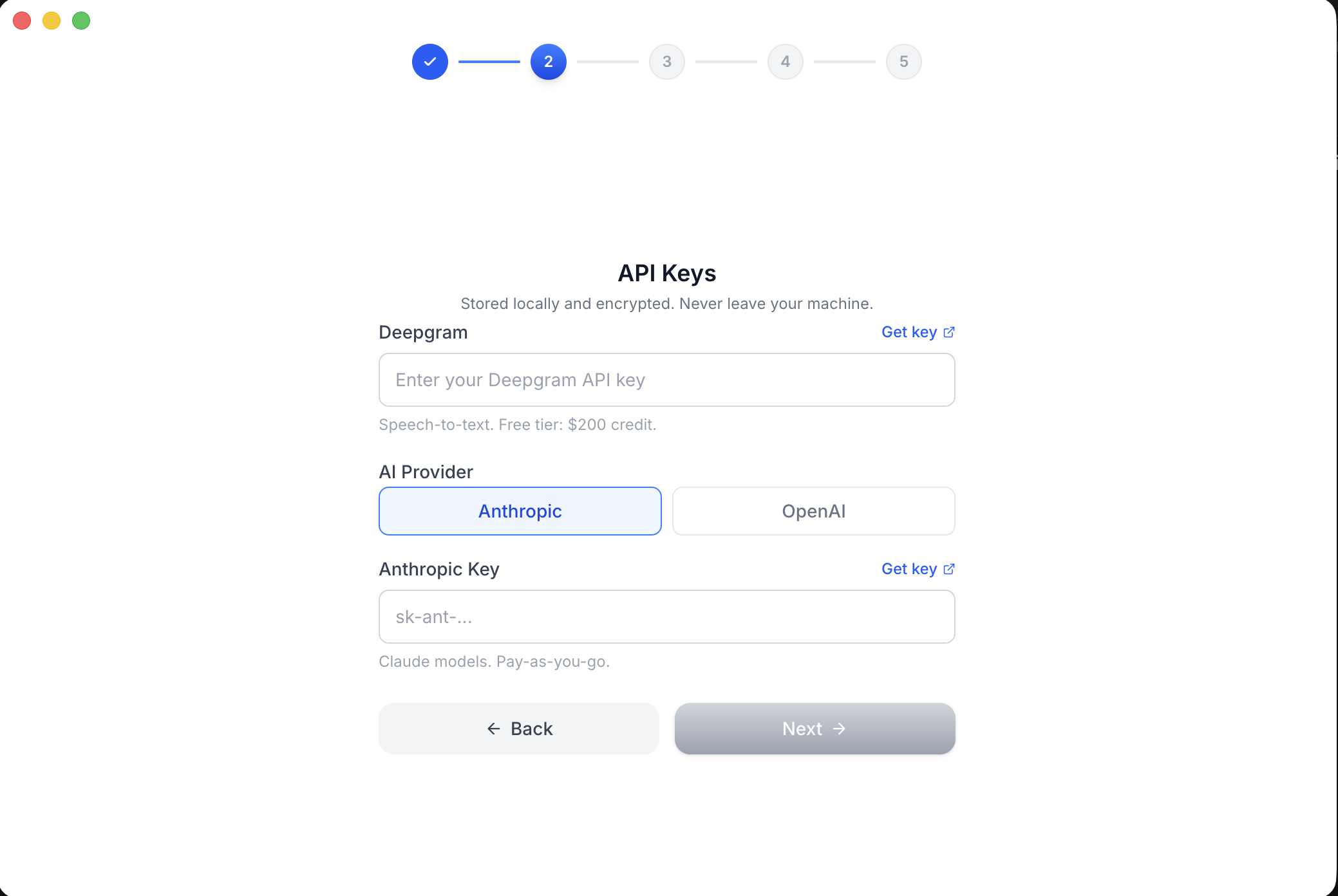 |
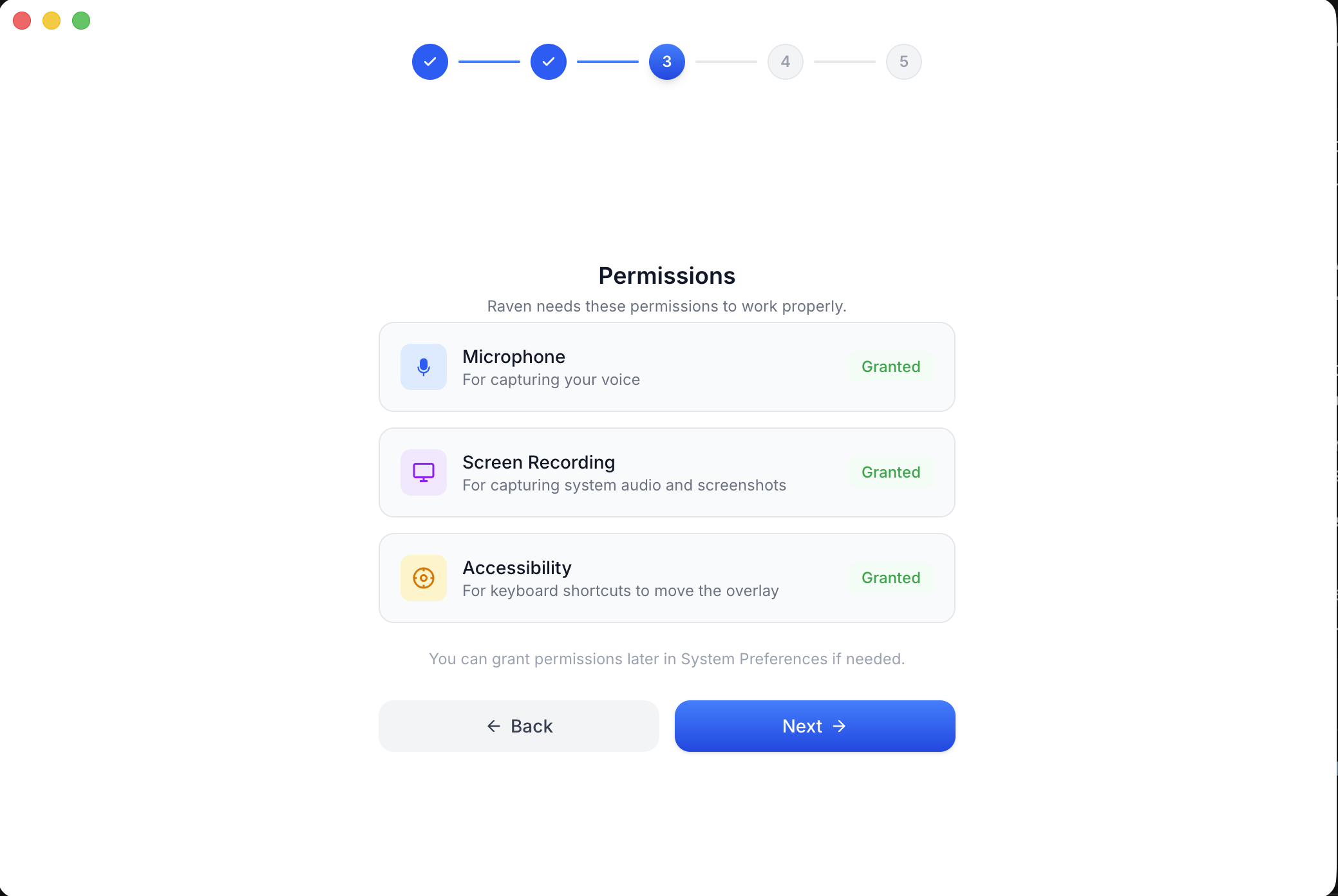 |
| Step 4: Overlay Tour | Step 5: Shortcuts | Step 6: Ready to Go |
|---|---|---|
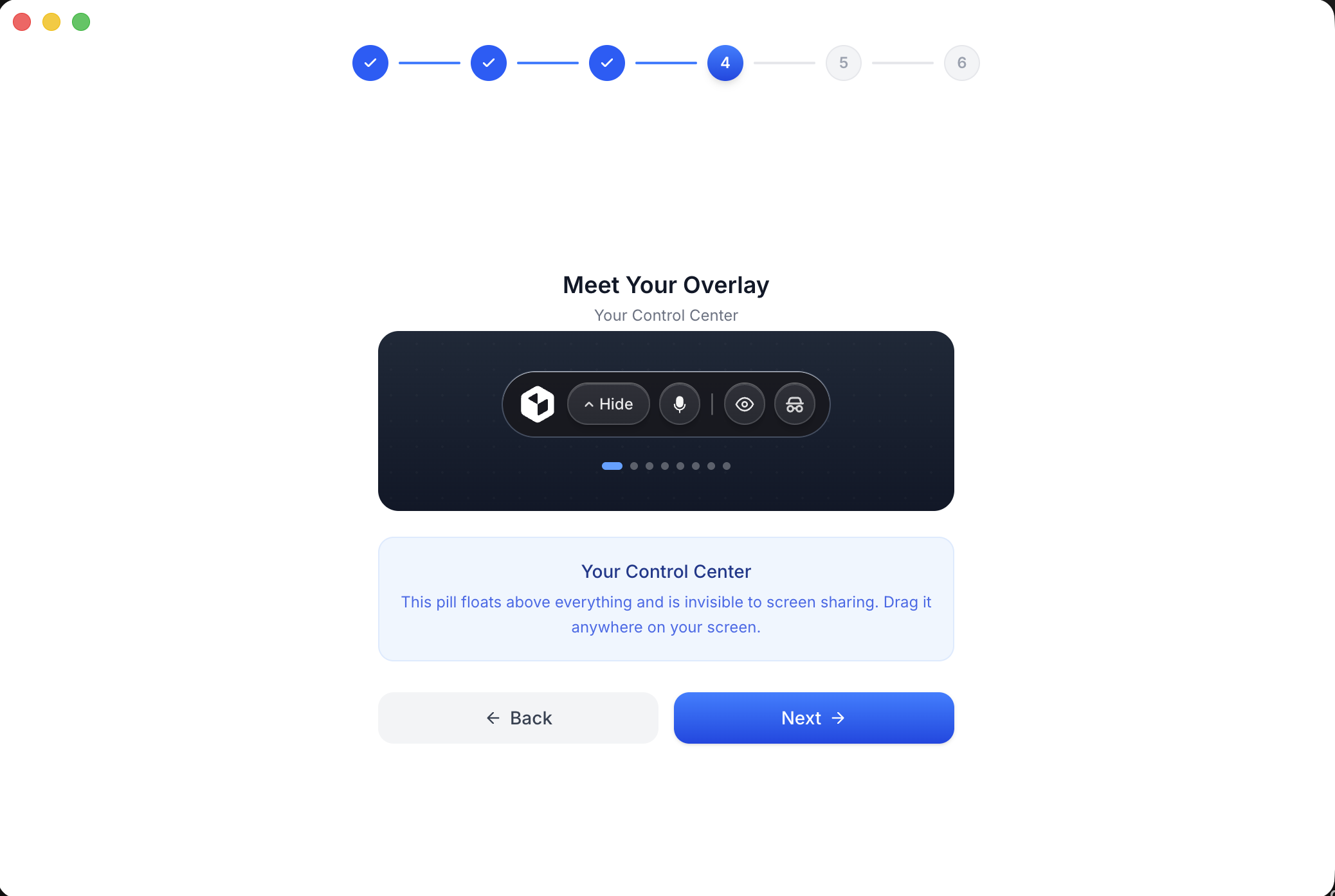 |
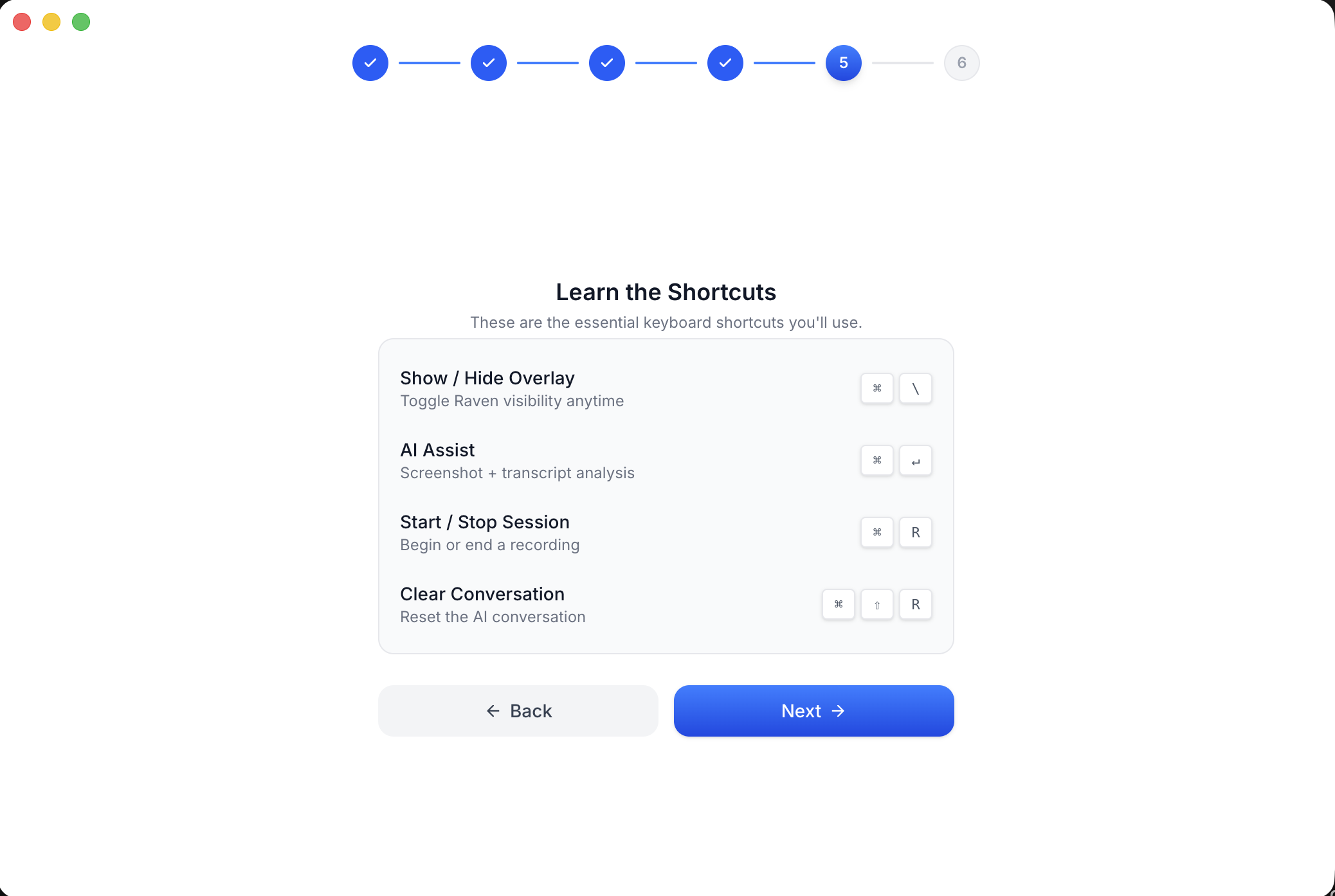 |
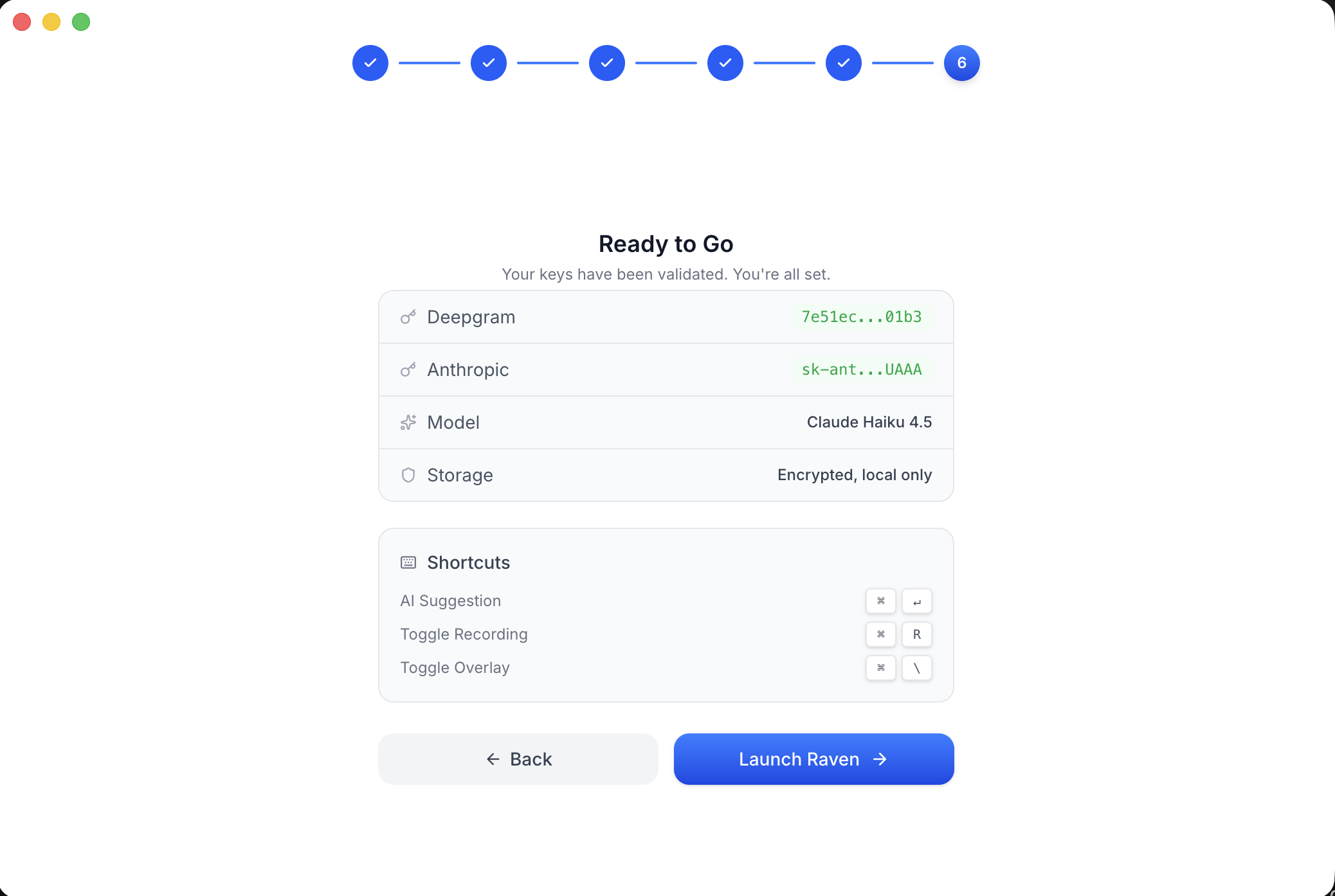 |
Features
- Dual-stream capture — System audio + microphone. macOS uses ScreenCaptureKit + CoreAudio; Windows uses WASAPI loopback + capture (Rust/NAPI).
- Echo cancellation — GStreamer
webrtcechoprobe/webrtcdsp(WebRTC AEC3), then a residual echo gate that drops mic chunks that still look like speaker bleed before they reach STT. - Real-time transcription — Two streams: You (cleaned mic) and Them (system audio). Deepgram
nova-3and/or AssemblyAIu3-rt-pro. Auto-routing prefers AssemblyAI for English, Spanish, French, German, Portuguese, and Italian when that key is present; otherwise Deepgram. Settings can force either engine. - AI assistance — Anthropic or OpenAI from the overlay (Assist, recap, follow-up, and custom prompts). Optional screenshot via
desktopCapturer. - Stealth overlay — Electron
setContentProtectionso the overlay and dashboard are omitted from typical screen-share APIs (Zoom, Meet, Teams, Discord). Not a guarantee against every capture tool. - Modes — Local behavior profiles (system prompt, notes templates). Attach documents for RAG on that mode.
- RAG (per mode, local) — Upload
.txt,.md,.pdf, or.docx. Chunked and embedded on-device withXenova/all-MiniLM-L6-v2(@xenova/transformers). Chunks live in SQLite; the top matches are injected into the Assist system prompt. First embed may download the ~30MB model. - Session context (not long-term memory) — During a recording, Assist keeps recent turns, pins the opening transcript and your typed questions, and may compress older context with a cheap model. That compacted memory is stored on the session row (local SQLite, deleted with the session) so a resumed session can pick it back up. There is no cross-meeting user-memory profile.
- Sessions — Saved locally in SQLite (transcript, overlay chat, auto title/summary). Dashboard can generate insights with your LLM key. Resume a saved session to keep recording into it later (a multi-day interview stays one session, and Assist remembers the earlier sitting). Incognito skips SQLite persistence for that session.
- Ask your meetings — A per-session Ask tab answers from that call's transcript; Ask across all meetings searches your whole history with on-device retrieval (
Xenova/all-MiniLM-L6-v2) and cites the source sessions. Answers stream token-by-token; conversations are saved (one per session, plus multi-chat for the global view). - Post-call recap — Structured action items (task, owner, deadline), a one-click follow-up email draft, talk ratio (You vs. Them, word-based), and export to Markdown or PDF. All generated with your own key; nothing goes to a Raven server.
- Meeting auto-start — Optionally detect a Zoom, Google Meet, Microsoft Teams (including 1:1 calls), or Webex meeting and prompt — or auto-start — a recording. No bot joins; detection just reads open window titles locally. Off / prompt / auto in Settings.
- In-app updates — Windows and (from 2.4.1) macOS update in place: Update now downloads, Restart & update installs. Your keys and history are untouched.
- Local settings — API keys and preferences in encrypted
electron-store(raven-config.json). - Tray — Packaged builds load icons from
resources/tray. On Windows 11 a new icon may start in the^overflow. - Profile picture editor — Crop, zoom, and pan before saving your avatar.
Live recording uses the OS default mic and playback devices. The Settings mic picker is for the in-app mic test only.
Architecture
flowchart TB
  subgraph capture [Native capture]
    Win["Windows: WASAPI loopback + capture"]
    Mac["macOS: ScreenCaptureKit + CoreAudio"]
  end

  subgraph local [Real-time on this machine]
    SAN[systemAudioNative]
    AEC["GStreamer webrtcechoprobe / webrtcdsp"]
    REG[ResidualEchoGate]
    AM[audioManager]
    RAG["ragService — MiniLM embeddings"]
    MEM["sessionMemory — current recording only"]
    CS[claudeService]
    DB[("SQLite data/raven.db")]
    CFG["electron-store — keys and settings"]
    OV[Overlay]
    Dash[Dashboard]
  end

  subgraph postcall [Post-call on this machine]
    SIDX["sessionIndexService — MiniLM transcript index"]
    SQA["sessionQaService — Ask, streamed"]
    RECAP["Recap — action items, follow-up email, export, insights"]
  end

  subgraph byok [Your API keys — not a Raven server]
    STT["Deepgram nova-3 and/or AssemblyAI u3-rt-pro"]
    LLM[Anthropic or OpenAI]
  end

  Win --> SAN
  Mac --> SAN
  SAN -->|"system PCM = Them"| AM
  SAN --> AEC
  AEC -->|"cleaned mic"| REG
  REG -->|"You, if not echo"| AM
  AM --> STT
  STT --> OV
  OV --> CS
  MEM --> CS
  RAG --> CS
  CS --> LLM
  CS --> DB
  RAG --> DB
  AM --> DB
  CFG --- CS
  Dash --- DB
  MD["meetingDetector — window titles"] -.->|"offer to start"| AM
  DB -->|"saved transcript"| SIDX
  SIDX -->|"chunks + embeddings"| DB
  SQA -->|"retrieve top chunks"| DB
  SQA --> LLM
  RECAP --> DB
  RECAP --> LLM
  Dash --- SQA
  Dash --- RECAP
What “memory” means here
| Mechanism | Lifetime | Used for |
|---|---|---|
| Live Assist turns | Current recording, in RAM | Last few turns replayed verbatim |
Assist sessionMemory |
Until you delete the session (SQLite, assist_memory_json) |
Running summary, pinned opening, pinned questions; restored when you Resume that session |
| SQLite sessions / messages | Until you delete them | History, summaries, insights, overlay chat replay |
| RAG chunks | Until you remove the file from the mode | Retrieve-then-prompt on Assist, scoped to that mode |
| Session Ask index | Until you delete the session | Retrieve-then-prompt for Ask across all meetings (on-device MiniLM) |
| Ask conversations | Until you delete the chat / session | Saved Ask history — one per session, plus standalone global threads |
| electron-store | Until you reset settings | Keys, STT preference, window bounds — not semantic memory |
There is no global “Raven remembers you across meetings” store.
How It Works
- You start a session (
Cmd/Ctrl + Shift + Space, or the overlay). Incognito, if enabled, will not write the session to SQLite. - A native helper captures system audio and microphone at the same time.
- macOS: Swift
audiocapture— ScreenCaptureKit (system) + CoreAudio (mic). Needs Microphone and Screen Recording. - Windows: Rust/NAPI
raven-windows-audio— WASAPI loopback + capture. Uses the default devices.
- macOS: Swift
- System PCM is the AEC reference. Mic PCM goes through GStreamer
webrtcechoprobe/webrtcdsp.ResidualEchoGatethen compares raw mic to recent system audio and drops leftover speaker echo so it does not land in You. - Two STT connections run in parallel (mic → You, system → Them). Engine pick is Settings
sttProvider(auto/assemblyai/deepgram) plus language: AssemblyAI Universal-3 Pro for the six languages above when that key exists; Deepgramnova-3otherwise (including auto-detect /multi). AssemblyAI failures can fall back to Deepgram. - The overlay shows the live transcript. Assist (
Cmd/Ctrl + Enter) builds a prompt from the mode brief, retrieved RAG chunks (if the mode has docs), session memory, recent chat, transcript tail, and an optional screenshot, then streams from your LLM. - On stop, a non-incognito session is saved. A cheap/fast model writes a title and summary. Insights are generated later from the dashboard, still with your key.
Project Structure
src/
├── main/                         # Electron main process
│   ├── audioManager.ts           #   Recording orchestration, STT engine pick
│   ├── systemAudioNative.ts      #   Native capture + AEC wiring
│   ├── residualEchoGate.ts       #   Post-AEC mic echo drop before STT
│   ├── transcriptionService.ts   #   Deepgram dual WebSocket
│   ├── claudeService.ts          #   Overlay Assist (Claude / OpenAI)
│   ├── store.ts                  #   electron-store (encrypted keys + settings)
│   ├── meetingDetector.ts        #   Meeting auto-start from window titles
│   ├── index.ts                  #   App lifecycle, hotkeys, IPC
│   └── services/
│       ├── database.ts           #   SQLite (sessions, modes, RAG chunks, Ask index + chats)
│       ├── sessionManager.ts     #   Session lifecycle, incognito, autosave
│       ├── ragService.ts         #   Parse, embed, retrieve
│       ├── assemblyAITranscriptionService.ts
│       ├── summaryService.ts     #   Post-session title + summary
│       ├── insightsService.ts    #   Dashboard insights
│       ├── sessionQaService.ts   #   Ask (per-session + across all), streamed
│       ├── sessionIndexService.ts #  Transcript index for Ask (MiniLM)
│       ├── sessionExportService.ts # Markdown / PDF export
│       ├── followupEmailService.ts # Follow-up email draft
│       └── ai/
│           ├── providerFactory.ts
│           └── sessionMemory.ts  #   In-recording compression / pins
├── shared/sttCapabilities.ts     # STT language + engine routing
├── renderer/                     # React UI (Vite + Tailwind)
├── preload/                      # Context bridge
└── native/
    ├── swift/AudioCapture/       # macOS capture
    ├── windows/                  # Windows WASAPI (Rust/NAPI)
    └── aec/                      # GStreamer AEC addon
Platform Support
| Platform | System Audio | Microphone | Echo Cancellation | Status |
|---|---|---|---|---|
| macOS 12+ | ScreenCaptureKit | CoreAudio | GStreamer AEC3 | Primary, fully tested |
| Windows 10/11 | WASAPI Loopback | WASAPI Capture | GStreamer AEC3 | Supported |
| Linux | — | — | — | Not supported (no native capture path) |
Prebuilt Mac DMG is Apple Silicon. Intel Macs: build from source (this section). This OSS tree does not ship login, hosted Pro, cloud sync, or Recall meeting-bot capture.
Getting Started
If you only want to run Raven, use a prebuilt installer instead of this section.
This walkthrough is for building from source — from a fresh machine to a running app. Pick your platform, follow every numbered step in order, and verify each one before moving on.
API keys (entered in-app on first launch — nothing to configure beforehand):
- Deepgram or AssemblyAI — real-time transcription
- Anthropic or OpenAI — AI assistance
macOS Setup
Tested on macOS 12 (Monterey) through macOS 15 (Sequoia), Intel and Apple Silicon.
Step 1 — Install Xcode Command Line Tools
xcode-select --install
A system dialog will appear — click Install and wait for it to finish (~2 min).
Verify:
xcode-select -p
# Expected: /Library/Developer/CommandLineTools  (or an Xcode.app path)
If you see
xcode-select: error: command line tools are already installed— you're good, move on.
Step 2 — Install Node.js 22
Install via nvm (recommended). Skip the curl line if you already have nvm.
curl -o- https://raw.githubusercontent.com/nvm-sh/nvm/v0.40.1/install.sh | bash
Close and reopen your terminal, then:
nvm install 22
nvm use 22
Verify:
node -v
# Expected: v22.x.x (any 22+ version)
If
nvm: command not found: Close your terminal and open a new one — nvm's install script adds itself to your shell profile, but only new shells pick it up.
Step 3 — Install GStreamer
brew install gstreamer gst-plugins-base gst-plugins-good gst-plugins-bad
Don't have Homebrew? Install it first from brew.sh.
Verify:
pkg-config --modversion gstreamer-1.0
# Expected: 1.24.x (or similar)
If
Package gstreamer-1.0 was not found: Homebrew'spkg-configpath isn't set. Add the correct line to your~/.zshrcand restart your terminal:# Apple Silicon (M1/M2/M3/M4): echo 'export PKG_CONFIG_PATH="/opt/homebrew/lib/pkgconfig:$PKG_CONFIG_PATH"' >> ~/.zshrc # Intel Mac: echo 'export PKG_CONFIG_PATH="/usr/local/lib/pkgconfig:$PKG_CONFIG_PATH"' >> ~/.zshrc
Step 4 — Clone the repo and install dependencies
git clone https://github.com/Laxcorp-Research/project-raven.git
cd project-raven
npm install
npm install takes a few minutes. It automatically rebuilds better-sqlite3 for Electron via the postinstall script — you'll see @electron/rebuild output near the end.
Verify:
ls node_modules/.package-lock.json && echo "OK"
# Expected: OK
If
npm installfails withnode-gyperrors: Make sure Xcode Command Line Tools installed successfully in Step 1. Runxcode-select -pto confirm.
Step 5 — Build the GStreamer echo-cancellation addon
cd src/native/aec
npm install
./build-deps.sh
npx cmake-js compile
cd ../../..
What this does:
- Installs the addon's build tools (
cmake-js,node-addon-api) - Verifies all GStreamer libraries and builds the WebRTC DSP plugin from source (Homebrew doesn't ship it)
- Compiles the C++ echo-cancellation native module
Verify:
ls src/native/aec/build/Release/raven-aec.node && echo "OK"
# Expected: OK
If
build-deps.shfails with "gstreamer-1.0 not found": Revisit Step 3 and make surepkg-config --modversion gstreamer-1.0works.If
cmake-js compilefails with "cmake not found": cmake is bundled with cmake-js. Runnpx cmake-js --version— if that fails, deletenode_modulesinsidesrc/native/aec/and re-runnpm install.
Step 6 — Build the Swift audio capture binary
cd src/native/swift/AudioCapture
swift build -c release
cd ../../../..
Verify:
ls src/native/swift/AudioCapture/.build/release/audiocapture && echo "OK"
# Expected: OK
If
swift buildfails with unresolved imports: Your Swift toolchain may be too old (5.9+ required). Check withswift --version. Update Xcode Command Line Tools:sudo rm -rf /Library/Developer/CommandLineTools && xcode-select --install
Step 7 — Run the app
npm run dev
The Electron app opens. On first launch you'll be prompted to enter your API keys in the settings.
If the app starts but audio capture doesn't work: macOS requires explicit permissions. Go to System Settings → Privacy & Security and grant both Microphone and Screen Recording access to the app (or to your terminal emulator during development).
Windows Setup
Tested on Windows 10 (21H2+) and Windows 11. All commands are for PowerShell. Open a new terminal after each installer to pick up PATH changes.
Step 1 — Install Visual Studio Build Tools
Download and run the Visual Studio Build Tools installer.
In the installer, check the "Desktop development with C++" workload and click Install. Make sure these optional components are selected (they should be by default):
- MSVC Build Tools for x64/x86 (Latest)
- Windows 10/11 SDK
- C++ CMake tools for Windows
Verify:
& "${env:ProgramFiles(x86)}\Microsoft Visual Studio\Installer\vswhere.exe" -products * -requires Microsoft.VisualStudio.Workload.VCTools -property displayName
# Expected: Visual Studio Build Tools 2022
If you have full Visual Studio (not just Build Tools) with the C++ workload, that works too.
Step 2 — Install Node.js (LTS)
Option A — nvm-windows (recommended):
Download and run the latest nvm-setup.exe, then open a new terminal:
nvm install 22
nvm use 22
Option B — Download the LTS 22.x MSI installer directly from nodejs.org.
Verify (in a new terminal):
node -v
# Expected: v22.x.x
Why Node 22 specifically? The project requires
node >= 22.12.0(seepackage.jsonengines). Usingnvm install ltsmay install a newer major version that hasn't been tested.
Step 3 — Install Python
Python is required by node-gyp to compile native Node.js modules (better-sqlite3, bufferutil, etc.).
Option A — winget:
winget install Python.Python.3.12 --source winget
Option B — Download from python.org. Make sure "Add to PATH" is checked during installation.
Verify (in a new terminal):
python --version
# Expected: Python 3.x.x
Step 4 — Install the Rust toolchain
Download and run rustup-init.exe. Accept the defaults (installs stable-msvc).
Verify (in a new terminal):
rustc --version
# Expected: rustc 1.xx.x (...)
rustup default stable-msvc
Step 5 — Install GStreamer (MSVC)
Download the MSVC x86_64 installer from gstreamer.freedesktop.org/download — click Windows → MSVC x86_64 (VS 2022, Release CRT).
For GStreamer 1.28+, there is a single combined installer (runtime + development). For older versions, download both the Runtime and Development MSI files.
Run with default settings. The installer typically installs to C:\gstreamer\ or C:\Program Files\gstreamer\.
After installation, verify the environment variable is set (open a new terminal):
echo $env:GSTREAMER_1_0_ROOT_MSVC_X86_64
# Expected: C:\gstreamer\1.0\msvc_x86_64\ (or C:\Program Files\gstreamer\1.0\msvc_x86_64\)
Also make sure GStreamer's bin directory is on your PATH:
$gstRoot = $env:GSTREAMER_1_0_ROOT_MSVC_X86_64
if ($gstRoot) { echo "GStreamer root: $gstRoot" } else { echo "NOT SET - see below" }
If the variable is empty: The installer didn't set it. Find where GStreamer was installed and set it manually:
# Adjust the path below to match your installation
[Environment]::SetEnvironmentVariable("GSTREAMER_1_0_ROOT_MSVC_X86_64", "C:\Program Files\gstreamer\1.0\msvc_x86_64\", "User")
Then restart your terminal.
If GStreamer installed to
C:\Program Files\gstreamer\instead ofC:\gstreamer\: That's fine — just make sure the environment variable points to the correct path (e.g.C:\Program Files\gstreamer\1.0\msvc_x86_64\).
Step 6 — Install CMake
CMake is required to compile the GStreamer echo-cancellation addon.
winget install Kitware.CMake --source winget
Or download from cmake.org/download. Make sure "Add to PATH" is checked.
Verify (in a new terminal):
cmake --version
# Expected: cmake version 3.x.x
Step 7 — Clone the repo and install dependencies
git clone https://github.com/Laxcorp-Research/project-raven.git
cd project-raven
npm install
npm install takes a few minutes. It automatically rebuilds better-sqlite3 for Electron via the postinstall script.
Verify:
Test-Path node_modules\.package-lock.json
# Expected: True
If
npm installfails withCould not find any Python installation: Revisit Step 3 — Python must be installed and on PATH.If
npm installfails withCould not find any Visual Studio installation:node-gypcan't auto-detect your Build Tools. Try these fixes in order:# Fix 1: Set the version hint for node-gyp npm config set msvs_version 2022 Remove-Item -Recurse -Force node_modules npm installIf
npm config set msvs_versiongives an error on newer npm versions, use the environment variable instead:# Fix 2: Environment variable (works on all npm versions) $env:GYP_MSVS_VERSION = "2022" Remove-Item -Recurse -Force node_modules npm install
Step 8 — Build the GStreamer echo-cancellation addon
First, check the Electron version used by the project:
node -e "console.log(require('./node_modules/electron/package.json').version)"
# Note the version (e.g. 40.4.1)
Then build the addon targeting that version:
cd src\native\aec
npm install
npx cmake-js compile --runtime electron --runtime-version <ELECTRON_VERSION>
cd ..\..\..
Replace <ELECTRON_VERSION> with the version from the previous command (e.g. 40.4.1).
Important: The
--runtime electron --runtime-versionflags are required. Without them, the addon is built for Node.js instead of Electron, and it will crash when loaded. If you upgrade Electron later, you must rebuild this addon with the new version.Note: The
build-deps.shscript is macOS-only. On Windows, the GStreamer MSVC installer already includes all required plugins (including WebRTC DSP).
Verify:
Test-Path src\native\aec\build\Release\raven-aec.node
# Expected: True
If cmake-js fails with "CMake is not installed": Revisit Step 6.
If cmake-js fails with "GStreamer not found": The
GSTREAMER_1_0_ROOT_MSVC_X86_64environment variable is not set. Revisit Step 5.If the build succeeds but linking fails with "unresolved external symbol
g_object_set/g_type_check_instance_cast": GLib/GObject libraries are missing from the link step. This should be handled automatically by the CMakeLists.txt — if you see this error, file a bug.
Step 9 — Build the Windows audio capture module
cd src\native\windows
npm install
npx napi build --platform --release
cd ..\..\..
Verify:
Test-Path src\native\windows\raven-windows-audio.win32-x64-msvc.node
# Expected: True
If the build fails with linker errors: Make sure Rust is using the MSVC target:
rustup default stable-msvc.If it fails with "Windows SDK not found": Open Visual Studio Installer → Modify → Individual components and install the latest "Windows 10 SDK" or "Windows 11 SDK".
Step 10 — Run the app
npm run dev
The Electron app opens. On first launch you'll see a 6-step onboarding flow — enter a transcription key (Deepgram and/or AssemblyAI) and an AI key (Anthropic or OpenAI).
If the app starts but audio capture doesn't work: Check Settings → Sound and make sure the correct playback and recording devices are set as default. WASAPI captures from the default devices. The Settings mic picker only drives the in-app mic test.
Setup Troubleshooting Quick Reference
| Symptom | Likely Cause | Fix |
|---|---|---|
Could not find any Python installation |
Python not installed | Install Python 3.x and add to PATH (Windows Step 3) |
Could not find any Visual Studio installation to use |
node-gyp can't auto-detect Build Tools |
Set $env:GYP_MSVS_VERSION = "2022", delete node_modules, re-run npm install |
npm install fails with node-gyp errors |
Missing C/C++ build tools | macOS: xcode-select --install Windows: VS Build Tools "Desktop development with C++" workload |
NODE_MODULE_VERSION mismatch at runtime |
Native module built for wrong Electron version | npx @electron/rebuild -f -w better-sqlite3 from the project root |
build-deps.sh: "gstreamer-1.0 not found" |
GStreamer not installed or pkg-config can't find it |
macOS: Install via Homebrew and check PKG_CONFIG_PATH (see macOS Step 3) |
| cmake-js: "CMake is not installed" | CMake not on PATH | Install CMake (Windows Step 6) |
| cmake-js: "GStreamer not found" on Windows | GSTREAMER_1_0_ROOT_MSVC_X86_64 not set |
Set the env var manually and restart terminal (see Windows Step 5) |
| AEC addon crashes Electron on startup | Built for Node.js instead of Electron | Rebuild with --runtime electron --runtime-version <your-electron-version> (Windows Step 8) |
swift build fails |
Swift toolchain too old (need 5.9+) | sudo rm -rf /Library/Developer/CommandLineTools && xcode-select --install |
napi build linker errors on Windows |
Wrong Rust target or missing Windows SDK | rustup default stable-msvc and ensure VS Build Tools C++ workload is installed |
| App starts, no audio on macOS | Missing system permissions | System Settings → Privacy & Security: grant Microphone and Screen Recording |
| App starts, no audio on Windows | Wrong default audio device | Settings → Sound: set correct default playback/recording devices |
Keyboard Shortcuts
These match registerGlobalHotkeys in src/main/index.ts. On Windows use Ctrl instead of Cmd. Recording used to be Cmd/Ctrl+R and clear used to be Cmd/Ctrl+Shift+R; those were changed because they stole browser refresh globally. If an onboarding screenshot still shows the old keys, this table wins.
| Action | Shortcut |
|---|---|
| Toggle overlay | Cmd + \ |
| AI Assist | Cmd + Enter |
| Start/Stop recording | Cmd + Shift + Space |
| Clear conversation | Cmd + Shift + Backspace |
| Move overlay | Cmd + Arrow Keys |
| Scroll overlay | Cmd + Shift + Up/Down |
Testing
npm test              # Unit + integration tests
npm run test:coverage # With coverage report
npm run test:e2e      # End-to-end (requires npm run build first)
npm run test:all      # Everything
Troubleshooting
better-sqlite3 native module error:
The postinstall script handles this automatically. If you still see NODE_MODULE_VERSION mismatch errors:
npx @electron/rebuild -f -w better-sqlite3
Reset all data (fresh start):
SQLite is data/raven.db under the app user-data folder. Packaged builds use the product name Raven; npm run dev uses the package name project-raven.
# macOS (packaged)
rm -rf ~/Library/Application\ Support/Raven/

# macOS (dev)
rm -rf ~/Library/Application\ Support/project-raven/
:: Windows (packaged)
rmdir /s /q "%APPDATA%\Raven"

:: Windows (dev)
rmdir /s /q "%APPDATA%\project-raven"
Contributing
Issues and pull requests are welcome. This project is in active development. See CONTRIBUTING.md for setup, tests, and how to cut a release.
- Fork the repo
- Create your feature branch (
git checkout -b feature/my-feature) - Commit your changes (
git commit -m 'Add my feature') - Push to the branch (
git push origin feature/my-feature) - Open a pull request
License
Explore related projects
n8n-io/n8n
Fair-code workflow automation platform with native AI capabilities. Combine visual building with custom code, self-host or cloud, 400+ integrations.
210,213 starslanggenius/dify
Build Agentic workflows, RAG pipelines, with rich AI model and tool support on one collaborative workspace. Deploy on cloud, VPC, or self-hosted, so teams move from prototype to production without rebuilding the stack.
160,951 starsmicrosoft/PowerToys
Microsoft PowerToys is a collection of utilities that supercharge productivity and customization on Windows
140,833 starsstablyai/orca
Orca is the place for working with a fleet of agents (e.g. Grok Bot, Claude Code). Run any coding agent with your own subscription. Available on desktop, mobile and remote runtime.
122,340 stars