
Juancavr6/RegiBot
Juancavr6/RegiBot has 45 GitHub stars and 15 forks. GitHot measured 0 stars in 24 hours. Last checked 2026-11-15 03:02 UTC. Last push 2026-07-13.
Measured star growth
- in 24h
- 0
- in 7 days
- Collecting history
- in 15 days
- Collecting history
- in 1 month
- Collecting history
Net star changes over overlapping periods, not daily totals. Missing measurements are left blank. Stars measure attention, not software quality.
About
Android computer vision bot for Pokemon GO automation
ProductivityREADME.md
Original


Introduction
RegiBot is a tool designed to simulate basic actions in Pokemon GO using computer vision and Accessibility permissions.
Requirements
- Minimum Android version: 11.0 (API 30)
- Architecture: arm64-v8a / x86
- Requested permissions:
- Accessibility
- Display over other apps
⚠️ Note: The app is not compatible with emulators using x86_64 architecture.
Installation Recommendations
Before installing, make sure to enable the "Install from unknown sources" option on your Android device.
Enable Accessibility: Accessibility permissions are strictly required, as they are what allow the app to perform actions on the screen.
If the Accessibility toggle is blocked, you’ll need to enable restricted settings first.Enable Restricted Settings:
This option is usually required in order to activate Accessibility for the app. While it may vary depending on the device, it can generally be enabled like this:- Settings > Apps > RegiBot > ︙ > Allow restricted settings
⚠️ On Android 15, this option may not be accessible on certain devices. This Reddit post provides some insight on the issue.
Usage
If the necessary permissions are granted (you can check this from the app under More > Permissions), you're ready to start the bot.
When you tap START, wait for the play button (▶) to appear in the floating menu.
❗Before pressing it:
Make sure you're not on a loading screen or outside of Pokemon GO, or the bot may start performing actions on your screen! Ideally, wait until you're on the map screen.Keep in mind that the app may get stuck on screens that are not typically part of the capture/spin PokeStops flow.
Examples of screens the app is (probably) not able to handle properly: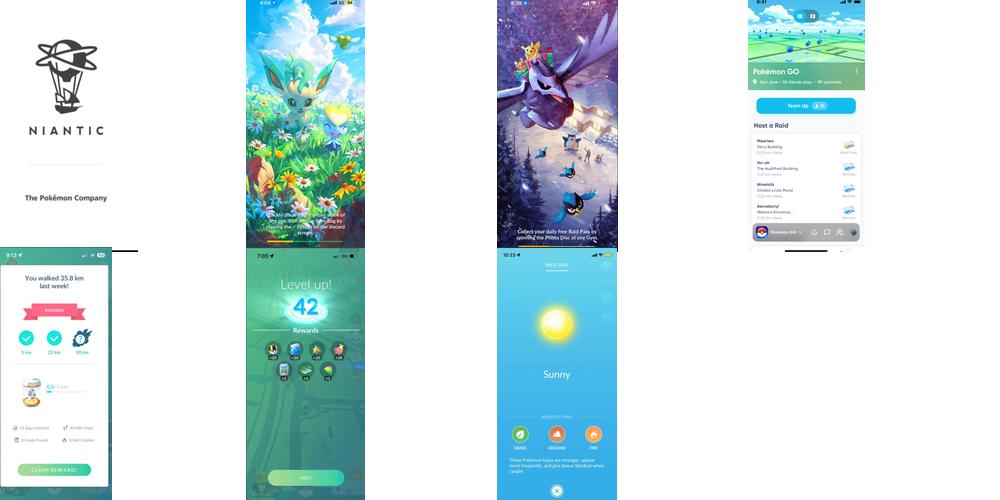
Parameters
There's no need to change any setting by default, but in certain situations, some adjustments may be useful:
Priority Order:
You can enable/disable Pokemon catching or PokeStop spinning, or reorder them to set priority.
RocketStops are handled separately, as the model tends to confuse them frequently.Fast Catch:
Uses the classic fast-catch technique to speed up encounters.
If you're experiencing issues or prefer to ensure successful catches, you can disable this — the bot should still be able to catch normally.Throw Power Boost:
Applies a percentage-based correction to the calculated throw strength.
Since the distance to Pokemon is inferred only from 2D visual data, throw generalization can be tricky.
For distant Pokemon, applying a boost is often the easiest way to ensure successful throws.Preset Pokeball Position:
By default, the bot taps the Pokeball using screen-relative coordinates during encounters (since its position is usually fixed).
However, if this does not align correctly, you can disable this option to allow dynamic detection of the Pokeball.
You can also enable the option to save the detected position once it's found, which improves speed in future encounters.
The Parameters section is primarily intended for testing and experimental configurations:
Cycle Interval:
Defines the pause after each action to control the speed of iteration. A higher value slows down the bot's execution pace.Results per Inference:
Sets the maximum number of results evaluated per detection cycle.
Increasing this can help in scenarios where you want to ignore the most common object — for example, when there are many Pokemon on-screen but you're only targeting PokeStops.Throw Power Boost (%):
Specifies the percentage by which the calculated throw power is increased when Throw Power Boost is enabled. ❗Be careful not to raise this value too much! While it can be fun to see the PokeBall shoot off dramatically, excessively high values may result in on-screen actions that are too fast to execute properly.Thresholds:
Minimum confidence levels required for a detection to be considered valid.
Tweaking these can help if the bot gets stuck on certain tasks or struggles with detection accuracy.
Just if you'd like to support
