
JayD108/DiskRoot
JayD108/DiskRoot has 16 GitHub stars and 0 forks. GitHot measured +6 stars in 24 hours. Last checked 2026-11-15 01:48 UTC. Last push 2026-11-13.
Measured star growth
- in 24h
- +6
- in 7 days
- Collecting history
- in 15 days
- Collecting history
- in 1 month
- Collecting history
Net star changes over overlapping periods, not daily totals. Missing measurements are left blank. Stars measure attention, not software quality.
About
DiskRoot: get to the root of your disk. A fast, offline, read-only disk analyzer for Windows: what fills your drive, what each thing is, whether it's safe to delete, and how the SSD is doing. No admin needed.
Developer ToolsREADME.md
Original
Get to the root of your disk.
What's filling your drive · what each thing is · whether it's safe to delete · how the drive itself is doing
A free, open-source disk analyzer for Windows 10 and 11. Offline. Read-only scanning. No admin needed.

Portable zip · What's new · about 4 MB · Windows 10 / 11, 64-bit


Why · See it · Features · Trust · Install · FAQ · Docs
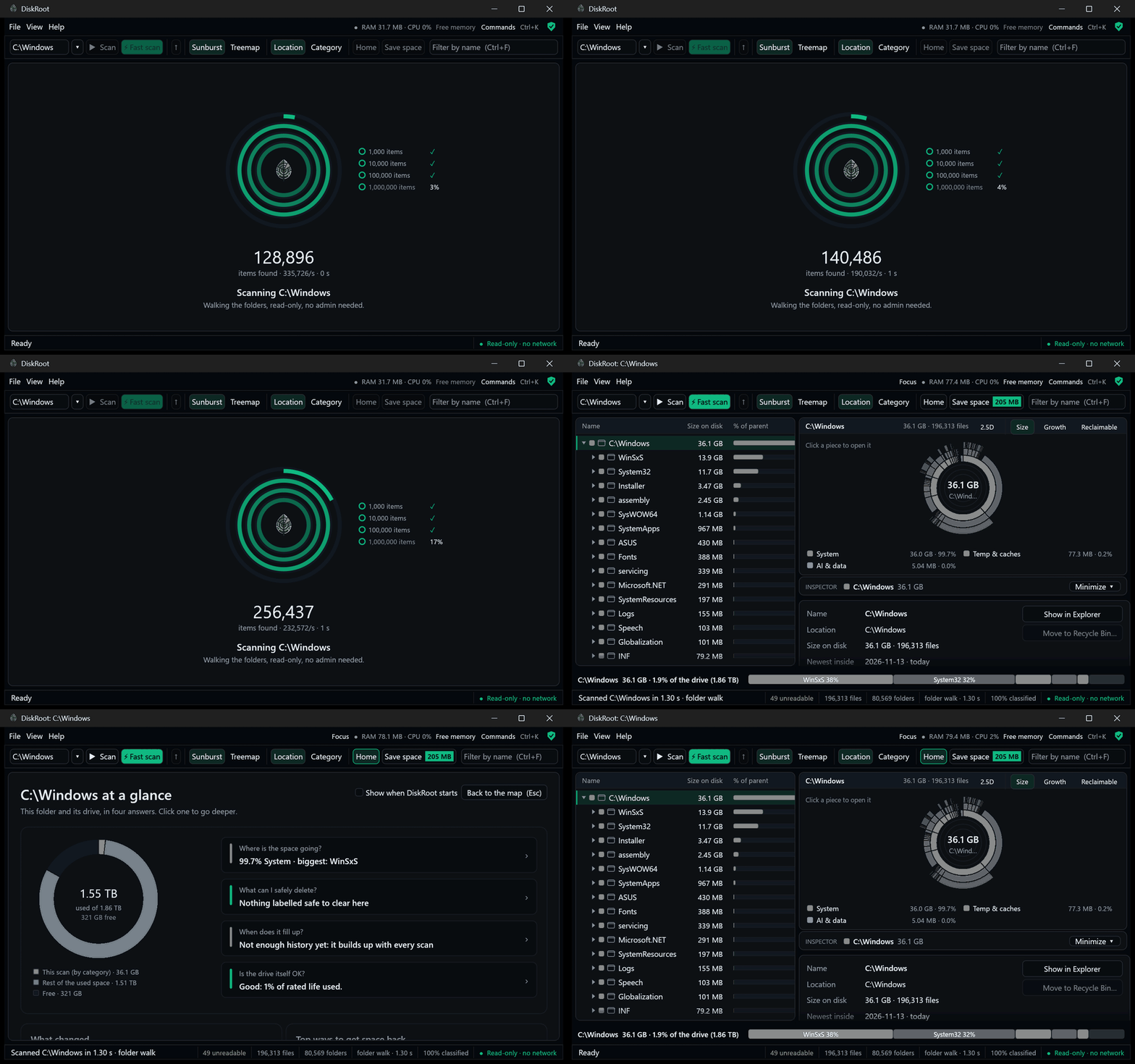
Real speed: a normal scan of C:\Windows (196,000 files), no admin.
Why DiskRoot
Most disk tools stop at "this folder is 13.9 GB". DiskRoot tells you what it is and what to do about it:
C:\Windows\WinSxS · 13.9 GB · System › Component store (WinSxS) · Don't delete by hand Windows component store. Much of its apparent size is hardlinks shared with C:\Windows. Shrink safely with:
Dism /Online /Cleanup-Image /StartComponentCleanup· [Clean up with Windows…]
What that means on a real PC (the developer's laptop: a 1.5 TB drive with 1.7 million files):
| Just counting sizes gives | DiskRoot shows |
|---|---|
C:\Windows is 46 GB |
36 GB: 10 GB were the same files counted under two names (hardlinks) |
| 22.8 GB of files nobody can explain | 1.6 GB left: the rest turned out to be code projects, AI models, datasets, databases, temp files and unfinished downloads |
| "The drive is fine" | The SSD has used 1% of its rated life, and here is who writes to it, also while the PC is idle |
| "Delete something" | 78 GB of caches and temporary files, each with its safety label and exactly how to clear it |
See it in action
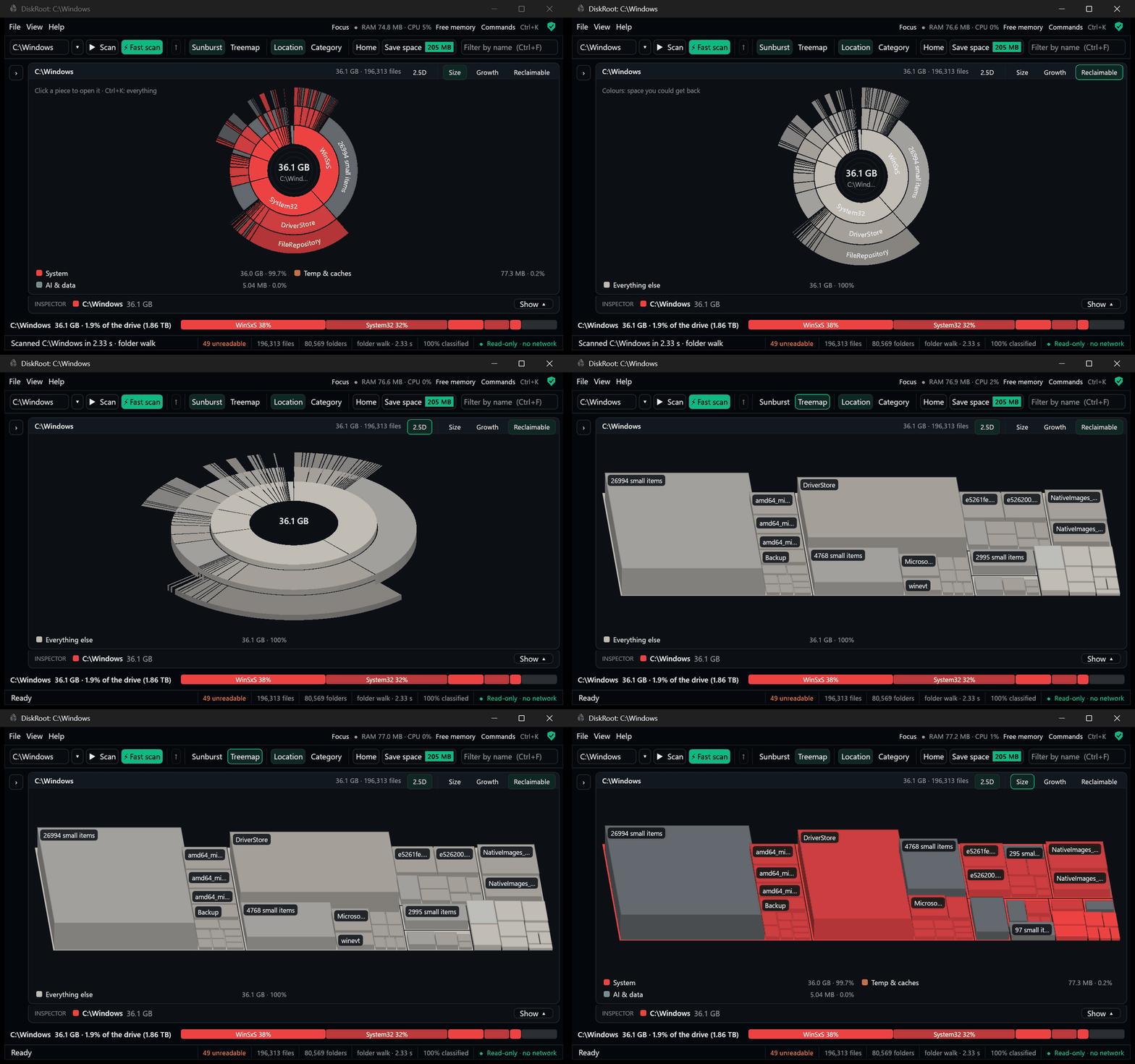 A map that answers questions. Colour by size, growth or what's reclaimable; tilt it into 2.5D. (C:\Windows has almost nothing safe to clear, so Reclaimable is grey here, as it should be.) |
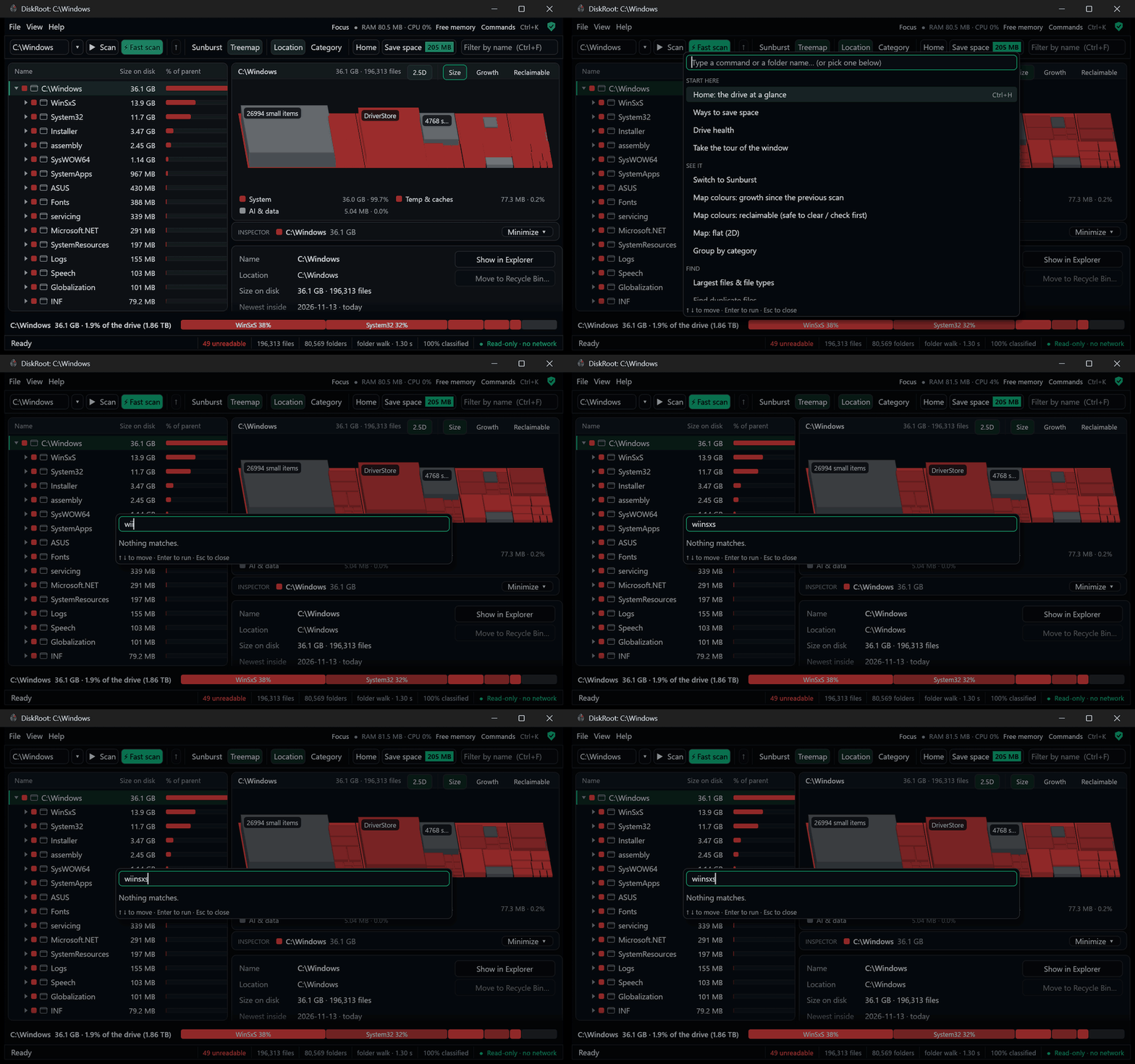 Ctrl+K finds anything. Every command and every folder by name. Here: winsxs → the Inspector says Don't delete by hand and offers the safe way. |
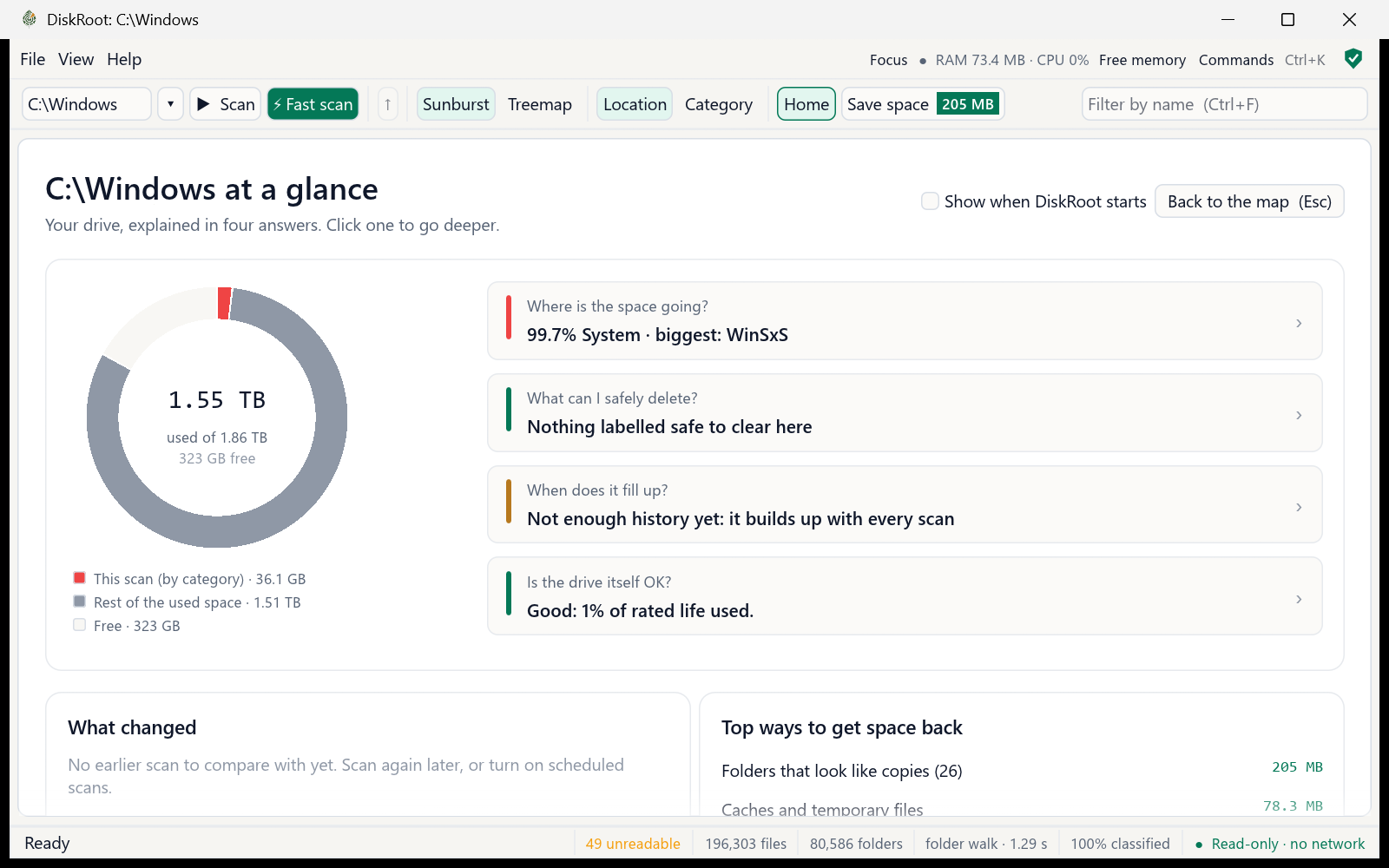 Home: the drive at a glance, in four answers you can click. |
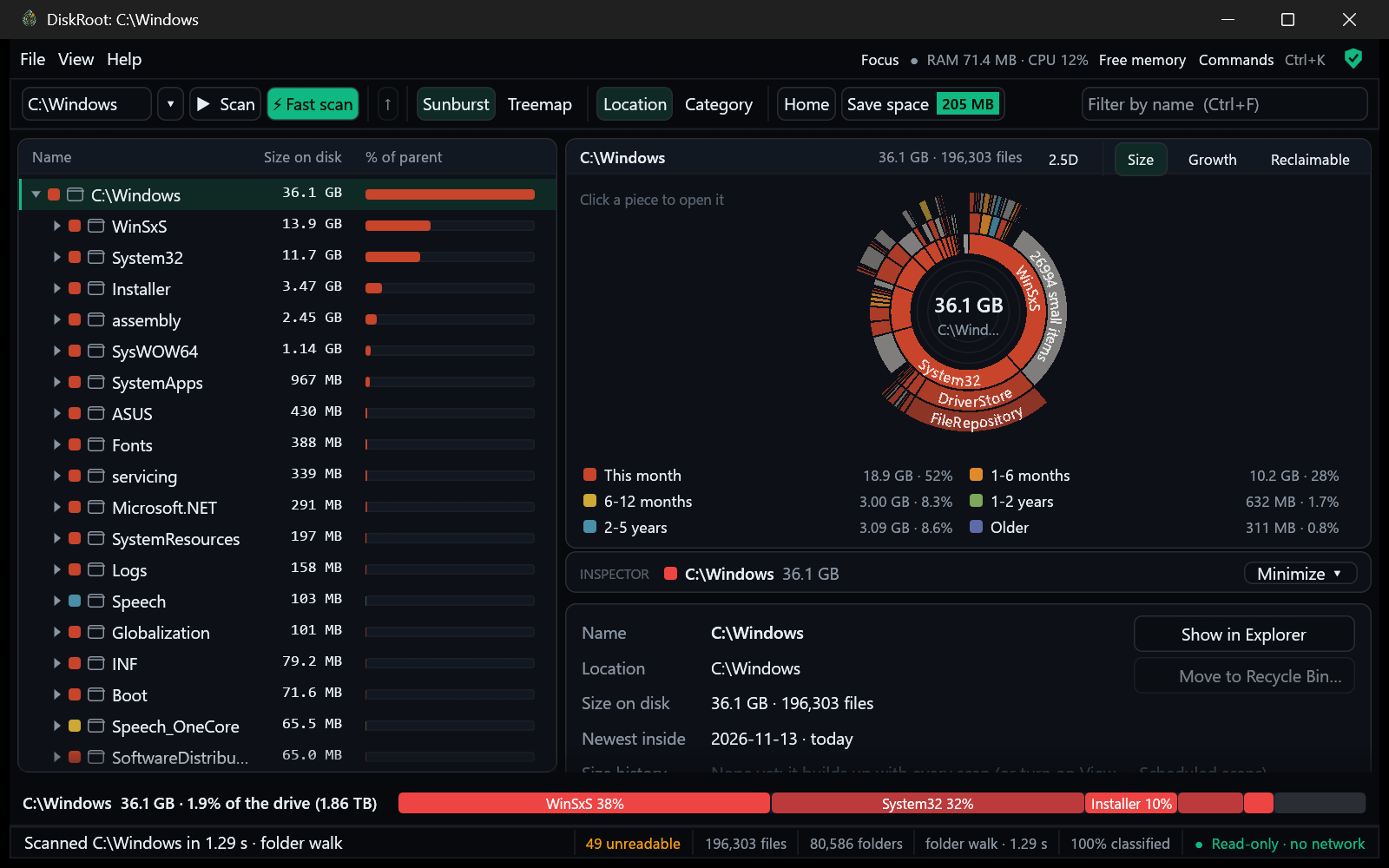 Coloured by age: what hasn't been touched in years stands out. |
What it does
| 🔎 Know what everything is | Every file gets a category (Apps & Games, Dev stuff, AI & data, Media, System, Temp & caches…) and a label: safe to clear, check first or don't delete by hand. It recognises code projects, AI models, datasets, and which program or Steam/Epic game a folder belongs to. |
| 🧹 Get space back, safely | Save space lists caches, old build folders, model stores, Recycle Bin, hibernation file, previous Windows, WSL/Docker disks, duplicates, and what to compress. Deleting goes to the Recycle Bin, after you confirm; Windows and system folders are locked. |
| 💚 Drive health | The SSD's own report in plain words: rated life used, data written, temperature, errors. Writes per day, an honest life estimate, and which programs write to your drive, also while idle. |
| 🕰️ Keep watch | Optional scheduled scans (no admin, no window: scan and exit), what changed while you were away, and "C: would be full in about 40–70 days". |
| 🗜️ Built-in compression | Windows' own file compression on many files at once (about 5–9× faster than compact.exe in our test). Same files, less space, undoable. |
| 🖥️ Runs on any PC | One small exe. No graphics driver (VMs, Remote Desktop)? It draws on the CPU by itself. Slow PC? Animations turn off by themselves. Idle, it draws nothing. |
Everything else
- Where every GB is: the drive's used space next to what the scan counted, the folders a normal scan can't read, and what the rest is.
- Fast scan: with admin, a short-lived helper reads the drive's file table directly: a whole NTFS drive in 1–2 s. The window itself never needs admin.
- Instant reopen: your last scan opens in under a second; What changed points at the exact folders that grew or shrank.
- Largest files and types, duplicate finder, similar folders (
project,project_v2,project - Copy), leftovers of uninstalled programs, live updates while open, size alerts. - Teach DiskRoot: right-click a folder → This is… (my project, a dataset, a game…), or write your own rules.
- Studio window: the map in the middle, a folder list and an Inspector you can resize or minimize, Focus mode, breadcrumbs, notices. Studio look (dark or Daylight) or the Classic look.
- Its own RAM and CPU at the top, free its memory with one click, gentle scanning, screen-reader names for the map and the palette, a six-step guided tour.
Every feature, with what happens underneath: FEATURES-AND-DEVELOPMENT.md.
Keyboard
| Ctrl+K | F5 | Ctrl+F5 | Ctrl+H | F | Ctrl+B / J | Ctrl+F |
|---|---|---|---|---|---|---|
| find anything | scan | fast scan | Home | focus the map | hide list / Inspector | filter by name |
Measured and safe
Measured on the developer's laptop (2 TB NVMe, 1.5 TB in 1.7 million files):
Method: BENCHMARKS.md |
Safe by design
|
Details: SECURITY-AND-PRIVACY.md · report a problem privately: SECURITY.md.
Get started
- Download
diskroot-setup.exeand run it. - Open DiskRoot, pick a drive, press Scan (F5), or Fast scan (Ctrl+F5) for a whole drive.
- Click anything: the Inspector explains it. Press Save space for ways to get space back.
- Want it to keep watch? View → Scheduled scans.
What the installer puts on your PC · portable use · silent install · upgrading
diskroot.exe |
The app, in Program Files (only admins can change it there, which keeps Fast scan safe) |
droot |
The command-line tool, already on PATH (guide) |
| Start menu, right-click Analyze with DiskRoot, optional desktop shortcut | Pick them on the components page |
| Uninstaller | Settings → Apps → DiskRoot. Removes exactly what it installed, including the PATH entry and any scheduled scan |
- No install? The portable zip: unzip anywhere, run
diskroot.exe(Fast scan needs the installed version). - IT:
diskroot-setup.exe /Sinstalls silently;"C:\Program Files\DiskRoot\uninstall.exe" /Sremoves it. - Upgrading: just run the new installer; settings and saved scans stay.
For the terminal
> droot scan C:\ --top 5        what's biggest
> droot health                  is the SSD OK?
> droot writes --secs 10        who's writing right now?
> droot history C: --days 30    what grew this month, when it would be full
Every command has --json for scripts. Guide: docs/CLI.md.
FAQ
Windows says "Windows protected your PC". Is it safe?
Releases aren't code-signed yet (a certificate costs money every year), so SmartScreen warns about any new download. Click More info → Run anyway. Every file is built by GitHub Actions from this repository, and you can check your download against SHA256SUMS.txt on the release page.
Does it send anything anywhere?
No. DiskRoot has no network code: no accounts, no telemetry, no update checks. We measure zero connections during a full scan. Your scans stay in %LOCALAPPDATA%\DiskRoot.
Can it delete something important by accident?
Scanning only reads. Deleting is always your choice: it goes to the Recycle Bin after a confirmation, each item is re-checked on disk first, and Windows and Program Files are locked, even under other spellings of the path.
Which drives does it work on?
Normal scan: any drive Windows can open: NTFS, FAT32, exFAT, USB sticks, network shares. It's tested most on NTFS SSDs, so reports from HDDs and other file systems are welcome. Fast scan reads the NTFS file table, so it needs a whole NTFS drive and the installed version. Drive health reads NVMe drives today (no admin needed); SATA and USB drives say so, and support for them is planned.
How is it different from WinDirStat or WizTree?
They're good at showing sizes. DiskRoot also tells you what each thing is, whether it's safe to delete and how, what changed since last time, and how the drive itself is doing, all offline. A speed comparison (an early DiskRoot 0.1 against WizTree 4.33, WinDirStat 2.9 and eDirStat 2.0, with the method) is in BENCHMARKS.md.
Does it need admin?
No. Only Fast scan asks for it, through the Windows prompt, and then only a small helper runs as admin for a few seconds. Started as admin, the window itself warns you.
Learn more
| 🛠️ How it works | Under the hood: reading the drive, the data model, categories, the map, history, deleting, accuracy |
| 📖 Features and development | Every feature: what it does, how to use it, what happens underneath; building and tests |
| 🔒 Security and privacy | What DiskRoot reads and never does, admin rights, your data on disk |
| 💻 Command line | Every command and option, JSON and CSV, script examples |
| 📊 Benchmarks | Speed, compression and disk-write measurements, with the method |
| 🗺️ Roadmap | Releases and what's next |
Help build it
DiskRoot is open for contributions, especially compression: text and programs save 50–70%, but float arrays only ~15% and model weights 6–8%. If you know compression, read the call for compression research. Other open problems (drive health on more SSD brands, known offenders with sources, accessibility, testing): HELP-WANTED.md.
Start with CONTRIBUTING.md. Questions and ideas: Discussions · where to ask: SUPPORT.md · everyone follows the Code of Conduct.
If DiskRoot saved you some space, a ⭐ helps others find it.
Acknowledgements
Claude (by Anthropic) was used as an AI assistant during the development of this project: for code, testing, security review and documentation. All work is reviewed and maintained by the project owner.
License
MIT or Apache-2.0, at your option (LICENSE-MIT, LICENSE-APACHE).