
IvanJosipovic/SvcSystems.UI.Terminal
IvanJosipovic/SvcSystems.UI.Terminal has 37 GitHub stars and 5 forks. GitHot measured 0 stars in 24 hours. Last checked 2026-11-14 20:11 UTC. Last push 2026-11-13.
What you can do
- Terminal emulation, scrollback, selection, search, and caret rendering
- Mouse reporting and Kitty keyboard protocol support
- Clipboard hooks and configurable right-click behavior
- Bindable terminal model and styling hooks
Measured star growth
- in 24h
- 0
- in 7 days
- Collecting history
- in 15 days
- Collecting history
- in 1 month
- Collecting history
Net star changes over overlapping periods, not daily totals. Missing measurements are left blank. Stars measure attention, not software quality.
About
Terminal Control for Avalonia
Developer ToolsREADME.md
OriginalSvcSystems.UI.Terminal


An Avalonia terminal control powered by XTerm.NET.
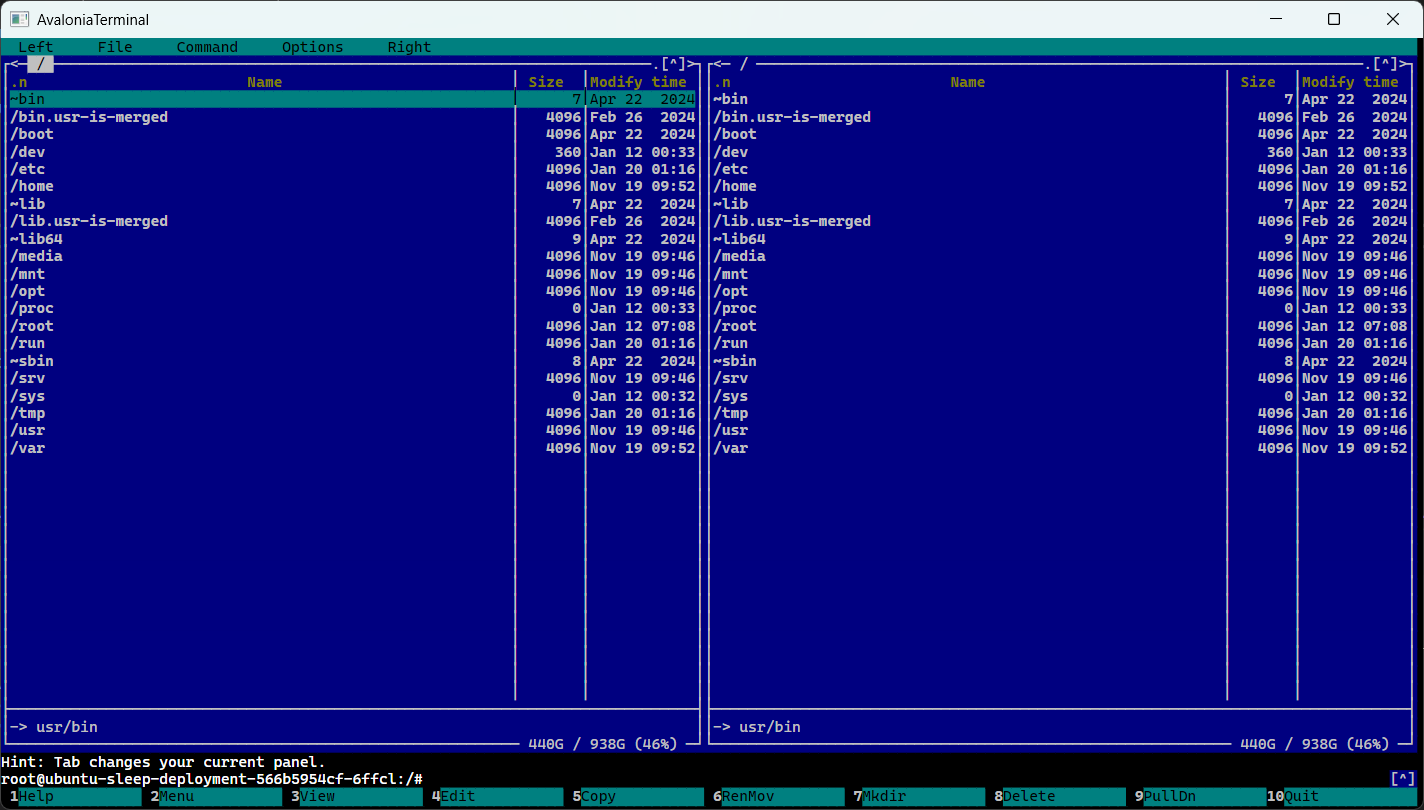
Features
- Terminal emulation, scrollback, selection, search, and caret rendering
- Mouse reporting and Kitty keyboard protocol support
- Sixel graphics
- Clipboard hooks and configurable right-click behavior
- Bindable terminal model and styling hooks
- Desktop sample with shell, scrollback, and selection demos
Install
dotnet add package SvcSystems.UI.Terminal
Quick start
Add the control to a view:
<Window
    xmlns="https://github.com/avaloniaui"
    xmlns:x="http://schemas.microsoft.com/winfx/2006/xaml"
    xmlns:terminal="using:SvcSystems.UI.Terminal">
    <terminal:TerminalControl Name="TerminalView" />
</Window>
Create a model and connect it to a process or pseudo-terminal. Send process output to
Feed and forward every UserInput payload—including keyboard, mouse, and protocol
replies—to the process:
var model = new TerminalControlModel();
TerminalView.Model = model;

model.UserInput += (_, e) =>
{
    process.StandardInput.BaseStream.Write(e.Data.Span);
    process.StandardInput.BaseStream.Flush();
};

// For each chunk read from the process:
model.Feed(buffer, bytesRead);
The host owns process and PTY management. TerminalControlModel also supports
standalone use, and TerminalOptions can configure the initial size, scrollback,
cell metrics, resize reflow, and keyboard protocol.
Interaction
- Selection: drag to select, double-click for a word or expression, and triple-click for a row. Selection extends while dragging outside the viewport.
- Search: call
Search(text), thenSelectNextSearchResult()orSelectPreviousSearchResult(). - Right-click: choose
ContextMenu,CopyOrPaste, orNonewithRightClickAction. - Mouse reporting: pointer events go to the terminal application when it enables xterm mouse reporting; otherwise they remain available for selection.
- Kitty keyboard: keys use the protocol only after the application enables it.
Disable it with
TerminalOptions.KittyKeyboardEnabled = falseif needed.
Clipboard reads and terminal-initiated clipboard writes are disabled by default. Hosts handling untrusted terminal output should keep writes disabled unless they have an appropriate user-consent policy.
Styling
Add TerminalTheme to your application styles:
<Application
    xmlns="https://github.com/avaloniaui"
    xmlns:x="http://schemas.microsoft.com/winfx/2006/xaml"
    xmlns:terminal="using:SvcSystems.UI.Terminal">
    <Application.Styles>
        <terminal:TerminalTheme />
    </Application.Styles>
</Application>
The theme provides the 256-color palette as SvcSystems.UI.TerminalColor0 through
SvcSystems.UI.TerminalColor255. Override those resources to customize the palette.
Individual controls expose FontFamily, FontSize, CaretBrush, and SelectionBrush.
Loading Styles/Colors.axaml with StyleInclude remains supported for compatibility,
but TerminalTheme is preferred.
Run the sample
dotnet run --project src/SvcSystems.UI.Terminal.Desktop
The sample includes Shell, Scroll, and Selection tabs. On Windows, the shell
prefers a WSL PTY, then falls back to ConPTY and a redirected process. WSL is preferred
because ConPTY mediates terminal queries and can change reported capabilities and
Unicode widths. A detector run inside Windows Terminal or a ConPTY-backed shell
measures that host as well as the control.
Tests
The test project targets .NET 10 and .NET 11. To run the suite on both:
dotnet test --project tests/SvcSystems.UI.Terminal.Tests/SvcSystems.UI.Terminal.Tests.csproj -f net10.0
dotnet test --project tests/SvcSystems.UI.Terminal.Tests/SvcSystems.UI.Terminal.Tests.csproj -f net11.0
The ucs-detect integration tests run the pinned Python detector through a POSIX PTY
connected directly to a TerminalControl in an Avalonia Headless window. They check
named detector capabilities and Unicode measurements; report-schema checks catch
uncovered detector fields. The JSON report, dependency versions, and raw PTY transcript
are saved under TestResults/ucs-detect in the test output directory.
The fixture provisions and verifies the pinned dependencies in
tests/requirements-ucs-detect.txt. On Linux,
Python 3 with venv and pip is required. On Windows, the fixture uses the default
Ubuntu WSL distribution and manages its Python environment. Set UCS_DETECT_PYTHON
(Linux/macOS) or UCS_DETECT_WSL_PYTHON (Windows) to use an existing environment.
For a focused run, add a test filter, for example:
dotnet test --project tests/SvcSystems.UI.Terminal.Tests/SvcSystems.UI.Terminal.Tests.csproj -f net10.0 -- --filter-class '*UcsDetectIntegrationTests*'
On Windows, the optional UcsDetectConPtyComparisonTests diagnostic compares the
direct-PTY baseline with the sample's ConPTY route. Enable it with
UCS_DETECT_CONPTY_COMPARE=1; it requires Windows, WSL Ubuntu, and the pinned Python
dependencies. The diagnostic is skipped by default.
Benchmarks
Run the Sixel and Kitty image benchmarks in Release mode:
dotnet run -c Release --project benchmarks/SvcSystems.UI.Terminal.Benchmarks -- --filter "*Sixel*" "*Kitty*"
See benchmarks/README.md for results and notes about the
headless CPU measurements.