
HeapsIO/hide has 662 GitHub stars and 78 forks. GitHot measured 0 stars in 24 hours. Last checked 2026-11-15 23:31 UTC. Last push 2026-11-13.
Measured star growth
- in 24h
- 0
- in 7 days
- Update delayed
- in 15 days
- Update delayed
- in 1 month
- Update delayed
Net star changes over overlapping periods, not daily totals. Missing measurements are left blank. Stars measure attention, not software quality.
About
Heaps IDE
Developer ToolsREADME.md
OriginalHide

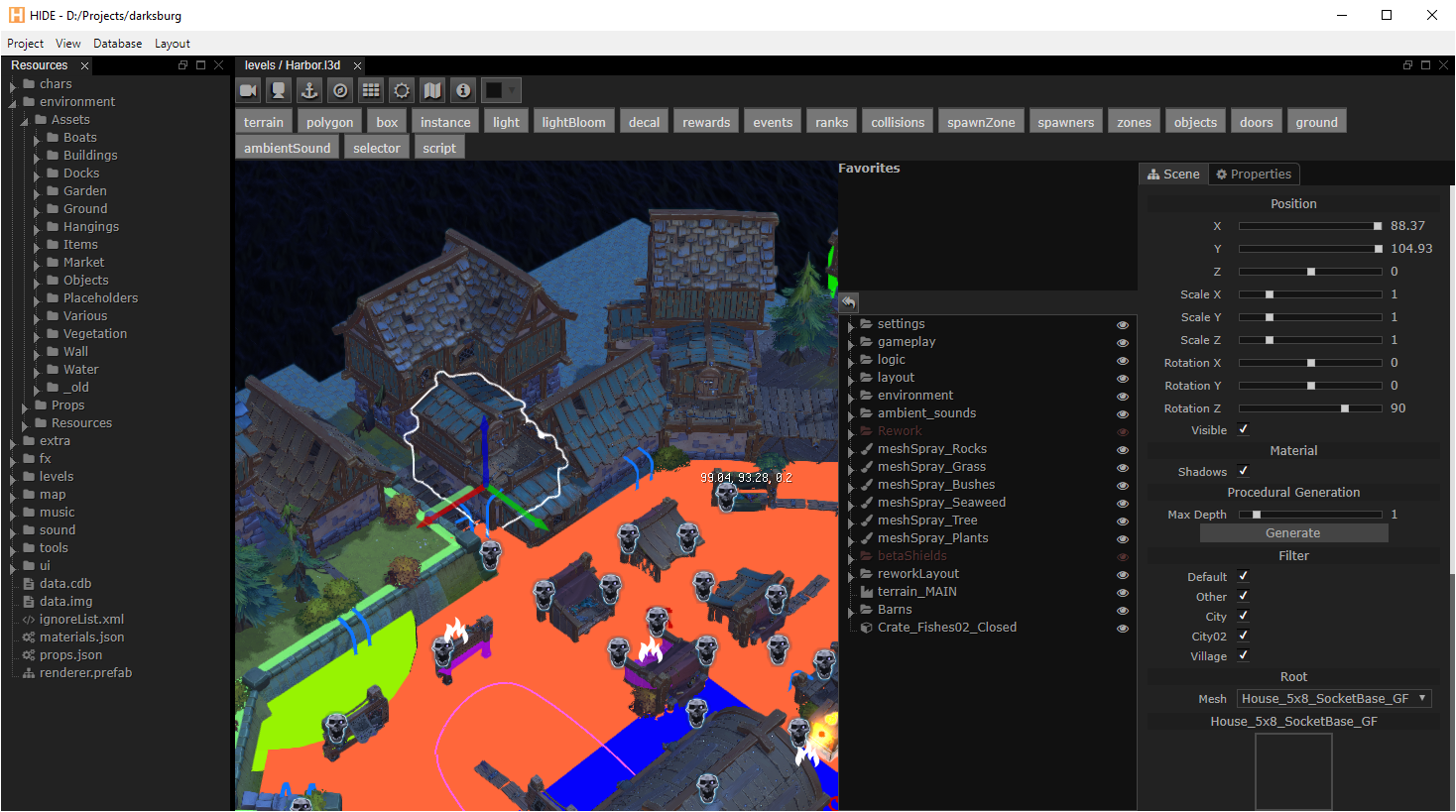
Hide (Heaps IDE) is an extensible editor that can be used as a middleware for various tasks, such as:
- preview 3D models and textures
- edit materials properties
- create timeline based visual effects and movements
- create whole 3D levels, place lights, paint terrain, bake shadow maps and volumetric light maps
- create and edit 2D and 3D particles systems
- edit and modify your Castle Database
- extend by adding game specific prefabs
- extend with your own game specific editors
Nightly builds
If you don't want to build Hide from source, you can download a nightly build from here.
Compiling from source
1. Install Prerequisites
- Install Haxe using appropriate installer from https://haxe.org/download/
- Install these libraries:
haxelib git format https://github.com/HaxeFoundation/format
haxelib git heaps https://github.com/HeapsIO/heaps
haxelib git castle https://github.com/ncannasse/castle
haxelib git hxbit https://github.com/ncannasse/hxbit
haxelib git hscript https://github.com/HaxeFoundation/hscript
haxelib git hxnodejs https://github.com/HaxeFoundation/hxnodejs
haxelib git domkit https://github.com/HeapsIO/domkit
haxelib git hx3compat https://github.com/HaxeFoundation/hx3compat
haxelib git hashlink https://github.com/HaxeFoundation/hashlink master other/haxelib/
2. Build Heaps IDE
- Clone this repo
- Windows: run
setup.bat. It checks Node.js and Haxe, installs Electron inbin/electronif missing (step 3 not needed), then runshaxe hide.hxml - Windows, DirectX 12: run
setup_jsdx.batinstead. It also buildsbin/jsdx/dx12.nodeand installs the shader compiler DLLs, then runshaxe hide_jsdx.hxml. Requires Visual Studio with the C++ tools.HASHLINK_SRCcan be set to override the hashlink source used to get the cpp files for the dx12 driver - Other platforms: run
haxe hide.hxml - This will create hide.js (editor) and main.js (Electron main process) in the bin folder
- If there are errors when compiling, make sure you are using the latest libraries from git
3. Install Electron
- Windows: already done by
setup.bat/setup_jsdx.bat(step 2) - Download the Electron release zip for your platform (
electron-vXX-<platform>-x64.zip) and unzip it into the/bin/electrondirectory - On OSX, copy all files from
bininto theElectron.app/Contents/Resources/appfolder
Running
- Windows: Run
hide.cmd(orcdb.cmdfor CastleDB) - Linux: Run
electron/electron .from thebindirectory (add--cdbfor CastleDB) - OSX: Open the Electron application
Configuration
In your project's resource folder, you can create a props.json configuration file to override Hide's default settings. Refer to bin/defaultProps.json for the list of available settings.
Extending Hide
Custom plugin
In your project, create an hxml configuration for building the plugin. Example:
# hide-plugin.hxml
-cp src
-lib hide
-lib hxnodejs
-lib castle
--macro hide.Plugin.init()
-js hide-plugin.js
-debug
HideImports
HideImports.hx here is just a file that lists all the classes you want to embed in your plugin. Example:
// HideImports.hx
import prefabs.MyPrefab1;
import prefabs.MyPrefab2;
Running haxe hide-plugin.hxml should now generate a hide-plugin.js plugin file.
In your project configuration file (res/props.json) you can now include this file like so:
{
    "plugins": ["../hide-plugin.js"]
}
Aside from javascript plugins, you can add your own stylsheets:
{
    "plugins": ["../hide-plugin-style.css"]
}
Custom prefab
Example of a project-specific custom prefab:
import hrt.prefab.Context;
import hrt.prefab.Library;

class MyPrefab extends hrt.prefab.Object3D {

    public function new(?parent) {
        super(parent);
        type = "myprefab";
    }

    override function make(ctx:Context):Context {
        var ret = super.make(ctx);
        // Custom code...
        return ret;
    }

    #if editor

    override function getHideProps() : hide.prefab.HideProps {
        return { icon : "cog", name : "MyPrefab" };
    }

    #end

    static var _ = Library.register("myprefab", MyPrefab);
}
Custom file views
You can add your own viewers/editors for files, by extending hide.view.FileView class:
import hide.view.FileView;

class CustomView extends FileView {

    // onDisplay should create html layout of your view. It is also called each when file is changed externally.
    override public function onDisplay()
    {
        // Example of initial layout setup.
        element.html('
          <div class="flex vertical">
            <div class="toolbar"></div>
            <div class="content"></div>
          </div>
        ');
        var tools = new hide.comp.Toolbar(null, element.find(".toolbar"));
        var content = element.find(".content"));
        // Importantly, use `getPath()` to obtain file path that you can use for filesystem access.
        var path = getPath();
        // ... your code to fill content
  }

  // Register the view with specific extensions.
  // Extensions starting with `json.` refer to `.json` files with `type` at root
  // object being second part of extension ("type": "customView" in this sample).
  // Otherwise it is treated as regular file extension.
  // Providing icon and createNew is optional. If createNew set, HIDE file tree will have a context menu item to create new file that FileView represents.
  static var _ = hide.view.FileTree.registerExtension(CustomView, ["json.customView", "customview"], { icon: "snowflake-o", createNew: "Dialog Context" });

}
UI components
HIDE has two kinds of UI components:
hide.html.WebComponent: standalone, reusable custom elements (containers, widgets) created withcreate()orhide.html.Html.build.hide.comp.Component: general purpose and complex parts owning a rootelement. Views are components.
Eligible hide.comp.Components may be converted to web components later.