
HashLips/generative-art-node
HashLips/generative-art-node has 2,098 GitHub stars and 869 forks. GitHot measured 0 stars in 24 hours. Last checked 2026-11-07 23:08 UTC. Last push 2023-04-07.
Create generative art by using the canvas api and node js
Measured star growth
- in 24h
- 0
- in 7 days
- Collecting history
- in 15 days
- Collecting history
- in 1 month
- Collecting history
Net star changes over overlapping periods, not daily totals. Missing measurements are left blank. Stars measure attention, not software quality.
README.md
OriginalWelcome to HashLips 👄
Important: There is a new repo for this code. https://github.com/HashLips/hashlips_art_engine
All the code in these repos was created and explained by HashLips on the main YouTube channel.
To find out more please visit:
generative-art-node
Create generative art by using the canvas api and node js
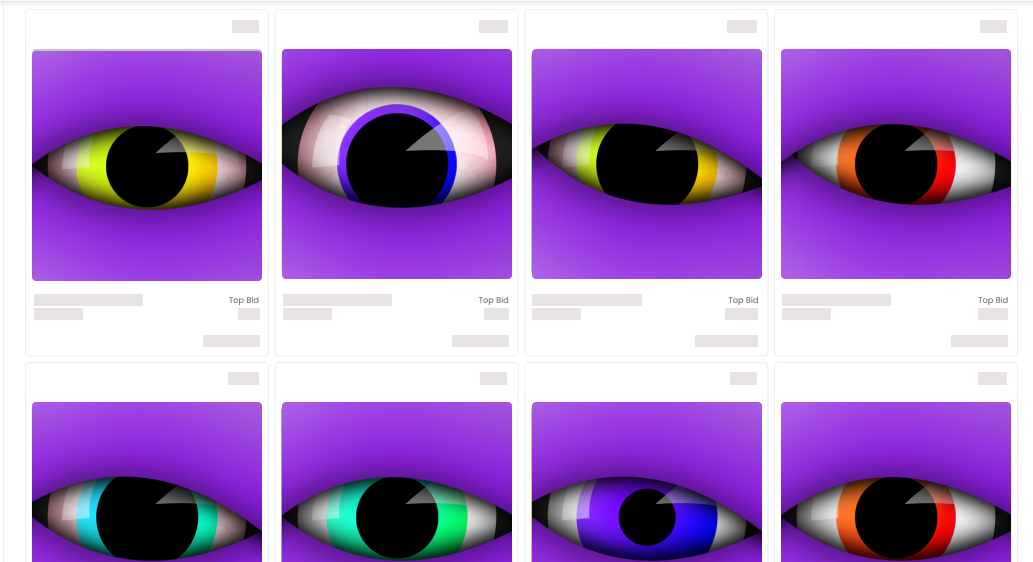
Installation
git clone https://github.com/HashLips/generative-art-node

yarn install
Usage
Create your different layers as folders in the 'layers' directory, and add all the layer assets in these directories. Optionally, append '_r' and '_sr' to the layer file names to make those layer files rare or super rare respectively.
Example: If you had an ball layer you would create a ball directory, and then a file might be called:
red_eye_ball_sr.pngred_eye_ball_r.pngred_eye_ball.png
Rarity is customizable in
src/config.js.
Once you have all your layers, go into src/config.js and update the layersOrder array to be your layer folders name in order of the back layer to the front layer.
Example: If you were creating a portrait design, you might have a background, then a head, a mouth, eyes, eyewear, and then headwear, so your layersOrder would look something like this:
const layersOrder = [
    { name: 'background', number: 1 },
    { name: 'ball', number: 2 },
    { name: 'eye color', number: 12 },
    { name: 'iris', number: 3 },
    { name: 'shine', number: 1 },
    { name: 'bottom lid', number: 3 },
    { name: 'top lid', number: 3 },
];
The name of each layer object represents the name of the folder (in /layers/) that the images reside in. The number of each layer object represents the total number of image files you want to select from (possibly including blanks.) For instance, if you have three images in a layer folder and want to pick one of those each time, the number should be 3. If you have a single image in a layer that you want to increase the rarity of to 1 in 100, the number for that layer should be 100. In this case, 99 times out of 100, you will get a completely transparent layer.
Then optionally, update your format size, ie the outputted image size, and the defaultEdition, which is the amount of variation outputted.
When you are all ready, run the following command and your outputted art will be in the build directory:
npm run build
Explore related projects
codecrafters-io/build-your-own-x
Master programming by recreating your favorite technologies from scratch.
560,819 starspublic-apis/public-apis
A collective list of free APIs
497,054 starsmorluto/rea
Reverse engineer anything with agents, from app behavior down to native binaries.
441,335 starsopenclaw/openclaw
The AI that really does things. Any OS. Any Platform. The lobster way. 🦞
394,154 stars