
Elevate08/qs-bitwarden-cli
Elevate08/qs-bitwarden-cli has 40 GitHub stars and 19 forks. GitHot measured 0 stars in 24 hours. Last checked 2026-11-15 02:54 UTC. Last push 2026-11-13.
Measured star growth
- in 24h
- 0
- in 7 days
- Collecting history
- in 15 days
- Collecting history
- in 1 month
- Collecting history
Net star changes over overlapping periods, not daily totals. Missing measurements are left blank. Stars measure attention, not software quality.
About
Bitwarden on quickshell with keyboard navigation and a goal to capture every feature from the browser extension
SecurityREADME.md
Originalqs-bitwarden-cli
Your Bitwarden vault in the Omarchy status bar. Search, copy, and manage every item type without opening a browser.




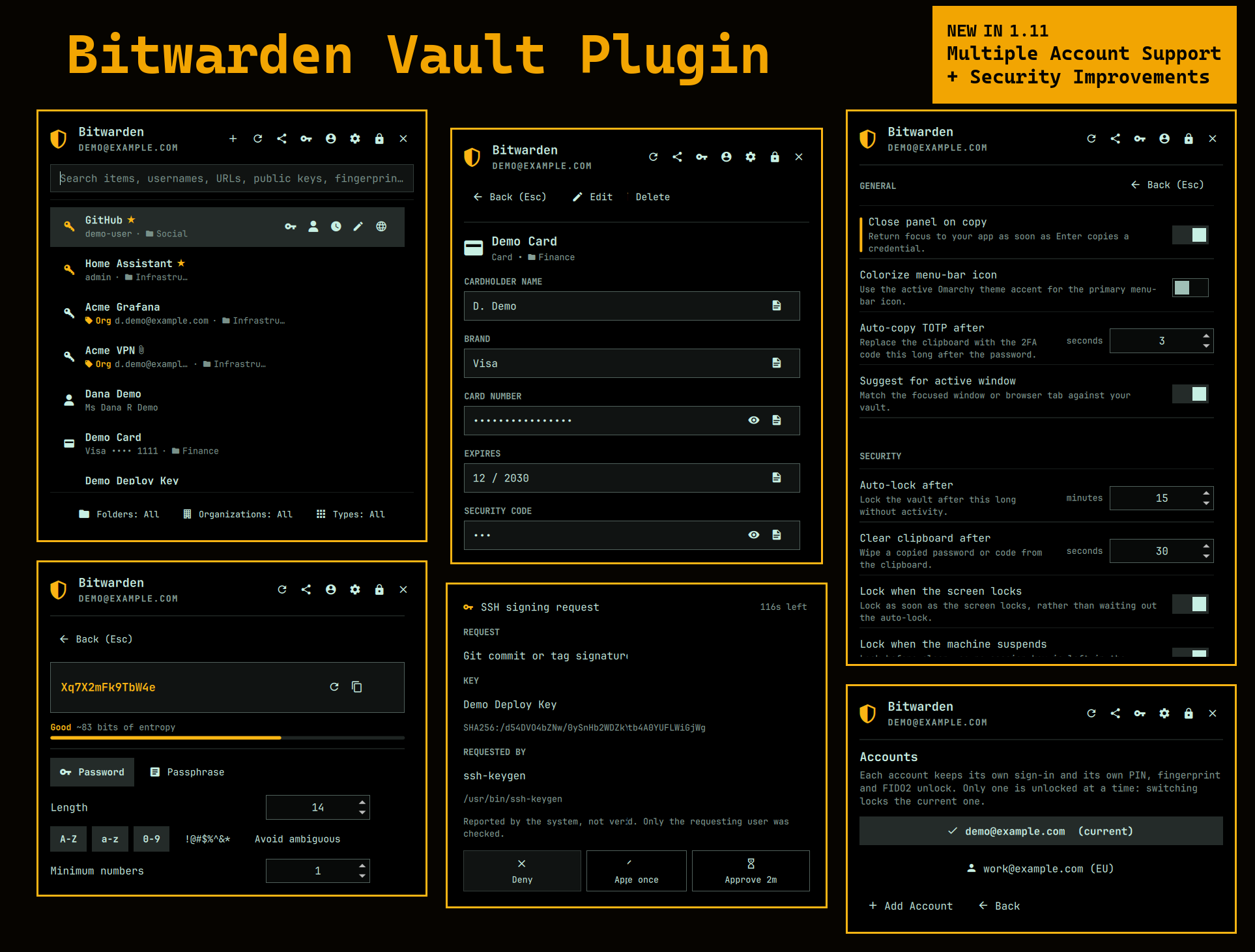
Built on Quickshell and the official Bitwarden CLI. Keyboard-first, fast, and it never writes your vault to a cache of its own.
Install
One command. It clones the plugin, enables it, and puts it in the bar:
omarchy plugin add https://github.com/Elevate08/qs-bitwarden-cli --enable
It runs on x86_64 and aarch64 (ARM64, such as Asahi Linux on Apple Silicon): the plugin's small helper programs ship prebuilt for both, built by CI from this repository's source and checked again before they are committed.
Nothing else has to be installed first. Open the panel and it tells you what it
still needs -- on a stock Omarchy install that is the Bitwarden CLI and jq --
with an Install button that hands off to Omarchy's own installer.
If another Node.js package is already installed -- nodejs, which Zed pulls
in, for one -- Arch's bitwarden-cli cannot go in beside it: it needs
nodejs-lts-jod, and Omarchy's installer answers pacman's "Remove nodejs?"
with no. The setup screen says so, and Install then opens the same
floating terminal running sudo pacman -S --needed bitwarden-cli (with jq
too, if that is also missing), so pacman can ask you itself. Answering yes swaps in Node 22 LTS, which provides
nodejs, so packages that need it stay satisfied; pacman stops instead if one
needs a newer Node than that. To keep your Node instead, install bw with
npm or mise and make sure it is on the shell's PATH; the panel uses
whichever bw it finds there.
To update: omarchy plugin update io.github.elevate08.qs-bitwarden-cli
Sign in
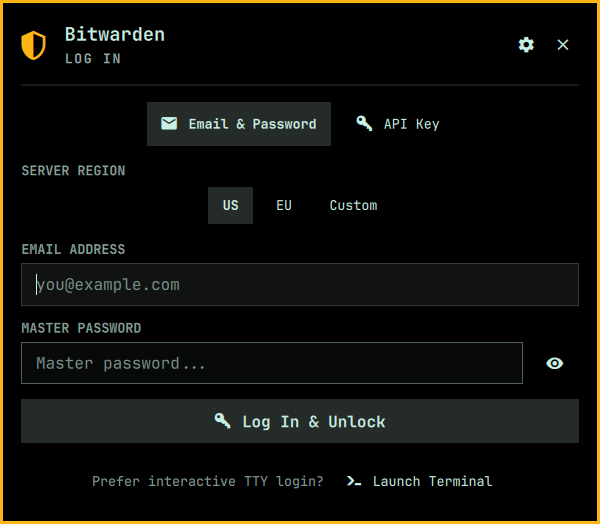
Email and password, with the 2FA prompt appearing only when Bitwarden asks for one. Server region picks US, EU, or a custom URL for self-hosted Bitwarden and Vaultwarden.
Using SSO, a Duo push, or a hardware key? Launch Terminal runs bw login in
a real terminal so Bitwarden's own prompts handle it, then hands the session
straight back to the panel -- no second login just to get in. The same goes for
a two-step code with Bitwarden's standalone bw binary: the panel hands the code
to bw through a Node preload, which the standalone build does not load, so it
asks you to finish in the terminal rather than put the code on a command line.
Unlocking later asks for your master password, or your PIN, in the plugin's own prompt: a card over the focused monitor drawn like Omarchy's polkit prompt, in a short-lived process of its own, so what you type never enters the shell. A wrong one asks again with the reason; Escape cancels.
The tour
Your vault, one keystroke away
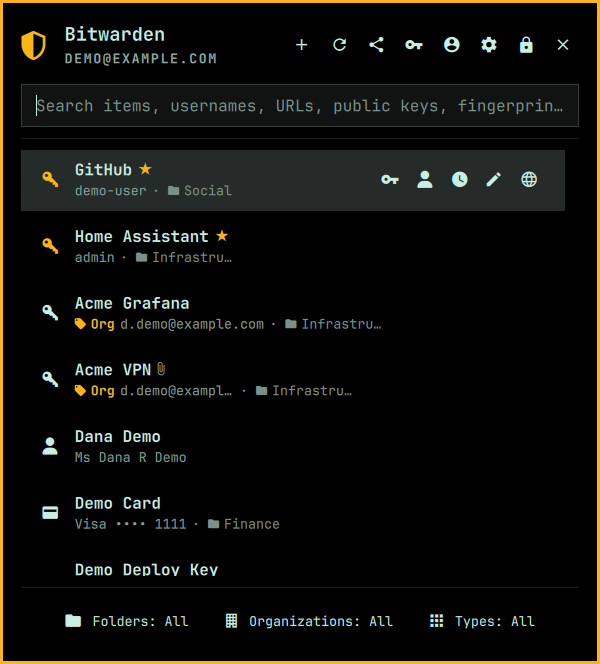
Search by name, username, URL, public key or fingerprint. Enter copies the password and arms the TOTP follow-up; press it again within the window and the live 2FA code replaces it on the clipboard.
Items show their folder and organization inline. The bottom bar filters by folder, organization and type without leaving the keyboard.
Suggestions read the focused window or browser tab and pin the matching credential to the top, so Enter is usually the only key you need. Picking an item remembers it for the site's domain or the app; for a site whose title names neither, pin it with Suggest here (only a pin learns a title's words, so a look-alike title cannot borrow a real site's login).
Suggestions come from the window title, because that is all Hyprland
exposes -- not the tab's real address. A page chooses its own title, so a
phishing page titled github.com is suggested your GitHub login just like
the real one. Check the address bar before you paste; unlike browser
autofill, this is no defence against a look-alike site.
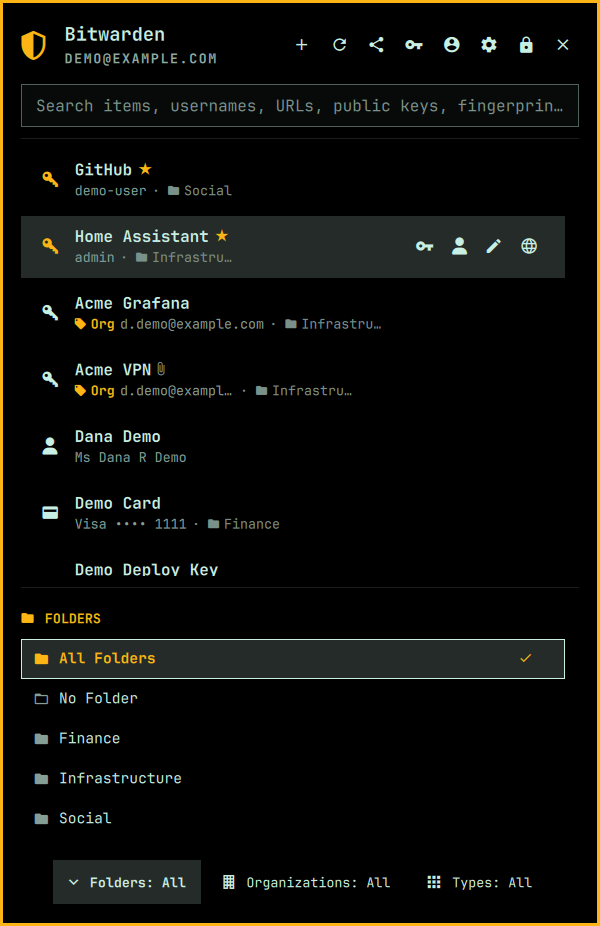
f, o and t open the folder, organization and type drawers. Arrows move, Enter applies, Esc closes -- and the cursor starts on the option already in effect, so Enter never changes anything by accident.
Open an item
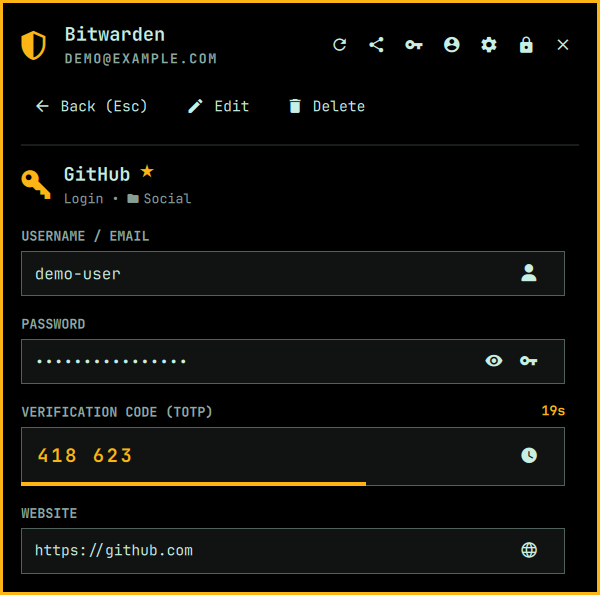
Username, password and the live TOTP with its countdown, the websites attached to the item, its notes and any custom fields. Copy any of them with one key. An item marked Master password re-prompt asks for your master password before anything secret of it is shown, copied or edited.
Suggest here pins this item for the app or site in front of you, so it is offered outright next time rather than inferred.
Every item type, not just logins
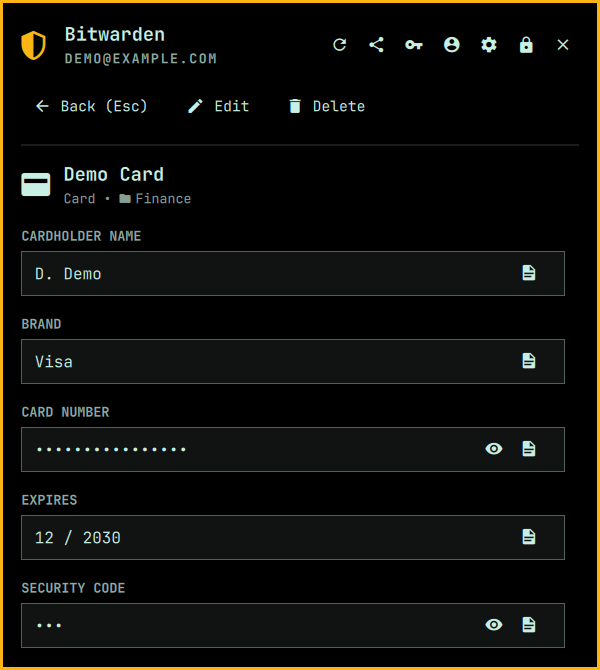
Cards show cardholder, brand, number, expiry and security code. The number and the code are masked until revealed, and each reveals independently -- an eye is a statement about the field it sits on.
Search finds a card by brand, cardholder, or last four digits. Deliberately not by the middle of a number.
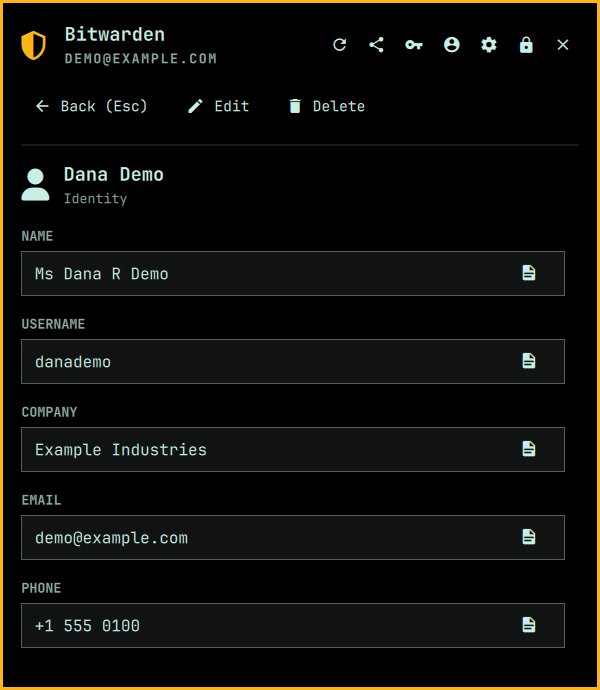
Identities show name, username, company, email and phone, the social security, passport and licence numbers, and the address as a single copyable block rather than seven rows. Empty fields are not drawn, so a sparse identity stays short.
The three identifiers are masked for the reason a password is, with the difference that these cannot be rotated afterwards.
Add and edit, without waiting
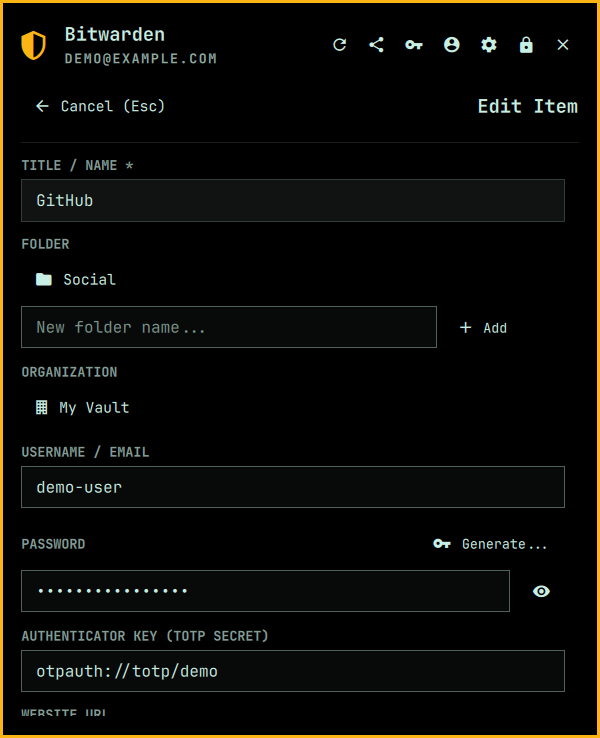
Create logins, secure notes, cards and identities. Enter saves from anywhere in the form, so a long item does not have to be scrolled to the bottom.
Saving and deleting no longer hold the panel. The form closes as the command is launched and the row shows a spinner until the vault answers. If the vault refuses, the list goes straight back to what it actually holds and offers to reopen what you typed.
Generator
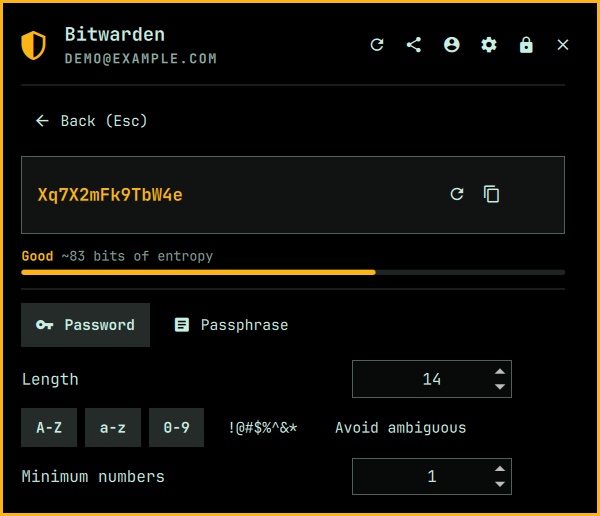
Every option the browser extension has -- length, character classes, minimums, ambiguous characters, or a passphrase with a word count and separator -- with a live strength meter.
Generation comes from Bitwarden's own generator, not a reimplementation, and
answers in about 2ms rather than the ~2.9s a fresh bw generate costs.
The options you pick are remembered, across shell restarts too.
Send
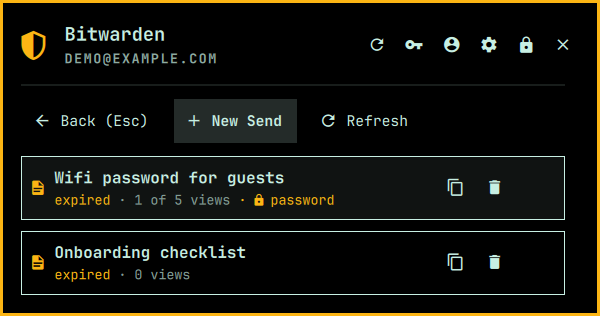
Share a secret through a link that expires on its own, so a credential need not live in a chat log. Set a deletion window, a view limit and an optional password; the link is copied the moment it is created.
SSH agent
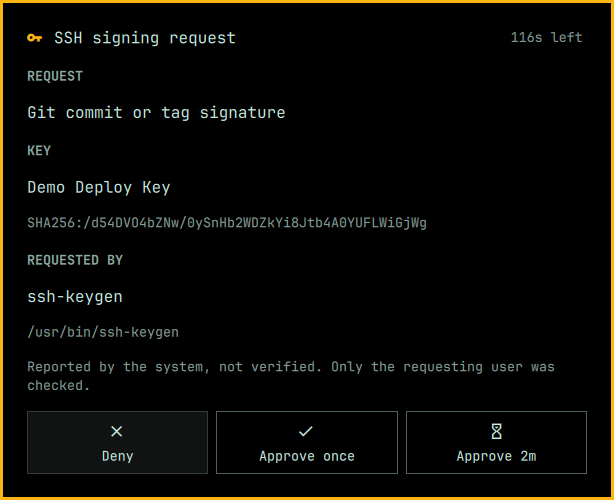
Opt-in. Serves the SSH keys in your vault to ssh, Git and ssh-keygen -Y sign
while the vault is unlocked, from a helper process that holds the private keys
in memory -- never on disk, never in QML.
Every signature says what is being signed and names the key, its fingerprint and the program asking. One approval can cover a whole rebase -- and only the rebase's signatures; live grants are listed and revocable.
Setup, verification and threat model →
Settings
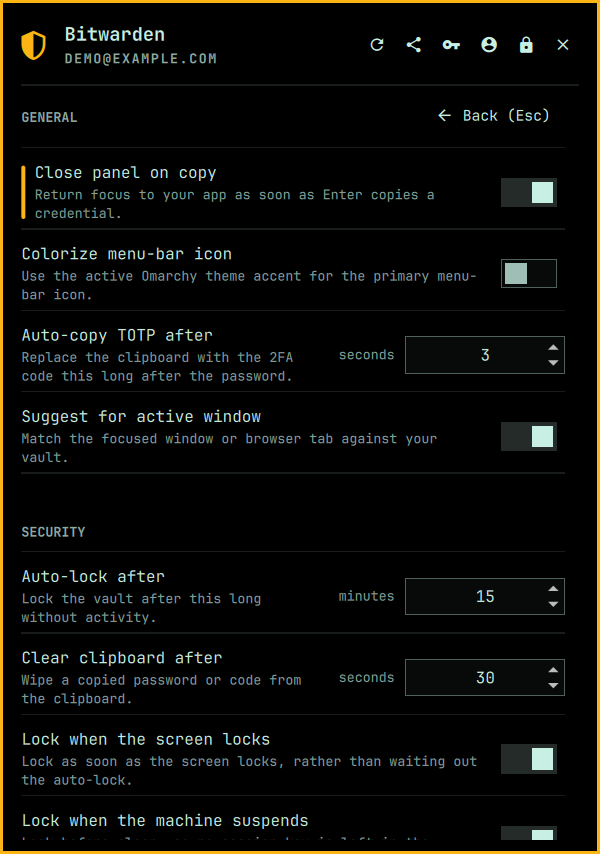
Grouped into General, Security and SSH Agent, with the section you are reading pinned above the list as you scroll. Destructive actions sit under their own DANGER ZONE heading.
Changes are written to the plugin's entry in ~/.config/omarchy/shell.json
through omarchy bar set, so Omarchy owns the file and the shell hot-reloads.
The General settings include Colorize menu-bar icon, which makes the primary Bitwarden shield follow the active Omarchy theme accent. It is off by default; lock and setup/error indicators keep their existing status colors.
How it compares
What this plugin does, next to the two official Bitwarden clients a Linux user would otherwise reach for. Checked against Bitwarden's documentation on 2026-12-01.
| This plugin | Bitwarden CLI | Bitwarden Desktop | |
|---|---|---|---|
| Lives in the Omarchy bar | ✅ | ❌ | ❌ |
| View logins, notes, cards, identities | ✅ | ✅ | ✅ |
| Create / edit logins, notes, cards, identities [^cli-json] | ✅ | ✅ | ✅ |
| View SSH key items | ✅ | ✅ | ✅ |
| Create / import SSH keys [^adr] [^ssh-clients] | ❌ | ❌ | ✅ |
| SSH agent [^ssh-desktop] | ✅ | ❌ | ✅ |
| TOTP codes, auto-copied after the password [^totp] | ✅ | ❌ | ❌ |
| Download attachments | ✅ | ✅ | ✅ |
| Bitwarden Send, text | ✅ | ✅ | ✅ |
| Folders, collections, organizations | ✅ | ✅ | ✅ |
| Password / passphrase generator | ✅ | ✅ | ✅ |
| Unlock with PIN [^pin] | ✅ | ❌ | ✅ |
| Unlock with fingerprint [^fp] [^bio] [^bio-linux] | ✅ | ❌ | ✅ |
| Unlock with FIDO2 key [^fido] | ✅ | ❌ | ❌ |
| Auto-lock on idle, screen lock, suspend [^cli-lock] [^desk-lock] | ✅ | ❌ | ✅ |
| Suggests by focused window / browser tab | ✅ | ❌ | ❌ |
| Self-hosted and Vaultwarden | ✅ | ✅ | ✅ |
| Import / export your vault [^io] | ❌ | ✅ | ✅ |
| Trash: restore a deleted item [^trash] | ❌ | ✅ | ✅ |
| Upload attachments [^attach] | ❌ | ✅ | ✅ |
| File Sends [^filesend] | ❌ | ✅ | ✅ |
| View / edit custom fields [^fields] | ✅ | ✅ | ✅ |
| Organization admin: confirm members, approve devices [^orgadmin] | ❌ | ✅ | ❌ |
[^cli-json]: The CLI creates a login by default; other types need the JSON
edited before encoding, as its documentation describes -- "use a
command-line JSON processor like jq to change a .type= attribute to
create other item types."
[^adr]: This plugin will not. The CLI can encrypt a type-5 item, but
generating a key means putting private material somewhere this plugin has
deliberately kept it out of.
[^ssh-clients]: Bitwarden documents SSH keys as generated or imported "using
the desktop app, web app, and browser extension", and generation is
Ed25519 only.
[^ssh-desktop]: Bitwarden's SSH agent is a desktop-app feature; the CLI does
not provide one.
[^pin]: PIN unlock is documented for "mobile apps, browser extensions, and
desktop apps".
[^fp]: This plugin verifies through the same PAM stack as the Omarchy lock
screen, so it works wherever omarchy setup security fingerprint has been
run.
[^bio]: Biometric unlock is documented for the desktop app, browser extensions
and mobile apps -- not the CLI.
[^bio-linux]: On Linux the desktop app's biometric unlock goes through a polkit
agent rather than a fingerprint reader directly.
[^fido]: This plugin asks the key for its hmac-secret on the
registration omarchy setup security fido2 writes, and that secret opens
the stored password -- so unlocking needs the key, not only a touch. No
Bitwarden client offers FIDO2 unlock, so there is no upstream column to
match.
[^totp]: All three read TOTP codes -- bw get totp on the CLI. The check
here is for the follow-up: Enter copies the password and then
replaces it with the live code a few seconds later, so a login and its
second factor are one keystroke apart.
[^cli-lock]: The CLI has bw lock, but no timeout of its own -- a session key
stays valid until something locks it.
[^desk-lock]: The desktop app offers time passed, on system idle, on system
sleep, on system lock and on restart.
[^io]: bw import and bw export on the CLI; the desktop app has both in its
UI. This plugin has neither -- it reads and writes single items, and a
vault export is a different kind of operation from the one it is for.
[^trash]: A delete here is a delete. Bitwarden keeps deleted items in a trash
for 30 days and both official clients can restore from it (bw restore);
this plugin shows no trash and cannot restore.
[^attach]: This plugin downloads attachments but cannot add one. The CLI has
bw create attachment --file.
[^filesend]: This plugin creates text Sends only. Both official clients send
files too -- bw send -f <path>.
[^fields]: Text, hidden, boolean and linked fields follow the same type model
as Bitwarden's browser extension. Secure Notes have no linked native field,
so the linked type is offered only for logins, cards and identities.
[^orgadmin]: bw confirm and bw device-approval are CLI features; the
desktop app does not do this either, and it is otherwise the web vault's
job. Listed because the CLI is genuinely ahead of both here.
Sources: CLI · SSH agent · About SSH · PIN unlock · Biometrics
Usage & Keyboard Shortcuts
The panel opens with the item list focused, so single-letter shortcuts work straight away. Press / to type a search.
While the search box has focus every letter is search text -- as a text field should behave. Hold Alt to reach the same shortcuts without leaving the box or disturbing your query; ↓ also hands focus back to the list.
Vault List View (Main Screen)
| Shortcut | Action |
|---|---|
| Enter | Copy password (and arm the TOTP follow-up), or open the item when there is no password to copy -- a card, an identity, a note, an SSH key |
| Ctrl+C | With auto-type on: copy the highlighted login's password and arm it for 30 seconds, for the autoType IPC to type. That is the row Enter acts on, the first suggestion (or first item) when the panel opens, so nothing needs selecting first; it works from the search box too, unless text is selected there. Off, or over selected text, it is the usual copy |
| Enter (again) | Copy the TOTP code during the follow-up window |
| ↑ / ↓ / j / k | Move through items, or through an open filter drawer |
| / | Focus the search box |
| Tab / Shift+Tab | Cycle types without opening the drawer |
| p (or y) | Copy password |
| u (or c) | Copy username / email |
| m | Copy TOTP multi-factor code |
| w | Open the website in your browser |
| e | Open the detail inspector / edit |
| f | Folders filter |
| o | Organizations filter |
| t | Types filter |
| g | Generator |
| n | New vault item |
| s | Settings |
| r | Sync (refresh) |
| l | Lock the vault |
| Alt+s | Bitwarden Send |
| Alt+, | Settings |
| Alt+a | Accounts: switch to another account, or add one |
| Esc | Close the filter drawer, clear the search, or close the panel |
Alt + any letter above runs the same action from inside the search box. Three are Alt-only: Alt+s opens Send (which has no bare letter, since s is Settings), Alt+, opens Settings, so Settings is still reachable while searching, and Alt+a opens Accounts.
Detail Inspector
| Shortcut | Action |
|---|---|
| Enter / y / p | Copy what the item is for: the password on a login, the number on a card |
| u / c | Copy username; on an identity u is the username and c the email |
| n | Copy a card's number |
| k | Copy a card's security code |
| m | Copy TOTP code |
| Ctrl+C | With auto-type on: copy a login's password and arm it for 30 seconds |
| v | Toggle reveal on the item's principal secret -- the password on a login, the number on a card. Every other masked field has its own eye, and each reveals independently |
| a | Save every attachment on this item |
| e | Edit this item |
| x | Delete this item (asks first) |
| b / q / Esc | Back to the list |
Filter Drawer (Folders / Organizations / Types)
| Shortcut | Action |
|---|---|
| f / o / t | Open (or close) that drawer |
| ↑ / ↓ | Move through the options |
| Enter | Apply the highlighted option |
| Esc | Close without changing anything |
The cursor starts on the option already in effect, so Enter never changes a filter by accident.
Settings Screen
| Shortcut | Action |
|---|---|
| ↑ / ↓ | Move between settings |
| ← / → | Decrease / increase a number by its step, or switch a toggle off / on |
| Enter | Flip the highlighted toggle, or open the PIN / fingerprint form |
| Esc | Back |
Send Screen
| Shortcut | Action |
|---|---|
| Alt+s | Open Sends |
| n | New Send |
| r | Refresh the list |
| x | Delete the highlighted Send |
| Enter | Copy the highlighted Send's link |
| Esc | Back |
Optional features
Several accounts
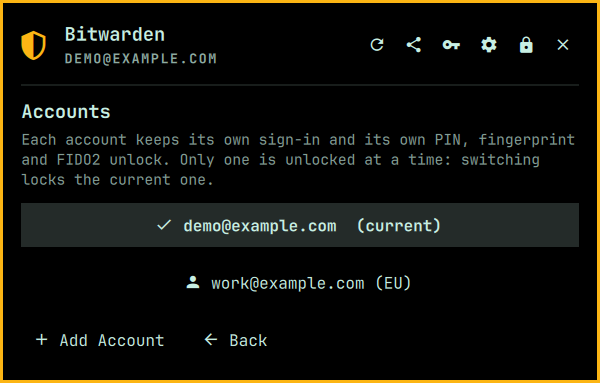
The panel can hold up to ten Bitwarden accounts at once -- a personal and a work account, say, or two servers. Press Add Account on the locked screen (or the account button in the header) and sign in; the first account stays signed in beside it. Switch Account on the locked screen, or the header's account button, lists them.
- Each account keeps its own sign-in and its own quick unlock. A PIN, fingerprint or FIDO2 key set up for one account is that account's; switching never asks you to log in again or set anything up again. The same fingerprint or key can unlock every account -- nothing is re-enrolled, each account's stored password just gets its own way in.
- Only one account is unlocked at a time. Switching locks the one you leave, drops its items from memory and tells the SSH agent, then shows the lock screen of the one you picked, with its unlock methods ready.
- Log Out signs out of the account on screen only, deletes its stored password and learned suggestions, and moves to the next account. The others are untouched.
- The quick-unlock settings are shared switches: turning PIN, fingerprint or FIDO2 unlock off in settings removes it from every account.
The first account lives where a terminal bw finds it (~/.config/Bitwarden CLI), exactly as before. Each account added beside it gets a private directory of its own under ~/.local/share/qs-bitwarden-cli/accounts/, which bw is pointed at with BITWARDENCLI_APPDATA_DIR; the list of accounts (emails and servers, nothing secret) is registry.json in the same place. Upgrading needs nothing: your current account becomes the first one, with everything it had.
How your vault is held
While your vault is open, its session key and every item's secrets are held by a small helper process (bin/<arch>-linux/qs-bitwarden-vault), not by the shell. If the shell crashes, the core dump systemd keeps has no session key and no passwords in it, except a value you had revealed or an item you were editing, and the shell's own crash dumps still work for diagnosing it. Opening an item shows no secret until you reveal it. A value you copy goes from the helper straight to the clipboard; TOTP codes and search are answered by the helper too. It talks only to the shell that started it, on its stdin and stdout.
It ships and is verified like the other helpers. If it is missing or fails its check, the vault stays locked and a banner says why, with a click to check again. Setting allowVaultWithoutHelper to true in shell.json holds the vault in the shell instead, as before the helper, with a banner saying crash protection is off. How it works and what it does not cover →
How quick unlock stores your password
PIN, fingerprint and FIDO2 unlock all need your master password, because bw unlock accepts nothing else. The plugin keeps it once per account, in a single keyring item (service=qs-bitwarden-cli, account=unlock_envelope, or unlock_envelope@<slot> for an account added beside the first):
- The first time
bwaccepts a password you typed -- a login, or unlocking with your master password -- it is encrypted under a random key with XChaCha20-Poly1305, and the whole item is sealed to this machine and your user withsystemd-creds --user. A copy taken off this machine is useless. - Each unlock method you turn on adds its own way to that one key, and none of them stores the password again. Turning a method off in settings removes its way in -- from every account, since the switch is shared -- and one turned off in
shell.jsonwhile the shell was not running is removed at the next start. Turning fingerprint unlock off deletes the stored password itself, for every account that had a fingerprint way in (see below). - The master password you are asked for when turning a method on is a check against the stored one, not a new copy: a wrong one is refused, and nothing you type there is stored.
- If you change your master password elsewhere, the next unlock with the new one re-seals the stored copy and keeps every method.
- Logging out of an account deletes its copy; other accounts keep theirs.
The small helper that does the encryption (bin/<arch>-linux/qs-bitwarden-unlock-key) ships and is verified exactly like the SSH helper; if it is missing or fails its check, quick unlock is unavailable and your master password still works. Everything else is the operating system: argon2, systemd-creds, fido2-assert and secret-tool.
An earlier build could store this item across several lines, which makes gnome-keyring refuse Omarchy's passwordless default keyring at the next login (apps ask you to create a new keyring, and the journal says keyring was in an invalid or unrecognized format). The plugin repairs this on its own each time it starts: an item the keyring still serves is stored again on one line, and a keyring file already refused has the item joined back onto one line in place, with the original kept beside it as Default_keyring.keyring.before-repair-<time>. A notification then asks you to restart the computer (Omarchy has no logout), which loads the collection cleanly. To do it by hand, run scripts/repair-keyring.sh from the plugin's directory (--check only reports). Nothing else in the keyring is changed, and no secret is printed.
Upgrading from 1.10.0 or earlier needs nothing from you. The old entries -- a plaintext copy for fingerprint and for FIDO2, an encrypted one for the PIN -- are moved in as each method is next used, and deleted once the new copy opens.
The honest limit. The stored password is only as protected as the weakest method you have turned on, and the settings screen says so. The seal ties the stored item to this machine and this user, so a copy taken elsewhere is useless -- but a program running as you can unseal it here (systemd-creds --user decrypt). With fingerprint unlock on, that is all it needs: a fingerprint releases no secret to encrypt with. With a PIN, it can then guess the PIN offline, at its own pace and on every core (see PIN unlock). A FIDO2 key cannot be bypassed that way, because the key itself produces the secret; root, as always, can read anything.
The item keeps one encryption key for as long as it exists: turning the PIN or a key off removes only that method's way to it, and a master password changed elsewhere is re-sealed under the same key. Turning fingerprint unlock off is different: it deletes the item for every account whose item had a fingerprint way in, so a key that a program read while fingerprint unlock was on dies with it; the next unlock with your master password stores it again under a new key, and PIN and FIDO2 unlock for those accounts must be set up again. A key recovered another way, by guessing the PIN from a copy of the item, lasts until the item is deleted, a password change included. To get a fresh key then, log out of the account and sign in again (logging out deletes its stored password) and set the methods up again.
PIN unlock
Turn on Unlock with PIN in the settings screen. Confirm your master password and choose a PIN of at least 6 digits; 8 or more is the recommendation. Six and seven are accepted but shown with the real cost of guessing them, so a weak PIN is a decision rather than an accident. (A PIN set with an older version, when 4 was the floor, still unlocks; set a new one to get the longer PIN.)
The PIN reaches the stored password through Argon2id (256 MiB of memory, 4 passes), from the OS argon2 tool. That cost is the whole defence against guessing: a program running as you can copy the stored item, unseal it and try PINs offline on every core. Measured on a 16-thread laptop, one guess takes about 0.46 s and 16 in parallel make about 17 a second, so every PIN of 6 digits falls in about 16 hours, 7 digits in about 7 days, and 8 digits in about 2 months (4 digits took about 10 minutes, which is why it is no longer allowed). A wrong PIN always fails -- the encryption is authenticated, so there is no "decrypts to garbage" case.
Five wrong attempts at the panel removes the PIN's way in, and turning it back on needs your master password. That limit applies only to guesses typed into the panel's own screen, not to a copy of the stored item; the Argon2 cost is what stands behind it.
Fingerprint unlock
Set fingerprintUnlock to true to unlock the vault with a finger instead of your master password.
Requirements
- A fingerprint reader with at least one enrolled finger, configured through
omarchy setup security fingerprint. The plugin verifies all of this itself (/etc/pam.d/omarchy-lock-fingerprint,fprintd-list) and silently stays hidden when any part is missing. - A running, unlocked OS keyring, as used by
rememberSession. Omarchy ships libsecret itself, so there is nothing to install for this.
How it works
- Switch Unlock with fingerprint on in the settings screen and confirm your master password.
- On every later lock, opening the panel arms the reader. A verified fingerprint opens the stored password for
bw unlock; the password field remains available as a fallback at all times.
Security trade-off -- read before enabling
PAM can prove that you are present, but a fingerprint releases no secret, so it cannot encrypt anything by itself. Fingerprint unlock is the one method whose way in is protected only by the machine seal, which means a program running as you while you are logged in can open the stored password without your finger. This is the same trade the official Bitwarden desktop client makes for its own biometric unlock. It is off by default and worth leaving off on a shared or unattended machine -- and with it on, a PIN or a key does not make the stored password any safer.
Turning the setting off deletes the stored password itself, for every account whose stored password had a fingerprint way in, since the fingerprint's way in exposes the item's encryption key; the next unlock with your master password stores it again under a new key, and PIN and FIDO2 unlock for those accounts must be set up again. Logging out deletes the account on screen's copy only.
A closed lid takes the option off the screen. The reader is on the laptop body, so with the lid shut -- clamshell mode, or simply closed on a docked machine -- there is nothing to touch. While it is down, the locked screen hides Unlock with Fingerprint, the SSH prompt does the same, and the reader is not armed on open. Omarchy's own detector (omarchy-hw-laptop-closed) decides, and a machine with no lid never reports one. Nothing is forgotten: the settings toggle is unchanged, and the option is back the moment the lid opens. A FIDO2 key on a cable is unaffected.
FIDO2 key unlock
Set fidoUnlock to true to unlock the vault with a FIDO2 authenticator (a YubiKey or any other compliant key) instead of your master password.
Requirements
- A FIDO2 key registered through
omarchy setup security fido2. That one command detects the key, installslibfido2/pam-u2f, registers it, and wires it for the system's own authentication prompts; the plugin uses that same registration (/etc/fido2/fido2) and offers the command itself when no key is registered yet. The option stays hidden on a machine with no key. - A key that supports the
hmac-secretextension, which current YubiKeys and most FIDO2 keys do.
How it works
- Switch Unlock with FIDO2 key on in the settings screen. If no key is registered, it first hands off to
omarchy setup security fido2; otherwise confirm your master password and touch the key once. - On every later lock, opening the panel arms the key if one is plugged in (falling back to the fingerprint reader otherwise). One touch asks the key for a secret only it can produce -- its
hmac-secretfor the registered credential -- and that secret opens the stored password. The password field remains available as a fallback at all times.
The key will not produce that secret without a touch, so unlocking needs the key itself, not just a program able to read your keyring. Each registered key that is plugged in when you turn the option on gets its own way in, so a backup key works too.
Registrations made with +pin or +verification (a key PIN at every system prompt) are not used: the panel cannot collect the key's PIN yet, and a touch alone would be weaker than what the registration asks of the system.
Its way in is removed when you turn the setting off or log out -- for the account on screen; other accounts keep theirs. omarchy remove security fido2 unregisters the key for the system's own authentication prompts as well, which is why the plugin points at Omarchy's setup rather than registering the key itself.
Auto-type
Off by default, and worth thinking about before you turn it on: whatever
window has focus when it types gets your password, and while a login is
armed, any program running as you can make it type, because the autoType
IPC cannot tell your keybinding from anything else that calls it. Turning it
on in Settings → General → Auto-type logins asks you to press again to
confirm.
With it on, Ctrl+C acts on the login Enter
would: the highlighted row of the list, or the item open in the detail
inspector. When the panel opens the highlight is already on the first
suggestion for the window you came from (or the first item), so there is
nothing to select first, and it works from the search box as well, unless
you have text selected there, which it copies as usual. It (or the row's
second button) copies the login's password, after any master password
re-prompt, and arms it for 30 seconds. With closeOnCopy the panel
closes and focus goes back to the window you came from. Calling the IPC then
types the login's username, Tab and password there, once. For a
login with a TOTP code, the copy arms the same follow-up as Enter
(Enter again copies the code, and autoCopyTotpSec later it is
copied anyway), and once the type has worked a fresh code is copied to the
clipboard, with a "TOTP Code Copied" notification, ready for the site's
two-step prompt. autoCopyTotpSec set to 0 turns that off too; a type that
fails or is stopped copies nothing.
It needs a key to call it. Under the setting, while auto-type is on, the
panel shows whether one is bound ("Bound to SUPER + CTRL + BACKSLASH" or "No
keybinding yet") and offers a key combination that nothing else on your
desktop uses. Register Keybinding adds it to ~/.config/hypr/bindings.lua
and reloads Hyprland, so the key works straight away; see
Global hotkey for exactly what it writes, and for doing it
by hand.
- It types with
wtype. The setup screen lists it, and offers to install it, only while auto-type is on. - The vault helper reads the armed login and writes it to
wtype's stdin, so the password never reaches the shell; without the helper the shell does the same. It is never an argument or an environment variable. - It does not type while the panel, an SSH approval or the unlock prompt has
the keyboard, since the text would land there, nor while the screen is
locked. The panel polls the lock state while a login is armed, and a reading
that is missing or stale refuses too, rather than guess. A vault lock while
it is typing stops it there. A username or password with a line break, tab
or other control character in it is not typed at all, since
wtypewould press it as a key. - The arm is used up by the type it starts, and dropped after 30 seconds, on lock, logout or account switch, and when auto-type is turned off.
- It waits a quarter of a second before typing, to give you time to let go of your shortcut's keys.
SSH agent
Off by default. See docs/ssh-agent.md for setup, the provenance check, and what the agent does and does not protect.
Automatic sync
Every 15 minutes by default. Settings → General → Automatically sync every
(or autoSyncMinutes; 0 turns it off) syncs the open vault with the server at
that interval, which helps when a self-hosted server is not always reachable:
a sync that fails while it is offline is tried again at the same interval, so
the vault catches up soon after the server returns. The panel does not need to be open. The
first sync after an unlock runs within about 30 seconds, and a sync you start
yourself counts as the latest one.
A failed sync keeps the vault you already have and shows "Automatic sync failed" in the panel, with no desktop notification; the next sync that succeeds clears that notice and no other. One that succeeds says nothing.
It waits while you edit an item, while another vault operation runs, while an SSH request is waiting for your approval (loading the keys again would refuse it), and when the vault has reached its auto-lock deadline. A sync that lands while you are editing reloads the list once you are back on it or the panel is closed. It never unlocks the vault and never moves the auto-lock deadline, and locking, logging out or switching accounts drops anything still pending. With the SSH agent on, each sync's reload hands the agent its keys again, which ends any signing approval still in its window, so a long approval window and a short sync interval do not go together.
Bar placement
--enable already puts the widget in the bar. To move it:
omarchy bar move io.github.elevate08.qs-bitwarden-cli --section right
Settings are editable from the panel's own settings screen, or directly in
~/.config/omarchy/shell.json. Each setting lives inline on the bar entry,
not in a separate block:
{
  "bar": {
    "layout": {
      "right": [
        {
          "id": "io.github.elevate08.qs-bitwarden-cli",
          "autoLockMinutes": 15,
          "lockOnScreenLock": true,
          "lockOnSuspend": true,
          "clearClipboardSec": 30,
          "rememberSession": true,
          "fingerprintUnlock": false,
          "fidoUnlock": false,
          "sshAgentEnabled": false,
          "sshAgentApprovalPopup": true
        }
      ]
    }
  }
}
Global hotkey
Two IPC calls are worth a key: toggle, which opens and closes the panel, and
autoType, which types an armed login (with auto-type on).
Omarchy keeps your own keybindings in ~/.config/hypr/bindings.lua, and
Hyprland reloads its config when that file is saved (hyprctl reload forces
it); the shell does not need restarting.
The auto-type key, from the panel. With auto-type on, Settings → General
→ Auto-type logins has a key combination field under it, filled in with one
that is free: modifiers from SUPER, SHIFT, CTRL and ALT joined by
+, then one key name, and at least one of SUPER, CTRL or ALT. It
says which binding already holds a key you type. Register Keybinding
appends two lines to the end of bindings.lua, a comment saying the plugin
added them and the binding:
-- Added by the qs-bitwarden-cli plugin (Settings > General > Auto-type logins).
o.bind("SUPER + CTRL + BACKSLASH", "Bitwarden auto-type", "omarchy-shell io.github.elevate08.qs-bitwarden-cli autoType")
then runs hyprctl reload config-only and shows the result, or any config
error Hyprland reports. Nothing else in the file is touched. It refuses when
bindings.lua already has a line that runs autoType, and creates the file
only when it is missing and your ~/.config/hypr/hyprland.lua loads it, as
Omarchy's does. Remove Keybinding takes out those two lines again, and
only while they are exactly as the plugin wrote them; a binding you wrote or
changed yourself is shown with its line number, for you to edit there.
By hand. If you keep your bindings somewhere else, Copy Line puts the
o.bind(...) line on the clipboard (it is not a secret, so it is not cleared).
Either way, the panel's own toggle is a line of the same kind, for example on
SUPER + CTRL + /:
o.bind("SUPER + CTRL + SLASH", "Bitwarden vault", "omarchy-shell io.github.elevate08.qs-bitwarden-cli toggle")
If the key is one of Omarchy's defaults (omarchy menu keybindings --print
lists them), add hl.unbind("SUPER + CTRL + SLASH") on the line before it.
Configuration Reference
The following settings are read from the plugin's own entry in the
bar.layout array of ~/.config/omarchy/shell.json -- inline alongside its
id, as shown above. The panel's settings screen writes them for you via
omarchy bar set, so editing the file by hand is optional:
| Key | Type | Default | Description |
|---|---|---|---|
autoSyncMinutes |
number |
15 |
Minutes between automatic syncs while the vault is unlocked and idle (0 to disable); a server that is offline is tried again at the same interval. See Automatic sync. Range 0-1440; out of range is clamped and an unreadable value falls back to 15. |
autoLockMinutes |
number |
15 |
Minutes of inactivity before automatically locking the vault (0 to disable). Range 0-1440; out of range is clamped and an unreadable value falls back to 15. |
clearClipboardSec |
number |
30 |
Seconds before automatically clearing copied secrets from the clipboard (0 to disable). The clear is the copy's own lifetime (wl-copy under timeout), so it survives a shell restart and never touches something copied later. Range 0-300; out of range is clamped and an unreadable value falls back to 30. |
lockOnScreenLock |
boolean |
true |
Lock the vault as soon as the screen locks, rather than waiting out autoLockMinutes. Reads the Omarchy lock screen's own state, so it follows a manual lock and an idle lock alike. A shell without the lock plugin simply never reports a lock; it is never read as one. |
lockOnSuspend |
boolean |
true |
Lock the vault when the machine is going to sleep, so no unlocked session key is left in the suspended machine's memory. Holds a delay sleep inhibitor until bw lock and the keyring clear have finished, at most 4 seconds. Needs gdbus (glib2), systemd-inhibit and setsid (util-linux). The monitor and its children stop when the plugin unloads; without these tools the setting is inert. |
rememberSession |
boolean |
true |
Persist session token in OS keyring (secret-tool) while unlocked. Survives a shell restart, never a reboot -- see the note above. Turning it off removes a stored session at once, and with it off an unload while unlocked runs bw lock. |
autoCopyTotpSec |
number |
3 |
Seconds after password copy to automatically replace clipboard with TOTP code (0 to disable). Also whether an auto-type copies the login's TOTP code once it has typed. Range 0-30; out of range is clamped and an unreadable value falls back to 3. |
closeOnCopy |
boolean |
true |
Automatically close panel on Enter copy so target application receives focus immediately. |
autoTypeEnabled |
boolean |
false |
Let Ctrl+C in the panel arm a login, and the autoType IPC type its username, Tab and password into the focused window with wtype. Whatever window has focus gets the password, and while a login is armed any program running as you can trigger it -- see Auto-type. The settings screen asks you to confirm before turning it on. |
suggestOnOpen |
boolean |
true |
Automatically suggest matching vault items for the active window or browser tab on open. |
fingerprintUnlock |
boolean |
false |
Unlock the vault with an enrolled fingerprint. Adds a way into the one encrypted stored password -- see Fingerprint unlock for its limit. Turning it off deletes the stored password, so PIN and FIDO2 unlock must be set up again. |
fidoUnlock |
boolean |
false |
Unlock the vault with a FIDO2 authenticator, on the registration omarchy setup security fido2 writes. The key's hmac-secret opens the stored password -- see FIDO2 key unlock. |
pinUnlock |
boolean |
false |
Unlock with a numeric PIN of at least 6 digits, through Argon2id -- see PIN unlock. |
usePinentry |
boolean |
true |
Type the master password and PIN into the plugin's own unlock prompt instead of the panel, so they never enter the shell. The prompt, pinentry/omarchy-pinentry, is a card over the focused monitor drawn like Omarchy's polkit prompt (the theme's [polkit] scrim, colours, font, border and rounding; the padlock shows or hides what is typed), in a separate, short-lived process the vault helper starts for each prompt. It is the only pinentry the plugin runs: pinentry-qt is neither used nor needed, and a pinentryProgram or omarchyPinentry left in shell.json is ignored. Needs quickshell, node and a Wayland session, and the vault helper: while the helper is not running the panel waits for it, and its own field is used only where the prompt cannot run, with this off, or with allowVaultWithoutHelper -- see docs/vault-helper.md. |
allowVaultWithoutHelper |
boolean |
false |
When the vault helper cannot be used at start (missing, failing its check, or a platform it is not built for), hold the vault in the shell instead of leaving it locked. A shell crash can then write the session key and items to a core dump. Edit shell.json; it is not in the settings screen, and only true turns it on. A helper that keeps stopping leaves the vault locked even with this set -- see docs/vault-helper.md. |
sshAgentEnabled |
boolean |
false |
Serve your vault's SSH keys to ssh, Git and signing while the vault is unlocked. Starts a helper process and a socket under $XDG_RUNTIME_DIR; private keys stay in that helper and are dropped on lock -- see SSH Agent. |
sshAgentUnlockOnDemand |
boolean |
false |
Let an identity listing raise the unlock prompt when the vault is locked and no keys have been loaded yet, instead of answering with an empty list. Signing a key the helper already knows always raises the prompt, with or without this. Off by default: ssh asks the agent for identities on every connection, so this raises the configured approval surface on the first ssh after every login. |
sshAgentApprovalPopup |
boolean |
true |
Show SSH unlock and signing requests in a transient card in the middle of the screen instead of opening the anchored panel. Disable to show prompts in the panel. Multiple concurrent requests are queued sequentially with a "1 of N" counter and "Deny all" option. Escape and outside click deny. |
sshAgentApprovalWindowSec |
number |
120 |
How long one approval keeps covering further signatures from the same program with the same key. Range 0-900; 0 asks every time. Held in memory only and dropped on lock, logout or exit. |
One further key, twoFactorMethods, is written to the same entry but is not a
setting you configure. It records which two-step method last logged each
account in, keyed by a SHA-256 of the login address --
{"<64 hex digits>": 0}, where 0 is authenticator, 1 email and 3
YubiKey. The hash keeps the address out of omarchy bar set's arguments and
shell.json in plain text, but it is unkeyed, so someone who can read either
and guesses the address can confirm it and see its method. An account with
more than one method is asked only once, and two vaults on one machine each
keep their own answer. Change method on the code screen asks again and
rewrites it. Entries are capped at ten accounts, and anything unreadable is
treated as not remembered, which costs that account one extra prompt.
Another, generatorOptions, holds the password generator's last options --
type, length, uppercase, lowercase, numbers, special,
minNumber, minSpecial, ambiguous, words, separator, capitalize
and includeNumber -- written a moment after you change one and read when
the generator first opens. It never holds a generated password. A value that
is missing, of the wrong type or out of range (length 5-128, words
3-20, minimums 0-9) uses its default, and at least one character set
stays on. As when you change them in the panel, a minimum is reset to 0 when
its character set is off, and the length is raised to fit the minimums.
Learned suggestions are stored separately in ~/.local/state/qs-bitwarden-cli/associations.json. Delete that file to reset everything the panel has learned; logging out deletes it for you.
Multiple monitors
Omarchy draws its bar once per monitor, so the widget appears on every one of them -- but there is one vault behind them all:
- Unlocking or locking on any monitor applies to all of them, and every bar's icon shows the same state.
- The panel opens on the monitor whose icon you click, and moving to another monitor's icon moves the open panel there, where you left it. A keyboard summon lands on the focused monitor, or on the panel if it is already open.
- There is one SSH agent, one sleep inhibitor and one IPC target however many monitors are attached. A signing request appears on the monitor with the open panel, or otherwise the focused one.
- Unplugging a monitor, even the one showing the panel, leaves the vault and the agent running.
If something else on the machine is already serving the agent's socket -- a second Omarchy shell, for example -- the SSH agent settings say so and wait for it to stop, rather than reporting a helper that keeps failing to start.
A bar other than Omarchy's own cannot share one vault between its copies, so on a replacement bar each monitor's widget keeps a vault of its own, as before.
IPC & Scripting Interface
You can control and query the Bitwarden plugin from the terminal, scripts, or window manager bindings. The form is omarchy-shell <target> <method>:
# Show, hide, or toggle the popup panel
omarchy-shell io.github.elevate08.qs-bitwarden-cli open
omarchy-shell io.github.elevate08.qs-bitwarden-cli close
omarchy-shell io.github.elevate08.qs-bitwarden-cli toggle

# Jump straight to a screen
omarchy-shell io.github.elevate08.qs-bitwarden-cli settings     # -> "settings"
omarchy-shell io.github.elevate08.qs-bitwarden-cli setup        # -> "setup" (dependency wizard)

# Lock the vault immediately
omarchy-shell io.github.elevate08.qs-bitwarden-cli lock         # -> "locked"

# Type the armed login's username, Tab and password into the focused window (see Auto-type)
omarchy-shell io.github.elevate08.qs-bitwarden-cli autoType     # -> "started" | "disabled" | "locked" | "not-armed" | "busy" | "panel-open" | "screen-locked" | "failed"

# Sync with Bitwarden
omarchy-shell io.github.elevate08.qs-bitwarden-cli sync         # -> "syncing"

# Query vault state
omarchy-shell io.github.elevate08.qs-bitwarden-cli status       # -> "unlocked" | "locked" | "unauthenticated"

# Which vault the bars share, and which monitor presents it (non-secret)
omarchy-shell io.github.elevate08.qs-bitwarden-cli vaultHost    # -> {"host":"shared","views":2,"presenter":"DP-1",...}

# The accounts the panel holds (emails and servers only), and switching to one;
# switching locks the account active now
omarchy-shell io.github.elevate08.qs-bitwarden-cli accounts     # -> {"adding":false,"accounts":[{"email":"[email protected]","server":"","active":true}]}
omarchy-shell io.github.elevate08.qs-bitwarden-cli switchAccount [email protected]   # -> "switching" | "unknown" | "busy"
open, close and toggle return nothing; the rest echo the state they moved to.
autoType answers whether typing started, not whether it worked: wtype is
still typing when it returns, and a failure is shown in the panel, or as a
desktop notification when the panel is closed.
Omarchy's shell-level dispatcher also toggles any plugin, and works equally well for a keybinding:
omarchy-shell shell toggle io.github.elevate08.qs-bitwarden-cli
Only toggle exists at that level, though -- omarchy-shell shell open|close <id> answers Function not found, and omarchy-shell shell call <id> <method> '{}' answers unknown. Use the plugin-target form above for everything other than toggling.
The same calls work through Quickshell directly, which is useful when omarchy-shell is not on PATH:
qs -p /usr/share/omarchy/shell/shell.qml ipc call io.github.elevate08.qs-bitwarden-cli status
Dependencies
The helper's crates are updated by Dependabot under versioning-strategy: lockfile-only, so a proposed bump only ever moves agent/Cargo.lock within
the bounds agent/Cargo.toml already allows. Crossing a major is a manual
edit, on purpose: several of the version floors in that manifest exist to keep
one copy of the RustCrypto traits in the graph, and Dependabot raising them
one at a time is what broke the build in PR #11.
The crypto stack moves together or not at all. ssh-key and rsa
re-export the trait generation their callers must match, and agent/src/lib.rs
calls those traits directly -- Verifier::verify, try_sign,
pkcs1v15::SigningKey. Bump one crate without the others and cargo resolves
two versions side by side, at which point the traits stop unifying and
nothing compiles. The coupled set is ssh-key, ssh-encoding,
ed25519-dalek, rsa, signature, sha2/digest, zeroize and
rand_core; Dependabot groups them under crypto for the same reason.
As of 2026-08-31 that upgrade is gated upstream: ssh-key is at 0.7.0-rc.11
and rsa at 0.10.0-rc.18, both still pre-release, and the stable releases
still pin the older generation. When they land, raise every crate in the set
in one commit and expect real source changes, not just a manifest edit.
Nothing will prompt you -- there are no ignore conditions to trip, because
cargo's own semver rules already hold 0.10 back from 0.11.
Every accepted bump, major or not, changes the shipped bytes and so needs the
binary rebuilt in the same change, by hand -- see the needs-binary-rebuild
label.
For other source changes CI does it: on a pull request into a release branch
from this repository, helper-rebuild.yml rebuilds the helpers in the pinned
image and commits them to the PR branch. It does so only when the Rust
changes are plain source under agent/src/, unlock-key/src/ or vault/src/
(QML, JS and docs beside them are fine). Any Cargo.toml, Cargo.lock,
rust-toolchain or rust-toolchain.toml at any depth (the repo root
included), any .cargo directory, a build.rs, .gitattributes, the build
script, a symlink, or any other file inside a package directory makes the PR
ineligible, as do Dependabot and forks.
--compare-tracked proves the committed bytes are what the committed source
builds; it cannot tell you whether that source is trustworthy, and a malicious
crate builds just as reproducibly as an honest one. Reading the Cargo.lock
diff before you commit the binary is the only check that covers that, which
is why dependency rebuilds stay a human step.
More
- Features in detail -- every feature and why it works the way it does.
- SSH agent -- setup, verification, threat model.
- Vault helper -- what holds your open vault, and what a crash can leave behind.
- Uninstall -- including what to clear before removing the plugin.
- Development -- linting and the test suite.
- Security policy -- how to report a vulnerability privately.
License
MIT -- see LICENSE.