
Bene-2020/plane-codex-mcp
Bene-2020/plane-codex-mcp has 86 GitHub stars and 0 forks. GitHot measured 0 stars in 24 hours, 0 in 7 days, and 0 in 15 days. Last checked 2026-11-17 16:02 UTC. Last push 2026-11-04.
Measured star growth
- in 24h
- 0
- in 7 days
- 0
- in 15 days
- 0
- in 1 month
- Collecting history
Net star changes over overlapping periods, not daily totals. Missing measurements are left blank. Stars measure attention, not software quality.
About
A Codex plugin that quietly captures meaningful project work and syncs it to Plane.
ProductivityREADME_EN.md
OriginalAmbient Project Layer
中文 | English
Let Codex quietly organize project progress while you work and synchronize tasks, bugs, decisions, risks, and milestones to Plane.
Plane is an open-source project management platform licensed under AGPL-3.0. You can self-host its Community Edition for free or use its free cloud plan. The self-hosted Community Edition has no user limit, while the Cloud Free plan currently supports up to 12 users, making Plane a strong fit for individual developers, one-person companies, and small teams. See the official Plane pricing page for current limits.


Ambient Project Layer is a Codex plugin. It captures project-relevant events from the current work turn, writes them reliably to a local SQLite Outbox, and then synchronizes them asynchronously to Plane. You can continue using Plane for full project management while viewing recent work items and changing their status through a lightweight Panel inside Codex.
It addresses a specific problem: development work already happens in Codex, but tasks, decisions, and risks often need to be manually organized again in a project management tool. Ambient Project Layer turns that duplicate effort into a quiet, reviewable background workflow.
Product interface
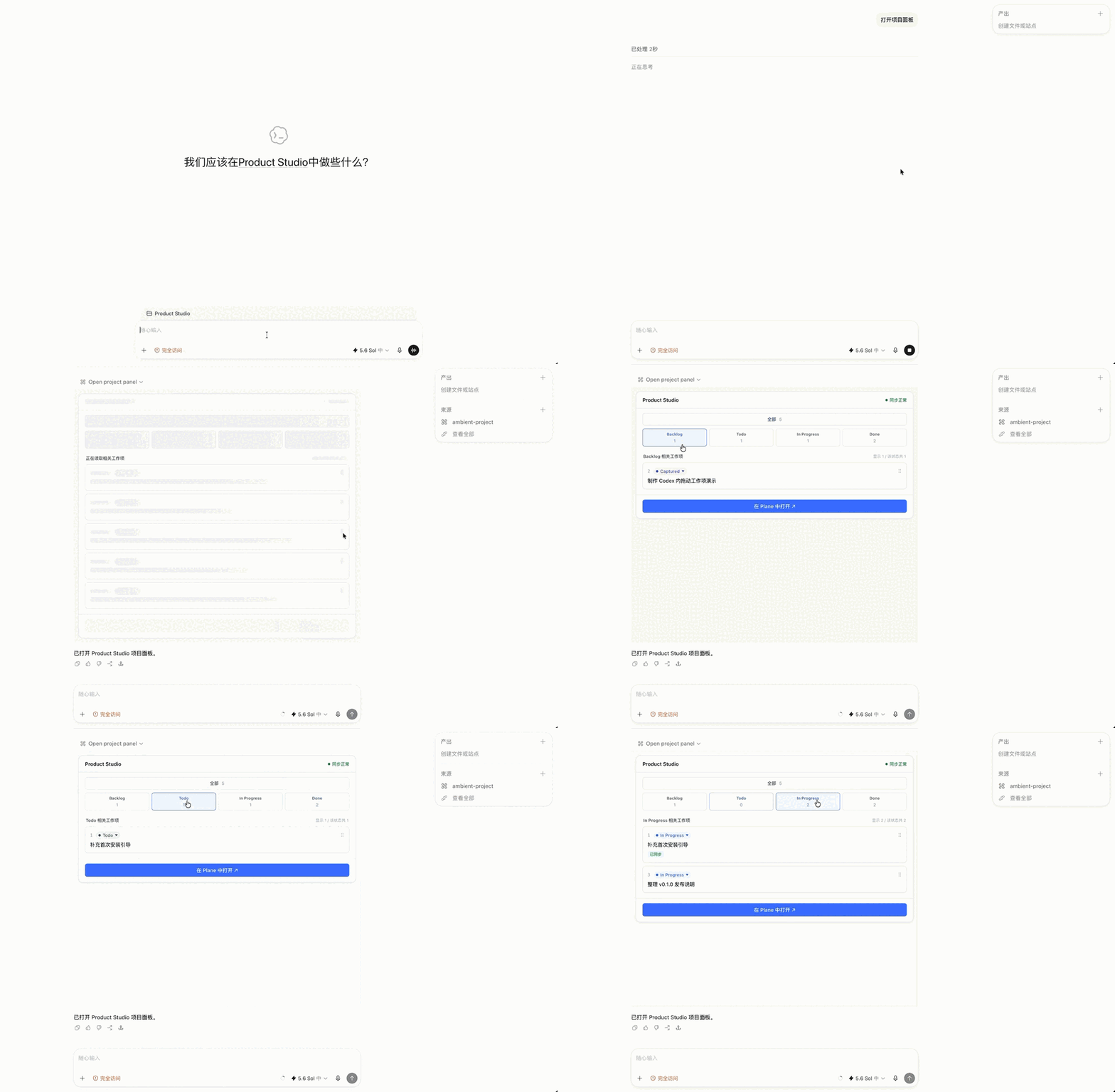
The Panel shows up to five relevant work items by default. It supports Backlog, Todo, In Progress, and Done filters, and lets you update status through a menu or drag and drop. Full creation, editing, archiving, and project management remain in Plane.
The Panel UI directly follows the visual style of Plane's open-source product, including its colors, status labels, card hierarchy, and interaction patterns, so users get a consistent experience between Codex and Plane. This interface is implemented by this project; it is not an official Plane component and does not imply endorsement by Plane.
Key capabilities
- Recognizes tasks, bugs, decisions, ideas, risks, milestones, plans, progress updates, and completion events.
- Uses a local SQLite Outbox so events are persisted before asynchronous Plane synchronization.
- Lists real Plane projects when a project directory is first opened and asks the user to choose an explicit binding.
- Provides a lightweight Inline Panel in Codex to view relevant work items, synchronization health, and Plane links.
- Does not store full conversations, source code, terminal output, or the Plane API Key.
- Bundles Node.js 22.22.1 in every platform Release package, so users do not need to install Node, pnpm, or bun.
Supported platforms
Download the archive matching your machine from GitHub Releases:
| Release target | Operating system | Architecture |
|---|---|---|
darwin-arm64 |
macOS | Apple Silicon |
darwin-x64 |
macOS | Intel |
linux-x64 |
Linux | x86_64 |
linux-arm64 |
Linux | ARM64 / aarch64 |
win32-x64 |
Windows | x86_64 |
If you are unsure about your architecture, run uname -m on macOS or Linux: choose ARM64 for arm64 or aarch64, and x64 for x86_64. Windows ARM64 packages are not currently provided.
Installation
1. Prepare Plane
You need:
- an accessible Plane Cloud or self-hosted instance;
- a Workspace slug, such as
my-teaminhttps://app.plane.so/my-team/; - a Plane Personal Access Token with read and write access to the target project.
The Plane documentation explains where to create an API Key and how to use it. Treat the API Key as a password.
2. Install the package for your platform
Download an asset named like ambient-project-layer-v0.1.4-<target>.zip and extract it to a stable directory. The instructions below refer to its absolute path as <RELEASE_DIR>. This directory should directly contain .agents/plugins/marketplace.json.
codex plugin marketplace add "<RELEASE_DIR>"
codex plugin add ambient-project-layer@ambient
codex plugin list
OpenAI defines a plugin as an installable combination of skills, an MCP Server, and optional UI. Plugins distributed independently or developed locally can be installed from a local marketplace. See Build plugins.
After installation, open the Hook management screen in Codex and review and trust each Hook for the installed version:
SessionStartUserPromptSubmitPostToolUseStopSessionEnd
A plugin being shown as enabled does not mean its Hooks are trusted. If a Hook is marked modified after installation or an upgrade, trust it again.
3. Configure the Plane connection
The production plugin does not read .env from the repository or project directory. Plane configuration is stored in the user-level ~/.codex/config.toml file and injected when Codex starts the ambient-project MCP Server.
Create a Codex task once so the Hook can create the plugin data directory. Then point the MCP AMBIENT_DB_PATH to the same PLUGIN_DATA/ambient.sqlite file:
- macOS/Linux:
$HOME/.codex/plugins/data/ambient-project-layer-ambient/ambient.sqlite - Windows:
%USERPROFILE%\.codex\plugins\data\ambient-project-layer-ambient\ambient.sqlite
macOS/Linux example:
codex mcp add ambient-project \
  --env "AMBIENT_DB_PATH=$HOME/.codex/plugins/data/ambient-project-layer-ambient/ambient.sqlite" \
  --env "PLANE_MODE=sdk" \
  --env "PLANE_TYPE_MODE=default" \
  --env "PLANE_BASE_URL=https://api.plane.so" \
  --env "PLANE_WORKSPACE_SLUG=replace-with-your-workspace" \
  --env "PLANE_API_KEY=replace-in-config-toml" \
  -- "<RELEASE_DIR>/plugins/ambient-project-layer/runtime/bin/ambient-node" \
     "<RELEASE_DIR>/plugins/ambient-project-layer/runtime/mcp/index.js"
Windows PowerShell example:
codex mcp add ambient-project `
  --env "AMBIENT_DB_PATH=$env:USERPROFILE\.codex\plugins\data\ambient-project-layer-ambient\ambient.sqlite" `
  --env "PLANE_MODE=sdk" `
  --env "PLANE_TYPE_MODE=default" `
  --env "PLANE_BASE_URL=https://api.plane.so" `
  --env "PLANE_WORKSPACE_SLUG=replace-with-your-workspace" `
  --env "PLANE_API_KEY=replace-in-config-toml" `
  -- "<RELEASE_DIR>\plugins\ambient-project-layer\runtime\bin\ambient-node.cmd" `
     "<RELEASE_DIR>\plugins\ambient-project-layer\runtime\mcp\index.js"
Then edit ~/.codex/config.toml and replace the placeholder Workspace slug and API Key only under [mcp_servers.ambient-project.env]. Do not put a real Key in the commands above, a repository, an Issue, logs, or screenshots, where it could enter shell history or public records.
PLANE_TYPE_MODE controls the work-item classification strategy:
default(the default, recommended for Plane Free): does not access the paid Work Item Types catalog, uses Plane's default type when creating an item, and writes the semantic kind into the title, for example[Bug]-Login failureor[Decision]-Adopt SQLite.custom(for Plane Pro / Business): resolves or creates custom Work Item Types for Task, Bug, Decision, Idea, Risk, and Milestone. The type catalog is read only while creating a work item whose mapping is missing; ordinary refreshes, counts, and status updates do not access it.
Completely restart Codex after changing PLANE_TYPE_MODE. Existing work items are not rewritten automatically when the mode changes.
After upgrading to v0.1.4, the background synchronization worker gives each terminal failed batch one automatic recovery opportunity, including historical failures left by an earlier version. Multiple MCP workers share one SQLite-backed throttle queue: Plane requests are spaced by two seconds and automatic recovery batches by at least ten seconds; a 429 pauses the global queue until the server reset time without consuming the business retry budget. A batch that still fails remains terminal and can then be handled with Retry, Correct, or Dead-letter in the Panel.
Self-hosted Plane users must also replace PLANE_BASE_URL with their instance's API Base URL.
Inspect the MCP configuration locally:
codex mcp get ambient-project
This command may display the Plane API Key. Do not paste its output into an Issue, log, chat, or screenshot. Share only content from which credentials have been removed.
Completely quit and restart Codex, then create a new task. An already running MCP process will not automatically load the updated configuration.
First use
- Create a Codex task in a real project directory.
- Ambient Project Layer lists projects in the current Plane Workspace and asks which one to bind.
- Explicitly select a project. The plugin does not guess based on the directory name or Git remote.
- Continue working normally in Codex. Meaningful project changes enter the local Outbox before being synchronized to Plane.
- Ask Codex to "open the project panel" to view relevant work items and synchronization status.
If you do not want to choose yet, reply "later"; the current task will not ask again. If you explicitly ask a directory never to prompt again, the plugin stores that preference only locally. You can ask to restore binding later.
Ambient Plane binding uses only the real return from the host tool mcp__ambient_project__list_projects in the current turn. codex_app__list_projects remains available for explicit Codex Projects requests, but it must never be used as Plane binding evidence. Each binding bullet must use an exact identifier | name pair (the fields may be individually wrapped in Markdown bold, underscore-bold, or inline code); prefixes, suffixes, extra fields, path, projectKind, hostId, and local project names are rejected.
Data, permissions, and privacy
Ambient Project Layer has the following data boundaries:
| Data | Storage location | Notes |
|---|---|---|
| Work items and project status | Plane | Final source of user-visible project data |
| Project bindings, Outbox, compact cache, and Hook audit | Local SQLite | Stored in the plugin PLUGIN_DATA directory by default |
| Plane API Key | User-level Codex configuration and MCP process memory | Not written to SQLite, the Panel, or Hook output |
| Panel temporary token | Current MCP process memory | Regenerated every time the process starts |
The plugin does not store full Codex transcripts, source code, terminal output, attachments, or API Keys in the local database, and it does not send the Plane API Key to the browser Panel. At runtime, its only required external access is to the configured Plane API.
The plugin requires Plane project read and write access to read projects and work items, create captured work items, add progress comments, and update status. It does not expose tools for automatic deletion, cross-project moves, or assigning people.
Upgrading
Download the new version for the same platform from Releases and replace the contents of your stable Release directory.
Reinstall the plugin from the same local marketplace:
codex plugin add ambient-project-layer@ambientConfirm that the
ambient-projectMCP configuration still points to the stable Release directory and the original SQLite file.Review and trust the five Hooks again in the Hook management screen.
Completely quit and restart Codex, then verify binding, synchronization, and the Panel in a new task.
Do not delete or switch the existing SQLite file while upgrading. Local bindings, Outbox data, and source references are not automatically migrated to a different file.
Uninstalling
codex plugin remove ambient-project-layer@ambient
codex plugin marketplace remove ambient
codex mcp remove ambient-project
These commands do not remove work items already synchronized to Plane. If you no longer need the local bindings and Outbox, back up and then manually delete the corresponding ambient.sqlite. Keeping the database does not affect Plane data.
FAQ
The plugin is enabled, but a new task does not show project onboarding
First check whether the installed version's five Hooks are trusted. If they are untrusted or marked modified, trust them again and create a new task. A SessionStart missed earlier is not replayed in an existing task.
mcp__ambient_project__list_projects returns an authentication error or no projects
Check PLANE_MODE=sdk, the Base URL, Workspace slug, API Key, and the Token's permissions for the target Workspace. Completely restart Codex after changing the configuration.
MCP tools work, but the Panel is temporarily unavailable
Ask to open the project panel again. Restarting the MCP process invalidates the previous Panel session; a new call creates a new one.
A work item shows "pending synchronization"
The local event is already persisted, but Plane synchronization failed. Check the network, API Key, and Plane service status. The Outbox will continue processing after recovery; do not delete SQLite to "retry."
Why is there no .env in the project root?
The production plugin uses ~/.codex/config.toml and does not need a project-level .env. Copy .env.example to .env only when running the standalone development entry points from source.
Does it upload my code or full conversations?
No. The plugin records only summarized project events, short source excerpts, and synchronization metadata. It does not store full transcripts, source code, or terminal output.
Building from source
The development environment requires Node.js 22, Corepack, and Git.
git clone https://github.com/Bene-2020/plane-codex-mcp.git
cd plane-codex-mcp
corepack enable pnpm
pnpm install --frozen-lockfile
cp .env.example .env
pnpm test
pnpm lint
pnpm build
pnpm validate:plugin
pnpm smoke:plugin
.env.example uses isolated PLANE_MODE=fake by default and is suitable for local testing. To connect to a real Plane instance, enter credentials only in your local .env and never commit that file.
Build plugin directories for all five platforms:
pnpm run build:packages
pnpm run build:apps
pnpm package:plugin -- --all
node scripts/validate-plugin-runtime.mjs dist/plugins/ambient-project-layer --all
Artifacts are written to dist/plugins/ambient-project-layer/<target>/. The current machine executes the sidecar for its own architecture; packages for other platforms receive structural validation only. Final Release packages should still run native smoke tests on the corresponding CI Runner.
Contributing
- Read CONTRIBUTING.md before submitting code.
- Report security problems privately according to SECURITY.md; do not open a public Issue containing vulnerability details.
- Version changes are documented in CHANGELOG.md.
- Third-party component licenses are listed in THIRD_PARTY_NOTICES.md.
License
Copyright © 2026 Wenyan Wei.
This project is licensed under the MIT License.