
Avarce/ghostty-cursor-fx
Avarce/ghostty-cursor-fx has 93 GitHub stars and 7 forks. GitHot measured 0 stars in 24 hours. Last checked 2026-11-15 15:59 UTC. Last push 2026-11-03.
Measured star growth
- in 24h
- 0
- in 7 days
- Update delayed
- in 15 days
- Update delayed
- in 1 month
- Update delayed
Net star changes over overlapping periods, not daily totals. Missing measurements are left blank. Stars measure attention, not software quality.
About
Thirteen animated cursor effects for the Ghostty terminal, with Enter and done moments for Claude Code and zsh
Developer ToolsREADME.md
OriginalCursor FX for Ghostty
Thirteen animated cursor effects for the Ghostty terminal, with two special moments: Enter, when you send a prompt in Claude Code or pi (or run a command in zsh), the effect plays out from the cursor along the lines of the input box; and done, when the answer arrives (or a long command finishes), it plays again from the edges inward, so you notice even when you've looked away. Switch effects with one command, tune them in a browser panel with a live preview.
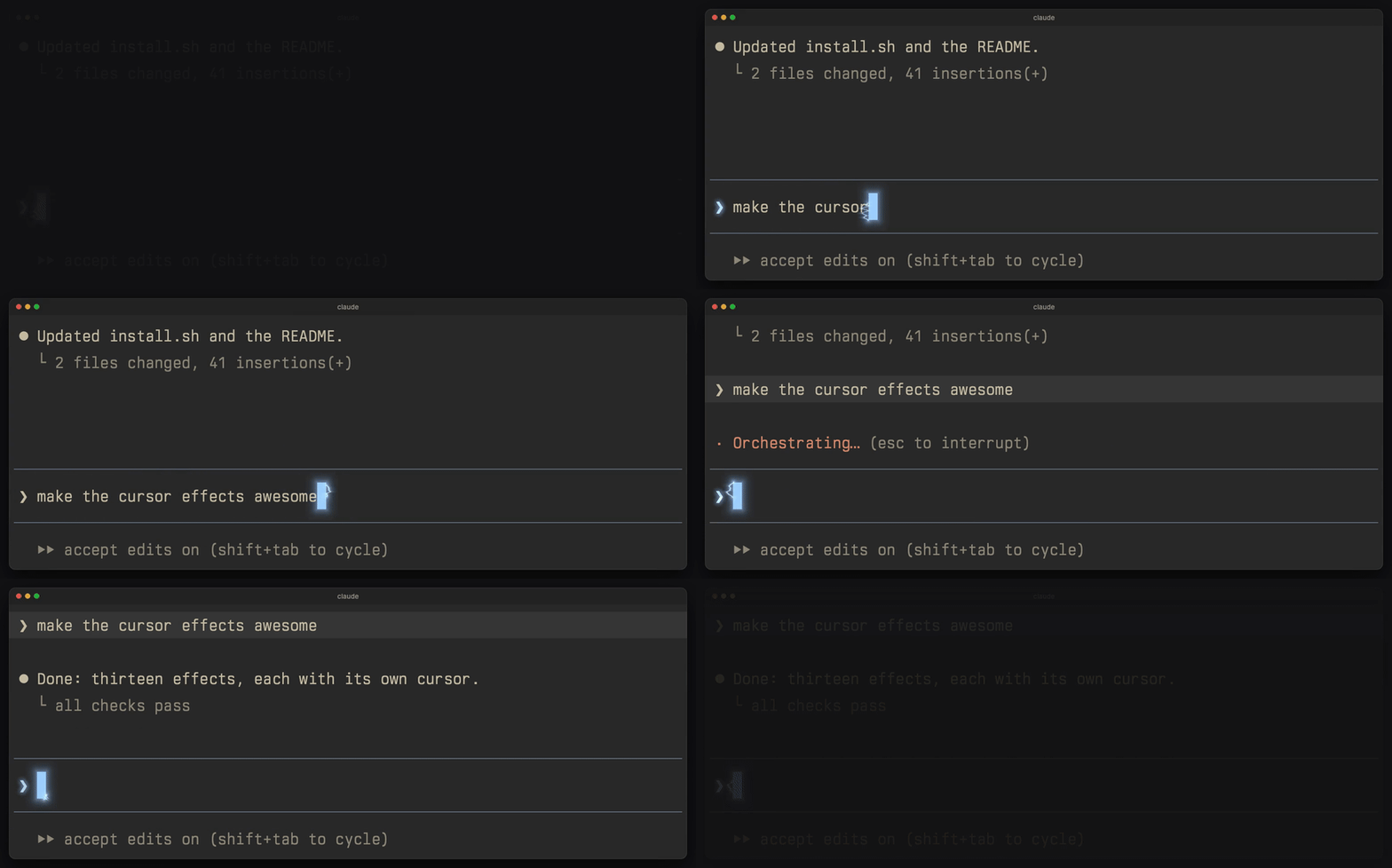
▶ Watch the 56-second video (all thirteen effects, 1080p and 4K, on the latest release)
| Effect | Cursor (its own look) | Typing | Enter |
|---|---|---|---|
cyber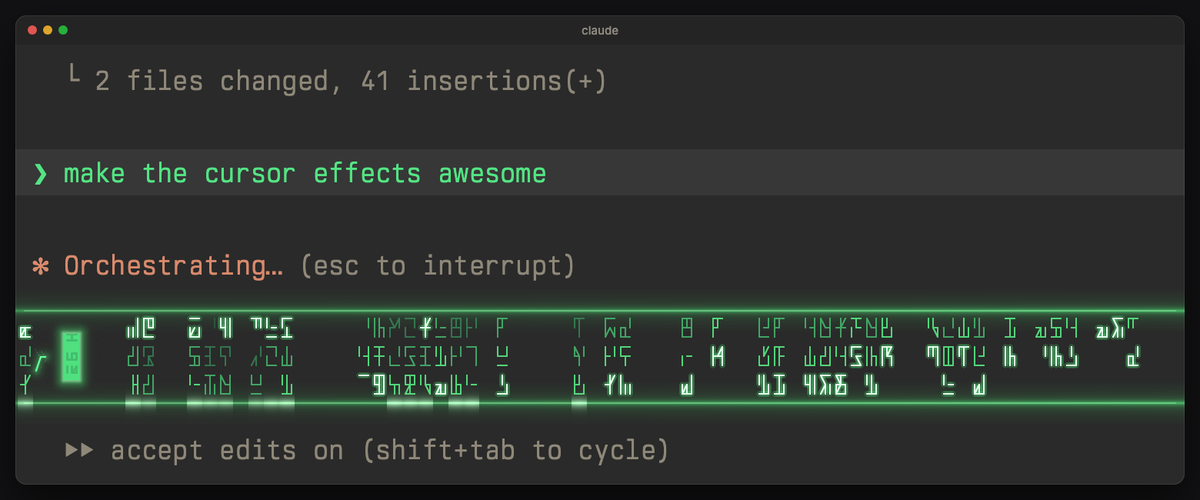 |
green, glyph rain inside, a scanline, a glow | each typed letter burns in: it lands hot mint-white and cools to green, never hidden (or decrypts behind glyphs: signal lock-in, slot reel, pixel resolve, glyph flicker); Chinese you pick, as a whole; your typed text and sent prompts show in green | sharp glyph rain falls through the input box, column by column, as an energy sweep runs along its lines; done: the sweeps meet in the middle |
lightning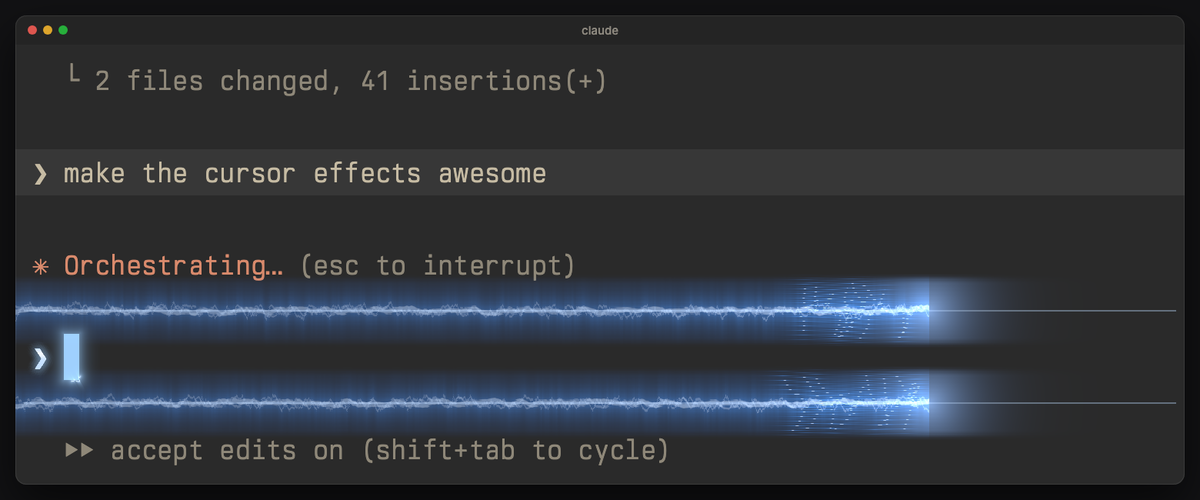 |
ice blue, small arcs crawling around it | sparks, idle crackle | a surge of current along the input box lines |
glitch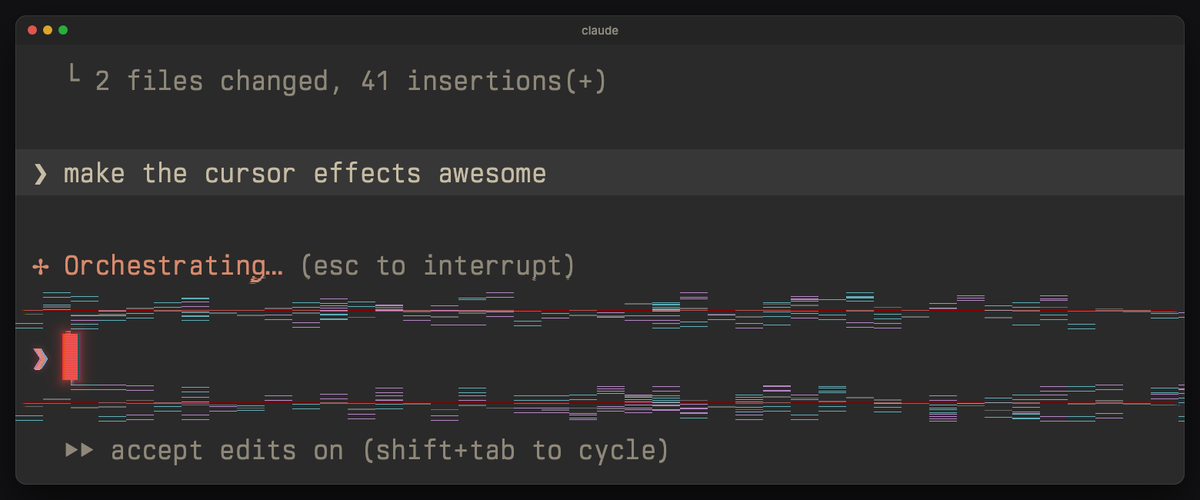 |
red, a corrupted signal: split color channels, scanlines, tearing now and then | tears into slices | the lines break into glitch slices |
neon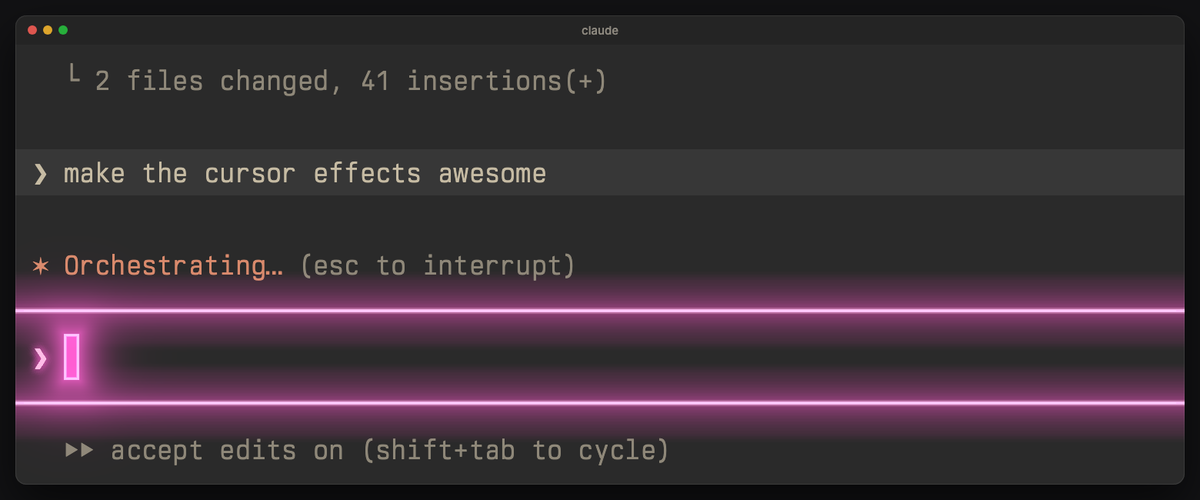 |
pink, a glowing tube with a breathing halo | flickers back on | the lines light up as neon tubes |
phosphor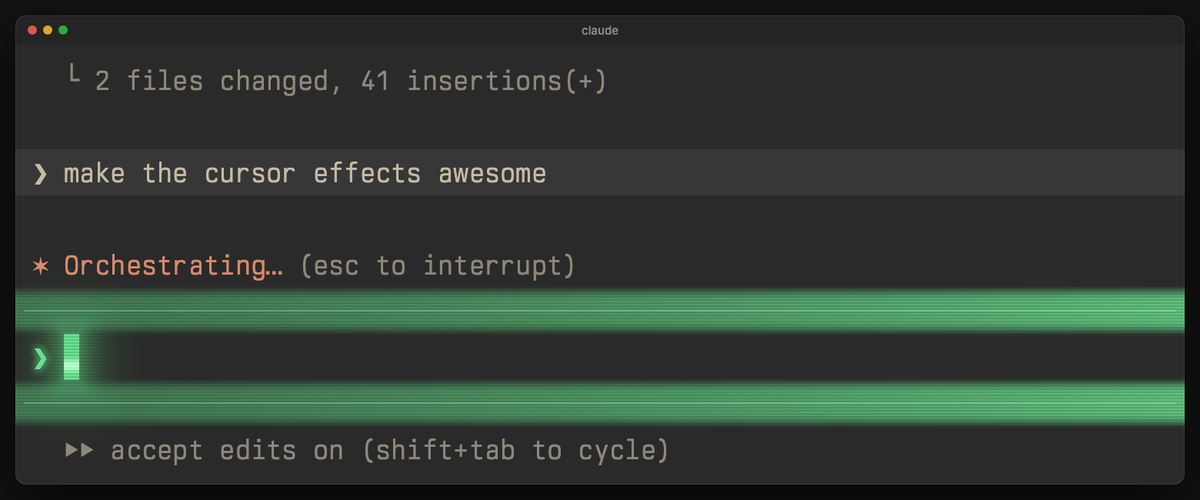 |
green, CRT scanlines, glow, a rolling band | CRT glow, trail | a beam sweeps the lines, leaving them glowing |
embers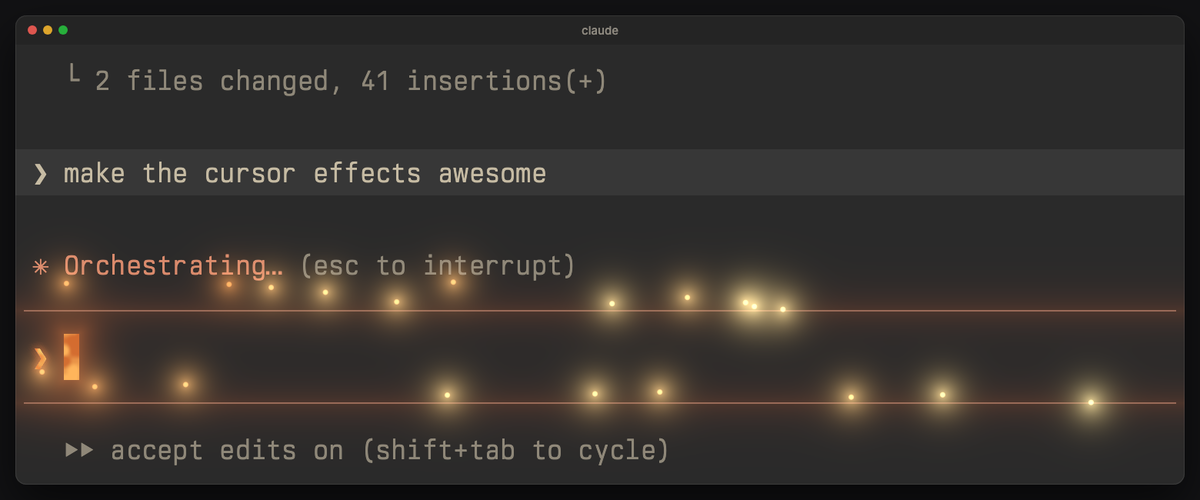 |
orange, a burning coal with shifting hot cracks | embers rise | the lines flare and shed embers |
shockwave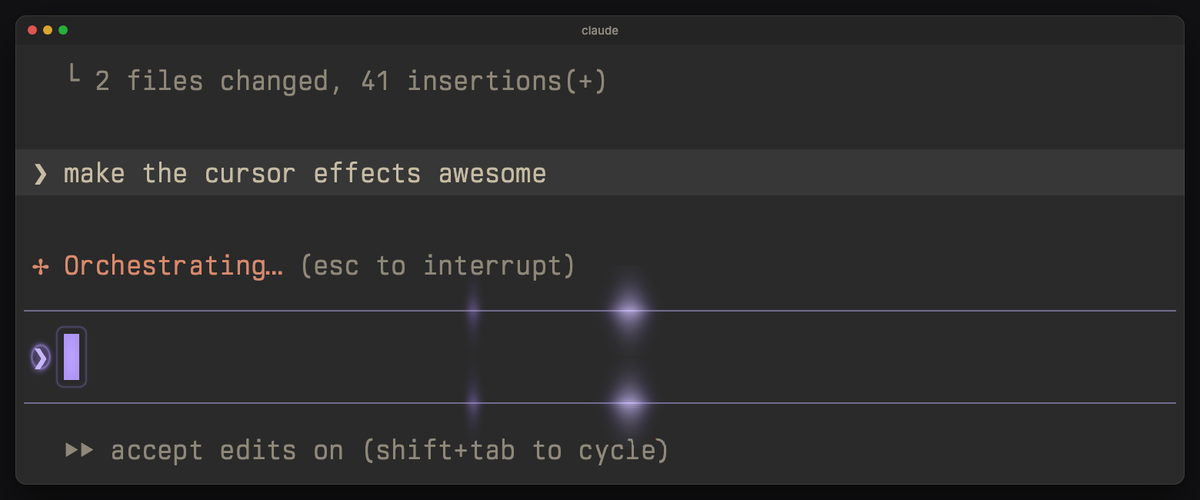 |
violet, faint ripples, a soft pulse | a small ring | a pulse runs along the lines, bending text |
katana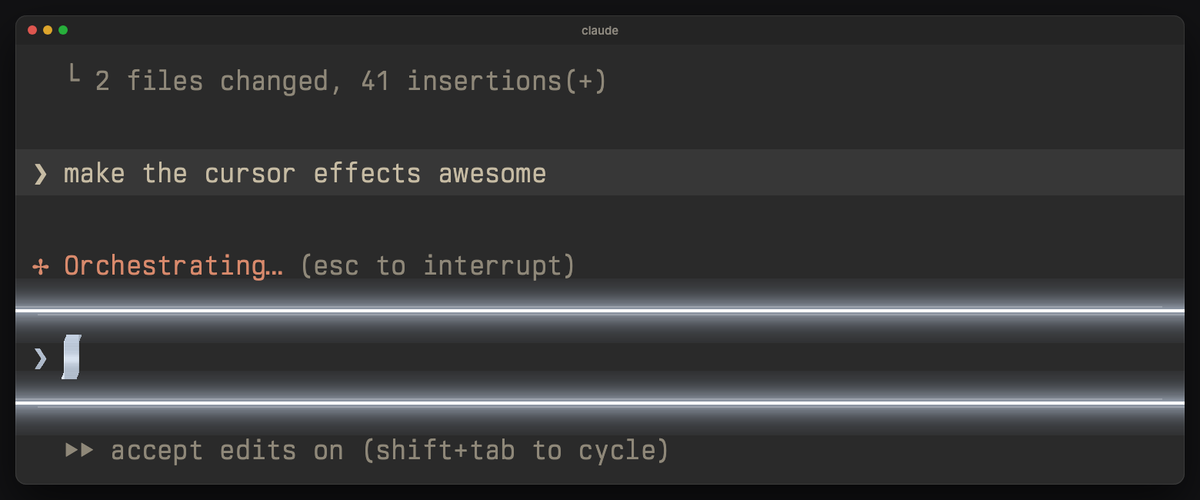 |
steel, beveled and brushed, a slow sheen | a slash through the cursor | the blade cuts the lines in two |
teleport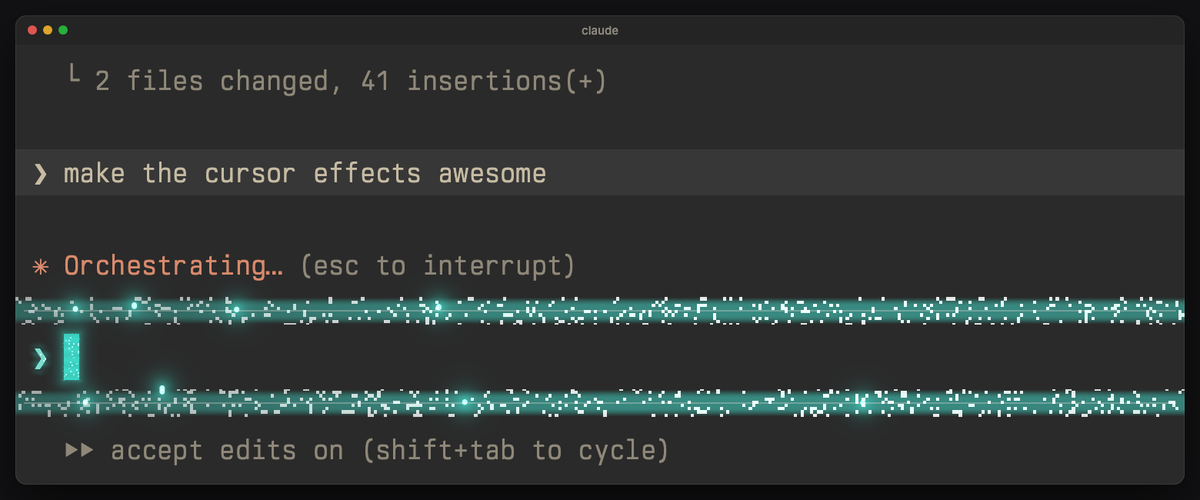 |
teal, twinkling matter, a shimmering edge | a shimmer | the lines sparkle and beam up out of the window |
fireworks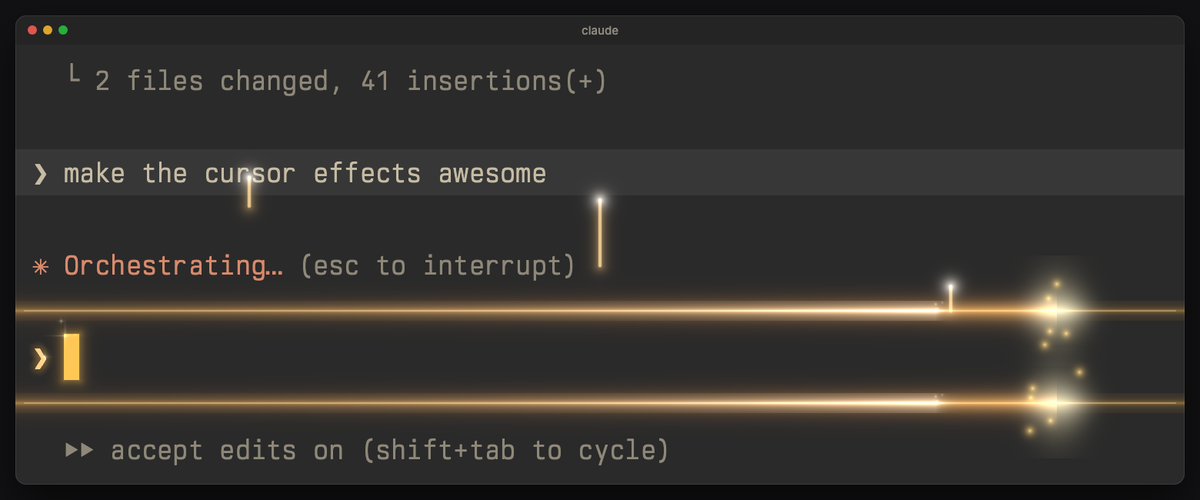 |
gold, a sparkler: tiny stars flare at its top | sparkles | a fuse burns along the lines and launches fireworks |
aurora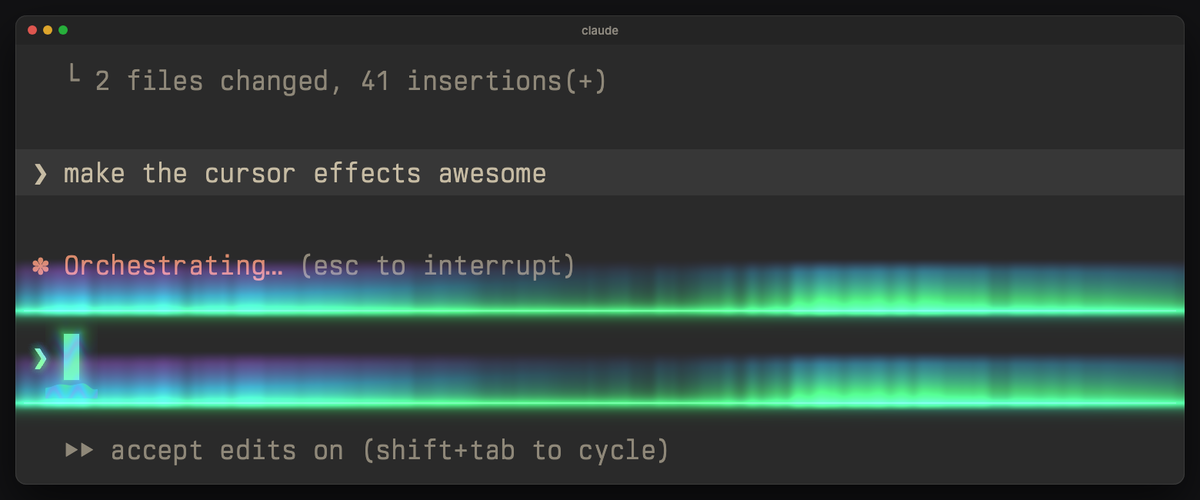 |
mint, aurora colors drifting inside it | a wisp of light | shimmering curtains of northern light along the lines |
mecha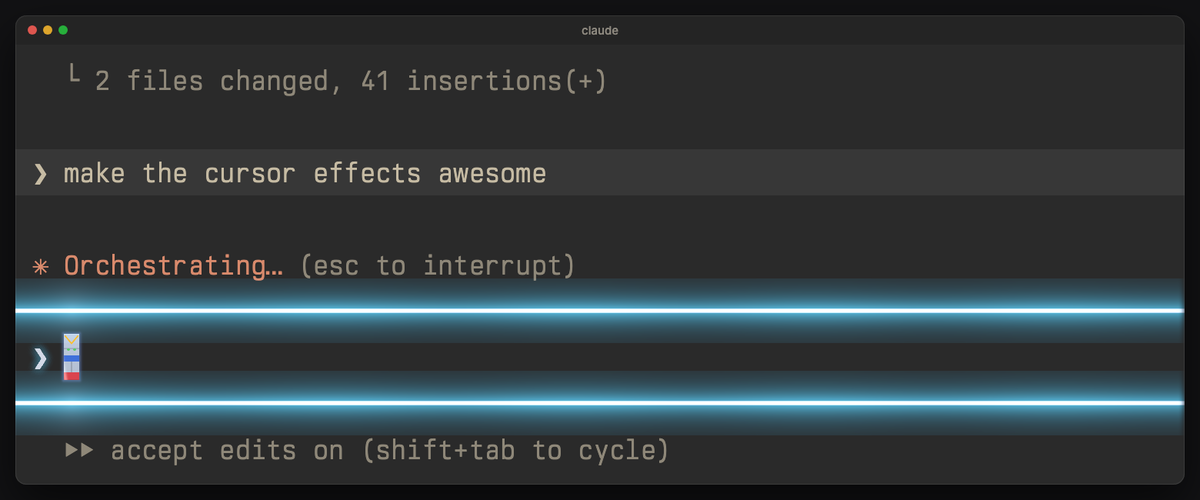 |
robot armor: white with blue and red plates, a yellow V crest, sensor eyes that glint; the ❯ is a steel-blue targeting chevron that locks on now and then | a thruster burst behind the cursor; Backspace fires one from its right side | energy blades ignite along the input box lines; done: two blades clash in the middle |
hologram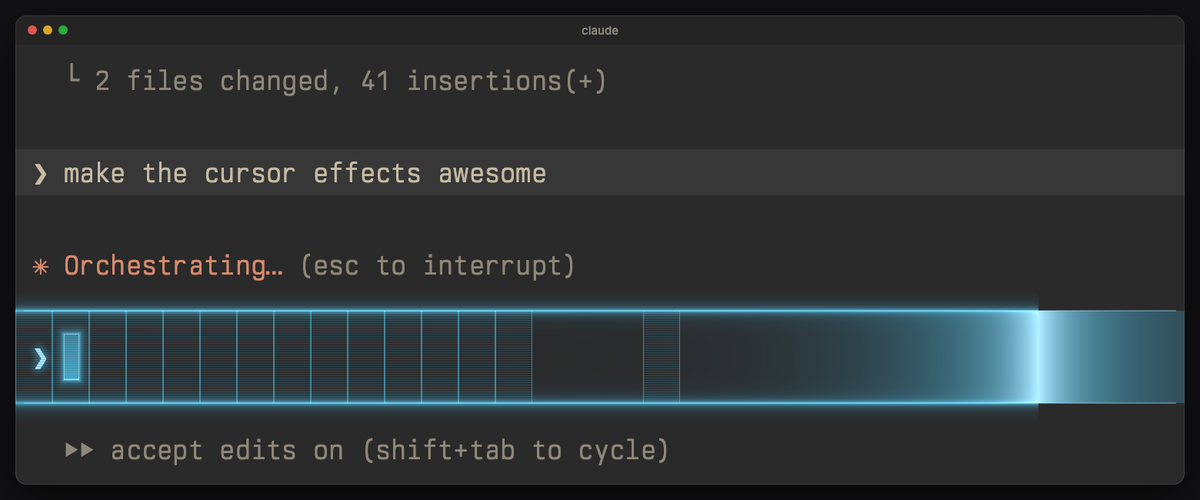 |
cyan, a translucent projection with scanlines and a thin frame | each letter is printed by a rising scanline | a scan runs along the input box, its lines light up and a wireframe grid flickers in |
Every cursor look stays one character wide, only touches the block itself (a letter
under the cursor stays readable) and holds still with cursor-fx idle off. The
prompt mark (the ❯ at the start of Claude Code's input line or your shell
prompt) takes the same style. The input box's two lines can have a calm look of
their own too (neon tubes, a lightning spark running across, a fireworks fuse, data
dashes for cyber…), off by default, and take a little of the effect's color
(LINE_TINT / LINE_COLOR, a plain tint, no glow). Every part of every effect has its
own on/off switch: typing, Enter, done, delete-all, the cursor's look, the prompt mark,
the box lines' color and their animated look (and blinking, off by default). Your own
text can take the cursor's color too: what you type and the prompts you sent, each with
its own switch (on in cyber; off in the others, as it costs about 1.5 to 3.5 ms a frame
on a big window).
Moving forward along the row counts as typing: a letter, a Chinese character, or a whole phrase your input method commits at once (it plays like one keystroke, never the delete-all move; cyber and hologram burn in or print the whole phrase). Each effect's "Chinese input" switch turns that off. The prompt mark keeps its style when your prompt wraps onto more rows and while Ghostty isn't the focused window (it holds still then). Deleting a whole line (select all + delete, Home) plays each effect's big move; cursor jumps to another row stay quiet, so programs redrawing the screen never set anything off.
Known limitations
- The input box is found by its look. A shader can't ask Claude Code where its input box is, so each effect looks for a thin line across the window (ink at 5, 45, 66, 88 and 95 % of the width, background 4 px above and below) up to a few rows above and below the cursor. Claude Code draws it in grey (rgb 136 or 138), or in your palette's white with its ANSI themes. If that line is within about 3 % of your background color, or a Claude Code update redraws the box (lines 8 px or thicker, no lines), or Claude Code sits in a pane without pane support (below), Enter plays just under the sent line instead. A full-width horizontal rule from another program right above or below the cursor lights up like a box line. Checked in the test harness with Claude Code's line grey on dark grey, black, Dracula and Solarized Dark backgrounds.
- A prompt that wraps over several rows: aurora, cyber, embers, fireworks, hologram, mecha and teleport play their Enter effect along the bottom box line only (glitch, katana, lightning, neon, phosphor and shockwave find both lines).
- Your text in the cursor's color (the panel's "Your text"; on in cyber, off in the others):
sent prompts are found by the grey bar Claude Code draws behind them, exactly rgb 55,55,55
(65,60,65 for a
!command) in its default dark theme. With another Claude Code theme, or if an update changes that grey, sent prompts keep their own color. In a prompt taller than about ten rows (fewer if you raised Ghostty's cell height), only the rows nearest the cursor take the color. - Forward jumps count as typing: End, or accepting a shell suggestion, plays the small typing effect, not the big move (so committed Chinese text never sets off the delete-all move).
- Other programs that set the cursor color themselves (OSC 12) with an odd blue or green value can set off an Enter or done effect; the signals use those lowest bits.
- tmux: the Enter and done signals rely on the cursor color reaching Ghostty; inside tmux that
depends on your tmux setup and is untested. herdr keeps a pane's cursor color to itself, so in a
herdr pane
cursor-fx signalwrites to the herdr client's terminal instead. - Panes inside the terminal (herdr's sidebar, tmux splits) need pane support:
cursor-fx panes on(it turns on by itself the first time you pick an effect inside herdr;cursor-fx panes off). The input box is then found from the cursor's column (in a pane at least 24 cells wide) and the effects stay in the cursor's pane; a shell's Enter line stops at a pane's border. It costs about 1 to 1.5 ms a frame, more during Enter. herdr draws its sidebar separator in its theme'ssurface_dim; if that is your background color, the effects can't see it: givesurface_dima color of its own in herdr's[theme.custom.dark]. Checked in the test harness and in herdr. - pi needs "Show hardware cursor" on. Without it Ghostty sees no cursor: no cursor look, typing or done effects, and Enter plays where the cursor was last seen. The pi signals are checked with pi 1.4.0; the effects in pi are not yet checked in Ghostty.
- See-through windows and light themes work: when you pick an effect,
cursor-fxturns the shaders' support on for abackground-opacitybelow 1 or a light theme (or alight:…,dark:…pair), and off otherwise, where it costs nothing. After changing either, runcursor-fx <effect>once. See-through windows are checked on macOS. - bash and fish: only the zsh hook ships; the README's snippets for other shells are untested.
- Battery: while any animated effect is on, Ghostty redraws the focused window continuously.
cursor-fx idle offmakes the screen calmer;cursor-fx offis the only real saver.
Requirements
- Ghostty 1.4 or newer on macOS or Linux (Ghostty has no Windows build).
- Python 3.8 or newer (for
cursor-fx; no packages needed; the one that comes with macOS works). - A dark or a light theme. On a light background the effects draw ink instead of light, in their own colors (embers is faint there); your text then keeps its own color. Colors sit in the 7–9.5:1 contrast range on a dark grey background.
- A block cursor (Ghostty's default). With a bar or underline cursor (for example vim's insert mode) the cursor, prompt-mark and box-line looks stay off; the moves and Enter effects still play.
Install
Clone this repository (or download it as a ZIP from the green Code button), then in its folder:
./install.sh
This copies shaders/ and cursor-effects/ next to your Ghostty config (found in Ghostty's
config folder or its macOS folder; symlinks are followed), cursor-fx into ~/.local/bin, and
the pi extension into ~/.pi/agent when that folder exists. It backs up anything it replaces. Then:
cursor-fx lightning    # pick an effect; Ghostty reloads at once
cursor-fx              # list them, the active one marked
cursor-fx off          # plain cursor
cursor-fx subtle on    # the calm version of every effect, for all-day use
Copying a single shader by hand instead? On Linux, change #define Y_DOWN true
near its top to false, or the effect plays upside down (install.sh does this for you).
The Enter and done effects
Shaders can't see keys, so two tiny hooks tell the effect what happened: cursor-fx signal on Enter and cursor-fx signal done when the answer arrives. Each nudges
the cursor color by one invisible step for a moment (the last bit of the blue or
green value); the shader reads that as the signal.
Claude Code — merge hooks/claude-code-hook.json into ~/.claude/settings.json:
a UserPromptSubmit hook for Enter and a Stop hook (Claude finished answering)
for done.
pi — install.sh copies hooks/pi-extension.ts to ~/.pi/agent/extensions/cursor-fx.ts
and sets Show hardware cursor (showHardwareCursor in ~/.pi/agent/settings.json), which
the effects need because pi hides the terminal cursor by default. Run /reload in pi. Enter
fires when you send a prompt; done fires when pi has finished and won't continue on its own.
zsh — add hooks/zsh-hook.zsh to your ~/.zshrc: Enter before every command,
done after any command that took more than 5 seconds. (bash/fish: call
cursor-fx signal --tty "$(tty)" from your pre-command hook and cursor-fx signal done --tty "$(tty)" after long commands.)
Switch both off any time with cursor-fx enter off (it turns the Enter and done
moments off in every effect; cursor-fx enter on brings them back); cursor-fx jumps off silences the delete-all moves; cursor-fx idle off stops the small animations
between keystrokes (crackle, breath, ping) for a calmer screen.
Subtle version, and an off key
The effects are tuned to be seen. For all-day use, cursor-fx subtle on switches every
effect to its calm version: smaller, dimmer moments and a quieter cursor (lightning's
bolt stays low with no branches, fireworks fire one small rocket, shockwave's rings
shrink and barely bend the text, glitch tears a third as often). cursor-fx subtle off
goes back. Each effect also has its own Subtle switch (in the panel, under Look).
In the subtle version cyber doesn't decrypt what you type, so a typo shows at once.
cursor-fx toggle turns the effect off, and back on to the same one. To put it on a key:
- macOS: in the Shortcuts app, make a shortcut with a Run Shell Script action
containing
"$HOME/.local/bin/cursor-fx" toggle, then add a keyboard shortcut in its details (for example ⌃⌥⌘C). If it doesn't run, allow it in Shortcuts → Settings → Advanced → Allow Running Scripts. - Linux: add a custom keyboard shortcut in your desktop's settings that runs
sh -c '"$HOME/.local/bin/cursor-fx" toggle'(desktop shortcuts don't expand~).
Battery
Be aware: while any animated shader is installed, Ghostty redraws the focused
terminal on every screen refresh (that's how time-based effects work), and that
redraw is the real power cost, not the effects themselves. The shaders return
early for pixels they don't touch. Only the focused terminal animates: that's
Ghostty's custom-shader-animation = true, the default, so ten open splits don't
cost ten times as much. Leave it there: always keeps every split and tab
animating, each one adding to the cost, and false stops the animation loop, so
the effects freeze mid-move. cursor-fx idle off makes the screen calmer but saves
little; the only real saving on battery is cursor-fx off (or cursor-fx toggle),
which removes the shader so Ghostty redraws only when something changes.
Tune it
cursor-fx edit
opens a local page. The preview (the real shader) stays on screen while you adjust the settings next to it: just type to try the effect, no click needed (Chinese and other input methods work too; Enter sends, ⌘⌫ deletes the line), or use its buttons for Enter, done and delete-all; zoom in on the cursor (2×, 4×) and slow it down (½×, ¼×) to see the details. Every effect's settings come in the same sections, in the same order: Typing, Enter & done, Delete-all, Cursor, Prompt mark ❯, Input box lines, Your text and Look. A section's on/off switch sits in its title (its controls dim when it's off), the few settings worth a tweak sit under it, and the rest fold under "More settings" in the same section. Each number has a fixed range (from its note and its default), so a value can't run off into something broken. Every change is written to the shader file and Ghostty reloads; the status pill says "Saved … · Ghostty reloaded", changed rows show their old value with a one-click reset, "Reset to defaults" puts one effect back the way it was installed (it asks first), and "Undo this session" (click it twice) puts everything, including your Ghostty config, back to how it was before your first change. The cursor's color and "Cursor blinks" are in the Cursor section, for that effect alone. The switches at the top (Enter & done, delete-all, idle animations, subtle) set every effect at once (half-filled when effects differ). The page is in Chinese when your system's language is Chinese and in English otherwise; the button at the top switches between them (remembered by the browser).
How it works
- Each effect is a Ghostty
custom-shader(shaders/*.glsl) plus a preset (cursor-effects/<name>.conf) that sets the cursor color (and, if it wants, its owncursor-style-blink, which overrides your config's) and points at the shader.cursor-fx <name>writes oneconfig-file = cursor-effects/<name>.confline into your Ghostty config and reloads Ghostty (SIGUSR2). - Settings are the
constlines at the top of each shader; the panel edits those lines. Internal values (timings the Enter signal depends on, detection distances, caps) are#definelines under// --- fixed valuesand stay out of the panel. - The Enter signal is the lowest bit of the cursor color's blue value, so every preset color keeps that value even.
- The input box lines are found by looking for a thin line across the width just above and below the cursor (see Known limitations); in a plain shell the Enter effect plays under the line you sent.
- Ghostty gives shaders y-down pixels on macOS and y-up pixels on Linux. Each shader
is written y-up and has a
#define Y_DOWNswitch (withscreenAt()andupCursor()) thatinstall.shsets for your system, so effects that rise do rise on both.
Add an effect
Drop a shader into shaders/ and a preset into cursor-effects/:
# Name: one-line description shown by `cursor-fx`
cursor-color = #9fd0fe
custom-shader = ../shaders/name-cursor.glsl
It shows up in cursor-fx and the panel automatically. Keep the shader's
settings as const lines under a // --- settings comment, with the rarely
needed ones after // --- fine-tuning ---. A // -- Name line starts a section;
use the shared ones (Typing, Enter & done, Delete-all, Cursor, Prompt mark,
Box lines, Your text, Look) and the shared switches (TYPE_EFFECT, PHRASE_EFFECT, ENTER_EFFECT,
DONE_EFFECT, JUMP_EFFECTS, CURSOR_EFFECT, PROMPT_EFFECT, LINE_TINT,
LINE_EFFECT, TEXT_COLOR, IDLE_EFFECTS, SUBTLE) so the panel lays it out like the others. Write each
note so it reads on its own. An int whose note ends in : 0 one, 1 two, 2 three
shows as named buttons; a note with (0 to 1), at most N or (0 = none) sets the
range of its slider. Copy the Y_DOWN block from an
existing shader, read the screen through screenAt() and the cursors through
upCursor().
Upgrade
git pull && ./install.sh # or download the new ZIP and run ./install.sh in it
Your settings stay: whatever you changed (in the panel, with cursor-fx, or by hand in
a shader or preset) is put back into the new version, and everything you never touched
takes the new version's defaults. The installer lists what it kept, and the replaced
files are saved in ~/ghostty-savepoints/. cursor-fx --version shows what's installed.
Uninstall
cursor-fx off, then remove shaders/, cursor-effects/ and the
config-file = cursor-effects/... line from your Ghostty config, and the hooks.
Development
test/index.html is a WebGL harness that runs a shader over a drawn terminal
screen with Ghostty's uniforms: run python3 -m http.server in this folder and
open http://localhost:8000/test/index.html?shader=../shaders/lightning-cursor.glsl&color=9fd0fe; tests.js,
tests2.js and tests3.js hold the checks used while building the effects.
sync-from-ghostty.sh copies your live, tuned files back into this folder.
promo/ renders the promo video and the pictures in this README from the same shaders
(see promo/README.md).