
ArthurkaX/cds-text-sync
ArthurkaX/cds-text-sync has 109 GitHub stars and 24 forks. GitHot measured +2 stars in 24 hours, +3 in 7 days, and +5 in 15 days. Last checked 2026-11-18 04:02 UTC. Last push 2026-11-15.
Measured star growth
- in 24h
- +2
- in 7 days
- +3
- in 15 days
- +5
- in 1 month
- Collecting history
Net star changes over overlapping periods, not daily totals. Missing measurements are left blank. Stars measure attention, not software quality.
About
🔄 Git-friendly text synchronization for CODESYS. Export your project to ST files, edit with modern tools (or LLMs), and sync back. Lightweight and metadata-driven.
ProductivityREADME.md
Original
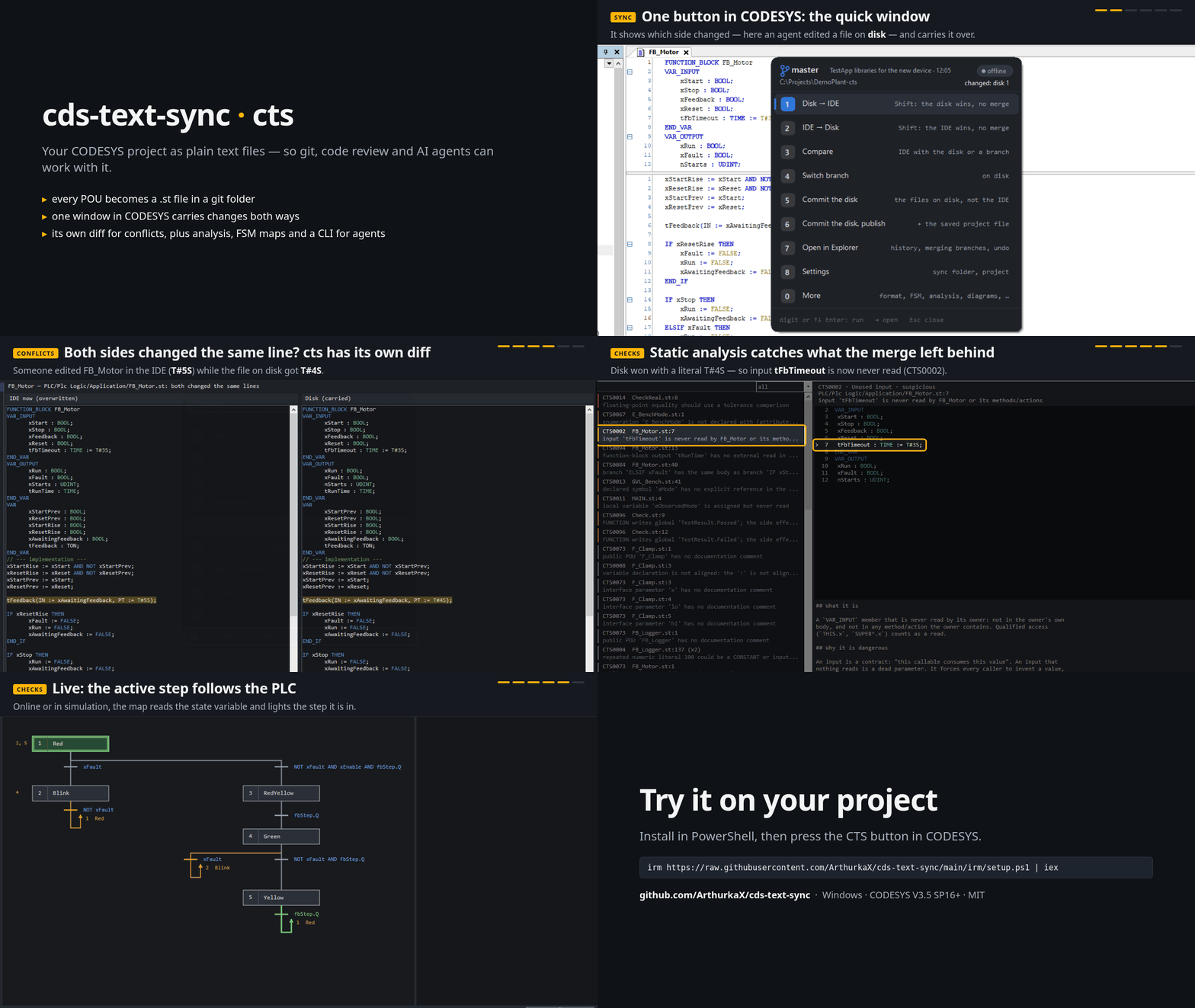
Your CODESYS project as text: Git, editors and AI agents work on it, the IDE stays in sync.
cds-text-sync


Turn a binary CODESYS project into a folder that Git, editors, CI tools and LLM agents can understand. Export the project, review or change its text on disk, then import it back into CODESYS.
This is an independent MIT-licensed tool, not an official CODESYS product.
1. Quick start
Requirements: Windows 10 or 11, CODESYS V3.5 SP16 or newer
(tested on SP16 Patch 9 x86 and SP22 x64), and Git (the sync
folder is a Git repository; Git for Windows includes the Git LFS a team's
project file needs). cts and the in-IDE agent are .NET Framework 4.8
programs, which Windows 10 1903 and later include.
Install the tool and its CODESYS menu entry:
irm https://raw.githubusercontent.com/ArthurkaX/cds-text-sync/main/irm/setup.ps1 | iex
[!IMPORTANT] 4.0. cds-text-sync is now
cts.exeand an agent inside CODESYS; theProject_*.pyscripts are gone. A 3.x sync folder is not taken over, and the last 3.x release, 3.4.1, stays one choice away in the installer's menu. Upgrading to 4.0 lists what changes, what to delete and how to go back.
The cds-text-sync toolbar button
( ) starts the agent and opens the quick
window, just like Tools > Scripting > Scripts > C > cds-text-sync. The
installer places its script and icon in CODESYS's sibling Script Commands
folder and adds the button to Standard. If CODESYS was open during setup, close
it and run
cts install --toolbar. For each project,
the important path is:
Open the project in CODESYS and start the agent once each time CODESYS starts: the toolbar button or Tools > Scripting > Scripts > C > cds-text-sync (or open the project with
cts project open --launch). Nothing starts it on its own. Until it runs, Alt+Q does nothing andctsfinds no IDE.Press Alt+Q, then
8Settings and1Sync folder. Enter takes the suggested folder (the clone the.projectlies in, else<project>-ctsbeside it), or type your own (cts set-sync-folder PATHdoes the same). The project keeps only an id; each machine remembers its own folder for it, so a copy of the.projectopened anywhere finds it again. That folder becomes a Git repository root on the spot:git initwhen it has none, ignore rules for generated files, and a first commit. Later the same row opens a folder dialog to move it;8also changes the key if Alt+Q is taken.Joining a project someone else set up: get its repository the way your team shares repositories (
git clone), open the.projectyou were given (or the one the repository holds) and press Alt+Q. The window opens on this row and asks where your clone is; pick it once. A folder of another project is refused. The.projectin the repository is the owner's (the machine that set the project up): onlycts commit --publishthere replaces it, and your commits carry the.stfiles, never a.project.In the quick window, on a new folder press
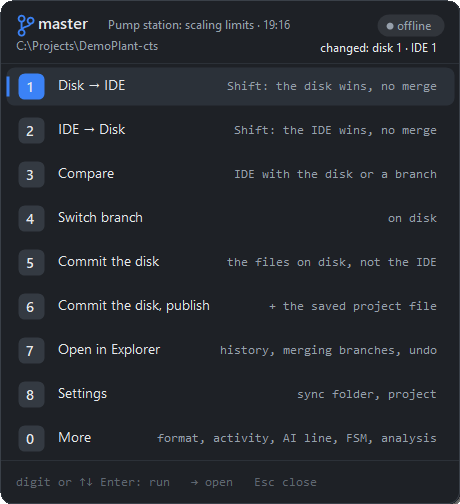
2(IDE -> Disk) to write the project toproject-view/. The window shows the branch and what changed on each side.Edit
project-view/, then1(Disk -> IDE) carries the edits into the IDE,3compares (the disk or a branch),5commits, and7opens the folder in your git program (GitHub Desktop, VS Code, Zed: your choice in Settings) for merging branches and the history. From a shell the same steps arects export,cts import,cts compare,cts commitandcts open.
cts compare shows what differs between disk, the IDE and the last sync before
either; 3 in the quick window opens the same difference in your diff program.
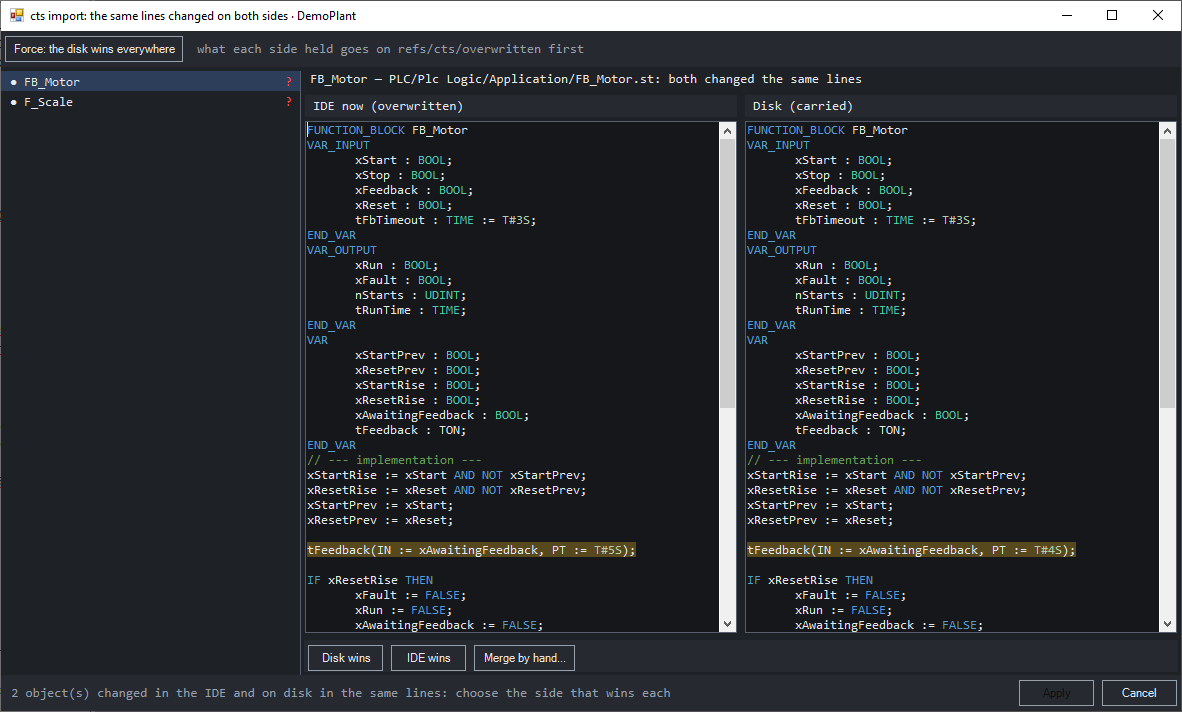
An object both sides changed is merged; when the edits overlap, 1 and 2
open the conflict window first: each such object side by side, the lines that
differ marked, and for each Disk wins, IDE wins or Merge by hand...:
The quick window's Settings page covers the sync folder, the program
7 opens, the quick key, this PC's role and the permissions; the files on disk
have no settings (one .st per POU, .csv for text lists). See the
installation guide if the entry does not appear under
Tools > Scripting.
2. Git workflows
project-view/ maps one-to-one onto the project: a POU, GVL, DUT or interface
is one .st file (methods, properties and actions inside), a text list is a
.csv, and devices, tasks, visualizations and other non-ST structure stay
native XML. cts export gives you both what Git can review and what CODESYS
can reimport; cts import carries a changed, new, renamed or removed file
back object by object.
The configured view root (project-view/ by default) is the editable, Git
tracked tree; cts keeps its temporary files under .git/cts/, outside it. Keep
project-view/ and cds-text-sync.json in commits. The sync base
(refs/cts/base) records what disk and IDE last agreed on, so cts can tell
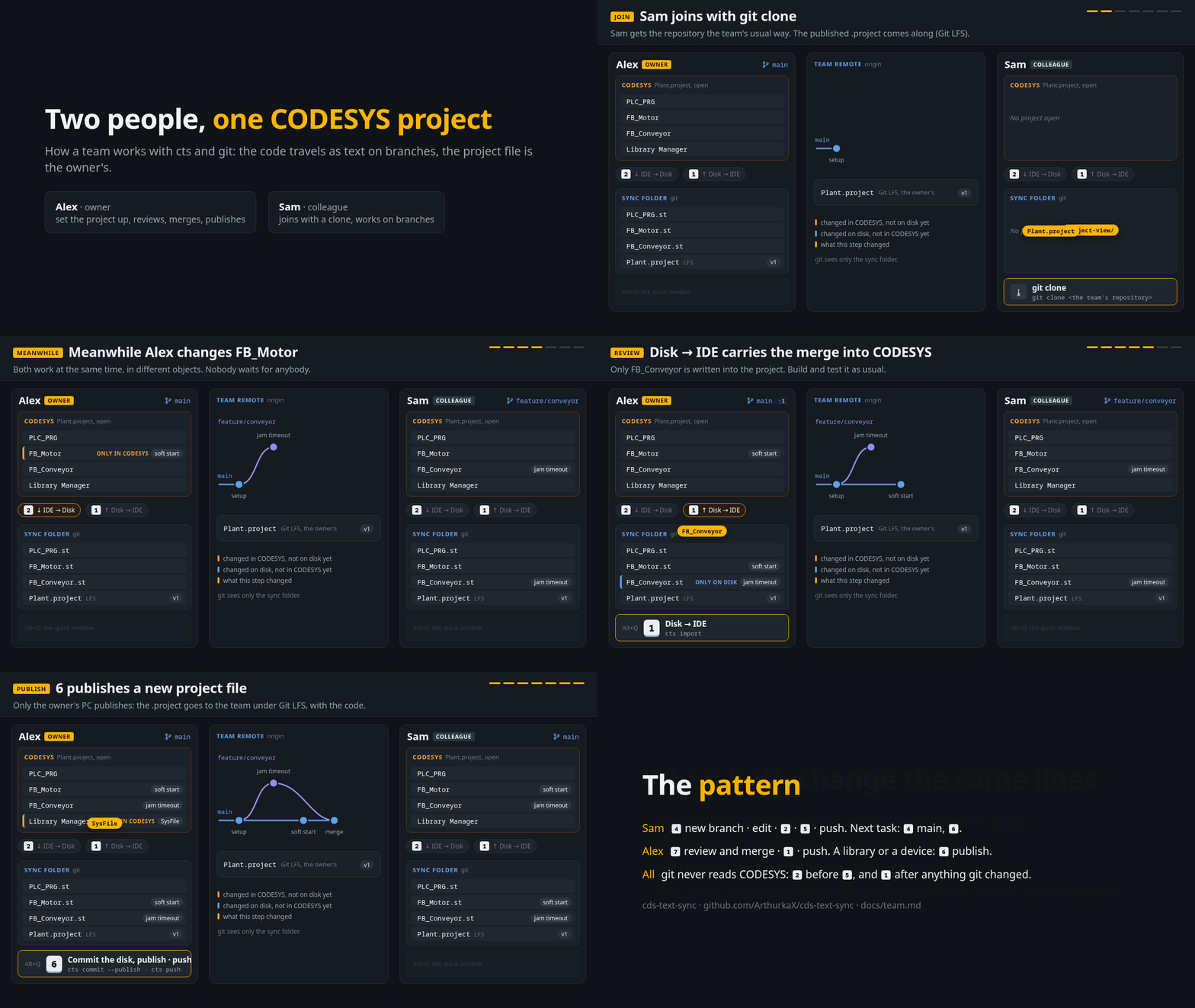
which side changed. For a team, work on feature branches and have the project
owner review changes before merging to main; Working as a team
walks through the owner's and a colleague's steps.
3. I want to find errors in my project
Export the project first, then run the analyzer against its .st files. It is
offline: no CODESYS window or PLC connection is required.
cts analyze --workspace C:\path\to\sync-folder
cts analyze --workspace C:\path\to\sync-folder --sarif findings.sarif  # CI/code scanning
cts analyze rules
cts analyze explain CTS0007  # for example, indentation
In the IDE, quick window More, 5 Static analysis opens the findings window.
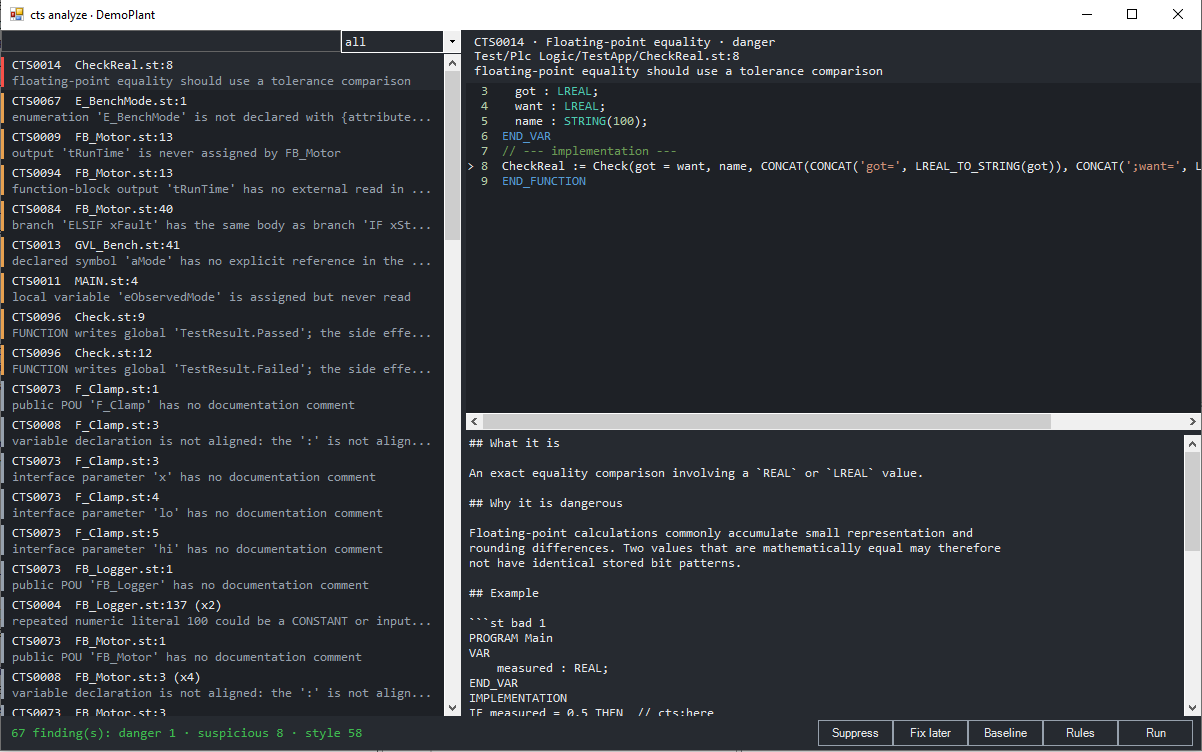
Details: static analysis.
One command for "is this shippable?"
cts verify runs every applicable check — static analysis, SVG sketch lint,
and (if CODESYS is open) the compiler — and returns a single verdict with a
single exit code. The offline stages only read; the compiler stage touches IDE
build state and --with-test writes to the PLC, so those two are not read-only.
cts --pretty verify --sync-folder C:\path\to\sync-folder
cts verify --with-test      # also run the .test/ plans on the PLC
cts test runs ST tests in simulation: a second device in simulation holds a
TestApp whose task tests the shared POUs, counts into a GVL TestResult and
logs each test to the runtime's log; every run saves that log as a file
(cts guide tests). The production application may stay online meanwhile.
A check that cannot run (no IDE open) is reported as skipped and marks the
run incomplete — it never turns into a failure. Exit codes: 0 pass, 1 real
problems, 2 could not start, 3 incomplete with --incomplete error.
▶ Click to open: Quick ST formatting inside CODESYS
When a Structured Text object looks untidy and opening the full Analyzer would
be unnecessary, open the format window: Alt+Q, 0 (More), 1 Format ST, or
quick window More, 1 Format ST. It aligns variable
declarations and repairs structural code indentation in the open IDE objects.
- The list shows every Structured Text object of the project, those the formatter would change marked with their line count; the filter box narrows it.
- The object chosen shows side by side, as the IDE has it and formatted, the changed lines marked on both sides; Previous change / Next change (Shift+F8 / F8) move between them.
- Apply writes that object and goes on to the next one to fix; Skip goes on without writing; Reload (F5) reads the IDE again. An object edited since the list was read is refused rather than overwritten. Use the normal CODESYS Undo command to revert an applied change.
The same formatting runs from the shell: cts fmt lists what it would change,
cts fmt NAME --write applies it.
More details: Script overview.
▶ Click to open: FSM transition map
If your code is built around state machines and you often have to read one
quickly — an unfamiliar CASE, or your own from six months ago — open the quick
window and choose More, 4 FSM map (Alt+Q, 0, 4). The agent's window lists the machines in the project's Structured Text
(unsaved edits included) and draws the one chosen as a GRAFCET diagram:
numbered steps, one bar per transition with its receptivity beside it, and a
step with several ways out fanned out as a divergence. Click a step or a
transition to read the Structured Text behind it. While the IDE is logged in,
Live paints the step the PLC is in and the transition that led there, for
the instance you choose. From the shell, cts fsm
lists the same machines, cts fsm --disk reads them from the exported files.
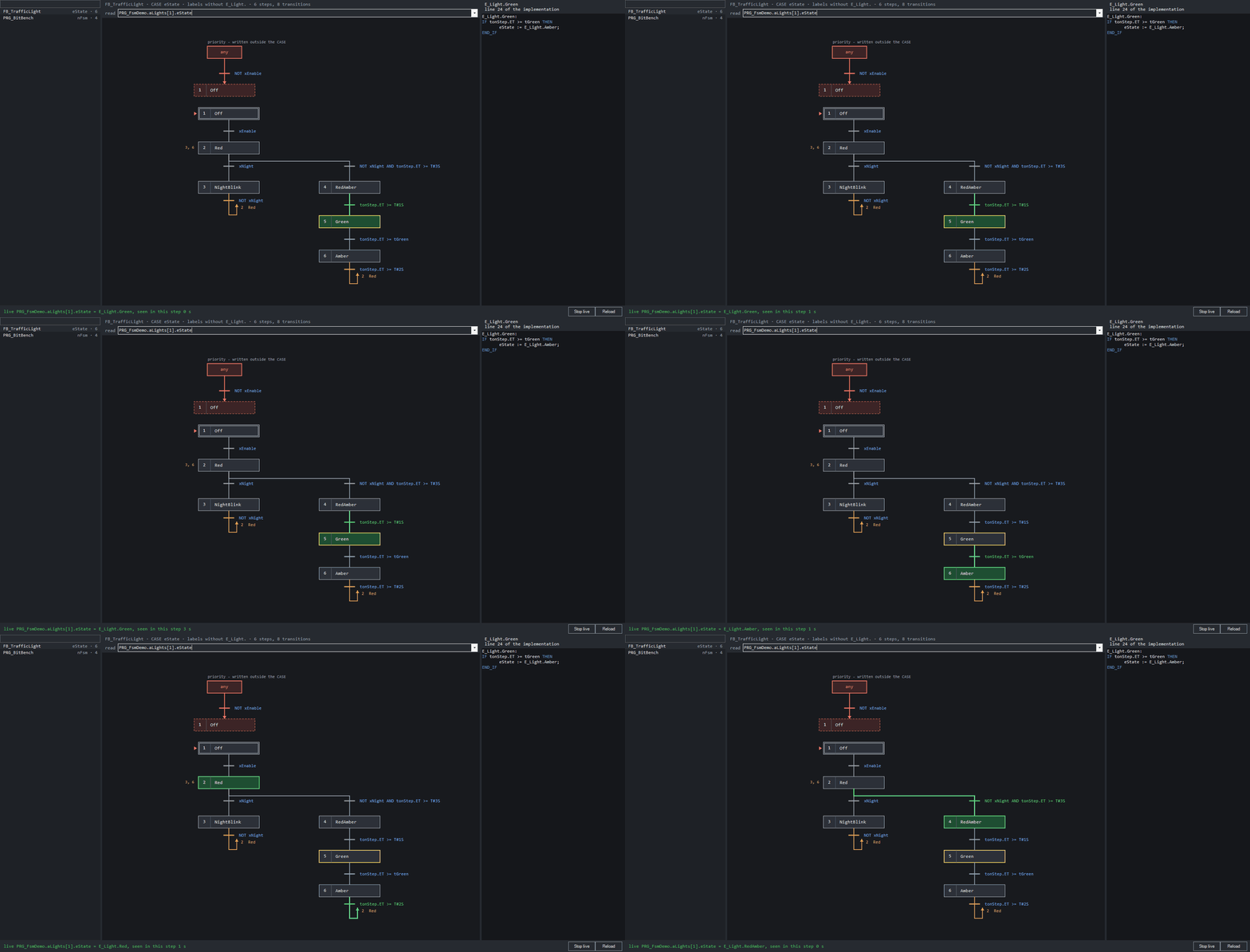
More details: Script overview
and cts fsm --help.
4. I want an LLM agent to control the project
Start the agent in CODESYS (the toolbar button or Tools > Scripting >
Scripts > C > cds-text-sync). It opens the quick window and exposes the
currently open project to the cts CLI. An agent can then export, inspect,
change, compare, import and build without clicking through the IDE:
cts status                 # check the project, PLC and sync folder
cts set-sync-folder C:\path\to\sync --save  # configure it through the agent
cts set-sync-folder --save # or the suggested folder (the clone the .project lies in)
cts export                 # CODESYS -> project-view/
cts compare                # inspect IDE vs disk
cts import                 # project-view/ -> CODESYS
cts build                  # build the active application
cts analyze --workspace .  # offline check; no IDE required
cts verify                 # every applicable check, one verdict, one exit code
cts config show            # the quick window key and where it comes from
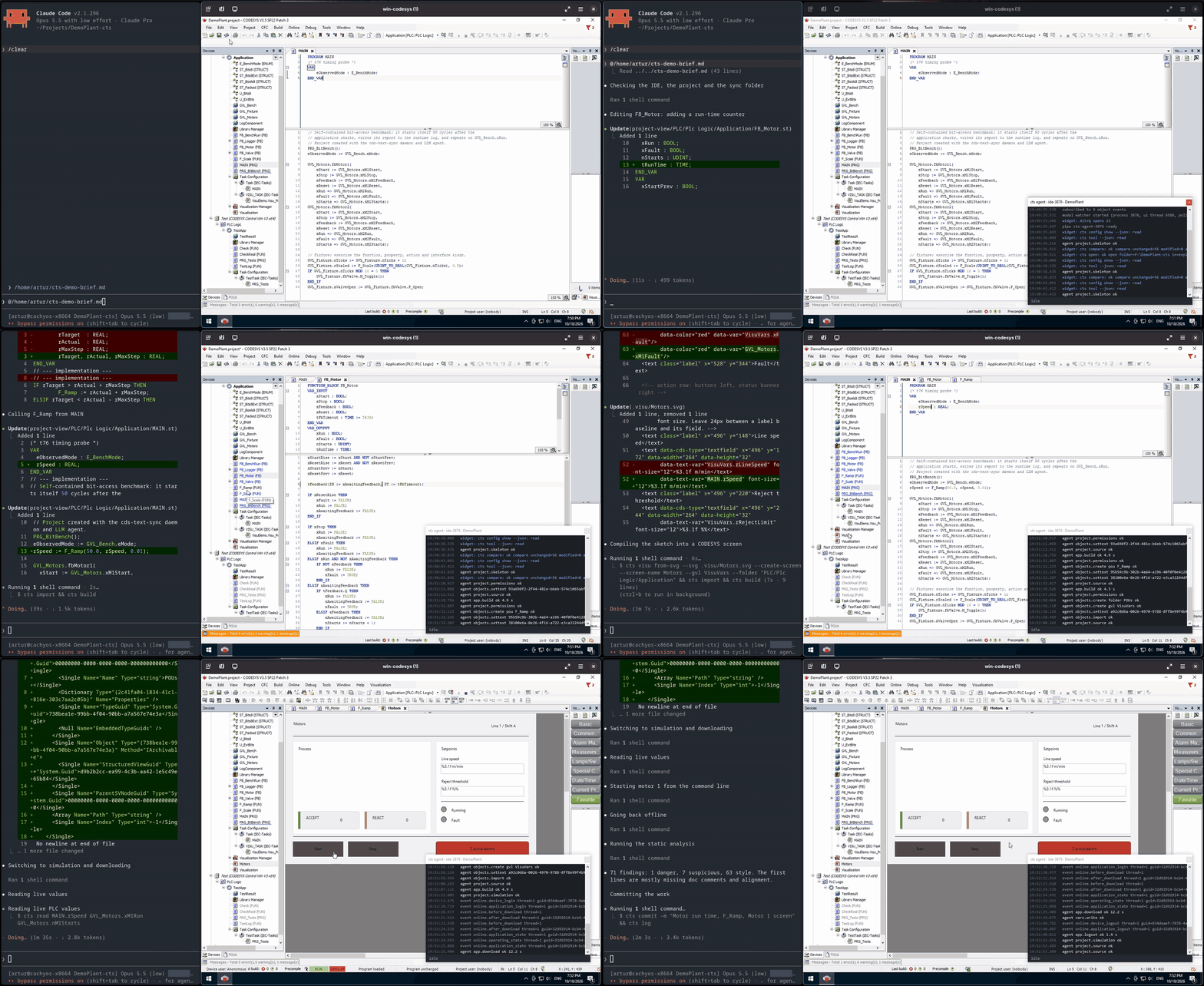
An LLM agent (left) working on the project open in CODESYS (right) through
cts: it edits a function block, adds a function, draws an HMI screen, builds,
downloads to the simulation, reads and writes live values, runs the analysis and
commits:
Several IDEs at once: point the agent at one project
Each running CODESYS IDE is addressed as ide-<pid>. In that IDE, Alt+Q, 0
(More), then 3 copies a ready line:
!cts --target ide-6128 --expect-project example_lib --help
Paste it into the agent's chat and it learns in one step which IDE and which project it should work with. Every later command carries the same
--target and --expect-project, so it cannot land in the wrong IDE, and it
refuses to write if someone has switched the IDE to another project. The
--help at the end prints the command list and where to start (status
with the same two flags shows that IDE's state). This is what lets two agents work on two projects in parallel, for
example an application and the library it uses. With more than one IDE open,
cts without --target goes to the IDE whose project's sync folder holds the
current folder (or the --sync-folder given); when none does, it refuses and
prints the available targets with their sync folders.
A library project has no application to compile. cts build checks it, and
cts build --install does what the IDE button "Save project and install into
library repository" does, so an agent can develop a library end to end.
The CLI also exposes project-tree operations, PLC interaction, tests and
diagnostics. Run cts --help, cts <command> --help, and cts guide for the
reference matching the installed version.
Give an LLM agent the full picture of the project
An agent working on the project blind — with no visibility into its own POUs
or the library functions it calls — has to guess signatures or grep raw
sources. cts docs reads the exported project and the libraries it actually
references, offline, and writes what the agent needs to know without opening
the raw CODESYS sources:
cts docs --workspace C:\path\to\sync
cts docs --libraries "C:\ProgramData\CODESYS"
cts docs --check          # 0 fresh, 1 stale, 2 no bundle
Output goes to .cts-docs/: index.md lists everything; project/<Name>.md
is one card per object — kind, doc comment, interface, inherited members,
its methods, properties and actions, what it calls, who calls it, the tasks
that run it and the globals it reads and writes; libraries/<Name>-<Version>-<Vendor>.md
is one page per referenced library from its installed LibDoc (signature,
description, example, interface). symbols.jsonl holds every symbol as one
JSON line and manifest.json the counts and the missing LibDoc with the
reason. Only libraries the Library Manager references are documented, and only
in the referenced version. .cts-docs/ is generated, so export/import/compare
ignore it and the .gitignore written when the sync folder is chosen covers
it; --out writes elsewhere.
Details: cts docs --help.
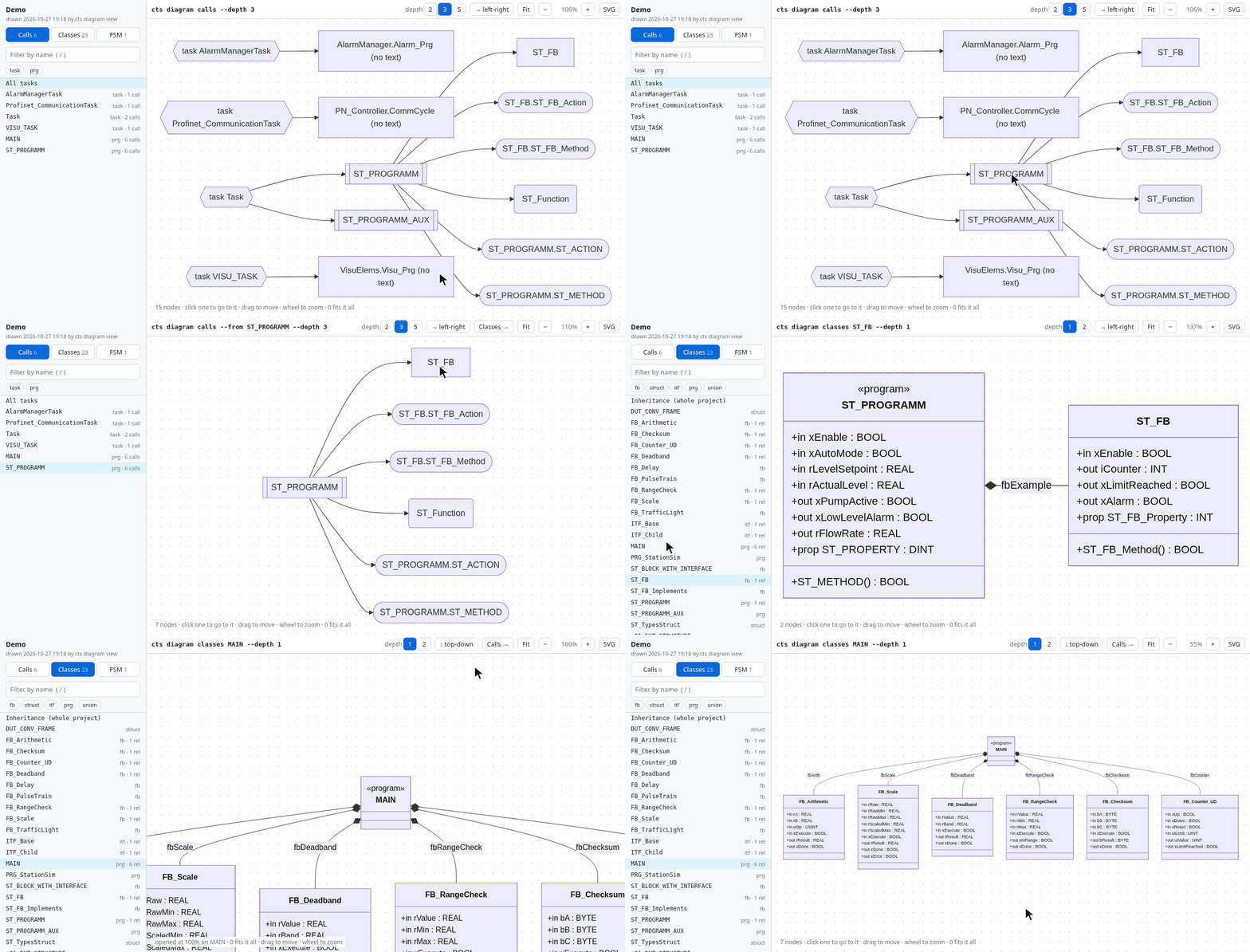
The same reading draws the project as mermaid, to paste into a document or a pull request, or as one page to browse:
cts diagram classes FB_Conveyor     # what it extends, implements, holds and refers to
cts diagram calls --from MainTask   # the task's programs and what they call
cts diagram view                    # every call, class and state machine drawing in one HTML page
The page opens in the browser and needs no network: pick a task, a class or a
state machine on the left, drag and zoom the drawing, click a node to go to it.
In the IDE, quick window More, 7 Diagrams writes and opens it.
Generate visualization screens from SVG
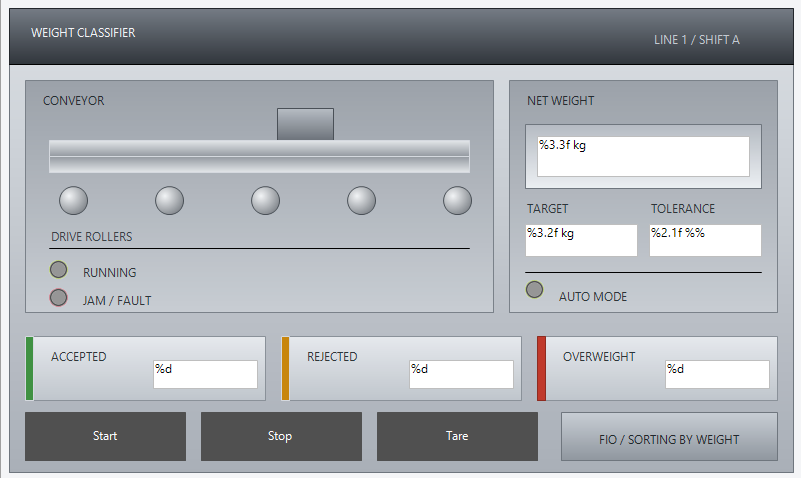
An agent can create an SVG sketch as plain text, lint and preview it, compile it into a CODESYS visualization, and import the result through the in-IDE agent:
cts visu new --name Line1 --w 1024 --h 600 --out line1.svg
cts visu lint --svg line1.svg --fix
cts visu preview --svg line1.svg
cts visu from-svg --svg line1.svg --create-screen --screen-name Line1 `
    --folder "PLC/Plc Logic/Application" --gvl VisuVars  # the folder as cts project-tree prints it
cts import
Details: HMI screens from SVG.
Record the plant while commissioning, then let the agent analyse it
The agent picks variables, and the PLC records them in a task's cycle into an SQLite file of its own (CODESYS' Trend Recording, made from files, no IDE clicks). Later the agent copies the samples to the PC and asks them with SQL:
cts trend set GVL_IO.rLevel GVL_IO.rFlow PLC_PRG.fbPump.xRun
cts import
cts build
cts download                           # the first time a full download, then online changes
cts trend on                           # off after every download; also writable in the IDE
cts trend pull                         # pauses the recording for a consistent copy
cts trend query "SELECT name, min(value), max(value), avg(value) FROM samples GROUP BY name"
cts guide trend explains the slots, the tables and the analysis queries.
For a moment rather than a night, the trace records every cycle into the PLC's ring buffer, around a trigger, with no download of the application:
cts trace set GVL_IO.rLevel PLC_PRG.fbPump.xRun --trigger PLC_PRG.fbPump.xFault
cts trace start                        # downloads only the trace; the IDE logged in
cts trace pull --wait 600              # after the trigger: a CSV and what each variable did
cts disconnect                         # when done: the IDE offline, the application keeps running
cts trace remove                       # off the PLC and out of the project
cts guide trace explains the trigger, the condition and the buffer.
Documentation
- Installation
- Script overview
- Project layout
- Working as a team
- CLI and operating guides
- Static analysis
- HMI screens from SVG
- Releases and rollback
- Upgrading to 4.0
Issues, friction reports and feature requests are welcome in the GitHub issue
tracker; questions and ideas
also on Discord. Everything posted
there is public: attach no project files or exports. Paste the output of
cts diag, run in the sync folder, instead: it holds versions, settings and
file counts, without file, object or project names. In the IDE, the quick
window's More > 6 Report a problem adds this session's cts runs and errors
with the names left out. See the
changelog for release history.
MIT License.