
Aixbox/DesktopGo
Aixbox/DesktopGo has 64 GitHub stars and 8 forks. GitHot measured 0 stars in 24 hours and 0 in 7 days. Last checked 2026-11-14 22:31 UTC. Last push 2026-11-03.
Measured star growth
- in 24h
- 0
- in 7 days
- 0
- in 15 days
- Collecting history
- in 1 month
- Collecting history
Net star changes over overlapping periods, not daily totals. Missing measurements are left blank. Stars measure attention, not software quality.
About
A Windows desktop launchpad built with Tauri, React, and Rust that combines app launching, desktop icon organization, and Everything-powered file search in one place.
ProductivityREADME.en.md
Original

简体中文 | English
DesktopGo
A Windows desktop launchpad that brings app launching, icon organization, AI-powered grouping, and Everything-powered file search into one focused entry point.
Download Latest · Releases · Report an Issue





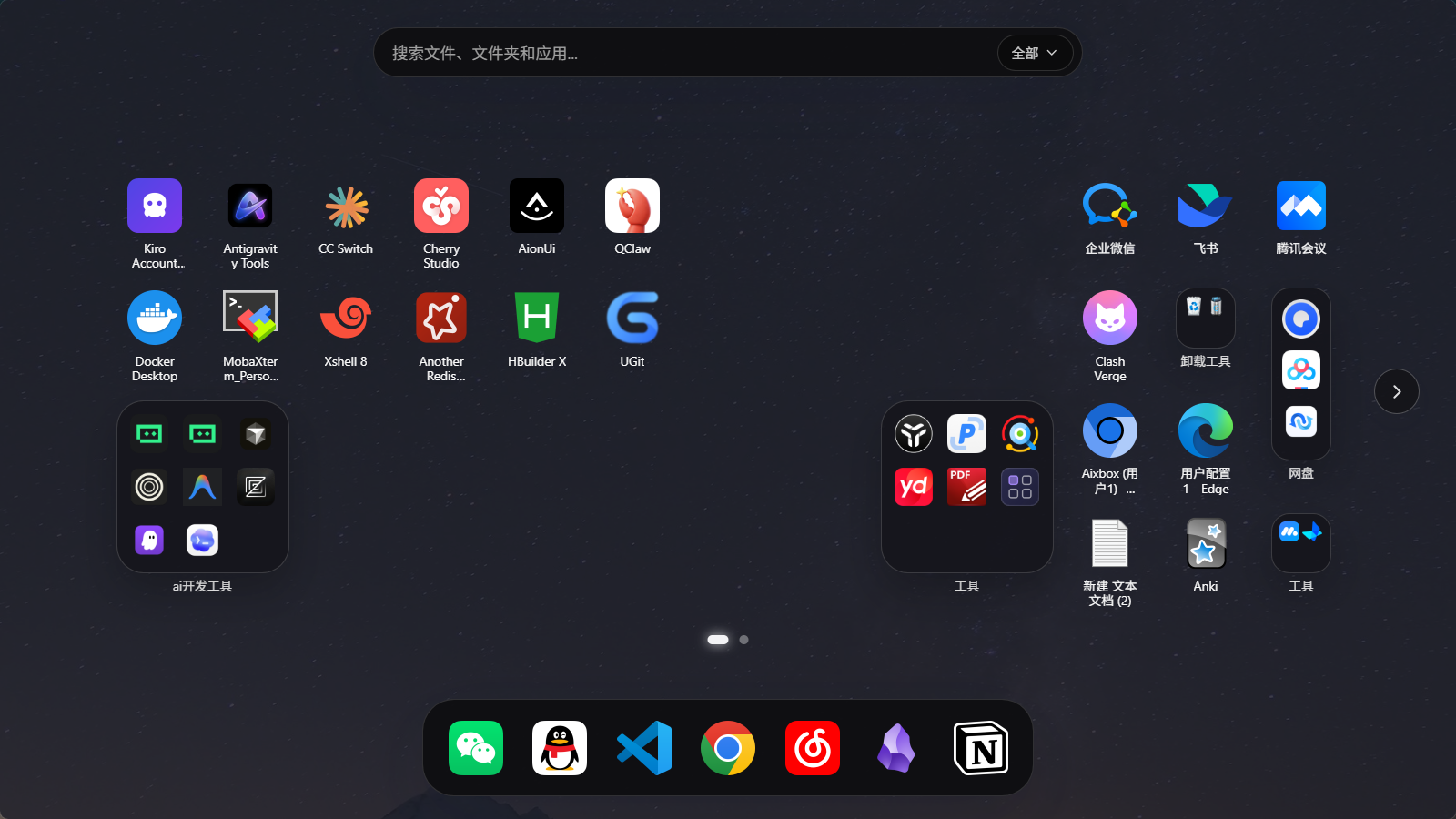
DesktopGo is a Windows desktop launchpad built with Tauri 2, React 19, and Rust. It borrows the interaction spirit of macOS Launchpad, but its feature set is designed around real Windows desktop workflows:
- A global shortcut to bring up a unified entry point
- A unified icon library that organizes apps, files, and custom entries into a draggable, grouped, paged layout
- AI-powered icon analysis and one-click launchpad grouping
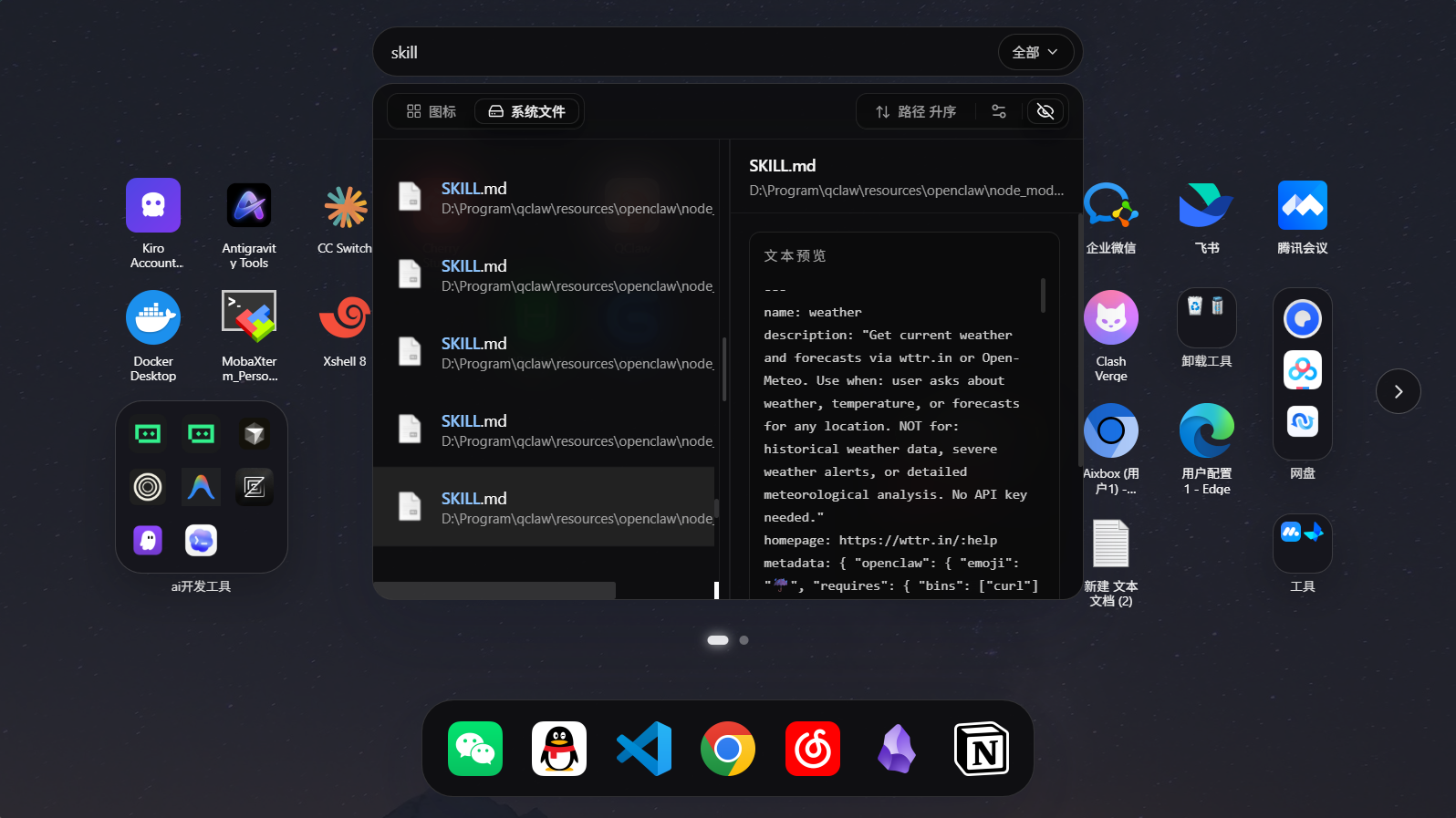
- Fast file search, preview, and launch powered by Everything
🚀 Download
If you only want to use DesktopGo, you do not need Node.js or Rust locally. Just download the latest release:
- Latest release: https://github.com/Aixbox/DesktopGo/releases/latest
- All releases: https://github.com/Aixbox/DesktopGo/releases
- Latest release notes:
docs/RELEASE_NOTES/v1.0.7.md - User Guide (English):
docs/USER_GUIDE.en.md - 使用说明(中文):
docs/USER_GUIDE.zh-CN.md
Install flow:
- Download and run the latest installer. A single installer ships both Simplified Chinese and English resources.
- The installer starts with a language dialog; the choice applies to the installer pages and the first-run app language.
- If Everything is not installed on your machine yet, keep the "Install Everything" option enabled.
- The finish page offers a "launch on startup" checkbox.
- After installation, use the default shortcut
Ctrl+Spaceto open the launchpad.
🖼 Screenshots
|
|
|
|
✨ Highlights
⌨️ Launchpad Entry
- Global shortcut support,
Ctrl+Spaceby default, remappable in settings - Tray-resident app with quick reopen behavior
- The main window hides automatically on blur by default; a "persistent window" mode keeps it on the desktop
- Three window modes: fullscreen, large, and medium, plus "always on top"
- Dock area for frequently used entries with linear previews
🧩 Icon Library and Organization
- A unified icon library manages apps, shortcuts, files, and folders; drag items straight from Explorer
- Drag-and-drop sorting, paging, cross-page movement, and folder management
- Two grid views: a paged layout and a scroll grouped layout with infinite scrolling, a group sidebar, and smooth FLIP reordering
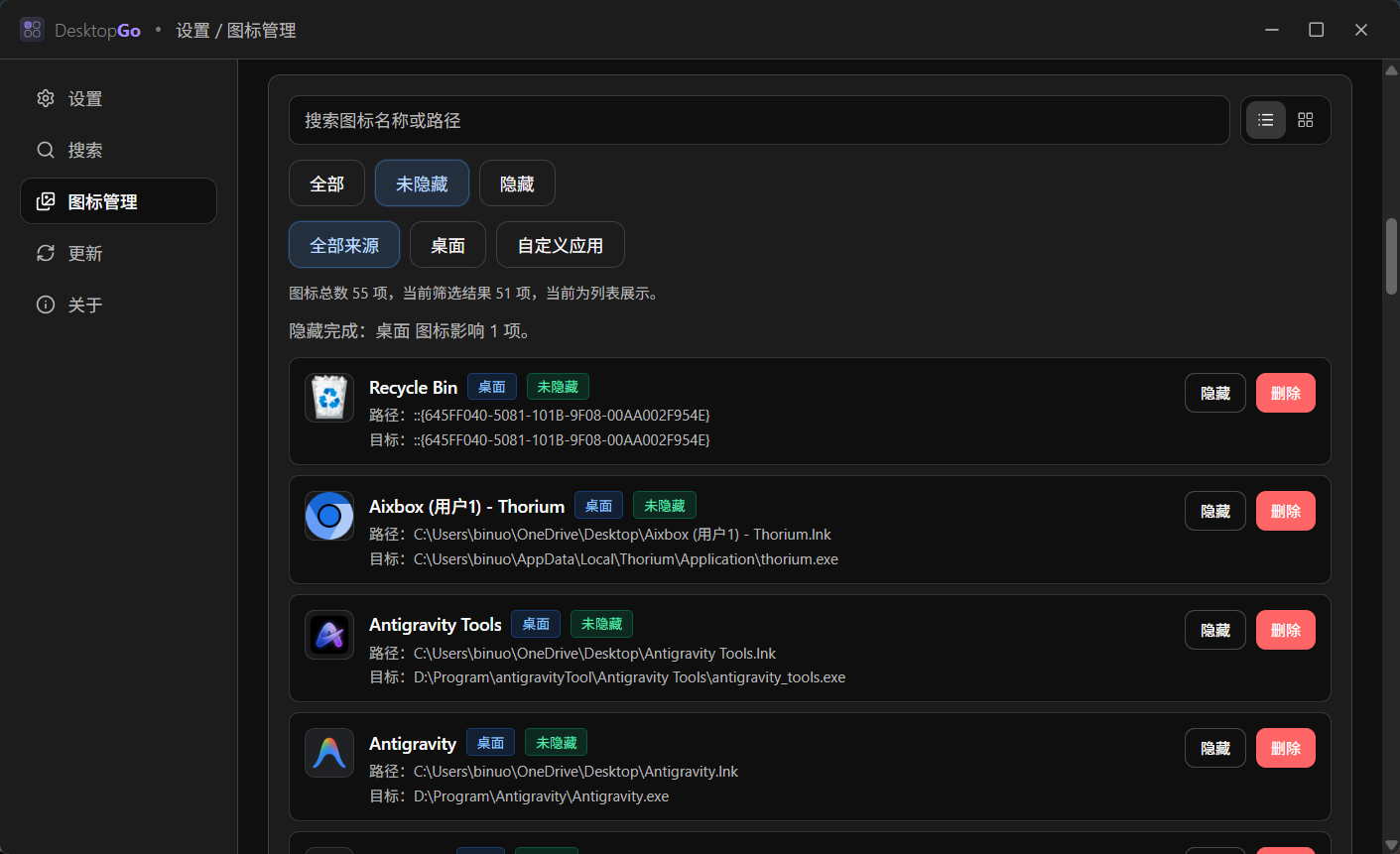
- Bulk selection, hide, and remove operations; custom display names that never touch the original files
- Advanced launch options per icon: arguments, working directory, and custom icons
- Supports a
customappdirectory for entries beyond the desktop
🖥 App Discovery and Bulk Import
- "Quick import" scans installed apps from the desktop, Start menu, and more, then imports them in bulk
- Catalog scanning supplements "registered apps" (registry App Paths) to cover exes without shortcuts
- Supports Windows Store apps (UWP / MSIX)
🤖 AI Smart Organization
- A built-in conversational AI panel works with OpenAI (Responses / Chat Completions), Anthropic, or any OpenAI-compatible endpoint (custom base URL, model, and reasoning effort)
- Streaming output with visible model thinking; generation can be stopped at any time
- AI analyzes icon purposes, proposes a grouping plan, and applies it after a grid preview; the scroll grouped layout is supported too
- An editable "icon category knowledge base"; built-in entries can be deleted and restored
- Sessions and snapshots are preserved across panel switches
🔎 Unified Search
- Everything integration with mixed shortcut and local-file search
- "Best match" ranks frequently used icons and file hits on top, with configurable match folders
- Search history, filters (files/folders/programs/images/videos and more), sorting, and keyboard navigation
- Path matching, case sensitivity, regular expressions, and whole-word matching
- A preview pane to confirm content before opening
- Full snapshot loading plus virtual scrolling keeps large result sets smooth
🎨 Wallpaper and Appearance
- Built-in curated wallpaper gallery: six wallpapers, offline-ready, one click to apply
- Online sources: Bing daily wallpapers, Wikimedia Commons, Wallhaven, and Pexels
- Custom local backgrounds with adjustable mask opacity and blur, cropping, and original-image management
- Light / dark / system themes; the accent color can be extracted from the wallpaper automatically
- A global superellipse (continuous-curvature) corner system for windows and icons
- Icon size, corner radius, opacity, and title lines are adjustable; UI language switches between Simplified Chinese and English
⚙️ Settings and Updates
- Settings cover general, appearance and wallpaper, search behavior, icon library, AI, updates, and about
- The icon manager supports browsing, searching, bulk actions, and invalid-icon scans
- A signed GitHub Releases update channel: in-app checks and silent downloads via
latest.jsonand signatures
📊 Comparison
| Capability | DesktopGo | Native Windows Desktop | Everything Alone |
|---|---|---|---|
| Unified entry point | Launch, organize, and search in one place | Split across desktop, Start menu, and Explorer | Mainly focused on search |
| Global shortcut entry | Yes, default Ctrl+Space |
Not a core workflow | Supports its own search window, not desktop organization |
| Icon library organization | Paged / scroll grouped, drag-and-drop, folders, Dock | Basic layout only | No |
| AI smart grouping | Yes (bring your own model API) | No | No |
| File search | Yes, backed by installed Everything | Limited | Core strength |
| Result preview | Yes | Limited | Not the core focus |
| Wallpaper and appearance | Built-in/online wallpaper sources, themes, corner system | Basic wallpaper | No |
| Local layout and settings persistence | Yes | Fragmented | Search-side config only |
🗺 Roadmap
✅ Done
- Global shortcut, tray residency, blur-to-hide, and persistent window modes
- Unified icon library: drag-and-drop, paged and scroll grouped layouts, folders, and Dock
- App discovery: Start menu scanning, registered apps, UWP/MSIX store apps, and bulk import
- Everything mixed search, best match, history, filters, sorting, and preview
- AI smart organization: multi-protocol model access, grouping preview and apply, category knowledge base
- Built-in / online wallpaper sources, theming, and the continuous-curvature appearance system
- Settings page, icon manager, and the signed GitHub Releases update flow
⚠️ Current Limits
- Windows only for now
- File search currently supports installed Everything only
- AI organization requires your own model API (OpenAI / Anthropic or a compatible endpoint)
customappscans one directory level only- Updates depend on signed release artifacts and
latest.json
🛠 Quick Start
Development Requirements
- Node.js and
pnpm - Stable Rust toolchain
- Tauri prerequisites for Windows such as WebView2 and the MSVC build toolchain
Run Locally
pnpm install
pnpm tauri dev
Notes:
pnpm tauri devstarts both the frontend and the Tauri desktop shell, and is the primary development command for this projectpnpm devstarts only the Vite frontend server, which is useful for UI-only work but not for validating full desktop behavior
📦 Common Commands
pnpm tauri dev: start the desktop development environmentpnpm build: build frontend assets intodist/pnpm tauri build: build the desktop installer/packagepnpm build:installer: build only the NSIS installer (Chinese and English resources included); local builds do not produce updater signatures, soTAURI_SIGNING_PRIVATE_KEYis not requiredpnpm test: run the frontend script tests in the repopnpm lint/pnpm lint:fix: run ESLint (:fixauto-fixes)pnpm format/pnpm format:check: Prettier formatting / checkingpnpm rust:quality: full Rust quality gates (fmt + strict clippy + check + test + file budgets)
🧱 Tech Stack
- Frontend: React 19, TypeScript, Vite 7, Tailwind CSS 4
- Desktop shell: Tauri 2 (official plugins: updater, global-shortcut, store, dialog, etc.)
- Native layer: Rust, Windows API, rusqlite
- State and interaction: Zustand, dnd-kit, Framer Motion, Radix UI
- Search: Everything SDK + IPC
- AI: direct OpenAI / Anthropic protocol support (compatible gateways welcome)
- Persistence: Tauri Store + SQLite
📁 Project Structure
DesktopGo/
├─ src/                     # React frontend
├─ src-tauri/               # Tauri / Rust / NSIS packaging config
│  ├─ src/                  # Tauri commands, Everything, icon catalog, AI, layout logic
│  ├─ nsis/                 # Windows installer hooks and language files
│  └─ resources/            # Everything SDK and installer resources
├─ public/wallpapers/       # Built-in curated wallpapers
├─ website/                 # Landing page and README screenshot assets
├─ scripts/                 # Quality gate and build helper scripts
├─ docs/
│  ├─ RELEASE_NOTES/        # Release notes
│  └─ USER_GUIDE.*.md       # User guides (Chinese and English)
├─ .github/workflows/       # CI / release / website deployment workflows
├─ LICENSE.txt              # Project license
├─ README.en.md             # English documentation
└─ README.md                # Default Chinese documentation
🧩 Data and Directories
customapp Directory
- When
customAppDiris not explicitly configured, DesktopGo defaults to acustomapp/directory next to the executable - The directory is created automatically if it does not exist
- Only the first directory level is scanned right now
Local Persistence
- General settings are stored through Tauri Store in
settings.json - Launchpad layout, search settings, and related state are stored in
app_state.dbunder the local app data directory - AI model access is stored separately in
aiConfig.json(the API key stays on-device) - Wallpaper originals and the icon cache live in the local app data directory
- Except for AI model calls and online wallpaper sources, everything runs locally with no account system
🔧 Troubleshooting
Search Is Not Working
Check these first:
- Whether Everything is installed
- Whether Everything is running
- Whether DesktopGo and Everything run at the same privilege level
- Whether the installer was allowed to install Everything
customapp Entries Are Missing
- Confirm that
customAppDirpoints to the expected directory in settings - Note that
customappscans one directory level only; files in subdirectories are ignored
AI Organization Is Not Working
- Check the model configuration under "Settings → AI" (base URL, API key, model name)
- When using a compatible gateway, make sure the protocol matches (Responses or Chat Completions for OpenAI-compatible APIs)
- Make sure the network can reach the configured endpoint
🤝 Links
📄 License
Released under the MIT License. See LICENSE.txt.