
359956085/FsTTY
359956085/FsTTY has 41 GitHub stars and 4 forks. GitHot measured 0 stars in 24 hours. Last checked 2026-11-15 01:59 UTC. Last push 2026-11-13.
Measured star growth
- in 24h
- 0
- in 7 days
- Collecting history
- in 15 days
- Collecting history
- in 1 month
- Collecting history
Net star changes over overlapping periods, not daily totals. Missing measurements are left blank. Stars measure attention, not software quality.
About
A secure Windows SSH workspace and MCP server for Codex, Claude Code, Cursor and other AI agents.
Developer ToolsREADME.en-US.md
Original
FsTTY
A Windows SSH workspace and secure MCP control plane for AI agents.
简体中文 | English




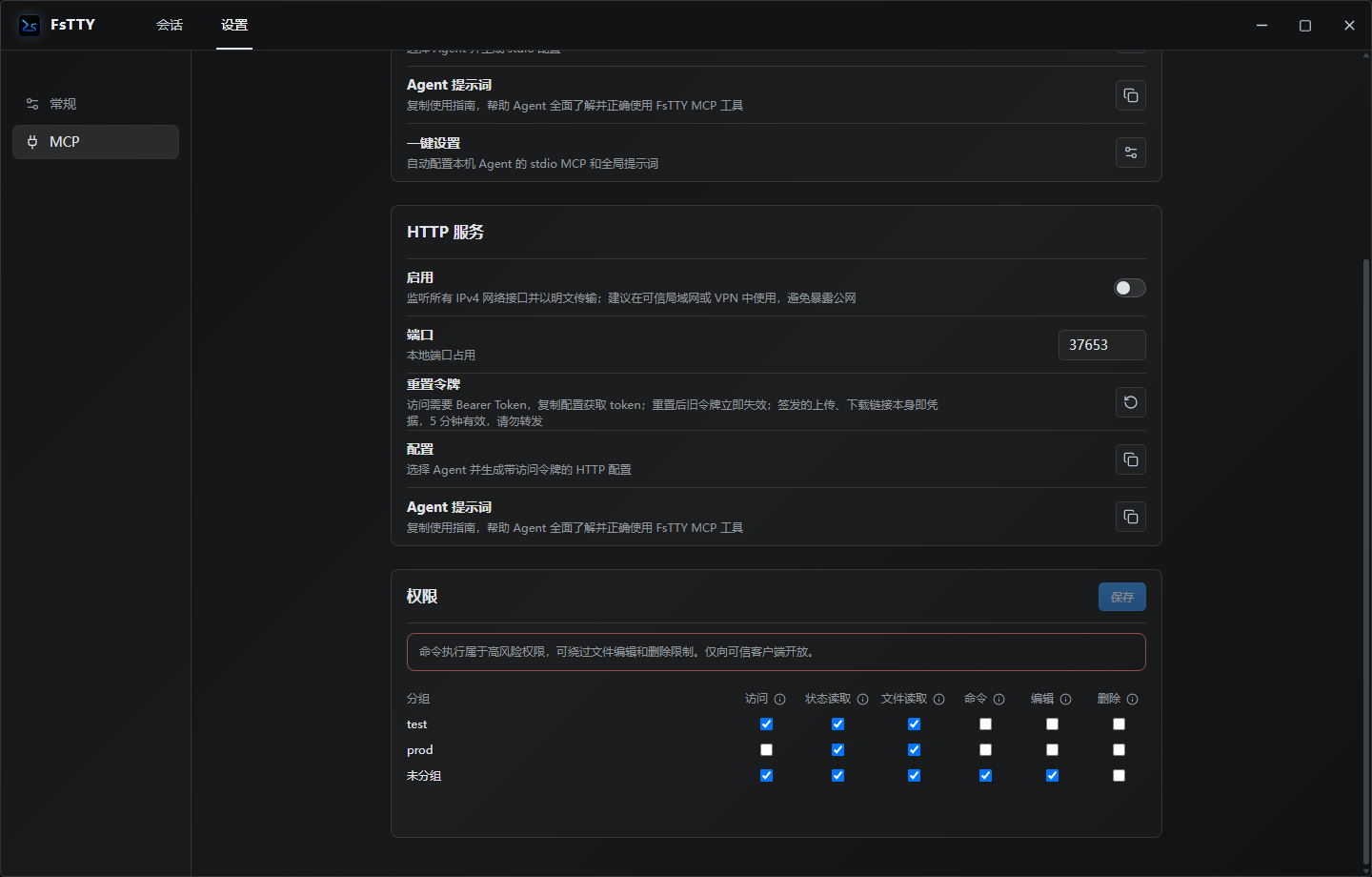
Why FsTTY MCP
FsTTY securely exposes your saved SSH sessions to agents such as Codex, Claude, and Cursor. Agents never receive passwords or private keys and can call only explicitly authorized tools within selected session groups.
- Least privilege: control access, file reads, file transfers, commands, edits, and deletion per session group.
- Reuse proven SSH capabilities: FsTTY owns terminals, SFTP, host-key verification, and credential storage.
- Local and remote access: use local stdio or Streamable HTTP on a trusted LAN or VPN.
- One-click agent setup: detect local agents, choose stdio or local HTTP, and merge MCP configuration and global instructions without overwriting unrelated settings.
- Production diagnostics: search remote logs, read file windows, execute commands, write atomically, and transfer files under explicit permissions.
- Auditable operations: record tool, session, result, and duration, with optional redacted tool inputs.
Terminal list
Double-click a terminal configuration, or focus it and press Enter or Space, to open an independent tab and immediately connect to SSH or start the local terminal. Single clicks do not start terminals; another double-click opens another tab. Local tabs use the configuration’s default permissions.
MCP Tools
FsTTY currently exposes 17 MCP tools:
| Permission | Tools | Capability |
|---|---|---|
| No session permission | get_permission_guide |
Returns the permission required by a target tool and the matching UI setup steps |
| Access | list_sessions, get_device_status |
Discovers authorized sessions and reads CPU, memory, disk, network, OS, and uptime; also required by all tools |
| File read | list_remote_files, read_remote_file, search_remote_file |
Browses directories, reads file windows, and searches remote logs by keyword |
| File transfer | upload_local_file, download_remote_file, create_remote_file_upload_link, create_remote_file_download_link |
Uploads and downloads through stdio Roots or five-minute links |
| Edit | write_remote_file, create_remote_directory, rename_remote_entry, move_remote_entry |
Writes files atomically and creates, renames, or moves remote entries |
| Delete | delete_remote_entry |
Recursively deletes a remote file or directory |
| Command | get_command_policy, execute_command |
Inspects the active advanced command policy and executes a remote shell command in an authorized session |
search_remote_file scans up to 16 MiB per call, limits responses to 8 MiB, supports 0–50 context lines on either side, and continues through nextOffset. It is designed for large log files that should not be downloaded or read in full.
Permissions and Security Boundaries
New session groups are not exposed to MCP. Enabling group access allows session discovery and device-status reads. File read defaults to on; file transfer, command, edit, and deletion default to off.
- Saved permissions apply to the next stdio or HTTP request without reconnecting.
- Command execution may bypass edit and deletion restrictions. Grant it only to trusted agents.
- FsTTY MCP tools never return passwords, private-key content, private-key passphrases, or the HTTP Bearer Token.
- New or changed host keys must be reviewed and accepted in the FsTTY UI.
- File writes use a temporary file and atomic replacement. Upload, rename, and move operations never overwrite an existing target.
- Deletion has no recycle bin and is marked as destructive in the tool metadata.
- Requests fail closed when permission configuration cannot be read or validated.
stdio and HTTP
| stdio | Streamable HTTP | |
|---|---|---|
| Intended use | Local agents | Local agents or agents on a trusted LAN or VPN |
| Address | cmd.exe invoking the fixed MCP launcher in the app data directory |
http://<FSTTY_HOST_IP>:37653/mcp (default port) |
| Authentication | Local process transport | Bearer Token stored in Windows Credential Manager |
| Local file transfer | MCP client Roots | Five-minute transfer links |
| Network exposure | No listening port | All IPv4 interfaces, plaintext transport |
Local stdio configurations point to the fixed mcp-runtime/fstty-mcp.cmd launcher. It starts the current FsTTY MCP runtime through an atomically updated version pointer, so reconnecting the agent is enough after an app update.
HTTP one-click local setup writes http://127.0.0.1:<saved port>/mcp without preparing or starting a separate stdio runtime. FsTTY must stay running; lightweight mode is supported.
Both transports advertise simplified tool input schemas and declare a fixed tool list during initialization (capabilities.tools.listChanged = false). After a successful connection test, call list_sessions from a new agent session to confirm the tool is available. If the client still shows zero tools, capture the client version, the first startup error, and whether it sent tools/list.
Never expose the HTTP service to the public internet. /mcp targets native MCP clients, rejects requests containing Origin, and does not support browser MCP clients or CORS.
A transfer link is its own credential and does not require the Bearer Token. Downloads support a single byte range for resuming. An upload link expires after its first successful upload and never overwrites an existing remote file.
Start at Login
Enable Start at login under Settings → General → General settings to start FsTTY when the current Windows user signs in. It is off by default and follows the last normal/lightweight mode: normal mode shows the main window; lightweight mode shows only the tray. It does not reconnect SSH or start a separate MCP stdio process.
The switch reads the actual system registration, not a duplicate app preference. It is disabled while loading or saving, refreshes when you return to General settings or refocus the window, and allows retry after a failure. Autostart and HTTP setup are independent; no system service or scheduled task is created.
Normal, minimized, maximized, and lightweight modes share one GUI instance per login session. Launching FsTTY again restores the existing window without creating another tray or HTTP service. MCP stdio remains independent, and WebView2 may still use multiple system processes.
Quick Start
- Install FsTTY from GitHub Releases.
- Create an SSH session and complete the initial host-key verification.
- Open Settings → MCP.
- Enable the required session groups under Permissions, then grant only the needed tool categories.
- Select One-click setup under stdio or One-click local setup under HTTP, choose the installed local agents, and apply. The required MCP switches are enabled automatically.
- Ask the agent to call
list_sessionsfirst and use the returned session ID for other tools.
You can also copy an stdio or HTTP configuration and the agent instructions separately for any other MCP client.
The configuration generator supports dsh (DeepSeek Harness). Install a compatible
@deepseek-ai/dsh-mcp-client in the target profile, then append the generated YAML to
$DSH_HOME/profiles/<profile>/cordis.patch.yml. For a local HTTP connection, replace
<FSTTY_HOST_IP> with 127.0.0.1.
One-click Local Agent Setup
The stdio and HTTP switches work independently: disabling one does not stop the other. One-click setup enables only the selected transport and preserves the other switch.
| Agent | MCP configuration | Global instructions |
|---|---|---|
| Codex | Merged automatically | Merged into AGENTS.md |
| Claude Code | Official CLI for stdio; direct merge into user-level .claude.json for HTTP |
Merged into CLAUDE.md |
| Cursor | Merged automatically | Copied for manual paste into User Rules |
| VS Code / GitHub Copilot | Merged into the default user profile | Written to a dedicated instructions file |
| Gemini CLI | Merged automatically | Merged into GEMINI.md |
| OpenCode | Merged while preserving JSONC comments | Merged into AGENTS.md |
| Trae | Merged automatically | Copied for manual paste into User Rules |
| Trae CN | Merged automatically | Copied for manual paste into User Rules |
Automatic setup replaces only the selected client's fstty node and the fstty:begin/end instruction block. Old transport fields are removed; other servers and user settings are preserved. Damaged files, unknown structures, OpenCode dual-file conflicts, and detected external edits are not overwritten. A failed atomic commit preserves the original file and removes the temporary file. Individual failures do not roll back other successful steps, and repeated runs do not duplicate content.
Opening the HTTP dialog only inspects clients. Applying first waits for the port to be saved, then enables HTTP while preserving the stdio switch, and writes client files only after the listener starts successfully. Saved permissions are reused without granting additional access. Port changes, token operations, and local configuration writes share a serialized transaction; closing the window does not release an in-progress file write early.
Windows HTTP listeners use exclusive port binding so an existing loopback listener cannot cause a false successful startup. The listener still covers all IPv4 interfaces; see Microsoft's socket exclusivity reference.
HTTP setup stores the Bearer Token in third-party client configuration files. Rust reads and writes it without returning it through the one-click setup IPC, command-line arguments, logs, or the clipboard. Claude HTTP setup does not pass credentials through its CLI. Configuration formats follow the Codex MCP reference and Claude Code HTTP reference.
Reload the client after success. Run setup again after changing the port or rotating the token. Existing stdio processes are not terminated, and autostart is not enabled. “Local setup” only selects a loopback client URL: HTTP still listens on all IPv4 interfaces, with no automatic firewall changes. Do not expose it to the public internet.
MCP Audit Logs
Audit logs are stored separately under %APPDATA%\FsTTY\logs\mcp-audit-YYYY-MM-DD.log and retained for up to 15 days.
- Base records include transport, tool, session, result, and duration.
- Settings → General → Logs → Log MCP tool inputs is off by default and applies immediately.
- When enabled, command and path parameters are recorded, but tool output, headers, tokens, and transfer bodies are excluded.
write_remote_file.contentis replaced with its UTF-8 byte length and SHA-256. The body is never written to the log.- Every record uses a conventional single-line text format with safe escaping for strings and control characters.
Windows SSH Workspace
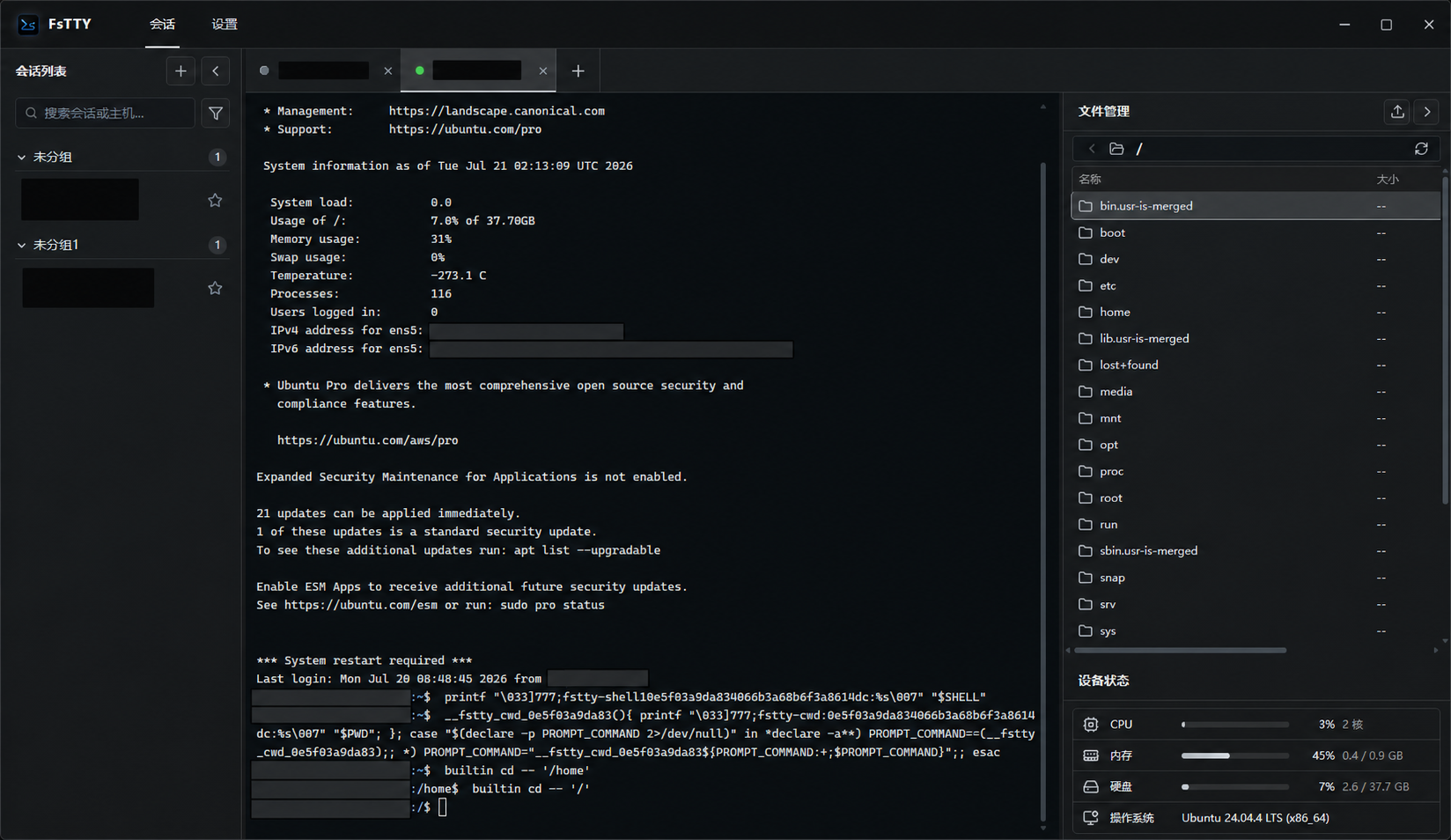
Beyond MCP, FsTTY is a complete Windows SSH client.
| Feature | Description |
|---|---|
| Session management | Groups, drag ordering, cross-group moves, search, favorites, and multiple tabs |
| SSH authentication | Passwords and imported private keys; on Windows, an independent service stores credentials and performs authentication |
| Remote terminal | xterm.js 6, independent text color presets, copy and paste, clear, reconnect, tmux mouse mode, and OSC 52 clipboard support |
| Command history | Shared across sessions with search, upward loading, deduplication, JSON import/export, clear, and new single-line command capture from SSH Bash/Zsh and local CMD, PowerShell and Git Bash |
| File management | SFTP browse, upload, Shift/Ctrl selection, batch download (up to 5 concurrent files with a waiting queue), batch delete, drag-to-move, create, rename, and copy path |
| Device status | CPU and memory trends, disk, network traffic, OS, and uptime |
| Updates | GitHub checks with official mirror fallback, manual or startup checks, ignored versions, Markdown release notes, and an update proxy |
Selecting a history entry with Enter or the mouse inserts it into the terminal without executing it. The history window supports search, keyboard selection, and persisted drag resizing.
Under Settings → General → Terminal text colors, choose Follow app theme or Ayu Mirage, Catppuccin Mocha, Dracula, Everforest Dark, Gruvbox Dark, Kanagawa Wave, Nord, One Half Dark, Rosé Pine, or Solarized. Changes apply immediately and persist across restarts. The default background and plain text continue to use the app theme. See terminal color details and licenses.
CMD, PowerShell and Git Bash retain native history independently of highlighting. History is partitioned by Windows user, terminal configuration, shell and verified privilege; tabs in the same partition share it. PowerShell restores PSReadLine navigation/search history; Get-History still lists only the current process. Native files are not shared with external terminals. Newly accepted single-line commands from newly started processes are also written to the global library; native files are never imported. Selecting global history fills without executing; unsupported editors copy the command for manual pasting. See local history implementation and verification.
Download and Install
Use GitHub Releases, then download a Windows x64 installer:
- The development branch produces
*-setup.exe(NSIS) with a custom desktop directory; the required credential service, management tool, and uninstaller remain in Program Files. See the installation guide. v1.6.2supports installation and updates from elevated terminals, built-in Administrator, and interactive UAC-disabled sessions. A validated linked token restores standard rights; otherwise the installer clearly enters administrator compatibility mode. Installer logs are underC:\ProgramData\FsTTY\logs, and the installation guide documents the read-only diagnostic script.- MSI packages from earlier releases do not include the new service installation workflow.
The Windows development build uses an independent SSH credential service. Installation, migration, and authentication changes require UAC; daily connections do not. Original key files, clipboard contents, and remaining legacy copies are still accessible to programs running under the same account. Secrets cannot be exported. MCP Token storage is unchanged. See the implementation and acceptance guide.
The NSIS installer supports Simplified Chinese and English and follows the Windows display language. v1.6.0 predates the Authenticode release gate, and Microsoft Defender may report that file hash as Trojan:Win32/Wacatac.B!ml. Do not choose Allow on device for an antivirus detection; wait for Microsoft's review or a later signed release. Future production releases must carry a trusted, timestamped Windows Authenticode signature on the broker, desktop executable, and installer, or the release stops.
Current Limitations
- Release packages currently target Windows x64 only.
- HTTP MCP uses plaintext transport and is limited to a trusted LAN or VPN.
- SSH Agent, Pageant, hardware security keys, and SSH certificate authentication are unsupported.
- Local directories cannot yet be uploaded recursively through drag and drop.
- Cursor, Trae, and Trae CN User Rules require a manual paste.
Local Development
Requirements: Windows, Node.js 24 (matching CI), Rust 1.97.0, and the Tauri 2 system prerequisites. The repository's rust-toolchain.toml pins local and CI builds with rustfmt and Clippy; toolchain upgrades are verified separately.
npm ci
npm run verify:all
Daily verification checks program and lockfile versions, types, strict linting, behavior tests, builds, and Rust checks. Before release, also run npm run check:release to validate both README badges and the matching dated, nonempty bilingual release notes. Changelog tests use independent fixtures without fixing real wording or item counts. Vitest scans only src and scripts; visual styles are covered by UI acceptance checks.
CI for solo Agent development retains main pushes, manual checks, dependency auditing, and release compilation warmup after verification. Documentation or index metadata only pushes skip automatic runs; a new push cancels an older check on the same branch. Manual checks and releases run independently. See the Windows release and CI guide for cache and release constraints.
The current Windows development branch checks the active installation's directory and version. When an installation record exists, RustRover's cargo run and npm run tauri dev are rejected because their executable is outside the active installation directory. Running as administrator does not change this check. Test the full desktop and SSH functionality through a local validation installer:
npm run tauri -- build --debug --bundles nsis --config src-tauri/windows/validation.conf.json
This command builds the frontend and credential service automatically and writes the installer to src-tauri/target/debug/bundle/nsis/. Open the installer from a normal desktop, complete its UAC confirmation, and launch fstty.exe from the installation directory. Installation updates the current desktop and credential service; use Windows Sandbox or a virtual machine to preserve your existing installation. Validation packages have no production updater signature and are not release artifacts.
To preview frontend layouts, run npm run dev and visit http://127.0.0.1:1430/. The browser has no Tauri backend, so this does not test SSH connections or settings persistence. See the local testing guide for installation checks and debugging with RustRover.
Dependency audit:
cargo audit --file src-tauri/Cargo.lock
Acknowledgements
Thanks to the LINUX DO community for supporting open-source discussion and the growth of this project.
License
FsTTY is open source under the MIT License.