
ocrickard/OCCalendar
소개
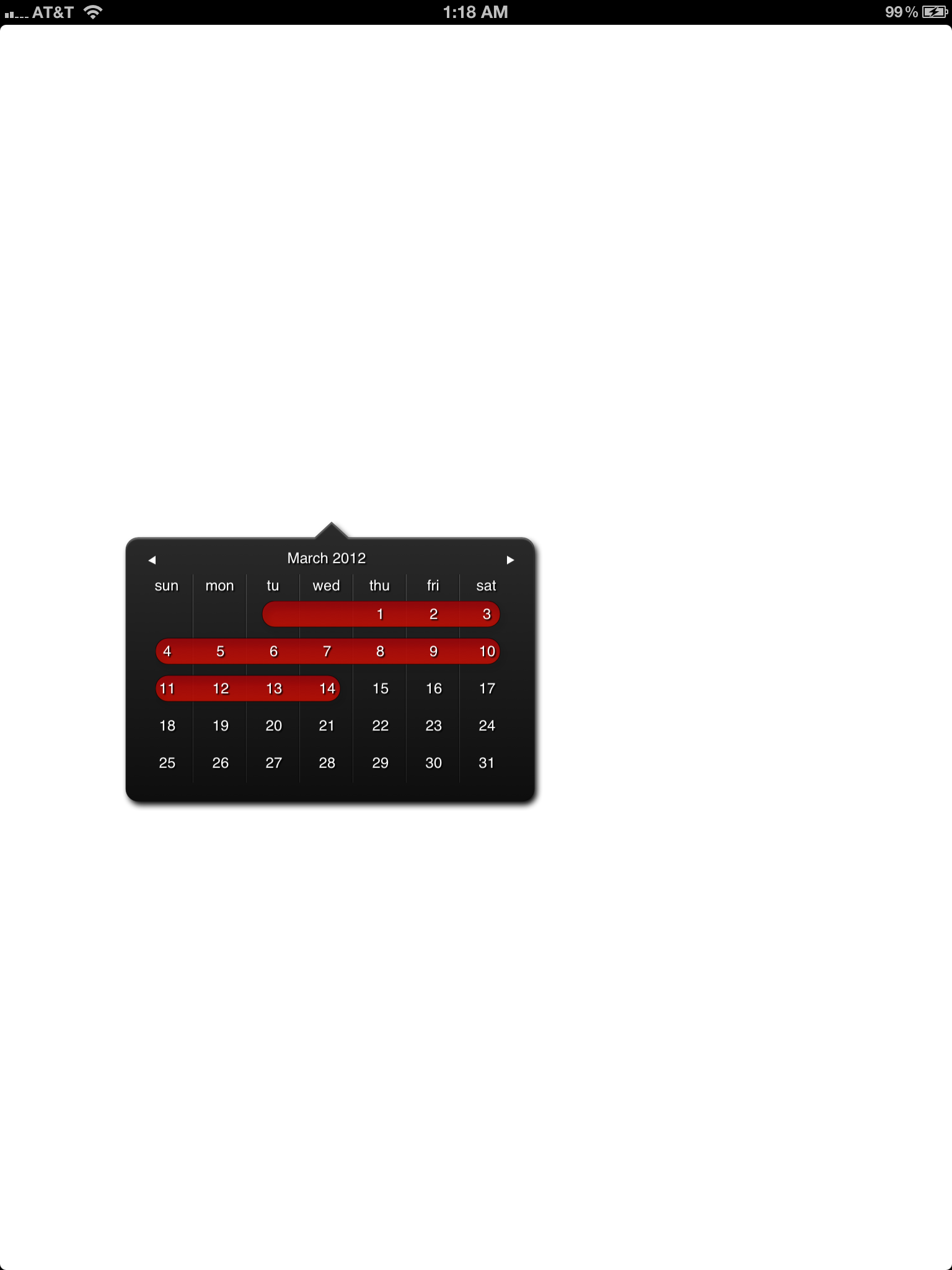
CoreGraphics를 사용하는 날짜 범위 선택 캘린더입니다.
창작 및 미디어측정된 스타 증가
- in 24h
- 0
- in 7 days
- 0
- in 15 days
- 기록 수집 중
- in 1 month
- 기록 수집 중
서로 겹치는 기간의 순증가량이며 일별 합계가 아닙니다. 측정값이 없으면 비워 둡니다. 스타는 관심도를 나타내며 품질을 보장하지 않습니다.
README.md
Original#OCCalendarController#
##DEPRECATED: This code is old and unsupported. You're probably better off looking elsewhere
##Introduction##
OCCalendar is a very simple component for iPhone/iPad that provides a "Popover" date picker controller. It is very easy to add to your project, and is 100% CoreGraphics code, so it uses no images, and is resolution independent. I realize that I need to cut down the size for iPhone a bit more. I originally wrote it just for iPad, and my paths and sizing are all just slightly too wide for the iPhone. I'll fix it when I get a chance.
##License##
OCCalendar is granted under the BSD license, for use with or without attribution. Have fun!
##Usage##
Drag the following files into your project:
- OCCalendarViewController.h
- OCCalendarViewController.m
- OCCalendarView.h
- OCCalendarView.m
- OCSelectionView.h
- OCSelectionView.m
- OCDaysView.h
- OCDaysView.m
Then implement the OCCalendarDelegate protocol in the class you wish to call from. The only method in this protocol specifies a way for the calendar to report back the beginning and ending ranges of dates. These are returnes as NSDate objects for convenience. In the demo app, we do the following:
 - (void)completedWithStartDate:(NSDate *)startDate endDate:(NSDate *)endDate {
    NSDateFormatter *df = [[NSDateFormatter alloc] init];
    [df setDateStyle:NSDateFormatterShortStyle];

    [self showToolTip:[NSString stringWithFormat:@"%@ - %@", [df stringFromDate:startDate], [df stringFromDate:endDate]]];

    calVC.delegate = nil;
    [calVC release];
    calVC = nil;
}
Now, you should be able to show the calendar by alloc'ing and init'ing it, then adding to your view.
//Here's where the magic happens
    calVC = [[OCCalendarViewController alloc] initAtPoint:CGPointMake(150, 50) inView:self.view];
    calVC.delegate = self;
    [self.view addSubview:calVC.view];
##Customization## You can customize the look and feel of the controller by tweaking the CoreGraphics rendering code. I realize that this is not very pretty at the moment, but I'll eventually refactor it to make sure it's all neat and tidy. You can change the placement of the little arrow to either the right or left side of the popover by changing the "arrowPosition" enum in the initializer.
[[OCCalendarViewController alloc] initAtPoint:insertPoint inView:self.view arrowPosition:OCArrowPositionRight] //Right position
[[OCCalendarViewController alloc] initAtPoint:insertPoint inView:self.view arrowPosition:OCArrowPositionCenter] //Center position
[[OCCalendarViewController alloc] initAtPoint:insertPoint inView:self.view arrowPosition:OCArrowPositionLeft] //Left position
관련 프로젝트 살펴보기
불러오는 중…