
mjbvz/vscode-markdown-mermaid
mjbvz/vscode-markdown-mermaid has 955 GitHub stars and 185 forks. GitHot measured 0 stars in 24 hours and -1 in 7 days. Last checked 2026-11-25 01:07 UTC. Last push 2026-06-30.
측정된 스타 증가
- in 24h
- 0
- in 7 days
- -1
- in 15 days
- 기록 수집 중
- in 1 month
- 기록 수집 중
서로 겹치는 기간의 순증가량이며 일별 합계가 아닙니다. 측정값이 없으면 비워 둡니다. 스타는 관심도를 나타내며 품질을 보장하지 않습니다.
소개
VS Code의 기본 Markdown 미리보기에 Mermaid 다이어그램 및 순서도 지원을 추가합니다.
창작 및 미디어README.md
Original[!WARNING] This extension is deprecated as it has been merged into VS Code 1.121.
Markdown Preview Mermaid Support

Adds Mermaid diagram and flowchart support to VS Code's builtin Markdown preview and to Markdown cells in notebooks.
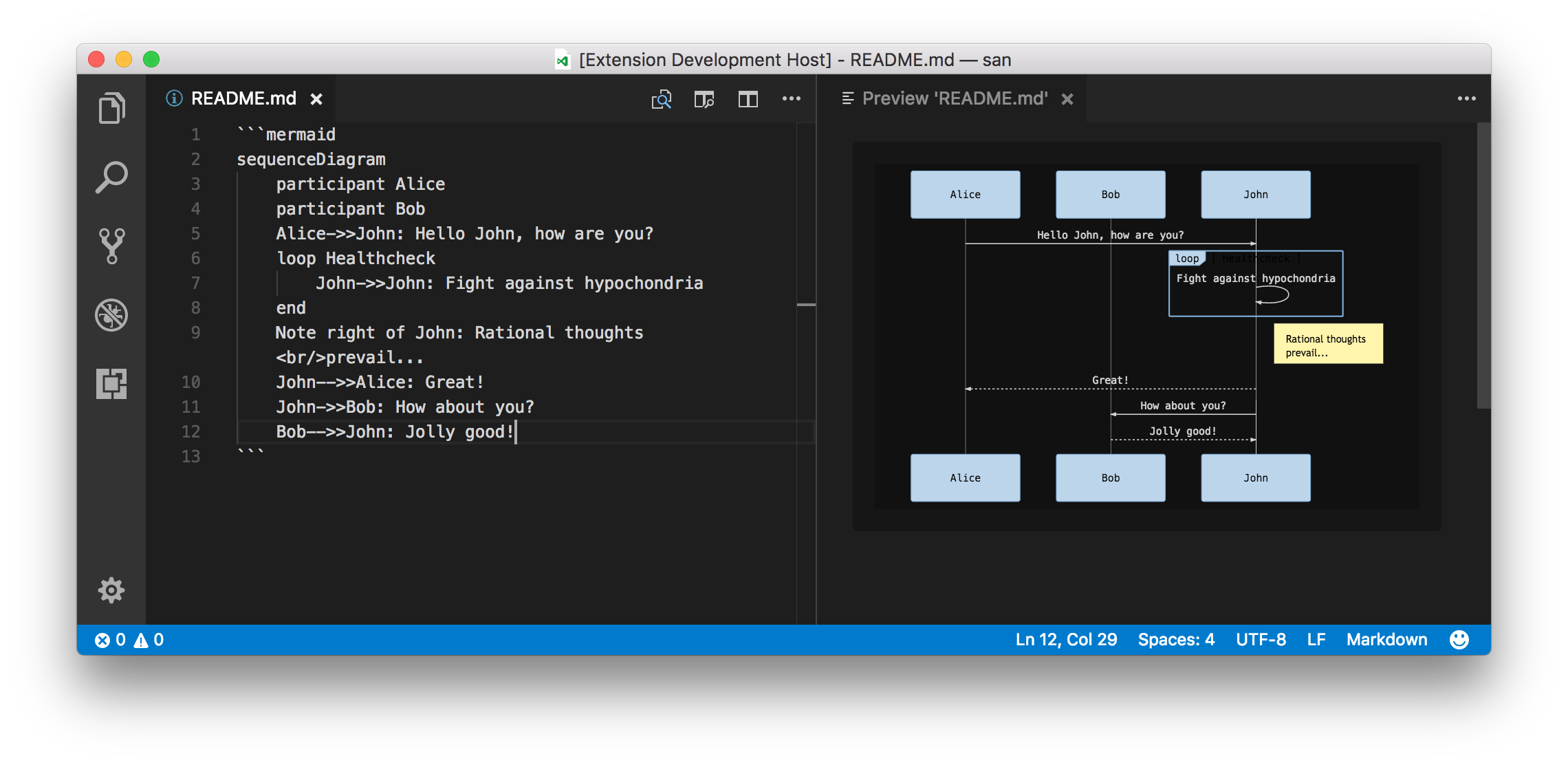
Currently supports Mermaid version 11.12.0.
Usage
Create diagrams in markdown using mermaid fenced code blocks:
```mermaid
graph TD;
    A-->B;
    A-->C;
    B-->D;
    C-->D;
```
You can also use ::: blocks:
::: mermaid
graph TD;
    A-->B;
    A-->C;
    B-->D;
    C-->D;
:::
Supports MDI and logos icons from Iconify:
```mermaid
architecture-beta
    service user(mdi:account)
    service lambda(logos:aws-lambda)

    user:R --> L:lambda
```
Navigating Diagrams
Mermaid diagrams support panning and zooming to help explore large or complex diagrams. By default, navigation controls appear when you hover over or focus on a diagram. You can also navigate diagrams using the mouse:
Zooming
To zoom in and out of diagrams:
- Zoom controls — Use the
+and-buttons that appear in the navigation controls - Scroll wheel — Hold alt (option on Mac) and scroll to zoom
- Pinch-to-zoom — Use a trackpad pinch gesture
- Click zoom — Alt+click to zoom in, Alt+Shift+click to zoom out
To reset the zoom level and position, click the reset button in the controls.
Panning
To pan around a diagram:
- Click and drag — Hold alt (option on Mac) and click and drag to pan
- Pan mode — Click the
pan modebutton in the navigation controls to enable click-and-drag panning without holding alt. Click it again to turn offpan mode.
By default, click-and-drag panning requires holding the alt key to prevent accidental panning. Use markdown-mermaid.mouseNavigation.enabled to change this:
always— Click and drag always pans (no modifier key needed)alt— Click and drag only pans when holding alt (default)never— Disable mouse-based panning (controls and pinch-to-zoom still work)
Resizing
Diagrams can be resized vertically by dragging the bottom edge. This is most useful if you use the markdown-mermaid.maxHeight setting or use css to limit the diagram's natural size.
Use markdown-mermaid.resizable to disable this behavior, or markdown-mermaid.maxHeight to set a maximum height.
Configuration
markdown-mermaid.lightModeTheme
Configures the Mermaid theme used when VS Code is using a light color theme. Supported values:
baseforestdarkdefaultneutral
Currently not supported in notebooks.
markdown-mermaid.darkModeTheme
Configures the Mermaid theme used when VS Code is using a dark color theme. Supported values:
baseforestdarkdefaultneutral
Currently not supported in notebooks.
markdown-mermaid.languages
Configures language ids used to identify Mermaid code blocks in markdown. The default is ["mermaid"].
markdown-mermaid.mouseNavigation.enabled
Controls when mouse-based navigation (panning and zooming) is enabled. The default is alt. Supported values:
always— Always enable mouse navigation on mermaid diagramsalt— Only enable mouse navigation when holding down alt (option on Mac)never— Disable mouse navigation
markdown-mermaid.controls.show
When to show navigation control buttons. The default is onHoverOrFocus. Supported values:
never— Never show navigation controlsonHoverOrFocus— Show navigation controls when hovering over or focusing on a diagramalways— Always show navigation controls
markdown-mermaid.resizable
Allow diagrams to be resized vertically by dragging the bottom edge. The default is true.
When enabled, you can drag the bottom edge of any diagram to adjust its height. The custom height is preserved as long as the diagram content doesn't change.
markdown-mermaid.maxHeight
Maximum height for diagrams. Can be a number (pixels) or a CSS value like 80vh or 400px. Leave empty for no limit. The default is empty (no limit).
Examples:
400— 400 pixels.80vh— 80% of the viewport (markdown-preview) height.
markdown-mermaid.maxTextSize
Maximum allowed size of diagram text. The default is 50000.
Using custom CSS in the Markdown Preview
You can use the built-in functionality to add custom CSS. More info can be found in the markdown.styles documentation
For example, add Font Awesome like this:
"markdown.styles": [
    "https://use.fontawesome.com/releases/v5.7.1/css/all.css"
]
Use it like this:
```mermaid
graph LR
    fa:fa-check-->fa:fa-coffee
```
관련 프로젝트 살펴보기
불러오는 중…