
microsoft/skill-recorder
microsoft/skill-recorder has 5,697 GitHub stars and 648 forks. GitHot measured +7 stars in 24 hours. Last checked 2026-11-06 02:18 UTC. Last push 2026-10-31.
화면에서 진행한 작업 세션을 기록하고 GitHub Copilot SDK를 사용해 의도와 순서가 있는 단계로 재구성하는 데스크톱 앱입니다. 이를 바탕으로 Scout, Microsoft Copilot Cowork, Copilot Studio와 같은 Microsoft Autopilots용 재사용 가능한 Skill 또는 Automation을 만듭니다.
측정된 스타 증가
- in 24h
- +7
- in 7 days
- 기록 수집 중
- in 15 days
- 기록 수집 중
- in 1 month
- 기록 수집 중
서로 겹치는 기간의 순증가량이며 일별 합계가 아닙니다. 측정값이 없으면 비워 둡니다. 스타는 관심도를 나타내며 품질을 보장하지 않습니다.
README.md
OriginalSkill Recorder
Record yourself doing a task once, then turn it into a skill your AI agent can repeat.
[!TIP] Want to install Skill Recorder? Go to the latest release. Scroll to Commit-pinned installation and copy the complete command for your operating system. It is ready to paste: you do not need to edit it or download the source code yourself. Step-by-step instructions below.
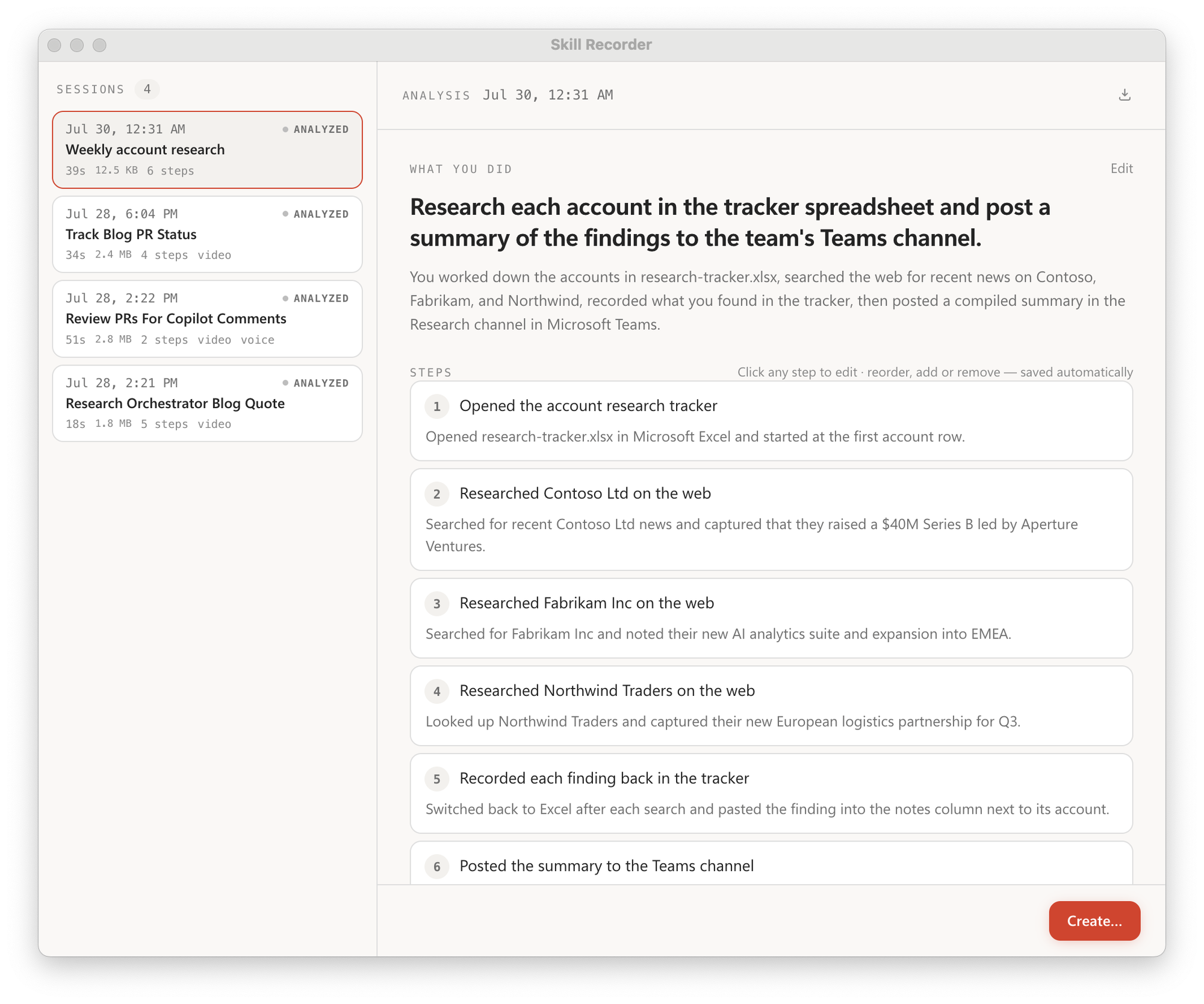
Skill Recorder captures a real work session on your screen: the clicks, the app and window switches, the pages you visit, commands/output from its optional recorded terminal, and (if you want) your spoken narration. It then uses the GitHub Copilot CLI to reconstruct what you actually did as a clear intent plus an ordered list of steps. From there, one step turns that single run into something an agent can reuse:
- a Skill: a
SKILL.mdprocedure an agent runs on demand, or - an Automation: the same procedure on a schedule or trigger.
Both prefer the agent's native tools (like the gh CLI or web_fetch) over replaying
UI clicks, and generalize from your one example, so recording yourself submitting one
form can teach the agent to submit all of them.
How it works
- 🔴 Record. Hit record (or
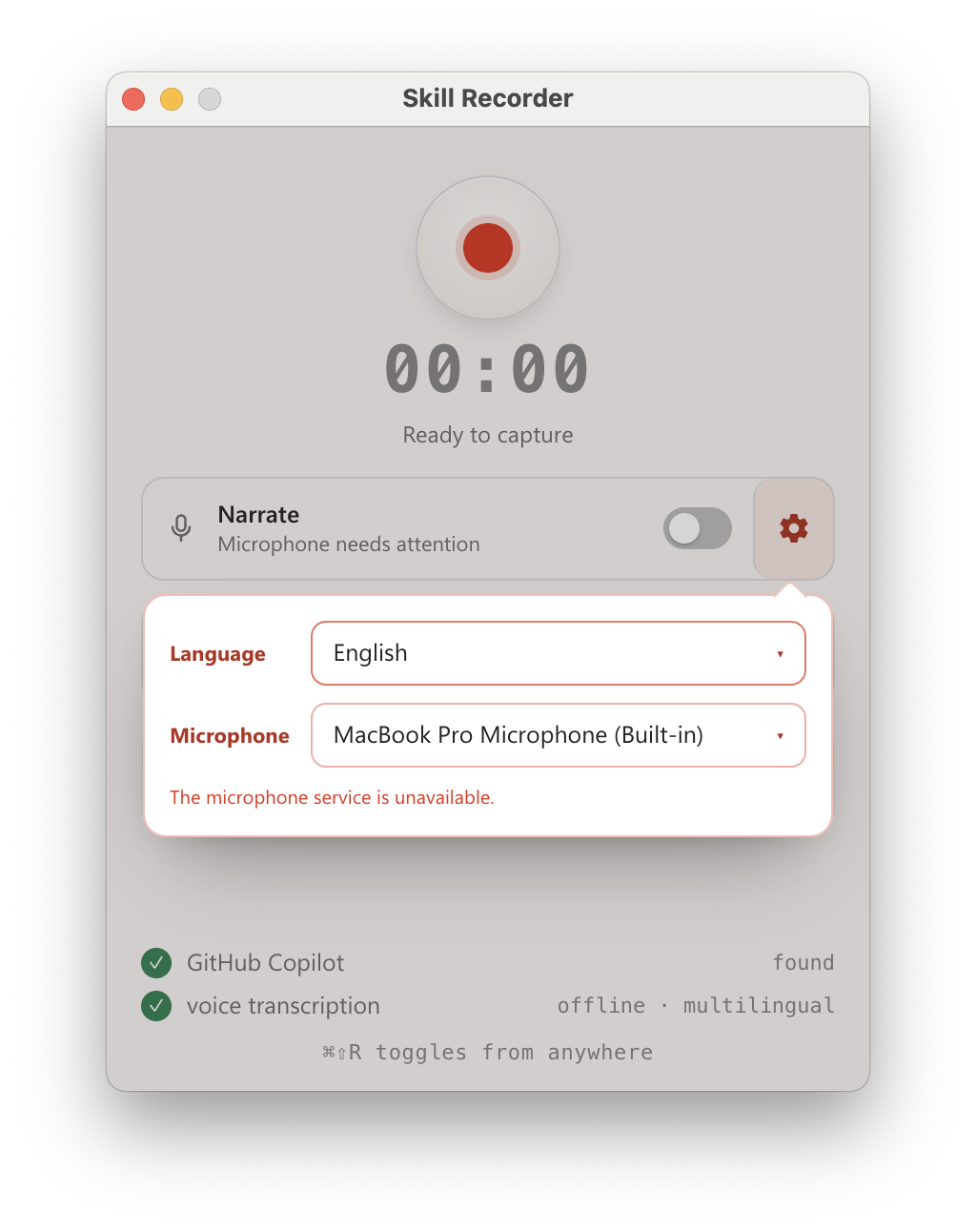
⌘⇧R/Ctrl+Shift+Rfrom anywhere) and just do your task. Skill Recorder captures your screen and activity locally, in the background. - 🎛️ Control. While recording, a small always-on-top bar shows capture, microphone, and recorded-terminal state. Open the session-scoped terminal, mute, unmute, or switch mics, then finish or discard with confirmation.
- 🧠 Analyze. Click Analyze and GitHub Copilot reconstructs one overall intent and an ordered list of steps. Review and edit until it reads right.
- ✨ Create. From an approved analysis, generate a reusable Skill and/or a scheduled Automation.
For skills, Review SKILL.md optionally shows the complete, read-only file text (including frontmatter) before installation or export. Preparing a preview writes no skill files. Close and reopen it without regenerating; Add/Export from either surface uses that exact preview. Editing the plan discards the preview. You can still choose Add/Export directly without reviewing or adding a confirmation step. Review provides visibility into the generated instructions, not a security guarantee.
Get started
Skill Recorder is published as a source release: one command downloads a pinned Node.js runtime, builds the exact release commit on your machine, and adds a Skill Recorder (Source) app you can relaunch anytime. Nothing is installed globally. You'll need a GitHub account with Copilot access; the Copilot CLI ships with the app.
macOS is the primary target. Windows 11 (x64 and ARM64) is supported too (see
WINDOWS-VALIDATION.md).
Install it
Open the latest release and follow these steps:
- On the release page, scroll to Commit-pinned installation. Find Windows 11 x64 or ARM64 or macOS or Ubuntu, then copy the entire command in that section using the copy button at the top-right of the code block.
- Open PowerShell from the Windows Start menu, or Terminal on macOS or Ubuntu. Paste the command and press Enter.
- Keep that window open while installation completes. The installer downloads what it needs, builds the app on your computer, creates shortcuts, and launches Skill Recorder. The first installation can take several minutes.
[!IMPORTANT] Copy the command from the release page, not a template from the technical docs. The release command already contains the correct version identifier; there is nothing to replace. Do not paste commands containing
<40-character-release-commit>literally. You do not need Git, a separate Node.js installation, or the Manual developer setup instructions. The Source code (zip) and Source code (tar.gz) links under Assets are not app installers.
To review the script before running it, follow the release page's inspect-first instructions instead. Installation remains subject to your organization's policies.
Open it again later: use Skill Recorder (Source) on your Windows desktop or
Start Menu; on macOS, find it in ~/Applications, Spotlight, or Launchpad; on
Ubuntu, use the matching application entry. You do not need to reinstall each time.
Advanced options, including running in the background on macOS or Ubuntu, are in
INSTALL.md.
Then record
- Grant Screen Recording. On first launch, macOS asks for Screen Recording permission; grant it and you're ready to record.
- Record, Analyze, Create. Do your task, then Analyze. The first time you Analyze, Skill Recorder offers Sign in to Copilot if you aren't signed in yet. Finish authorization in your browser; the app verifies sign-in and automatically retries the interrupted analysis once. There is no login terminal window to close. Canceling sign-in or leaving that analysis prevents the automatic retry.
On Windows, a local Microsoft Entra tenant hint can offer a choice between
Microsoft Enterprise SSO and a Personal GitHub account. This is only a
routing hint, not proof of employment. Microsoft sign-in has two separate steps:
finish SSO in the browser, then authorize the GitHub Copilot app. When SSO lands on
github.com/enterprises/microsoft, close that tab, return to Skill Recorder, and
choose Authorize Copilot. SSO alone does not authorize the app. Use the same
browser profile and Microsoft-linked GitHub account for both steps.
Without a hint, and on macOS/Linux,
sign-in goes directly to the standard GitHub flow. No work-email prompt is required.
The authorization step opens the default browser using the CLI's web OAuth flow, not a device code. Keeping the same browser profile lets GitHub reuse the session from SSO, so you can approve the GitHub Copilot app without entering a code. If GitHub asks you to sign in again, check that you are using the same browser profile. After authorization, close that tab and return to Skill Recorder; the app verifies access before continuing.
Skill Recorder pins Copilot CLI 1.0.78, which supports web OAuth without a terminal,
and runs --no-auto-update login --web-flow so sign-in does not depend on a
different CLI version in the user's auto-update cache. Older bundled versions
such as 1.0.71 do not support --web-flow.
Sign-in can be canceled and times out after five minutes. If browser login fails, the app shows an error and a manual command for the bundled CLI (use PowerShell on Windows). After manual sign-in, retry the analysis yourself. Signing in from a skill or automation builder does not automatically repeat a build or installation.
To inspect the script before running it, set install options, update, or uninstall, see
INSTALL.md.
⚠️ Keep secrets out of your recordings. Don't record, type, paste, or narrate passwords, tokens, API keys, or other confidential info. Choosing Analyze sends recording data to GitHub's cloud. Skill Recorder reminds you before every recording. Details in What gets captured.
Everything below is for people who want the details, or want to hack on the code.
What gets captured
Recording, storage, frame extraction, and optional narration transcription all happen on your computer; nothing leaves while you record. Only when you choose Analyze does Skill Recorder send the event timeline (window/document titles, URLs, clipboard previews, and terminal commands), extracted screen images, narration text, and bounded terminal-output excerpts requested during analysis to GitHub's cloud for Copilot to process. When protection is enabled, terminal commands and the complete local terminal transcript participate in the same on-device secret/PII scan before any requested excerpt is returned.
The in-app "Records your screen and activity" panel spells out exactly what's collected:
- Window tracking: active-app / window switches.
- Browser URLs: the page you're on (macOS).
- Screen video: recorded by Chromium; low-rate snapshots are kept only when the screen changes or a heartbeat is due.
- Clipboard: short previews of copied text that tie steps together.
- Narration (optional): spoken commentary, transcribed on-device in any of Whisper's 99 supported languages (a one-time ~252 MB model download on first use).
- Recorded terminal (only when opened from the floating recording bar): command, cwd, shell, exit status, duration, and the complete terminal output. The transcript has no app-imposed size cap and counts toward the saved session's storage. It captures only the app-owned terminal for that recording—there are no global hooks, profile edits, background command monitors, or observation of existing terminals.
⚠️ Please don't capture secrets. Passwords, access tokens, API keys, credentials, and other confidential information should never be recorded, typed, pasted, shown, copied, or narrated during a session.
Develop from source
For developers changing the code, not for installing the app. To use Skill Recorder, follow Install it instead.
Requires Node.js 24. After checking out a release revision:
npm ci
npm run compliance:licenses
npm run dev
npm run dev starts Vite and launches the Electron app with hot-reload; ⌘⇧R (macOS) /
Ctrl+Shift+R (Windows) toggles recording from anywhere. Full manual setup, the build and
dist scripts, and the licensing boundary between local source builds and redistributable
packages are in INSTALL.md. Maintainers changing versions, dependencies,
assets, or releases must follow RELEASING.md.
Evals
The Copilot describer and builders have a fixture-based eval suite; see
evals/README.md.
npm run eval            # score the describer against synthetic recordings
npm run eval:terminal   # score indexed terminal-output use and redaction
npm run eval:builder    # score the skill/automation generalization
Documentation
- INSTALL.md: install options, inspect-first install, updating, uninstalling, and manual developer setup.
- RELEASING.md: maintainer release runbook.
- evals/README.md: the describer / builder eval harness.
- THIRD-PARTY-NOTICES.md: licenses for bundled dependencies.
Security
Please don't report security vulnerabilities through public GitHub issues. See
SECURITY.md for Microsoft's coordinated-disclosure process and reporting
channels.
Support
File bugs and feature requests through
GitHub Issues (search existing issues
first to avoid duplicates). Support is limited to the resources described in
SUPPORT.md.
License
Contributing
This project welcomes contributions and suggestions. Most contributions require you to agree to a Contributor License Agreement (CLA) declaring that you have the right to, and actually do, grant us the rights to use your contribution. For details, visit Contributor License Agreements.
When you submit a pull request, a CLA bot will automatically determine whether you need to provide a CLA and decorate the PR appropriately (e.g., status check, comment). Simply follow the instructions provided by the bot. You will only need to do this once across all repos using our CLA.
This project has adopted the Microsoft Open Source Code of Conduct. For more information see the Code of Conduct FAQ or contact [email protected] with any additional questions or comments.
Trademarks
This project may contain trademarks or logos for projects, products, or services. Authorized use of Microsoft trademarks or logos is subject to and must follow Microsoft's Trademark & Brand Guidelines. Use of Microsoft trademarks or logos in modified versions of this project must not cause confusion or imply Microsoft sponsorship. Any use of third-party trademarks or logos are subject to those third-party's policies.
관련 프로젝트 살펴보기
n8n-io/n8n
네이티브 AI 기능을 갖춘 Fair-code 워크플로 자동화 플랫폼입니다. 시각적 구성과 사용자 지정 코드를 결합할 수 있으며, 직접 호스팅하거나 클라우드에서 사용할 수 있고 400개 이상의 연동을 제공합니다.
209,648 스타langgenius/dify
하나의 협업 워크스페이스에서 에이전트 워크플로와 RAG 파이프라인을 구축하고, 풍부한 AI 모델과 도구를 지원합니다. 클라우드, VPC 또는 자체 호스팅으로 배포할 수 있어 팀은 스택을 다시 구축하지 않고 프로토타입에서 프로덕션으로 이동할 수 있습니다.
160,482 스타microsoft/PowerToys
Microsoft PowerToys는 Windows의 생산성과 사용자 지정 기능을 향상하는 유틸리티 모음입니다
140,594 스타stablyai/orca
Orca는 에이전트 집단(예: Grok Bot, Claude Code)과 함께 작업하는 곳입니다. 본인의 구독으로 어떤 코딩 에이전트든 실행할 수 있습니다. 데스크톱, 모바일, 원격 런타임에서 사용할 수 있습니다.
116,835 스타