
mexirica/aptui
mexirica/aptui has 437 GitHub stars and 11 forks. Star changes are not measured yet. Last checked 2026-11-08 13:08 UTC. Last push 2026-11-02.
TUI package manager for APT-based Linux distributions
What you can do
- Browse all packages — lists every available APT package with version and size info loaded lazily
- Search & filter — single bar for fuzzy search and structured filters (section, architecture, size, status, repository origin and more) (docs)
- Repository origin filter — press o to open a dropdown listing all package origins; selecting one injects a repo: token into the filter bar, which you can further combine with text search
- Column sorting — sort packages by name, version, size, section or architecture; click headers to cycle ascending → descending → clear
측정된 스타 증가
- in 24h
- 업데이트 지연
- in 7 days
- 업데이트 지연
- in 15 days
- 업데이트 지연
- in 1 month
- 업데이트 지연
서로 겹치는 기간의 순증가량이며 일별 합계가 아닙니다. 측정값이 없으면 비워 둡니다. 스타는 관심도를 나타내며 품질을 보장하지 않습니다.
README.md
Original 





APTUI is a terminal user interface (TUI) written in Go for managing APT packages. Browse, search, install, remove and upgrade packages — all without leaving the terminal.
Built with Bubble Tea, Lip Gloss and Bubbles.
 |
 |
 |
 |
Features
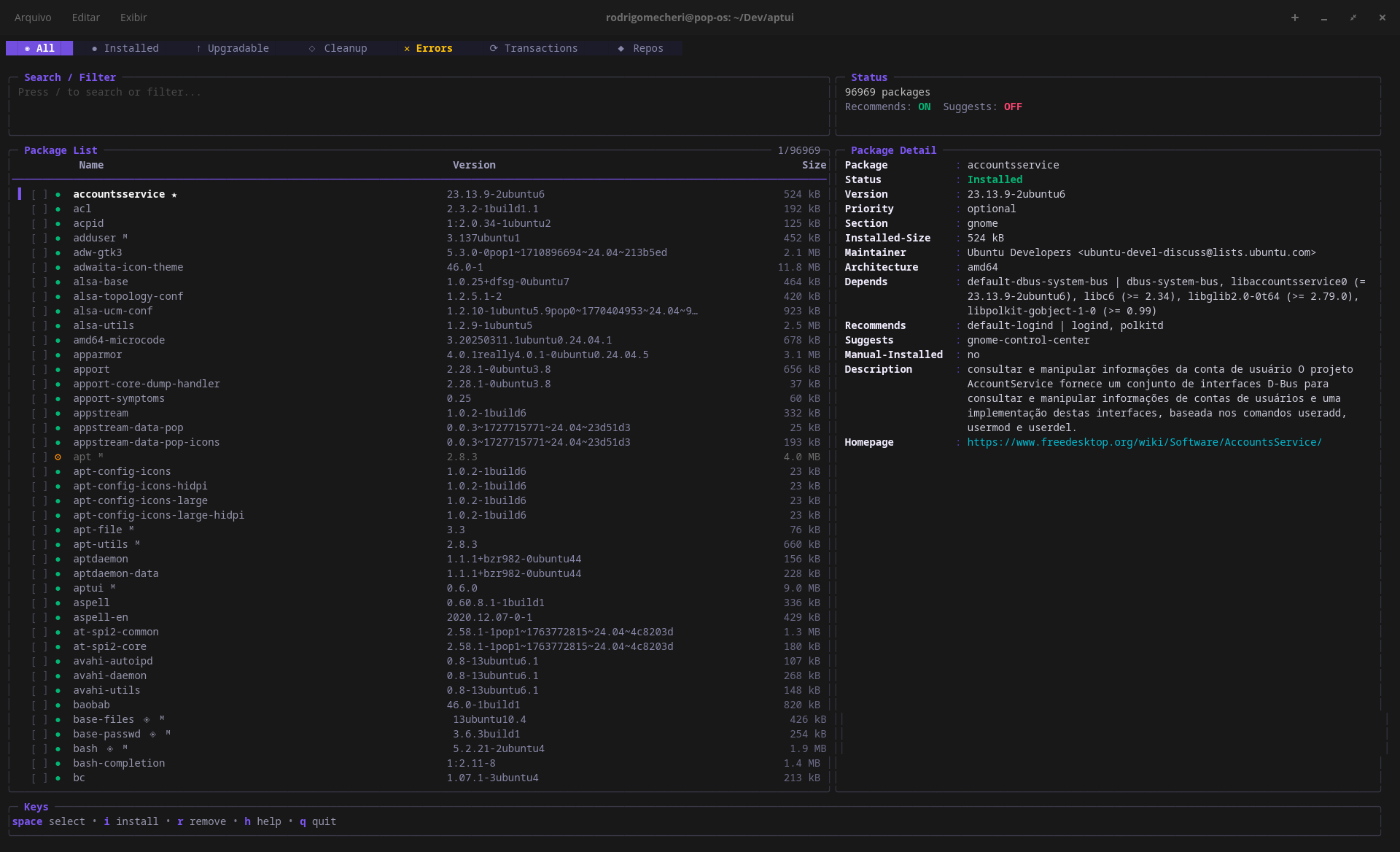
- Browse all packages — lists every available APT package with version and size info loaded lazily
- Search & filter — single bar for fuzzy search and structured filters (section, architecture, size, status, repository origin and more) (docs)
- Repository origin filter — press
oto open a dropdown listing all package origins; selecting one injects arepo:token into the filter bar, which you can further combine with text search - Column sorting — sort packages by name, version, size, section or architecture; click headers to cycle ascending → descending → clear
- Tabs — switch between All, Installed, Upgradable, Cleanup, Errors, Transactions and Repos views; tabs with pending items highlight in yellow
- Multi-select — mark multiple packages with
space, then bulk install/remove/upgrade - Mouse support — click to select packages, click again to toggle selection, click column headers to sort, scroll wheel to navigate
- Parallel downloads — installs and upgrades use parallel downloads by default for faster operations
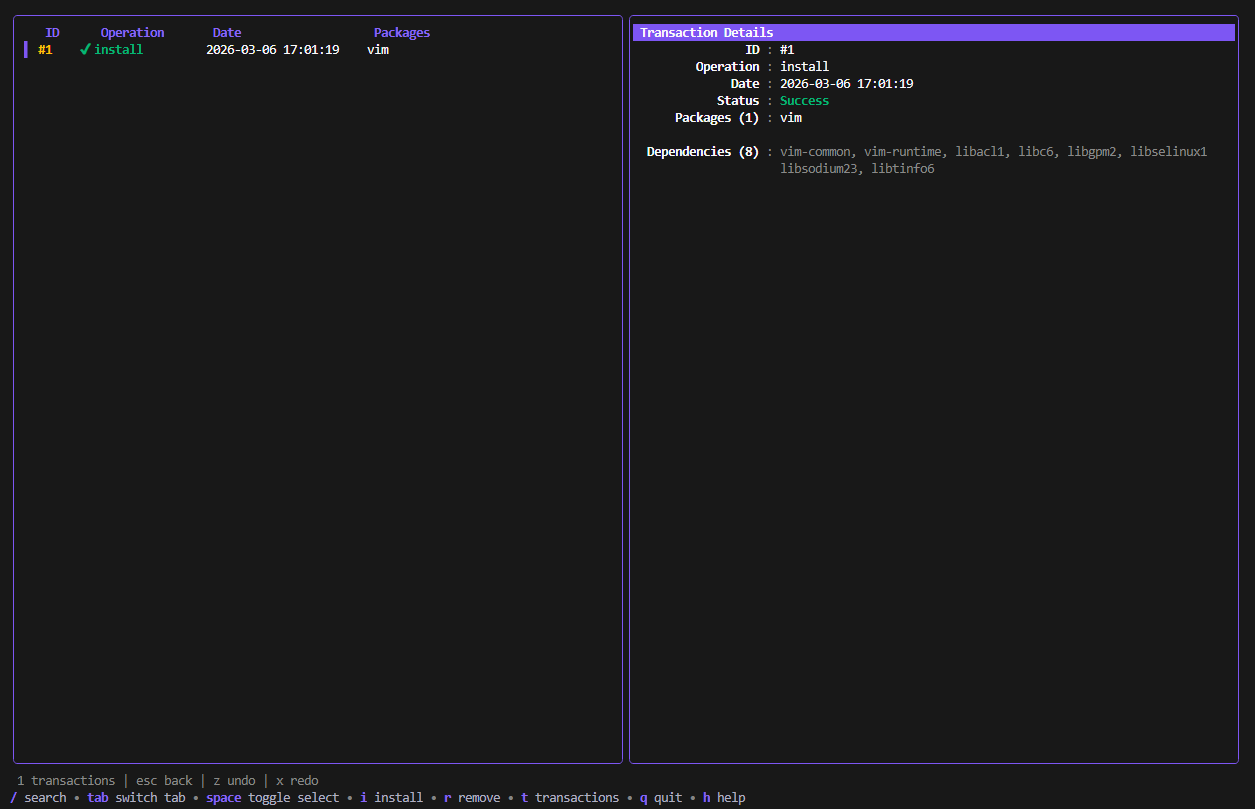
- Transaction history — every operation is recorded; undo (
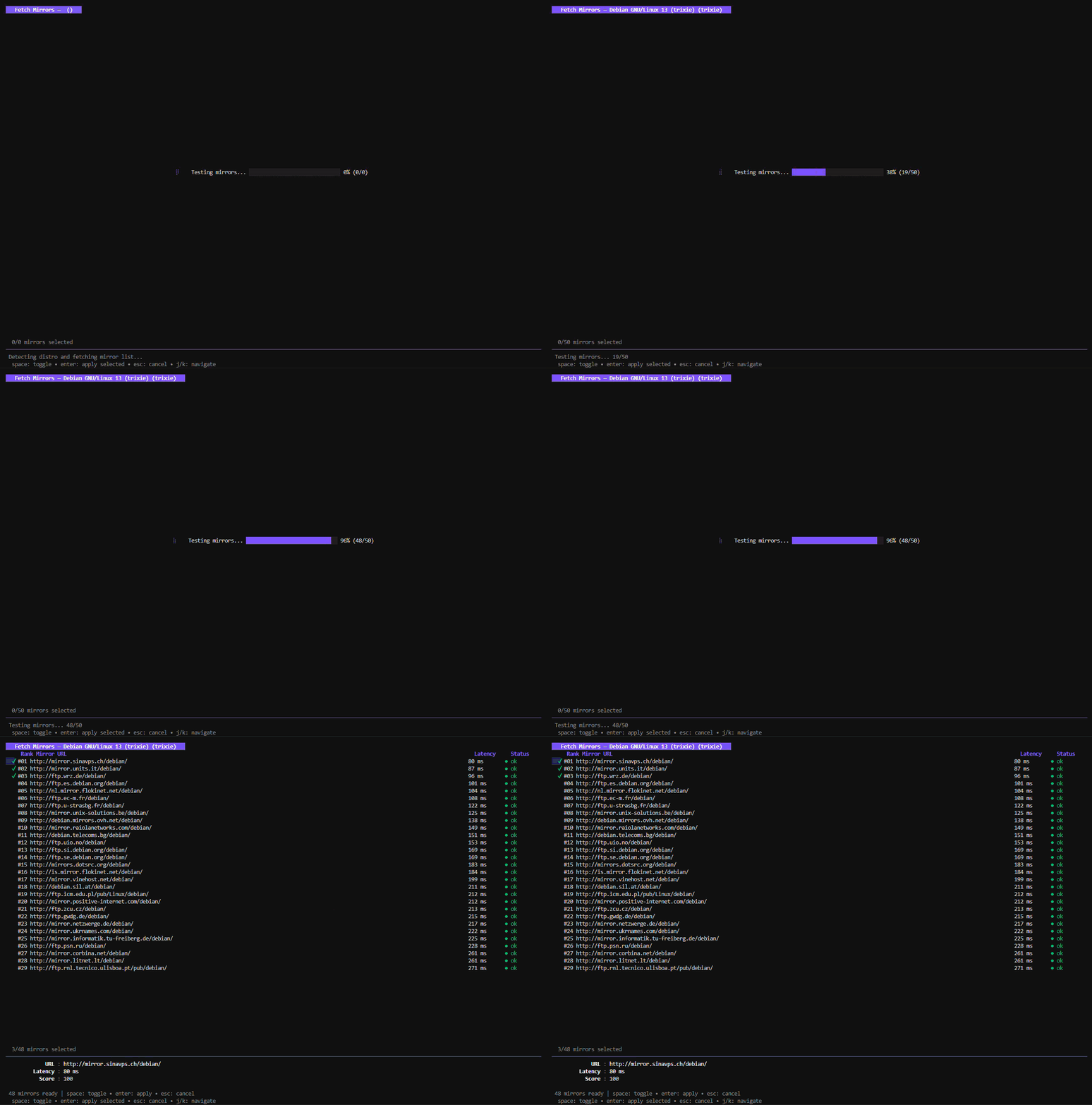
z) or redo (x) past transactions (docs) - Fetch mirrors — detect your distro, test mirror latency, and apply the fastest sources (docs)
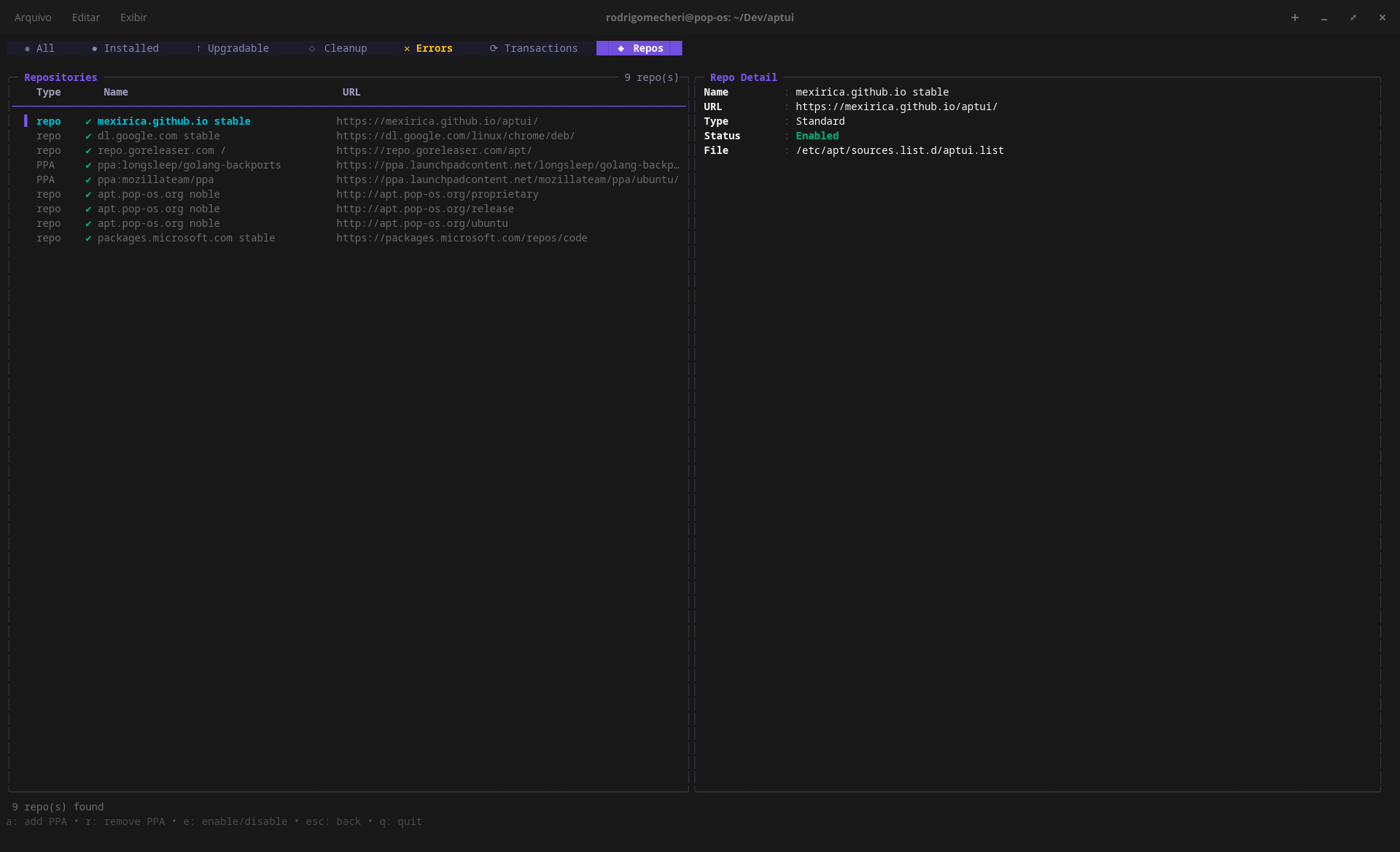
- PPA management — list, add, remove, enable and disable PPA repositories (docs)
- Cleanup — dedicated tab listing autoremovable packages; clean them all with
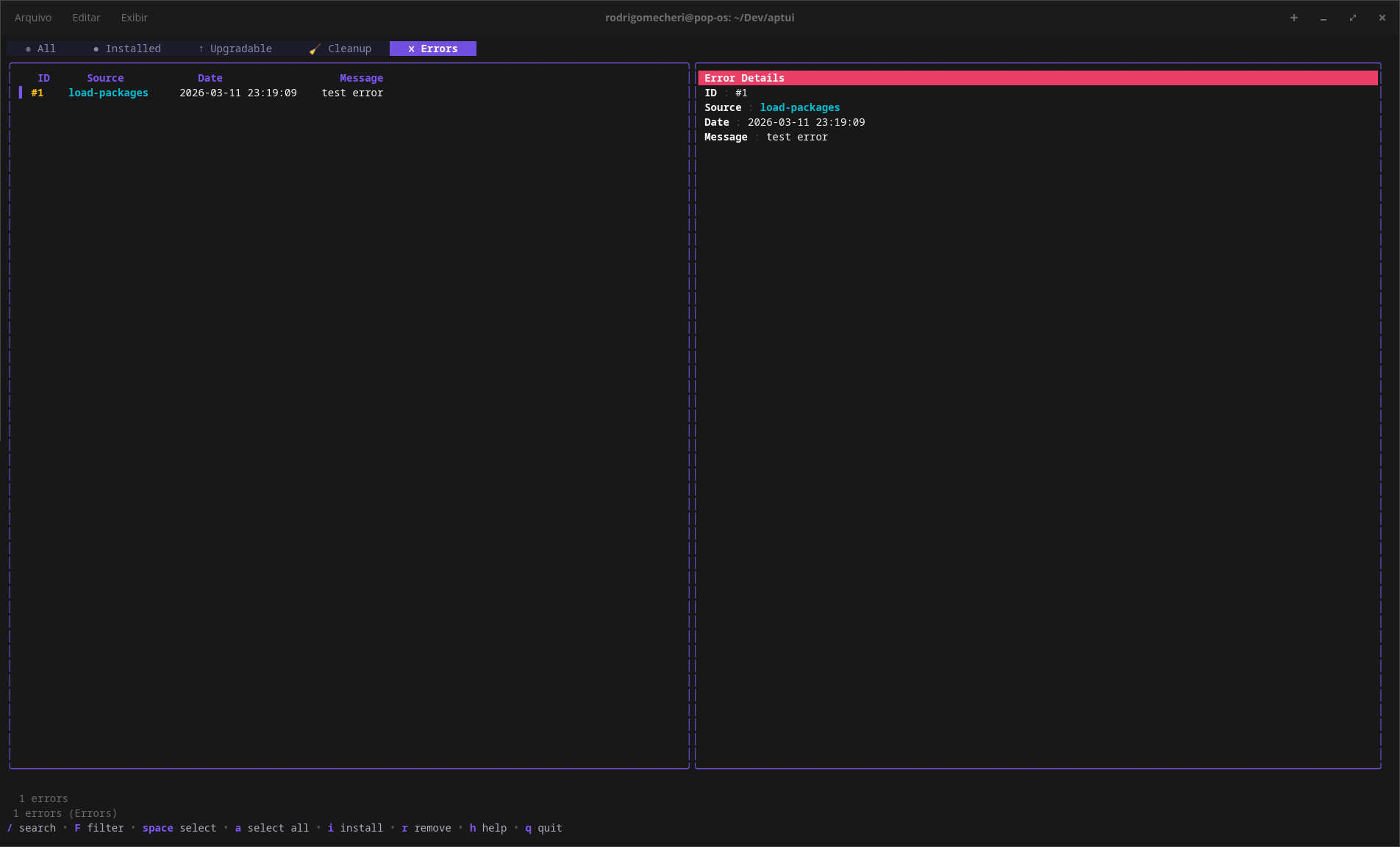
c - Error log — all errors are captured and shown in a dedicated tab with source, timestamp and full message detail
- Light / Dark theme — auto-detects terminal background; override with
APTUI_THEME=light|darkor toggle at runtime withT - Pin favorites — pin packages with
Fto keep them at the top of the list (★); favorites are persisted across sessions - Export / Import — export all (
E) or only manually installed (M) packages to JSON; import from file (I) to restore your environment (docs) - Version selection & downgrade — press
vto see all available versions of a package and install any of them, including older versions (docs) - Phased update detection — when upgrading, APTUI detects packages held back by APT's phased-updates mechanism and lets you force, skip, or cancel
- Hold packages — hold (
H) packages to prevent them from being upgraded - File list — view installed files for any package (
l); usesapt-filefor non-installed packages - Inline detail panel — shows package metadata (version, size, dependencies, homepage, status, etc.); scroll with
J/Kwhen content overflows - Side-by-side & stacked layouts — toggle between layouts with
L; auto-selects based on terminal width (≥ 120 for side-by-side) - Responsive dialogs — confirmation overlays adapt to small terminal sizes, wrapping text and adjusting padding automatically
- Essential package protection — essential packages cannot be removed or purged
- Termux support — runs natively on Android via Termux without
sudo; APT paths are resolved through$PREFIX - Background updates — silent
apt-get updateruns in the background after initial load
Installation
APT (Debian/Ubuntu)
curl -fsSL https://rodrigomecheri.dev/aptui/public-key.gpg | sudo gpg --dearmor -o /usr/share/keyrings/aptui-archive-keyring.gpg
echo "deb [signed-by=/usr/share/keyrings/aptui-archive-keyring.gpg] https://rodrigomecheri.dev/aptui/ stable main" | sudo tee /etc/apt/sources.list.d/aptui.list
sudo apt update && sudo apt install aptui
Existing installations that still use the previous GitHub Pages URLs can migrate both repositories with:
sudo grep -rlZ 'https://mexirica.github.io/aptui' \
    /etc/apt/sources.list \
    /etc/apt/sources.list.d 2>/dev/null |
    sudo xargs -0r sed -i \
        -e 's|https://mexirica.github.io/aptui|https://rodrigomecheri.dev/aptui|g'

sudo apt update
Termux (Android)
pkg install golang
go install github.com/mexirica/aptui@latest
On Termux, sudo is not available and not needed — APTUI detects the Termux environment automatically and runs all commands without sudo. APT paths are resolved via the $PREFIX environment variable.
Go
go install github.com/mexirica/aptui@latest
Build from source
git clone https://github.com/mexirica/aptui.git
cd aptui
go build -o aptui .
sudo mv aptui /usr/local/bin/
Usage
# Run with sudo to allow package management operations (install, remove, upgrade)
sudo aptui
On Termux, run without sudo:
aptui
Tabs
| Tab | Icon | Description |
|---|---|---|
| All | ◉ |
All known packages (installed + available) |
| Installed | ● |
Only installed packages |
| Upgradable | ↑ |
Packages with available upgrades |
| Cleanup | ◇ |
Autoremovable packages |
| Errors | ✕ |
Error log entries |
| Transactions | ⟳ |
Transaction history |
| Repos | ◆ |
PPA / repository management |
Navigate tabs with tab / shift+tab, or click on them.
Package Indicators
| Symbol | Meaning |
|---|---|
● (green) |
Installed |
○ (gray) |
Not installed |
↑ (yellow) |
Upgradable |
↑ (red) |
Security update available |
⊝ (orange) |
Held |
★ |
Favorited in APTUI (F) |
ᴾ |
Matched by package-specific APT preferences pin rule |
◈ |
Essential |
ᴹ |
Manually installed |
[x] / [ ] |
Selected / unselected |
Keybindings
Navigation
| Key | Action |
|---|---|
↑ / k |
Move up |
↓ / j |
Move down |
J |
Scroll detail panel down |
K |
Scroll detail panel up |
pgup / ctrl+u |
Page up |
pgdown / ctrl+d |
Page down |
tab |
Next tab |
shift+tab |
Previous tab |
Search & Filter
| Key | Action |
|---|---|
/ |
Open search/filter bar |
o |
Open repository origin filter dropdown |
enter |
Confirm search / apply filter |
esc |
Clear search / filter / go back |
Examples
vim                                    # fuzzy search for "vim"
section:editors vim                    # filter by section + fuzzy search combined
installed size>10MB                    # installed packages larger than 10 MB
section:utils order:name               # packages in "utils" section, sorted A→Z
order:size:desc                        # all packages sorted by size, largest first
repo:ubuntu noble/main                 # packages from a specific repository origin
"repo:apt.pop-os.org/ubuntu noble/main" installed  # combine repo filter with other tokens
See the full search & filter documentation for all available options.
Selection
| Key | Action |
|---|---|
space |
Toggle select current package |
a |
Select / deselect all filtered packages |
click |
Select a package (click again to toggle check) |
Sorting
| Key / Mouse | Action |
|---|---|
| Click column header | Sort by that column (click again to reverse, third click to clear) |
/ + order:name |
Sort by name via query |
/ + order:size:desc |
Sort by size descending via query |
Actions
| Key | Action |
|---|---|
i |
Install package (or all selected) |
r |
Remove package (or all selected) — shows confirmation dialog |
u |
Upgrade package (or all selected) |
G |
Upgrade all packages (apt-get dist-upgrade) |
p |
Purge package (or all selected) — shows confirmation dialog |
H |
Hold / unhold package (or all selected) |
c |
Clean up all autoremovable packages |
F |
Pin / unpin package (or all selected) |
E |
Export all installed packages to JSON file |
M |
Export only manually installed packages to JSON file |
I |
Import packages from JSON file |
v |
Open version selector for current package (docs) |
o |
Open repository origin filter dropdown |
U |
Run apt-get update |
ctrl+r |
Refresh package list |
History & Mirrors
| Key | Action |
|---|---|
t |
Open transaction history |
z |
Undo selected transaction |
x |
Redo selected transaction |
f |
Fetch and test mirrors |
See: Transaction History · Mirror Fetch · Version Selection
PPA Management
| Key | Action |
|---|---|
P |
Open PPA list |
a |
Add a new PPA |
r |
Remove selected PPA |
e |
Enable / disable selected PPA |
esc |
Back to package list |
See: PPA Management
File List
| Key | Action |
|---|---|
l |
Show / hide file list for selected package |
Shift+↓ / J |
Scroll file list down |
Shift+↑ / K |
Scroll file list up |
Shift+PgDn |
Page down in file list |
Shift+PgUp |
Page up in file list |
General
| Key | Action |
|---|---|
L |
Toggle side-by-side / stacked layout |
T |
Toggle light / dark theme |
R |
Toggle install recommends (default: ON) |
S |
Toggle install suggests (default: OFF) |
D |
Clear error log (on Errors tab) |
h |
Toggle full help |
q / ctrl+c |
Quit |
Confirmation Dialogs
Remove and purge actions show a confirmation dialog:
| Key | Action |
|---|---|
y |
Confirm |
n / esc |
Cancel |
← / → / tab |
Switch between Cancel and Confirm buttons |
enter |
Execute focused button |
Import confirmation:
| Key | Action |
|---|---|
y |
Confirm and install |
n / esc |
Cancel |
d |
Toggle detail view (paginated package list) |
← / → |
Navigate detail pages |
Phased upgrade confirmation (shown when phased packages are detected):
| Key | Action |
|---|---|
y |
Force upgrade all packages (including phased) |
s |
Skip phased packages, upgrade only non-phased |
n |
Cancel upgrade |
j / k |
Scroll package list in dialog |
Data Storage
APTUI stores its data in ~/.local/share/aptui/ (resolves the real user's home even under sudo):
| File | Contents |
|---|---|
~/.local/share/aptui/history.json |
Transaction history |
~/.local/share/aptui/pins.json |
APTUI favorite pins (F) |
~/.local/share/aptui/errors.json |
Error log |
~/aptui-packages.json |
Exported package list |
Theme
APTUI auto-detects whether your terminal has a light or dark background using the standard OSC 11 query. Some terminals (e.g. Cosmic Terminal) don't respond to this query, so APTUI may default to dark mode even on a light background.
You can override detection in two ways:
Environment variable — set APTUI_THEME before launching:
# Force light mode (use -E with sudo to preserve the variable)
APTUI_THEME=light sudo -E aptui

# Force dark mode
APTUI_THEME=dark sudo -E aptui

# Or export it in your shell profile
export APTUI_THEME=light
Runtime toggle — press T at any time to switch between light and dark mode. Once toggled, auto-detection is disabled for the rest of the session.
Documentation
- Search & Filter — full query syntax, field filters, boolean filters, size comparisons, sorting
- PPA Management — adding, removing, enabling and disabling PPAs
- Transaction History — how operations are recorded, undo/redo rules
- Mirror Fetch — supported distros, how mirrors are tested and applied
- Export & Import — exporting and importing package lists
- Version Selection — viewing available versions, installing specific versions, downgrading