
googlesamples/android-testdpc
googlesamples/android-testdpc has 1,088 GitHub stars and 424 forks. GitHot measured +2 stars in 24 hours, +10 in 7 days, and +19 in 15 days. Last checked 2026-11-23 12:37 UTC. Last push 2026-09-21.
측정된 스타 증가
- in 24h
- +2
- in 7 days
- +10
- in 15 days
- +19
- in 1 month
- 기록 수집 중
서로 겹치는 기간의 순증가량이며 일별 합계가 아닙니다. 측정값이 없으면 비워 둡니다. 스타는 관심도를 나타내며 품질을 보장하지 않습니다.
소개
Test DPC는 Android Enterprise에서 사용할 수 있는 기기 정책 컨트롤러 샘플입니다. 개발자는 기기 소유자 모드나 관리 프로필 내와 같은 관리 환경에서 앱이 어떻게 동작하는지 확인할 수 있습니다. 사용자는 업무 프로필을 설정하고, 업무용 앱을 사용 설정하고, 애플리케이션 제한을 설정하고, 보안 정책을 관리하는 등 다양한 작업을 할 수 있습니다. 이 앱은 다른 DPC를 구현할 때 참고 자료로도 사용할 수 있습니다.
보안README.md
OriginalTest Device Policy Control (Test DPC) App
Test DPC is an app designed to help EMMs, ISVs, and OEMs to test their applications and platforms in a Android enterprise managed profile (i.e. work profile). It serves as both a sample Device Policy Controller and a testing application to flex the APIs available for Android enterprise. It supports devices running Android 5.0 Lollipop or later.
See the documentation to learn more about Android in the enterprise.
Getting Started
This sample uses the Bazel build system. To build this project, use the "bazel build testdpc" command.
This app can also be found on the Play store.
Provisioning
You can find various kinds of provisioning methods here. Let's take a few of them as an example.
AFW# code provisioning (Device Owner M+)
- Factory reset your device.
- Setup Wi-Fi
- When prompted to sign in, enter afw#testdpc
- Follow onscreen instructions
- Choose 'Use for work only' for fully managed setup.
QR code provisioning (Device Owner N+ only)
- Factory reset your device and tap the welcome screen in setup wizard 6 times.
- On Android O or older, the setup wizard prompts the user to connect to the Internet so the setup wizard can download a QR code reader. Android P and newer devices already have the QR code reader available.
- Generate a QR code with the content:
or use this pre-made QR code:{ "android.app.extra.PROVISIONING_DEVICE_ADMIN_COMPONENT_NAME": "com.afwsamples.testdpc/com.afwsamples.testdpc.DeviceAdminReceiver", "android.app.extra.PROVISIONING_DEVICE_ADMIN_SIGNATURE_CHECKSUM": "gJD2YwtOiWJHkSMkkIfLRlj-quNqG1fb6v100QmzM9w=", "android.app.extra.PROVISIONING_DEVICE_ADMIN_PACKAGE_DOWNLOAD_LOCATION": "https://testdpc-latest-apk.appspot.com" }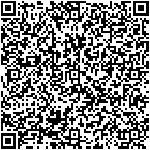
- Scan the QR code and follow onscreen instructions
Note
If using this QR code your device is stuck on the configuring screen, it may due to a problem connecting to the appspot.com domain.
In these cases you can use the latest release available on github. You can also upload this version on your own server and use that as your download location.
Replace the link used for PROVISIONING_DEVICE_ADMIN_PACKAGE_DOWNLOAD_LOCATION with a link to your APK. After that, regenerate the QR code.
ADB command
Device Owner (DO)
Run the
adbcommand:adb shell dpm set-device-owner com.afwsamples.testdpc/.DeviceAdminReceiver
Profile Owner - Personal device (PO - BYOD)
- Create a managed profile by launching the “Set up TestDPC” app
- Skip adding an account at the end of the flow
Profile Owner - Corporate-owned device (PO - COPE)
Create a managed profile by launching the “Set up TestDPC” app
Skip adding an account at the end of the flow
Run the
adbcommand:adb shell dpm mark-profile-owner-on-organization-owned-device --user 10 com.afwsamples.testdpc/.DeviceAdminReceiver`
TestDPC as DM role holder
TestDPC v9.0.5+ can be setup as Device Management Role Holder.
Running the following
adbcommands:adb shell cmd role set-bypassing-role-qualification true adb shell cmd role add-role-holder android.app.role.DEVICE_POLICY_MANAGEMENT com.afwsamples.testdpcNote: unlike DO/PO, this change is not persisted so TestDPC needs to be marked as role holder again if the device reboots.
Android Studio import
To import this repository in Android Studio, you need to use the Bazel for Android Studio Plugin.
When importing the project you have to select the folder containing the Bazel's
BUILD file. When prompted to select a "project view", you can choose the
option "Copy external" and choose the scripts/ij.bazelproject available in
this repository.
Once Bazel has complete the import operation and the first sync of the
project, you can create a "Run Configuration".
Select "Bazel Command" as Configuration type and add //:testdpc as
"target expression".
You can now run the project from inside Android Studio.
Building with Bazel
The repository includes a build.sh script to build the application. The required
setupdesign library
is now imported and patched dynamically using the command line utility ed. This needs to be
available on the path to successfully build the project.
ANDROID_HOME environment setup
Bazel requires that you set the ANDROID_HOME environment variable to the path of your Android SDK.
As an example, you can add to your .bashrc on linux:
export ANDROID_HOME=<Path to the Android SDK>
Support
If you've found an error in this sample, please file an issue: https://github.com/googlesamples/android-testdpc/issues
Patches are encouraged, and may be submitted by forking this project and submitting a pull request through GitHub.
License
Licensed under the Apache 2.0 license. See the LICENSE file for details.
How to make contributions?
Please read and follow the steps in the CONTRIB file.
관련 프로젝트 살펴보기
불러오는 중…