
daihase/Sketch
daihase/Sketch has 349 GitHub stars and 62 forks. GitHot measured 0 stars in 24 hours and 0 in 7 days. Last checked 2026-11-24 23:21 UTC. Last push 2026-07-13.
What you can do
- Editable Stamp tool
- Draw on Camera / Gallery image
- Multiple colors can be set
- Multiple width can be set
측정된 스타 증가
- in 24h
- 0
- in 7 days
- 0
- in 15 days
- 기록 수집 중
- in 1 month
- 기록 수집 중
서로 겹치는 기간의 순증가량이며 일별 합계가 아닙니다. 측정값이 없으면 비워 둡니다. 스타는 관심도를 나타내며 품질을 보장하지 않습니다.
소개
Sketch have a lot of basic functions to develop a drawing app for iPhone. Anyone can easily create drawing iOS Application.
창작 및 미디어README.md
Original



Sketch has basic functions for drawing from the beginning. Anyone can easily create drawing iOS Applications.
※ Below is the image of app actually made using Sketch.


| Freehand Drawing | Shape Tools | Stamp Tool |
|---|---|---|
|
|
|
|
:memo: Features
- Pen tool
- Eraser tool
- Stamp tool
- Editable Stamp tool
- Fill
- Undo / Redo
- Draw on Camera / Gallery image
- Multiple colors can be set
- Multiple width can be set
- Multiple alpha can be set
- Multiple tools (Line, Arrow, Rectangle, Ellipse, Star)
- Multiple Pen Filters (Neon, Blur)
:pencil2: Requirements
- iOS 13.0+
- Xcode 11.0+
- Swift 5.0+
:pencil2: Installation
Using Swift Package Manager (Recommended)
In Xcode, go to File → Add Package Dependencies... and enter the repository URL:
https://github.com/daihase/Sketch.git
Or add it to your Package.swift:
dependencies: [
    .package(url: "https://github.com/daihase/Sketch.git", from: "4.0.0")
]
Using CocoaPods
Add the following line to your Podfile:
pod 'Sketch'
Then run:
$ pod install
Using Carthage
Add this to Cartfile:
github "daihase/Sketch"
Then run:
$ carthage update
Finally, add the framework:
:pencil2: How to use
Using IB/Storyboards:
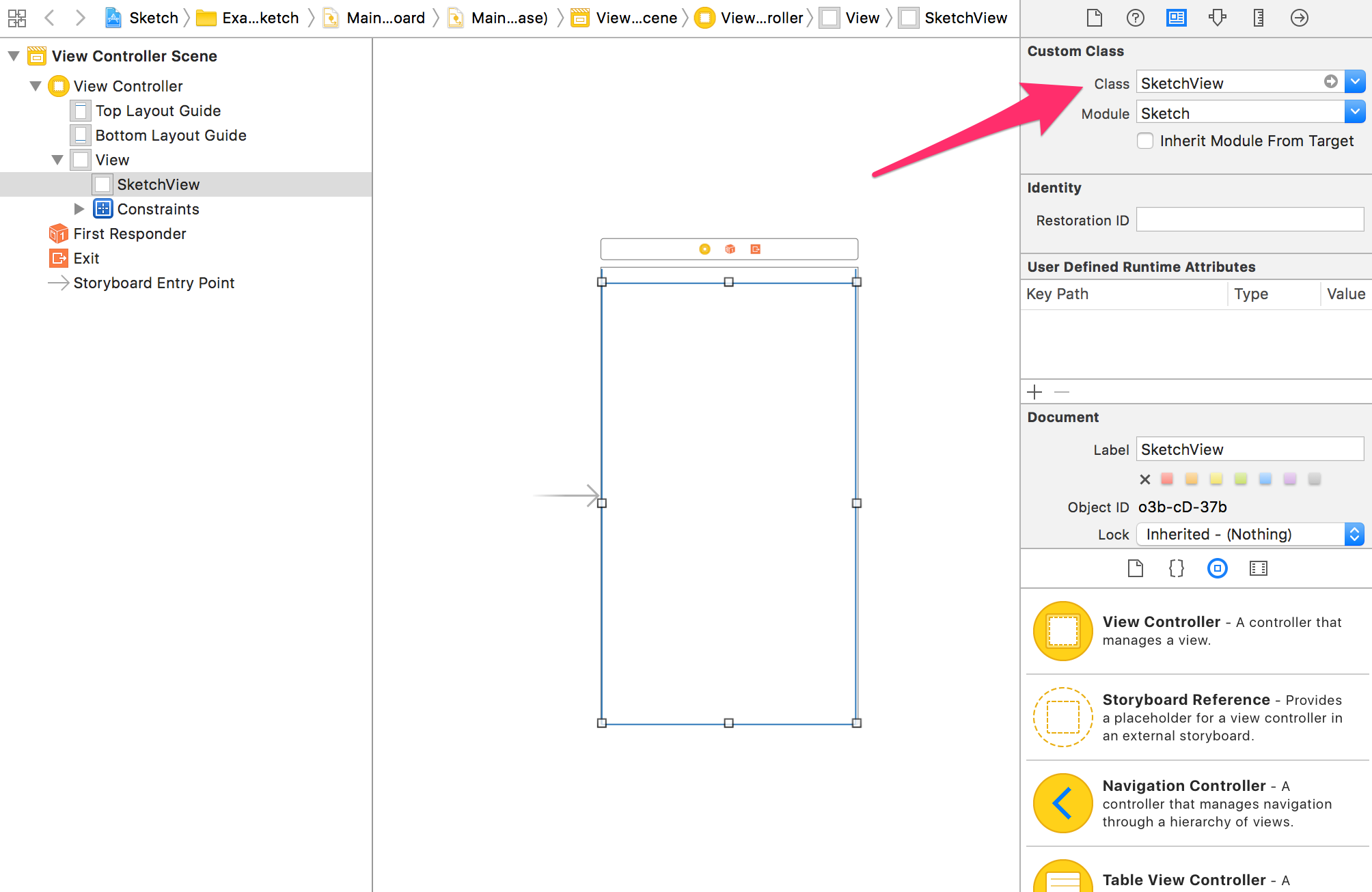
Only 3 steps needed to use SketchView
1. Set UIView on Storyboard.
2. Open Inspector and enter SketchView in the Class field of Custom Class.
3. Then just connect SketchView to UIViewController as usual.
Using code:
1. Import Sketch in proper place.
import Sketch
2. Create SketchView, and addSubview to the view you want to set.
let sketchView = SketchView(frame:
    CGRect(x: 0,
           y: 0,
           width: UIScreen.main.bounds.width,
           height: UIScreen.main.bounds.height
    )
)

self.view.addSubview(sketchView)
:ok_hand: Most of the functions are implemented in the Example Application. Please see that for details.
:pencil2: Privacy
Sketch does not collect any data. A privacy manifest file is provided.
:pencil2: License
I am using Example Application icon from Freepik. :point_right: Designed by Freepik and distributed by Flaticon
Sketch is available under the MIT license. See the LICENSE file for more info.
관련 프로젝트 살펴보기
불러오는 중…