
catppuccin/jupyterlab
catppuccin/jupyterlab has 345 GitHub stars and 12 forks. GitHot measured 0 stars in 24 hours. Last checked 2026-11-20 20:39 UTC. Last push 2026-11-16.
측정된 스타 증가
- in 24h
- 0
- in 7 days
- 기록 수집 중
- in 15 days
- 기록 수집 중
- in 1 month
- 기록 수집 중
서로 겹치는 기간의 순증가량이며 일별 합계가 아닙니다. 측정값이 없으면 비워 둡니다. 스타는 관심도를 나타내며 품질을 보장하지 않습니다.
소개
📊 Soothing pastel theme for JupyterLab
개발 도구README.md
Original

Catppuccin for JupyterLab


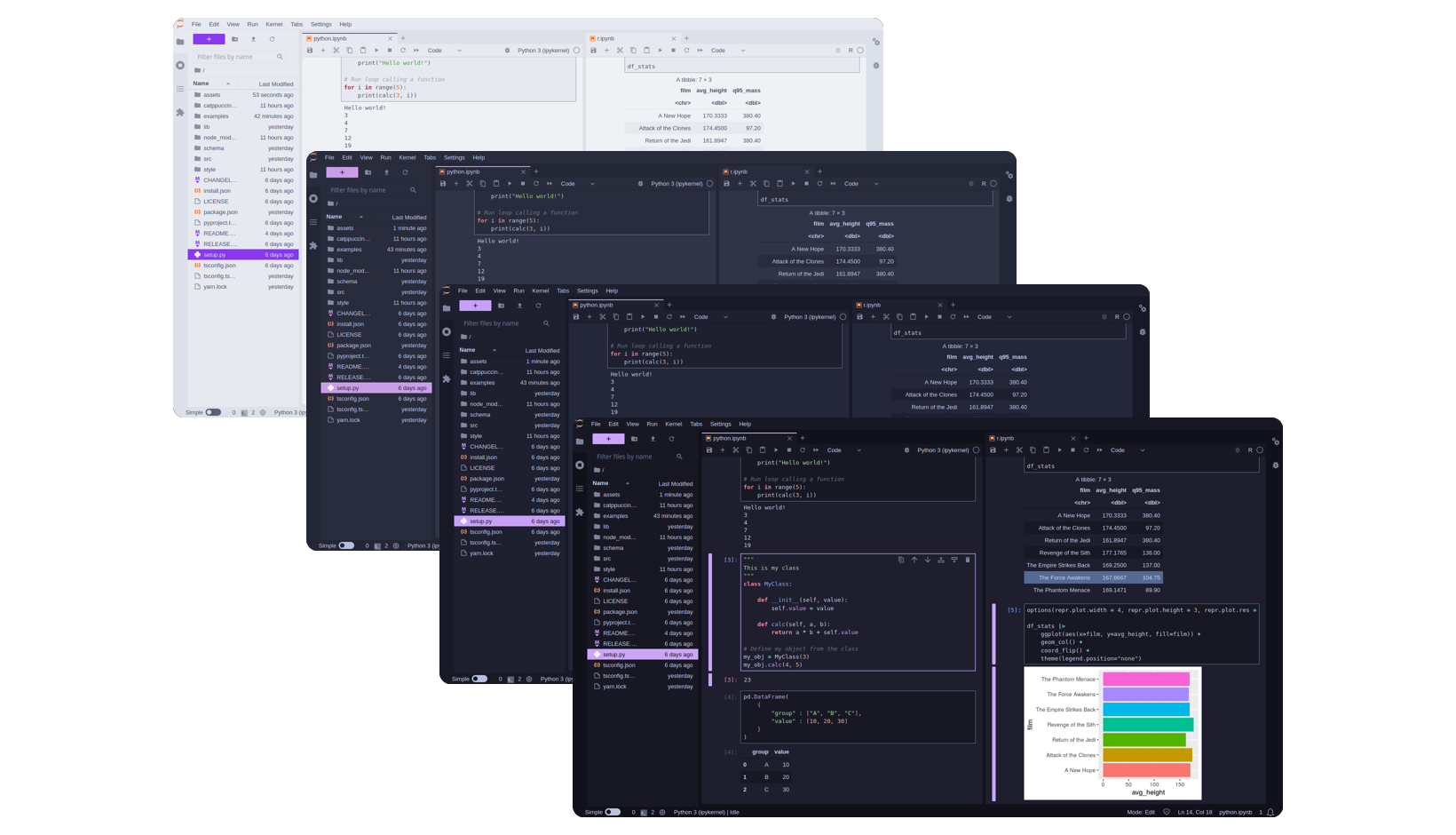
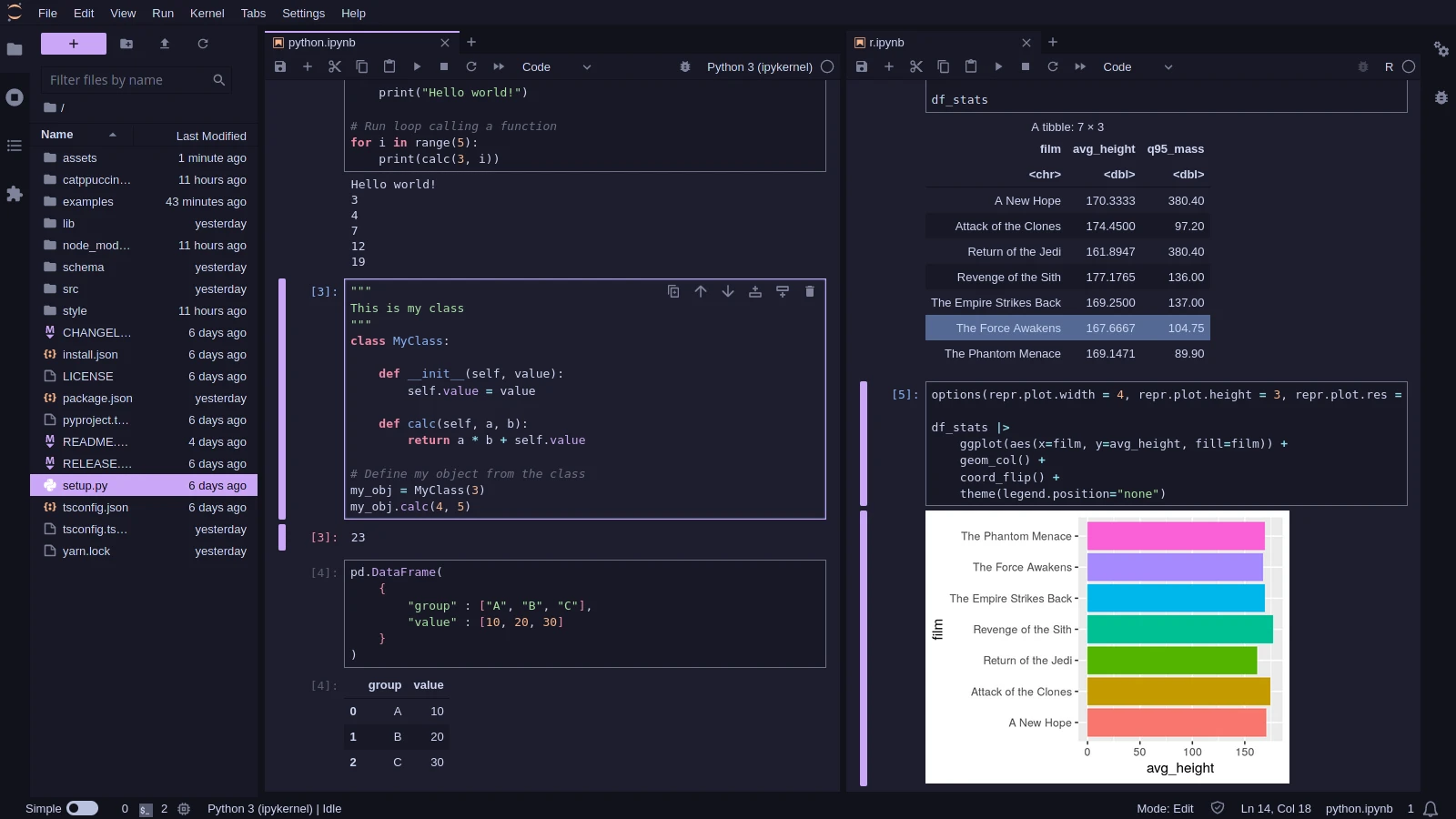
Previews
🌻 Latte
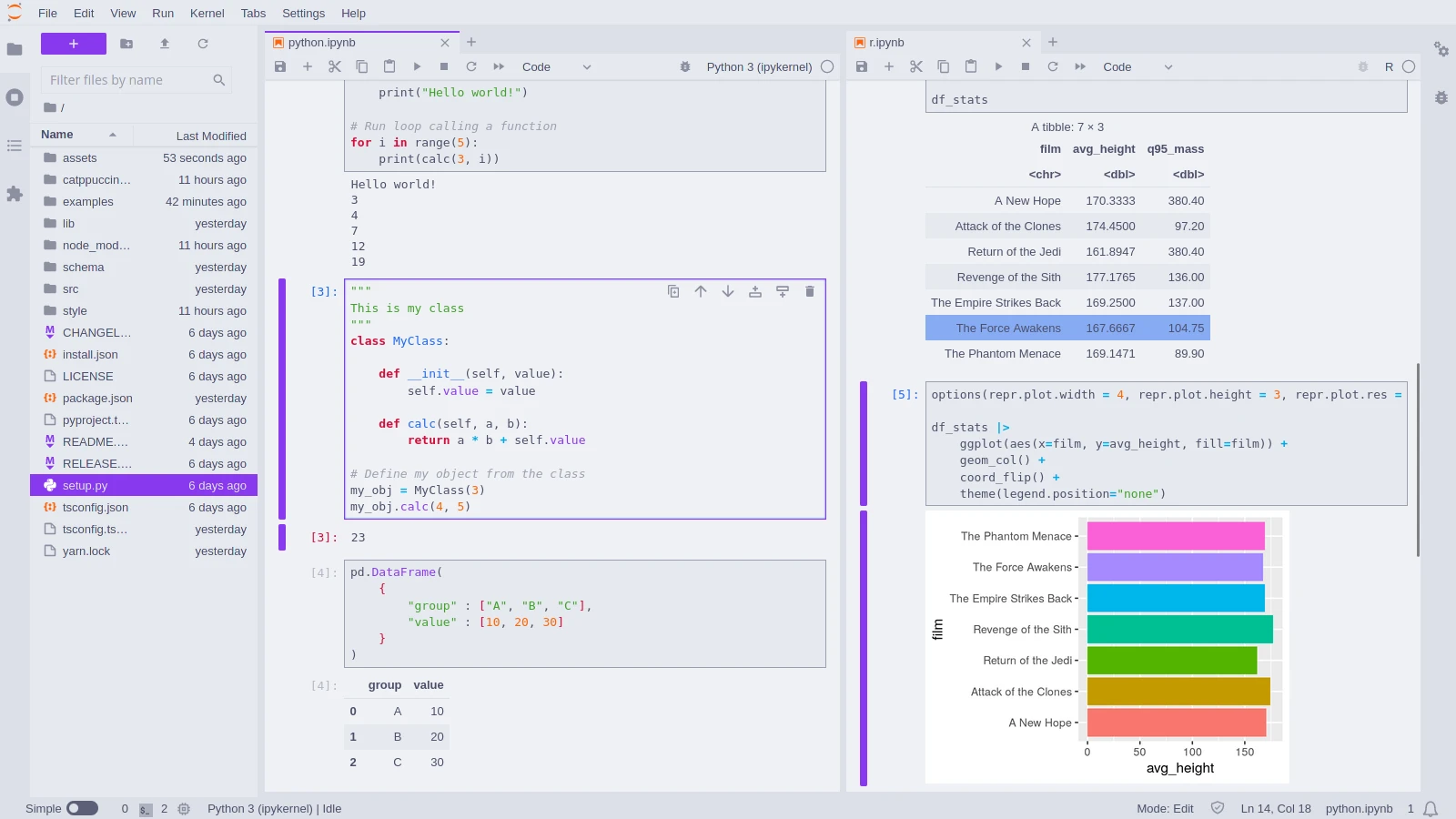
🪴 Frappé
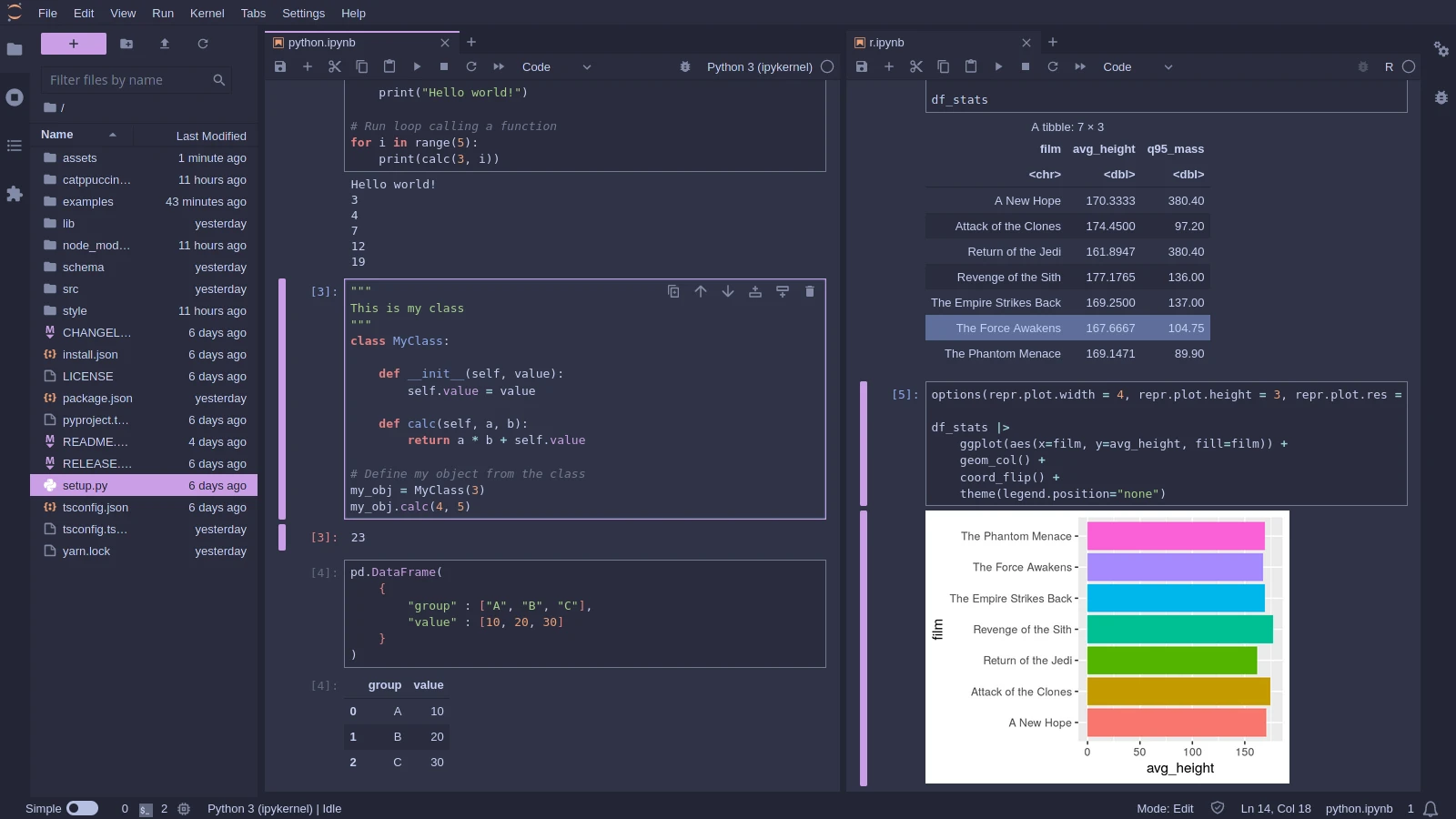
🌺 Macchiato
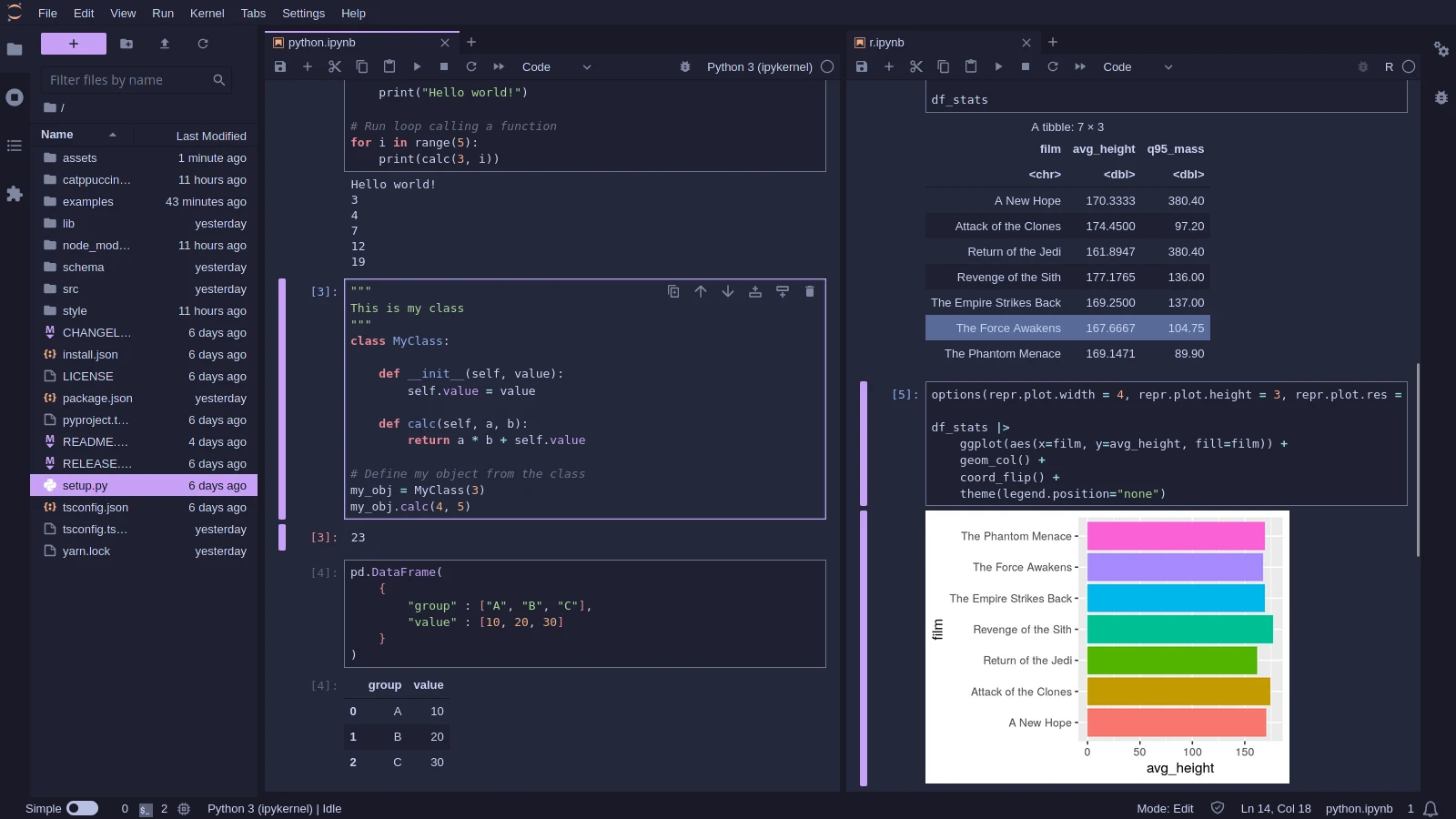
🌿 Mocha
Usage
- Install the JupyterLab extension using
piporconda:pip install catppuccin-jupyterlaborconda install -c conda-forge catppuccin-jupyterlab.
- Start/restart JupyterLab (
jupyter lab). If it is already opened, you can reload it by executing "Reset Application State" in the Command Palette (Ctrl + Shift + C). - Go to the
Settings > Thememenu option and choose the desired flavor.
It supports both JupyterLab v3 and v4.
Customization
Brand Color
It is possible to choose any of the Catppucin colors as your "brand" color. The default is mauve, but you can choose your favorite to make it your way!
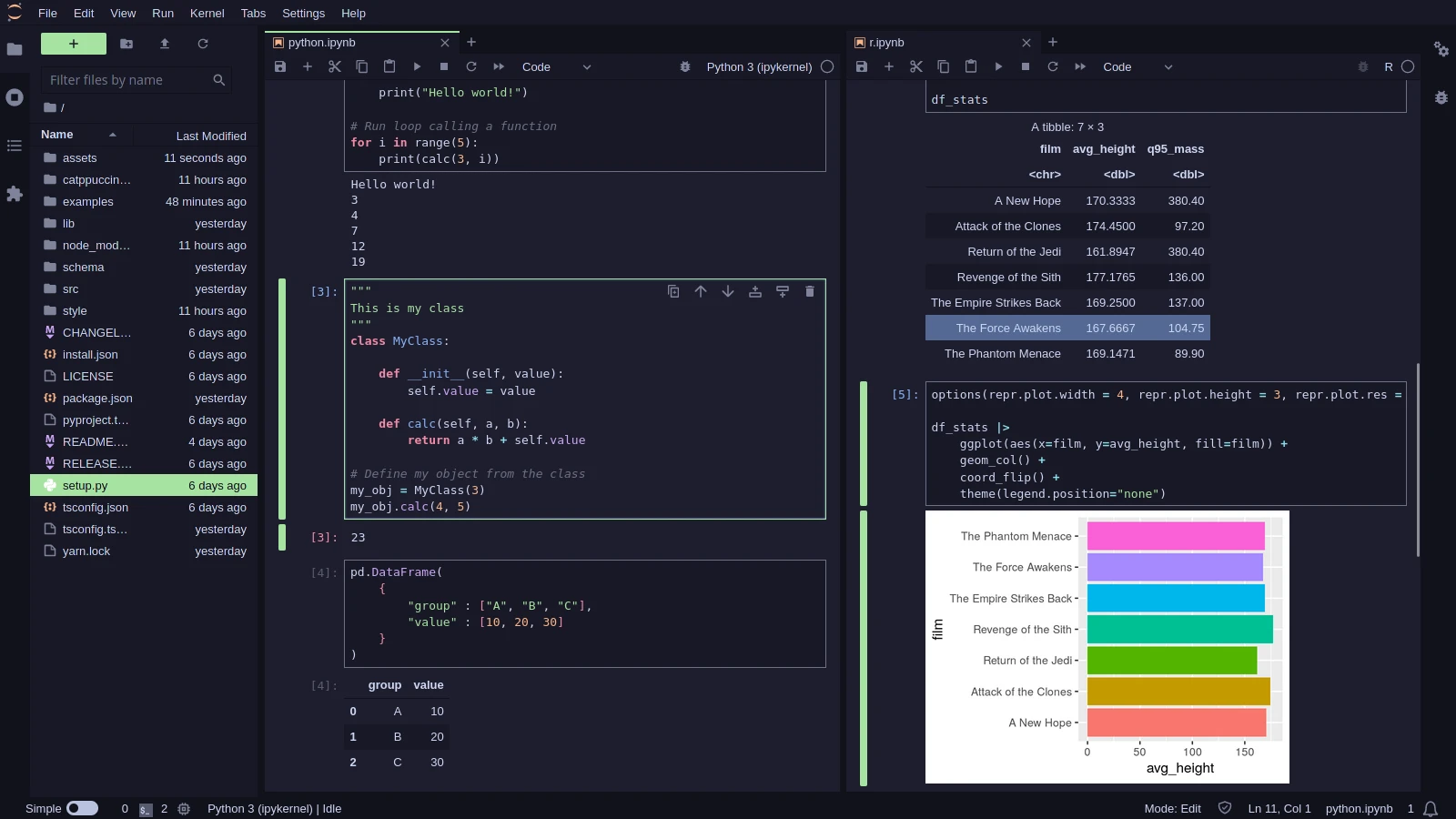
You can specify the colors by going to the Settings > Settings Editor (or Ctrl + ,), going to the Theme - Catppuccin section, then choosing your desired color in the lists of the dropdown menu.
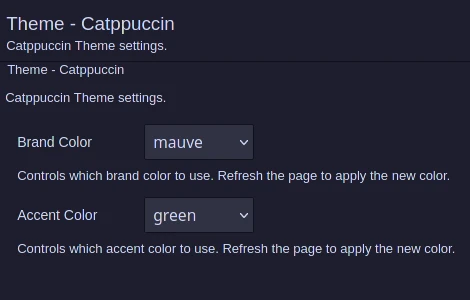
Alternatively, you can specify the json with the settings:
{
    "brandColor": "mauve",
    "accentColor": "green"
}
[!NOTE] Besides the "brand" color it is also possible to set the "accent" color (default is green), but it rarely appears in the JupyterLab interface.
💝 Thanks to

Copyright © 2021-present Catppuccin Org
