
bishopdynamics/superbird-debian-kiosk
bishopdynamics/superbird-debian-kiosk has 269 GitHub stars and 17 forks. GitHot measured 0 stars in 24 hours and 0 in 7 days. Last checked 2026-11-23 09:02 UTC. Last push 2025-09-30.
What you can do
- Debian 11 (Bullseye) aarch64
- Framebuffer display working with X11, in portrait or landscape, with touch input
- Networking via USB RNDIS (requires a host device)
- Automatic blacklight on/off with display wake/sleep
측정된 스타 증가
- in 24h
- 0
- in 7 days
- 0
- in 15 days
- 기록 수집 중
- in 1 month
- 기록 수집 중
서로 겹치는 기간의 순증가량이며 일별 합계가 아닙니다. 측정값이 없으면 비워 둡니다. 스타는 관심도를 나타내며 품질을 보장하지 않습니다.
소개
# Debian Chromium Kiosk on Spotify Car Thing (superbird)
개발 도구README.md
OriginalWall Thing: Debian Chromium Kiosk on Spotify Car Thing (superbird)
This is a prebuilt image of Debian 11 (Bullseye) for the Spotify Car Thing, aka superbird. It combines the stock kernel with a debian rootfs, and launches a fullscreen Chromium kiosk. I like to use it with Home Assistant.


This image will remove the default Spotify functionality. You should definitely make a full backup before proceeding!
Default user and password are both superbird

Warranty and Liability
None. You definitely can mess up your device in ways that are difficult to recover. I cannot promise a bug in this script will not brick your device. By using this tool, you accept responsibility for the outcome.
I highly recommend connecting to the UART console, frederic's repo has some good pictures showing where the pads are.
Make backups.
WebUI


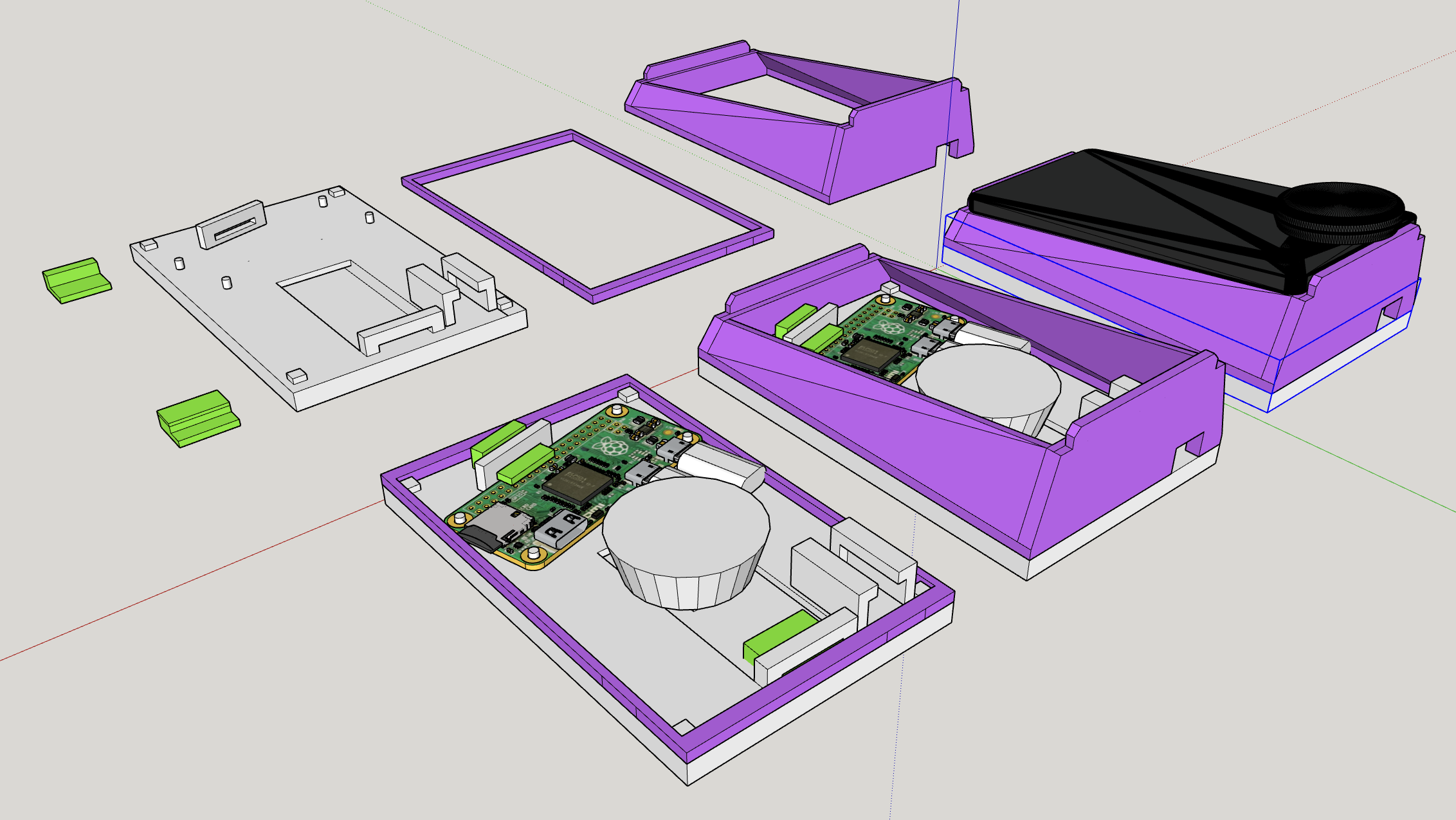
3D Printed Case
The case in the pictures can be found in here.
Features
Working:
- Debian 11 (Bullseye) aarch64
- Framebuffer display working with X11, in portrait or landscape, with touch input
- Networking via USB RNDIS (requires a host device)
- Automatic blacklight on/off with display wake/sleep
- VNC and SSH (forwarded through host device)
- Chromium browser, fullscreen kiosk mode, with DevTools available
- Buttons and dial used to control a light and recall scenes/automations/scripts on Home Assistant
- 256MB
settingspartition used for Chromium user profile - Backlight brightness control (default 100)
Available, but not used in this image:
- Bluetooth
- Audio (mic array, DSP)
Not working:
- Wifi
- GPU acceleration
WiFi is technically possible on this hardware, but the stock bootloaders and kernel disable it. It might be possible to cherry-pick the wifi information from the Radxa Zero device tree (practically the same SoC), but I think you would need to rebuild one or more of the bootloader stages to make it work.
GPU: the hardware has a Mali GPU, but the stock OS uses it via DirectFB QT library, and does not include necessary libraries to make it work with X11. It may be possible to grab the needed files from Radxa Zero.
Boot Modes
After installation, you will have 3 different boot options, depending on what buttons are held when you plug it in:
| Buttons | Mode | Details | Logo |
|---|---|---|---|
| none | Debian | * bootlogo is blue Home Assistant icon * kernel is boot_a root is data |
 |
| hold 1 | Utility Mode | * bootlogo says Utility Mode * eventually shows Spotify logo * kernel is boot_a root is system_a* adb and usbnet already configured (wait for Spotify logo) |
 |
| hold 4 | USB Burn Mode | * bootlogo says USB Burn Mode * ready to flash images |
 |
| hold 1 & 4 | USB Mode | * screen is black * can enter USB Burn Mode using: ./superbird-toolpy --burn_mode |
 |
Installation
Requirements
- Spotify Car Thing (aka superbird)
- a Raspberry Pi Zero 2 W
- new: this is the ONLY supported host hardware now, enforced by install scripts
- a microsd card, 8GB+ recommended
- a MicroUSB (male) -> USB-C (male) cable to connect the two
- power supply for the host device
- a desktop/laptop for flashing the image to the Car Thing
Setup Superbird (Spotify Car Thing)
- Download and extract the latest image from Releases
- Put your device in burn mode by holding buttons 1 & 4 while plugging into usb port
- avoid using a USB hub, you will have issues flashing the image
- Use the latest version of superbird-tool to flash the extracted image folder:
# root may be needed, check superbird-tool readme for platform-specific usage
# make sure your device is found
python3 superbird_tool.py --find_device
# restore the entire folder to your device
python3 superbird_tool.py --restore_device ~/Downloads/debian_bullseye_arm64_v2.0.0-4894459_landscape_2025-09-29/
- Alternatively (on x86_64 Linux only), use the Superbird Backup & Recovery scripts:
sudo ./restore-device.sh ~/Downloads/debian_bullseye_arm64_v2.0.0-4894459_landscape_2025-09-29/
Setup Host Raspberry Pi
NOTE: you MUST set user name to superbird in customization settings. The setup scripts here assume this username.
- Flash microsd using Raspbery Pi Imager:


- insert microsd into the host raspberry pi and power it on (without Car Thing attached)
- copy/paste
prep_host.shto the host - run
prep_host.shassuperbirduserbash prep_host.sh sudo reboot - Connect the Car Thing into the host device and power it up
Access
WebUI
Access the main WebUI to:
- change settings
- control screen via embedded vnc client
- inspect webpage using chromium devtools
- simulate button press
- perform some maintenance actions
- view logs
There is also the Host Maintenance Center, where you can perform additional maintenance actions including updates
VNC
You can control the Car Thing's screen using a VNC client
# user: superbird
# password: superbird
# where "host-device" is the hostname or ip of your host raspberry pi
open vnc://superbird:superbird@host-device
SSH
From another device on the same network, you should be able to ssh directly to the Car Thing using port 2022:
# user: superbird
# password: superbird
# where "host-device" is the hostname or ip of your host raspberry pi
ssh -p 2022 superbird@host-device
And you can connect to the host raspberry pi on the usal port 22
# user: superbird
# password: superbird
# where "host-device" is the hostname or ip of your host raspberry pi
ssh superbird@host-device
How to build the images
The images build script runs the image build process twice, once for each orientation, and will use apt-cacher-ng if it is installed.
This script must be run on arm64 Debian 12 (Bookworm)
You must provide a set of images dumped from a stock superbird device
# looking for files in ./dumps/stock_dump/
sudo ./build_images.py
관련 프로젝트 살펴보기
불러오는 중…