
auchenberg/vscode-browser-preview
auchenberg/vscode-browser-preview has 4,370 GitHub stars and 150 forks. GitHot measured 0 stars in 24 hours, -1 in 7 days, and 0 in 15 days. Last checked 2026-11-25 07:53 UTC. Last push 2023-04-30.
What you can do
- Browser preview inside VS Code (Powered by headless Chromium).
- Ability to have multiple previews open at the same time.
- Debuggable. Launch urls and attach Debugger for Chrome to the browser view instance, and debug within VS Code.
- Attach Chrome DevTools via chrome://inspect
측정된 스타 증가
- in 24h
- 0
- in 7 days
- -1
- in 15 days
- 0
- in 1 month
- 기록 수집 중
서로 겹치는 기간의 순증가량이며 일별 합계가 아닙니다. 측정값이 없으면 비워 둡니다. 스타는 관심도를 나타내며 품질을 보장하지 않습니다.
소개
에디터에서 실제 브라우저를 미리 보고 디버깅할 수 있습니다.
개발 도구README.md
Original:rotating_light: Deprecation Notice
This extension has been deprecated in favor of the Live Preview extension.
The Live Preview extension is under active development and has much of the same functionality, including an embedded preview and external browser debugging. You can install the Live Preview extension and safely uninstall or disable this Browser Preview extension. Please file any issues you encounter in the Live Preview repository.

Browser Preview for VS Code
A real browser preview inside your editor that you can debug.

Browser Preview for VS Code enables you to open a real browser preview inside your editor that you can debug. Browser Preview is powered by headless Chromium, and works by starting a headless Chromium instance in a new process. This can either be Google Chrome or Microsoft Edge. This enables a secure way to render web content inside VS Code, and enables interesting features such as in-editor debugging and more!

Getting started
- Grab extension from marketplace
- Click the new "Browser Preview" button in the Side Bar to the left or run the command
Browser View: Open Preview
Make sure you have Google Chrome installed on your computer.
Features
- Browser preview inside VS Code (Powered by headless Chromium).
- Ability to have multiple previews open at the same time.
- Debuggable. Launch urls and attach Debugger for Chrome to the browser view instance, and debug within VS Code.
- Attach Chrome DevTools via
chrome://inspect - Option to set the default startUrl via
browser-preview.startUrl - Option to set the path to the chrome executable via
browser-preview.chromeExecutable - Option to set the type of rendering via
browser-preview.formatwith the support forjpeg(default one) andpngformats
How to change the default start url / start page?
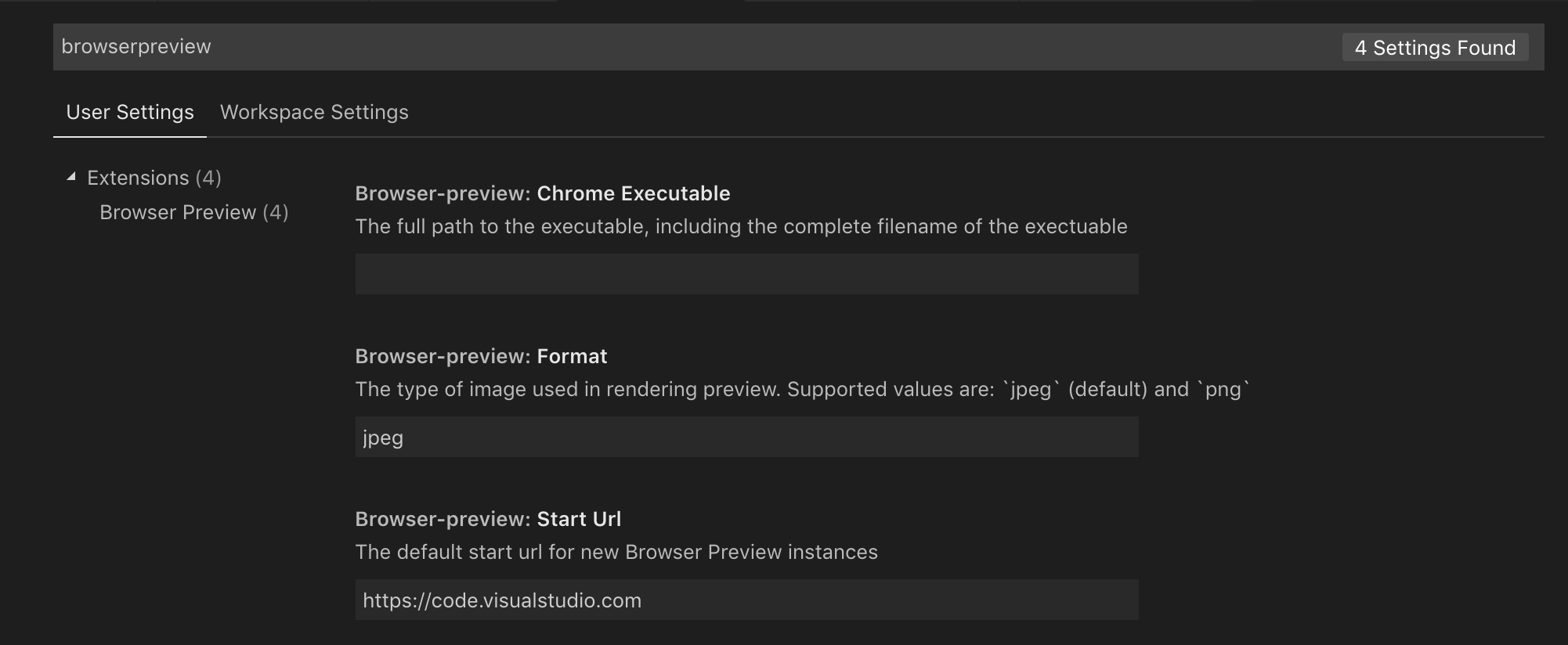
Go to your settings, search for "browser preview" and set browser-preview.startUrl to your desired url.
Launch and Debugging
You can enable in-editor debugging of Browser Preview by installing Debugger for Chrome, and configure VS Code's debugger to either attach or launch to the browser previews by using the following configuration:
{
  "version": "0.1.0",
  "configurations": [
    {
      "type": "browser-preview",
      "request": "attach",
      "name": "Browser Preview: Attach"
    },
    {
      "type": "browser-preview",
      "request": "launch",
      "name": "Browser Preview: Launch",
      "url": "http://localhost:3000"
    }
  ]
}
The debug configuration also supports these additional properties: webRoot, pathMapping, trace, sourceMapPathOverrides and urlFilter. See https://github.com/Microsoft/vscode-chrome-debug#other-optional-launch-config-fields for details on how to use.
Watch It
Watch an animated gif showing how to open the preview and debug a browser app.
Additional configuration
Browser Preview has the following settings:
"browser-preview.startUrl": // The default start url for new Browser Preview instances
"browser-preview.verbose": false // Enable verbose logging of messages sent between VS Code and Chrome instance
"browser-preview.chromeExecutable": // The full path to the executable, including the complete filename of the executable
"browser-preview.format": // Option to set the type of rendering with the support for `jpeg` (default one) and `png` formats
"browser-preview.ignoreHttpsErrors": false // Ignore HTTPS errors if you are using self-signed SSL certificates
관련 프로젝트 살펴보기
불러오는 중…