
ChristianKohler/PathIntellisense
소개
파일 이름을 자동 완성하는 Visual Studio Code 확장 프로그램입니다.
개발 도구측정된 스타 증가
- in 24h
- 0
- in 7 days
- +1
- in 15 days
- 기록 수집 중
- in 1 month
- 기록 수집 중
서로 겹치는 기간의 순증가량이며 일별 합계가 아닙니다. 측정값이 없으면 비워 둡니다. 스타는 관심도를 나타내며 품질을 보장하지 않습니다.
README.md
OriginalPath Intellisense
Visual Studio Code plugin that autocompletes filenames.
Installation
In the command palette (cmd-shift-p) select Install Extension and choose Path Intellisense.
To use Path Intellisense instead of the default autocompletion, the following configuration option must be added to your settings:
{ "typescript.suggest.paths": false }
{ "javascript.suggest.paths": false }
Usage
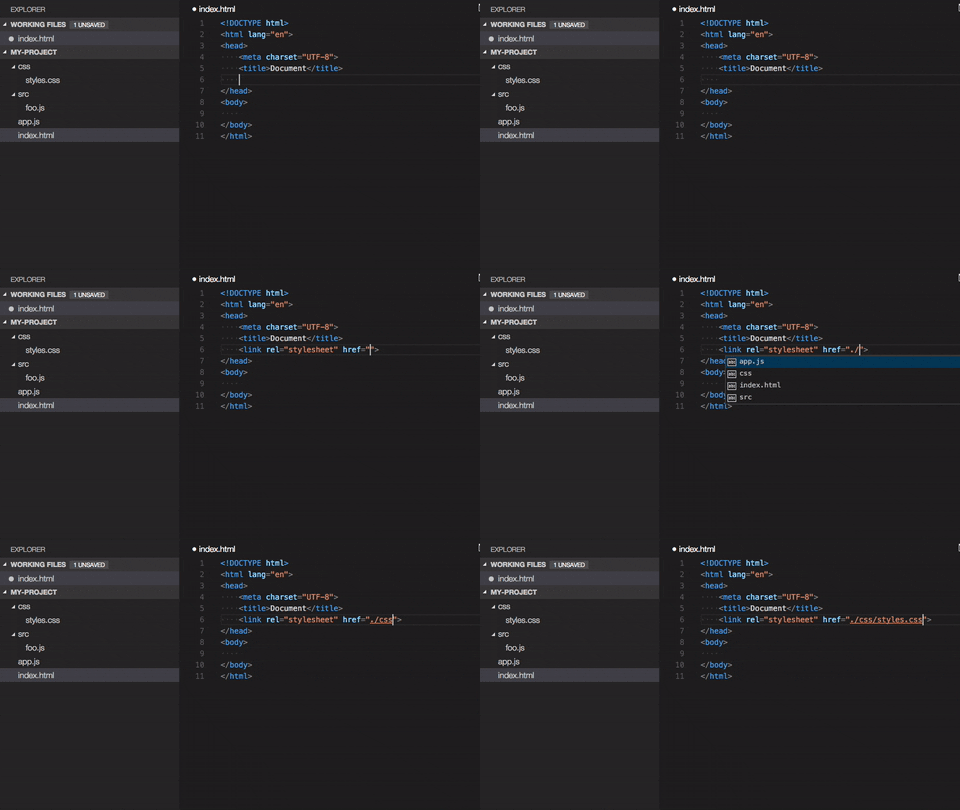
Node packages intellisense
Use npm intellisense
Contributing
Something missing? Found a bug? - Create a pull request or an issue. Github
Are you a windows user?
There is an issue on windows with the period key. See Issue https://github.com/ChristianKohler/NpmIntellisense/issues/12
Add this to the keybinding:
{ "key": ".", "command": "" }
TsConfig support
BaseUrl
Pathintellisense uses the ts.config.compilerOptions.baseUrl as a mapping. So no need to define it twice.
For example:
# Folderstructure

src/
module-a
foo.ts
module-b
// tsconfig

{
	"baseUrl": "src",
}
would allow to type:
{
  import {} from "module-a/foo.ts";
}
You can disable this behaviour by setting it to true:
{
	"path-intellisense.ignoreTsConfigBaseUrl": true,
}
Paths
Pathintellisense uses the ts.config.compilerOptions.paths as a mapping.
For example:
{
  "compilerOptions": {
    "paths": {
      "@/*": ["src/*"]
    }
  }
}
Note: Fallbacks are not supported.
Settings
File extension in import statements
Path Intellisense removes the file extension by default if the statement is a import statement. To enable file extensions set the following setting to true:
{
	"path-intellisense.extensionOnImport": true,
}
Show hidden files
Per default, hidden files are not displayed. Set this to true to show hidden files.
{
	"path-intellisense.showHiddenFiles": true,
}
If set to false, PathIntellisense ignores the default "files.exclude" as well:
{
	"files.exclude": {
		"**/*.map.js": true
	}
}
Auto slash when navigating to folder
Per default, the autocompletion does not add a slash after a directory.
{
	"path-intellisense.autoSlashAfterDirectory": false,
}
Automatically trigger next suggestion
When a suggestion was selected, the next suggestion will automatically pop up.
This setting will override the autoSlashAfterDirectory setting.
{
	"path-intellisense.autoTriggerNextSuggestion": false,
}
Absolute paths
Per default, absolute paths are resolved within the current workspace root path. Set it to false to resolve absolute paths to the disk root path.
{
	"path-intellisense.absolutePathToWorkspace": true,
}
Mappings
Define custom mappings which can be useful for using absolute paths or in combination with webpack resolve options.
{
	"path-intellisense.mappings": {
		"/": "${workspaceFolder}",
		"lib": "${workspaceFolder}/lib",
		"global": "/Users/dummy/globalLibs"
	},
}
Use ${workspaceFolder} when the path should be relative to the current root of the current project. V2.2.1 and lower used ${workspaceRoot}. Newer version support both placeholders.
History
See changelog
License
This software is released under MIT License
관련 프로젝트 살펴보기
불러오는 중…