
AvaloniaCommunity/MessageBox.Avalonia
소개
AvaloniaUI용 메시지 상자
개발 도구측정된 스타 증가
- in 24h
- 0
- in 7 days
- +1
- in 15 days
- +2
- in 1 month
- 기록 수집 중
서로 겹치는 기간의 순증가량이며 일별 합계가 아닙니다. 측정값이 없으면 비워 둡니다. 스타는 관심도를 나타내며 품질을 보장하지 않습니다.
README.md
OriginalMessageBox.Avalonia
Messagebox for AvaloniaUI Now support all platforms as Xplat template

To start you should install MessageBox.Avalonia NuGet package
dotnet add package MessageBox.Avalonia


Support creator:

The easiest way to get started is this:
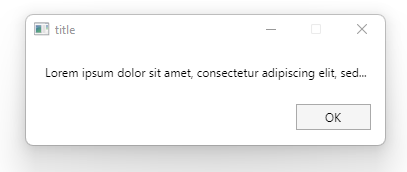
using MsBox.Avalonia;
using MsBox.Avalonia.Enums;

var box = MessageBoxManager
    .GetMessageBoxStandard("Caption", "Are you sure you would like to delete appender_replace_page_1?",
        ButtonEnum.YesNo);

var result = await box.ShowAsync();
You have a lot of options how to show your messagebox:
ShowAsync - Show messagebox depending on the type of application
  If application is SingleViewApplicationLifetime (Mobile or Browses) then show messagebox as popup

  If application is ClassicDesktopStyleApplicationLifetime (Desktop) then show messagebox as window
ShowWindowAsync - Show messagebox as window, optionally with owner (non-modal)
ShowWindowDialogAsync - Show messagebox as window with owner
ShowAsPopupAsync - Show messagebox as popup over the owner. Works on desktop, Android and Browser
Close - Close messagebox from code
MessageBoxStandardParams and MessageBoxCustomParams also accept Background, Position and Classes.
Samples for Desktop, Android and Browser are in Exmaple2.0.Desktop, Exmaple2.0.Android and Exmaple2.0.Browser.
HyperLink with powerfull options:
using System;
using System.Diagnostics;
using System.Runtime.InteropServices;
using Avalonia.Controls;
using MsBox.Avalonia;
using MsBox.Avalonia.Dto;
using MsBox.Avalonia.Models;

MessageBoxManager.GetMessageBoxCustom(
    new MessageBoxCustomParams
    {
        ButtonDefinitions = new List<ButtonDefinition>
        {
            new ButtonDefinition { Name = "Yes", },
            new ButtonDefinition { Name = "No", },
            new ButtonDefinition { Name = "Cancel", }
        },
        ContentTitle = "title",
        ContentMessage = "Informative note:" +
                         "Lorem ipsum dolor sit amet, consectetur adipiscing elit. Nunc ut pulvinar est, eget porttitor magna. Maecenas nunc elit, pretium nec mauris vel, cursus faucibus leo. Mauris consequat magna vel mi malesuada semper. Donec nunc justo, rhoncus vel viverra a, ultrices vel nibh. Praesent ut libero a nunc placerat vulputate. Morbi ullamcorper pharetra lectus, ut lobortis ex consequat sit amet. Vestibulum pellentesque quam at justo hendrerit, et tincidunt nisl mattis. Curabitur eu nibh enim.\n",
        Icon = MsBox.Avalonia.Enums.Icon.Question,
        WindowStartupLocation = WindowStartupLocation.CenterOwner,
        CanResize = false,
        MaxWidth = 500,
        MaxHeight = 800,
        SizeToContent = SizeToContent.WidthAndHeight,
        ShowInCenter = true,
        Topmost = false,
        HyperLinkParams = new HyperLinkParams
        {
            Text = "https://docs.avaloniaui.net/",
            Action = new Action(() =>
            {
                var desktop = Environment.GetFolderPath(Environment.SpecialFolder.Desktop);
                var url = "https://docs.avaloniaui.net/";
                if (RuntimeInformation.IsOSPlatform(OSPlatform.Windows))
                {
                    //https://stackoverflow.com/a/2796367/241446
                    using var proc = new Process { StartInfo = { UseShellExecute = true, FileName = url } };
                    proc.Start();

                    return;
                }

                if (RuntimeInformation.IsOSPlatform(OSPlatform.Linux))
                {
                    Process.Start("x-www-browser", url);
                    return;
                }

                if (!RuntimeInformation.IsOSPlatform(OSPlatform.OSX))
                    throw new Exception("invalid url: " + url);
                Process.Start("open", url);
                return;
            })
        }
    });
Important: Async/Await Usage
Always use await when calling MessageBox methods. Never use .Result or .Wait() on the Task, as this will cause a deadlock and freeze your UI.
❌ Wrong (will freeze your application):
private void ShowMessage()
{
    var box = MessageBoxManager.GetMessageBoxStandard("Title", "Message", ButtonEnum.Ok);
    var result = box.ShowAsync().Result; // DON'T DO THIS!
}
✅ Correct:
private async void ShowMessage()
{
    var box = MessageBoxManager.GetMessageBoxStandard("Title", "Message", ButtonEnum.Ok);
    var result = await box.ShowAsync(); // Use await
}
If you need to return the result to the caller, make sure the entire call chain is async:
private async Task<ButtonResult> ShowConfirmation()
{
    var box = MessageBoxManager.GetMessageBoxStandard("Confirm", "Are you sure?", ButtonEnum.YesNo);
    return await box.ShowAsync();
}

// Usage:
var result = await ShowConfirmation();
if (result == ButtonResult.Yes)
{
    // Handle confirmation
}
Markdown support
Do enable markdown support users need to:
install MessageBox.Avalonia.Markdown package
add MarkdownView from :MsBox.Avalonia.Markdown to App.axaml
    <Application.Styles>
        <StyleInclude Source="avares://MsBox.Avalonia.Markdown/Controls/MarkdownView.axaml" />
    </Application.Styles>
Support: https://t.me/Avalonia
Patrons:
Powered by

관련 프로젝트 살펴보기
불러오는 중…