
ytaskiran/tws has 60 GitHub stars and 5 forks. Star changes are not measured yet. Last checked 2026-11-09 08:33 UTC. Last push 2026-10-31.
terminal workspace manager — organize your tmux & rex sessions and ai agents
計測したスター増加
- 24時間
- 更新が遅れています
- 7日間
- 更新が遅れています
- 15日間
- 更新が遅れています
- 1か月
- 更新が遅れています
期間ごとの純増数です。期間は重複しており、日別の値ではありません。未計測の値は空欄です。スター数は注目度の指標であり、品質の保証ではありません。
README.md
オリジナルtws
terminal workspace manager — organize your terminal sessions into threads. Works with Rex and tmux.
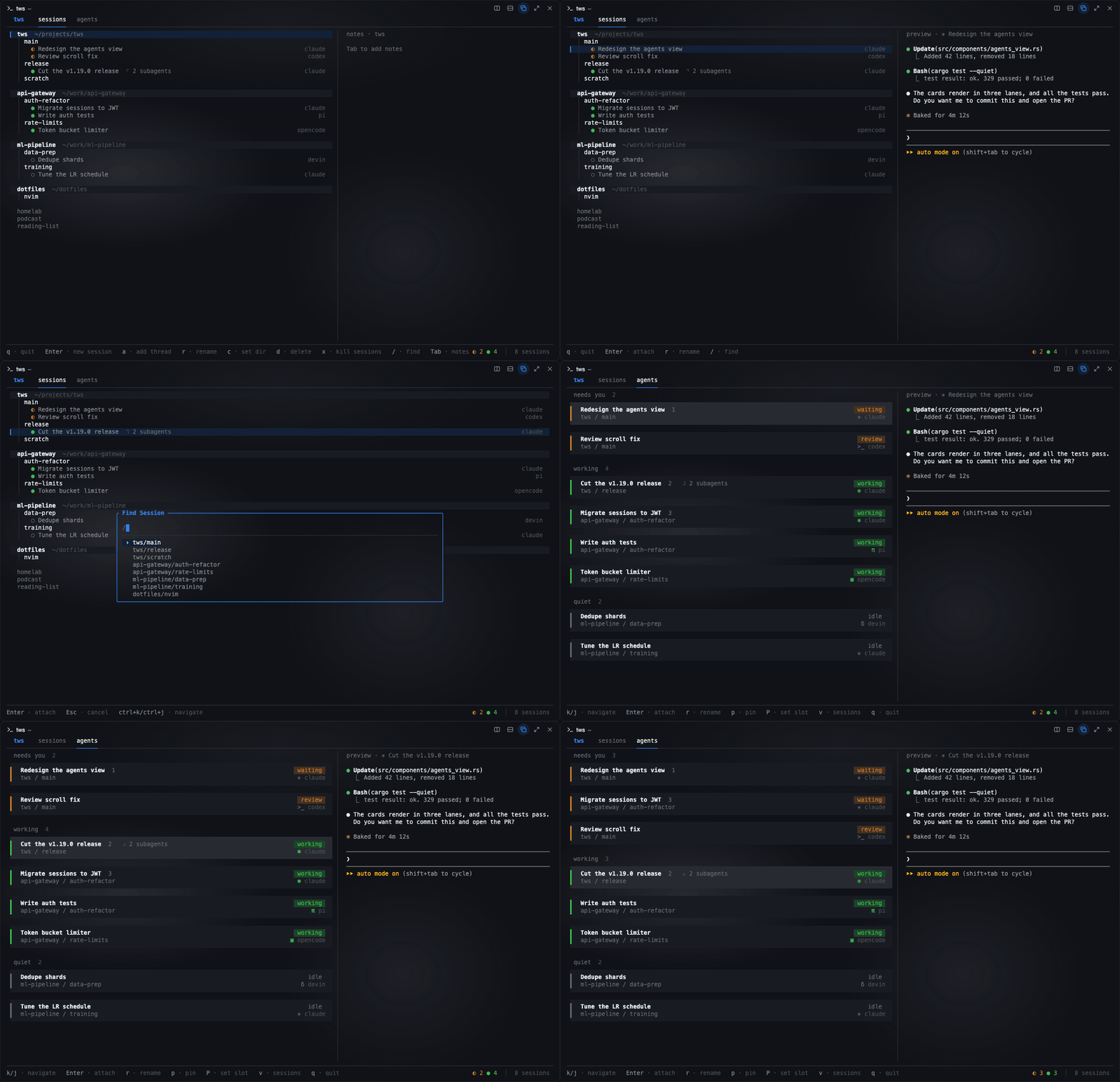
tws is a terminal UI that adds a persistent organizational layer on top of your terminal. It runs on one of two backends: Rex (the default) or tmux. Terminal sessions are flat and ephemeral; tws groups them into threads you control, and launches and opens them for you.
- Threads — units of work (e.g.
auth-refactor,bug-1234,scratch), each holding one or more sessions - Sessions — live terminal sessions (a Rex session or a tmux session), launched and opened from tws
Threads are saved to ~/.config/tws/. Sessions are real Rex sessions or tmux sessions that tws finds at runtime. tws shows every session. A session that no thread holds shows under other, and m moves it into a thread. With Rex, tws stays open in its own tab, or opens as a popup with Cmd+S. With tmux, detach from a session to go back to tws. See Backends.
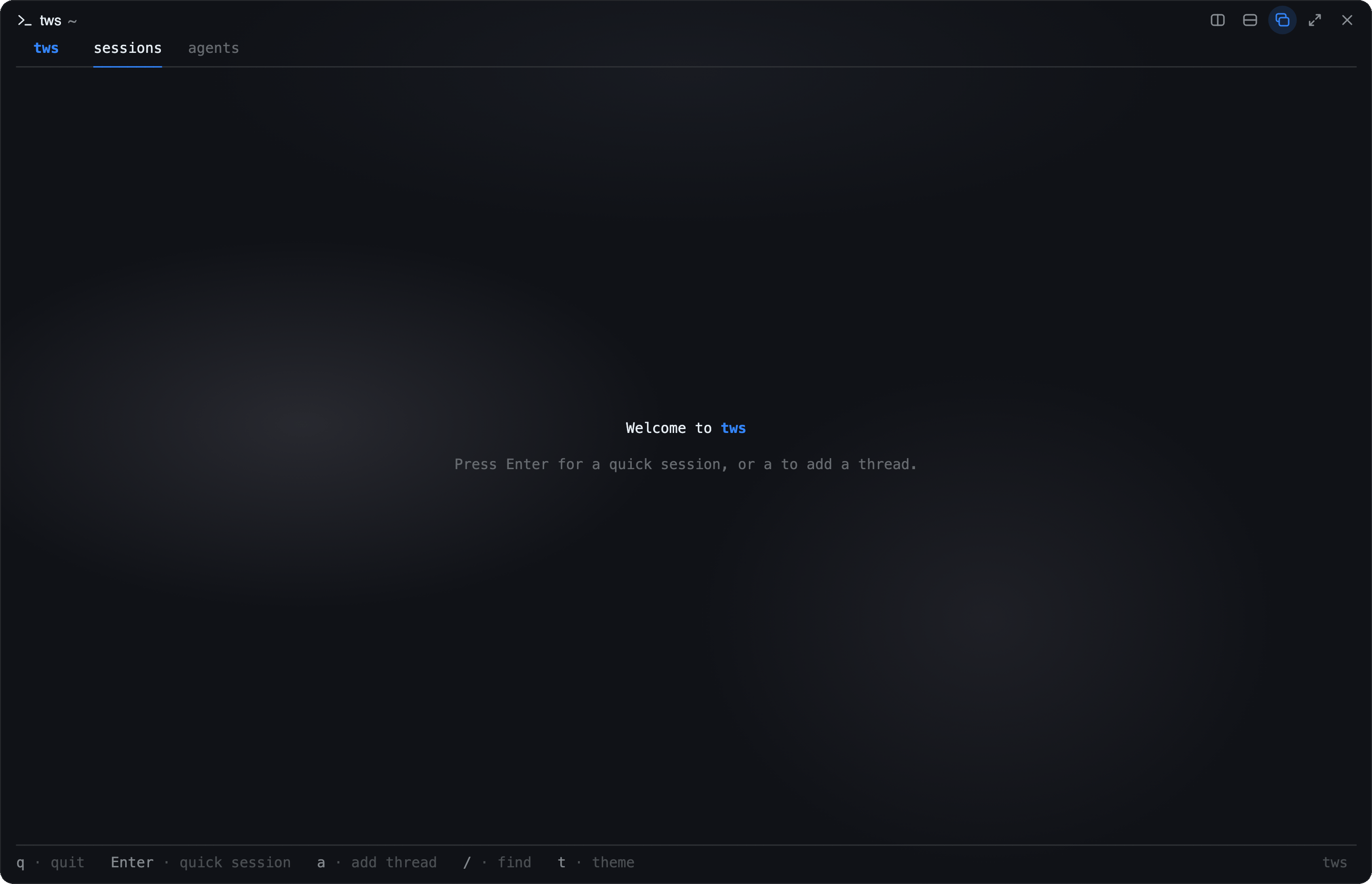
Features
Thread tree
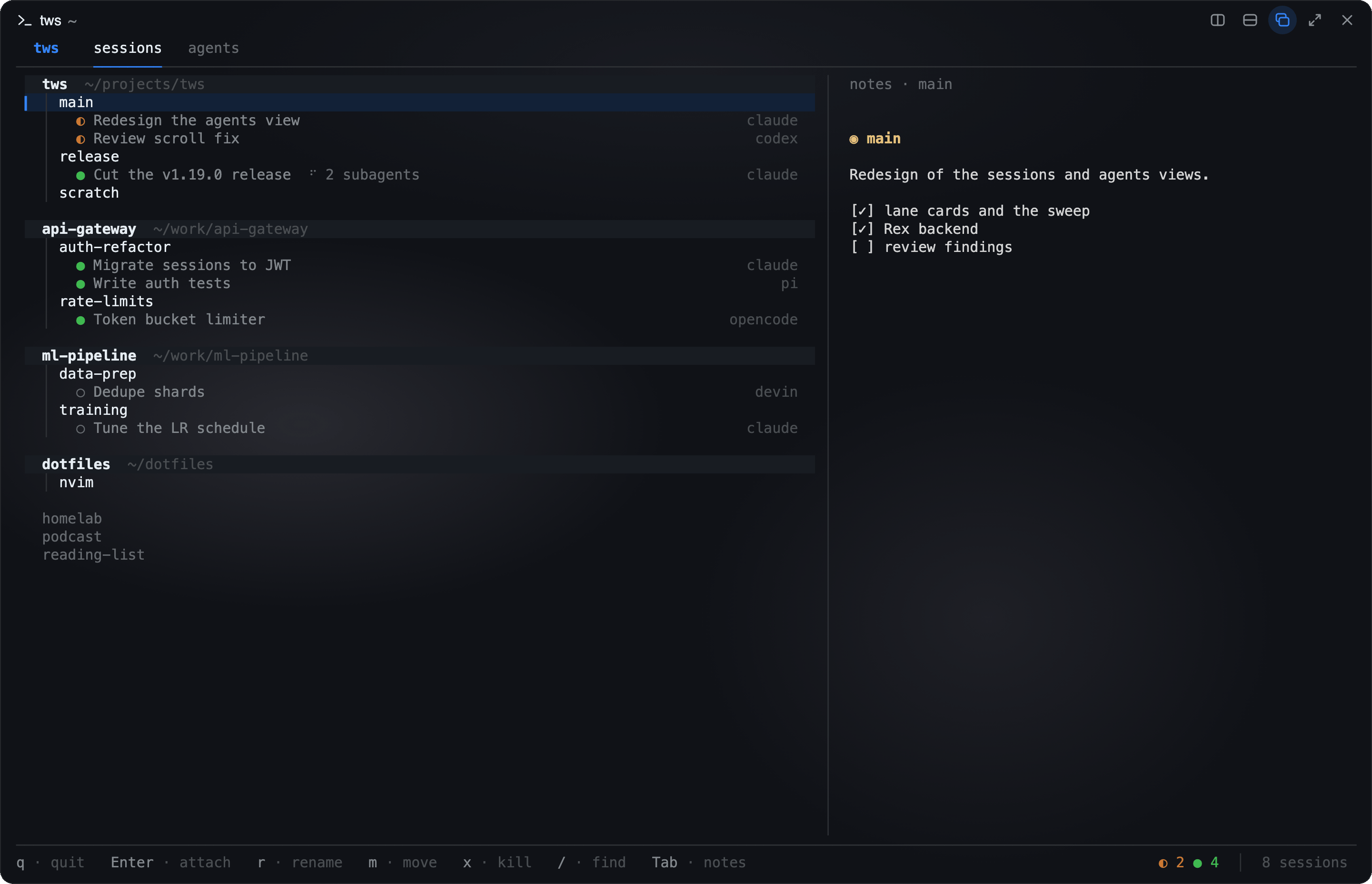
The main view. The thread/session tree on the left, a notes panel on the right. Threads expand to show their sessions, and each running session reveals any AI coding agents detected inside it. Press Enter on a thread to spawn a new session, or on a session to attach.
Thread working directories
A thread can have a default working directory. Sessions launched from it start there; threads without one start in your home directory.
Press c on a thread to open the directory picker. The top row is always the
directory you are browsing — Enter there accepts it. Type to filter, Tab to
enter the first match, or move down to a subdirectory and press Enter to go
into it. Backspace deletes a filter character, or goes up a level when the
filter is empty. Esc cancels. New threads prompt for a directory right after
you name them.
To point a thread back at your home directory, Backspace up to ~ and press
Enter.
If a thread's directory is deleted, sessions still launch — they start in your home directory with a warning in the status bar (tmux's status line, if tws is running inside tmux).
Agents view
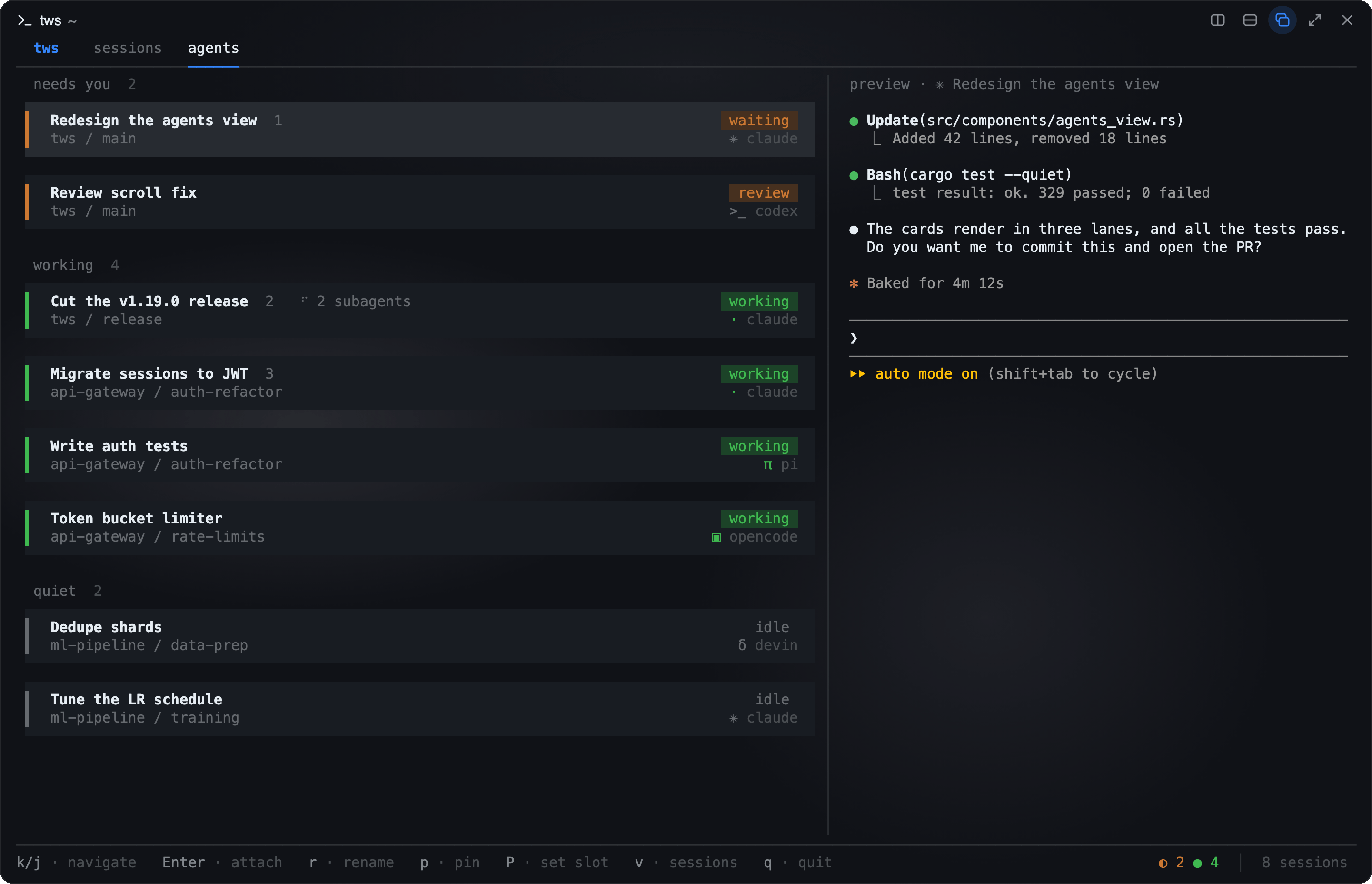
Toggle with v. A flat view of every AI coding agent (Claude Code, Codex, Pi, Devin CLI, OpenCode) running across all your sessions, regardless of which thread owns them. Each agent is a card with its status and harness, in three lanes: needs you, working, and quiet. A card that starts to need you gets a short sweep of light. Press r to rename an agent. Pin frequently-used agents to numbered slots — p to pin, P to set a slot, 0–9 to jump to a pinned agent from anywhere.
Session fork (experimental)
This feature works with the tmux backend only.
Press prefix+F in a Claude Code pane to open a forked copy of that
session in a new pane on the right. The fork inherits the whole conversation.
It writes to a new session id. The parent transcript stays untouched.
Ask a throwaway question while the parent stays visible. Press prefix+z to
zoom the fork, and press it again to restore the split. Type /exit to close
the fork pane.
install.sh adds the hooks and this binding. It does not overwrite a prefix+F
that you already use:
bind-key F run-shell "tmux split-window -h -l 45% -t #{pane_id} \"tws fork-pane #{pane_id}\""
This feature works with Claude Code only. Codex, Pi, Devin and OpenCode panes do not support
forking. codex resume appends to the parent session instead of forking it.
Read a pane by moving into it
This feature works with the tmux backend only.
An agent pane in the review state means that the agent finished and you did not
look yet. When you attach through tws, tws clears the state. When you move into
the pane with plain tmux, tws cannot see the move. The tmux hooks below close
that gap. They call tws ack-pane for the pane you land on. The command clears
the review state of that pane and changes nothing else.
install.sh adds the hooks together with the agent status hooks. It writes them
to your tmux config (~/.tmux.conf, or ~/.config/tmux/tmux.conf when that is
the file you use). If you have no tmux config, it creates ~/.tmux.conf. It also
loads the hooks into a tmux server that is running, so you do not need to reload.
The hooks use the absolute path of the binary, because run-shell does not read
your shell PATH:
# tws ack hooks
set-hook -g after-select-pane[89] 'run-shell -b "/home/you/.local/bin/tws ack-pane #{pane_id}"'
set-hook -g after-select-window[89] 'run-shell -b "/home/you/.local/bin/tws ack-pane #{pane_id}"'
set-hook -g client-session-changed[89] 'run-shell -b "/home/you/.local/bin/tws ack-pane #{pane_id}"'
set-hook -g window-pane-changed[89] 'run-shell -b "/home/you/.local/bin/tws ack-pane #{pane_id}"'
set-hook -g session-window-changed[89] 'run-shell -b "/home/you/.local/bin/tws ack-pane #{pane_id}"'
To add them by hand, write the full path of your own binary. Do not use ~. The
path must not contain a space or one of these characters: ' " \ $ # ;.
tmux splits the hook line with its own quoting, and a bad path breaks the line.
install.sh does not write the hooks for such a path. It prints them instead.
The last two hooks cover last-pane, kill-pane and kill-window. These
commands move focus but fire none of the first three hooks. One move can fire
two hooks. This is safe, because ack-pane does the same thing each time.
kill-session fires no hook, so a client that falls to another session does
not clear the review state.
The fixed index 89 makes a reload replace the tws entry, and it leaves your own
hooks at other indexes alone.
Status bar
This feature works with the tmux backend only.
The tmux status bar can show your agents, so you do not need to open tws to see
them. Each window tab shows one glyph for each agent in that window: a green ●
working, an orange ● waiting or review, a grey ○ idle. The right end shows the thread and the session.
0 claude ● 1 zsh 2 review ●○ tws › status-bar
install.sh adds the block below together with the agent status hooks. A config
that sets a status option, or a theme plugin that sets one, has a bar of its own.
For such a config, the installer asks you first. If you say yes, the block goes
after your lines and replaces your bar. If you say no, the installer changes
nothing and shows a note. The installer leaves out the
status-interval and status-right-length lines when your config sets them.
With tmux-nova, the installer keeps your
nova bar and adds the agents on top of it. It appends the glyph command to your
@nova-pane, adds a tws segment at the right end, and runs nova again.
When your @nova-segments-0-right has segments other than tws, the installer
shows your right-side lines and asks if tws can replace them:
- Yes: the right side shows only
tws, andstatus-right-lengthbecomes at least 80: a smaller value of yours goes up to 80, a larger one stays. The installer first copies to~/.config/tws/backups/the tmux config it writes and each config that holds your right-side lines. It prints each backup path and thecpcommand that restores it. A later run of the installer remembers the yes: it asks nothing and makes no new backup. - No (the default, also with no terminal): the
twssegment goes after your segments, and yourstatus-right-lengthstays.
The block after a "no":
# tws status bar
set -g status-interval 5  # tws status bar
set -g status-right-length 80  # tws status bar
set -ga @nova-pane '#(/home/you/.local/bin/tws bar window --since #{start_time} #{P:#{pane_id} })'  # tws status bar
set -ga @nova-segments-0-right ' tws'  # tws status bar
set -g @nova-segment-tws '#(/home/you/.local/bin/tws bar where -- #{q:session_name})'  # tws status bar
set -g @nova-segment-tws-colors '#c88e68 #121212'  # tws status bar
set -g @nova-status-style-active-bg '#c88e68'  # tws status bar
run-shell '/home/you/.tmux/plugins/tmux-nova/nova.tmux'  # tws status bar
After a "yes", the right-side line is
set -g @nova-segments-0-right 'tws' # tws status bar replace. A later run
reads this marker to remember the yes.
When your config does not set @nova-pane or @nova-segments-0-right, the
block sets them to the nova default plus the tws part. nova does not set
status-interval or status-right-length, so the block sets them too, except
when your config sets them. The current tab gets the tws color only when your
config does not set @nova-status-style-active-bg. For any other bar, the
installer uses the block below.
# tws status bar
set -g status-interval 5  # tws status bar
set -g status-right-length 80  # tws status bar
set -g status-style 'bg=#1e1e1e,fg=#d4d4d4'  # tws status bar
set -g status-left ' '  # tws status bar
set -g window-status-format ' #I #W#{s/[*-]//:window_flags}#(/home/you/.local/bin/tws bar window --since #{start_time} #{P:#{pane_id} }) '  # tws status bar
set -g window-status-current-format '#[bg=#c88e68,fg=#121212] #I #W#{s/[*-]//:window_flags}#(/home/you/.local/bin/tws bar window --since #{start_time} #{P:#{pane_id} }) #[default]'  # tws status bar
set -g status-right '#[bg=#c88e68,fg=#121212] #(/home/you/.local/bin/tws bar where -- #{q:session_name}) '  # tws status bar
To use your own bar, add the two commands to it. tmux replaces
#{P:#{pane_id} } with the panes of the window, and tws bar window prints
their glyphs in the tws theme colors. The current tab gets slightly darker
tones, because it most often has a bright background. --since #{start_time}
skips the status files from before the tmux server started. Put the command at
the end of the tab label: the glyph color stays on for the text after it.
tws bar where prints thread › session. For example, with
tmux-nova:
set -g @nova-pane '#I#{?pane_in_mode,  #{pane_mode},}  #W#(/home/you/.local/bin/tws bar window --since #{start_time} #{P:#{pane_id} })'
set -g @nova-segment-tws '#(/home/you/.local/bin/tws bar where -- #{q:session_name})'
set -g @nova-segment-tws-colors '#c88e68 #121212'
set -g @nova-segments-0-right 'tws'
set -g @nova-status-style-active-bg '#c88e68'
set -g status-interval 5
set -g status-right-length 80
A #() command does not read your shell PATH, so write the full path of your
own binary. tmux runs the commands again once in each status-interval, so a new
agent state can take up to 5 seconds to show.
To remove the bar, delete the lines that end with # tws status bar from your
tmux config, then restart tmux. To keep install.sh from adding the bar again,
add this line to your tmux config:
# tws status bar off
Notes
Each thread and session has its own markdown note, stored as a plain .md file under ~/.config/tws/notes/. Press Tab to focus the notes panel, Enter to open the current note in $EDITOR. Renders with glow if installed, falls back to basic markdown otherwise. Handy for per-workstream scratch notes, todo lists, and command snippets.
Fuzzy finder
Press / to search across all active sessions by name or path, sorted by most-recently-attached. Type to filter, Enter to attach. Works from any view.
Recent sessions
Keys 1–5 attach to the five most-recently-attached sessions instantly — useful for hopping between two or three active workstreams without leaving the keyboard home row. This feature works with the tmux backend only, because Rex does not record when you last opened a session.
Agent detection
tws scans the panes of each session periodically and identifies running AI coding agents by their child process names — no manual registration. Agents appear automatically under their session in the tree. The optional install-time hooks make tws refresh immediately when an agent starts or stops, instead of waiting for the next scan. When the optional hooks are installed, tws also shows each agent's live status — working, waiting for you, finished and awaiting review, or idle — as a colored bar and status chip in the agents view (v), with a count of working/waiting agents in the status bar. A pane that goes silent for 15 minutes while claiming to work is treated as no longer working and drops to idle, so an interrupted or crashed agent does not stay marked active forever.
Existing sessions
tws shows the sessions that you already have under other. Select one and press m to move it into a thread. A move changes only state.json; the session keeps its name. To copy tmux sessions into Rex, see Copy tmux sessions into Rex.
Requirements
- Rex or tmux — one is required. Rex is the default. To use tmux, see Backends.
- glow — optional, for rich markdown rendering in the notes panel. Falls back to basic rendering if absent.
Install
Install script (macOS / Linux, x86_64 / ARM)
curl -fsSL https://raw.githubusercontent.com/ytaskiran/tws/main/install.sh | bash
Downloads the latest release binary to ~/.local/bin. Then it asks which backend
you use: rex, tmux, or both. It sets up only what that backend needs: Rex
gets the key that opens tws, and tmux gets the agent status hooks and the tmux
pieces. The default is the backend in config.toml, else the one that is
installed. A piped install with no terminal takes the default, or the answer in
TWS_BACKEND, for example curl ... | TWS_BACKEND=tmux bash. Then the script
scans your setup and shows all the changes it can make in one list. It asks one main
question, Apply these changes? [Y/n]. Before it, the installer can ask about
your own tmux status bar (see Status bar). The list can hold:
- agent status hooks for each agent it finds: Claude Code (
~/.claude/settings.json), Codex (~/.codex/hooks.jsonandconfig.toml; it also asks to turn offdaemon_auto_start, because hooks in the shared Codex daemon cannot tell which pane they belong to. After a yes, restart your open Codex TUIs and runcodex app-server daemon stop), Pi (~/.pi/agent/extensions/), Devin CLI (thehookskey of~/.config/devin/config.json; it keeps your other keys and hooks. It makes the file if it is missing. jq cannot keep comments, so a file with comments loses them, and the installer first copies it toconfig.json.tws-bak). Devin CLI also runs the hooks in~/.claude/settings.json, so the tws Claude hooks do nothing under Devin and the Devin hooks report the pane, and OpenCode (~/.config/opencode/plugins/). Only the OpenCode TUI reports status.opencode run,opencode serveandopencode attachpanes show no status.opencode serve,opencode web,opencode acpand the other tool subcommands do not show as agents, - the tmux ack hooks and the
prefix+Ffork binding in your tmux config (~/.tmux.conf, or~/.config/tmux/tmux.conf). It creates~/.tmux.confif you have no tmux config, and loads the new lines into a running tmux server. It does not overwrite aprefix+Fthat you already use. Your config can load other files or plugins. If no tmux server runs, the installer cannot see their keys. It then skips the fork binding and asks you to start tmux and run install again, - a
PATHline for~/.local/binin your shell rc and profile, if your shell does not find it, glow, withbreworgo, if it is missing.
Answer n to install only the binary. A run with no terminal to answer from
(for example in CI) also changes nothing else.
Re-run the same command any time to upgrade. A re-run replaces the tws lines in place, so it adds no copies.
Default tmux config (optional)
Before the plan, the script offers the full tmux setup of the tws author:
extras/tmux.conf. It has TPM, tmux-sensible,
tmux-resurrect, the tmux-nova theme with the tws segments, mouse, clipboard,
and keys. It needs git, and the theme needs a Nerd Font.
It downloads the 4 plugins from GitHub, and tmux runs them at each start.
Warning: this option replaces your tmux config. The default answer is no.
If you answer y, the script first clones the plugins to ~/.tmux/plugins.
If TPM does not install, it stops and changes nothing. Then it moves each tmux
config you have (~/.tmux.conf, $XDG_CONFIG_HOME/tmux/tmux.conf,
~/.config/tmux/tmux.conf) to <file>.tws-backup-<time>, and writes the new
~/.tmux.conf. If a move fails, it moves the configs back. A config in a
symlinked directory (for example, a GNU stow fold) stops the step, so your
dotfiles repo does not change.
The new config loads when tmux starts again. To go back:
- Remove the new
~/.tmux.conf. tmux loads each config that exists, so it must go. - Move each
<file>.tws-backup-<time>back to<file>. - Restart tmux.
Build from source
Requires a Rust toolchain.
git clone https://github.com/ytaskiran/tws
cd tws
cargo install --path .
macOS Gatekeeper
Release binaries are ad-hoc signed, not notarized. If macOS blocks the binary, clear the quarantine attribute:
xattr -dr com.apple.quarantine ~/.local/bin/tws
Usage
tws          # launch the TUI
tws ack-pane [PANE_ID]   # mark a pane as read (used by the tmux hooks)
The status bar shows context-aware key hints for whatever is selected. The essentials:
Navigate
| Key | Action |
|---|---|
j / k (or ↓ / ↑) |
Move down / up |
h / l (or ← / →) |
Collapse / expand |
Space |
Toggle expand |
e |
Toggle expand all |
1–5 |
Attach to a recent session |
/ |
Fuzzy-find and attach to any session |
t |
Pick a theme with a live preview |
v |
Toggle agents view |
Tab |
Focus the notes panel |
q |
Quit |
The mouse works in both views: point at a row to select it, and click a session or agent to open it. Click sessions or agents at the top to switch the view. The wheel moves the selection in every list. To select text with the mouse, hold Shift (Option in iTerm2) while you drag.
Organize
| Key | Action |
|---|---|
a |
Add a thread |
r |
Rename selected item |
d |
Delete selected thread |
m |
Move a session to another thread |
c |
Set the selected thread's working directory |
Sessions
| Key | Action |
|---|---|
Enter |
Attach to a session, or create a new one on a thread |
x |
Kill the selected session (or a thread's sessions) |
With Rex, tws stays open in its own tab: go back to that tab, or press Cmd+S to open tws as a popup. With tmux, detach with prefix + d to return to tws.
Backends
tws can use Rex or tmux. Rex is the default. To use tmux, run install.sh and answer tmux, or add this line at the top of ~/.config/tws/config.toml:
backend = "tmux"
The TWS_BACKEND environment variable (rex or tmux) overrides the config for one run.
Rex
- A tws session is a Rex session. The session label is the session name, as with tmux.
- A thread exists only in tws. The Rex app shows a flat list of sessions.
- Tabs and splits in a session are yours. tws does not show them, but it finds the agents in all of them.
tws shows every Rex session that has a label. Rex accepts two sessions with the same label, but tws shows only the first one.
To open a session, tws tells the Rex app to show the session. When you pick an agent, the app shows the tab of that agent. tws does not exit. Turn on Remote Control in the Rex settings (under Rex Server), or the app does not accept this request. When the app refuses, tws shows the error from Rex in the status bar.
Agent status comes from the program status that the agent sends to Rex (OSC 7501). Claude Code sends it. tws shows working as working, blocked as waiting, done and error as review, and other states as idle. An agent that sends no program status shows no status. Each working or blocked child record (one with an id) counts as a running subagent.
These features work only with tmux:
tws fork-pane, the tmux status bar, andtws ack-pane.- The recent sessions bar. Rex does not record when you last opened a session.
Rex keeps done until the agent reports again, and it does not tell tws what you look at. So tws clears the review when you open the agent, or the session that lands on it, from tws, and it saves that in ~/.config/tws/rex-seen. When you go to the agent in Rex directly, the review stays until you open it from tws or the agent reports again.
Open tws with a key
Press Cmd+S in Rex to open tws as a popup over the tab you are in. Pick a session, and Rex shows it and the popup closes. Press q to close the popup without a pick. tws keeps its cursor between popups. If tws already runs in a tab, for example one where you started it yourself, the key goes to that tab and does not start a second tws. The key works when Remote Control is off.
install.sh puts the action in ~/.config/tws/tws.lua and adds one pcall(dofile, ...) line to your Rex init.lua after you confirm. An install writes tws.lua again, so set a different key in init.lua. Add these lines after the pcall(dofile, ...) line, then run rex config reload:
rex.unbind("cmd+s", "tws_open")
rex.bind("<your key>", "tws_open")
tws.lua also binds Cmd+Right to the next tab and Cmd+Left to the previous tab. To use other keys, unbind them the same way after the pcall(dofile, ...) line.
Restore sessions after a reboot
When the Rex server stops, for example after a reboot, Rex loses its sessions. rexurrect saves the sessions every 15 minutes and restores them when the Rex server starts again.
install.sh adds this to the plan when your Rex config does not already run rexurrect. After you confirm, the installer:
- Installs rexurrect 0.2.1 in
~/.local/binfrom its GitHub release, ifrexurrectis not on yourPATH. The installer script must match a SHA-256 checksum ininstall.sh, or it does not run. - Runs
rexurrect autosave install. - Writes the line from
rexurrect auto-restore --print-hookto~/.config/tws/rexurrect.lua.tws.lualoads this file.
Each install writes the line again with the rexurrect that you have now, so a rexurrect upgrade gets the correct line. If this fails, the old file stays and the installer shows a warning.
To turn off the restore, make ~/.config/tws/rexurrect.lua empty and run rexurrect autosave uninstall. Do not delete the file: the next install then asks again.
Copy tmux sessions into Rex
Run extras/rex/tmux2rex.py on the machine that runs tmux. It does a dry run and shows the rex commands. Add --apply to create the Rex sessions on the Rex server of that machine. The script restarts each Claude Code pane with claude --resume ID --fork-session, so your tmux sessions do not change.
Configuration
Optional. Drop a TOML file at ~/.config/tws/config.toml to customize the backend, theme, palette, and keybindings. A missing or empty file keeps tws's defaults — everything below is opt-in.
Theme
Press t to open the theme picker. Move the cursor to preview each theme on the whole UI. Enter saves the theme as the theme line in config.toml, and Esc goes back to the theme you had.
Or set a preset by hand:
theme = "catppuccin-mocha"
Available presets: default, merino-dark, merino-light, catppuccin-mocha, catppuccin-macchiato, catppuccin-frappe, catppuccin-latte, gruvbox-dark, gruvbox-light, nord, tokyo-night.
merino-dark and merino-light use the colors of Rex's default themes, so tws matches the Rex window around it.
You can also drop a custom theme file at ~/.config/tws/themes/<name>.toml and reference it by name. Custom themes use the same [palette] schema as below.
Glass
Set glass = true to let tws draw no background of its own. The terminal background then shows through, so tws keeps the translucent look of the Rex Glass interface style. Selection and card tints stay opaque, because a terminal cell has no transparency.
Put glass with theme at the top of config.toml, above any [table] header. Below a header, TOML reads it as a key of that table, and tws ignores it. Use the theme that matches your Rex theme, for example merino-dark with Merino Dark. tws mixes its tints and text colors for the theme bg, so a theme that does not match the window can be hard to read.
theme = "merino-dark"
glass = true

[palette]
# ...
Palette overrides
Override any subset of the 8 palette colors on top of the chosen theme:
[palette]
accent = "#ff9e64"   # primary accent (threads, highlights)
green  = "#a6e3a1"   # sessions, success states
fg     = "#d4d4d4"   # foreground text
dim    = "#a0a0a0"   # secondary text
muted  = "#646464"   # tertiary / disabled
border = "#3c3c3c"   # borders, separators
bg     = "#1e1e1e"   # background
waiting = "#cc7832"  # waiting and review agents (default: accent)
Keybindings
Rebind any action by mode. Only specify what you want to change; unspecified actions keep their defaults.
[keys.normal]
quit       = "q"
add        = "a"
move_down  = "ctrl+j"
move_up    = "ctrl+k"
finder     = "/"
theme_picker = "t"

[keys.agents]
toggle_view = "v"

[keys.notes]
scroll_down = "j"
scroll_up   = "k"

[keys.dir_picker]
complete = "tab"
Modes: normal, agents, notes, finder, input, confirm, dir_picker.
Key syntax: single chars ("q", "A"), modifier prefixes ("ctrl+j", "alt+x"), named keys ("enter", "esc", "space", "tab", "backspace", "up", "down", "left", "right").
If your config has malformed TOML or unknown action names, tws prints an error and exits — fix the file and re-launch.