
ModernProgrammer/Termini
ModernProgrammer/Termini has 61 GitHub stars and 8 forks. Star changes are not measured yet. Last checked 2026-11-12 12:07 UTC. Last push 2026-11-12.
A micro terminal for your menu bar. Nothing more.
計測したスター増加
- 24時間
- 履歴を収集中
- 7日間
- 履歴を収集中
- 15日間
- 履歴を収集中
- 1か月
- 履歴を収集中
期間ごとの純増数です。期間は重複しており、日別の値ではありません。未計測の値は空欄です。スター数は注目度の指標であり、品質の保証ではありません。
README.md
オリジナル




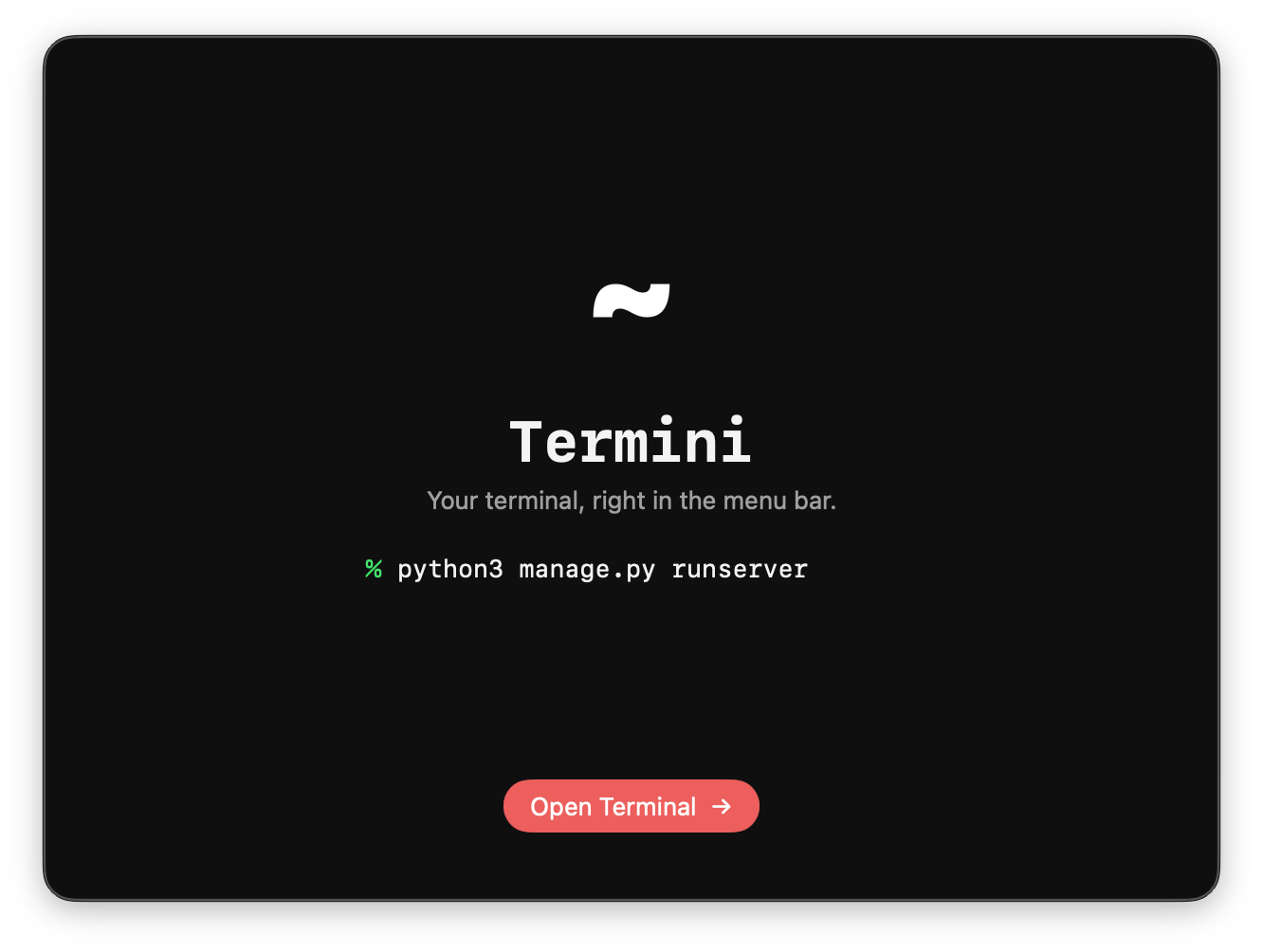
A lightweight macOS menu bar terminal.
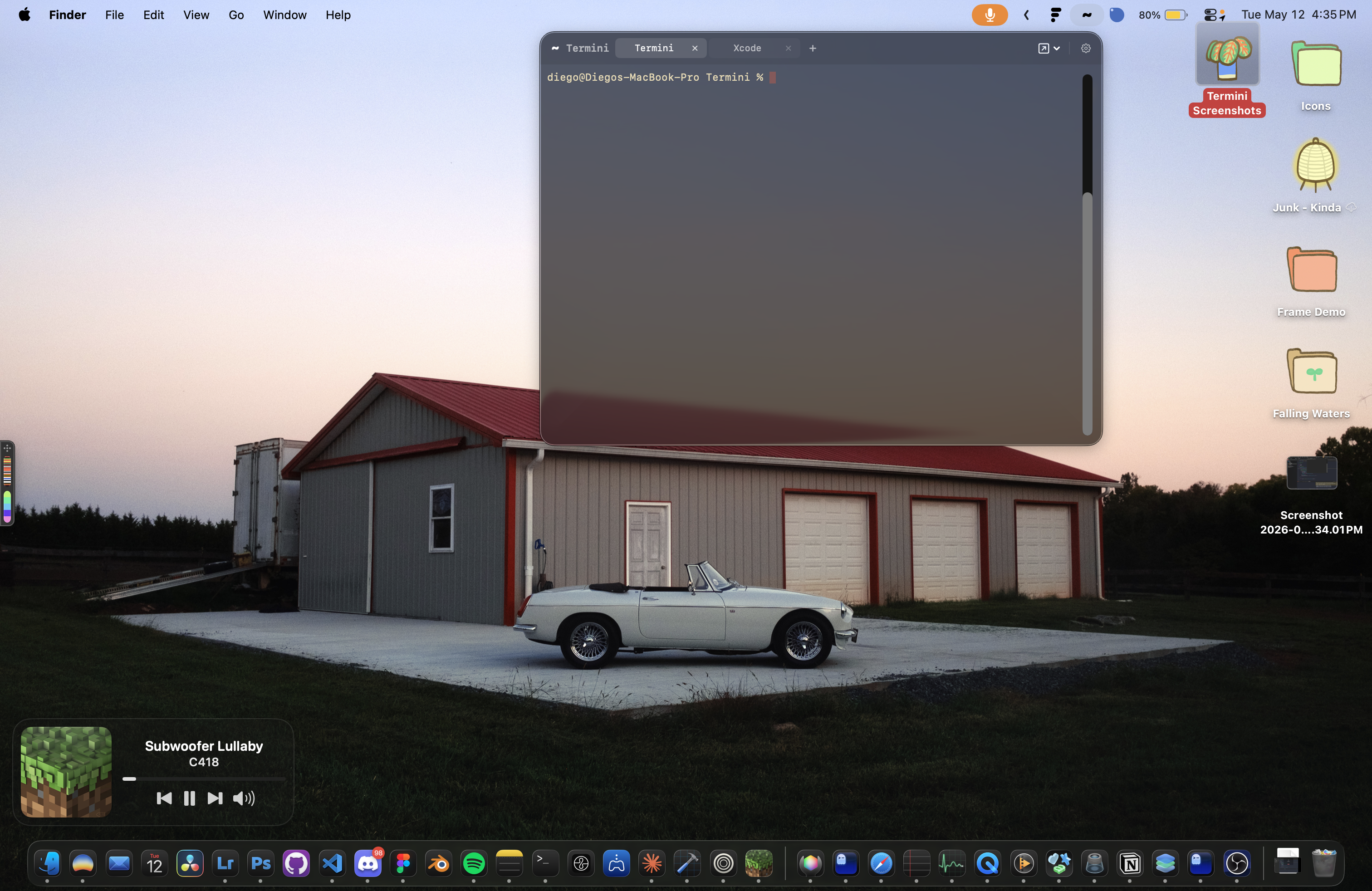
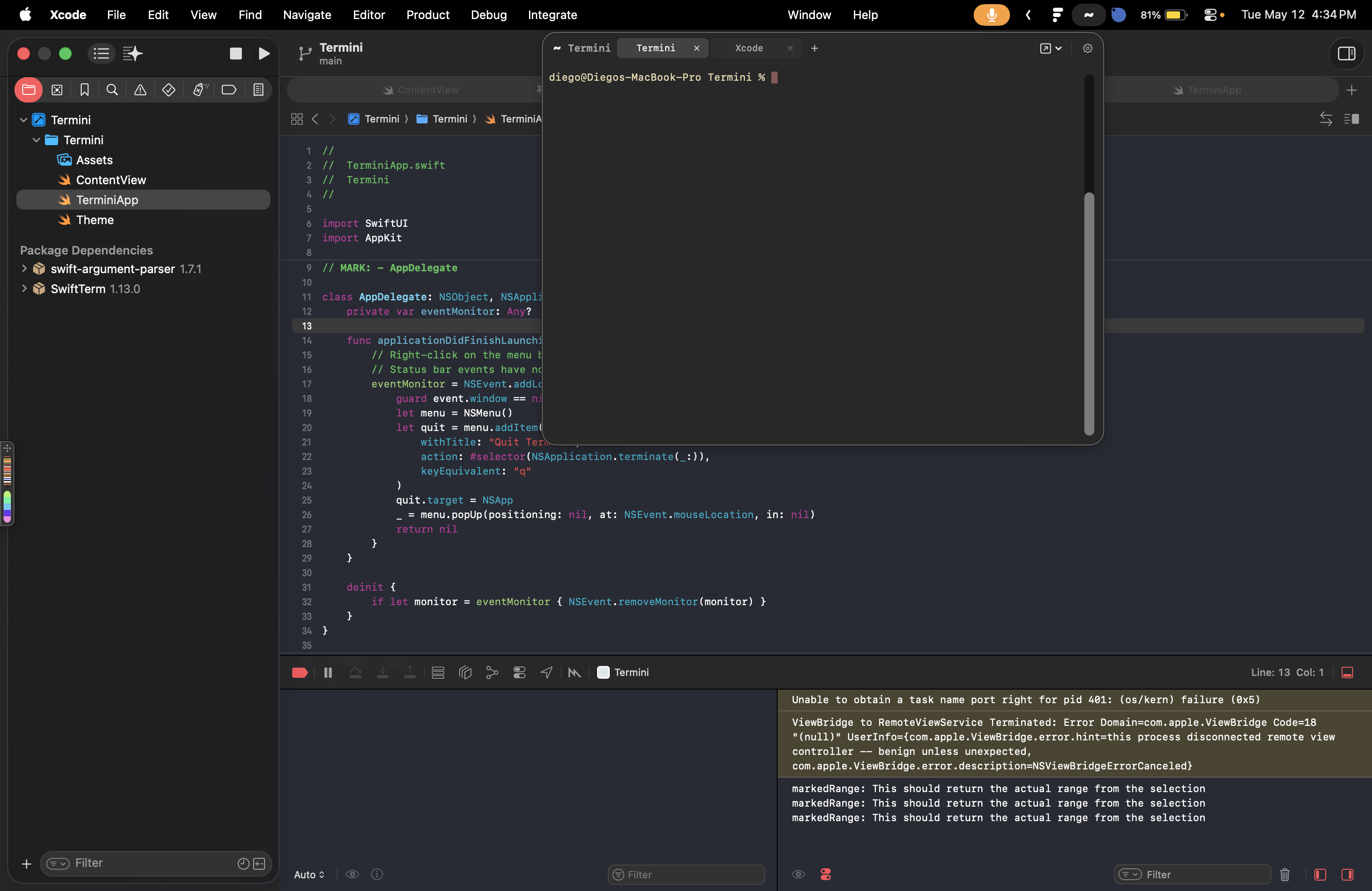
Termini lives in your menu bar and gives you instant access to a full terminal session without leaving your current workflow.
If you find Termini useful, consider giving it a ⭐ — it helps others discover the project!
Features
 |
 |
 |
 |
 |
 |
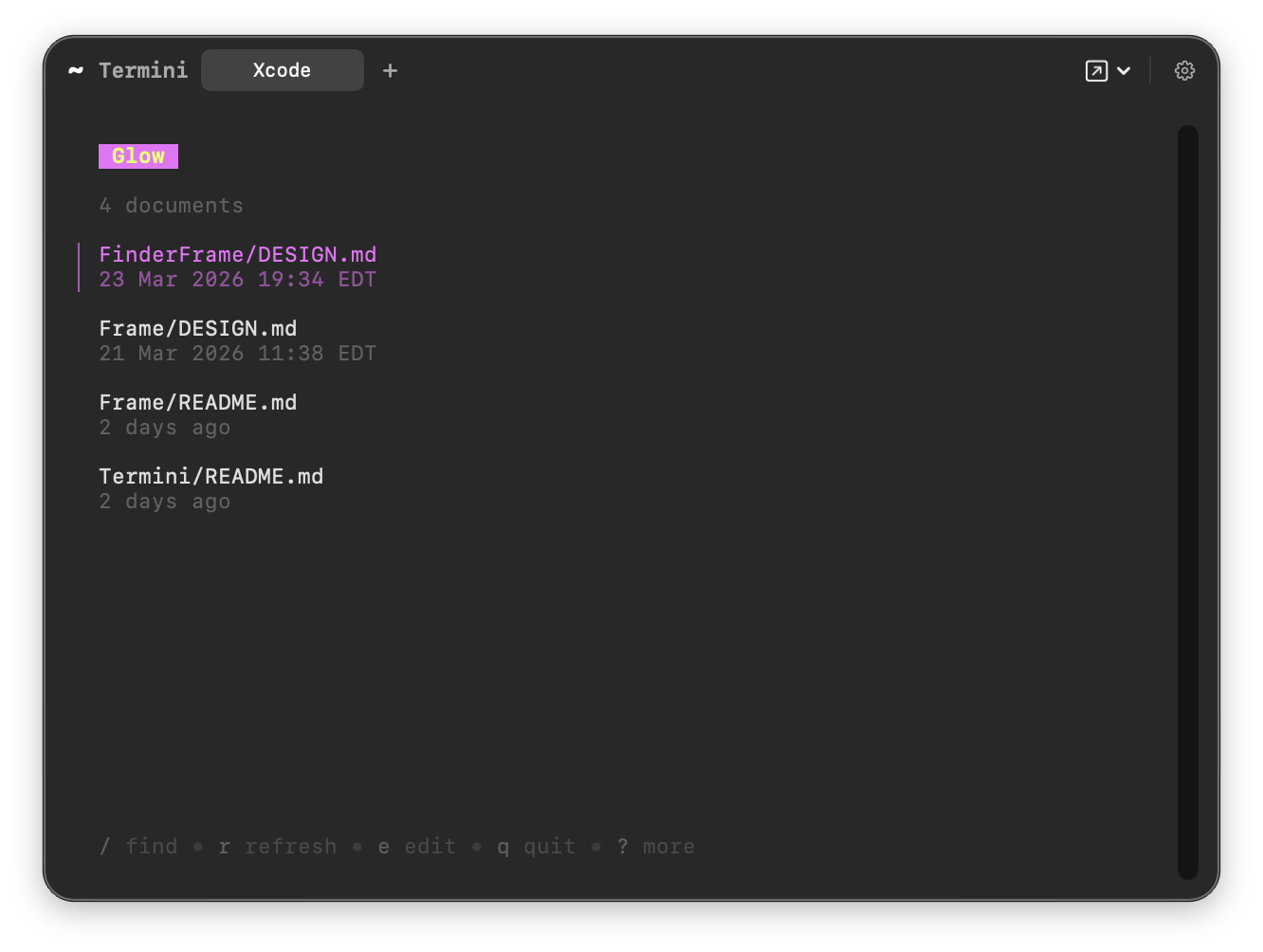
Global shortcut — Press ⌘E in any app to open or hide Termini. Record a different shortcut, or clear it, in Settings.
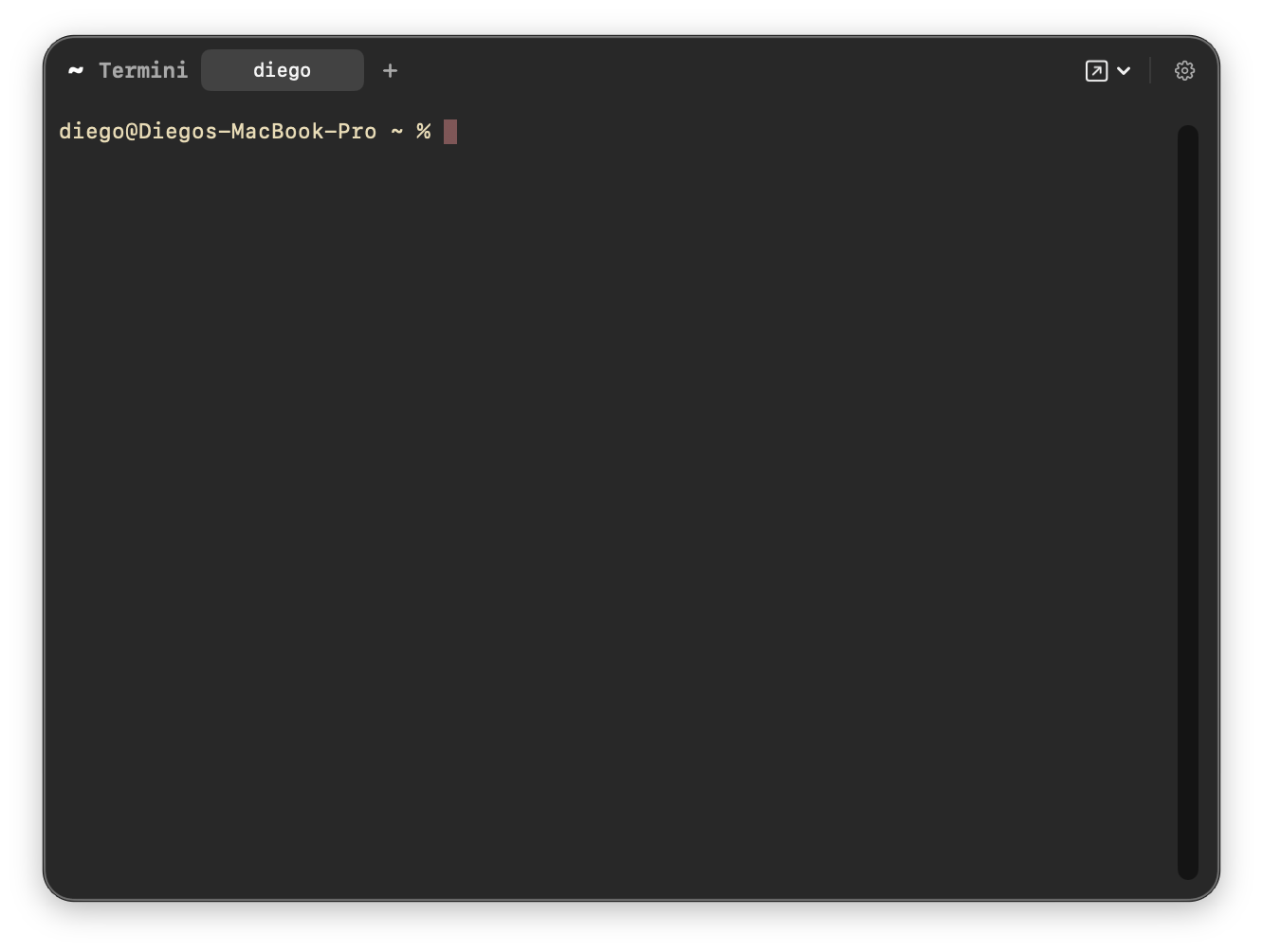
Multi-tab sessions — Open multiple terminal tabs in a single window (⌘T opens a new one, ⌘W closes it — on the last tab, ⌘W just hides the window). Each tab tracks the current working directory and displays it as the tab title, updated in real time via proc_pidinfo.
Persistent tabs — Your open tabs and their working directories are restored the next time you open Termini, so you pick up where you left off. On by default; turn it off with the "Restore on relaunch" toggle in Settings.
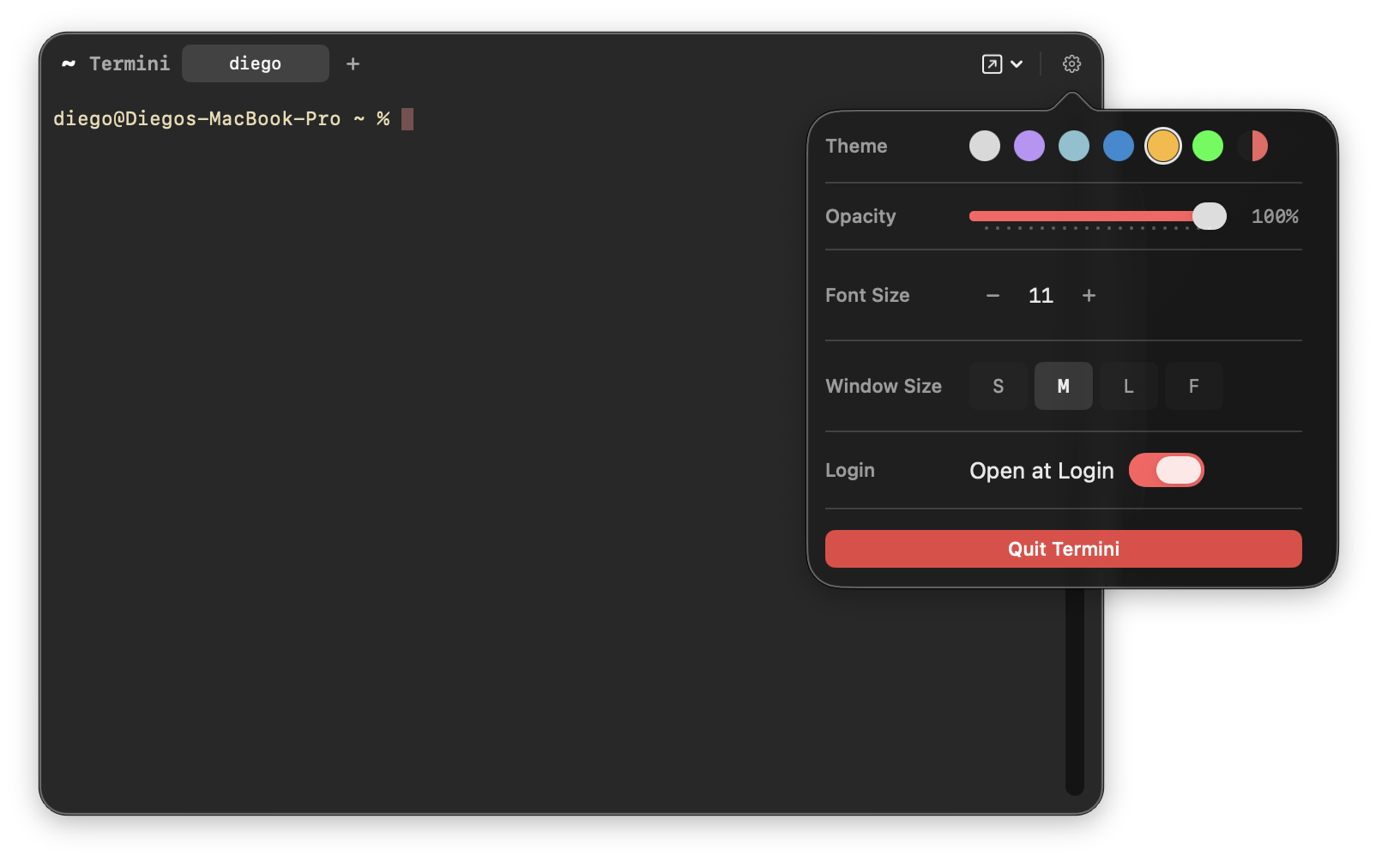
Themes — Choose from six built-in color schemes: Classic, Dracula, Nord, Solarized, Gruvbox, and Matrix. A custom theme option lets you set your own background and foreground colors via hex input.
Adjustable opacity — Slide the background opacity from fully transparent to fully opaque, useful for keeping the terminal visible over other windows.
Font size control — Increase or decrease the terminal font size (8–24pt) from the settings popover.
Window sizes — Four preset sizes to fit your screen: Mini (400×240), Medium (620×420), Large (820×540), and Full Screen.
Open in external terminal — Instantly open the active tab's current directory in any installed terminal app (Terminal.app, iTerm2, Ghostty, Warp, Alacritty).
Login item — Optionally launch Termini automatically at login via the Settings popover.
Installation
Download (recommended)
- Go to the latest release.
- Download
Termini.dmgand open it. - Drag Termini into the
Applicationsfolder shown in the window. - Launch it from
/Applications— Termini appears in your menu bar.
The download is a universal build (Apple Silicon + Intel) and is notarized by Apple, so it opens without a Gatekeeper warning.
Build from source
Requirements:
- macOS 26+ (Apple Silicon or Intel)
- Xcode 26+ — the project targets macOS 26
- Xcode's Metal Toolchain component — SwiftTerm compiles Metal shaders, and newer Xcode versions no longer bundle the toolchain. Install it once with
xcodebuild -downloadComponent MetalToolchain(or Xcode → Settings → Components). - SwiftTerm and KeyboardShortcuts (resolved automatically as Swift Package dependencies)
Open Termini.xcodeproj in Xcode and build the Termini scheme. The app will appear in your menu bar on launch.
The project is set up with the maintainer's development team, so for your own builds pick your team (or Sign to Run Locally) under the target's Signing & Capabilities tab. From the command line you can skip that and ad-hoc sign instead:
xcodebuild -project Termini.xcodeproj -scheme Termini -configuration Debug \
  -derivedDataPath build/dd DEVELOPMENT_TEAM= CODE_SIGN_IDENTITY=- build
open build/dd/Build/Products/Debug/Termini.app
There is no test suite yet.
Changelog
v1.2.0
- Persistent tabs — open tabs and their working directories are restored on relaunch (Settings → "Restore on relaunch", on by default).
- Global shortcut — press ⌘E (configurable) to open or hide Termini from any app.
- Updated the embedded terminal engine (SwiftTerm) to 1.20.
- Tooling — added a pull-request CI build check and Metal Toolchain support for notarized release builds.
Older releases are listed on the releases page.