
kongesque/line-cli
kongesque/line-cli has 44 GitHub stars and 11 forks. GitHot measured 0 stars in 24 hours. Last checked 2026-11-15 05:14 UTC. Last push 2026-11-09.
Progression mesurée des étoiles
- in 24h
- 0
- in 7 days
- Historique en cours
- in 15 days
- Historique en cours
- in 1 month
- Historique en cours
Variations nettes sur des périodes qui se chevauchent, pas des totaux quotidiens. Les mesures absentes restent vides. Les étoiles indiquent l’intérêt, pas la qualité.
À propos
💬 Unofficial LINE CLI for personal accounts. Send messages, share files, and automate LINE with JSON. macOS, Linux, Windows. Go + Letter Sealing E2EE.
Outils de développementREADME.md
OriginalLINE CLI: command-line client for personal LINE accounts
English | 繁體中文(台灣) | 日本語 | ภาษาไทย
LINE CLI is an unofficial Go CLI for your personal LINE account. Read chats, send messages and files, download attachments, and stream events from your terminal. Use interactive prompts or JSON output on macOS, Linux, and Windows. No bot account or LINE Messaging API setup is required.


Install · Quick start · Commands · Automation · Full guide
The README on main follows development. For a released version, use the
README at its tag and line COMMAND --help. See the changelog.
Install LINE CLI
macOS: Homebrew
brew install kongesque/tap/line-cli
macOS and Linux: standalone installer
curl --proto '=https' --tlsv1.2 -fsSL https://raw.githubusercontent.com/kongesque/line-cli/main/scripts/install-release.sh | sh
The installer detects your OS and architecture, verifies the release checksum,
and installs line into ~/.local/bin. Reopen your terminal if prompted to
apply its PATH setup.
To use it in the current shell, run export PATH="$HOME/.local/bin:$PATH".
Linux desktop: on Debian or Ubuntu, install credential storage before login:
sudo apt install libsecret-tools gnome-keyring
Run line from a desktop session with the Secret Service keyring running and
unlocked in the same D-Bus session. On a server or over SSH without a desktop
keyring, use the headless login below.
Windows: PowerShell
irm https://raw.githubusercontent.com/kongesque/line-cli/main/scripts/install-release.ps1 | iex
The installer verifies the checksum and adds line.exe to your user PATH.
Reopen PowerShell if needed. Windows needs no additional keyring package.
You can also download a release or build from source. Release binaries are unsigned and not notarized.
Check your installation:
line version
Quick start: send your first LINE message
[!IMPORTANT] Signing in may replace your existing LINE Chrome extension or another Chrome-style client session. LINE CLI saves one account per operating-system user.
1. Sign in with LINE on your phone
line login
Scan the terminal QR code with LINE's scanner on your phone, approve the login, and enter the displayed PIN if asked. Wait for Session saved securely. QR login finishes only when LINE returns Letter Sealing keys. Otherwise, no session is saved.
If your LINE account has an email address and password configured, you can use this instead, including when QR login fails:
line login --email [email protected]
Enter your password at the private prompt and complete phone verification if asked. Your password is never saved.
Linux server or SSH: log in without a desktop keyring
Use your regular Unix account and an interactive terminal (ssh -t user@host
when connecting remotely). Headless storage requires /usr/bin/systemd-creds
from systemd 256–259 and a working user credential broker.
line login --headless
For email/password login, use line login --headless --email [email protected]
instead. Accept Host key; no TPM when prompted: this storage does not protect
against a complete disk copy or provide TPM protection. Initial enrollment still
requires terminal interaction and phone approval.
Wait for Session saved securely, then run line auth status --check.
Continue with the commands below as the same Unix user, without --headless.
2. Browse your chats and send a message
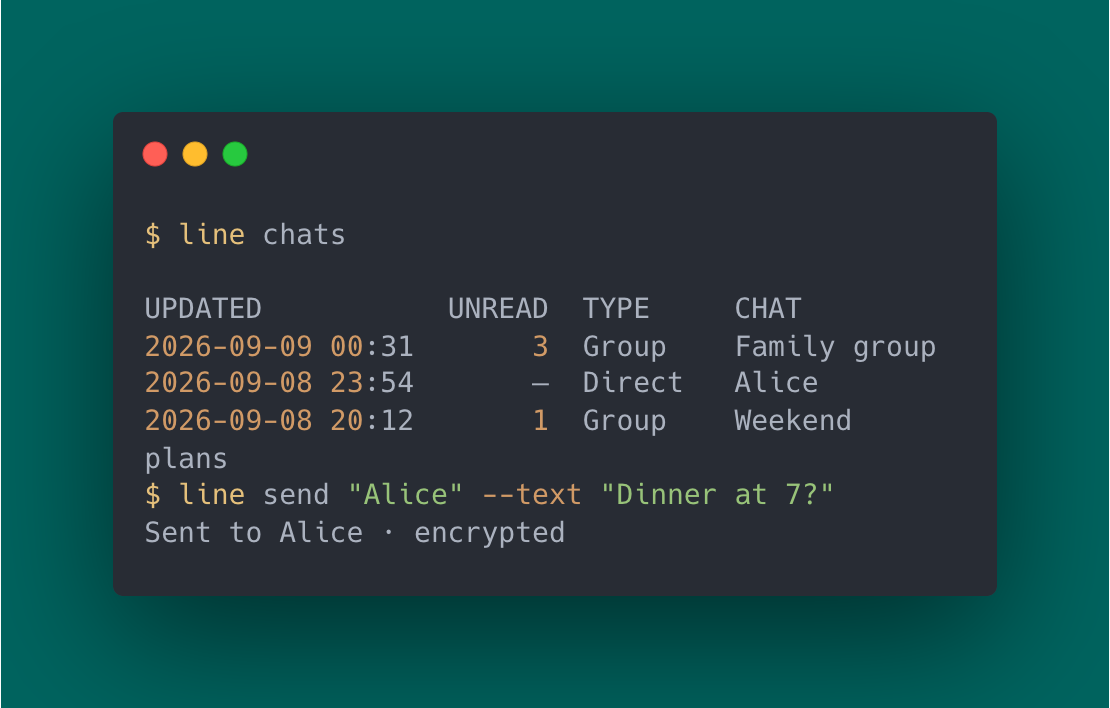
line whoami     # Confirm your account
line chats      # List conversations
line messages   # Choose a chat and read recent messages
line send       # Choose a recipient and enter your message
The CLI prompts for missing details in an interactive terminal. Use Ctrl-C to cancel, or pass a chat name directly as shown below.
A successful send prints Sent to … · end-to-end encrypted or
Sent to … · transport encrypted (no E2EE).
LINE messaging commands
| What you want to do | Command |
|---|---|
| Find friends | line contacts --search "Alice" |
| Read recent messages | line messages "Alice" --limit 20 |
| Send a text message | line send "Alice" --text "Hello!" |
| Send a file | line send "Alice" --file ./report.pdf |
| Download photos, video, audio, or files | line download |
| See chats with unread messages | line chats --unread |
| Mark a chat as read | line read "Alice" |
| Accept or reject group invitations | line invites |
| Stream live events | line watch |
| Check your setup | line doctor |
Replace Alice with a full chat ID or a complete chat name that matches only
one chat (case-insensitive). In a terminal, a partial or shared name opens a
chooser; in scripts, use the full ID from line chats --search "Alice" --show-ids.
Reading never sends read receipts; only line read does.
Run line help COMMAND for options; the
CLI guide covers replies, reactions, pagination,
and shell completion.
Automate LINE with JSON and shell scripts
Add --json for structured output on stdout; diagnostics go to stderr.
--json and --stdin disable prompts, so supply all required arguments.
Use full chat IDs in scripts because names can change.
line chats --search "Family" --json
line messages CHAT_ID --limit 20 --json
line send CHAT_ID --stdin --json < message.txt
line watch --json > events.ndjson
Get CHAT_ID from line chats --json. Watch output is NDJSON; consumers should
deduplicate by revision. See the JSON reference for fields and errors.
Remote changes are attempted once. If a send or other action loses its response,
check LINE before repeating it. To let a script or agent read without changing
anything, put --read-only before the command or set LINE_CLI_READ_ONLY=1:
LINE_CLI_READ_ONLY=1 line messages CHAT_ID --json
Read-only mode refuses sends, read receipts, reactions, unsend, invitation changes, login, logout, migration, and update installs before contacting LINE. See read-only mode.
Letter Sealing encryption and session security
LINE CLI uses Letter Sealing, LINE's end-to-end encryption, for supported chats
and message types. HTTPS/TLS protects messages in transit, including when LINE
explicitly reports that Letter Sealing is unavailable. Letter Sealing also keeps
message content private from LINE's servers. Use --require-e2ee if you need
end-to-end encryption for every send.
See sending and encryption and session storage.
Limitations
- Letter Sealing coverage depends on the chat and content type. If LINE explicitly reports no support, messages use HTTPS/TLS transport encryption. See LINE's Encryption Report 2025.
- History contains up to 100 messages per page. Use
--page --jsonand its cursor for older available history; full history is not guaranteed. Reading never sends read receipts; useline read. Some older encrypted messages may be unavailable. - File sending and media downloads are limited to 20 MiB.
--filepreserves original bytes and appears as an ordinary file. Encrypted native image sending is disabled; non-E2EE images require explicit LINE capability. Native audio/video and sticker sends, and external media URL downloads, are unsupported. - LINE CLI uses LINE's Chrome-style protocol. Server changes can affect compatibility, and some protocol paths need broader live validation.
Update LINE CLI
Stop running commands and watchers before upgrading; concurrent old and new versions are unsupported.
line update --check   # Check the latest release without installing
line update           # Update where supported, or show upgrade instructions
Homebrew users should run brew upgrade line-cli. See the
update guide for supported installation methods.
Documentation and help
Read the CLI guide or browse the documentation index.
Report bugs and request features through GitHub Issues.
Include the output of line doctor (it contains no tokens, keys, IDs, names, or
messages), the command, and a redacted error. Omit passwords, tokens, QR login
values, and private messages.
Build and contribute
Source builds require Go 1.27.3; macOS also needs Xcode Command Line Tools and CGO. See build from source and contributing for setup and development checks.
License and provenance
LINE CLI is not affiliated with or endorsed by LINE. It is derived from beeper/line; shared protocol and crypto code retain their upstream copyright and provenance. The Matrix connector and Beeper deployment stack are not part of this project.
Distributed under the MIT License.