
WolframResearch/WolframLanguageForJupyter
À propos
Noyau Wolfram Language pour les notebooks Jupyter
Outils de développementProgression mesurée des étoiles
- in 24h
- 0
- in 7 days
- +2
- in 15 days
- 0
- in 1 month
- Historique en cours
Variations nettes sur des périodes qui se chevauchent, pas des totaux quotidiens. Les mesures absentes restent vides. Les étoiles indiquent l’intérêt, pas la qualité.
README.md
OriginalWolfram Language kernel for Jupyter notebooks
Jupyter provides a protocol (ZMQ) to connect their notebooks to various languages. This project defines a Wolfram Language kernel which can be used in Jupyter notebooks.
Prerequisites
On your machine, you will need:
- Jupyter
- Wolfram Engine, i.e., a Wolfram Desktop or Mathematica installation
- Optional, but recommended:
wolframscript
Installation
There are two ways to make the Wolfram Language available in Jupyter:
- Using the
wolframscriptcommand line script interpreter - Using Wolfram Language commands from the
WolframLanguageForJupyterpaclet.
Method 1: Using wolframscript
On macOS/Unix: Clone the repository
git clone https://github.com/WolframResearch/WolframLanguageForJupyter.git
Run the following command in your shell to make the Wolfram Language engine available to Jupyter:
./configure-jupyter.wls add
On Windows: Follow the fist two steps here, and on the the third step select Download Zip, and unzip the file using a tool for Windows. Open PowerShell in the directory of the unzipped folder
Run the following command in your shell to make the Wolfram Language engine available to Jupyter:
.\configure-jupyter.wls add
Notes:
If the location of the Wolfram Engine changes, you will have to run
configure-jupyter.wlsagain.configure-jupyter.wlsgives an error if the Wolfram Engine could not be added.
For more configuration options run:
./configure-jupyter.wls help
Method 2: Using Wolfram Language
You can download the latest version of the paclet here:
https://github.com/WolframResearch/WolframLanguageForJupyter/releases
To install the paclet, run the following command with Wolfram Language (replacing x, y, and z with the correct values):
PacletInstall["WolframLanguageForJupyter-x.y.z.paclet"]
To load the paclet, run:
Needs["WolframLanguageForJupyter`"]
To add the Wolfram Language to Jupyter, run:
ConfigureJupyter["Add"]
To specify a specific Jupyter binary, run:
ConfigureJupyter["Add", "JupyterInstallation" -> "..."]
To specify a specific Wolfram Engine binary, run:
ConfigureJupyter["Add", "WolframEngineBinary" -> "..." ]
Please note, however, that the value for the "WolframEngineBinary" option should not be a wolframscript path.
Testing your installation
The following command should now list the Wolfram Engine:
jupyter kernelspec list
The output should include a line like this:
wolframlanguage12 C:\ProgramData\jupyter\kernels\wolframlanguage12
To test your installation in a notebook, run the following command:
jupyter notebook
Then select Wolfram Language from the drop down menu:
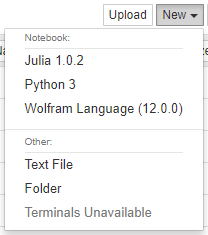
After the In[] prompt you can now type a Wolfram Language command (use shift-enter to evaluate):

Outputs are either strings, for simple textual results, or images, for graphics and typeset results:
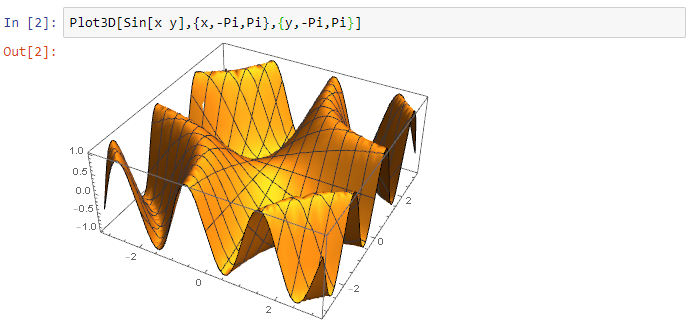
Any messages that occur during evaluation are displayed:
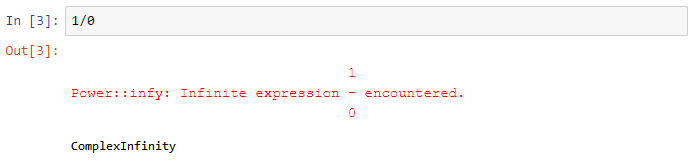
To test your installation in the terminal, run the following command:
jupyter-console --kernel=wolframlanguage12
Building the WolframLanguageForJupyter paclet
To build the WolframLanguageForJupyter paclet file yourself, run:
./configure-jupyter.wls build
This creates the WolframLanguageForJupyter-x.y.z.paclet file (use the PacletInfo.m to increment the version).
Removing your installation
Method 1: Using wolframscript
Run the following command to remove the Wolfram Language engine from Jupyter:
./configure-jupyter.wls remove
Method 2: Using Wolfram Language
Run the following command:
ConfigureJupyter["Remove"]
Links
Explorer des projets similaires
Chargement…