
BoringBoredom/UEFI-Editor
BoringBoredom/UEFI-Editor has 980 GitHub stars and 80 forks. GitHot measured 0 stars in 24 hours and +3 in 7 days. Last checked 2026-11-22 20:38 UTC. Last push 2026-03-15.
Progression mesurée des étoiles
- in 24h
- 0
- in 7 days
- +3
- in 15 days
- Historique en cours
- in 1 month
- Historique en cours
Variations nettes sur des périodes qui se chevauchent, pas des totaux quotidiens. Les mesures absentes restent vides. Les étoiles indiquent l’intérêt, pas la qualité.
À propos
Aptio V UEFI Editor: an alternative to AMIBCP
Outils de développementREADME.md
OriginalAptio V UEFI Editor
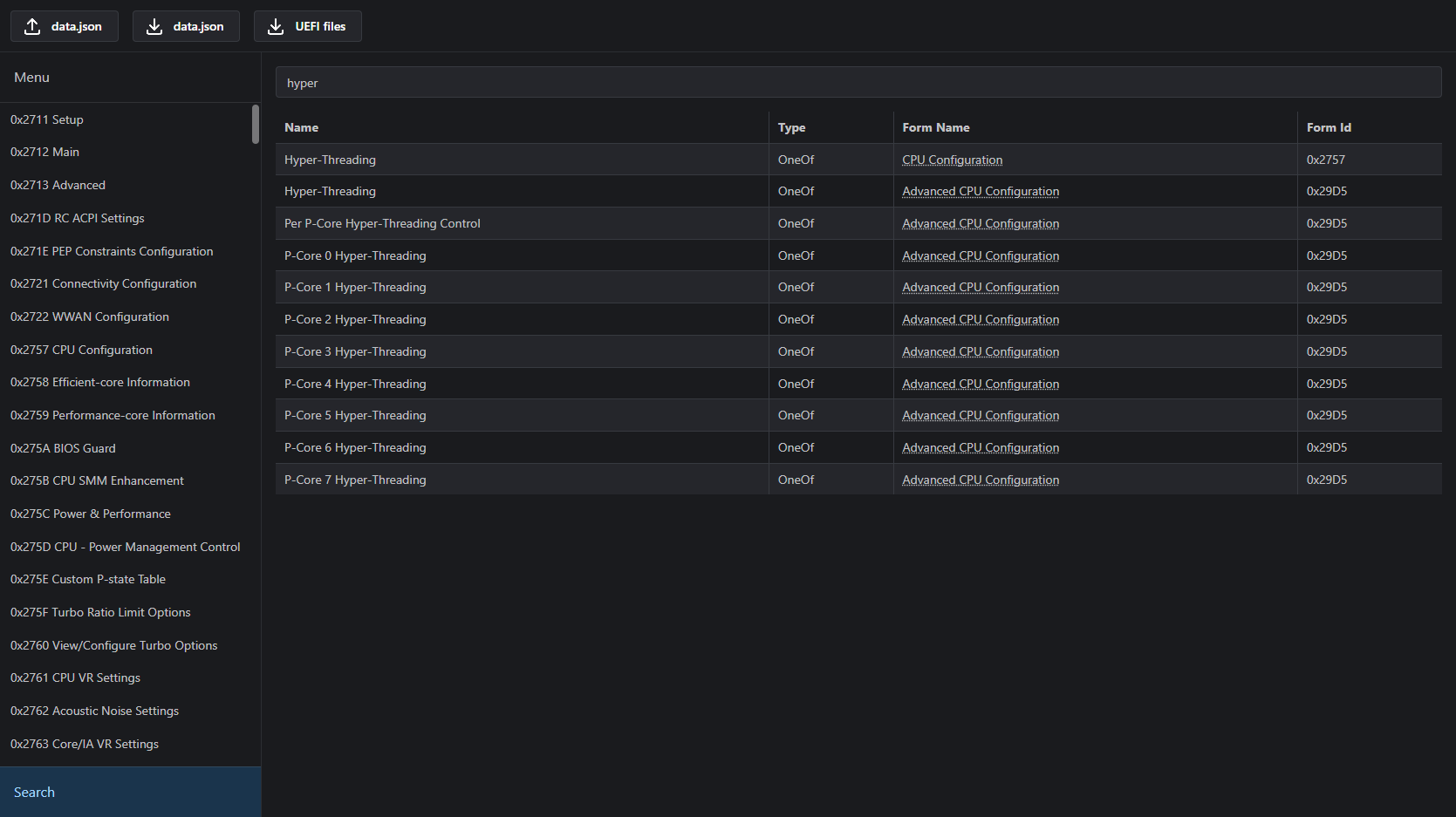
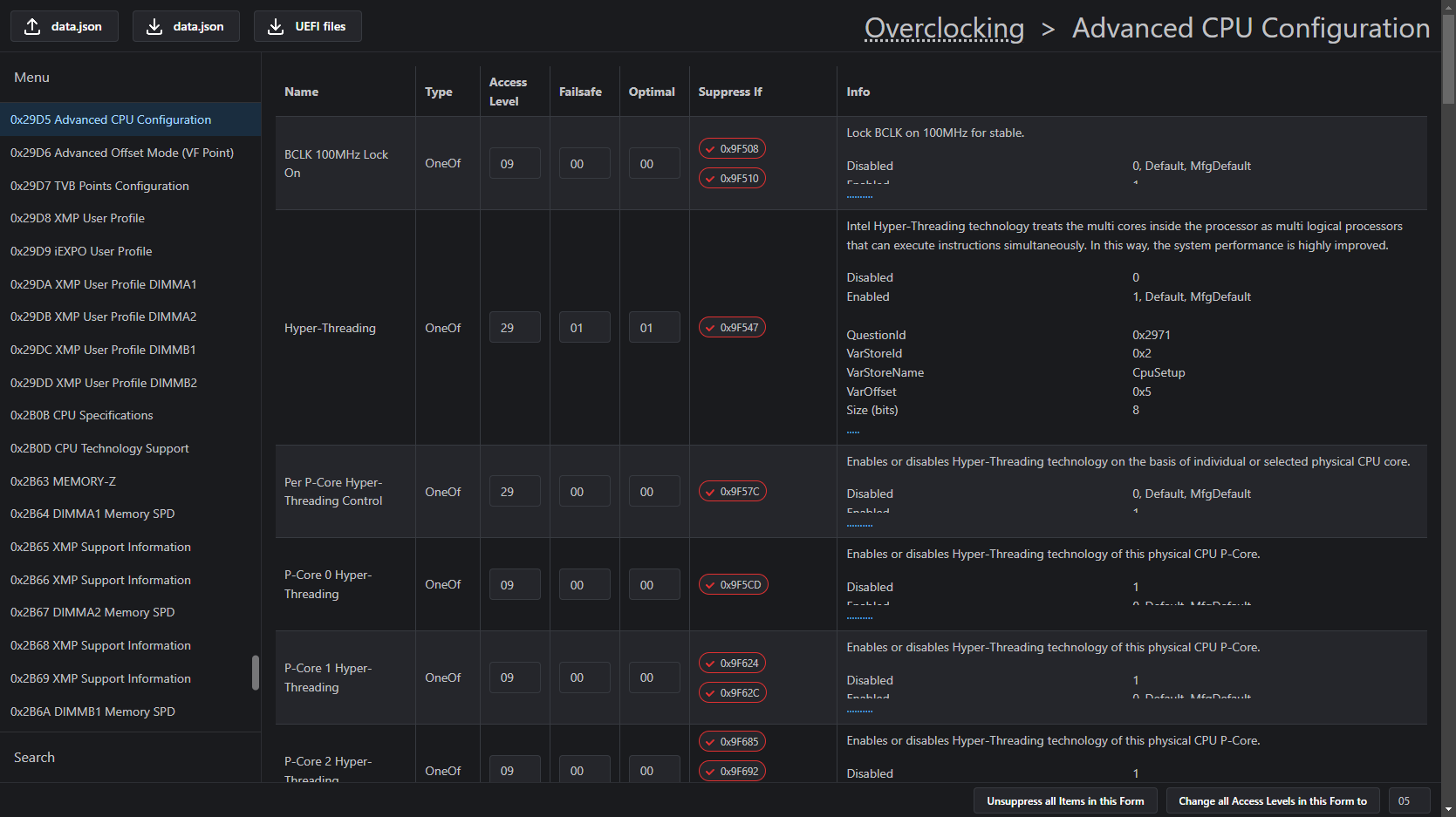
Usage guide
Prerequisites
- UEFITool NE (press
Show all assets) - UEFITool 0.28.0 (why?)
- IFRExtractor-RS
- UEFI Editor
Extracting the necessary files
Drag and drop the BIOS file into
UEFITool NE.Search (
CTRL + F) for a known setting.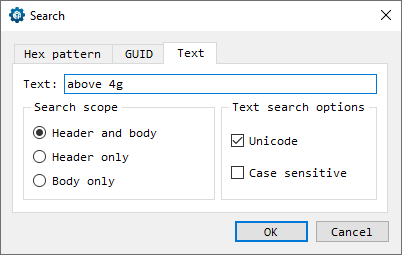
Double-click the reference to
Setup/PE32 image sectionat the bottom.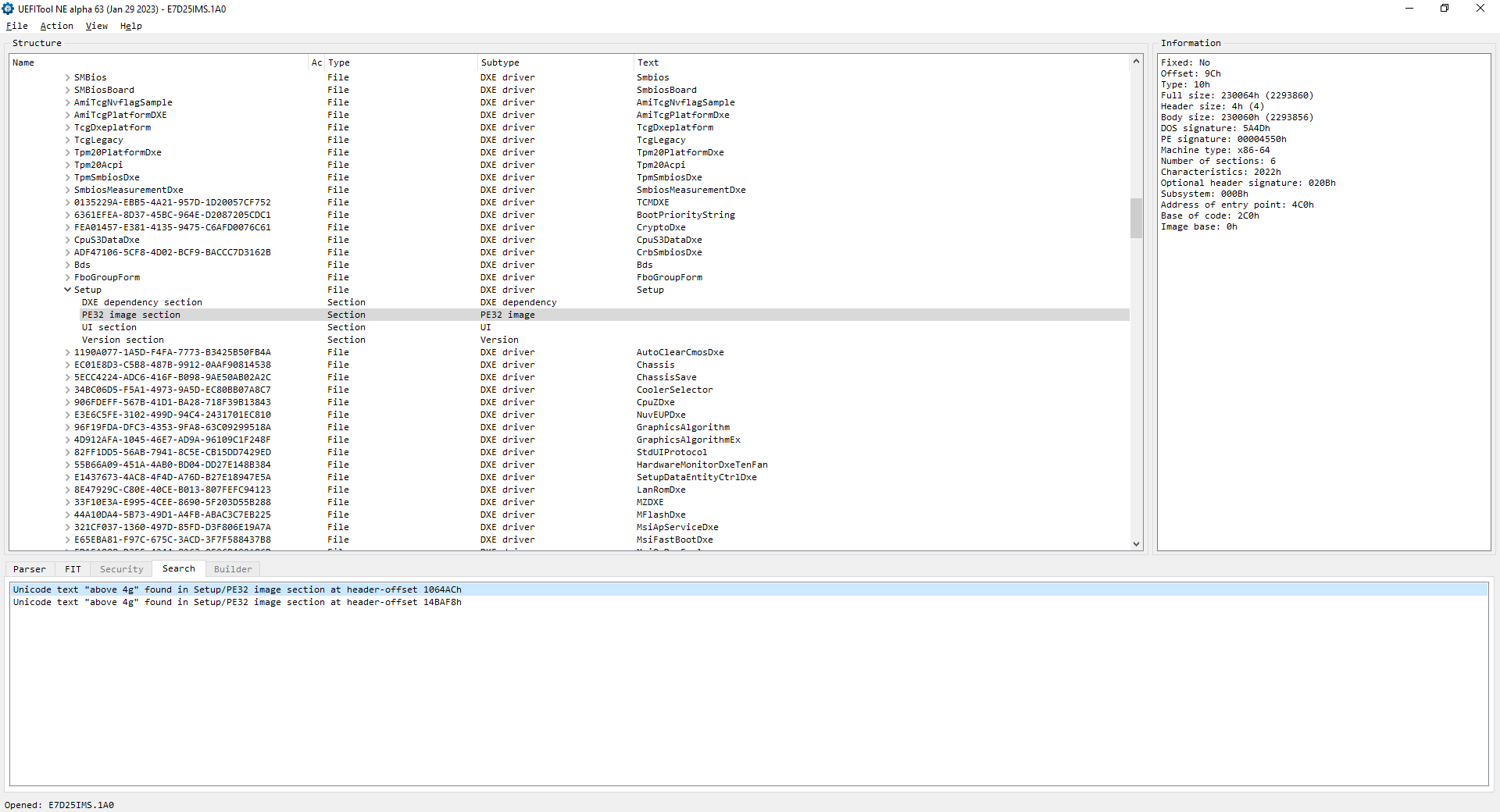
Extract
PE32 image sectionas is.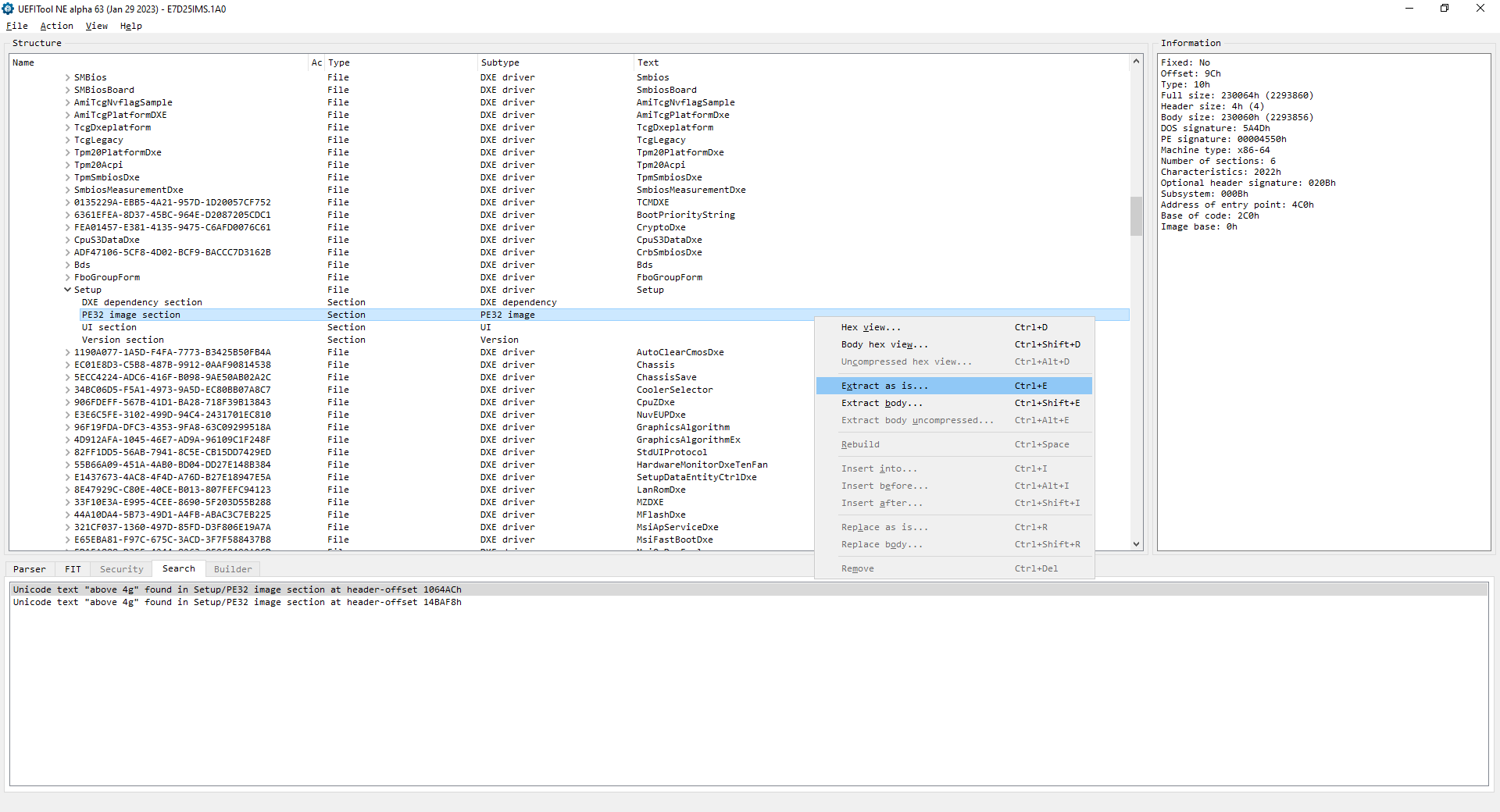
Move
ifrextractor.exeto the current folder, open the CLI inside and convert the.sctfile you just extracted.ifrextractor.exe "Section_PE32_image_Setup_Setup.sct" verbose
Scroll down inside the currently expanded section and find
AMITSEandsetupdata(sometimes both required files are underAMITSE). ExtractPE32 image sectionas isandsetupdataasbody.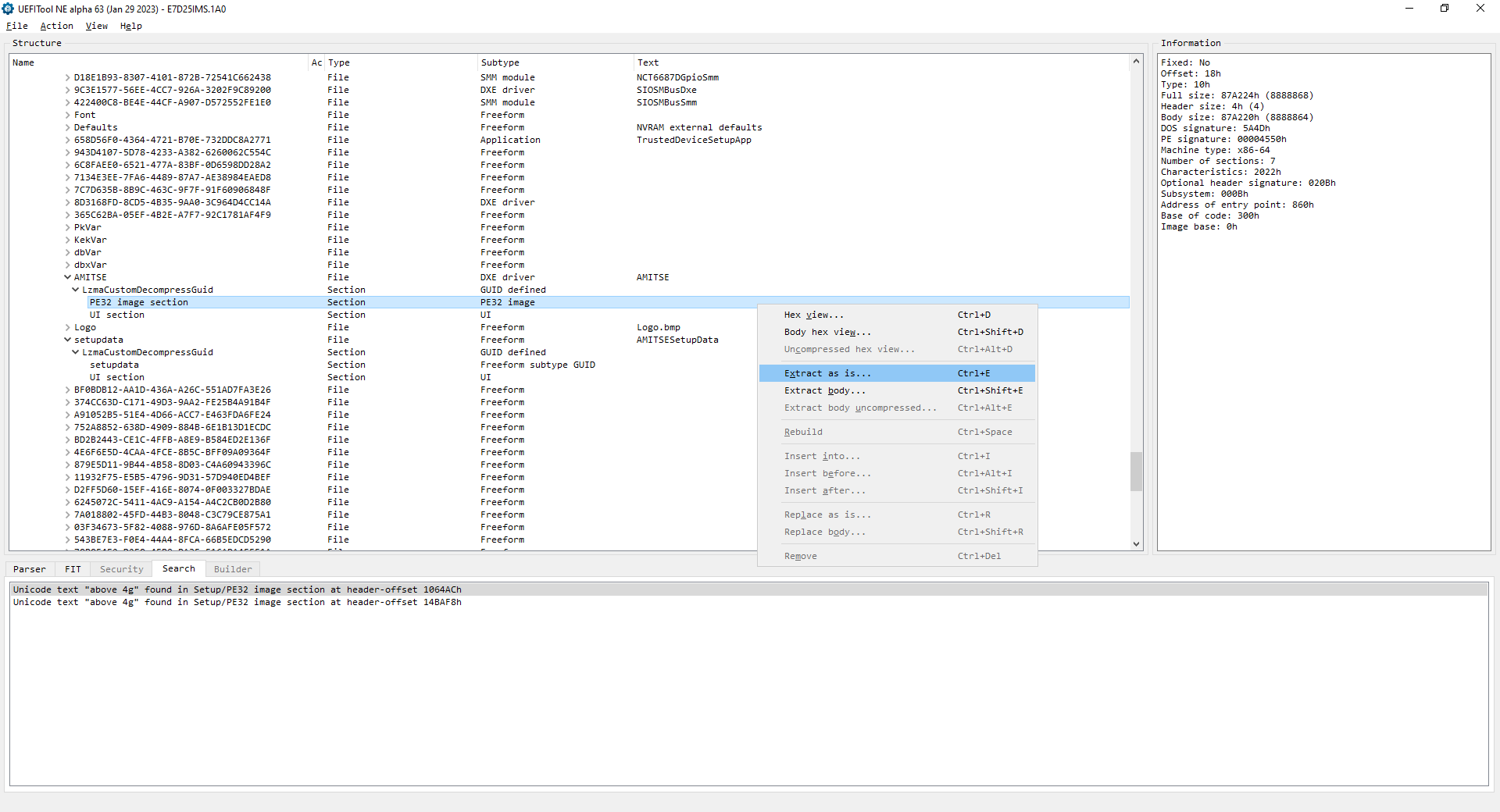
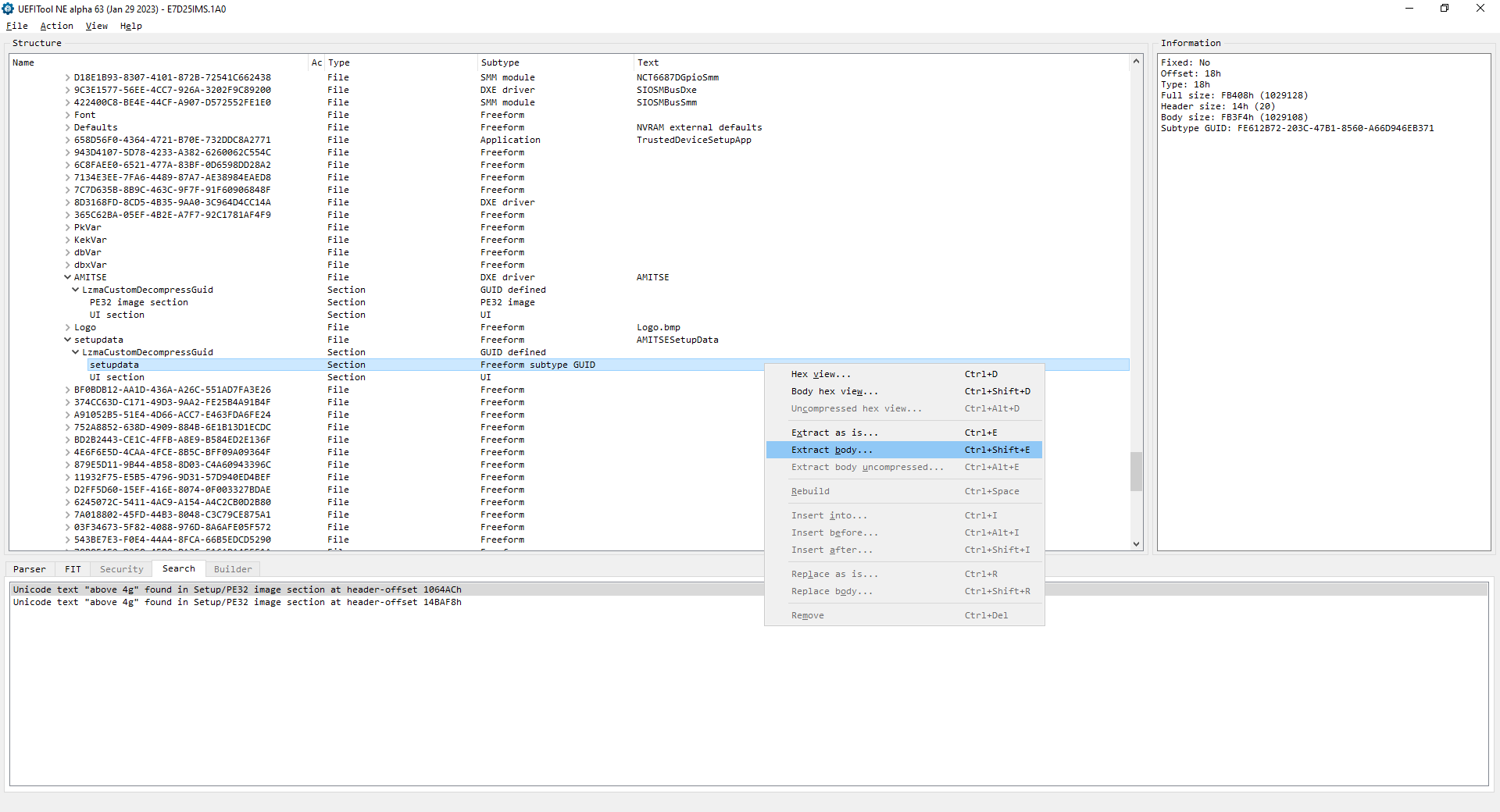
Upload the 4 files to the
UEFI Editorpage.
Using the UEFI Editor GUI
Navigation
- Dotted underlined text has references to Forms and can be clicked.
Menu
You can change the target Form of top-level references here. This is useful for UEFIs that have a custom
AdvancedForm.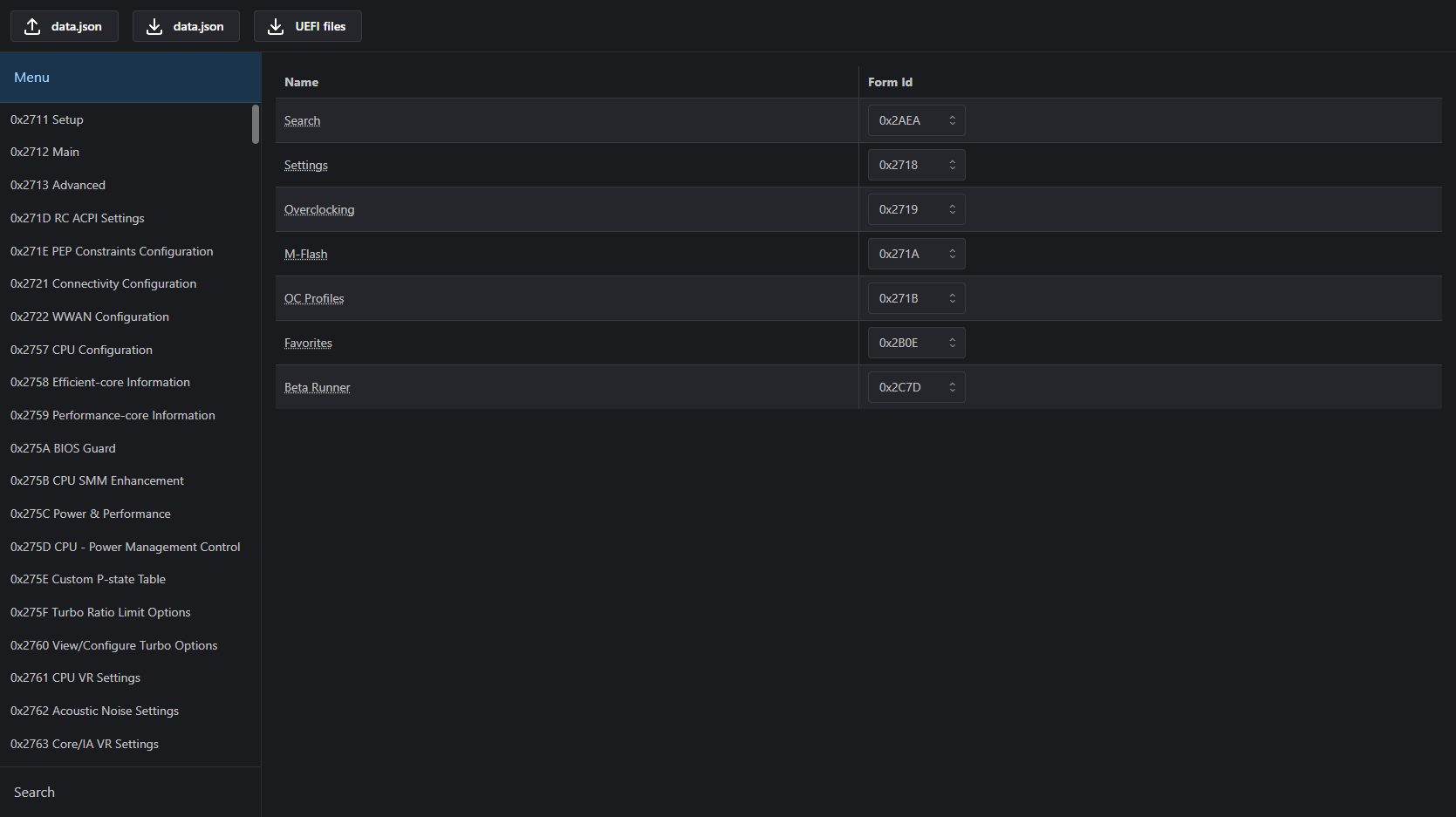
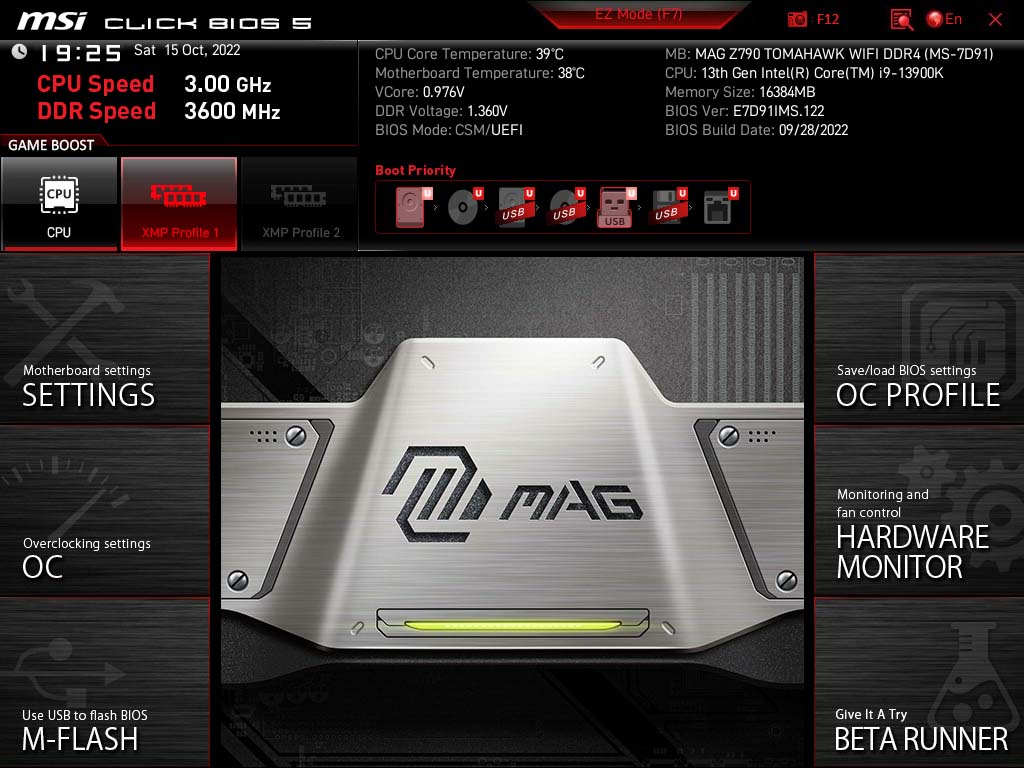
E.g. on MSI boards, you can replace
OC ProfileswithAdvanced(child ofSetup) to gain access to a lot of Forms that are otherwise inaccessible due to missing references while still retaining access toOC Profiles. PressESCafter selectingOC Profilesto accessSetup.
Item visibility control
Make sure the parent forms are visible when targeting a setting. Use the top-right navigation to travel upwards.
If one method doesn't work, try the other one. Using both at the same time can cause issues. It varies from UEFI to UEFI. Try modifying
Access Levelfirst.Suppress If
A
Suppress Ifopcode hides nested items if the condition is true. The presence of aSuppress Ifopcode doesn't always mean the condition is true. However, if it is, you can remove the suppression by unchecking the offset.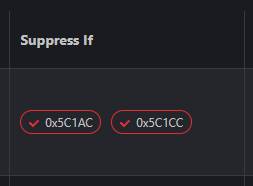
Access level
Another method of controlling item visibility is changing the access level.
05usually works. A different value does not necessarily mean it's hidden. Here is a forum post by Lost_N_BIOS with possible access level values (CTRL + F05/Yes).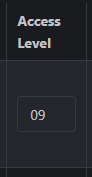
Inserting modified files
Press the
UEFI Filesdownload button to download the modified files and the change log.To find the correct sections in
UEFITool 0.28.0you can search forFile GUIDs you copy fromUEFITool NE.Replace files the same way you extracted them:
Extract as is->Replace as isandExtract body->Replace bodyExample for
Setup/PE32 image section:UEFITool NE: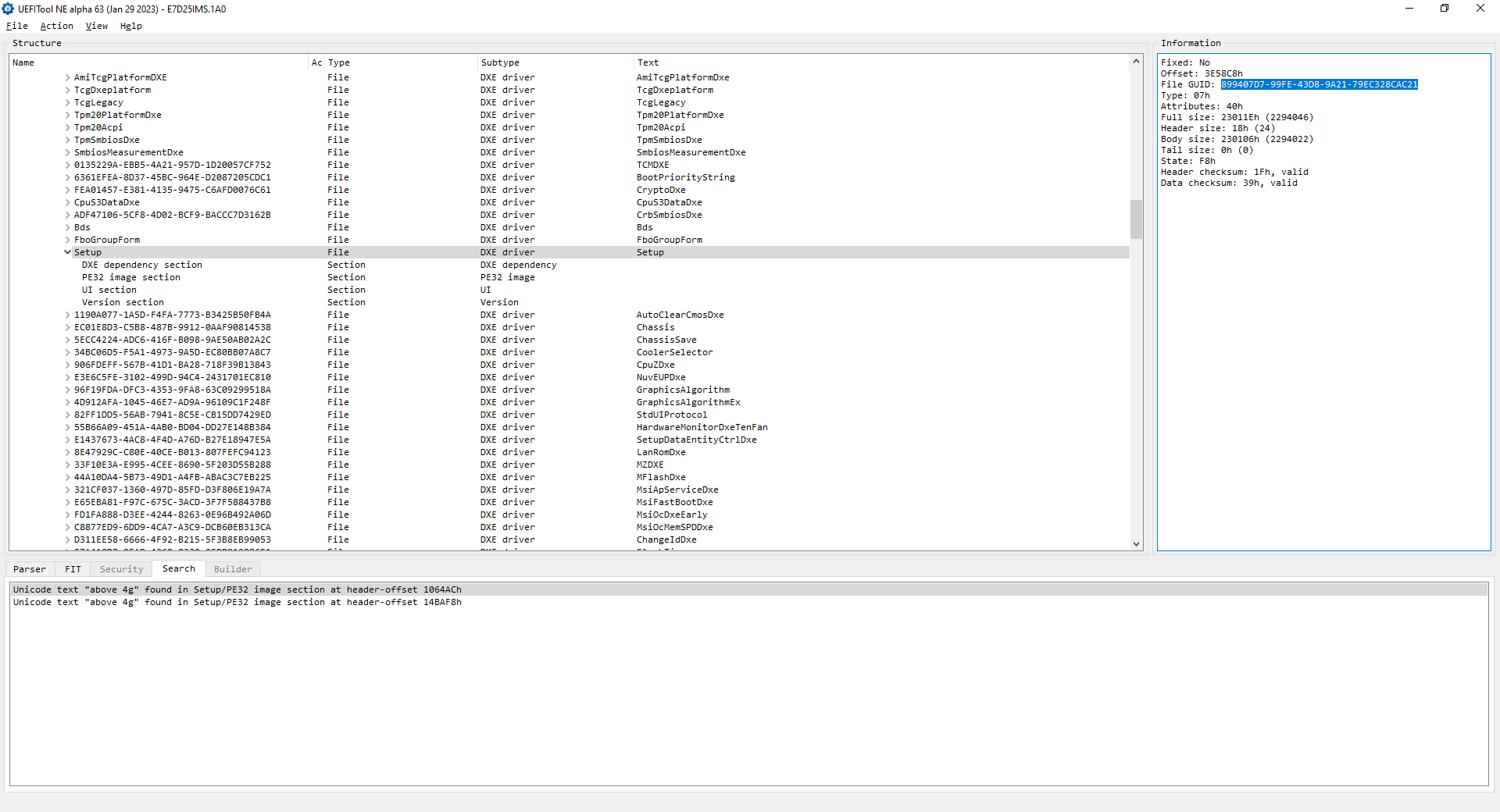
UEFITool 0.28.0: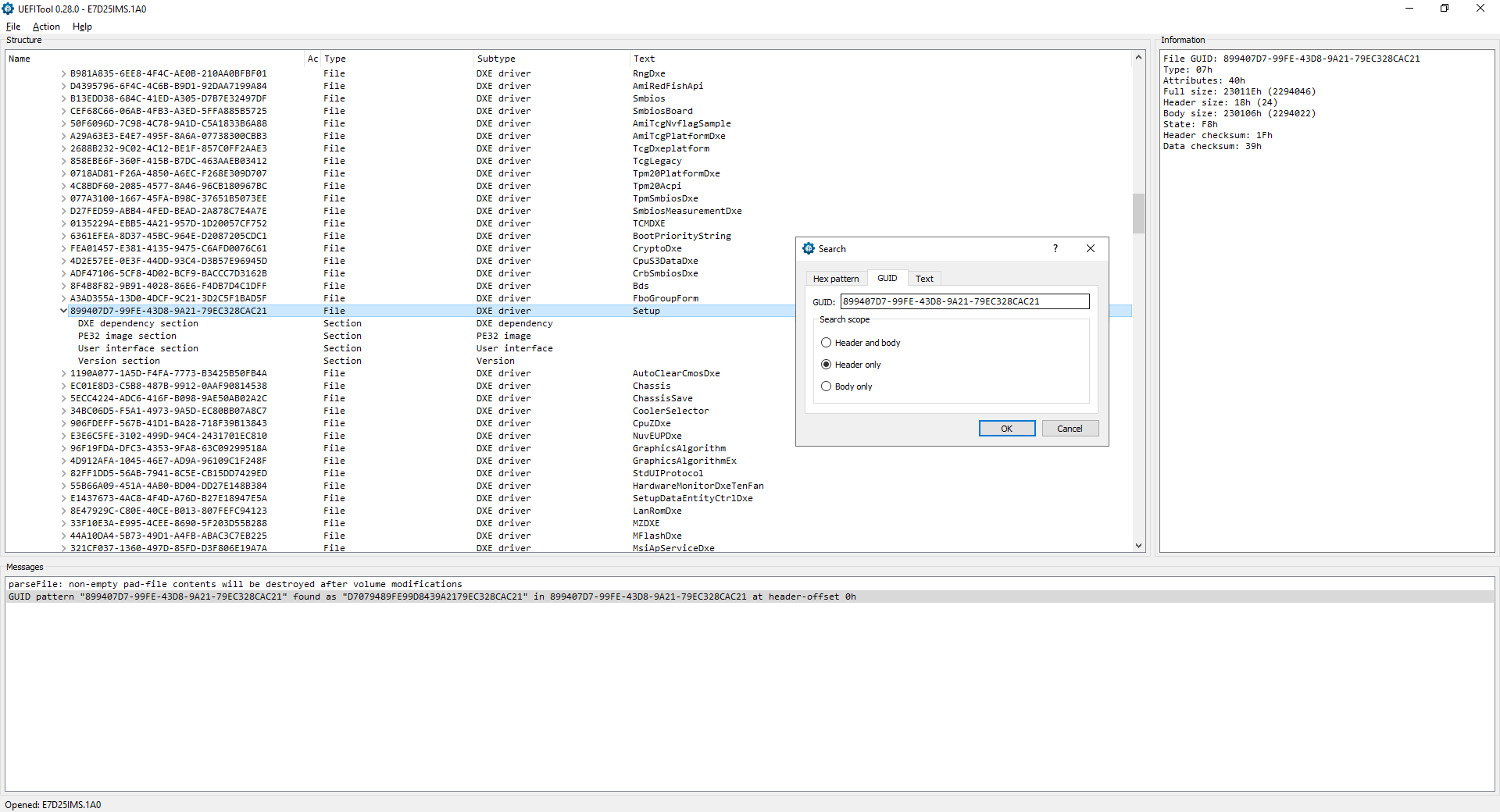
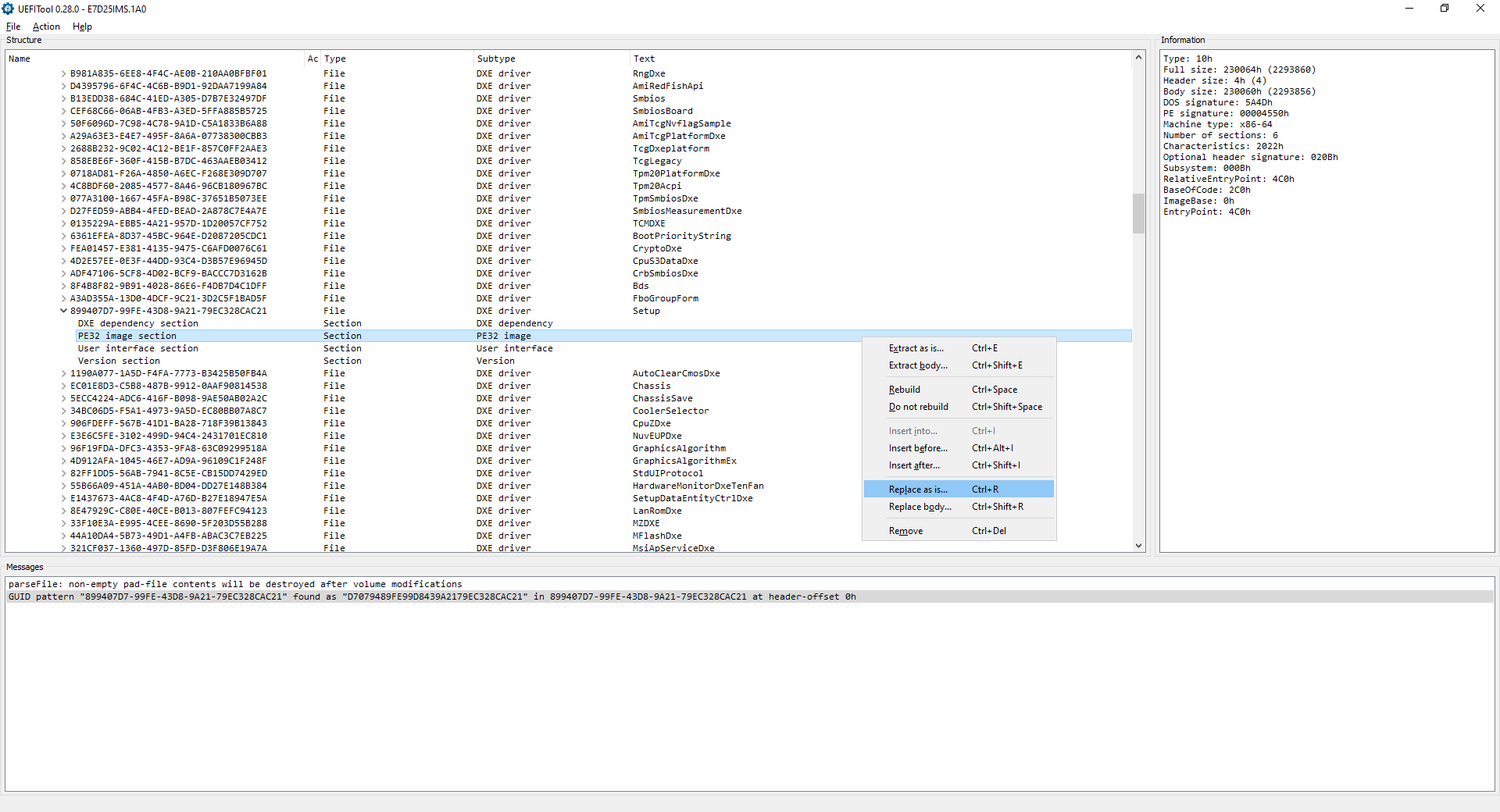
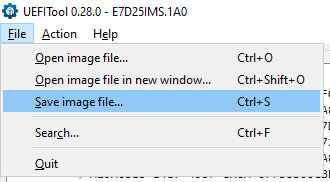
Save the modifications.
The section below is unrelated to the above tool.
How to change hidden settings without flashing a modded BIOS
Preparation
Download datasone's modded shell and rename it to BOOTX64.EFI.
Format a USB drive as FAT32 and move BOOTX64.EFI to USB:\EFI\BOOT\ (create the folders EFI and BOOT manually). The final path of the shell will be USB:\EFI\BOOT\BOOTX64.EFI.
Download your current BIOS version from the motherboard vendor's site. The structure changes across different versions, so make sure you have the same BIOS.
Follow these instructions until and including the conversion with ifrextractor.exe. If there are two Setup sections, use the one that has matching offsets (change settings in BIOS and read values with datasone's shell to confirm).
Optionally, download IFR-Formatter.js (right-click and Save link as...) and node.exe. Place them in the same folder as the IFR Extractor output and execute node IFR-Formatter.js yourIfrExtractorOutput.txt in the CLI.
Disable Secure Boot and CSM and boot from the USB drive in UEFI mode.
Example
IFR Extractor output
OneOf Prompt: "Intel C-State", Help: "[...]", QuestionFlags: [...], QuestionId: [...], VarStoreId: 0x2, VarOffset: 0x14, Flags: [...], Size: 8, Min: [...], Max: [...], Step: [...] { [...] }
	OneOfOption Option: "Auto" Value: 2, Default, MfgDefault { [...] }
	OneOfOption Option: "Enabled" Value: 1 { [...] }
	OneOfOption Option: "Disabled" Value: 0 { [...] }
End  { 29 02 }
Size is a decimal in bits. Convert it to a hexadecimal in bytes.Value is a decimal. Convert it to a hexadecimal.
Search for the VarStoreId to find the VarStoreName.
VarStore Guid: [...], VarStoreId: 0x2, Size: [...], Name: "CpuSetup" { [...] }
IFR-Formatter.js output
Intel C-State | VarStore: CpuSetup | VarOffset: 0x14 | Size: 0x1
    Auto: 0x2
    Enabled: 0x1
    Disabled: 0x0
Syntax (READ THIS)
Writing
setup_var_cv VarStoreName VarOffset Size Value
setup_var_cv CpuSetup 0x14 0x1 0x0
Reading
setup_var_cv VarStoreName VarOffset Size
setup_var_cv CpuSetup 0x14 0x1
Miscellaneous
To exit and reboot, type:
reboot
Workarounds for various issues (e.g. multiple Setup VarStores): legacy commands
If something unexpected happens, force shutdown and reset CMOS.
Explorer des projets similaires
Chargement…