
ddanilov/soundscape
Acerca de
Desktop soundscape application
Creación y multimediaCrecimiento de estrellas medido
- in 24h
- 0
- in 7 days
- 0
- in 15 days
- 0
- in 1 month
- Recopilando historial
Cambios netos en períodos que se solapan, no totales diarios. Los datos no disponibles se dejan en blanco. Las estrellas indican interés, no calidad.
README.md
OriginalSoundscape





Soundscape is an open-source desktop application that runs in the system tray and plays a mix of sounds, such as animal, wind, and water sounds.
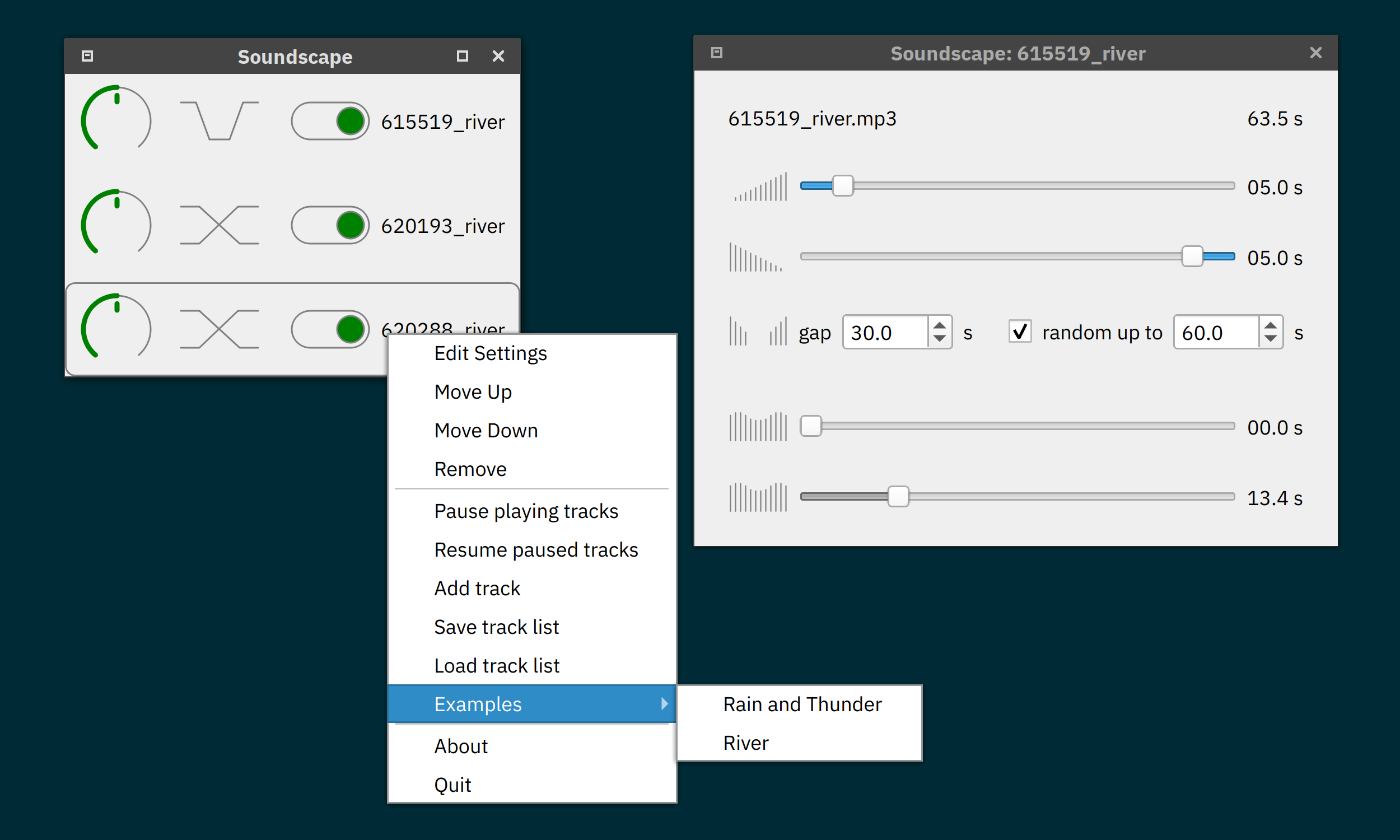
Usage
The application comes with two example soundscapes. Right-click the main window or tray icon to open the application menu, where you can add or remove soundtracks and change their settings.
For each track, you can change its volume, loop transition, and playback state.
Volume
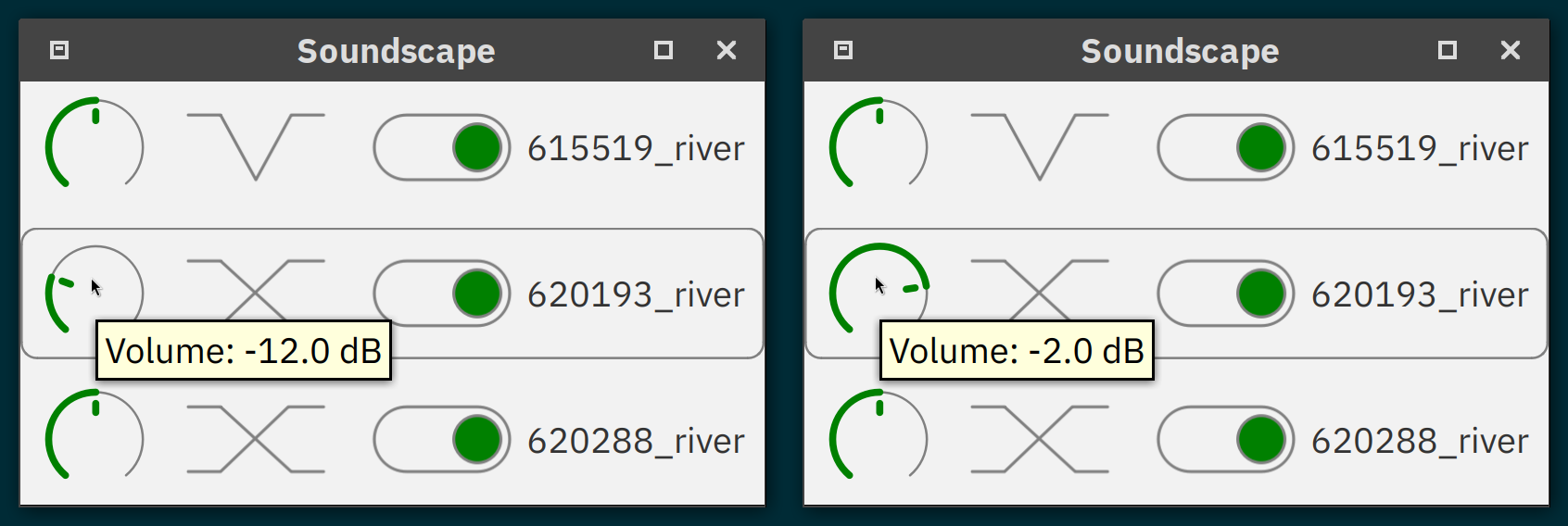
Each track has an individual volume dial. Hovering over the dial displays a tooltip with the current volume level in decibels (dB). The volume uses a logarithmic scale for natural sound balancing across tracks.
Loop transition
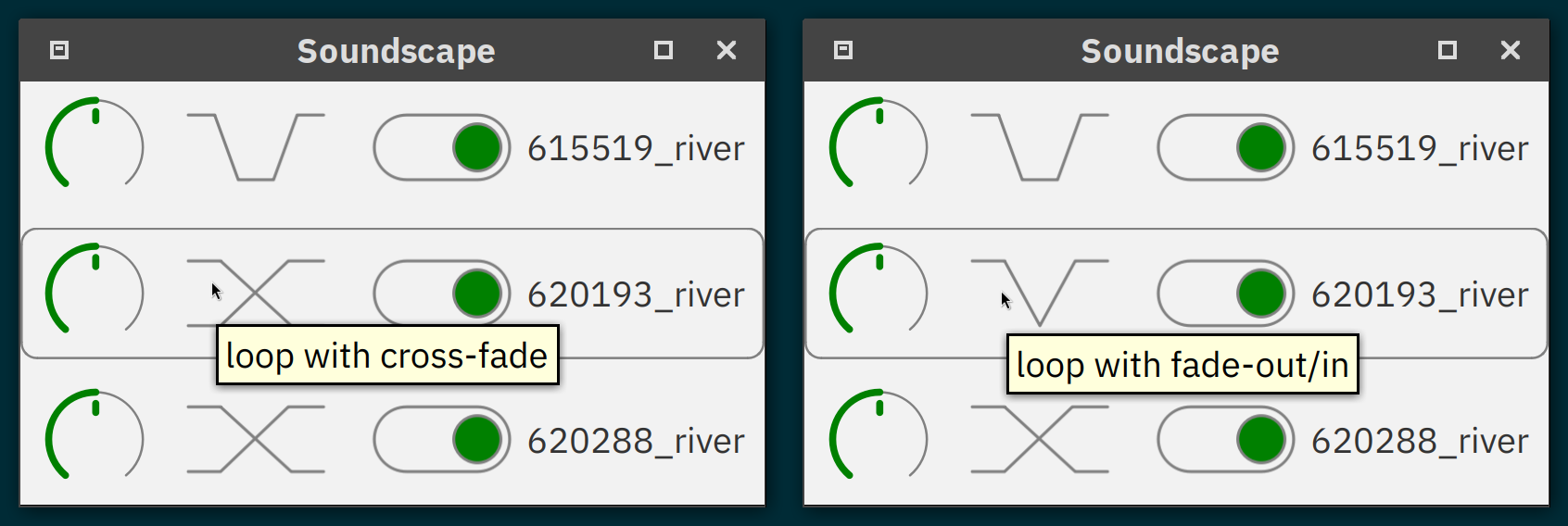
For a transition with a gap (fade-out → silence → fade-in), you can configure the duration of the silence between loops in the track settings:
- Fixed gap: when the
random up tocheck box is unchecked, the track waits for the exact duration specified in thegapfield (in seconds) before restarting. - Randomized gap: when
random up tois selected, a new gap duration is chosen randomly each time the track loops, between the lower bound (gap) and the upper bound (random up to).
Randomized gap is especially useful for sporadic ambient sounds, such as bird chirps, distant thunder, wind gusts, or animal calls, so they recur at unpredictable intervals rather than on a rigid schedule.
Playback
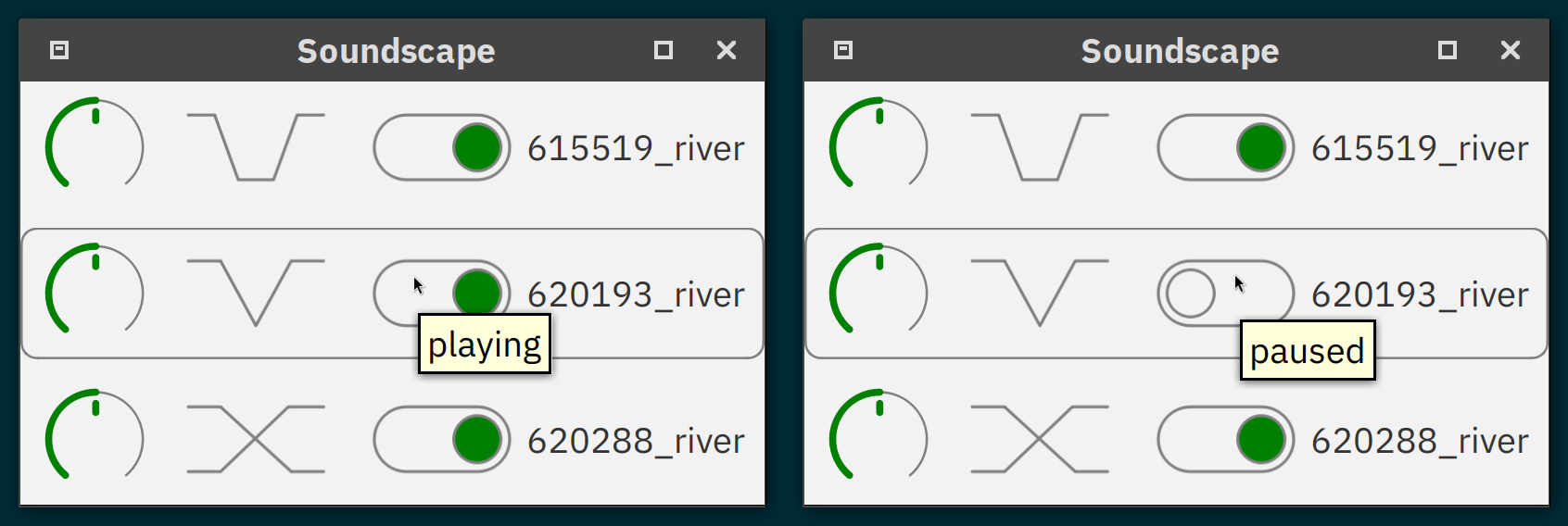
Click the toggle switch next to a track name to start or pause its playback individually. When a track is active, the audio loops continuously according to its transition settings. Right-clicking a track opens a context menu with additional options, such as Skip to start to replay the track from the beginning, Edit Settings, reordering or removing the track.
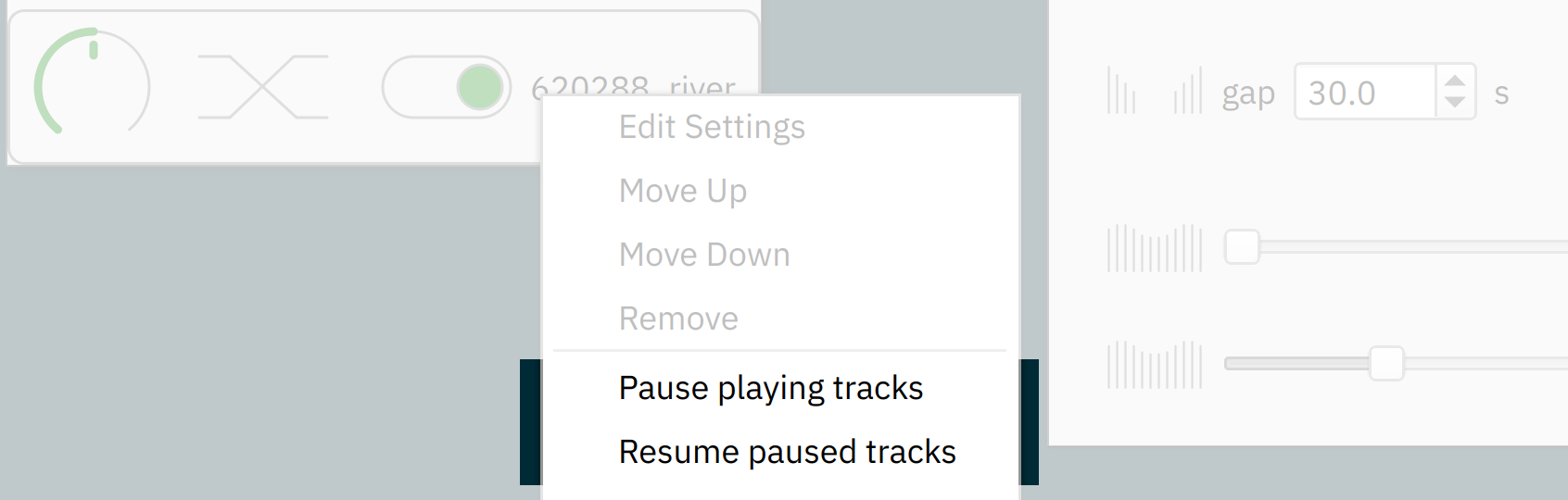
From the application menu (opened by right-clicking the window or the tray icon), you can pause and resume all playing tracks at once with Pause playing tracks and Resume paused tracks. Pausing globally preserves the playback state of each track, so resuming only restarts tracks that were previously playing.
On Linux and Windows, pressing the window close button minimizes the application to the system tray so audio can continue playing in the background. Use the Quit item in the application menu to completely exit the application.
Command line options
--load <path to file>load a track list from a.jsonfile on startup--minimizeminimize the window to the tray on startup--disable-traydisable the tray icon on Linux and Windows--enable-trayenable the tray icon on macOS--single-instanceprevent multiple instances from starting
Building your own soundscape
You can create and save your own custom soundscapes.
Gather audio files: collect audio recordings for the atmospheric elements you want to mix. Freesound is a great source. It is recommended to place the audio files in a dedicated folder for your soundscape.
Right-click anywhere in the main window or tray icon and select Add track to choose audio files to add.
Configure the mix:
- adjust each track's Volume dial to balance background atmospheres and foreground sound effects.
- choose a Loop transition mode: crossfade for continuous ambient (like rain, wind, or running water), or fade with a gap and random up to for occasional sounds.
- right-click a track and choose Edit Settings to adjust fade-in/out durations and gap parameters.
- reorder tracks using Move Up and Move Down in the track context menu (or reorder directly in the
.jsonfile later).
Right-click and choose Save track list to save the soundscape. Save the .json file in the same directory as
your audio files. The file paths are stored relative to the saved .json file, making the soundscape folder portable
and easy to move or share.
Load your soundscape at any time via Load track list in the application menu, or load it automatically on startup
using the --load command-line option:
soundscape --load /path/to/soundscape.json
Installation
Linux distributions
Packages for some Linux distributions are available.
Ubuntu users can install the application from the PPA repository
ppa:ddanilov/soundscape, see
https://launchpad.net/~ddanilov/+archive/ubuntu/soundscape for
details.
Debian, openSUSE and Fedora packages can be installed from
the download page for the home:danilov:soundscape OBS project, see
https://software.opensuse.org/download/package?package=soundscape&project=home:danilov:soundscape.
Flatpak package is available from the Flathub app store at https://flathub.org/apps/io.github.ddanilov.soundscape.
Windows
You can install the application using Windows Package Manager
winget search soundscape
winget install Danilov.Soundscape
Prebuilt binaries
Prebuilt binaries for Windows, macOS and Linux are available from the Releases page.
On Linux, you may need to install an additional package to run the prebuilt binary. Most likely XCB util-cursor module is missing. On Debian-based systems, install it with
sudo apt-get install libxcb-cursor0
on openSUSE with
sudo zypper install libxcb-cursor0
and on RedHat-based systems with
sudo dnf install xcb-util-cursor
Build from source
Building from source requires Qt, CMake, and C++17 compiler. On macOS, install librsvg (with brew install librsvg)
which is required to generate the application icon.
Build the project with CMake:
cmake -DCMAKE_BUILD_TYPE=Release -S <path-to-source> -B <path-to-build>
cmake --build <path-to-build>
Run the test suite with:
ctest --test-dir <path-to-build>/tests --output-on-failure
If CMake cannot find Qt, add -DCMAKE_PREFIX_PATH=/path/to/Qt to the configure command, using the directory for your
installed Qt kit.
CMake options
All project-specific options are disabled by default. Enable an option by
adding -D<OPTION>=ON to the CMake configure command.
| Option | Description |
|---|---|
WITH_CLANG_FORMAT |
run clang-format --dry-run --Werror while compiling, if clang-format is available. |
WITH_COVERAGE |
add coverage instrumentation to the tests and provide the coverage and coveralls build targets. Requires gcovr and Debug build. |
WITH_DEPLOY_SCRIPT |
generate a Qt deployment script and enable CPack packaging: ZIP and, when NSIS is available, NSIS on Windows; DragNDrop on macOS; and TGZ on Linux. |
For example, generate an HTML coverage report in <path-to-build>/coverage with:
cmake -DCMAKE_BUILD_TYPE=Debug -DWITH_COVERAGE=ON -S <path-to-source> -B <path-to-build>
cmake --build <path-to-build>
ctest --test-dir <path-to-build>/tests --output-on-failure
cmake --build <path-to-build> --target coverage
License
This program is free software: you can redistribute it and/or modify it under the terms of the GNU General Public License version 3 as published by the Free Software Foundation.
This program is distributed in the hope that it will be useful, but WITHOUT ANY WARRANTY; without even the implied warranty of MERCHANTABILITY or FITNESS FOR A PARTICULAR PURPOSE. See the GNU General Public License for more details.
You should have received a copy of the GNU General Public License along with this program. If not, see https://www.gnu.org/licenses/.
Explorar proyectos relacionados
Cargando…