
b-init/ImagePaste
Acerca de
A simple Blender addon to grab images from your clipboard and paste as a reference image in viewport or onto the image editor.
Herramientas de desarrolloCrecimiento de estrellas medido
- in 24h
- 0
- in 7 days
- 0
- in 15 days
- Recopilando historial
- in 1 month
- Recopilando historial
Cambios netos en períodos que se solapan, no totales diarios. Los datos no disponibles se dejan en blanco. Las estrellas indican interés, no calidad.
README.md
OriginalImagePaste
[!IMPORTANT] ImagePaste is no longer actively maintained.
For Blender 4.2 and newer, use Pasty instead. Pasty carries the main ImagePaste workflow forward with a smaller design that relies more on Blender's own clipboard support.
A simple Blender add-on to paste images from the clipboard to various places in Blender and copy them to the clipboard to be pasted anywhere. Works with Blender 2.80 and above.
This repository is kept as project history for existing ImagePaste users. New bug reports, feature requests, and compatibility work should go to Pasty.
Installing
ImagePaste is not recommended for new installs. Use Pasty if you are on Blender 4.2 or newer.
- Download the latest release (you can also view the changelog on the release page).
- Go to Edit|Preferences. On the Add-ons tab, choose Install and select the downloaded
.zipfile. - Tick the box beside the add-on name.
Using
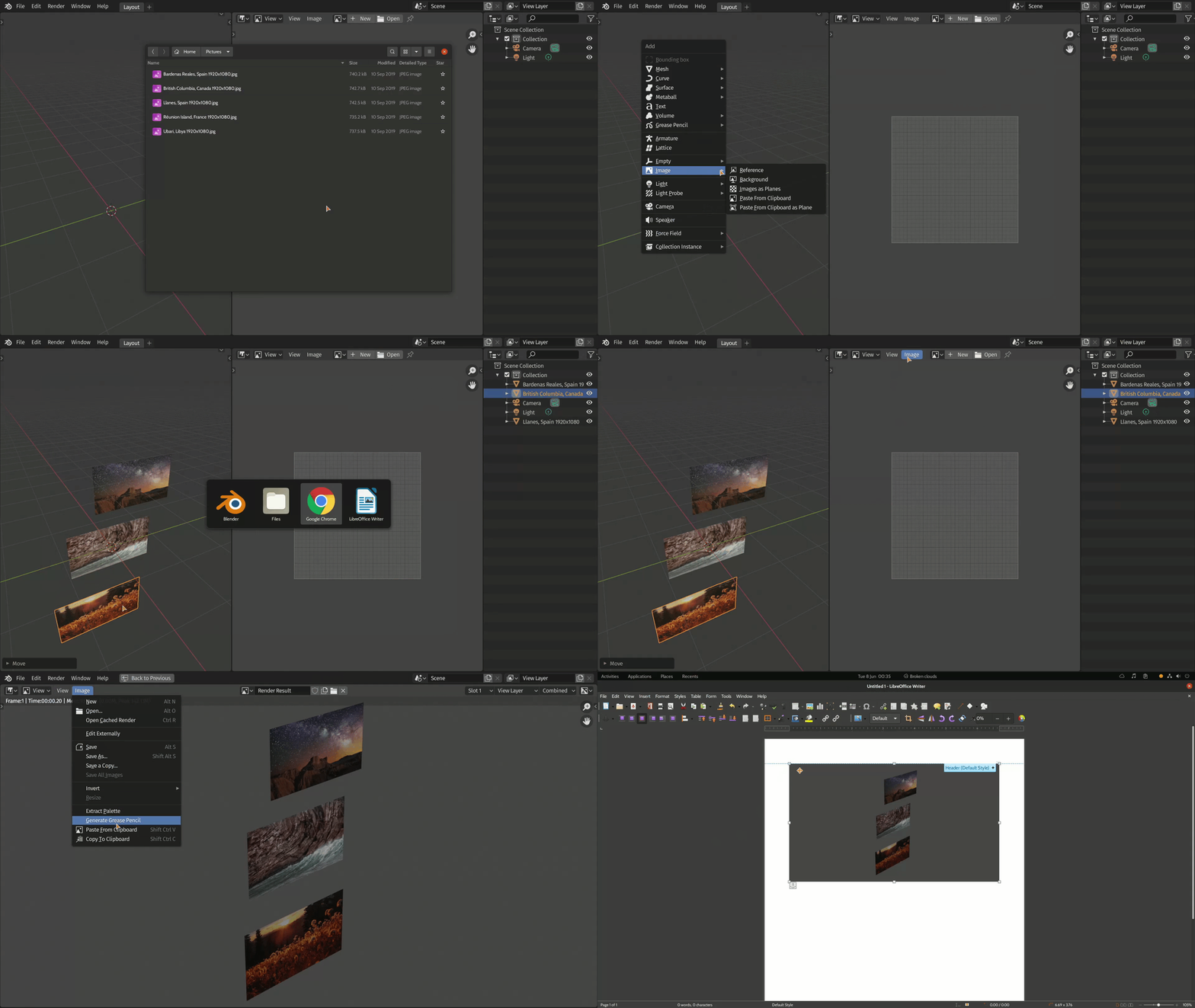
The add-on supports copying images to the clipboard and pasting them from various places:
Image Editor
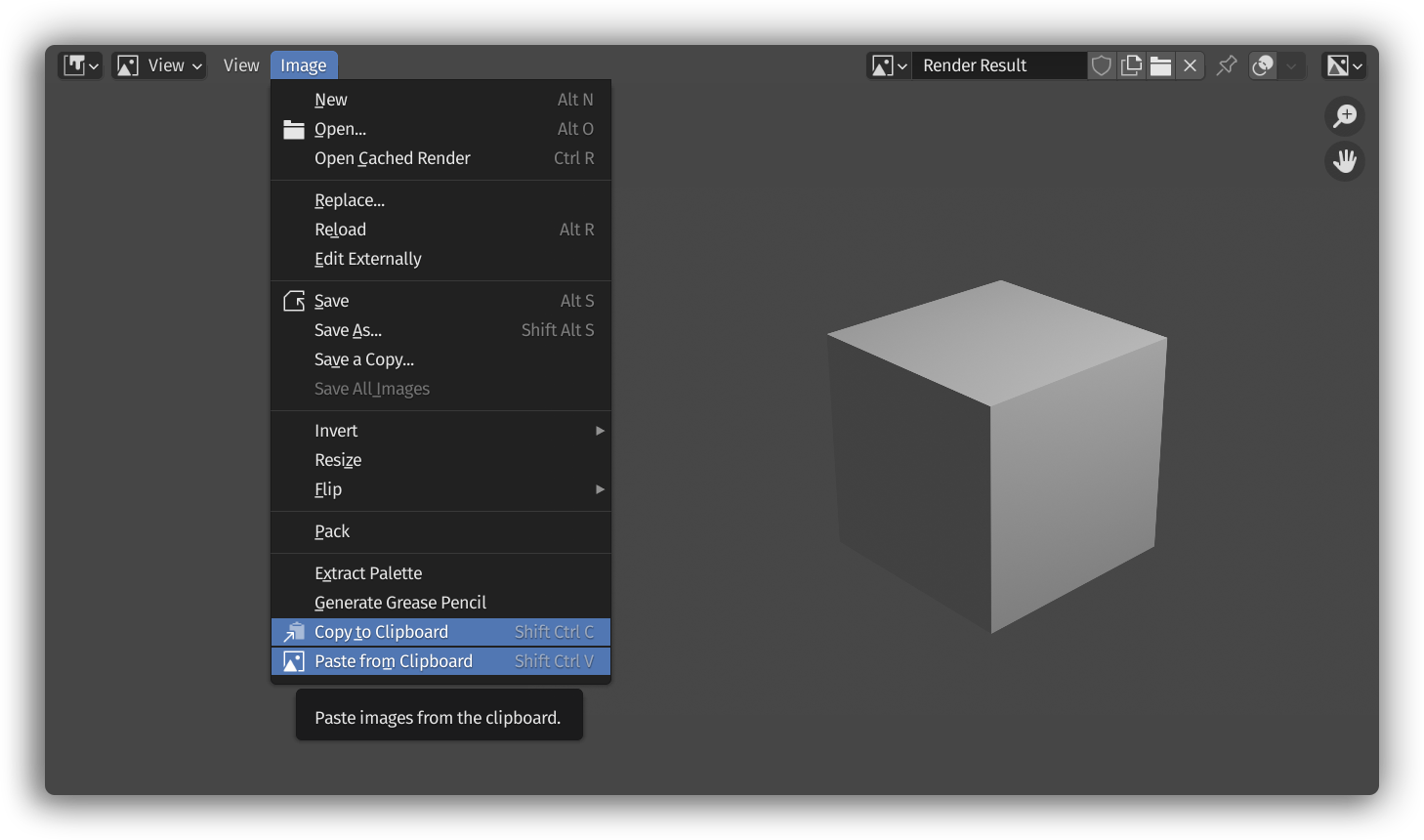
Copy Image:
- Keyboard shortcut: Ctrl+Shift+C
- UI: Image|Copy to Clipboard
Paste as Images:
- Keyboard shortcut: Ctrl+Shift+V
- UI: Image|Paste from Clipboard
Video Sequencer
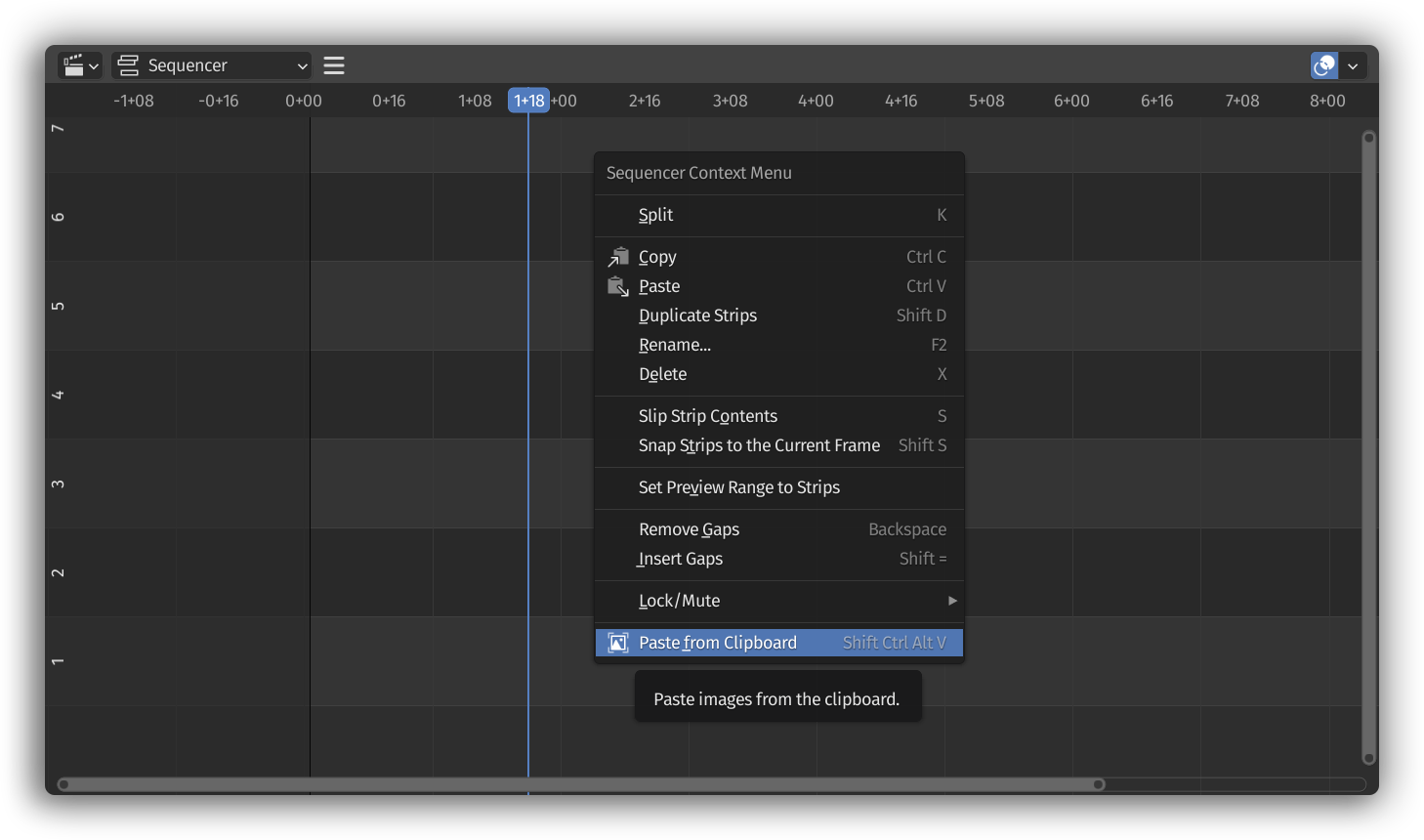
Paste as Image Strips:
- Keyboard shortcut: Ctrl+Shift+Alt+V
- UI: Sequencer Context Menu|Paste from Clipboard
Shader Editor
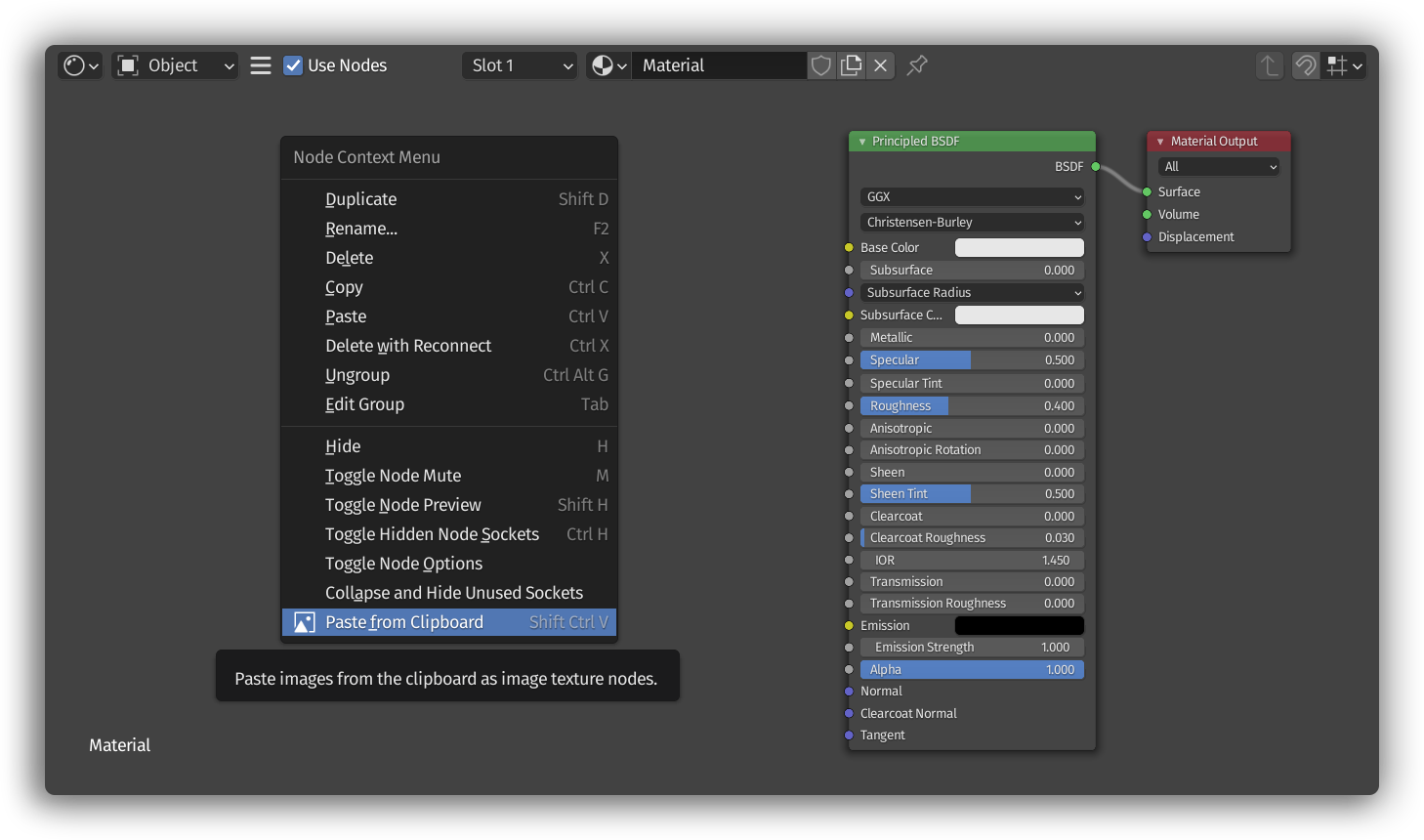
Paste as Image Textures:
- Keyboard shortcut: Ctrl+Shift+V
- UI: Node Context Menu|Paste from Clipboard
3D Viewport
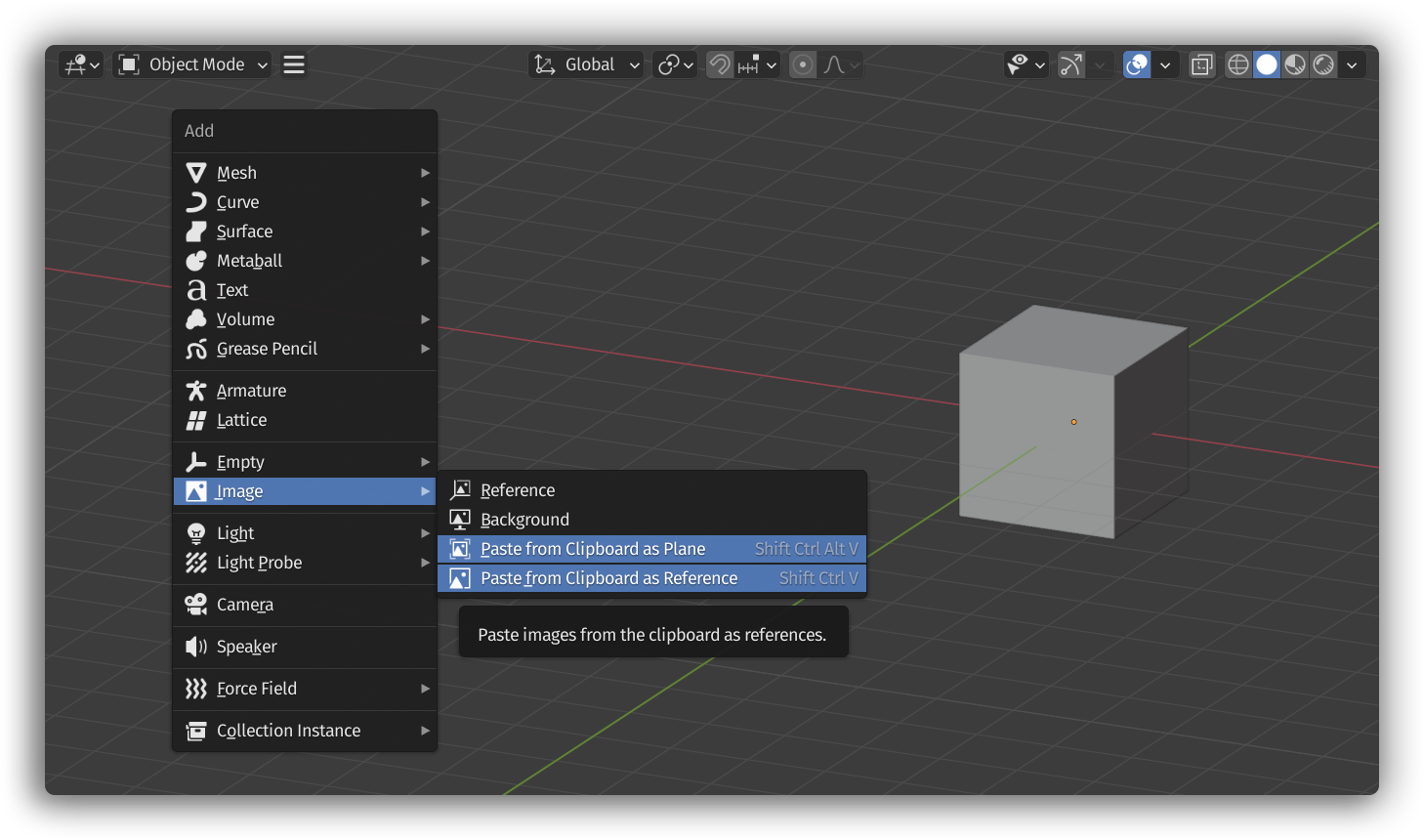
Paste as Planes:
- Keyboard shortcut: Ctrl+Shift+Alt+V
- UI: Add|Image|Paste from Clipboard as Plane
Paste as References:
- Keyboard shortcut: Ctrl+Shift+V
- UI: Add|Image|Paste from Clipboard as Reference
Configuring
Customizing the save folder
By default, pasted images will be stored in a temporary folder, this one will be deleted when you close Blender. If you want, you can redirect these images to a different directory.

On the other hand, after you save the .blend file, these pasted images will be saved where the .blend file is located - in the ImagePaste folder. This folder can also be customized in the preferences.

Customizing the image filename

You can customize the filename of the pasted image with the help of some predefined variables:
| Variable | Description | Example |
|---|---|---|
${addonName} |
Name of the add-on | ImagePaste |
${yearLong} |
Year with the century | 2021, 2022, … |
${yearShort} |
Year without the century | 21, 22, … |
${monthNumber} |
Month as a zero-padded decimal number | 01, 02, …, 12 |
${monthNameLong} |
Full month name | January, February, …, December |
${monthNameShort} |
Abbreviated month name | Jan, Feb, …, Dec |
${day} |
Day of the month as a zero-padded decimal number | 01, 02, …, 31 |
${weekdayNumber} |
Weekday as a decimal number | 0, 1, …, 6 |
${weekdayNameLong} |
Full weekday name | Sunday, Monday, …, Saturday |
${weekdayNameShort} |
Abbreviated weekday name | Sun, Mon, …, Sat |
${hour24} |
Hour (24-hour clock) as a zero-padded decimal number | 00, 01, …, 23 |
${hour12} |
Hour (12-hour clock) as a zero-padded decimal number | 01, 02, …, 12 |
${minute} |
Minute as a zero-padded decimal number | 00, 01, …, 59 |
${second} |
Second as a zero-padded decimal number | 00, 01, …, 59 |
${index} |
Order of the image | 1, 2, … |
${index:N} |
N-digits image order number with zero padding | ${index:2} gives 01, 02, … |
The default filename is ${addonName}-${yearShort}${monthNumber}${day}-${hour24}${minute}${second}.
Choosing the image type to move when saving the file

This feature will move (actually copy) images into the save directory after you save the file, so you can paste images anytime, no need to save it first. There's also an option in the add-on preferences you can choose the type of images to move:
- Pasted images: Only images that were pasted using the add-on would be moved to the save directory.
- All images: Images existing in the
.blendfile will be moved. - No moving: Don't do anything when saving the file.
Troubleshooting
If ImagePaste doesn't work, try:
- Running Blender as adminstrator
- Using an earlier version of ImagePaste, particularly v1.4.0 and v1.3.2 (Windows 7 doesn't seem to work with the newer versions)
Contributing and getting support
This project is no longer accepting new ImagePaste maintenance work.
If you need the same workflow in modern Blender, use Pasty. New bug reports and feature requests should be opened in the Pasty issue tracker.
Thank you to all ImagePaste contributors and everyone who shared ideas, reports, fixes, and testing over the years.
Explorar proyectos relacionados
Cargando…