
Vaberer/Font-Awesome-Swift
Vaberer/Font-Awesome-Swift has 744 GitHub stars and 123 forks. GitHot measured 0 stars in 24 hours and 0 in 7 days. Last checked 2026-11-25 05:06 UTC. Last push 2020-07-20.
Crecimiento de estrellas medido
- in 24h
- 0
- in 7 days
- 0
- in 15 days
- Recopilando historial
- in 1 month
- Recopilando historial
Cambios netos en períodos que se solapan, no totales diarios. Los datos no disponibles se dejan en blanco. Las estrellas indican interés, no calidad.
Acerca de
Biblioteca Swift de Font Awesome para iOS.
AprendizajeREADME.md
OriginalFont Awesome Swift

Follow me: @vaberer
I like ★. Do not forget to ★ this super convenient library.
Added UISegmentedControl & UITabbarItem & UISlider & UIStepper & UITextField support!
Font Awesome swift library for iOS. No image icons any more. Using Font Awesome Swift library is very easy to use. Look at the demo app which shows all icons and their names or just visit FontAwesome.
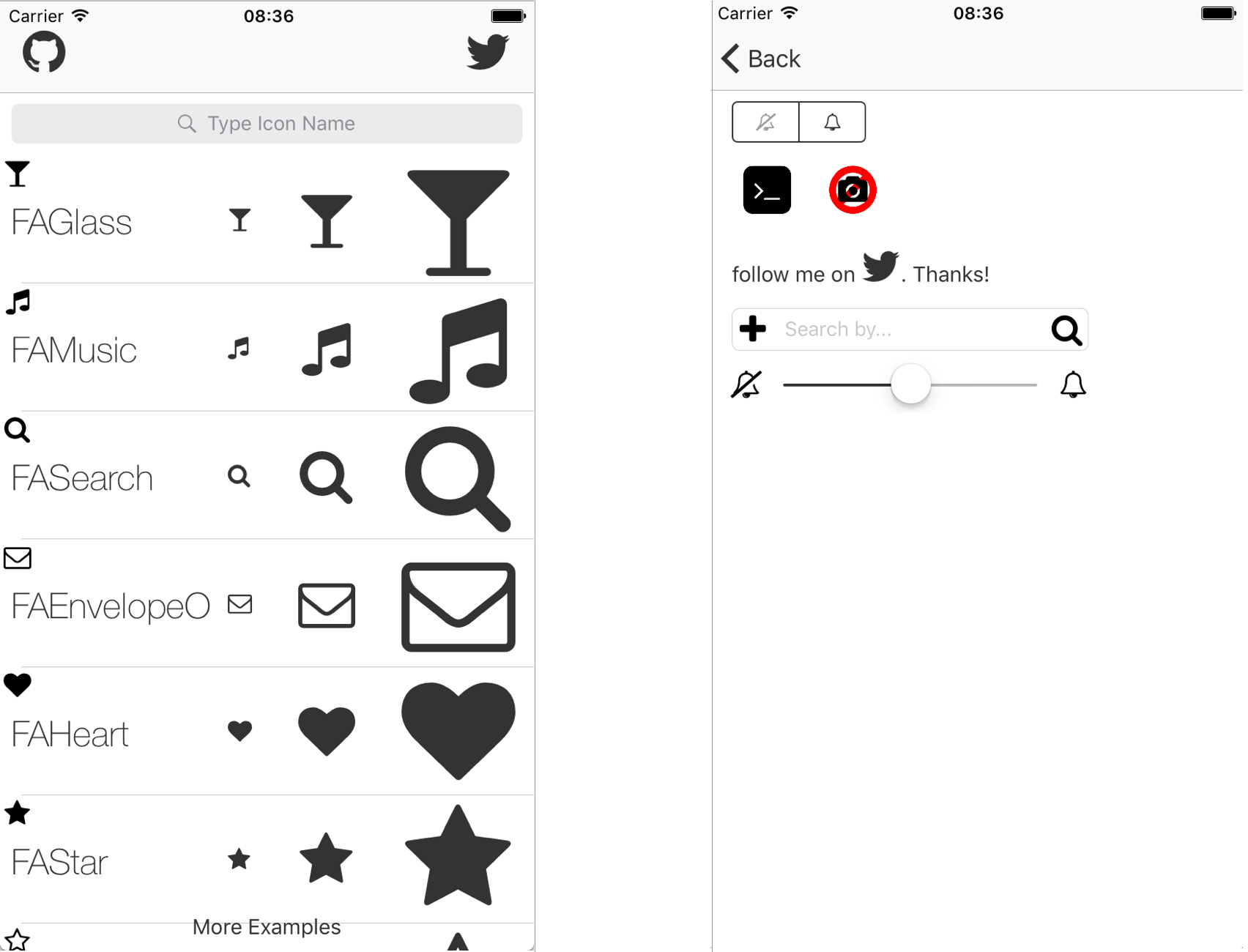
Requirements
- iOS 8.0+
- Xcode 8
Installation
CocoaPods
CocoaPods is a dependency manager for Cocoa projects.
CocoaPods 0.36 adds supports for Swift and embedded frameworks. You can install it with the following command:
$ gem install cocoapods
To integrate Font Awesome Swift into your Xcode project using CocoaPods, specify it in your Podfile:
source 'https://github.com/CocoaPods/Specs.git'
platform :ios, '8.0'
use_frameworks!

pod 'Font-Awesome-Swift', '~> 1.7.2'
Then, run the following command:
$ pod install
Do not forget to import to your swift files where you want to use this library:
import Font_Awesome_Swift
Check branches swift-2.2, swift-2.3 or swift-3
Manually
- Copy
FAIcon.swiftandFontAwesome.ttffiles into your project - Check to import
FontAwesome.ttfin project, "Project" > "Target" > "Copy Bundle Resources"
Usage
Super easy way how to add an icon.
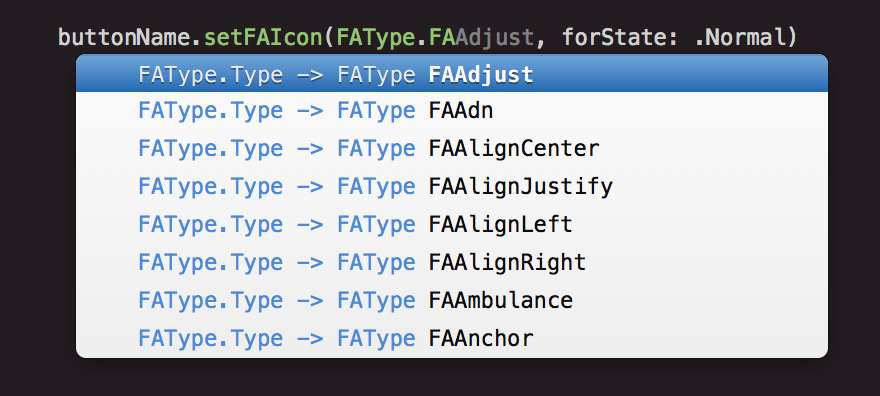
UIImage
For Stacked images, please refer Stacked Icons
    UIImage.init(icon: .FATwitter, size: CGSize(width: 35, height: 35))

    // Change colors
    UIImage.init(icon: .FATwitter, size: CGSize(width: 35, height: 35), textColor: .red, backgroundColor: .black)

    // Stacked Images With Bigger Background
    UIImage.init(bgIcon: .FASquareO, bgTextColor: .white, topIcon: .FATwitter, topTextColor: .white, bgLarge: true)
    UIImage.init(bgIcon: .FACircle, bgTextColor: .black, topIcon: .FAFlag, topTextColor: .white, bgLarge: true)

    // Stacked Images With Smaller Background
    UIImage.init(bgIcon: .FACamera, bgTextColor: .black, topIcon: .FABan, topTextColor: .red, bgLarge: false)

    // Stacked Images With Bigger Background and Custom Size
    UIImage.init(bgIcon: .FASquare, bgTextColor: .black, topIcon: .FATerminal, topTextColor: .white, bgLarge: true, size: CGSize(width: 50, height: 50))
UIImageView
    imageView.setFAIconWithName(icon: .FATwitter, textColor: .blue, backgroundColor: .gray)

    imageView.setFAIconWithName(icon: .FATwitter, textColor: .blue)
UILabel
    labelName.FAIcon = .FAGithub

    labelName.setFAIcon(icon: .FAGithub, iconSize: 35)

    labelName.setFAText(prefixText: "follow me on ", icon: .FATwitter, postfixText: ". Thanks!", size: 25)

    // Bigger icon:
    labelName.setFAText(prefixText: "follow me on  ", icon: .FATwitter, postfixText: ". Thanks!", size: 25, iconSize: 30)

    labelName.setFAColor(.red)
UIButton
    buttonName.setFAIcon(icon: .FAGithub, forState: .normal)

    // Set icon size
    buttonName.setFAIcon(icon: .FAGithub, iconSize: 35, forState: .normal)

    buttonName.setFAText(prefixText: "follow me on ", icon: .FATwitter, postfixText: ". Thanks!", size: 25, forState: .normal)

    // Bigger icon
    buttonName.setFAText(prefixText: "follow me on ", icon: .FATwitter, postfixText: ". Thanks!", size: 25, forState: .normal, iconSize: 30)

    // Change color:
    buttonName.setFATitleColor(color: .red, forState: .normal))
UIBarButtonItem
    // Standard font size
    barName.FAIcon = .FAGithub

    // Custom font size
    barName.setFAIcon(icon: .FAGithub, iconSize: 35)

    barName.setFAText(prefixText: "follow me on ", icon: .FATwitter, postfixText: ". Thanks!", size: 25)

    barName.tintColor = .red
UITextField
    // Right View Icon
    textfield.setRightViewFAIcon(icon: .FASearch, rightViewMode: .always, textColor: .red, backgroundColor: .clear, size: nil)

    // Left View Icon
    textfield.setLeftViewFAIcon(icon: .FAPlus, leftViewMode: .always, textColor: .red, backgroundColor: .clear, size: nil)
UISegmentedControl
segmentedControl.setFAIcon(icon: .FATwitter, forSegmentAtIndex: 0)
UIStepper
    stepper.setFABackgroundImage(icon: .FAGithub, forState: .normal)
    stepper.setFAIncrementImage(icon: .FABellO, forState: .normal)
    stepper.setFADecrementImage(icon: .FABellSlashO, forState: .normal)
UITabbarItem
  tabBarController?.tabBar.items?.first?.setFAIcon(.FATwitter)

  // Options to change selected and unselected color
  tabBarItem.setFAIcon(icon: .FATwitter, size: nil, textColor: .red, backgroundColor: .black, selectedTextColor: .yellow, selectedBackgroundColor: .white)

  // Options to change selected and unselected color with specific size
  tabBarItem.setFAIcon(icon: .FATwitter, size: CGSize(width: 35, height: 35), textColor: .red, backgroundColor: .black, selectedTextColor: .yellow, selectedBackgroundColor: .white)
UISlider
  // Change minimum or maximum value image
  slider.setFAMinimumValueImage(icon: .FABellSlashO)
  slider.setFAMaximumValueImage(icon: .FABellO)

  // change minimum or maximum value image with a specific size
  slider.setFAMinimumValueImage(icon: .FABellSlashO, customSize:  CGSize(width: 35, height: 35))
  slider.setFAMaximumValueImage(icon: .FABellO, customSize:  CGSize(width: 35, height: 35))
UIViewController
  // Change navigation title
  FATitle = .FATwitter
Author
Patrik Vaberer, [email protected]
Licence
Font Awesome Swift is available under the MIT license. See the LICENSE file for more info.
Explorar proyectos relacionados
Cargando…