
Likely7/Veyra-NRVideo
Acerca de
Lleva GTA6 de PS5 a 120 FPS con DLSS 5. Un reproductor de vídeo avanzado para Windows y una herramienta de mejora de capturas, con previsualización en tiempo real de vídeos, imágenes y fuentes de tarjetas de captura. Combina Super Resolution con IA, mejora de imagen mediante DLSS5 y Frame Generation para ofrecer una experiencia visual de nueva generación.
Creación y multimediaWhat you can do
- Rebuilt interface: Home, Cinema, Professional List, Nodes, Colour, Export and Settings; Simplified/Traditional Chinese, English, Japanese and Korean.
- Node editing and layered NR: executable connections, independent NR/colour parameters, separate List/Node configurations, sessions and presets.
- PC / Xbox streaming: Moonlight/Sunshine-compatible PC streaming and unofficial experimental Xbox support, alongside PS5, capture cards and screen capture.
- New export workflow: editable ordered queue, trimming, MP4/MKV, multiple audio/embedded subtitle tracks, cancellation/retry and completion sound.
Crecimiento de estrellas medido
- in 24h
- +149
- in 7 days
- +1598
- in 15 days
- +5177
- in 1 month
- Recopilando historial
Cambios netos en períodos que se solapan, no totales diarios. Los datos no disponibles se dejan en blanco. Las estrellas indican interés, no calidad.
README.md
Original
Veyra
作者主页 / Creator: X · @likely2002 | YouTube · @Likely7Ai
视频教程 / Video tutorials: English · YouTube | 中文 · 哔哩哔哩
Veyra 2.2.1 · Download and release notes
Real-time GPU Video Enhancement for Windows
Super Resolution · Denoising · HDR · Frame Generation · Capture · PS5 / Xbox / PC Streaming
Turn local video, capture cards and game streaming into one real-time GPU enhancement pipeline.





178K+ Veyra portable-package downloads (178,996, including historical .7z packages and virtual-camera builds) · 214K+ total GitHub Release asset downloads (214,277 including source archives, checksums and images). GitHub Releases · As of 2026-11-18 (Pacific Time). Download events, not unique users.
⬇ Download Latest Release · 📖 User Guide / Wiki · 🇨🇳 简体中文 · 🐛 Report an Issue
One engine. Any source. Real-time enhancement.
⭐ Star History

Open source · GPL-3.0 · Windows 11 · C++ · DirectX 12 · NVIDIA & AMD
New-effect cost examples: RTX5070 standard4K anti-aliasing fixtures: FXAA0.15ms, SMAA/MLAA0.30ms. Final single-face mesh beauty:1080p0.93ms,4K1.42ms. Costs vary with content/hardware; no local AMD speedup percentage was measured. Conditions and limits.
📖 English User Guide / GitHub Wiki — installation, software setup, capture card compatibility, troubleshooting, and community-tested solutions. 中文知识库(飞书).
Latest update · 2.2.1
- Capture shows the original picture while enhancement loads. Improved capture recovery, two 60-to-30 modes, and odd-crop recording and replay.
- Added video denoise, NVIDIA Image Scaling, AMD VideoSR, downloadable ANR and RIFE support. Refined crosshair and HUD compositing.
- Faster live captions with adjustable styling, plus fixes for PS5 streaming, virtual camera setup and player controls.
Full 2.2.1 changes and test results
Highlights
NR controls: each NR layer's Enhancement delta → Total strength now reaches 5. Picture control defaults off; enable it and select Automatic or Manual. Automatic values now adapt separately to styles 0/1/2, with an amount slider (0 retains raw strength, 1 applies full correction). The nine manual controls cover hue, chroma, neutral tint, source color retention, lightness retention, shadows, highlights, local compression and temporal stability. Use this style’s automatic values provides a manual starting point. Switching modes keeps manual values; turning control off preserves the original residual algorithm. Five extrapolates one inference's residual, and protection reduces the corresponding changes; it cannot promise full gain five with no artifacts on every video. Presets, List/Node sessions, PNGs and video exports share the settings. Local validation and known limits.
- Rebuilt interface: Home, Cinema, Professional List, Nodes, Colour, Export and Settings; Simplified/Traditional Chinese, English, Japanese and Korean.
- Node editing and layered NR: executable connections, independent NR/colour parameters, separate List/Node configurations, sessions and presets.
- PC / Xbox streaming: Moonlight/Sunshine-compatible PC streaming and unofficial experimental Xbox support, alongside PS5, capture cards and screen capture.
- New export workflow: editable ordered queue, trimming, MP4/MKV, multiple audio/embedded subtitle tracks, cancellation/retry and completion sound.
- Enhancement and compatibility: SF310.9.16 performance/legacy models, NVIDIA original for RTX50 and AMD lmxxf, DLSS/XeSS/FSR options, capture improvements and a persistent OBS Game Capture switch with restart confirmation. Full details are in the Release.
Install and upgrade
Download the Veyra 2.2.1 Setup EXE or portable ZIP for Veyra's active GPU. Run Setup, or extract the portable ZIP with Windows or 7-Zip into a new writable folder and launch Veyra.exe. You need one GPU package to run the application; source assets are only for rebuilding. Windows 11 x64 and DirectX 12 are required; Qt and approved runtimes are included, while GPU/capture drivers are installed separately. Backend hardware requirements vary; most local tests used an RTX 5070.
Start with effects off, check picture/sound, then enable effects individually. High resolution, layered NR and frame generation increase GPU/VRAM requirements.
The 1.4.4 UI guide is obsolete. Version 2.0 uses separate settings. Retain the old version for rollback; do not overwrite the new package with old veyra.ini, an entire runtime_local folder or mixed DLLs.
Keep your settings when upgrading. Close Veyra and run the matching Setup to update an existing installation in place. For a new installation or portable folder, copy runtime_local/user-data-2.0.0 and custom runtime_local/luts from the old copy. Settings → About shows the data location for custom paths.
Using Veyra
Sources and pages
Home offers files, capture card, PS5, PC, Xbox and screen capture. Files/images can also be dropped into the window. Move to the bottom edge to reveal navigation between Home, Cinema, Professional, Colour, Export and Settings.
Screen capture is for viewing video from a window or display. Choose Continue to capture in the notice to select a source. Mouse click-through has been removed. For PC games, older titles and emulators, see Magpie Experimental.
- Cinema prioritises the picture with a floating source/transport/audio/fullscreen bar, optionally hidden in settings.
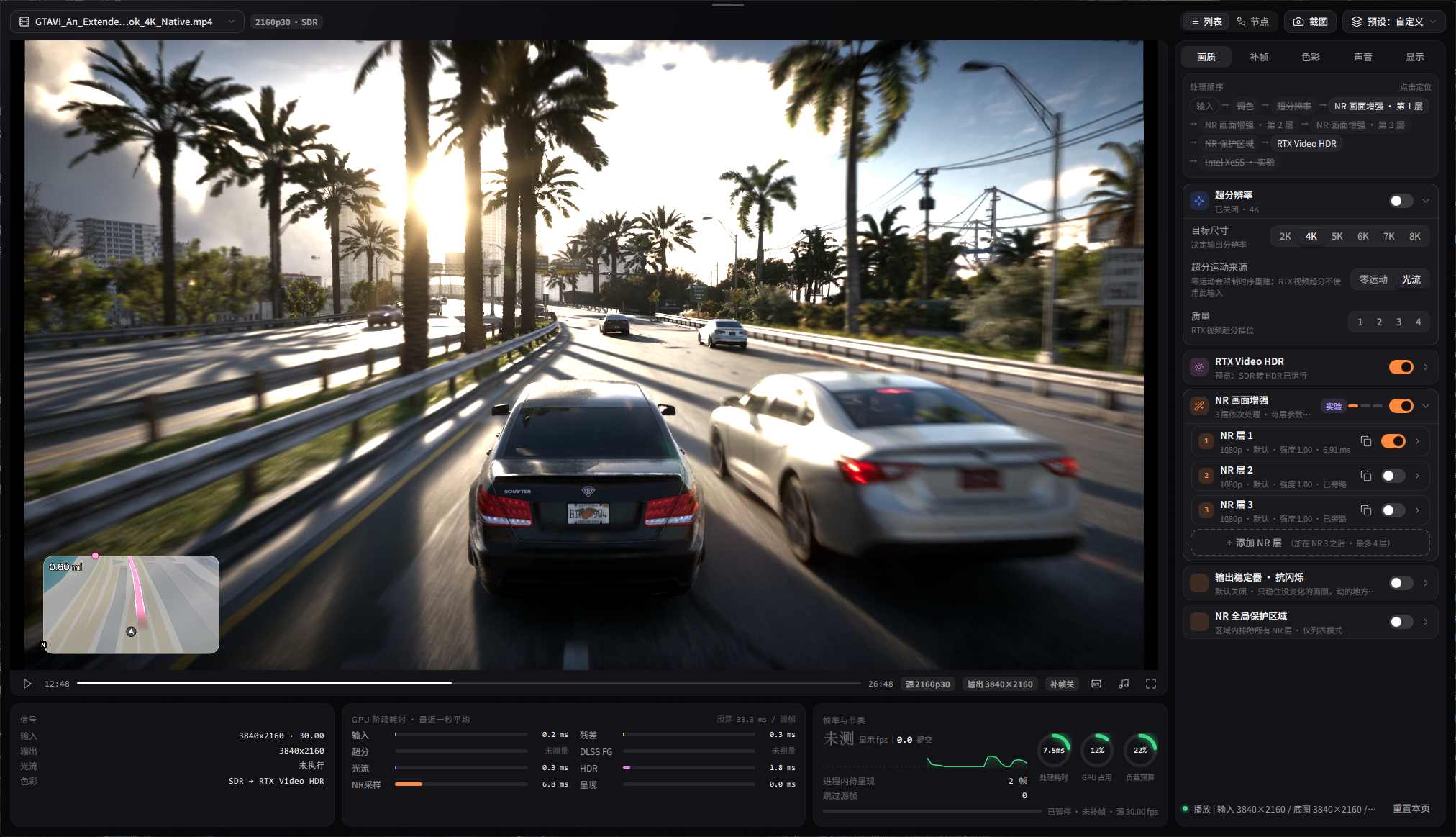
- Professional List has Picture, Frame generation, Colour, Sound and Display tabs. The order strip locates effects; bottom panels report source/output, GPU stage time and load.
- Click a file's picture to pause/resume; left/right arrows seek five seconds. Double-click or use the fullscreen button. The fullscreen top-edge bar switches Cinema/Professional; Home opens quick controls in fullscreen List mode, Ctrl+L locks controls. Shortcuts are configurable.
- Use Screenshot and the preset menu to save pictures and personal settings. No imposed built-in quality presets.
List mode
The NR version selector offers RTX20–50 · SF310.9.16, RTX50 · NVIDIA original and RX 7000 / 9000 · AMD NR (experimental; routed to RedDuke/lmxxf by GPU) in both List and Node mode. SF defaults to performance modelB; disable Use performance model for legacyA. The control is disabled for NVIDIA original; AMD0.44 selects Small when enabled(default) and Original when disabled. Model selection is saved per layer. Lecram/oldSF-v2 settings migrate to SF. Unsupported versions remain visible but gray; switching supported versions updates the entire NR chain. AMD NR requires driver HIP 7. Video export uses at most internal 1080p inference and composites to the original output size; this is not native 4K NR and image exports retain the native model pixel budget. Version2.1.1 processes AMD native-HDR NR through an SDR-linear proxy and reconstructs the result over the HDR base (2.1.1 details). See current runtime identities.
Select List at the top of Professional. Enable SR, NR or RTX Video HDR as needed. Up to four NR layers have independent internal resolution, strength and parameters. The master switch disables all layers and restores their previous enabled states.
List mode's global NR protection region excludes every NR layer inside it while retaining non-NR effects, useful for HUDs/subtitles. Colour controls include basic adjustments, curves, mixer, wheels, LUTs and colour presets.
Choose a supported FG backend/multiplier and check cadence, display sync, low-queue mode and output cap. Original/enhanced comparison temporarily pauses FG; leaving it resumes FG. Submitted FPS is not physical display FPS or end-to-end latency.
Node mode — build a processing chain
Select Nodes at the top of Professional. This is an executable chain editor:
- Keep a valid connected path from input to output. Right-click blank canvas or choose Add node.
- Drag an output port to an input port, or click the two ports in order. Drop a node on a wire to insert; drag it away or release with Alt held to disconnect.
- Edit parameters inside nodes. NR/colour nodes have independent settings and supported positions before/after SR. Right-click to delete, duplicate or reset. A duplicate is an independent disconnected copy until connected.
- Middle-drag to pan, wheel to zoom. Fit/auto-layout organise the graph. “Draft not running” means invalid/disconnected edits, not that every visible node executes.
- Optical flow is shared after input; SR is a single instance. RTX Video HDR stays before final FG; select one DLSS/XeSS/FSR backend. This is not an arbitrary branching/mixing graph.
- List and Node settings, presets and sessions are separate. Returning to List restores its settings and retains the node graph. Switching rebuilds processing and may briefly pause the picture.
Node mode does not support offline export or List mode's global NR protection region. Switch to List and verify its effects before exporting; graphs are not silently converted.
Capture and streaming
| Source | Setup |
|---|---|
| Capture card | Select device, resolution, rate, then a supported pixel format and audio input. Close competing apps. Match PQ/HLG/709 and Limited/Full to the signal. Magewell Pro Capture has a dedicated low-latency option. |
| PS5 | Enable Remote Play and discover/enter the console IP. Click Get Account ID to open the Account ID guide (Sony's own sign-in via psn-account-id or chiaki-ng; never paste your NPSSO cookie into a third-party site), copy the numeric or Base64 Account ID into Veyra, then enter the console’s eight-digit pairing code. Saved consoles reconnect directly. |
| PC | Install/configure Sunshine yourself; discover/add the host, PIN-pair, select app/desktop and connect. Sunshine is not bundled. |
| Xbox | Follow device-code sign-in and select a console with remote features enabled. Unofficial/experimental; account, service and console restrictions apply. |
| Screen | Select a window/display; avoid recursively capturing Veyra itself. |
For Capture card → PS5 controller control, pair the console first. Third-party streaming software can relay this PC's enhanced picture and forward remote input. Enable background controller forwarding and audio monitoring as needed. See the 2.0.8 update for setup and hardware limits.
Pausing capture/streaming freezes the preview while keeping the session, not the host game. Physical hardware, networks, HDR and controllers need individual validation.
Export
Use List mode, confirm effects, then open Export. Add/reorder files, edit individual jobs, trim, select MP4/MKV and encoding quality, and keep all or selected audio/subtitle tracks.
Keep all skips unsupported tracks with a notice; explicitly choosing an incompatible track is an error. Pause/cancel/retry and completion sound are available. Defaults are VBR 8 Mbps and closing playback on export to free GPU resources, both adjustable. Live FG does not imply every backend supports offline FG; follow accepted export settings.
OBS and settings
For OBS Game Capture, enable Settings → General & appearance → OBS Game Capture compatibility. Saved immediately: Yes restarts now; No applies next launch. Finish exports before restarting. Software UI rendering simplifies some shadows/blur; video enhancement stays on GPU. Game Capture targets video; use Windows 10 (1903+) Window Capture for the whole UI.
Settings → General & appearance → Resume last source at startup is opt-in. It restores the movie position or saved capture device, format, rate and audio selection. Startup page is configurable. Use the playback-speed button in Cinema or Professional for 1× / 1.5× / 2× / 3×; this does not speed up live capture/streams or offline exports.
Monitoring compatibility defaults to Auto: when RTSS (MSI Afterburner OSD) is running at launch, the interface uses software rendering and its OSD appears on the video only. If RTSS starts later, restart Veyra when prompted. Using RTSS with OBS Game Capture requires RTSS’s “Use Microsoft Detours API hooking” option for Veyra, or use OBS Window Capture.
Settings: select a compute GPU, optionally enable RTX50 DLSS performance mode or variable refresh, and check update status. Startup checks show a temporary banner only for a newer release. Douyin Live Companion detection uses a software interface at launch and temporarily caps requested realtime GPU priority at High while it is running, restoring the requested value afterwards.
Settings include language/scale, shortcuts, monitoring GPU, audio devices and component info. Report GPU/driver, media, effects, time and logs/veyra-qml.log; include a crash .dmp if available. Review private data before sharing.
Limitations
RTSS compatibility was verified locally with RTSS 7.3.7 on an RTX 5070; GamePP and other overlay/hardware combinations remain unverified. Real-console Xbox long runs and console/VRR capture still need field retesting. RTX 30/40 community NR/FG, FSR 4 ML hardware, some NR TDR/VRAM-growth reports and cross-device streaming retain unresolved/unverified cases. See the Release. Community runtimes are not vendor certification or a complete official DLSS 5 integration.
Architecture
flowchart TD
    UI[Qt Quick / QML pages] --> Bridge[Shared Bridge / settings / sessions / presets]
    Sources[Files / capture / PS5 / PC / Xbox / screen] --> Source[FrameSource: frames, timestamps, colour]
    Bridge --> Graph[Shared EnhanceGraph: valid chain]
    Source --> Graph
    Graph --> Effects[Multiple NR / single SR / colour / Video HDR]
    Effects --> Live[Live preview: optional final FG]
    Live --> Present[Native D3D12 video window]
    Effects --> Export[List offline export / screenshots]
    Export --> Sink[Encoding and muxing / image files]
    Bridge --> Queue[Export queue: per-job settings snapshot]
    Queue --> Export
QML renders UI; native D3D12 renders video. List/Nodes share the engine, disconnected drafts do not execute, and export does not record the preview window.
Source and build
ANR host source is traceable; beta runtime files are excluded under upstream restrictions.
Developer entry: current documentation, build and validation, UI code responsibilities. Historical task notes are indexed separately.
Original code: GPL-3.0. The combined Chiaki streaming application is also subject to AGPL-3.0 and its OpenSSL exception (licenses/remoteplay). Third-party notices, 2.2.1 build and corresponding source. Source Git excludes proprietary runtimes/models. Release manifests audit publisher files, not hash-lock user DLL replacements.
Support



Patreon 主页查看作者动态;☕ 咖啡按钮直达 US$5 赞助页面。
Visit the creator page for updates, or open the US$5 coffee support page.


Left: optional donation, no feature restrictions. Right: community group 15; QR valid before 2026-11-26 as shown. Check repository updates after expiry.
Explorar proyectos relacionados
Cargando…